
New Web App design
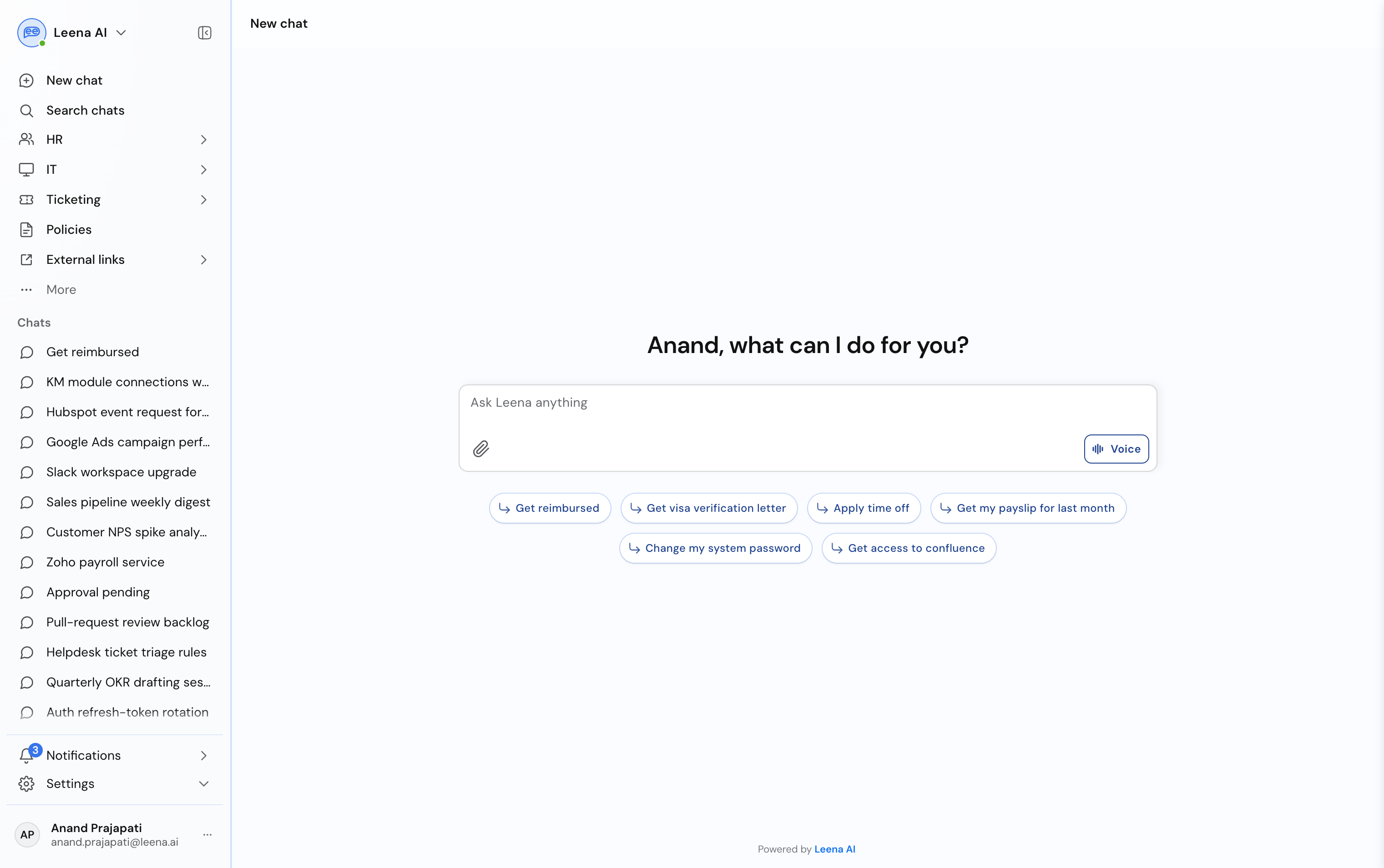
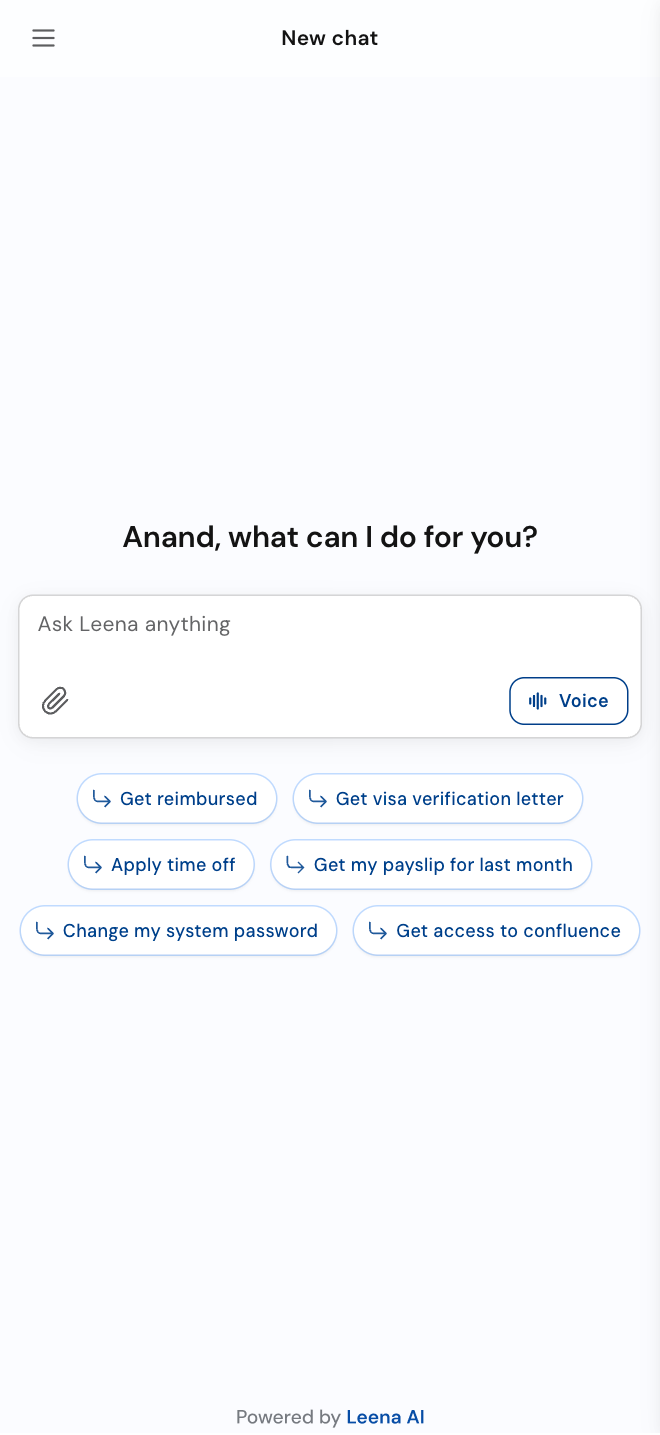
We've refreshed the design of the app your employees use to work with their AI colleagues — a cleaner layout, simpler navigation, and a neutral colour scheme that keeps attention on the conversation.
Available now — ask us to switch it on for a bot you choose.
December 2026 — becomes the standard design for every bot with Multiple Chats enabled.
Applies to the Web App, Teams TabApp, embedded widget, and mobile and desktop apps.
How the rollout works
The new design sits behind a setting, so nothing changes for your employees until you ask us to switch it on.
We'd suggest starting on UAT with a small group. This is the window where we can still act on your feedback, and it closes in December.
The setting is removed and the new design becomes the only design for bots with Multiple Chats enabled.
Anything you haven't switched over by then moves across automatically.
To switch it on, contact your Leena SPOC — your implementation PM if you're still onboarding, or your CSM once you're live — and tell them which bot you'd like to trial it on.
Only bots with Multiple Chats enabled are eligible. See Which bots are eligible below.
Why we're making this change
Your AI colleagues do more than they used to — HR, IT, ticketing, policies, approvals. As they took on more, the controls around the conversation grew too, and ended up split between a bar across the top and a panel down the side.
This refresh brings them together and gives the conversation more room.
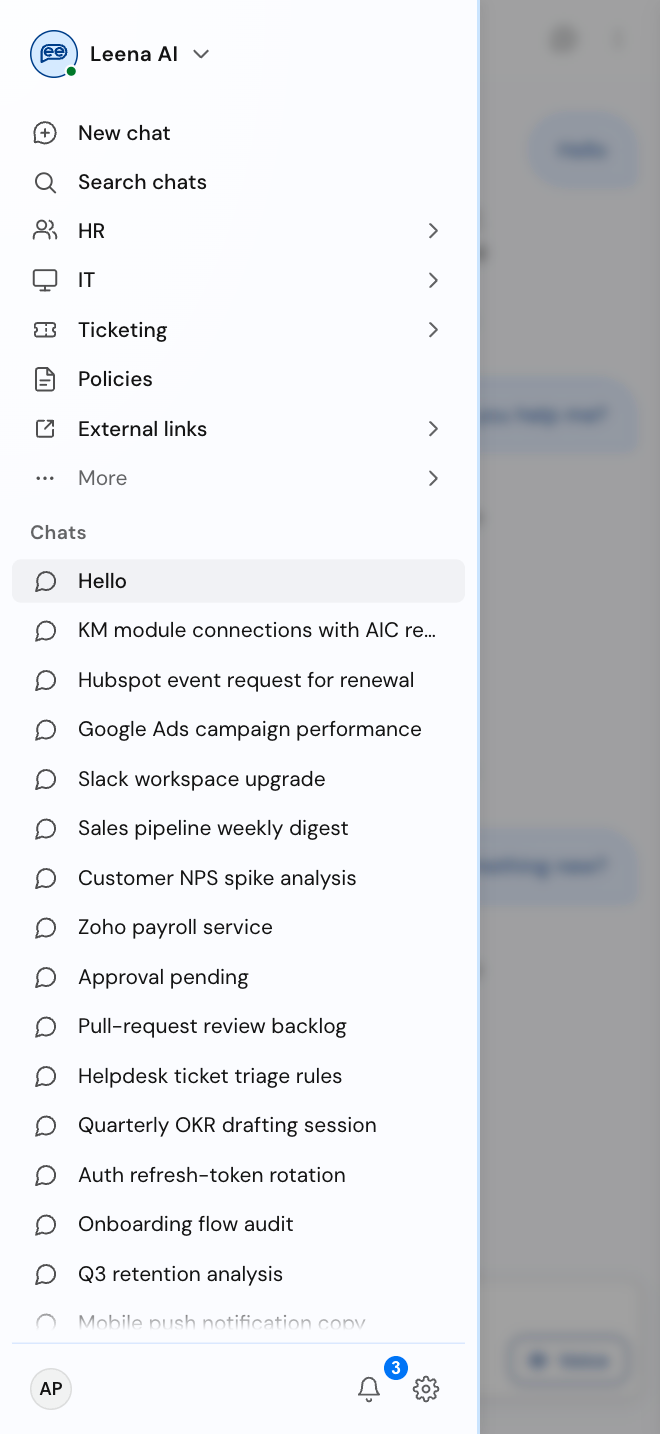
The top bar is gone, and the side panel folds into a narrow strip of icons when you don't need it.
Menu links, past chats, notifications, settings and your profile all sit together in the side panel.
A neutral palette and a plain background give text stronger contrast against the page.
Keyboard shortcuts help everyone move around faster, and matter most to employees who navigate by keyboard.
Menu links group into expandable sections, so the list stays short as you add more to your AI colleagues.
One design across the Web App, Teams TabApp, embedded widget, and mobile and desktop apps — so employees see the same thing wherever they work.
What's changing
| What | Today | New design |
|---|---|---|
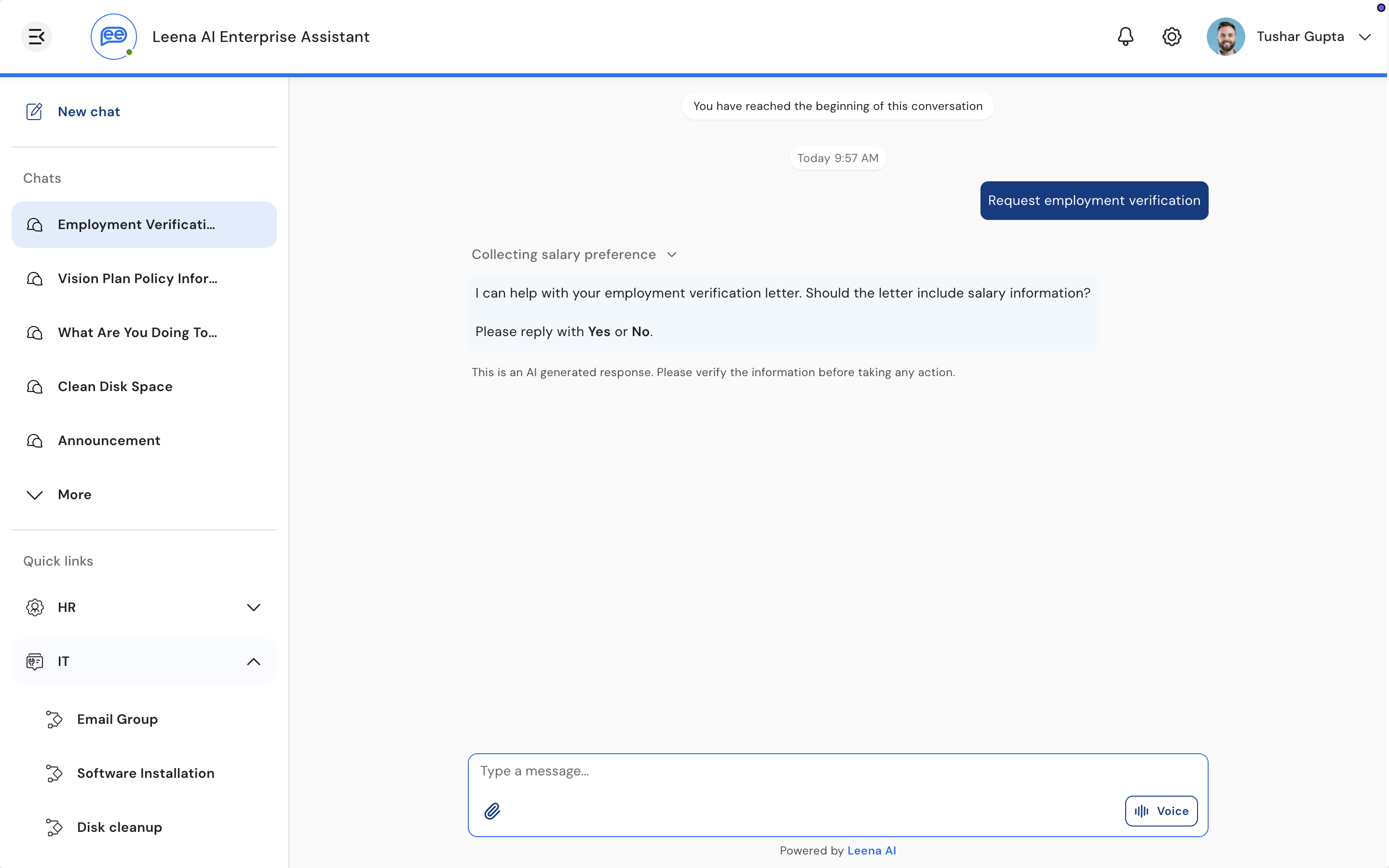
| The bar across the top | Holds the logo, notifications, settings and your profile | Gone. All four move into the side panel |
| The side panel | You can show it or hide it, nothing in between | Also folds into a narrow strip of icons, so menu links stay within reach |
| Menu links | One flat list of quick links | Grouped into expandable sections — for example HR, IT, Ticketing, Policies, External links |
| Bot logo and name | Sit in the bar across the top | Move to the top of the side panel, together with the switcher for changing bots |
| Chat background | A pattern sits behind the conversation | A plain, clean background |
| Colours | Your brand colour is used across buttons and loading indicators | A neutral palette, with your brand colour used more sparingly |
| Keyboard shortcuts | Not available | Available |
| Your name and photo | Top right corner | Bottom of the side panel, alongside your email |
| Voice | Runs in a separate side panel. | Runs inside the conversation, showing its state — connecting, listening, speaking, muted or on hold. |
See the before and after (Chat)
Before
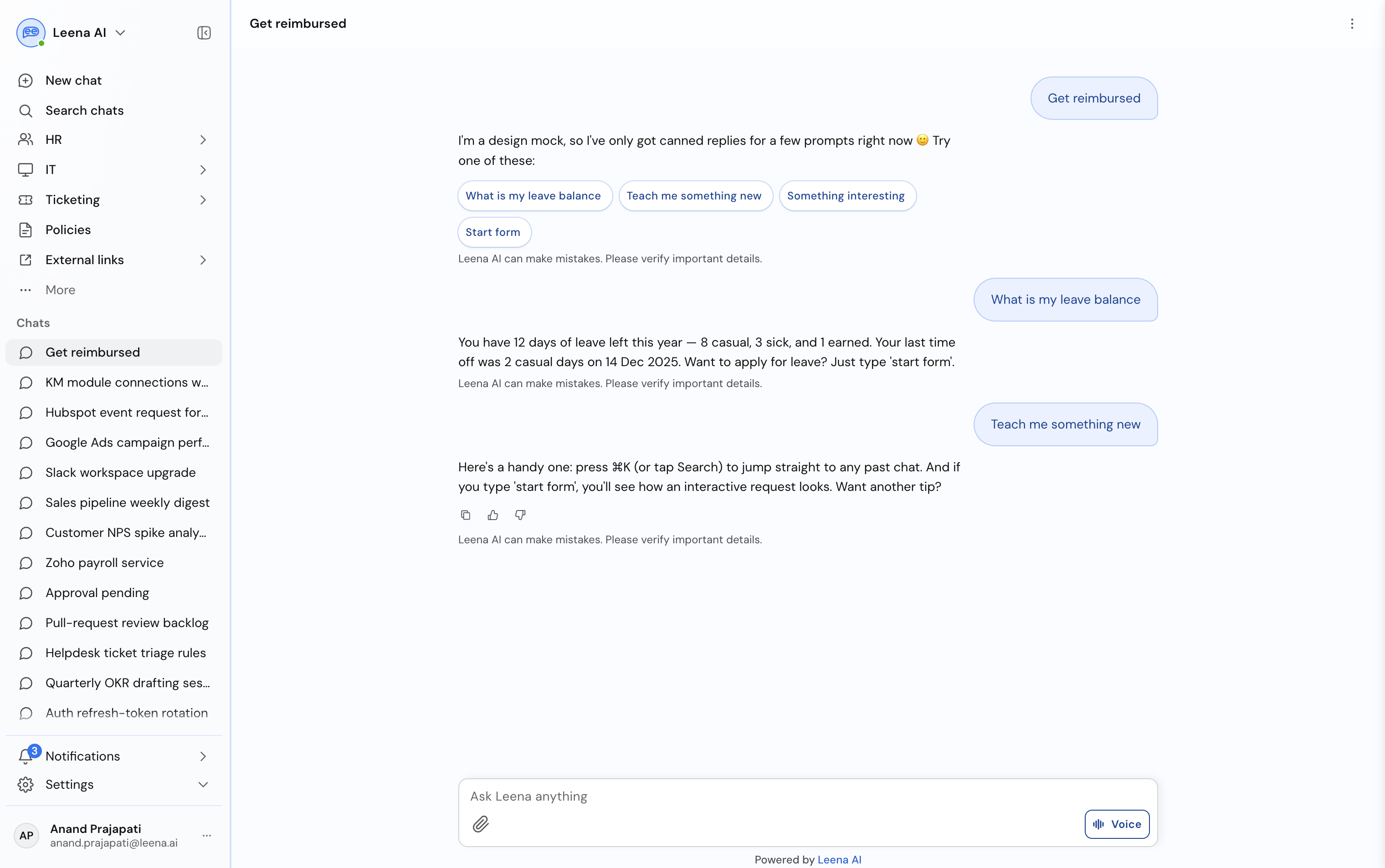
After
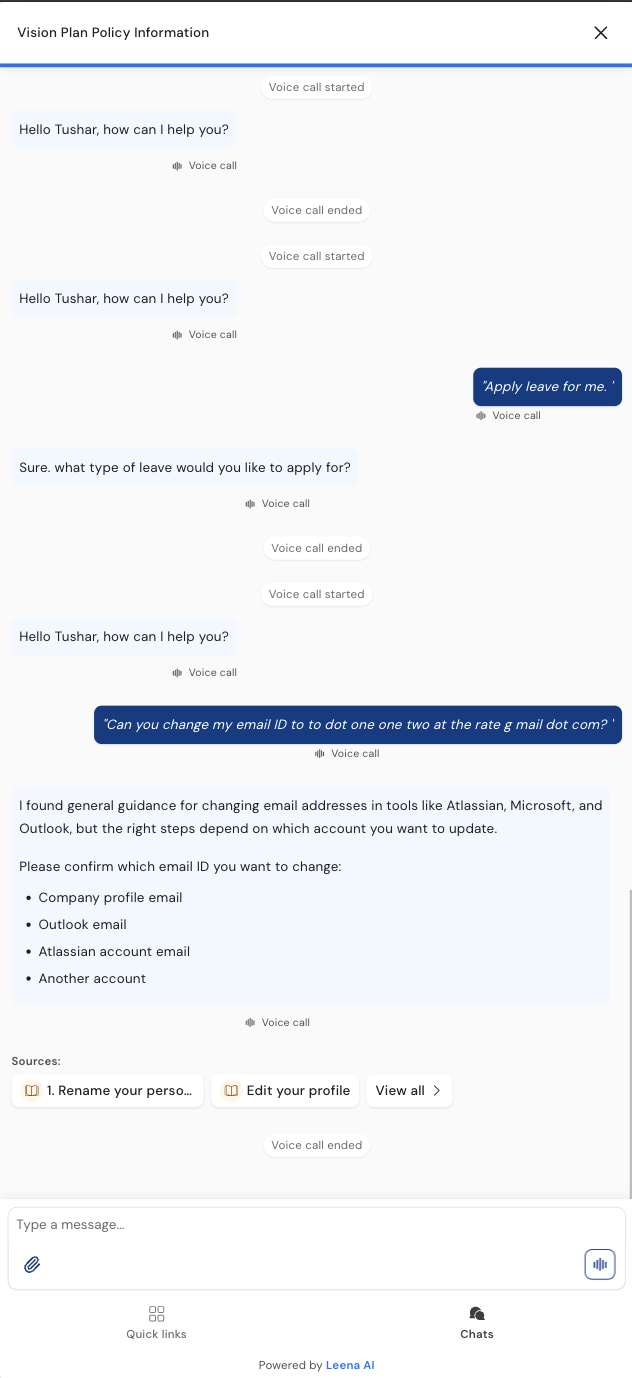
Before
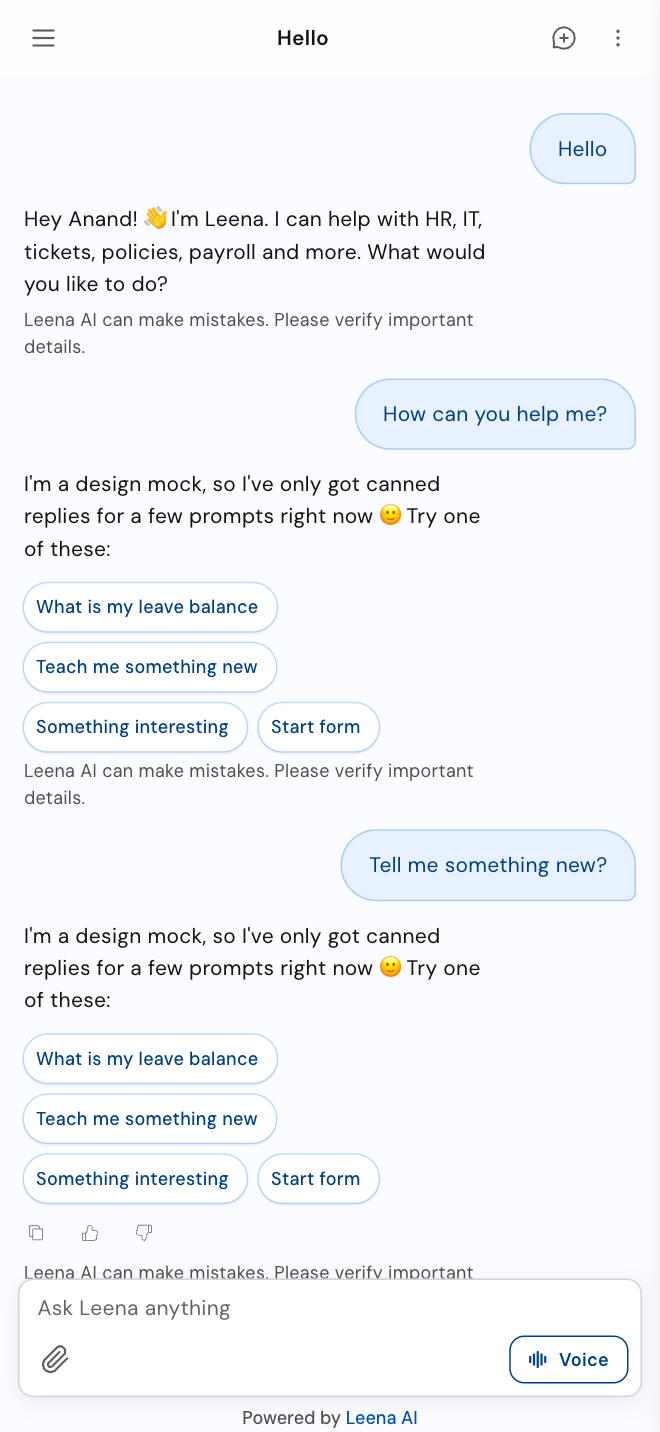
After
See the before and after (Voice)
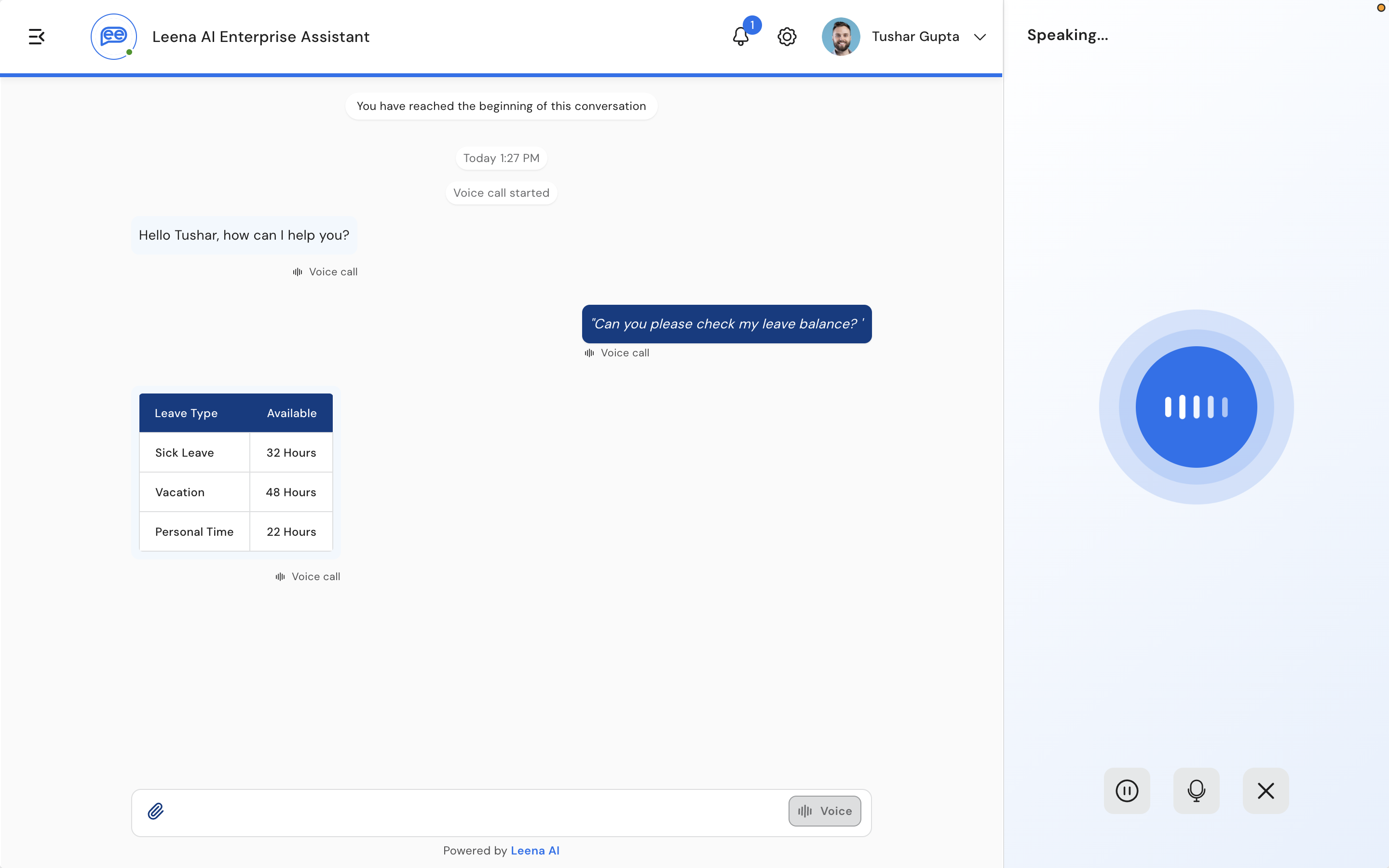
Before
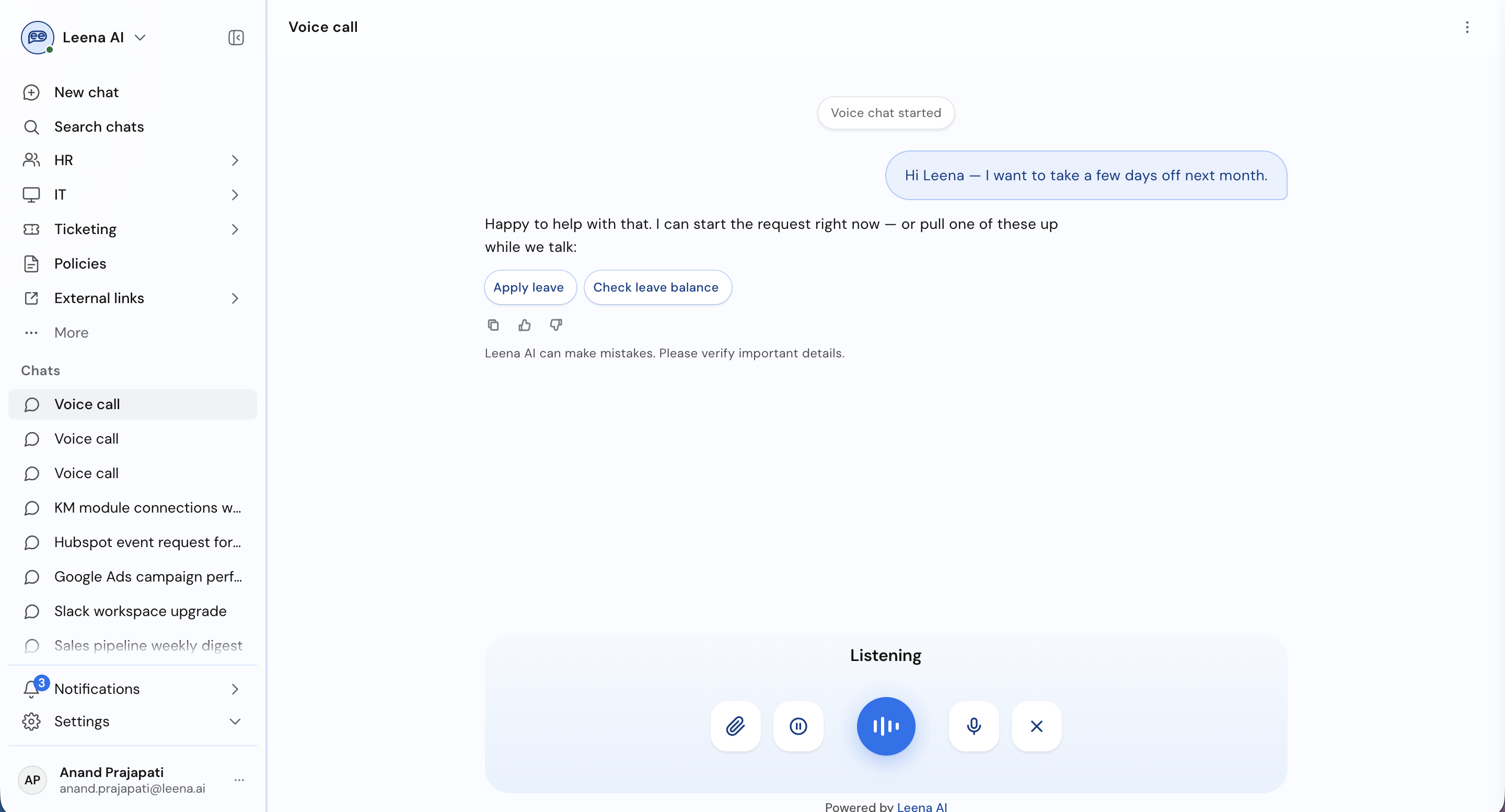
After
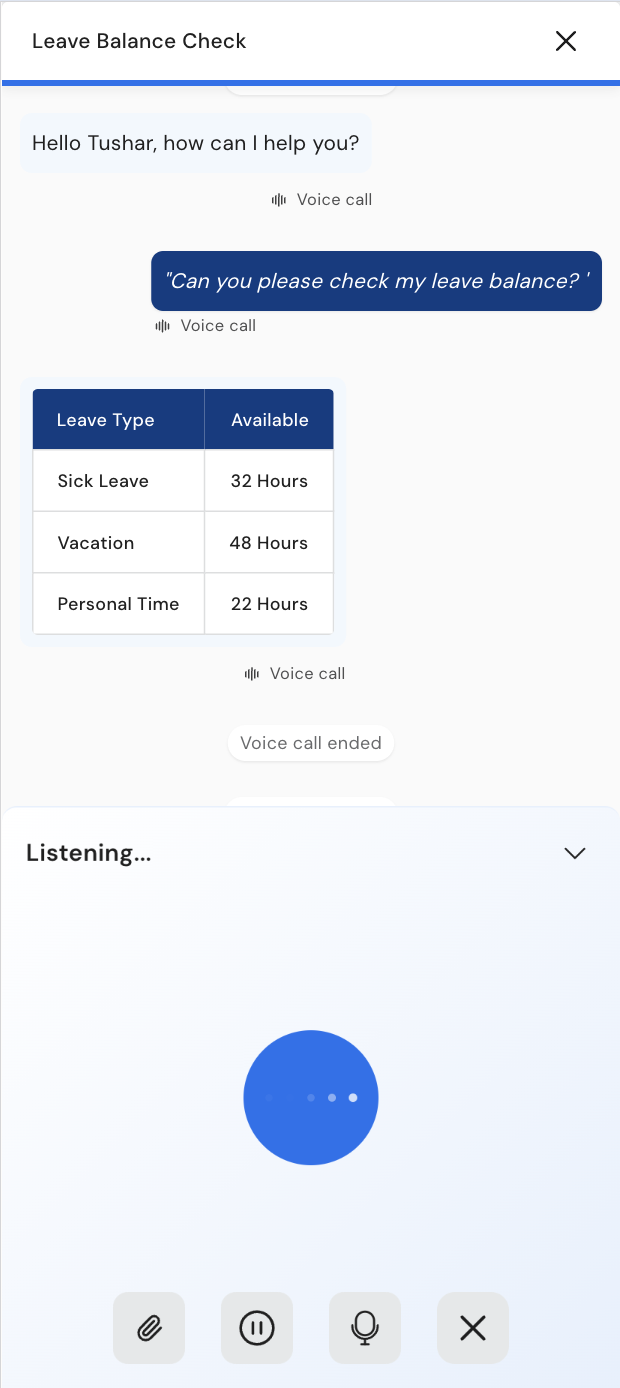
Before
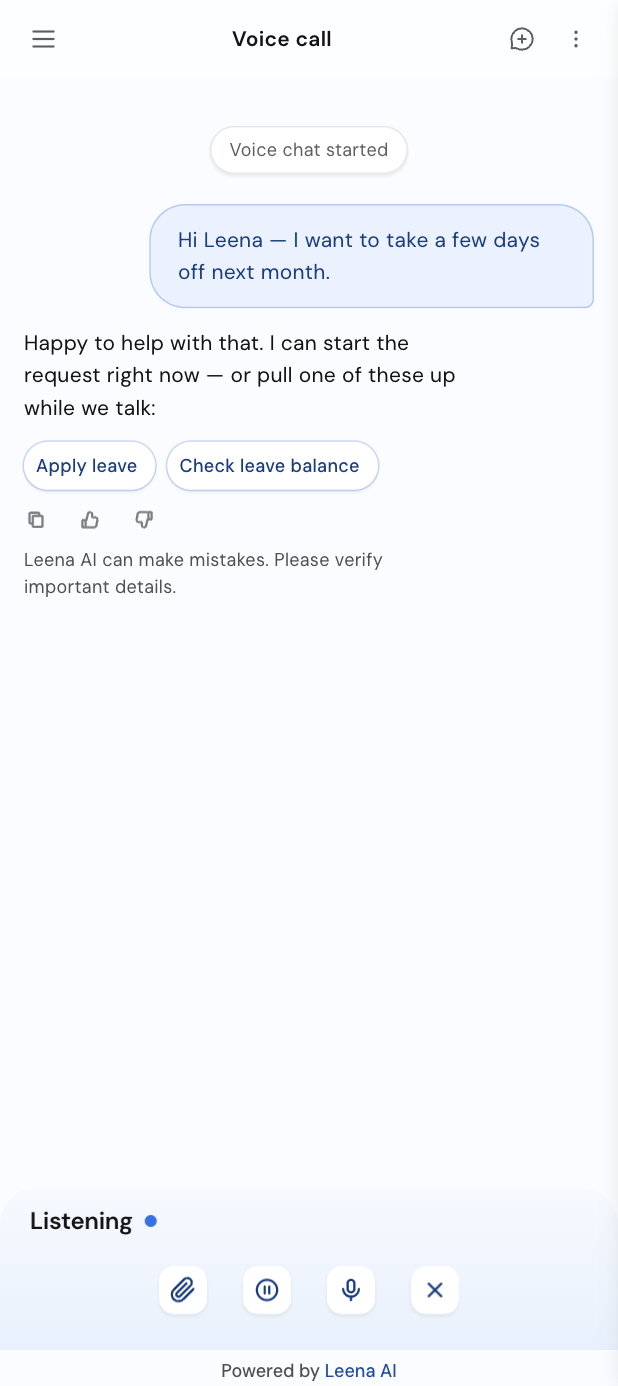
After
What stays the same
Your configuration carries across. These are still yours to set, exactly as today: menu link groups, primary brand colour, the suggestion chips employees see when they start a new chat, sidebar items, bot name and bot avatar.
If you use a custom chat background, it's worth a look. The pattern behind the conversation is being replaced with a plain surface and the surrounding colours become neutral, so a background tuned to today's design may not sit as well against the new one.
Check it while the new design is still optional, so you have time to adjust before December. Your Leena SPOC can review it with you.
What this refresh makes possible
Simplifying the layout and stepping back from brand colour isn't only about today. It clears the way for a few things people have been asking us for.
Search across your chats
With past chats in the side panel, search is the natural next addition — finding an earlier conversation without scrolling back through the list.
Part of the next phase, shortly after this refresh.
Dark mode
Dark mode is one of the most common requests we hear from employees. It wasn't workable while brand colour ran across buttons, loading indicators and message bubbles — a dark theme would have clashed with it.
Moving to a neutral palette is what makes a proper dark theme possible, across the Web App, Teams TabApp, embedded widget, and mobile and desktop apps. It follows once the neutral palette is in place.
Richer elements in chat
A cleaner background also gives us room to put more than plain text in the conversation.
When your AI colleague needs an answer, a quick reply panel appears just above the message box with the options already listed — pick one by clicking or with the arrow keys, or type your own. Replying takes a keystroke instead of a sentence, and longer requests step through one question at a time.
Your AI colleagues will also be able to reply with tables, charts, carousels, and one-tap confirmation, approval and app-connection cards. Everything appears in the employee's language, and on channels that can't show an element, it falls back to readable text so the task can still be completed.
All three are on the roadmap. We'll confirm availability closer to release.
Which bots are eligible
Bots with Multiple Chats enabled.
Bots that aren't on the AI Colleagues (AIC) architecture — including onboarding, offboarding and Engage bots.
These stay on the current design and are unaffected, now and in December.
How to check whether your bot has Multiple Chats enabled
Option 1 — Check the setting in your dashboard (recommended)
- Open your Leena AI dashboard and go to Admin console.
- In the left navigation, expand Leena channels and select Settings.
- Expand the 3. Customise bot user section.
- Scroll to the interaction settings and find the Enable Multiple Chats toggle.
- Toggle is ON → your bot is eligible for the new design.
- Toggle is OFF → your bot isn't eligible yet, and stays on the current design.
- You don't see the toggle at all → your bot isn't on the AI Colleagues (AIC) architecture yet, which Multiple Chats requires. It can't be enabled until that upgrade is done — your Leena SPOC can talk you through it.
The toggle is labelled "If enabled, users will be able to initiate multiple independent chats with the virtual assistant."

Option 2 — Check from the employee's view
Open your Web App as an employee and look at the left side panel. A New chat button means Multiple Chats is enabled; no button means it isn't. This matches the dashboard setting.
Two things to know before you change the setting
- Multiple Chats needs the AI Colleagues (AIC) architecture. If your bot hasn't been upgraded, the setting is unavailable.
- Streaming responses depend on Multiple Chats. Turning Multiple Chats off switches streaming off with it.
Questions
For a walkthrough of the new design, help checking your bot's configuration, or a review of your custom theming, contact your Leena SPOC or Leena AI support.