
Slack: Move to the Agent messaging experience
Slack is retiring its Assistant messaging experience (assistant_view) in February 2027. If your Leena AI Slack app uses it, the app must move to Slack's new Agent messaging experience (agent_view) before then. Leena AI already supports the Agent experience, so there is nothing to rebuild.
The move happens in one agreed change window and has two parts: your Slack admin updates the Leena AI app in Slack's app settings (about 10 minutes), and Leena AI switches your bot over on our side.
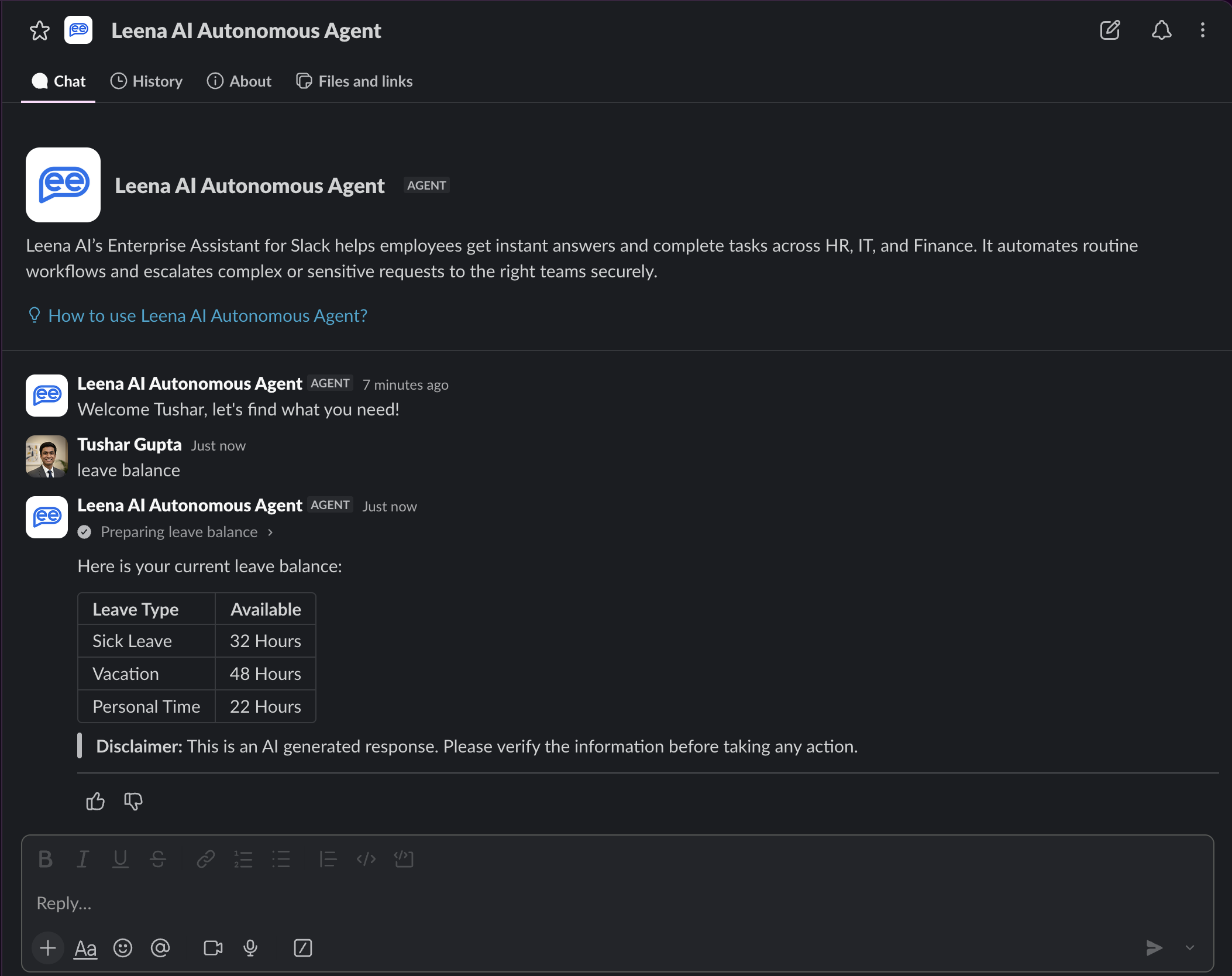
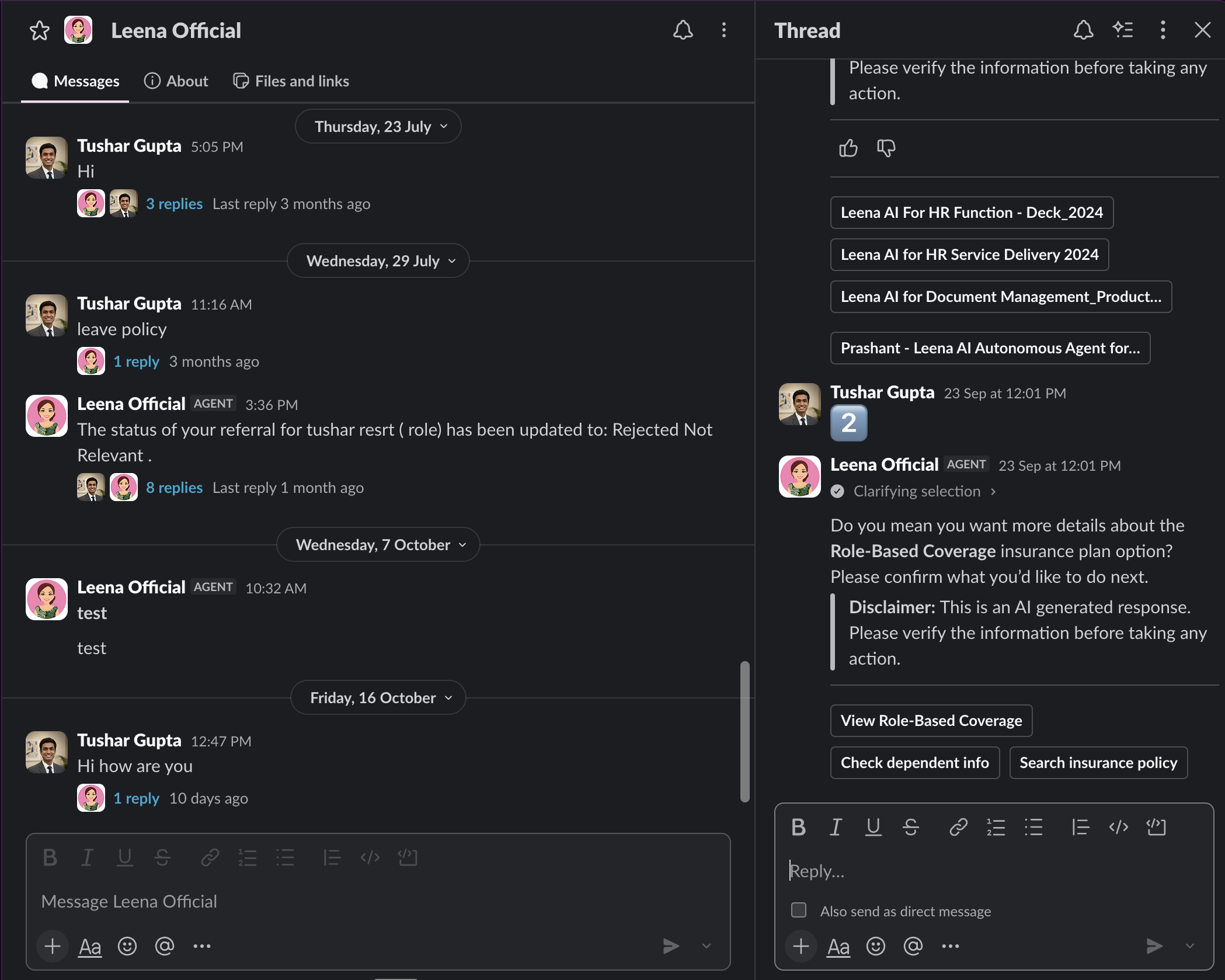
After the switch, employees chat with Leena AI in the regular Messages tab, just like any other direct message. The separate Chat and History tabs go away, each conversation runs in its own thread, and a stop button appears while Leena AI is responding.
Before and after
Here is how Leena AI looks in Slack before and after the switch.
| Before: Assistant experience | After: Agent experience |
|---|---|
 |  |
Key dates
Plan your switch before the end of January 2027 so there is time to test before Slack's deadline.
| Date | What happens |
|---|---|
| February 2027 | Slack deprecates the Assistant messaging experience (assistant_view). |
| October 6, 2026 | Leena AI releases support for the Agent messaging experience. |
| August 20, 2026 | Slack announces the deprecation of assistant_view and the new Agent Sessions API. |
| June 30, 2026 | Slack introduces the Agent messaging experience. New Slack apps can only use agent_view from this date. |
Who is affected
You need to act if your Leena AI Slack app runs on Slack's Assistant experience, where employees see Leena AI with separate Chat and History tabs (the Before screenshot above).
- How to check: open Slack app settings, select your Leena AI app and open the Agent tab. If Slack offers a button to update the app to the Agent messaging experience, your app needs to move.
- Plain direct-message bots: if the Assistant experience was never turned on for your Leena AI app, the deprecation does not affect you. You can still move to the Agent experience with the same steps.
- New Slack setups: Slack apps created after June 30, 2026 can only use the Agent experience. Follow the steps below from the start.
- Channel @mentions: mentioning Leena AI in a channel works the same before and after the switch.
RequirementThe Agent experience on Leena AI runs on Generative AI (AI Colleagues) responses. If your bot does not have Generative AI turned on, contact your Leena AI team before you plan the switch.
Steps for your Slack admin
A Slack workspace admin or a collaborator on the Leena AI Slack app makes these changes in Slack's app settings. No manifest editing is needed.
This change cannot be undoneSlack does not allow an app to switch back from
agent_viewtoassistant_view. Book a change window with Leena AI before you start.
- Book a change window with Leena AI. Contact your Leena AI Customer Success Manager or Leena AI support with your bot name, Slack workspace, and preferred date and time. Pick a low-traffic window.
- Open the Leena AI app in Slack. Go to api.slack.com/apps and select the Leena AI app installed in your workspace.
- Switch to the Agent messaging experience. Open the Agent tab in the left navigation and select the button to update the app. This switches every employee to the new experience at the same time.
- Review the app description. Your existing description carries over to the Agent experience and now appears at the top of the Messages tab. Leena AI no longer posts a greeting message, so make sure the description tells employees what they can ask.
- Add two new bot events. Under Event Subscriptions > Subscribe to bot events, add
app_home_openedandagent_session_stopped. Keepapp_mention,app_uninstalled,link_sharedandmessage.im. You can removeassistant_thread_startedandassistant_thread_context_changed, because Slack no longer sends them for direct messages in the Agent experience. - Check App Home. Under App Home, make sure the Messages Tab is on and employees are allowed to send messages from it.
- Save, and reinstall if prompted. Save your changes. If Slack shows a banner asking you to reinstall the app, reinstall it to your workspace. If the app's Bot User OAuth Token changes as a result, include the new token when you contact Leena AI in the next step so we can reconnect the app before switching your bot.
- Tell Leena AI the Slack change is done. We then switch your bot on our side (see What Leena AI does).
- Ask employees to hard refresh Slack. On desktop, press Ctrl+Shift+R (Windows, Linux) or Cmd+Shift+R (Mac). On mobile, close and reopen the Slack app.
What Leena AI does
The Leena AI platform has supported the Agent experience since the October 6, 2026 release. The only Leena-side step is switching your bot over during your change window. There is nothing to change in the Leena AI Admin Console; our team does this for you.
- Confirm readiness. We check two bot settings that Leena AI manages for you: Generative AI (AI Colleagues) responses must be on, and response streaming must be on. Without streaming, answers still arrive, but the stop button cannot cancel a request.
- Switch your bot to the Agent experience. We switch your bot right after your Slack admin finishes. Leena AI does not pick up this change from Slack automatically, so both sides must switch in the same window.
- Verify with you. We run a test conversation with your admin and go through the verification checklist.
Once your bot is switched, Leena AI handles the new Slack behavior for you:
- Suggested prompts: when an employee opens the Messages tab, Leena AI shows up to 4 prompts under "Try these prompts". Prompts are personalized to each employee from your AI Colleagues' capabilities, the same ones shown on the Leena AI Web App welcome screen, and refresh at most once a minute per employee.
- One thread per conversation: each new message starts its own thread. Follow-ups in that thread keep their context, including multi-step flows such as applying for leave.
- Streaming, working steps and stop: answers stream in with a live status and the steps Leena AI is working through. The stop button cancels the request in progress.
- Everything else carries over: thumbs up and down feedback, buttons, file uploads and channel @mentions work as before. Voice notes work when speech-to-text is turned on for your bot.
You do not need to change any code or API calls. Leena AI manages the Slack API changes that come with the Agent experience.
If you reconnect or reinstall the Slack app laterDisconnecting and reconnecting the Slack app in the Leena AI Admin Console, or uninstalling it from your Slack workspace, resets your bot's Slack settings. Leena AI then falls back to the basic direct-message style. Let us know and we will switch your bot back to the Agent experience.
What employees will notice
After one hard refresh, Leena AI looks and feels like a regular Slack direct message. Employees need no training, only a short heads-up.
| Area | Before: Assistant experience | After: Agent experience |
|---|---|---|
| Where they chat | Separate Chat and History tabs | The regular Messages tab |
| Starting a conversation | New chat button | Send a message; each one starts its own thread |
| First thing they see | Leena AI greeting in a new chat | The app description at the top of the Messages tab |
| Suggested prompts | Inside each new chat | At the top of the Messages tab |
| While Leena AI responds | Status text | Status text, working steps and a stop button |
We suggest sending employees a short note before your change window, for example:
Leena AI in Slack is getting a new look. After [date], press Ctrl+Shift+R (Cmd+Shift+R on Mac) once, then chat with Leena AI from its Messages tab as you would with a colleague.
Verification checklist
Run these checks with Leena AI right after the switch.
app_home_openedandagent_session_stoppedare listed under bot events.- Leena AI has confirmed your bot is switched to the Agent experience.
- After a hard refresh, Leena AI opens in the Messages tab with no Chat or History tabs.
- Suggested prompts appear at the top of the Messages tab.
- A test question gets a streamed answer in its own thread.
- A follow-up message in the same thread continues the conversation.
- Pressing stop during a response stops it.
- Mentioning Leena AI in a channel still gets a reply.
FAQs
Can we switch back to the Assistant experience?
No. Slack does not allow an app to revert from agent_view to assistant_view, which is why we switch in an agreed window.
What happens if the Slack change and the Leena AI change don't happen together?
Leena AI keeps answering, but in the basic direct-message style, without suggested prompts or the stop button, until both sides are switched.
Do we need a Slack Marketplace review?
No. Slack requires a review only for apps distributed through the Slack Marketplace. The Leena AI app you created in your own workspace from the Leena AI manifest is not one of these.
Do employees need to reinstall anything?
No. A single hard refresh of Slack is enough.
What if we do nothing before February 2027?
Slack will deprecate the Assistant experience and ask apps still using it to migrate. Switching early avoids disruption for employees.
Need help?
Contact your Leena AI Customer Success Manager or raise a ticket with Leena AI support to book your change window. For Slack app credentials, scopes and installation, see Slack setup.
Learn more from Slack
- Introducing the Agent messaging experience (June 30, 2026)
- The next wave of Agent messaging experience (August 20, 2026)
- Migrating to the Agent messaging experience