
Slack
Slack setup connects Leena AI to your Slack workspace, so employees can reach the assistant without leaving Slack.
Setup runs in both directions: you generate an app manifest in Leena AI, create the app in Slack from that manifest, then bring three credentials back.
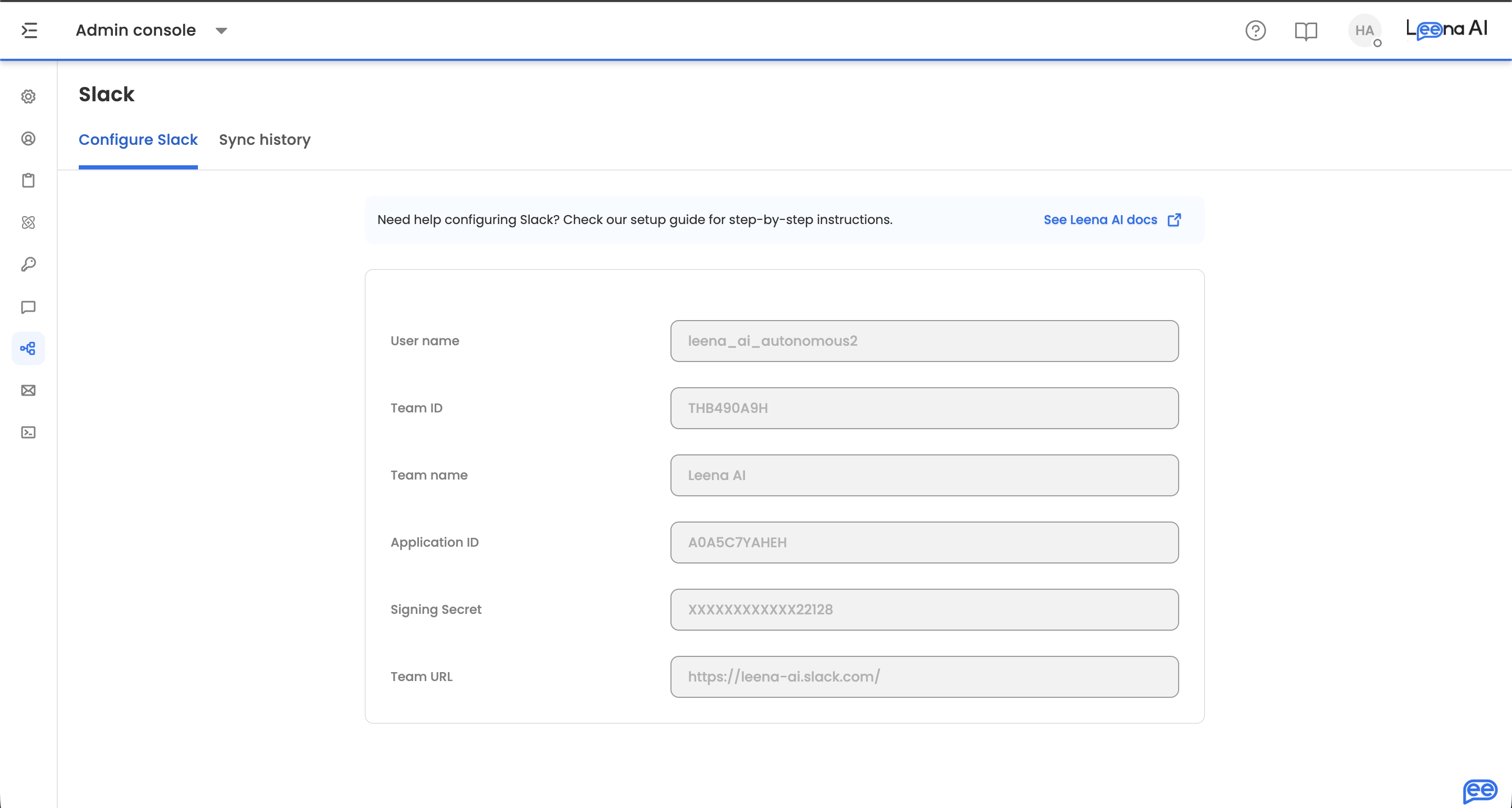
Watch the tutorial
Where to find it
Open the Admin Console, then go to External channels → Slack.
The page has two tabs: Configure Slack for setup, and Sync history for account synchronisation.
Before you startYou'll need administrative or app-installation permissions for the target Slack workspace, and a Leena AI role that grants access to channel setup.
1. Generate the manifest
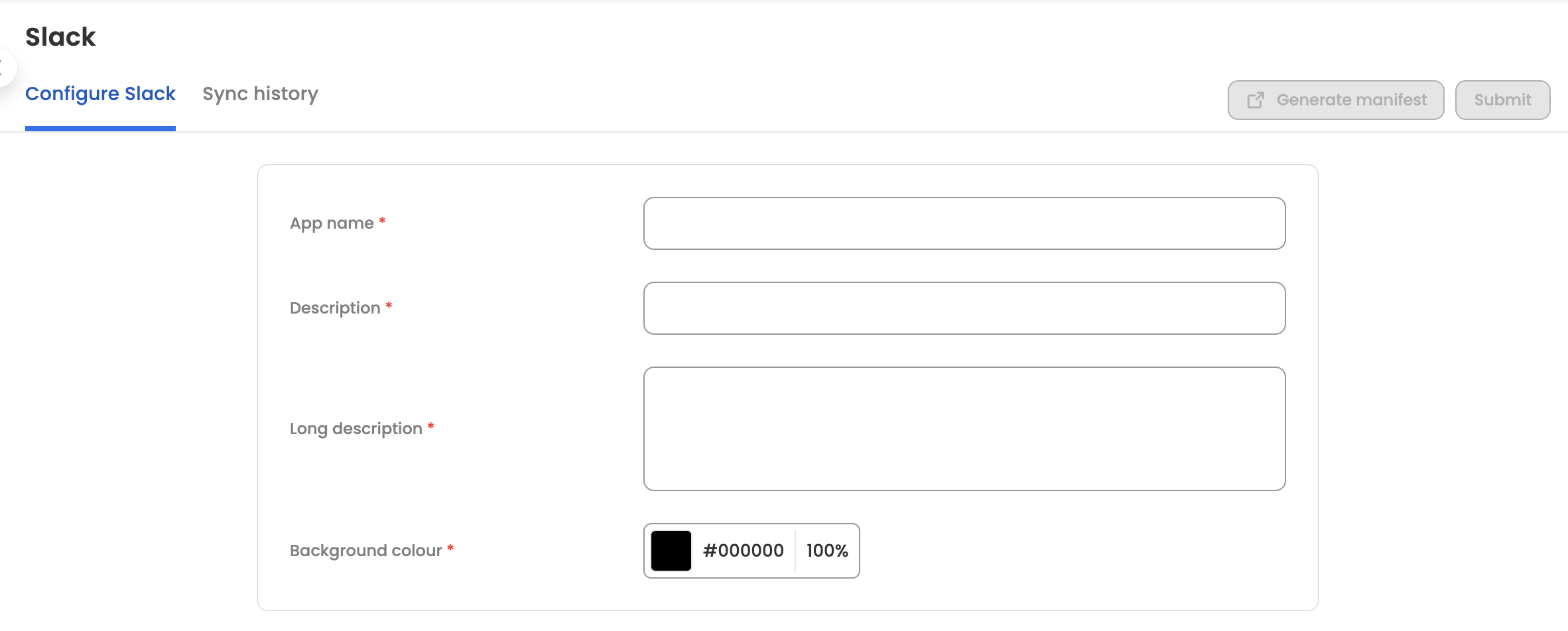
Fill in the details that define your app.
Branding
| Field | Notes |
|---|---|
| App name | The name displayed in Slack |
| Description | A short description of the app's purpose |
| Long description | A fuller explanation. Must be at least 174 characters — Slack rejects shorter ones |
| Background colour | The hex code for the app's theme colour |
| User name | The bot's display name |
Workspace
| Field | Notes |
|---|---|
| Team ID | Your Slack workspace ID |
| Team name | Your Slack workspace name |
| Team URL | Your Slack workspace URL |
Credentials
| Field | Notes |
|---|---|
| Application ID | Filled in after you create the app in Slack — see step 3 |
| Signing Secret | Filled in after you create the app in Slack — see step 3 |
Click Generate manifest, then copy the manifest content to your clipboard.
The two credential fields stay empty for now. You can't know them until the app exists in Slack, which is the next step.
2. Create the app in Slack
Open the Slack API portal at https://api.slack.com/apps and log in.
- Click Create New App
- Select From an app manifest — not from scratch, since the manifest already carries the scopes and event subscriptions Leena AI needs
- Choose the target workspace and click Next
- Under the JSON tab, delete any placeholder content and paste the manifest you copied
- Click Next to review, then Create
3. Exchange credentials
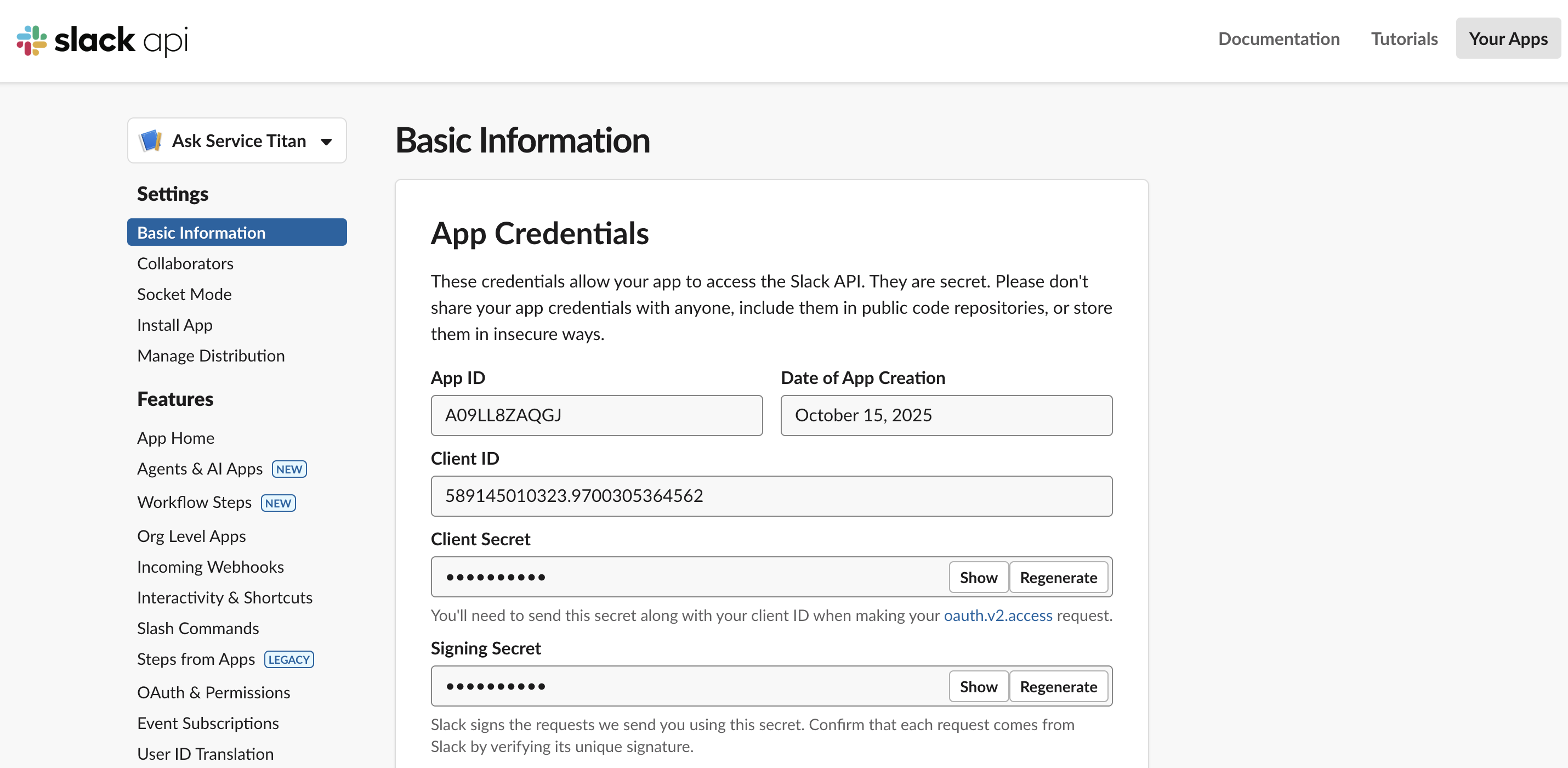
After creation you land on the app's Basic Information page. From the App Credentials section:
- Copy the App ID into the App ID field in Leena AI
- Copy the Signing Secret — you may need to click Show — into the App signing secret field
Then install the app:
- In the Slack portal, go to Features → Install App
- Click Install to Workspace and follow the prompts to authorize
Installation may need admin approvalIf your workspace requires administrative approval for new apps, you'll submit a request instead. Installation completes only once an admin approves it — so build this wait into your rollout plan.
Once installed, go to Features → OAuth & Permissions. Under OAuth Tokens for Your Workspace, copy the Bot User OAuth Token into the corresponding field in Leena AI.
4. Finalise the installation
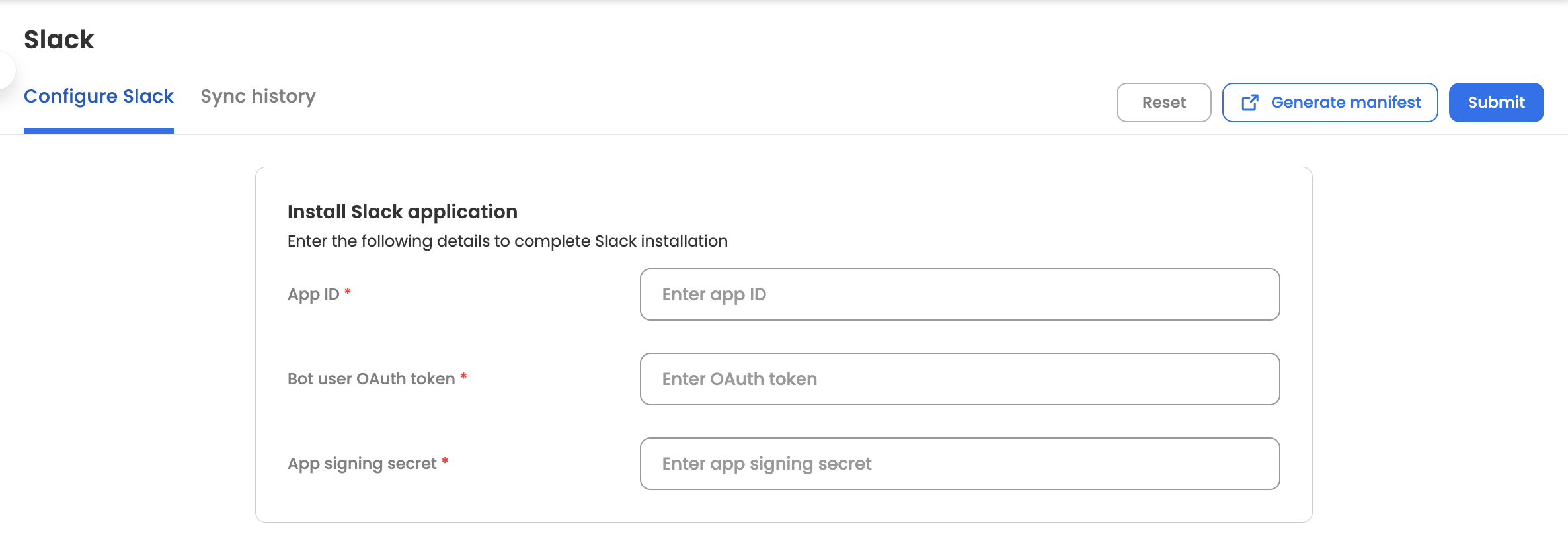
All three fields in the Install Slack application dialog should now be filled:
| Field | Where it came from |
|---|---|
| App ID | Basic Information → App Credentials |
| App signing secret | Basic Information → App Credentials |
| Bot user OAuth token | Features → OAuth & Permissions, after installing |
Click Submit. A confirmation appears once Slack is installed.
Reset starts overReset clears the Slack configuration entirely. Use it when reconnecting to a different workspace or rebuilding a broken app — not to edit details, since it disconnects the current setup.
Syncing accounts
Sync accounts matches Slack users to employee records, so the assistant recognises who it's talking to.
Only one sync runs at a time. Starting another while one is in progress is refused with a prompt to wait for it to finish.
The Sync history tab records each run:
| Column | What it shows |
|---|---|
| Sync start time | When the run began |
| Sync end time | When it finished |
| No. of users synced | How many accounts were matched |
| Sync status | In progress, complete, or failed |
Check the history after the first sync. A run that completes with far fewer users than expected usually means the Slack account emails don't match the employee records.
Assistant Mode
Assistant Mode is a Slack capability, supported by Leena AI, that gives the bot a richer experience for AI conversations:
- A dedicated History tab for previous conversations, letting Leena AI respond in the main chat rather than in a thread
- Real-time response streaming
- Native status indicators, such as thinking…
- Input blocking while a previous request is still processing
- Starter prompts alongside the introduction message
- Adding the agent to a channel, or starting a group chat with it
Enabling it
In the Slack API portal, select your app, then go to Features → Agents & AI Apps and toggle on the Assistant Tab.
Adding the assistant to a channel
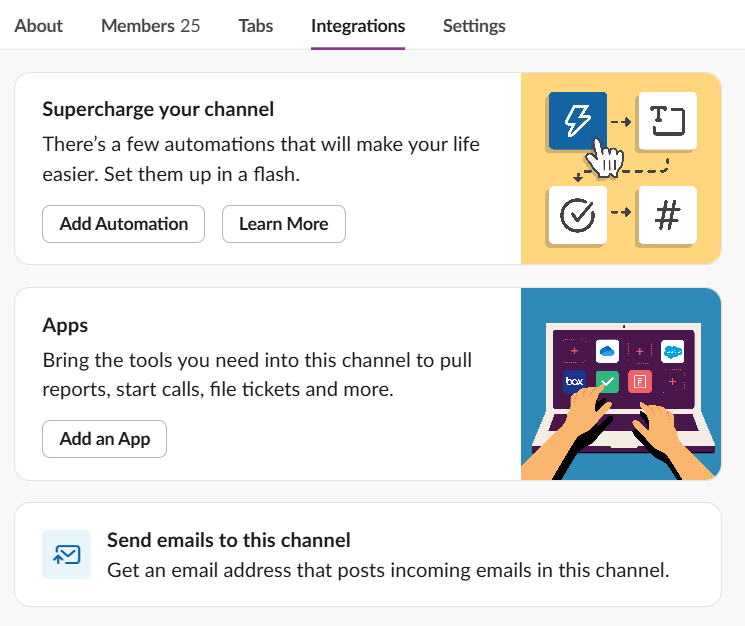
Either type /invite @[Agent Name] in the channel, or click the channel name, go to the Integrations tab, and use Add an App under the Apps section.
Changing branding later
App branding is edited in Slack rather than in Leena AI, and takes effect without regenerating the manifest.
In the Slack API portal, select the app and go to Settings → Basic Information, then scroll to Display Information. Edit the App Name, Short Description, or Full Description, and click Save Changes.
The same section is where you upload a custom app icon, which is worth doing — it's what makes the assistant recognisable in a crowded Slack sidebar.
Updated about 2 months ago