
Office 365 setup
Office 365 setup lets Leena AI send email from an existing Microsoft 365 mailbox, using an Azure app registration rather than domain authentication.
There's no DNS work involved. Instead, your IT admin registers an application in Azure with permission to send mail, and Leena AI sends through that specific mailbox — which suits organisations already on Microsoft 365 with a mailbox they want messages to come from.
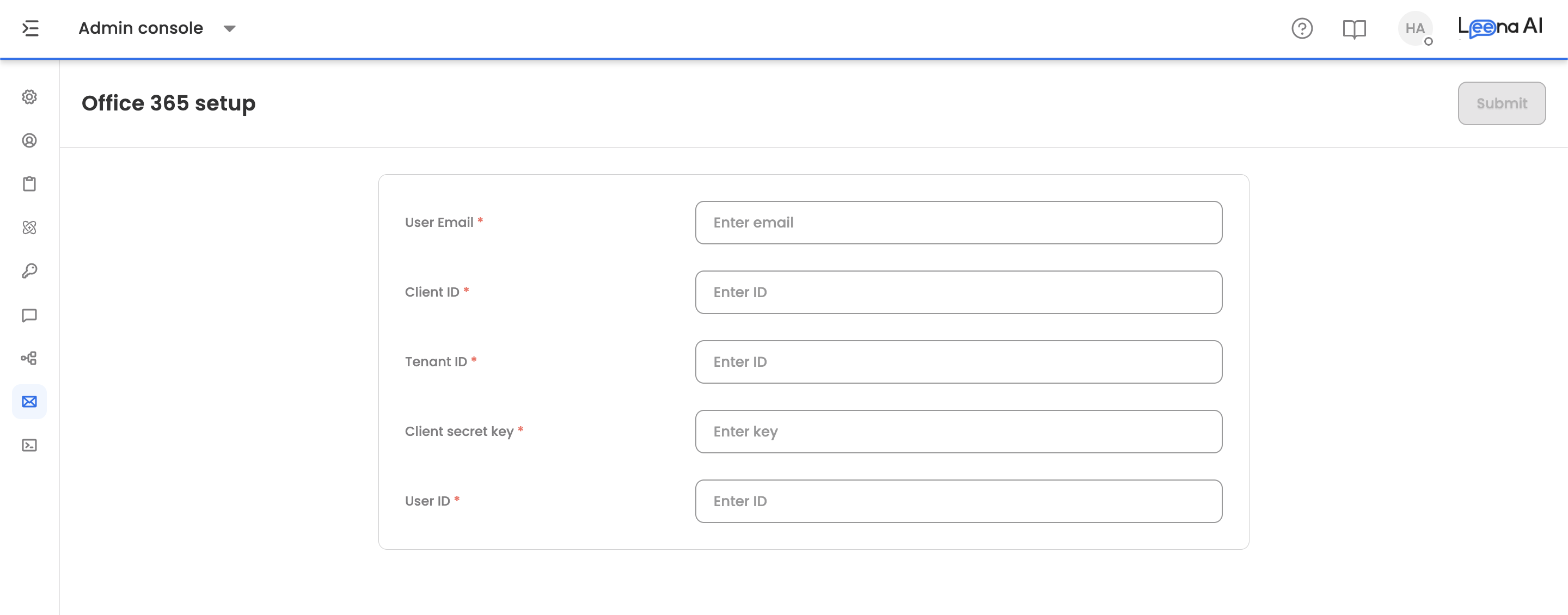
Where to find it
Open the Admin Console, then go to Email settings → Office 365 setup.
What you need from Azure
Your IT admin creates an app registration in Azure or Entra with permission to send mail, then supplies the values below. Collect all of them before starting, since the form saves as one piece.
| Field | What it is |
|---|---|
| User Email | The mailbox address email is sent from |
| Client ID | The application ID of the Azure app registration |
| Tenant ID | Your Microsoft 365 tenant ID |
| Client secret key | The client secret generated for that app registration |
| User ID | The object ID of the mailbox user |
User Email and User ID both refer to the same mailboxOne is the address, the other the directory object ID. They have to point at the same mailbox — mismatching them is a common cause of setup that saves cleanly but never sends.
Saving
Submit saves the configuration, and a confirmation appears once Office setup is complete.
Reset clears the configuration. If there's nothing configured, the page tells you there's no mail sender found rather than failing silently.
Client secrets in Azure expire. Note the expiry when your admin creates the secret and plan a rotation, since email stops sending without warning when it lapses.
Updated about 2 months ago