
Data subject requests
Data Subject Requests is where you handle employees who decline the privacy policy and ask for their data to be removed.
When an employee rejects the privacy terms in the assistant, they appear here. From this page you can download everything held on them, delete it, or restore their access — the operational side of a GDPR-style right-to-erasure request.
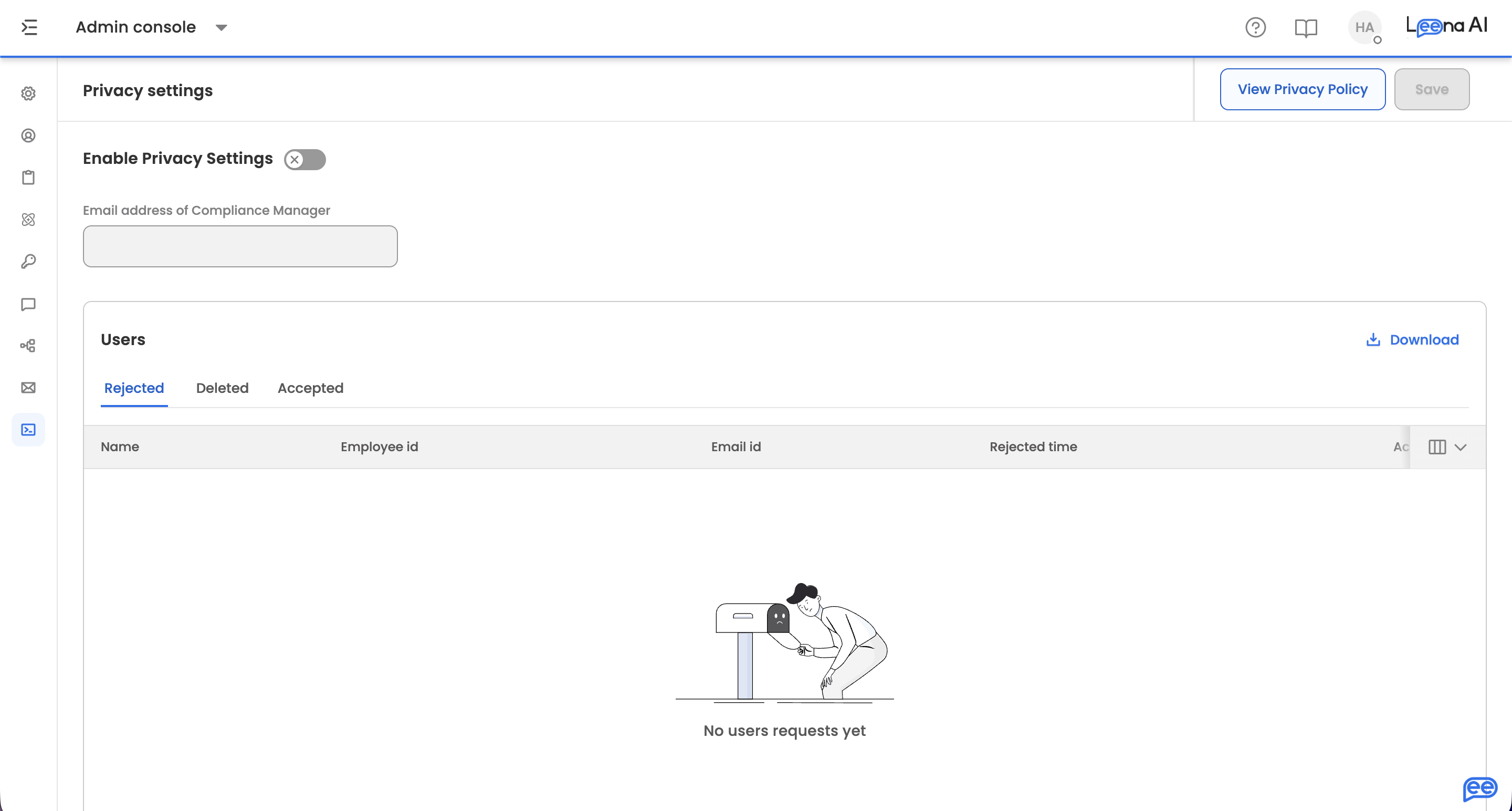
Where to find it
Open the Admin Console, then go to Logs → Data Subject Requests.
The page header reads Privacy settings.
Turning it on
Enable Privacy Settings activates the consent flow. With it on, employees are asked to accept the privacy policy, and those who decline arrive on this page.
Email address of Compliance Manager sets who is notified about requests. It's validated as a real email address, and it's worth pointing at a monitored role account rather than an individual — erasure requests carry statutory response deadlines that don't pause when someone is on leave.
View Privacy Policy opens the Privacy Policy editor, where the notice employees see is written.
Use Save to apply changes. A confirmation appears when the policy is updated.
The request tabs
Requests are grouped by status. Before any exist, the page shows No users requests yet.
| Tab | Who's in it |
|---|---|
| Rejected | Employees who declined the privacy terms and are awaiting a decision |
| Deleted | Employees whose data has been removed |
| Accepted | Employees who accepted the terms |
Each row shows the employee's Name, Employee ID, and Email ID, alongside a timestamp that changes with the tab — Rejected time, Deleted time, or Accepted time.
The Rejected tab is the working queue. The other two are the record of what was decided.
Acting on a request
Each row carries three actions.
Download
Downloads everything held on that employee. A confirmation appears once the download succeeds.
Download before you deleteDeleting removes all of the employee's information, and it can't be undone. If the data is needed for a records obligation, an ongoing case, or to give the employee a copy under a subject access request, download it first — afterwards there is nothing to retrieve.
Delete
Removes all information held on the employee, after an Are you sure? confirmation that repeats the warning to download first.
Reinitiate
Restarts the consent process. The employee is removed from the request queue, and the next time they log in they're asked to give consent again.
Their profile is not deleted — this is the right action when someone declined by mistake, or changed their mind, or when the decline followed a policy change you've since clarified.
Reactivate user
Available on employees whose data has been deleted, restoring their access.
Consent report
The page can generate a consent report covering the whole population, not just those who have made a request.
This is the artefact to produce for an audit. The per-employee tabs show individual decisions; the report shows the overall consent position, which is what a regulator or works council typically asks for.
A confirmation appears once the report downloads.
The decision itself is yours to makeThis page executes an outcome — it doesn't judge whether erasure is required. Whether a request must be honoured, and what you're obliged to retain regardless, is a determination for whoever owns privacy compliance in your organisation.
Route requests through them before deleting anything.
Updated 29 days ago