
Audience
The audience decides who receives a notification. You choose it in the first step of the notification builder, either from the built-in audience types or from a custom audience you've saved.
Audience types in the builder
Under Notification audience → Select audience type, choose one of:
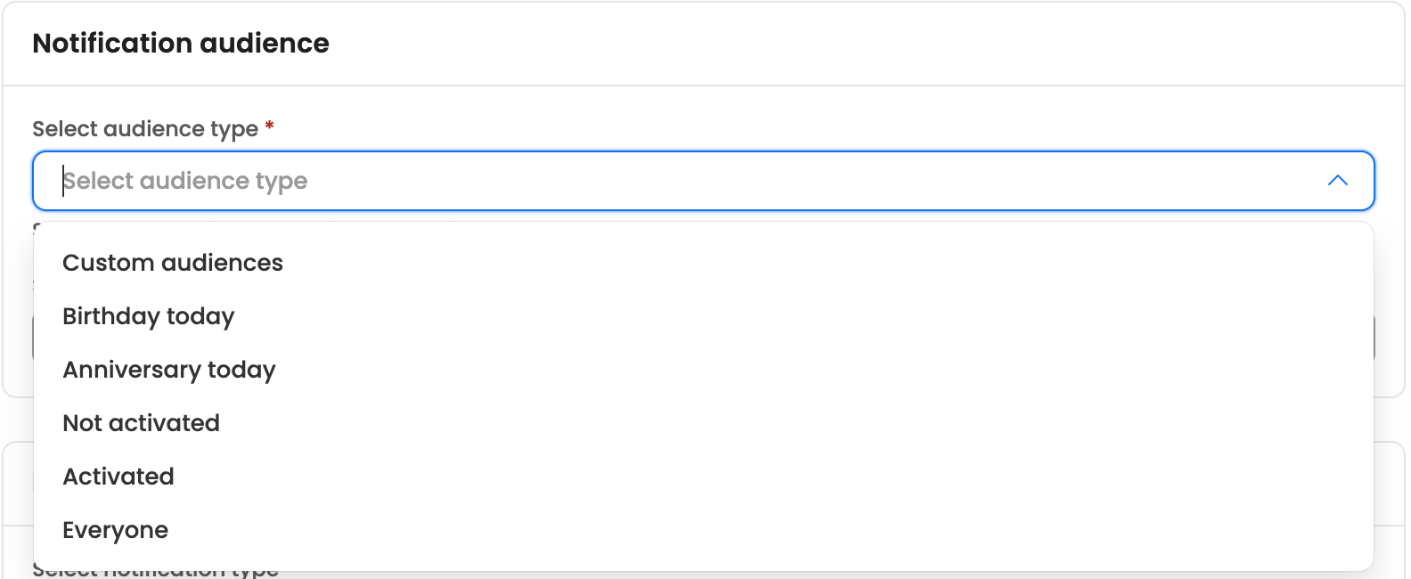
The audience types
| Audience type | Who receives it |
|---|---|
| Custom audiences | The employees in a saved audience you pick under Select custom audience |
| Birthday today | Employees whose birthday falls on the send date, in their own time zone |
| Anniversary today | Employees whose work anniversary falls on the send date, in their own time zone |
| Not activated | Employees who have never sent a message to the assistant |
| Activated | Employees who have messaged the assistant at least once, on any channel |
| Everyone | Every employee the assistant is allowed to send notifications to |
Birthday today and Anniversary today rely on dates of birth and joining dates in employee data. If nobody matches, the builder warns you to check that those dates are filled in. These two types work well as recurring notifications, so that every day's birthdays or anniversaries get a message automatically.
Once the audience is set, the header shows how many employees it covers. The final list is worked out when the notification goes out, so the number can differ slightly if employee data changes in between. With time zone-aware delivery, the list is fixed when you schedule the notification instead. Sending to Everyone asks you to confirm, with the number of employees who will be notified.
If your assistant uses segments, a Segment field lets you narrow any audience to one segment.
Audience limits for your roleWith access control on, an admin can limit which employees you're allowed to notify. Every audience you pick is then narrowed to those employees, whatever its type. See Restricting which employees a user can notify.
Custom audiences
A custom audience is a saved group of employees you can reuse across notifications. Create and manage them in Admin Console → Bot users → Audience.
You can also start one from the notification builder: choose Custom audiences, then Create audience at the top of the Select custom audience list. The audience page opens in a new tab so you don't lose your work, and the new audience is selected for you once you save it.
The audience list
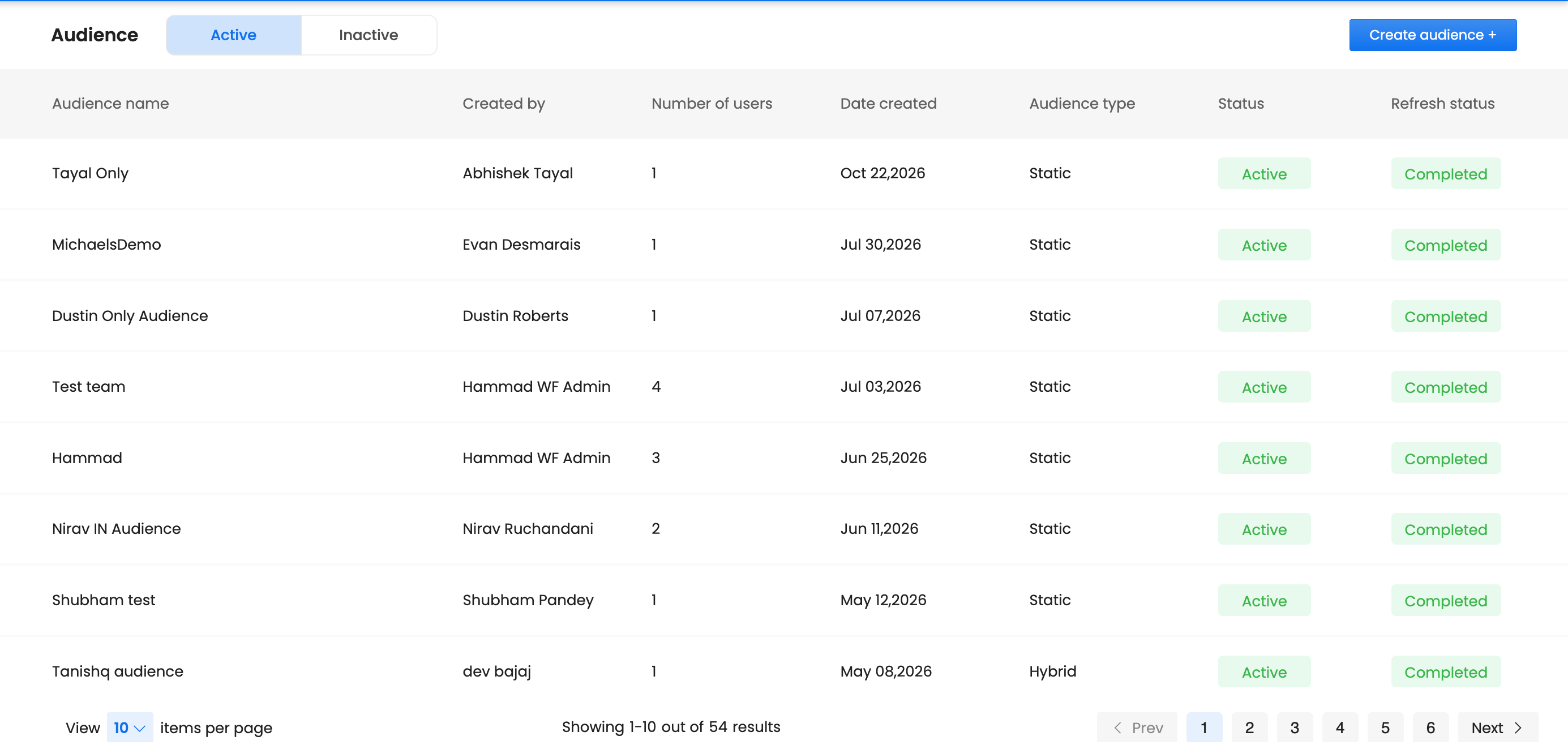
The audience list
| Column | What it shows |
|---|---|
| Audience name | The name you gave the audience |
| Created by | The dashboard user who created it |
| Number of users | How many employees it currently contains |
| Date created | When it was created |
| Audience type | Static, Dynamic or Hybrid. See Static, dynamic and hybrid audiences. |
| Status | Active, or Inactive if it's been turned off |
| Refresh status | Whether its member list is being recalculated (Running), is up to date (Completed), or couldn't be updated (Failed) |
The Active and Inactive tabs separate audiences you can use from those that have been turned off.
Create a custom audience
- Select Create audience +.
- Choose how to pick employees, using one of the two tabs below.
- Select Save this audience and give it a name.
Add users
Pick specific employees:
- Search by name or email address and add each employee to the list.
- Upload users in bulk: select Download template, fill it in, and upload it. The file must be smaller than 2.5 MB.
The list shows each employee's name, email address and the assistant channels they use.
Make custom group
Describe the employees by their data, and Leena AI finds everyone who matches:
- Choose a Field, such as department, location, date of joining or assistant channel.
- Choose a Condition, such as Is any of.
- Choose one or more Values.
- Add more conditions with + 'AND' (employees must match both) or + 'OR' (employees can match either).
The matching employees and their count update as you build the conditions.
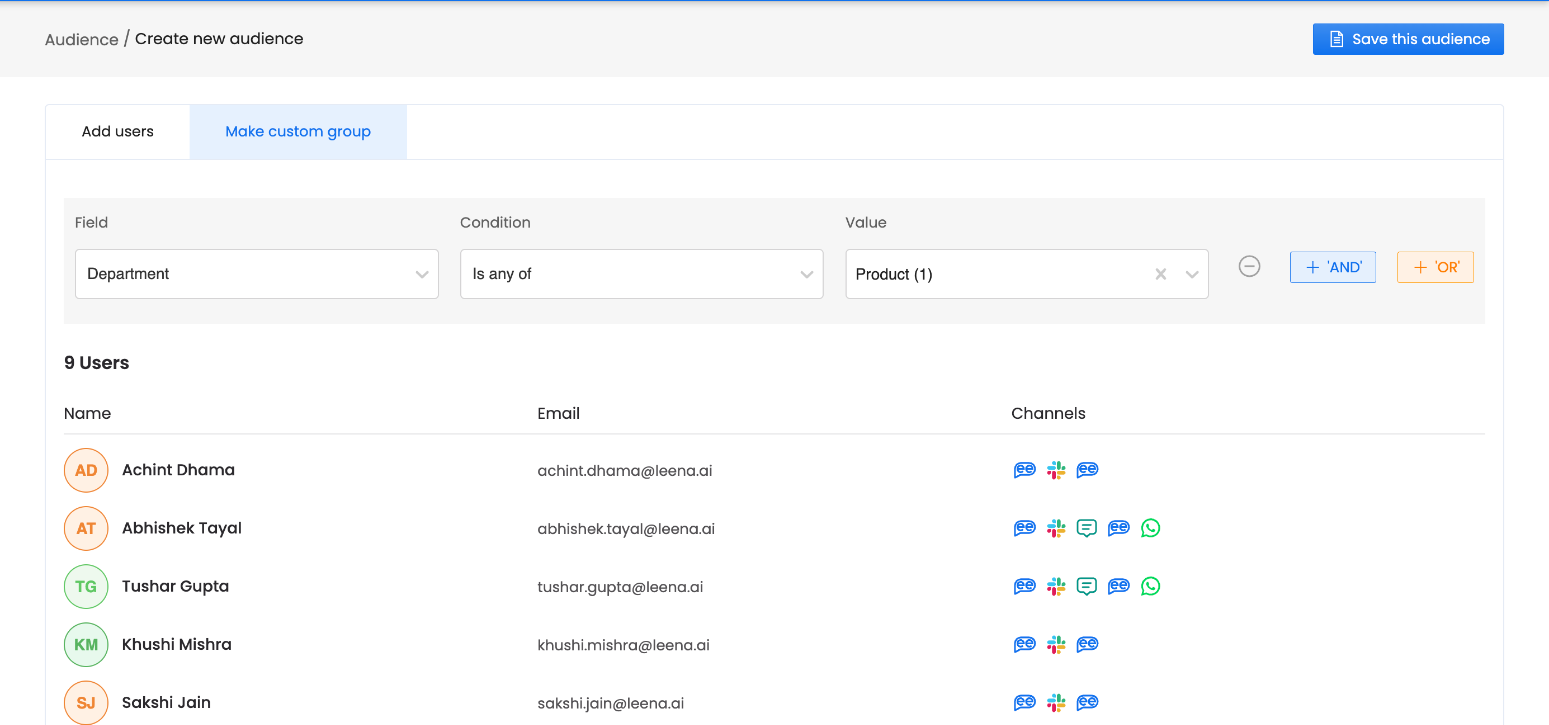
A custom group of everyone in the Product department
Switching between Add users and Make custom group clears what you've set up on the other tab. You're asked to confirm first.
Static, dynamic and hybrid audiences
The audience type is worked out from how you built the audience:
| Type | Built from | Stays up to date? |
|---|---|---|
| Static | Only specific employees, added by email address, employee ID or phone number | No. New employees must be added by hand. |
| Dynamic | Only conditions on employee data, such as department or location | Yes. Employees who start matching are included automatically. |
| Hybrid | A mix of specific employees and conditions | Partly. The conditions update; the specific employees don't change. |
We recommend dynamic audiences, built with Make custom group, for anything you'll reuse, such as "everyone in Sales" or "everyone in London". Audiences are refreshed when employee data is synced, and Refresh status shows the progress.
Edit or turn off an audience
Open the ⋯ menu on an audience's row:
- Edit Audience Name renames it.
- Edit opens it to change its employees or conditions.
- The Active switch turns it off or back on. An inactive audience moves to the Inactive tab and can't be picked for new notifications.
Standard notifications use an audience's members at the time they go out. Time zone-aware notifications use the members at the time they were scheduled. See Standard vs Time Zone-Aware Delivery.
Common questions
Why is the employee count different from what I expected?
Only employees the assistant can send notifications to are counted. Check that the employees you expect are synced and have at least one channel.
Why doesn't my static audience include a new joiner?
Static audiences don't update by themselves. Add the employee, or rebuild the audience with Make custom group so new joiners are included automatically.
Can I use the same audience for email and bot notifications?
Yes. Custom audiences work with every kind of notification.
Updated 19 days ago