
Conflict Analysis within KM
Watch the tutorial
Overview
The Policy Conflict Analysis tool allows Knowledge Managers (KM Admins) to proactively "health check" their knowledge base. It automates the detection of contradictory information across your published policy documents.
Instead of manually cross-referencing hundreds of files, this tool scans selected folders, identifies conflicting statements (for example, one document stating a "30-day return policy" while another states "15 days"), and provides a streamlined workflow to resolve them.
Conflicts are detected at the section level, not the document level. A single sentence deep inside a 60-page handbook can be flagged against a single sentence in a different document, and the result will point at exactly those two blocks.
Before you begin
Understanding what gets scanned prevents most surprises later. When you run an analysis, Leena AI resolves your folder selection into a concrete article list by applying four filters:
| Filter | What it means |
|---|---|
| Folder expansion | Every selected folder and all of its sub-folders is included. Selecting a parent folder implicitly selects everything beneath it. |
| Published only | Only articles in the Published state (and successfully synced) are analysed. Drafts, In-Review, and Rejected articles are excluded — you cannot use this tool to pre-screen a policy before publishing it. |
| Active version only | Only the currently active version of each article is analysed. Older versions in version history are never compared. |
| Not archived | Archived folders and archived articles are excluded. |
Two limits apply to the resulting list:
- A conflict group can contain a maximum of 1,000 published articles.
- Only one analysis can be active at a time per instance. If a colleague's run is pending or in progress, you cannot create or rerun a group until theirs finishes.
Accessing the tool
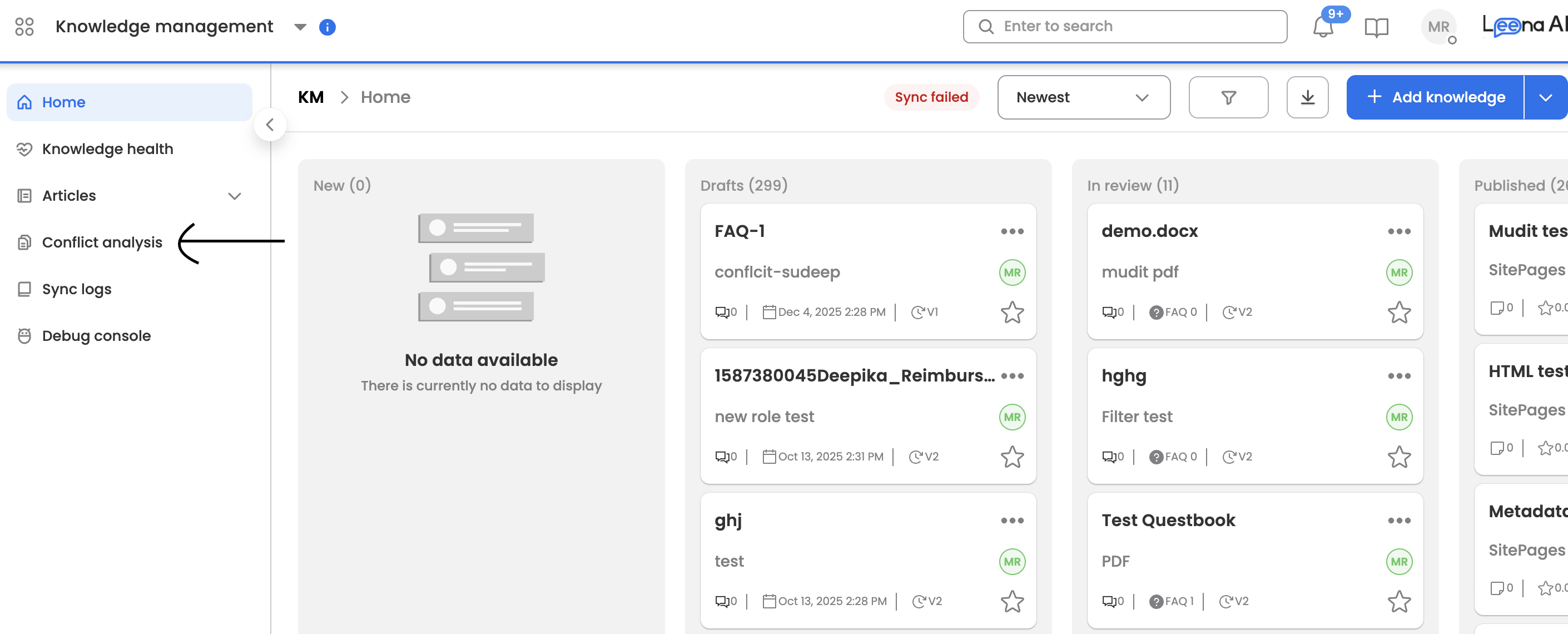
You can access the module via the main Knowledge Management sidebar:
- Navigate to the Knowledge Management dashboard.
- Locate the Settings tab at the bottom of the side menu.
- Click on Conflict analysis (the third tab from below).
Workflow 1: Initiating a conflict scan
To begin checking for inconsistencies, you must create a Conflict Group — a user-defined collection of folders you wish to analyze together.
Conflicts are only detected within a groupArticles are only ever compared against other articles in the same conflict group. Two contradictory policies sitting in folders you never selected together will not be flagged. Group related subject matter — "Leave and attendance", "Travel and expenses" — rather than grouping by size.
1. Create a new analysis
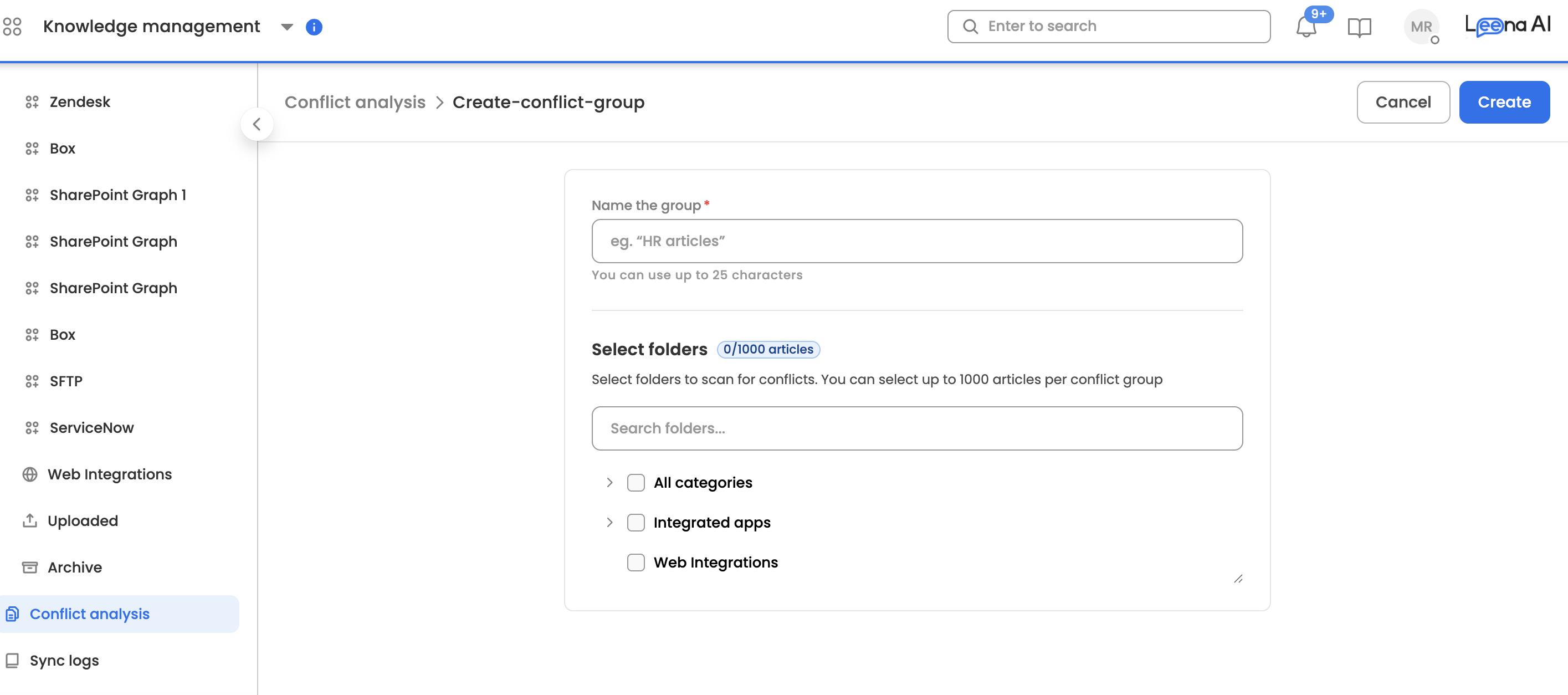
From the main Conflict Analysis dashboard, click + Create conflict group.
2. Select content
A selection interface will appear displaying your folder hierarchy.
- Name of the conflict group: Give the group a unique name. Names must be unique within the environment — if the name is already in use you will be prompted to choose another.
- Browse & Select: Navigate through folders and sub-folders to check the boxes of the content you wish to scan. Selection is available at the folder level only — you cannot include or exclude individual articles.
- Search: Use the search bar to locate specific folders quickly.
- Capacity check: Pay attention to the running counter at the bottom. It shows the number of published articles resolved from your selection, including everything in sub-folders. The limit is 1,000 articles per conflict group.
Only published content is scannedDrafts and documents in the "In-Review" state are not included. If your folders contain only drafts — or connector content that has not completed its first sync — creation will fail with "No articles found in folders."
3. Run the analysis
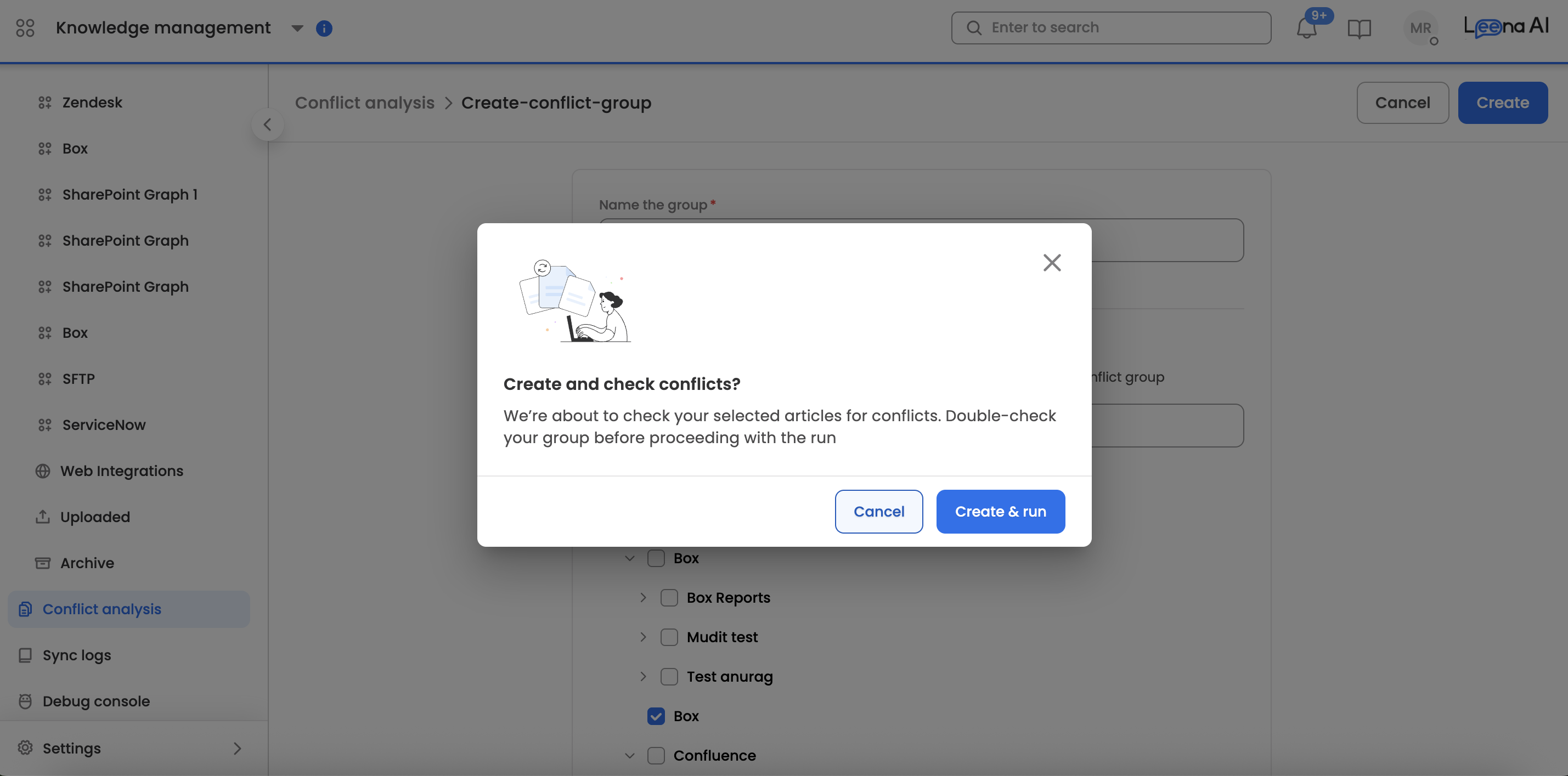
- Click
Create. - Click
Create and runon the confirmation modal to execute your conflict analysis.
Before you start a run
- Timeframe: Depending on the volume of documents, an analysis can take up to 6 hours to complete. You can navigate away from the page and return later.
- Concurrency limit: Only one analysis run can be active at a time in your KM environment. If a colleague is running a scan, you must wait for it to complete.
- Automatic timeout: A run that has not finished within 24 hours is automatically marked as Timed out so the environment is not blocked indefinitely.
Run statuses
| Status | What it means | What to do |
|---|---|---|
| Pending | The run has been accepted and queued. The article list is now frozen for this run. | Wait. |
| In progress | The analysis is actively running. | Wait — you can leave the page. |
| Completed | The analysis finished. Results are available. | Open the group to review findings. |
| Failed | The run errored during dispatch or processing. | Rerun the group. |
| Timed out | The run did not finish within 24 hours. | Rerun, ideally with a narrower folder selection. |
Workflow 2: Analyzing results
Once the status of your Conflict Group changes to Completed, you can review the findings.
The conflict dashboard
Clicking on a completed group opens the summary view:
- Sectional conflict count: The total number of section-level conflicts found in this run is shown at the top of the list.
- Conflict clustering: Results are grouped by document. If Document A conflicts with Document B, entries will appear for both.
- Prioritization: The list is sorted automatically to show documents with the highest number of unique conflicts at the top.
- New issues: Visual indicators highlight new conflicts that have appeared since the last time this group was run.
Do not add up the per-article countsEvery conflict is symmetric — a conflict between Article A and Article B is listed under both articles. Summing the per-article numbers will double-count. Use the group-level conflict count instead.
Reviewing which articles were included
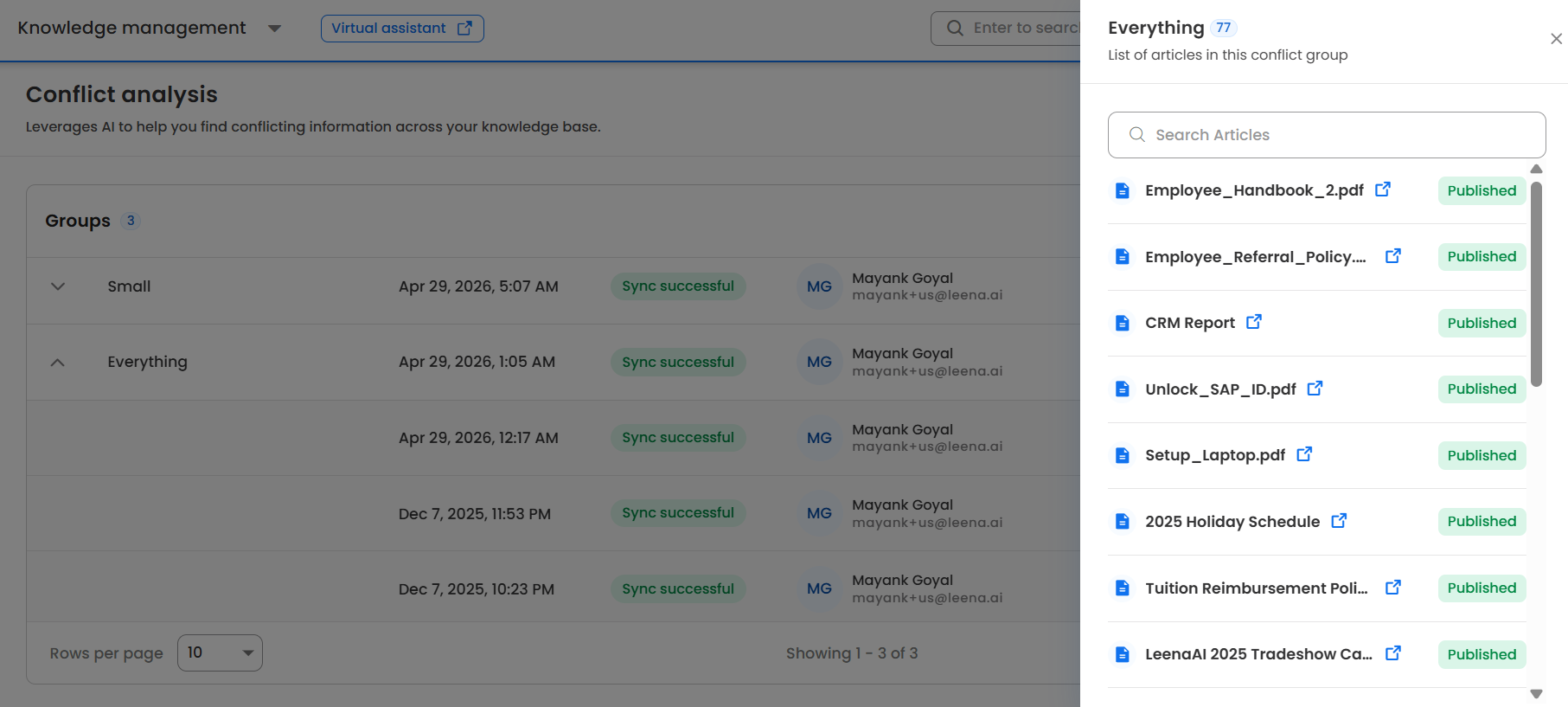
Each run records the exact set of articles it analysed. Open the article list from the run to confirm what was in scope — useful when a document you expected to see flagged does not appear, since it will show you immediately whether the article was included at all.
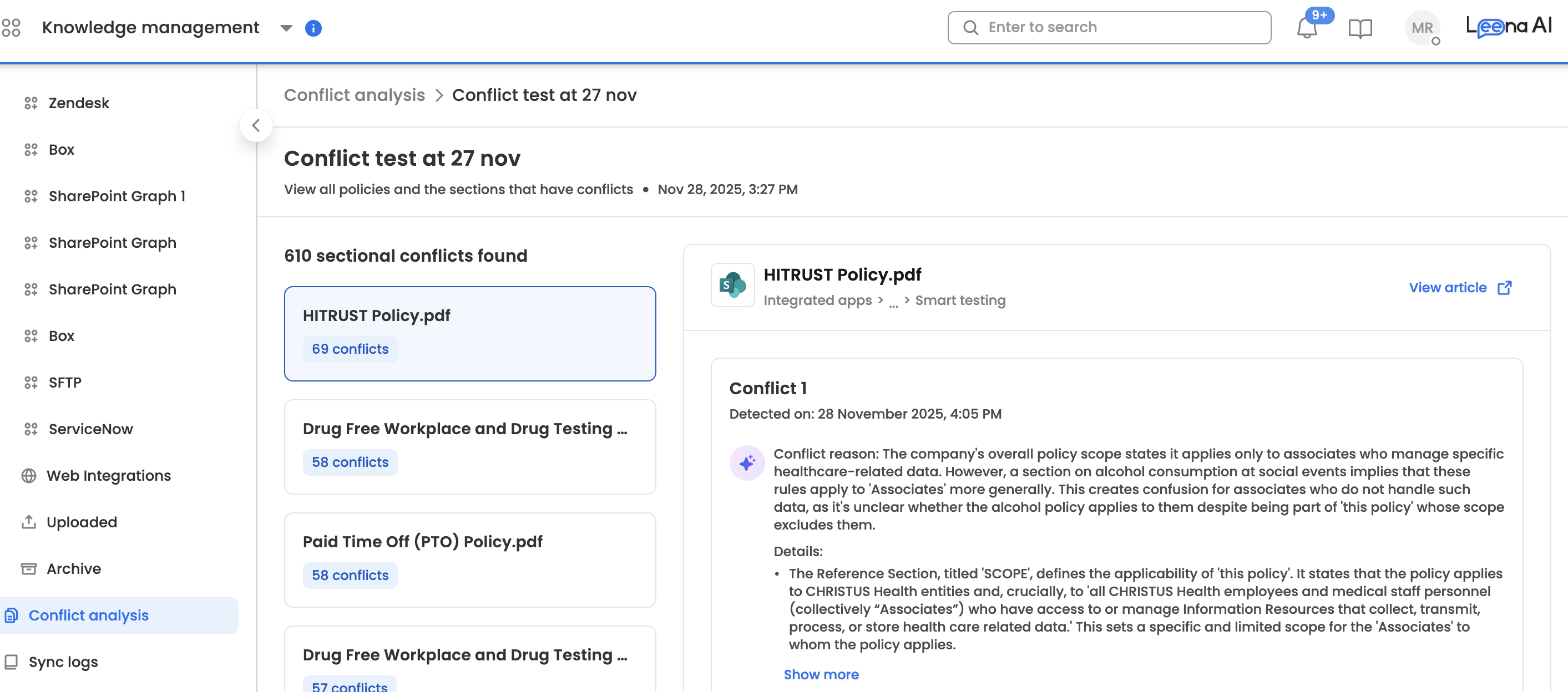
Detailed resolution view
Click on any document in the list to open the Detail View. This provides the context needed to fix the error.
| Component | Description |
|---|---|
| Source path | The name and folder location of each conflicting article, with its source connector indicated. Names and paths are resolved live, so a renamed or moved article always displays its current details. |
| Side-by-side snippets | The conflicting section from your base document shown directly against the section from the conflicting document. |
| Conflict type | The category of conflict (T1–T5). See the table below. |
| Reason for conflict | A one-line summary of why the pair was flagged. |
| Step-by-step explanation | The detailed reasoning behind the finding, expandable via Show more. |
| Conflicting text | The specific excerpt carrying the contradiction. |
| Detected on | The timestamp of the run that produced this finding. |
Understanding conflict types
Every finding is classified into one of five categories. Knowing the type tells you what kind of fix is needed.
| Type | Name | What it means | Example |
|---|---|---|---|
| T1 | Direct Numerical Contradiction | Two sections give different numbers for the same parameter, entitlement, or limit. | Leave entitlement stated as 20 days in one policy and 15 days in another. |
| T2 | Procedural Conflict | Two sections prescribe different or incompatible processes for the same objective. | Expense claims to be submitted via the portal in one document, by email in another. |
| T3 | Scope or Applicability Conflict | Rules with overlapping but incompatible scopes, where it is unclear which applies. | A reimbursement stated as one amount for all employees, and a different amount for a named department. |
| T4 | Specificity Conflict | A general rule and a narrower exception both apply, and precedence between them is not stated. | Software installation needs IT approval for everyone, except Marketing may self-install from an approved list. |
| T5 | Miscellaneous Conflict | Irreconcilable differences that do not fit T1–T4, such as opposing directives. | One document routes all media queries to Communications; another encourages direct outreach. |
T3 and T4 are often intentionalA well-governed knowledge base legitimately contains general rules plus documented exceptions. These are flagged when the precedence is not stated in the content itself. If your intent is that the exception wins, saying so explicitly in the document both resolves the finding and improves how the Virtual Assistant answers.
Fixing the issue
To resolve a conflict, click the Source Link provided in the detail view.
- For connector articles:
- The link redirects to the KM article details page.
- Action: Go to the source document (for example, the SharePoint or ServiceNow article) and make the change there. The information will update in KM during the next sync.
- For uploaded articles:
- The link redirects to the KM article detail page.
- Action: Make the required changes directly here, then save and publish.
Editing an article does not clear its findings. Results reflect the moment the run finished; only a rerun updates them.
Two alternatives to editing are often faster:
- Unpublish or archive a superseded document. It leaves scope immediately and stops conflicting with its replacement.
- State applicability explicitly ("This policy applies to employees in India only") where two documents differ legitimately.
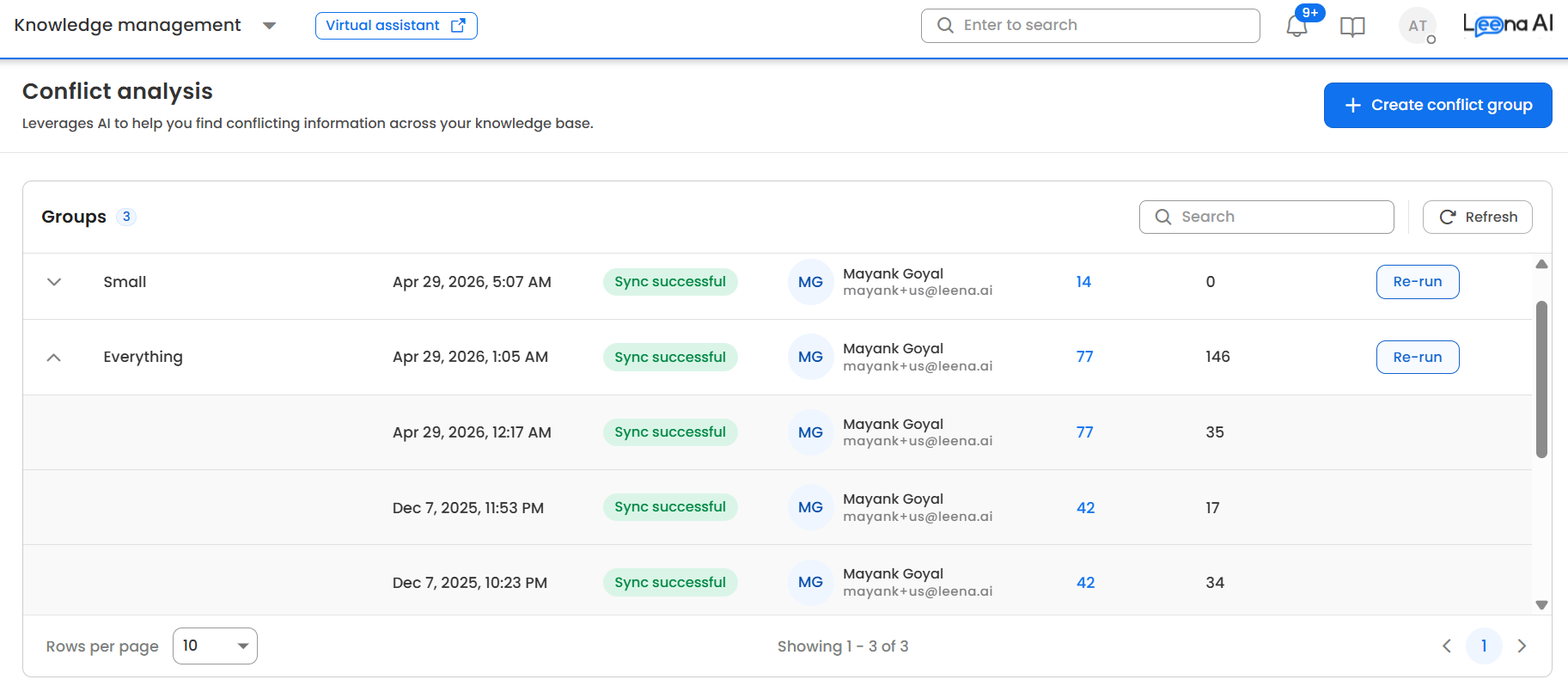
Workflow 3: Verifying resolutions (reruns)
After you have edited your documents to resolve inconsistencies, verify the fix.
- Return to the main Conflict Analysis dashboard.
- Locate your original Conflict Group in the history list.
- Click
Rerun.
The new results are nested under the original group, creating a clear audit trail — you can show that a conflict count fell from one run to the next.
A rerun re-reads your folders from scratchThe article list is rebuilt at rerun time from the same folder selection, not copied from the previous run. This means:
- Articles published since the last run are now included.
- Articles unpublished, archived, or deleted since the last run drop out.
- The 1,000-article limit is re-checked, so a group that has grown may now be blocked.
Each run is judged independently — findings are not carried forward between runs.
Wait for the connector syncFor connector articles, wait until the next connector sync has completed before rerunning. Rerunning before the sync finishes will reproduce the same findings, because KM has not yet received your source-system edits.
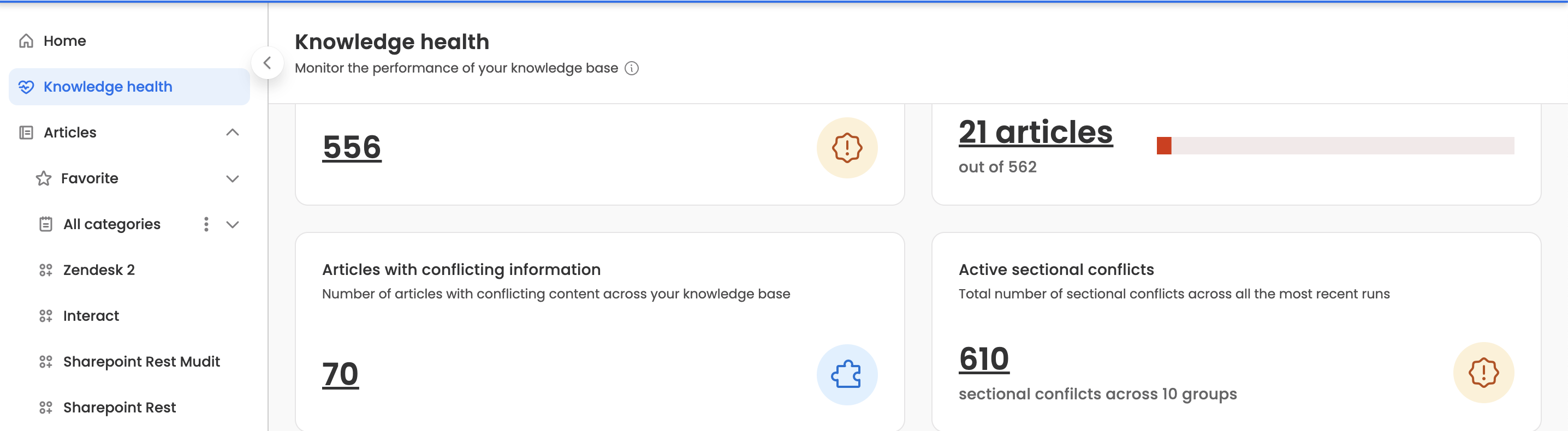
Knowledge Health cards
Two visualization cards within the Knowledge Health dashboard track these metrics. They are computed over different populations and will not reconcile arithmetically.
- Articles with conflicting information: The number of unique articles carrying one or more conflicts across your knowledge base.
- Active sectional conflicts: The total number of section-level conflicts, summed from the most recent completed run of each of your most recently created conflict groups (up to ten). Groups beyond that, and groups whose latest run is still in progress, do not contribute to this number.
Both cards link through to the Conflict Analysis module.
Troubleshooting
| What you see | Why | What to do |
|---|---|---|
| "No articles found in folders" | The selected folders contain no published, non-archived articles | Confirm the content is published. For connectors, confirm the first sync has completed. |
| Article count blocks creation | The selection resolves to more than 1,000 published articles — remember sub-folders are included. | Narrow the selection or split it into multiple groups. |
| "Group name already exists" | Conflict group names must be unique in the environment. | Choose a different name. |
| Cannot create or rerun a group | Another run is pending or in progress in this environment. | Wait for it to reach Completed, Failed, or Timed out. |
| Status is Timed out | The run did not finish within 24 hours. | Rerun with a narrower folder selection. |
| An article you fixed still appears | Results reflect the last completed run. Connector edits also require a sync. | Wait for the sync, then rerun the group. |
| A flagged conflict is intentional | Usually a T3/T4 general-rule-versus-exception pattern, or two rules that apply to different audiences. | State applicability and precedence in the document, then rerun. |
| Two contradictory policies were not flagged | They sit in different conflict groups, one is not published, or they use very different terminology. | Put both folders into a single group and rerun. |
| Health card numbers do not match the group totals | The two cards are computed over different populations. | See Knowledge Health cards above. |
Frequently asked questions
Q: Which file types are supported?
A: The system supports all file types that are converted to PDF within the KM. CSV files are currently not supported for conflict detection. Detection also works on extracted text, so content that exists only inside images, screenshots, or charts is unlikely to be compared.
Q: What happens if I select more than 1,000 articles?
A: The system will prevent you from starting the run. You will need to deselect some folders or create narrower sub-groups.
Q: Does the system automatically fix the conflicts?
A: No. The system identifies and explains the conflict, but a human Admin must decide which policy is correct and manually update the source document. There is no precedence engine — the tool will not tell you which of two conflicting policies should win.
Q: Can I check a draft policy for conflicts before publishing it?
A: No. Only published articles are analysed.
Q: Does the analysis account for audience targeting?
A: No. Two policies that legitimately differ because they apply to different countries, entities, or employee groups may be flagged as conflicting if the documents themselves do not state their scope. Stating applicability inside the content resolves this.
Q: Does the analysis account for effective dates?
A: No. A superseded policy that is still published will be flagged against its replacement. Unpublish or archive obsolete documents.
Q: Will two runs over identical content always give identical results?
A: Not necessarily. Detection is AI-based, so results can differ slightly at the margins between runs. Treat conflict counts as indicative rather than as an exact ledger.
Q: Does conflict analysis run automatically or on a schedule?
A: No. Every run is triggered manually. Results are a point-in-time snapshot and do not update as articles change.
Q: An article was renamed after the run — will the result still be correct?
A: Yes. Findings are stored against article identifiers, and names and folder paths are resolved when you open the results, so you always see current details.
Related pages
Updated 24 days ago