
Referencing AOPs, Skills in AOP Instructions
Overview
When writing AOP instructions, you can quickly reference other AOPs (primary or helper) and skills using the @ symbol. This allows you to seamlessly integrate existing components into your AOP workflow without manually searching for them.
How to Reference AOPs or Skills
- Navigate to the AOP Instructions section while creating or editing an AOP
- In the text editor, type @ where you want to add a reference
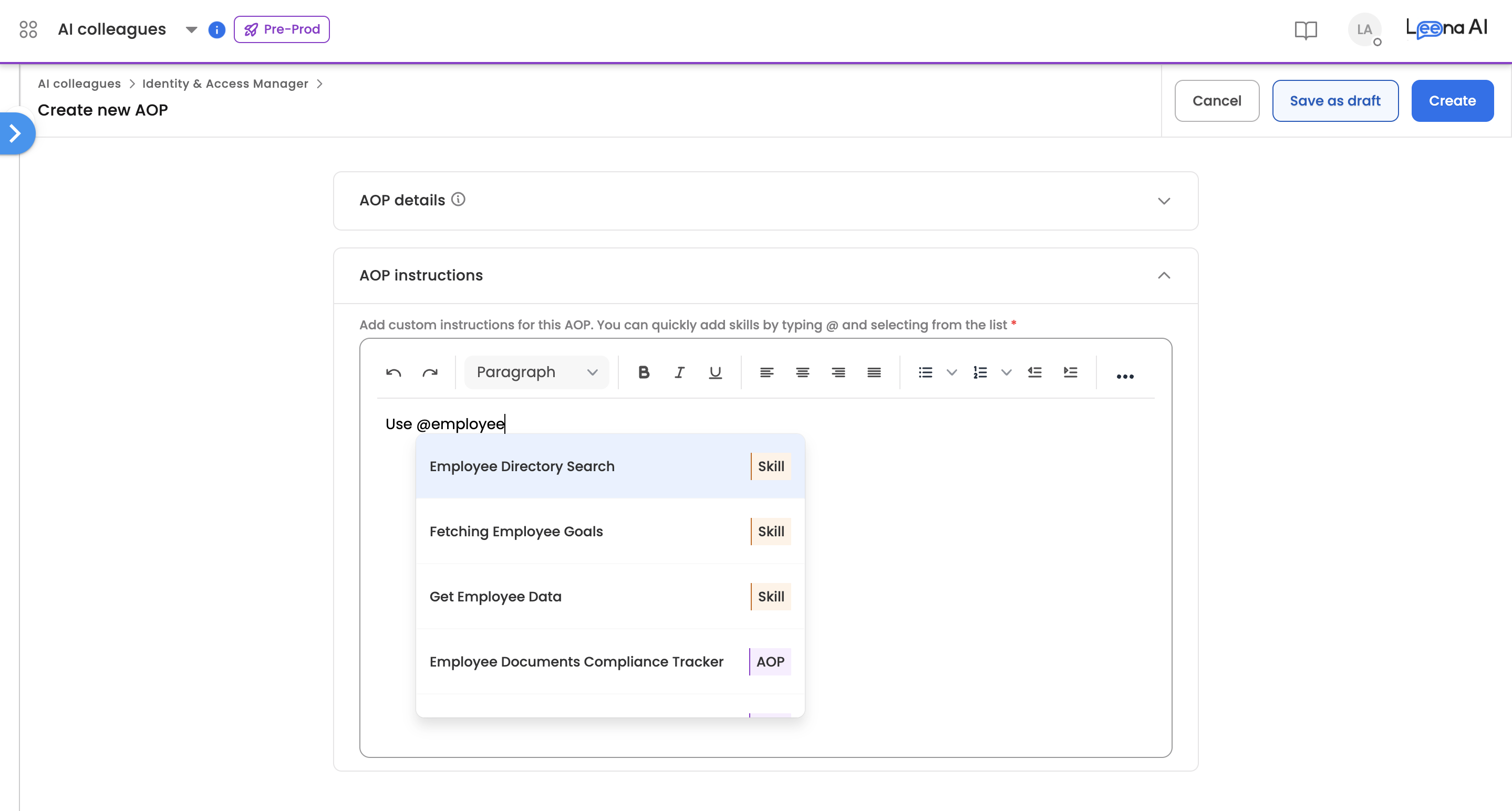
- A dropdown flat-list will appear showing all available AOPs and skills
- Search and select the desired skill/AOP from the list to insert it into your instructions
Understanding the Dropdown
When you type @, a flat list selector appears displaying:
| Column | Description |
|---|---|
| Name | The name of the AOP or skill |
| Type | Indicates whether the item is an AOP or Skill |
Scroll through the list or continue typing after @ to filter and find the component you need.
Key Points
- Both AOPs and skills appear in the same dropdown for easy selection
- The type label (AOP or Skill) helps you distinguish between items
- Only active AOPs and skills available in your environment will appear in the dropdown