
Overview
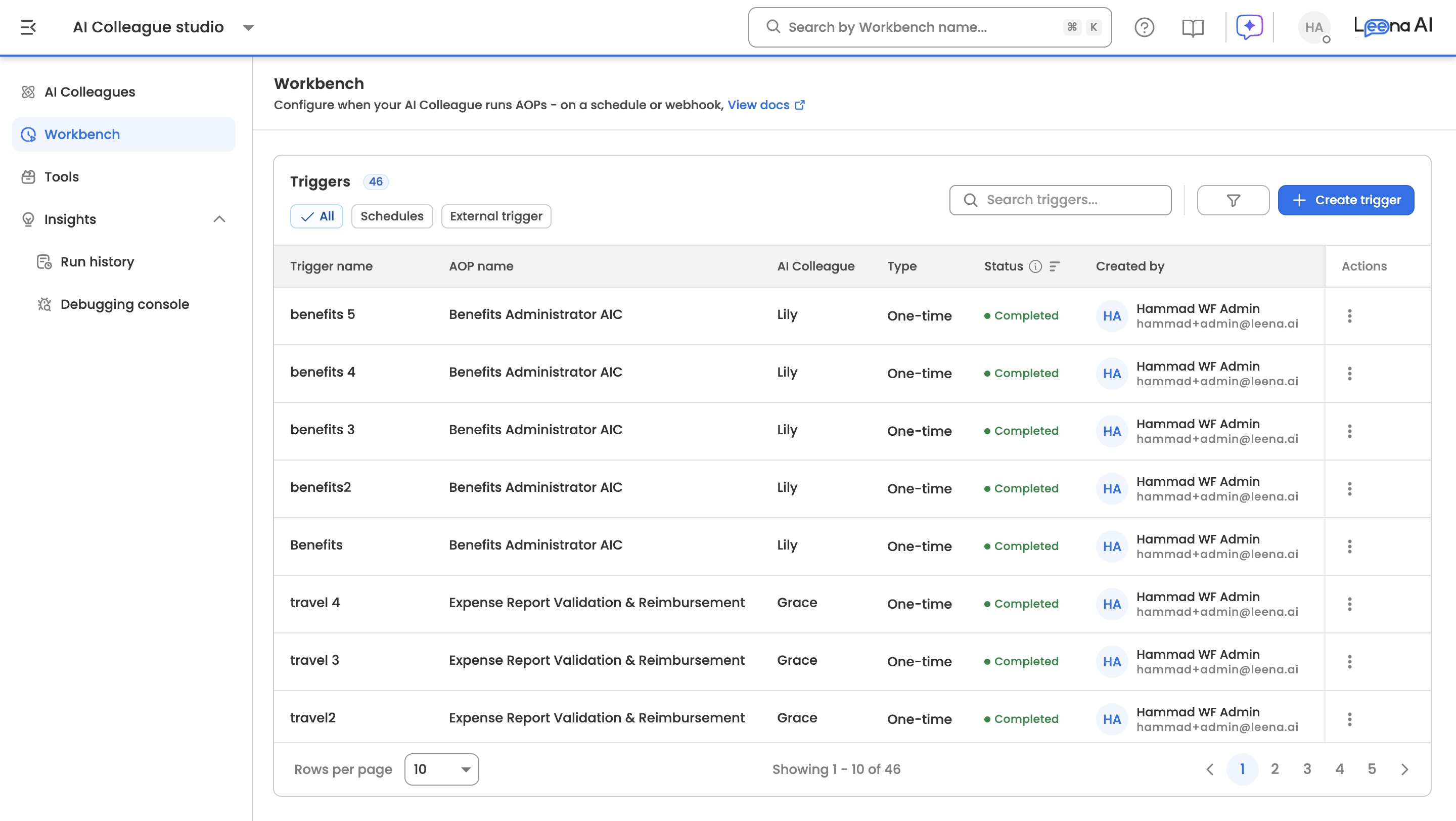
The Workbench is AI Colleagues' central control plane for starting Agent Operating Protocols (AOPs) automatically — without a person having to kick off every run. From a single place, you configure how an AOP should start, monitor upcoming and past runs, and audit exactly what triggered each execution.
An AOP can be started in three ways, all managed from the Workbench:
- Schedules — run an AOP on a recurring or one-time schedule (e.g., every weekday at 9 AM, or once on a set date).
- Inbound Webhook — let any external system start an AOP by sending it data. When the event happens in the source system, it posts to a secure URL and the AOP runs immediately.
Schedules are time-based; Inbound Webhook is system event-based triggers — they let your automations react to real-world events as they happen, cutting the delay and manual effort of starting runs by hand.
Key Components:
- Trigger Management — set up and manage all start conditions for an AOP: Schedules and Inbound Webhook.
- Schedule Management — create, edit, and monitor recurring or one-time execution schedules.
- Execution Tracking — monitor upcoming AOP runs and review completed ones.
- Trigger Auditability — every trigger (success or failure) is recorded in Run History, with a Trigger Context step showing what started each run.
Trigger Types
Scheduled Triggers
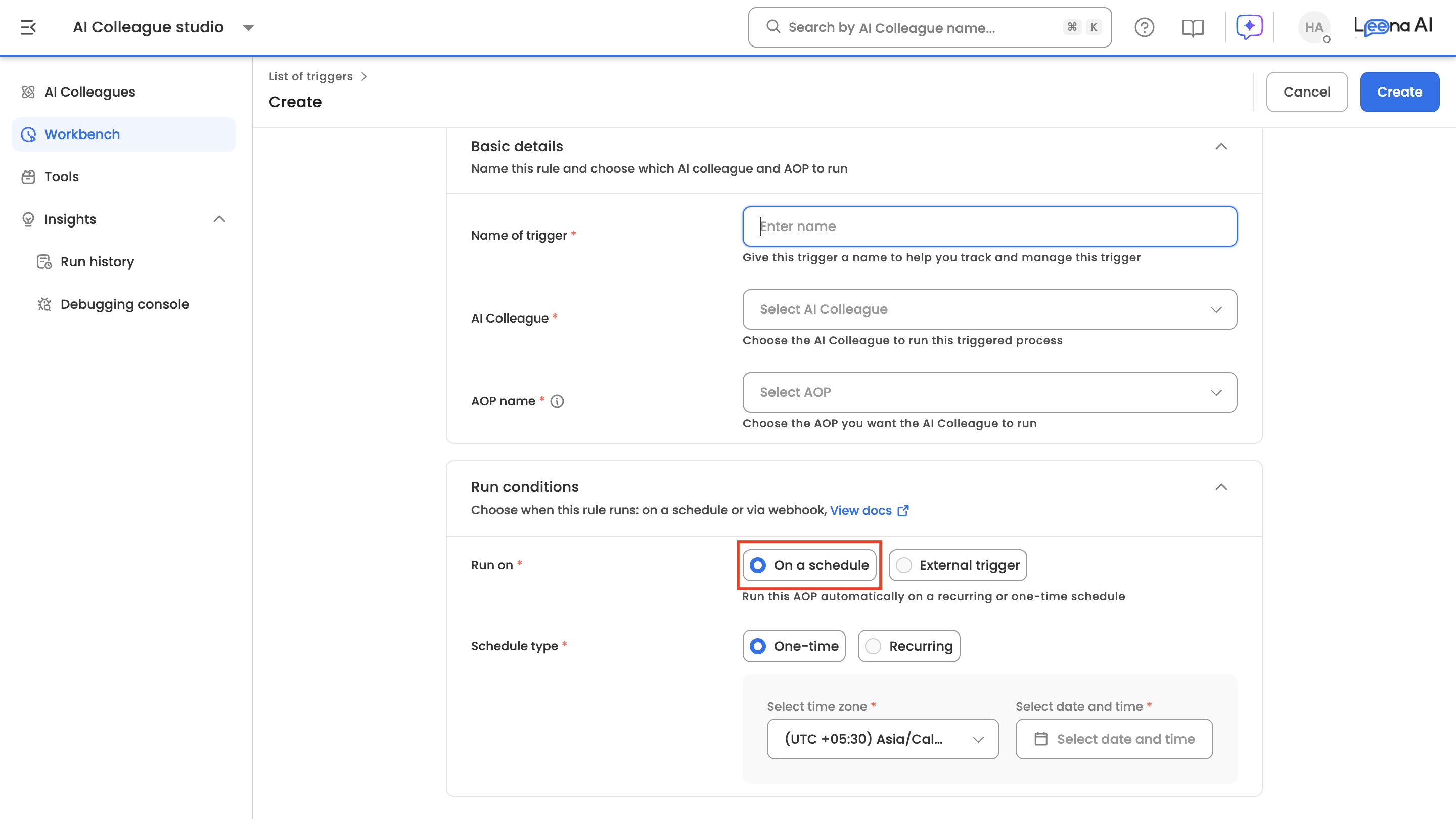
Run an AOP on a predetermined schedule instead of starting it by hand. Schedules are the time-based trigger type in the Workbench and are ideal for routine, time-bound processes such as daily reports, attendance reviews, or monthly compliance audits.
When you create a schedule, you:
- Name it and select the AI Colleague and the specific AOP it should run (only AOPs belonging to that AI Colleague, and permitted for scheduled execution, are selectable).
- Choose a schedule type:
- Non-recurring (one-time) — runs once at a specific date and time.
- Recurring — repeats on a cadence you define.
- Set the cadence (recurring): choose a frequency of minutes (15/30/45), hours, days, weeks, or months, with a repeat interval of 1–99 for the larger units (e.g., every 2 weeks). The minimum sub-hourly interval is 15 minutes.
- Set the time zone and execution time: the time zone defaults to your local zone, and every schedule runs at the correct local time for the zone you pick.
- Set an end condition (recurring): stop on a specific end date, after a fixed number of occurrences, or leave it open-ended until you deactivate it.
Once saved, a schedule appears in the Workbench's List of schedules as Active, and its upcoming runs are visible for review. Each run is recorded in Run History. You can edit, pause, resume, or delete schedules at any time.
See Setting up schedules for the full walkthrough.
Inbound Webhook
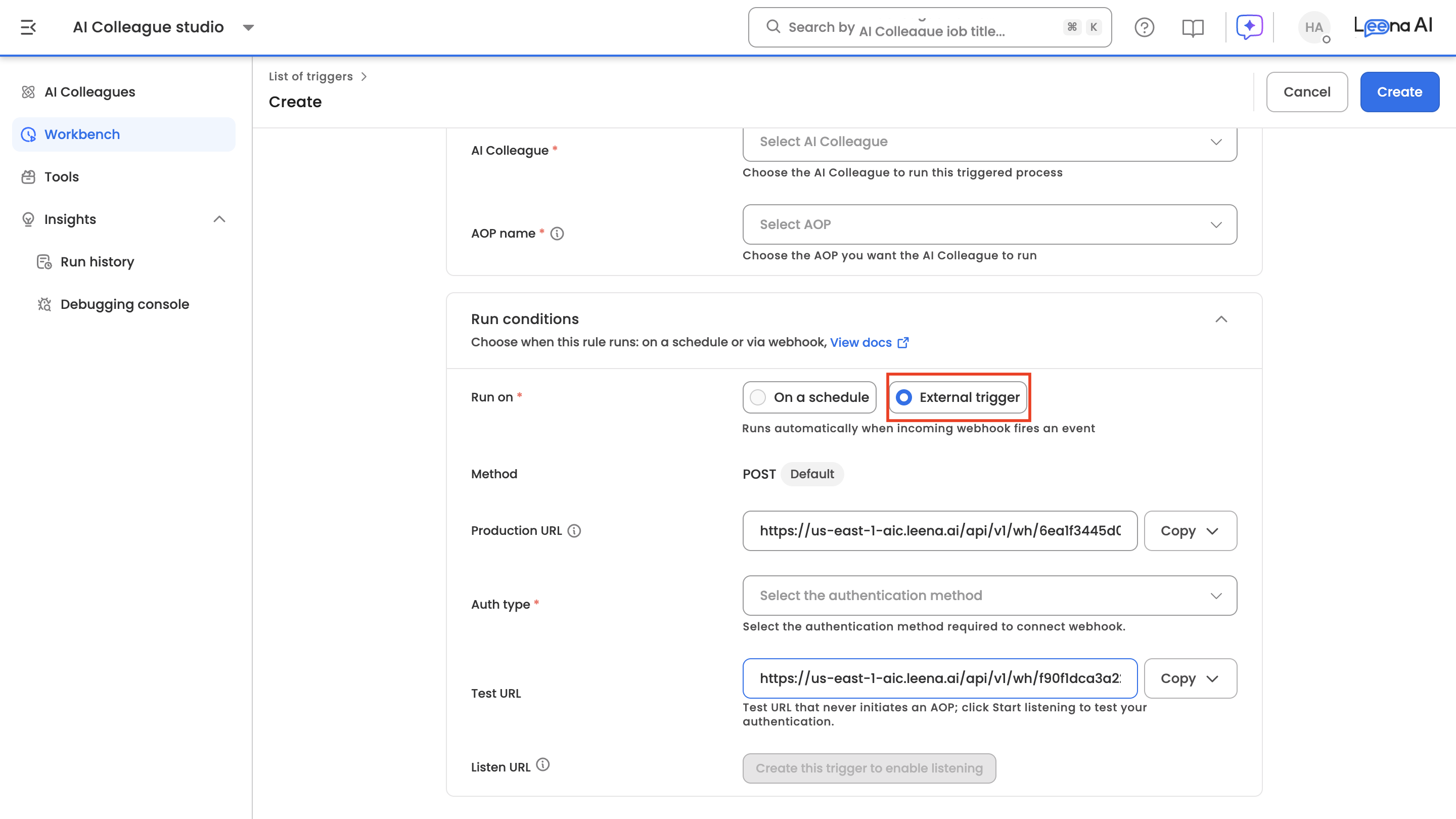
An Inbound Webhook lets any external system start an AOP by sending it a JSON payload. When you enable a webhook trigger, the Workbench generates two secure endpoints for it:
- Production URL — used by the source system in live operation. Valid requests start the AOP immediately.
- Listen URL — a separate endpoint for testing only. Requests are validated exactly like production but never start a run, so you can safely verify your setup before going live.
Key behaviors:
- Method and format are fixed to POST + JSON. The data sent in the request body is passed into the AOP as run context, so your AOP steps can use those fields directly.
- Authentication is handled by selecting one of your platform's pre-configured auth configs. Credentials are managed centrally in the platform auth setup — the trigger only references which config secures it.
- Testing built in. Use the Listen button to capture and inspect a test request, and Copy as cURL to get a ready-to-run request (URL, auth, and a sample body) you can hand to whoever wires up the source system.
- Guardrails for rate limit and maximum payload size are enforced automatically and shown on the setup page.
Example: When a new hire is created in an HRIS, the HRIS posts the employee's details to the Production URL, and an onboarding AOP starts instantly with that data available as context.
See Setting up webhook triggers for the full walkthrough.
Auditability & Run History
Run History is the single place to see all trigger activity. Every trigger evaluation creates a Run History entry — whether it successfully started a run or failed (e.g., a rejected webhook or a polling connection error).
- Each triggered run includes a Trigger Context step at the top of its run trail, showing how it was started: trigger type, source app, timestamp, and (for app events) how many events matched.
- In Run History, use the filters to narrow runs by Trigger Type (e.g., Manual, Scheduled, Webhook) and other criteria. Filtered views are captured in the URL, so you can bookmark or share a specific view.
Why Workbench is Critical for Business Automation
1. Consistency and Reliability
Business processes often require regular execution at specific intervals. Workbench eliminates the risk of human oversight and ensures critical operations run precisely when needed.
2. Proactive Business Management
Scheduled automation enables organisations to be proactive rather than reactive in their operations.
3. Operational Efficiency
Automated scheduling reduces manual workload and allows staff to focus on strategic activities rather than routine tasks.
4. Business Continuity
Workbench ensures business-critical processes continue operating even during disruptions, staff changes, or organisational transitions.
5. Event-Driven Responsiveness
With system event-based triggers, automations react the moment something happens — an email arrives, a message is posted, or an external system fires a webhook — instead of waiting for the next scheduled run. This shortens time-to-action for time-sensitive processes and removes the dependency on someone remembering to start a run.
Updated 2 months ago