
Configure your Ticket Rating System
Configurable Ticket Rating System
Our new rating system transforms how you collect feedback. Move beyond simple star ratings by defining what constitutes a "low" vs. "high" rating and asking targeted follow-up questions to gather structured, actionable insights.
How It Works
The system operates on a simple threshold you define. For example, if you set the threshold to 3 stars:
- Low Ratings (1, 2, 3 star): Trigger a customized feedback form to understand what went wrong.
- High Ratings (4, 5 star): Trigger a different form to learn what your team did well.
Each form can have its own unique question, selectable options, and comment requirements.
Admin Configuration Guide
You can set up and manage the entire experience from your admin panel.
Location: Settings > General Settings > Rating Settings
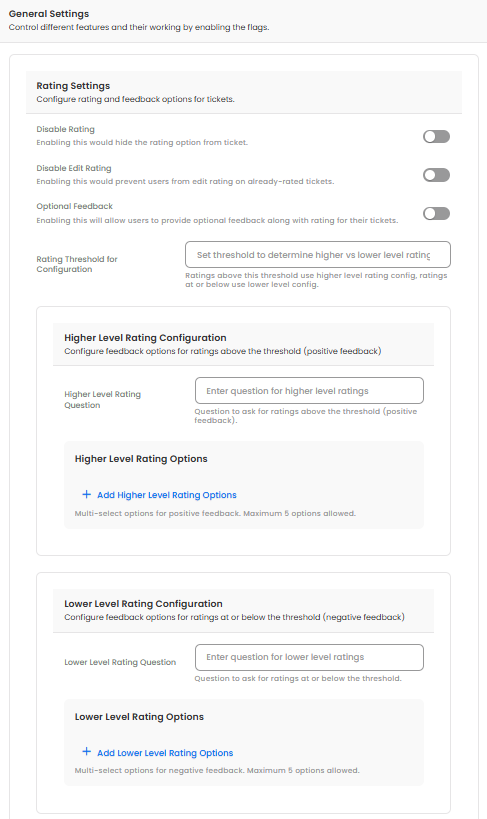
1. Disable Rating
Setting this toggle ON shall remove all rating options for every single user.
2. Disable Edit Rating
Setting this toggle ON will disallow requestor to re-rate the ticket in case it is reopened and closed again. Should be enabled for below purposes
- Data Integrity: Ensure that the initial customer sentiment is captured and preserved.
- Consistent Reporting: Prevent "rating inflation" where scores might change after additional follow-up.Process
- Compliance: Maintain a permanent record of the service level provided at the first point of resolution.
3. Optional Feedback
Setting this toggle ON shall make a text box visible on all ratings.
4. Set Your Rating Threshold
Minimum Rating Threshold: Enter a number (1-5) to define the boundary for a "low" rating. Any rating less than or equal to this value is considered low.
5. Customize Feedback Forms
The page is split into Higher Level Rating Configuration and Lower Level Rating Configuration. Configure each one with the following options:
-
Custom Question: The specific question users will see for that rating tier. If you do not want survey questions to appear, leave them blank.
Low Rating Example: "We're sorry to hear that. What was the main issue?"
High Rating Example: "Great! What did you like most about our service?" -
Multi-Select Options: Create a list of predefined reasons for users to select. This is crucial for reporting and trend analysis.
- Click "Add Higher Level Rating Option" or "Add Lower Level Rating Option" to create reasons like "Slow response time" or "Agent was very knowledgeable."
- You can edit or delete these at any time. Changes shall reflect on new ratings going forward.
-
Higher Level/Lower Level Rating Mandatory: This flag ensures that filling in the text box becomes mandatory while submitting higher/lower level ratings.
The User Experience
- A user selects a star rating for a closed ticket.
- The system instantly displays the custom question (if enabled in settings) and multi-select options you configured for that rating level.
- The user selects the relevant reasons, mandatory comment, and clicks Submit.
Rating Lifecycle
If "Disable Edit Rating" is not on
- A user can only rate a ticket once per resolution.
- If a rated ticket is reopened and then closed again, the user will be prompted to submit a new rating, which will replace the previous one.
If "Disable Edit Rating" is on
- A user can only rate a ticket once in the ticket's lifecycle.
- If a rated ticket is reopened and then closed again, even then the user will not be able to edit the original rating
Updated 8 months ago