
Home -> Kanban View
The Kanban view lists articles according to their current status. The statuses are predefined and listed below:
- New
- Draft
- In Review
- Published
Only articles the user has access to will be displayed in the Kanban view of knowledge management. This view helps users manage the progress of articles from Draft to Published by knowing which articles are making good progress. For instance, easily identifying the articles needing attention, or those which require strong stakeholder follow up, and more.
Published articles also show whether they are live — that is, whether employees can already get answers from them on the Virtual Assistant. See knowing when an article is live below.
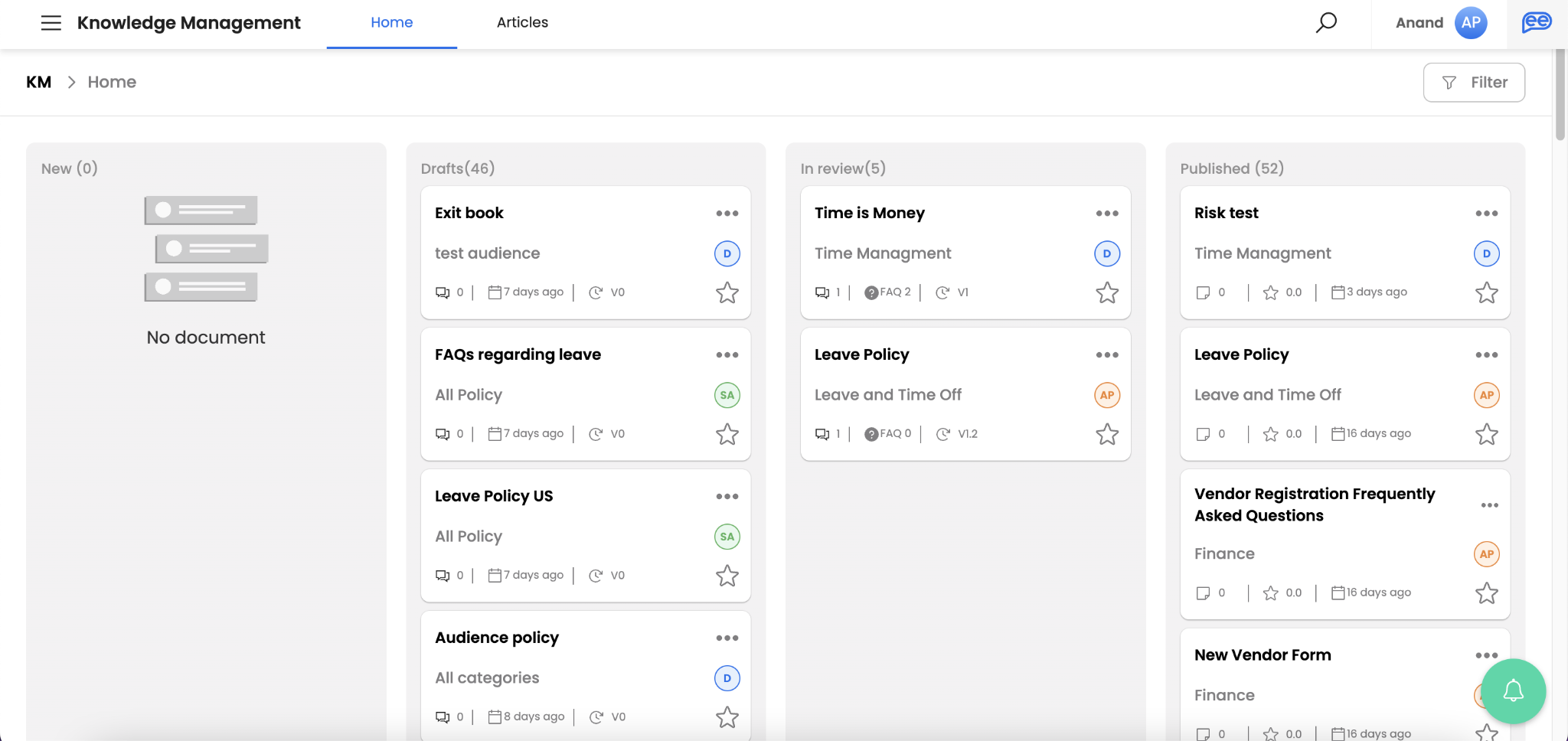
Each card in the Kanban view will display relevant details and actions that can be triggered for that particular article.
- Article Name
- Article Folder
- Article Owner (Initials of the Owner Name)
- Mark as Favorite
- Number of comments added to the article
- Last updated timestamp (except in the ‘In Review’ status)
- Version of the article
- Number of feedback comments added to the article
- Average rating for the article
- Actions (displayed upon clicking the flutter/three dot icon on each card)
- View/Edit the article
- Share access (Manage members)
- Archive the article
- Download the article (Only uploaded articles and written articles can be downloaded)
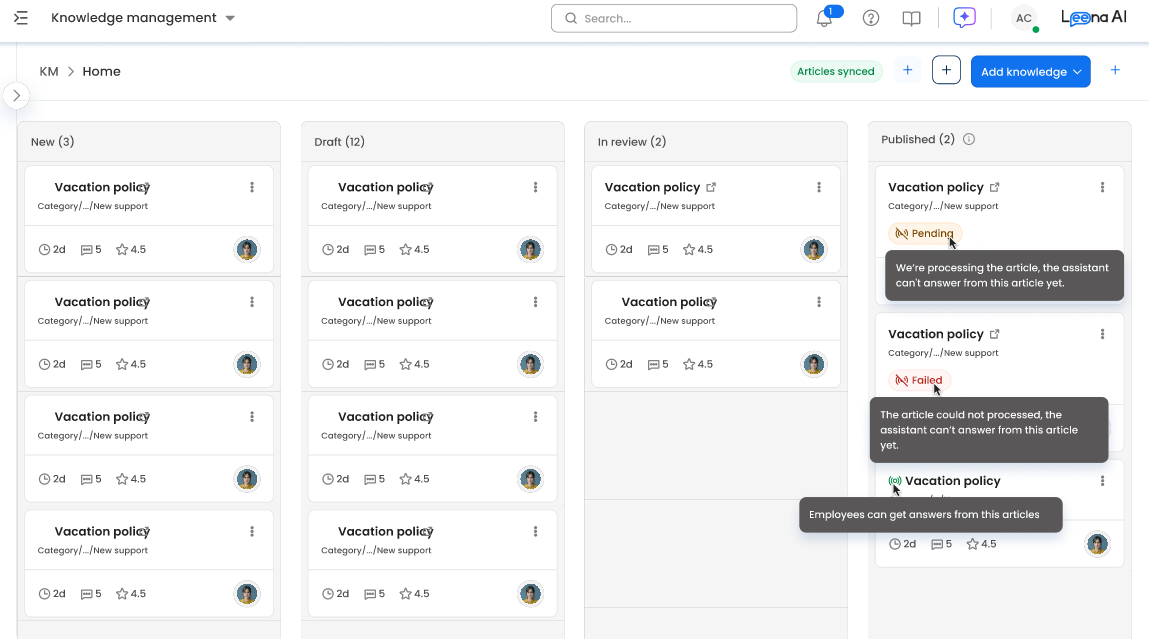
Cards in the Published column also show a live icon or a processing status, described below.
Knowing when an article is live
Publishing an article does not make it available to the Virtual Assistant instantly. After an article is published, Leena AI processes it — the content is parsed and indexed — and only then can employees get answers from it. Cards in the Published column show where each article is in that process.
| What you see on a Published card | What it means | Can employees get answers from it? |
|---|---|---|
| Live icon (a broadcast icon) before the article name | The article is live. Hover over the icon to see "Employees can get answers from this article." | Yes |
| Pending status (yellow, with a crossed-out broadcast icon) | The article is still being processed. | Not yet |
| Failed status (red, with a crossed-out broadcast icon) | The article could not be processed. | No |
- The Pending and Failed statuses appear at the bottom of the card. Hover over them for details:
- Pending — "We're processing the article, the assistant can't answer from this article yet."
- Failed — "The article could not be processed, the assistant can't answer from this article yet."
- Right after you approve or publish an article, it shows as Pending until processing finishes.
- The same indicators appear in the Status column of the list view, and when you open the article.
Test once the article is liveIf you ask the Virtual Assistant about an article that is still Pending, it cannot answer from that article yet. Wait for the live icon to appear before testing new or updated content.
Filter articles by published status
On KM Home, use the Published status filter to find published articles by processing state:
| Option | Shows |
|---|---|
| Published | Live articles that employees can get answers from |
| Pending | Published articles that are still being processed |
| Failed | Published articles that could not be processed |
Select Failed to quickly find articles that need attention.
If an article shows Failed
- Open KM Sync Logs and check the sync that processed the article.
- Use Debugging KM Sync Logs to understand the failure.
- If the article still cannot be processed, contact your Leena AI Customer Success Manager.
Related pages
Updated 2 days ago