
MCP
Overview
This guide explains how to:
- Register an MCP Server: Connect Leena AI's AI colleague studio to an external Model Context Protocol server
- Add an MCP based Tool in AI Colleagues (expose MCP tools as usable tools)
- Use MCP Tools: Inside an AOP for repeatable, multi-step automation
Prerequisites
- Admin access to:
- Settings → Integrations
- AI Colleagues → Tools
- AOP Creator / Workbench: If you plan to use the tool in an AOP.
- Your MCP server details:
- Remote URL (HTTPS recommended)
- Authentication method and credentials
Part 1: Register an MCP Server (Create a Server Connection)
In Leena AI, MCP Servers are managed through the Integrations “Connections” experience.
Step 1: Navigate to MCP Servers
- Open the Leena AI Dashboard
- Go to Settings → Integrations → All
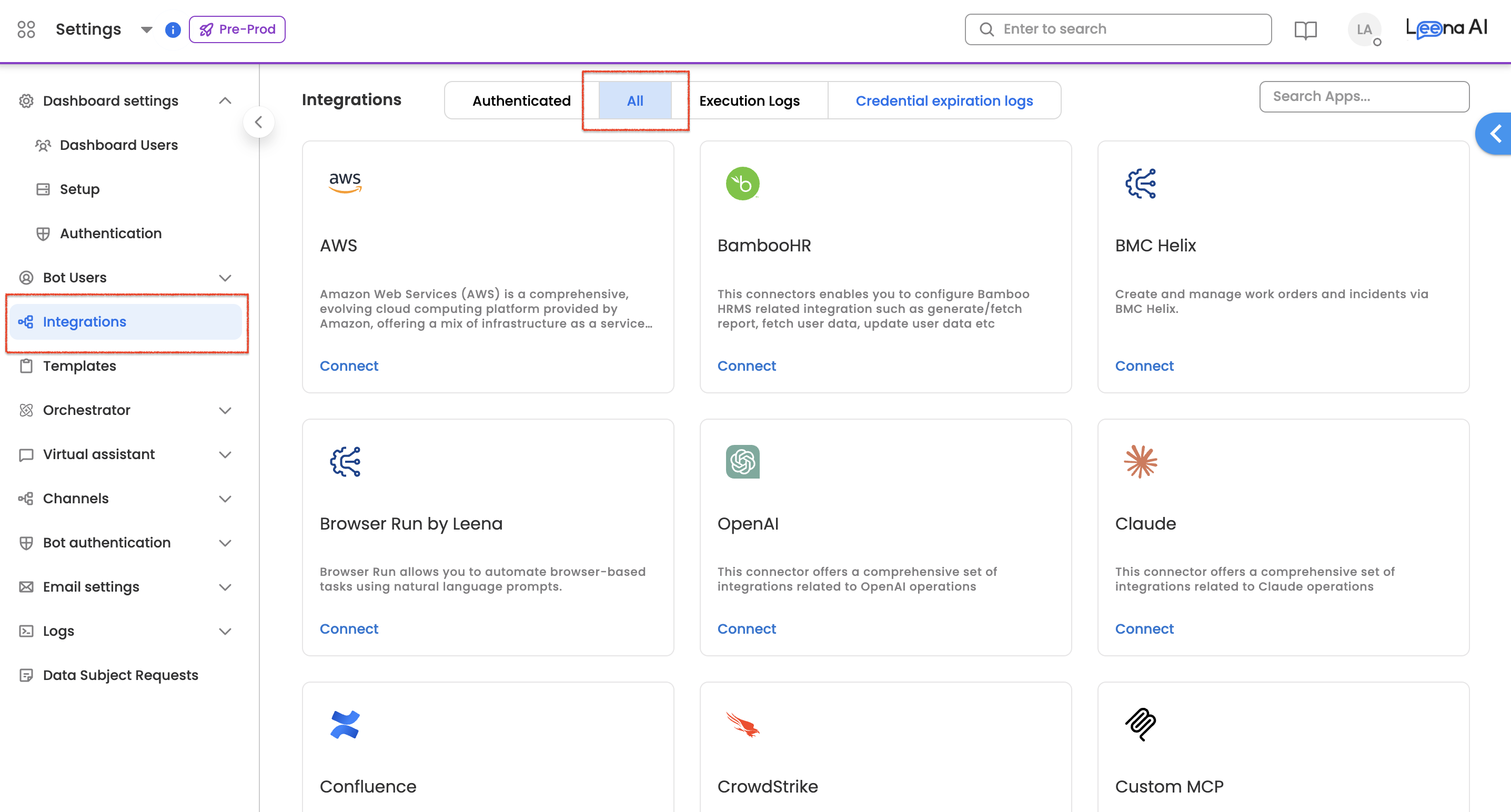
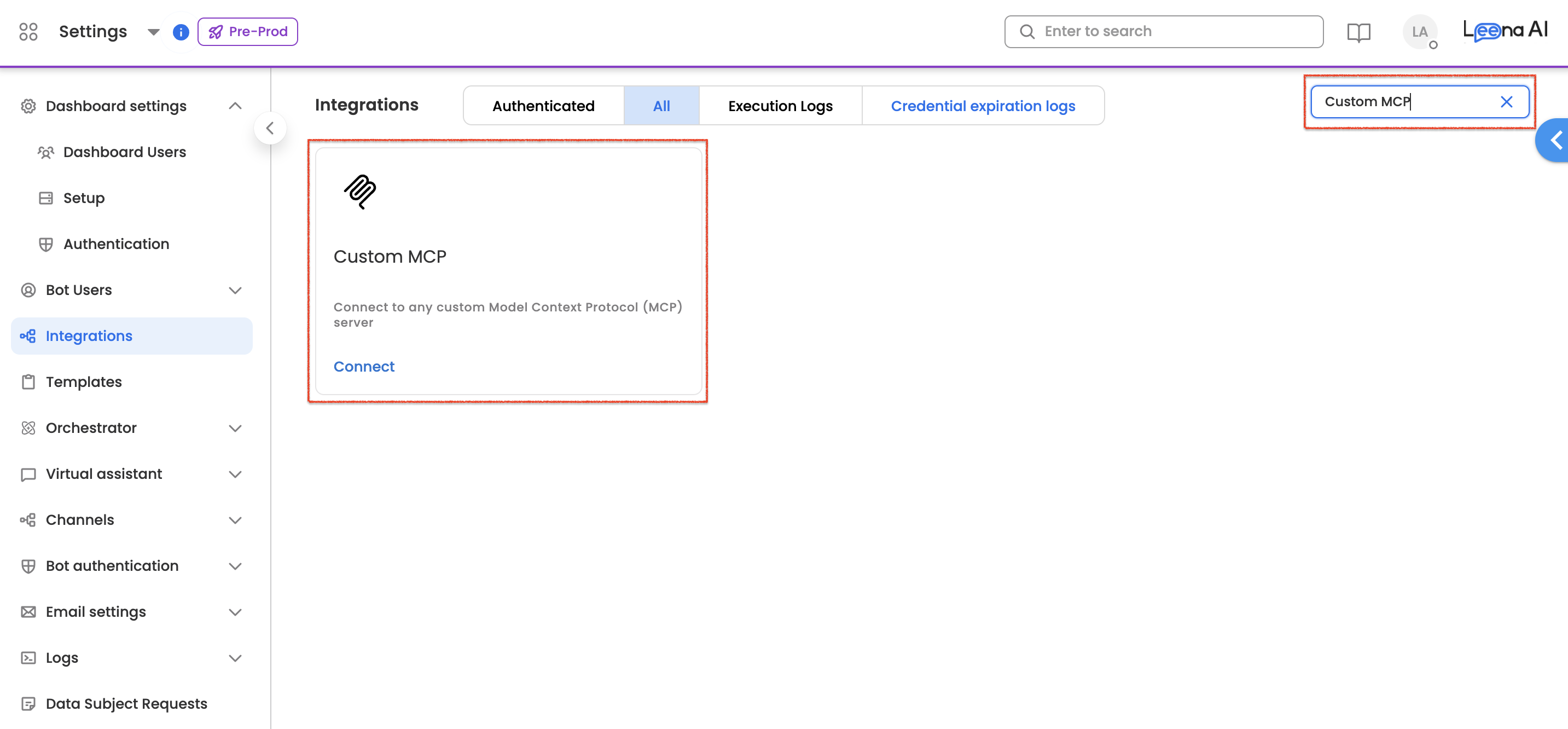
- Search and select Custom MCP
Step 2: Add a New MCP Server
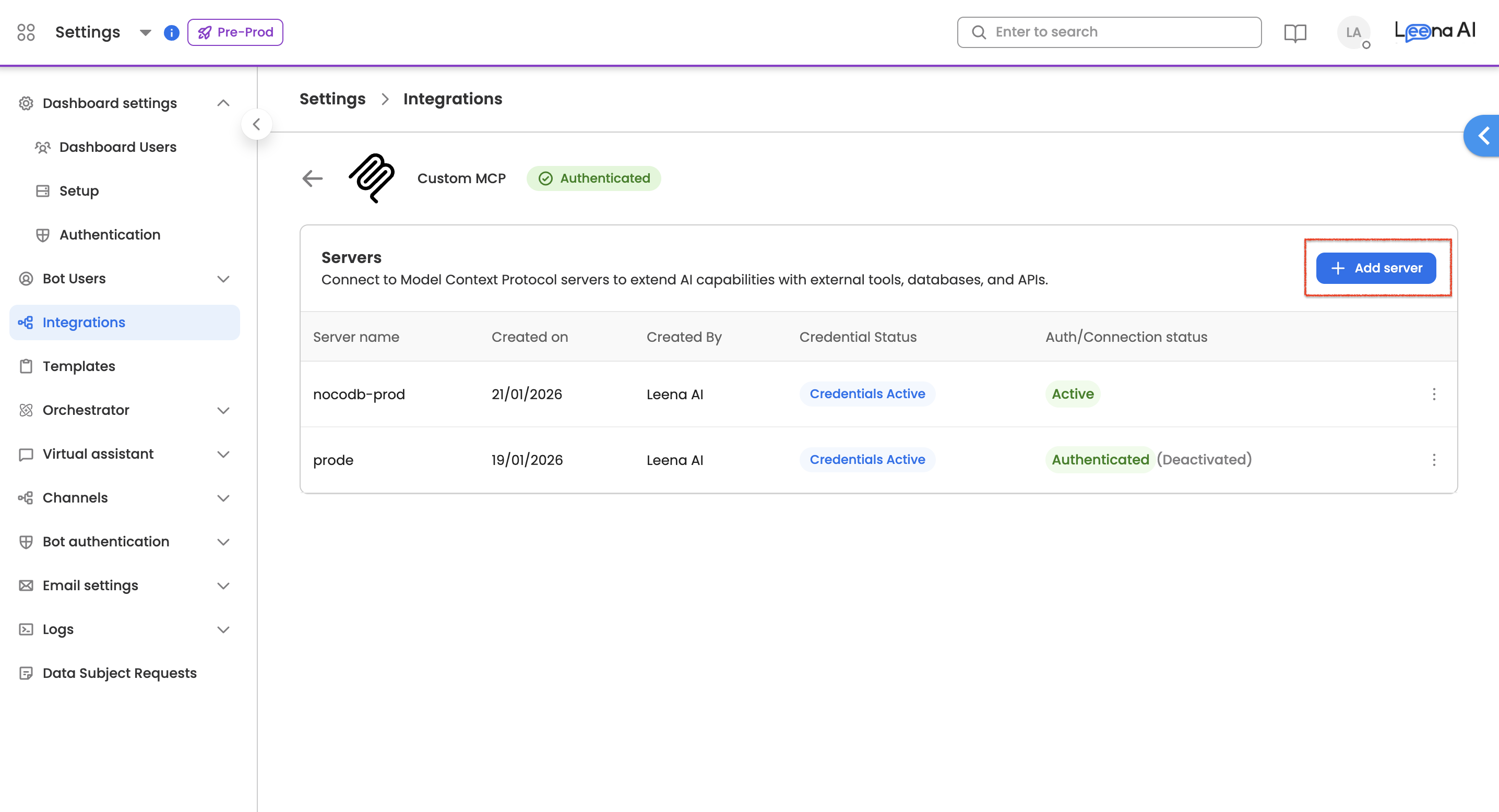
- Click Add Server
- Fill the MCP server configuration fields.
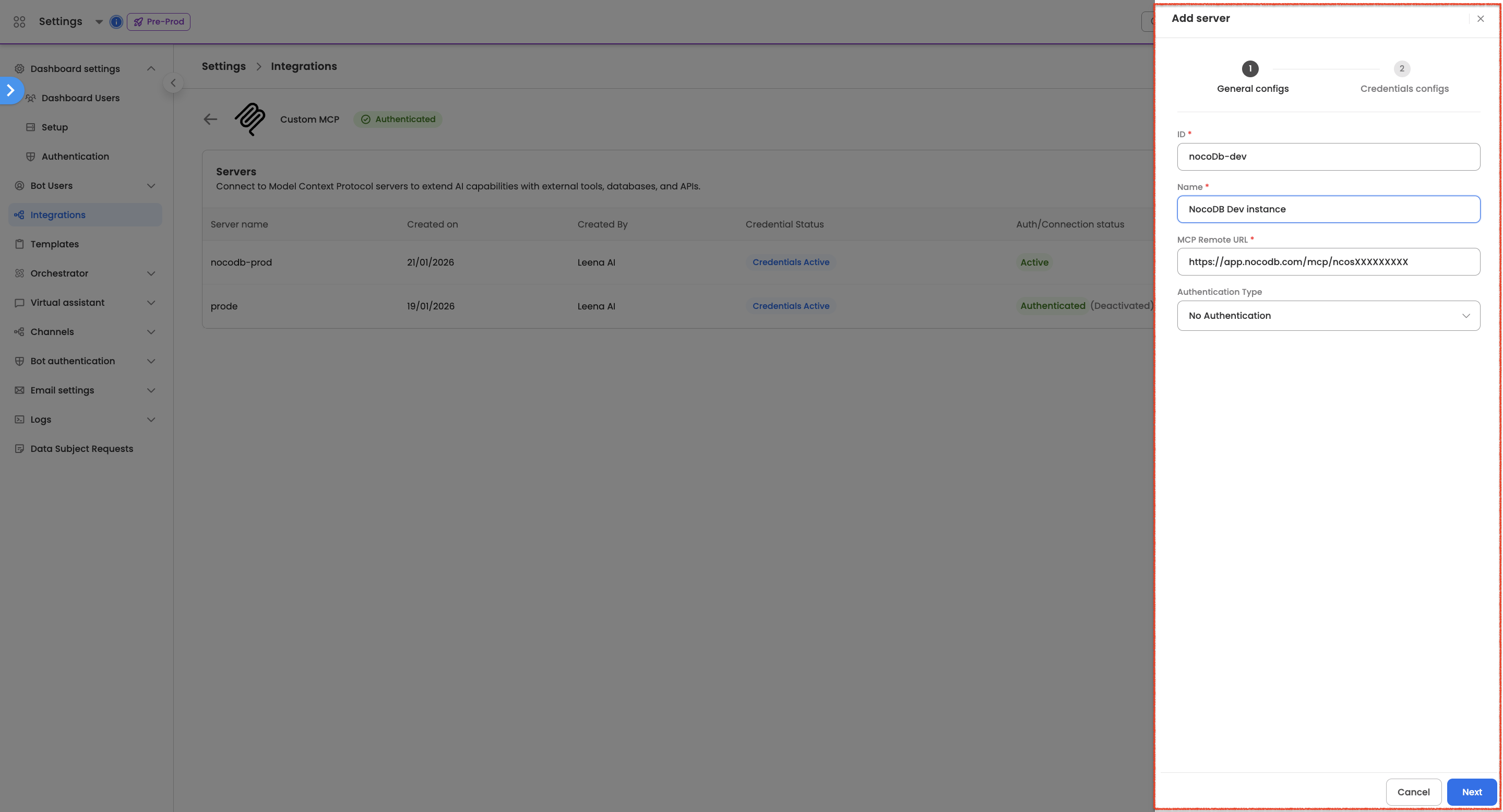
Typical fields you’ll see:
- MCP Remote URL
- The URL for your MCP server (example:
https://mcp-server.example.com)
- The URL for your MCP server (example:
- Authentication Type
- Select the method your MCP server requires (see below)
Step 3: Choose Authentication Type
Depending on your selection, the form will dynamically show the right fields.
A) No Authentication
Use when:
- The MCP endpoint is secured via private network controls and does not require a credential header/token.
What you provide:
- Only the MCP Remote URL
B) Custom Authentication (Headers)
Use when:
- Your MCP server expects custom headers (API keys, internal tokens, special headers, etc.)
What you provide:
- Authentication Headers (entered in JSON format).
For example: { "xc-mcp-token": "dfOXXXXXXXXXXXXXXXXXXXXXXXXX_ncK5" }
Tip:
- Use this for simple header-based security without OAuth.
C) Admin OAuth 2.0
Use when:
- A single admin-managed OAuth credential is acceptable for the server’s operations.
What you need:
- Redirect URI: To be configured at 3rd party application's end
- Client ID
- Client Secret
Notes:
- The Redirect URI is auto-generated by the Leena AI platform and is read-only.
D) User OAuth 2.0
Use when:
- The MCP server needs user-level permission-ing (each end-user must authenticate).
What you need:
- Redirect URI: To be configured at 3rd party application's end
- Client ID
- Client Secret
What will happen later:
- When a user tries to use the MCP tool, they may be prompted to authenticate before the tool can run.
Redirect URI (Callback URL): What it is and how to configure it
When you choose Admin OAuth 2.0 or User OAuth 2.0, Leena AI will show a Redirect URI field (auto-generated and read-only).
What is the Redirect URI?
The Redirect URI (also called a callback URL) is the address where the OAuth provider (your MCP server’s authorisation system) sends the user back after login/consent.
- The provider redirects the user back to Leena AI with an authorisation response (for example, an
authorisation code). - Leena AI uses that response to complete authentication and securely store the required tokens.
Where do I use it?
you typically must configure this Redirect URI on the application/provider side.
In most OAuth providers, you’ll find a setting like:
- “Allowed Redirect URIs”
- “Callback URLs”
- “Authorised redirect URIs”
- “Valid OAuth redirect URIs”
You must add the exact Redirect URI shown in Leena AI into that allowlist.
Admin OAuth vs User OAuth (how Redirect URI usage differs)
Both flows use the Redirect URI in the same way (the OAuth provider redirects back to Leena AI), but the scope of authentication differs:
- Admin OAuth 2.0: One admin-managed authorisation is used for the server/connection.
- User OAuth 2.0: Each end user may be prompted to authenticate before initiating the MCP based tool (user-specific access).
Step 4: Save
Save the server configurations. You can choose to setup expiration alert notifications (if required).
After saving:
- The AI Colleagues studio platform can discover tools/actions exposed by the server (this is what becomes selectable during MCP Tool creation).
Part 2: Create an MCP Tool in AI Colleagues (Tool Catalog)
Once the MCP server is registered, create a tool that your AI Colleagues and AOPs can use.
Step 1: Go to Tools
- Open AI Colleagues
- Navigate to Tools
- Click Add Tool
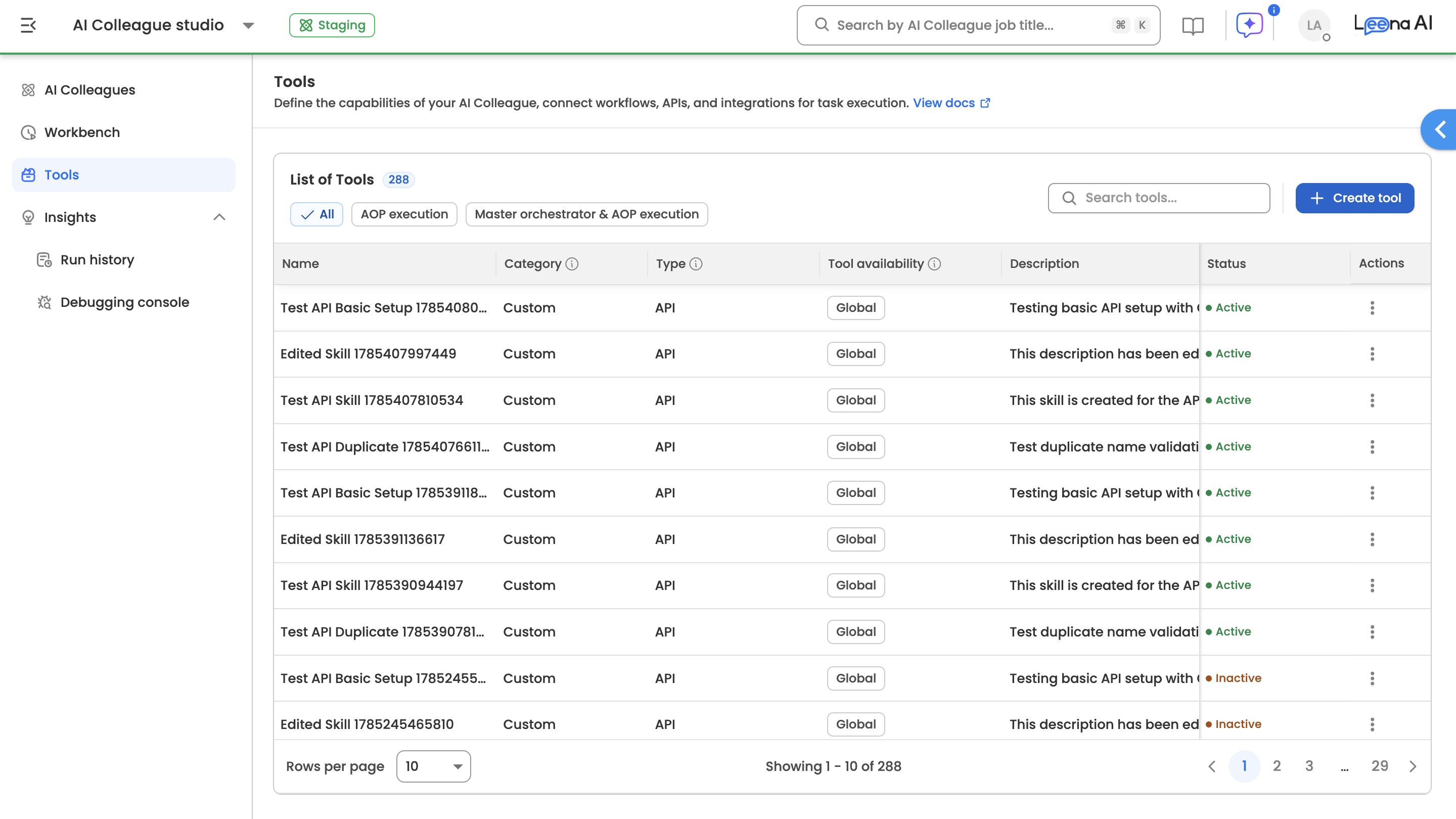
Step 2: Select Tool Category
Choose:
- Integration (MCP): To configure MCP server based tool
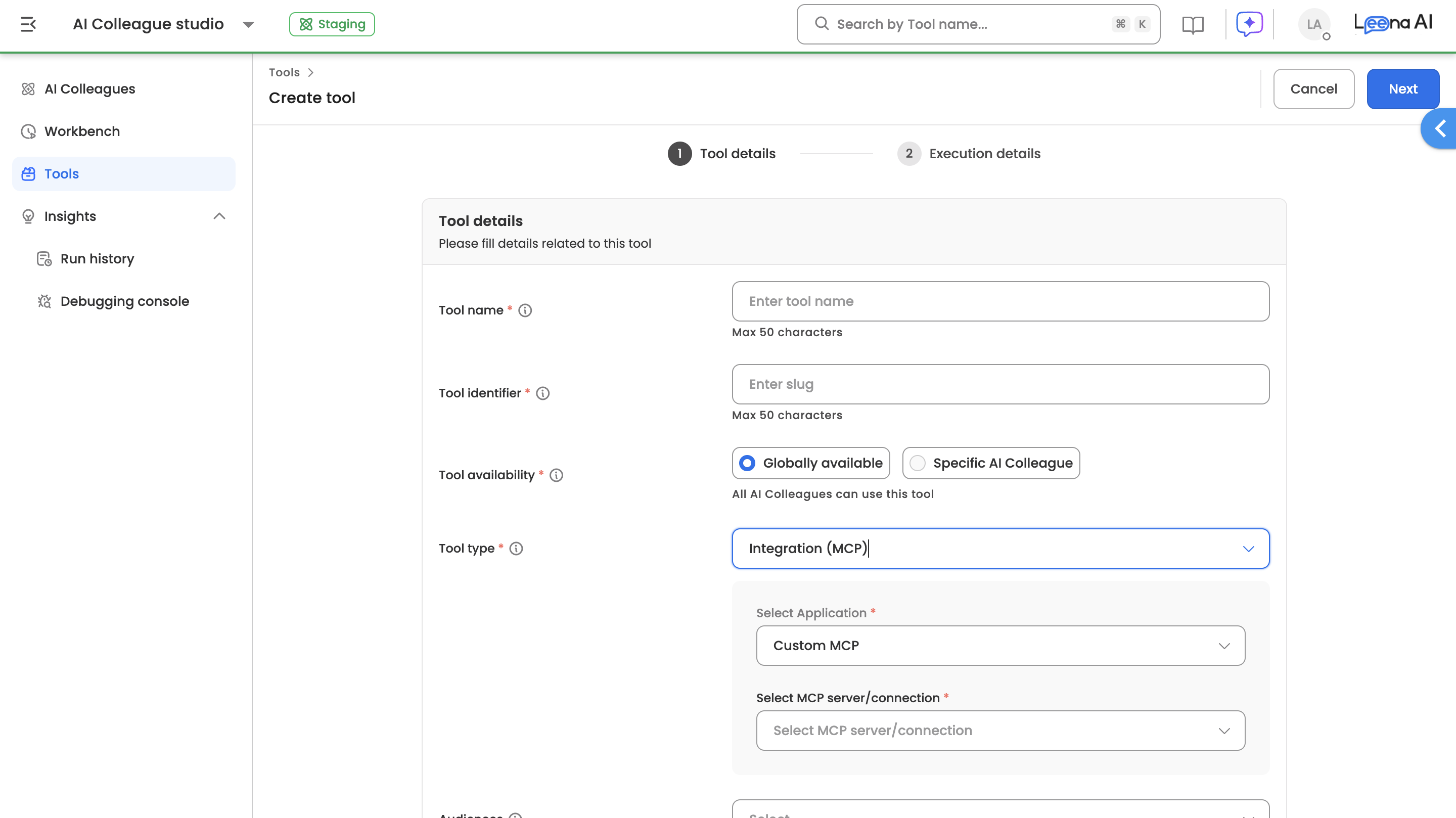
Step 3: Configure the MCP Tool
You’ll configure three things:
- Select Application
- Choose the MCP-enabled integration/app. (For now, select Custom MCP server)
- Important: Currently, Leena AI platform supports Custom MCP server registration. In subsequent releases Leena AI platform would enable each of its natively provided 3rd party application connectors (such as, Workday SOAP, Successfactors) via MCP server as well.
- Select MCP Server
- Choose the server connection you registered in Part 1
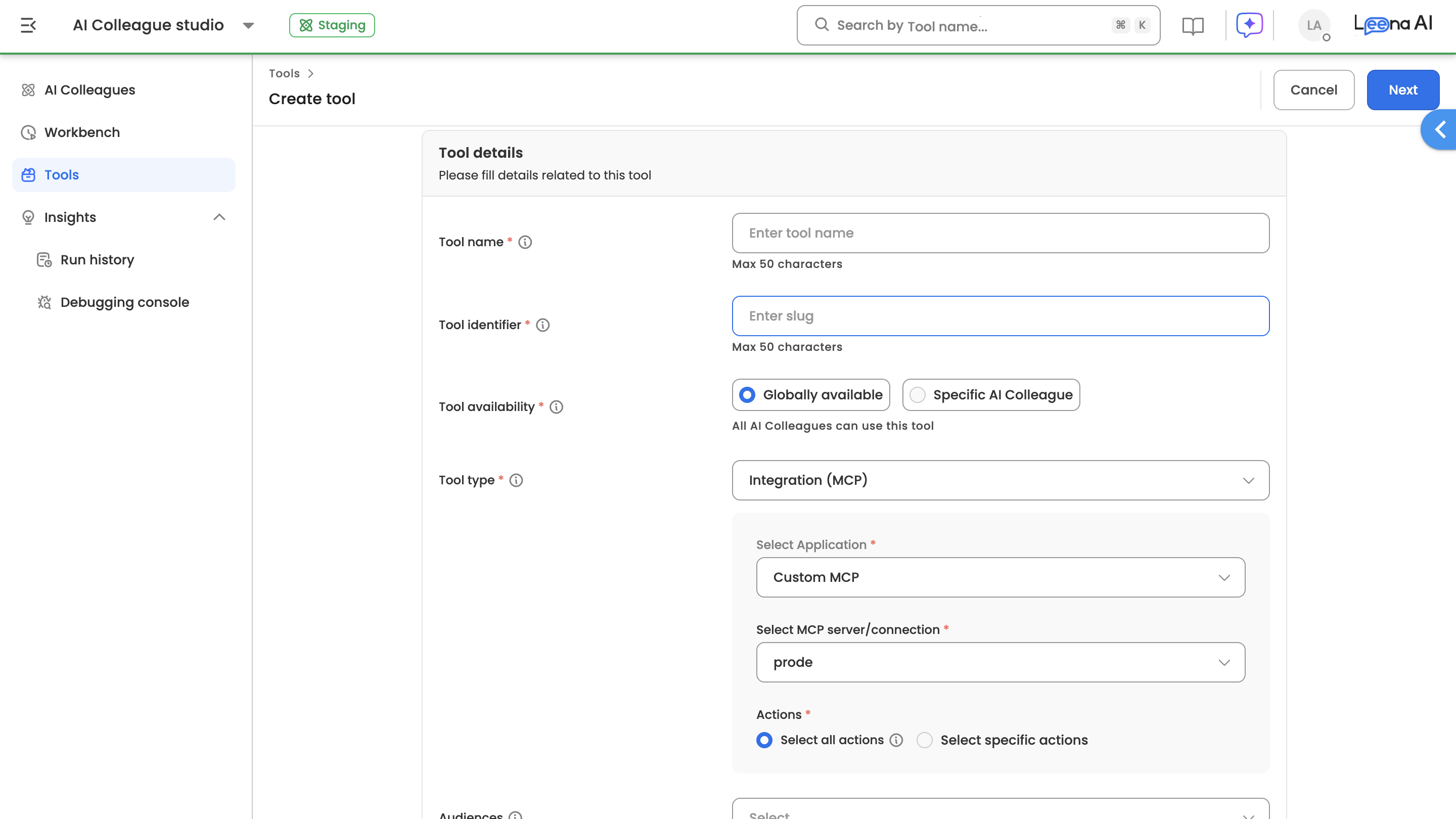
- Actions
- Choose one of:
- Select all actions
- The tool will allow the AI to use any tool exposed by that server
- Select specific actions
- You choose exactly which tools are allowed
- Select all actions
Recommendation:
- Start with Select specific actions for better governance and predictability, especially in production.
Step 4: Save the Tool
After saving:
- The MCP Tool becomes available for utilisation in AOPs.
Part 3: Use an MCP Tool Inside an AOP
Step 1: Create/Edit AOP
- Go to AI colleagues > Select/Create an AI colleague
- Create a new AOP (or edit an existing one)
Step 2: Add MCP Tool as a Building Block
In the AOP Instructions, add the MCP Tool from the selector into your AOP steps.
Step 3: Publish and Activate
Publish AOP, thus making it active for production use.
Recommended Practices (Governance + Reliability)
Dos
- Prefer HTTPS MCP Remote URLs
- Use Select specific actions when creating MCP tools (principle of least privilege)
- Name servers and tools clearly so admins can manage them easily
- Test before enabling in production for wider use.
Don’ts
- Don’t expose MCP endpoints publicly without authentication
- Don’t grant “all actions” unless you genuinely want broad access
- Don’t use user-scoped OAuth unless you’re prepared for authentication prompts during execution which end-users can encounter.
Troubleshooting
The server saves, but no tools/actions appear
Possible causes:
- The MCP server isn’t exposing tools correctly
- Authentication is wrong or incomplete
- Network reachability issues
What to do:
- Re-check the MCP Remote URL
- Verify auth settings
- Try again after confirming the MCP server is running and accessible
The AOP runs but can’t find or use MCP tools
Possible cause:
- The MCP Tool wasn’t included in the AOP’s configured tools list
What to do:
- Edit the AOP draft to include the MCP tool
- Publish a new version and activate it
How MCP Tool Descriptions Work (and How to Influence Selection)
When an AOP uses an MCP tool, the orchestrator's LLM decides which tool to call based on the descriptions exposed by the MCP server. This section explains where those descriptions live, why they aren't editable in Leena, and what you can do when they don't produce the selection behaviour you want.
Where tool descriptions come from
Leena AI is the MCP client. Tool descriptions are defined and owned by the MCP server, per tool, and are fetched at runtime from the server's tool manifest.
There is no single "description" field for an MCP integration in Leena because a single MCP server typically exposes many tools — each with its own name, description, and parameter schema. The server is the source of truth for all of them.
Why descriptions aren't shown in the Leena UI
Since descriptions are server-owned and per-tool (not client-editable), Leena does not surface a description field in the MCP server configuration or the MCP tool creation screens. Editing them in Leena would create drift from the source of truth on the server and lead to inconsistent behaviour across clients.
If you need to inspect the descriptions a server is exposing, check the tool manifest directly on the MCP server itself.
How descriptions affect tool selection
The orchestrator uses server-provided tool descriptions to decide which MCP tool best matches a given user query. Description quality directly affects selection quality:
- Vague or generic descriptions make it hard for the LLM to distinguish one tool from another
- Overlapping descriptions across tools (within the same MCP server, or across MCP and non-MCP tools) cause the LLM to pick the wrong one
- Missing context about when not to use a tool can cause it to be selected for unrelated queries
If your AOP is calling the wrong MCP tool — or failing to call the right one — description quality is usually the first thing to investigate.
What to do if the server's descriptions are inadequate
Apply these levers in order of preference:
Option A (preferred): Improve descriptions at the MCP server
If you own or can influence the MCP server, update each tool's description to be:
- Specific and action-oriented (e.g., "Fetch open Jira tickets assigned to the requesting user" rather than "Get tickets")
- Non-overlapping with sibling tools on the same server
- Explicit about scope — what the tool does and doesn't do
The same principles described in Writing Effective Tool Descriptions apply to MCP tool descriptions. Updating the server is the cleanest fix because it benefits every MCP client, not just Leena.
Option B: Use "Select specific actions" to scope the toolset
When creating the MCP tool (Part 2 → Step 3), prefer Select specific actions over Select all actions. Reducing the number of exposed tools reduces opportunities for the LLM to confuse one tool for another, even if individual descriptions are imperfect.
Option C: Steer selection from the AOP instructions
When you don't control the MCP server and can't change the descriptions, you can steer the orchestrator's selection from within the AOP instructions itself (if using MCP based tool call within AOP) or through Master Orchestrator's additional instructions (Settings > Orchestrator > Additional Instructions) . In the AOP instructions, add explicit guidance such as:
- "For queries about
<topic>, always use the<tool_name>MCP tool." - "Do not use
<tool_name>for<unrelated scenario>."
This is the right approach when server descriptions are fixed but you need predictable selection behaviour for specific use cases.
Upcoming enhancements
1. Platform-Managed MCP for Native Connectors
We're enabling internally built connectors (ServiceNow, Workday, SuccessFactors, etc.) via a Leena AI platform-managed MCP server.
What Changes:
| Aspect | Current | With Platform-Managed MCP |
|---|---|---|
| Tool Creation | Each action requires a Tool creation in Tools (Workflow) Studio | Actions directly available as MCP tools—no tool creation needed |
| Time to Enable | Days per action | Minutes—actions callable once connector is enabled |
| Scalability | 10 actions = 10 tools | 1 MCP connector = all actions available |
Impact: Eliminates redundant tool-building, reduces technical dependency, and accelerates go-live for new automations.
2. MCP Registration from AI Colleagues Studio
Streamlined journey to register MCP servers directly while adding tools—no need to navigate to Integrations space separately.
Impact: Single workspace for all AOP authoring; faster path from "I need this integration" to "It's working."
Evaluation Results
Since this feature uses LLM-based tool call selection and initiation, we continuously evaluate quality across key dimensions.
| Criteria | Description | Result |
|---|---|---|
| Correct tool selection | MCP tool correctly identified and called for the user query | 100% |
| Accurate Parameter Extraction | Tool called with correct parameters basis the context | 90% |
Note: Evaluation results are updated periodically. Last updated: March 2026
Updated about 2 months ago