
Overview
Watch the tutorial
Use case
- Workflow builder can be used to create flows for different domains such as IT, HR etc.
- It is often required to grant specific permissions at an app level to specific workflow agents.
- For example, we need to show only specific IT applications to specific agents, who can also access reports for those applications.
How to configure permissions
-
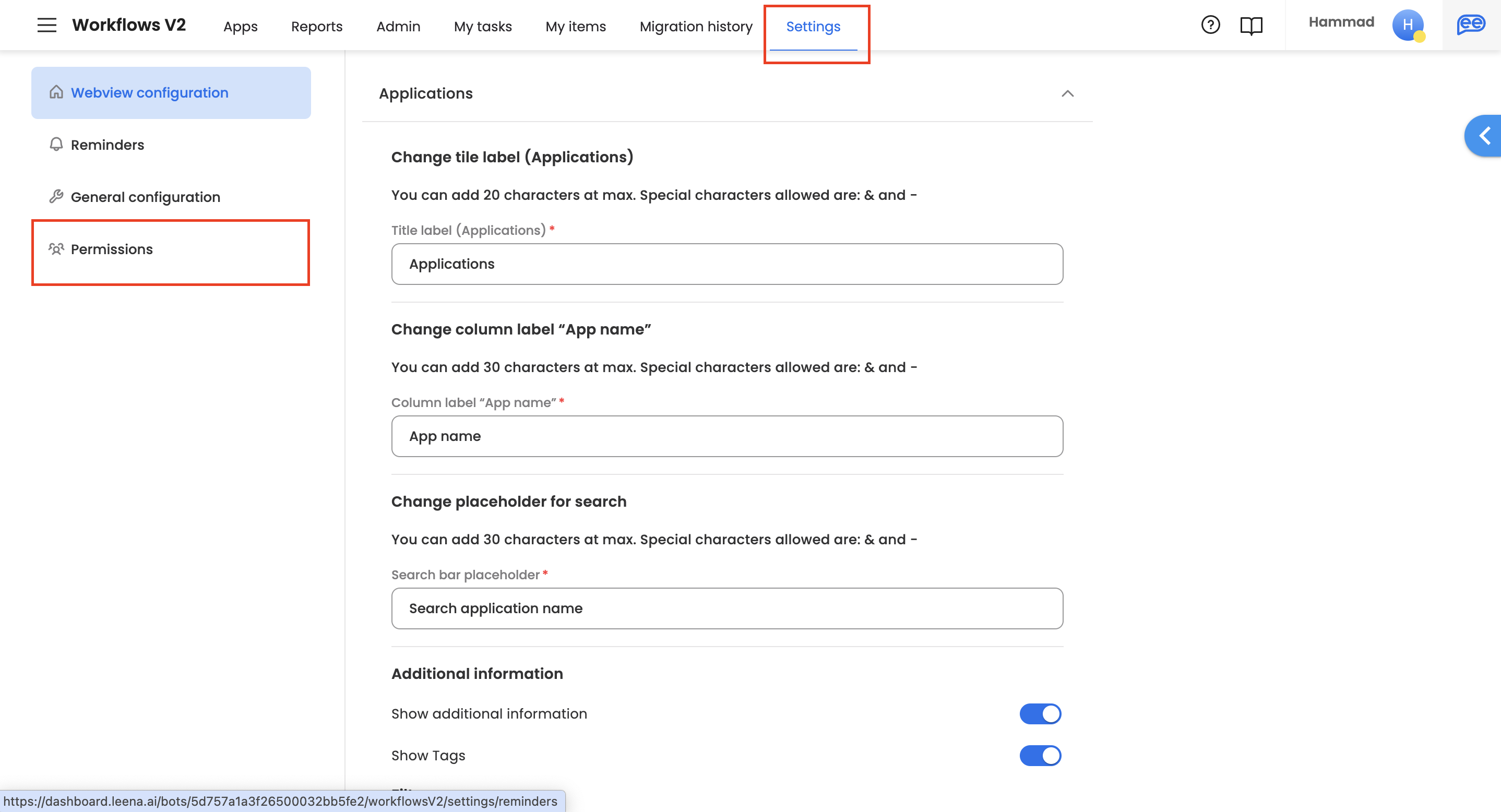
Workflow admin can access the 'Settings' section on the dashboard.
-
Within the settings section, under left navigation, workflow admin can access 'Permissions' section & further configure permissions.
Functional RBAC vs. runtime permissions
Workflows has two separate permission systems — this page covers the first:
| Permissions (RBAC) — this page | App Permissions (runtime) | |
|---|---|---|
| Who it governs | Workflow agents and admins on the dashboard | End users interacting with a request at runtime |
| What it controls | Which applications an agent can see and edit, plus reports access and report actions (e.g. Take actions via reports) | Which forms are visible at each workflow step, and whether each field is Editable, Read only, or Hidden at that step — the same field can be editable at one node and read-only or hidden at another |
| Where it's configured | Settings › Permissions (workflow admin) | Per node, under App Permissions in the workflow application — see How to configure permissions |
In short: RBAC decides who can build, administer, and act on workflows from the dashboard; App Permissions decide what participants see and can edit while a request runs.
Updated 7 days ago
Did this page help you?