
Chats
The Chats feature allows you to have multiple, parallel conversations with the Leena AI virtual assistant.
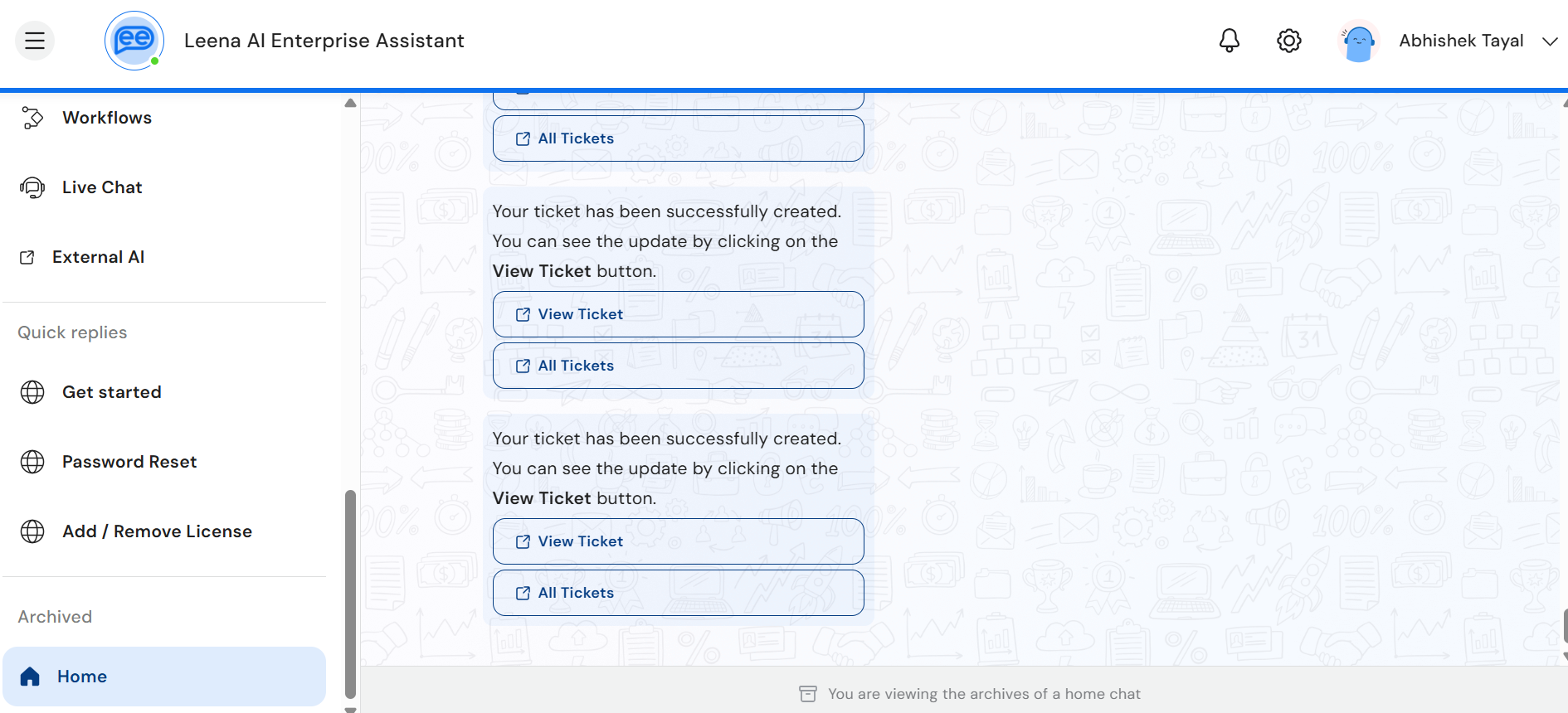
If multiple chats are enabled for your organisation, Home is retired as an active chat surface. It becomes read-only (you can still view past messages), and all new conversations and system notifications are delivered through Chats. See When Multiple Chats Are Enabled for details.
Overview
- Handle multiple requests simultaneously without waiting for one to complete
- Organise conversations by context (e.g., leave requests, IT support, policy queries)
- Access conversation history and continue past discussions anytime
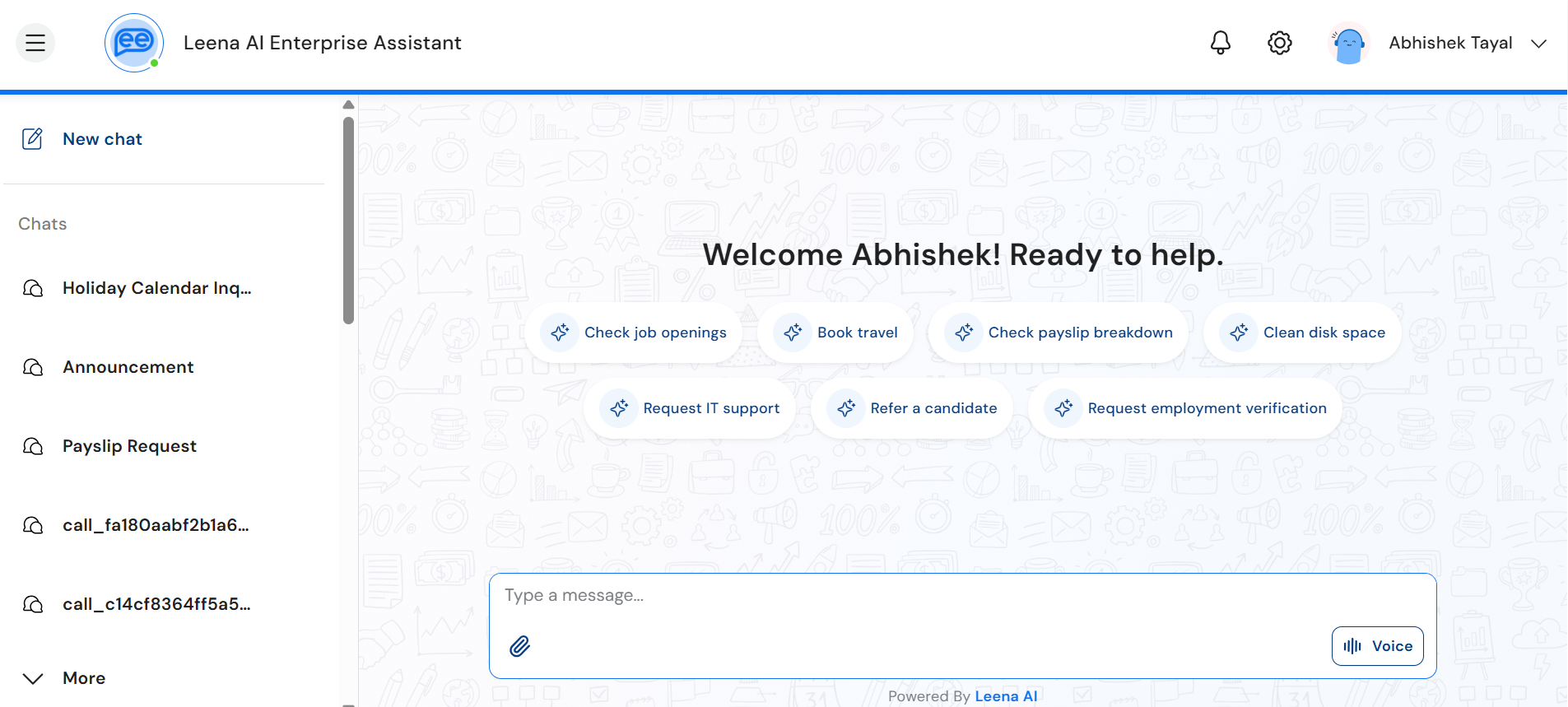
Differences in Chat vs Home
| Feature | Chat | Home (erstwhile) |
|---|---|---|
| Initiation | Created via "New Chat" button, or auto-created for incoming notifications | Was always available by default |
| Content | Your queries and their responses; system notifications when multi-chat is enabled | Approvals, announcements, surveys, ticket updates along with responses for queries raised via Home |
| Position | Listed under Chats | Always at top of list |
| Deletable | Yes | No (use "Clear Chat" instead) |
| Naming | Auto-titled from first message | Fixed as "Home" |
| Rename | Yes | No |
| Chat window width (desktop) | Max width ~800px (in line with accessibility guidelines) | Max width ~1560px |
| Chat Context | Entire conversation in chat as context is segregated in each chat | Only last 6 hours of messages considered to prevent context overload |
| Bot & User Avatars | Can be customized and displayed in header only | Can be customized and displayed in header as well as alongside chat |
| Background Image | Not possible to add to allow agent reasoning and response to be streamed without requirement of chat bubble | Available as a branding option |
Getting Started
Start a New Chat
- Click "New Chat" in the Conversations section
- Type your query—the chat auto-titles based on your first message
Navigate Conversations
- Desktop: Left navigation panel shows recent chats (and Home in archived/read-only state if multi-chat is enabled)
- Mobile: Hamburger menu → Chats section
- Click "More" to load additional conversations
Manage Chats
- Rename: Click the conversation title to edit
- Delete: Hover/tap the chat → click delete → confirm
- Clear Home: Use "Clear Chat" to remove Home history (keeps Home accessible)
When Multiple Chats Are Enabled
When your organisation enables the multiple chats feature, the virtual assistant switches from a dual-surface model (Home + Chats) to a single-surface model where Chats is the only active conversational surface. This is rolled out on a per-tenant basis.
What happens to Home?
- Home transitions to a read-only, archived state. You can still scroll through and read all your past messages, but you can no longer type in Home.
- The message input area in Home is hidden, with a prompt directing you to start a new Chat instead.
- All historical Home messages — your messages, bot responses, and past notifications — remain fully accessible.
- New users will land directly on a new empty Chat rather than Home.
How are system notifications delivered?
Previously, system notifications (like helpdesk updates, escalation alerts, and announcements) were delivered to Home. With multi-chat enabled, every notification is delivered to a tagged Chat instead.
- Each notification can carry a tag from its source (e.g., "Helpdesk Notifications", "Escalations"). The system routes the notification to a Chat that matches that tag.
- If a tagged Chat doesn't exist yet or was previously deleted, it is automatically created when a new notification with that tag arrives.
- Notifications that arrive without a tag are routed to a default Chat called "Announcements".
- Tagged Chats look and behave just like regular Chats — they follow the same ordering (most recent message on top), and you can scroll through the full notification history within them.
Bell icon & deep-linking
- Eligible notifications continue to appear in the bell icon notification panel.
- Clicking a bell notification takes you directly to the specific Chat and message — even if you're currently viewing a different Chat.
- The notification is marked as read once you navigate to it or manually dismiss it from the bell dropdown.
FAQs
Where do I land when I open Leena AI?
If multi-chat is enabled, you land on a new empty Chat. Otherwise, you land on Home. Opening via a notification link takes you directly to the relevant Chat and message.
Will my leave request updates appear in the same chat?
Yes — follow-up notifications appear in the Chat where you initiated the request.
What happens to empty chats?
Chats with no messages are auto-deleted when you navigate away.
Does this work on all channels?
Currently available on Web, MS Teams Tab App, Mobile, and Desktop apps only.
What happens to updates if I delete a chat via which I raised a request?
The updates are sent to the relevant tagged Chat (or "Announcements" if no tag is present). If multi-chat is not enabled, they go to Home.
Can I still see my old Home messages after multi-chat is enabled?
Yes. Home remains accessible in the sidebar in a read-only state. All your past messages, bot responses, and notifications are preserved — you just can't send new messages there.
What happens if I delete a tagged Chat (e.g., "Helpdesk Notifications")?
The next time a notification with that tag arrives, the Chat is automatically re-created. No notifications are lost.
What if the notification message was deleted?
If you click a bell notification and the underlying message has been deleted, you'll see an error indicating the message is no longer available.
Updated 15 days ago