
Unily
This documentation is designed to guide administrators through the seamless integration of Unily with the Leena AI platform. Following these steps ensures that your organizational knowledge is centralized and accessible to your employees through the AI Colleague.
Connecting Unily to Leena AI
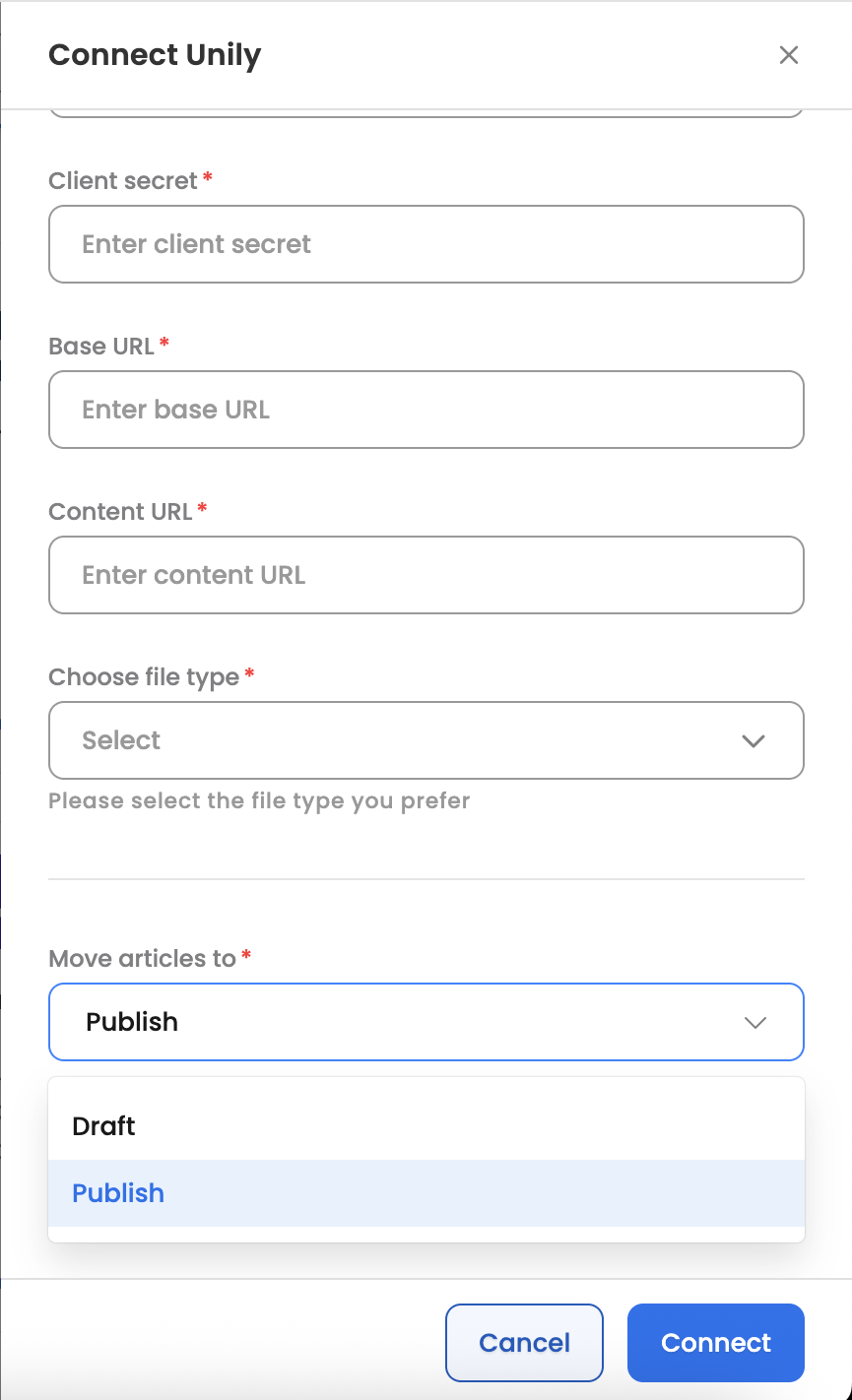
To begin the integration, navigate to Settings > Integrations > Unily > Connect. You will be required to configure the following five key fields to establish a secure data pipeline.
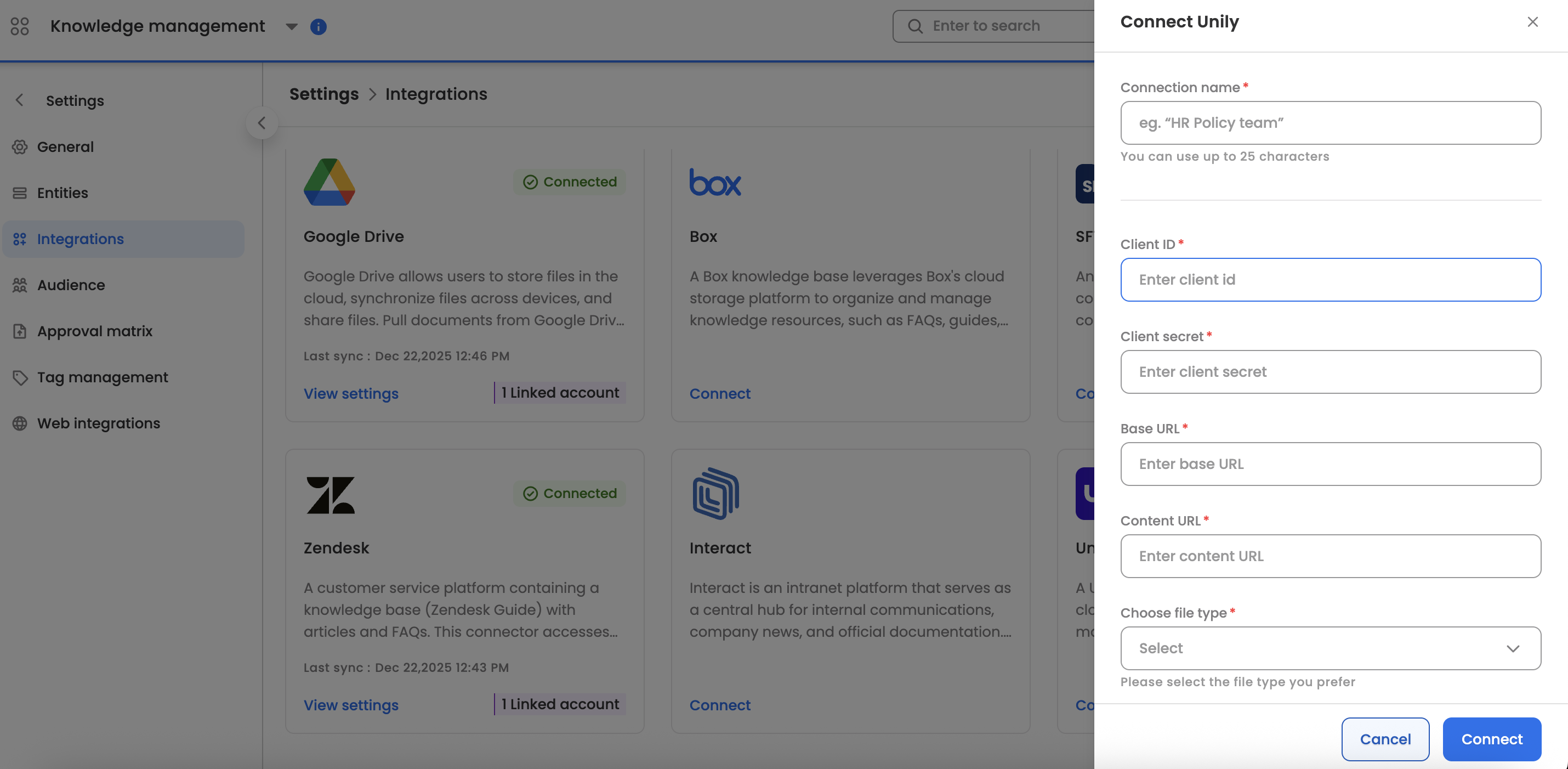
1. Authentication Credentials
Client ID & Client Secret: These are unique identifiers used to authenticate Leena AI’s access to your Unily environment.
Note: These credentials must be requested directly from your Unily Account Manager or your internal Unily Technical Administrator. Ensure they have the necessary scopes to read content and attachments.
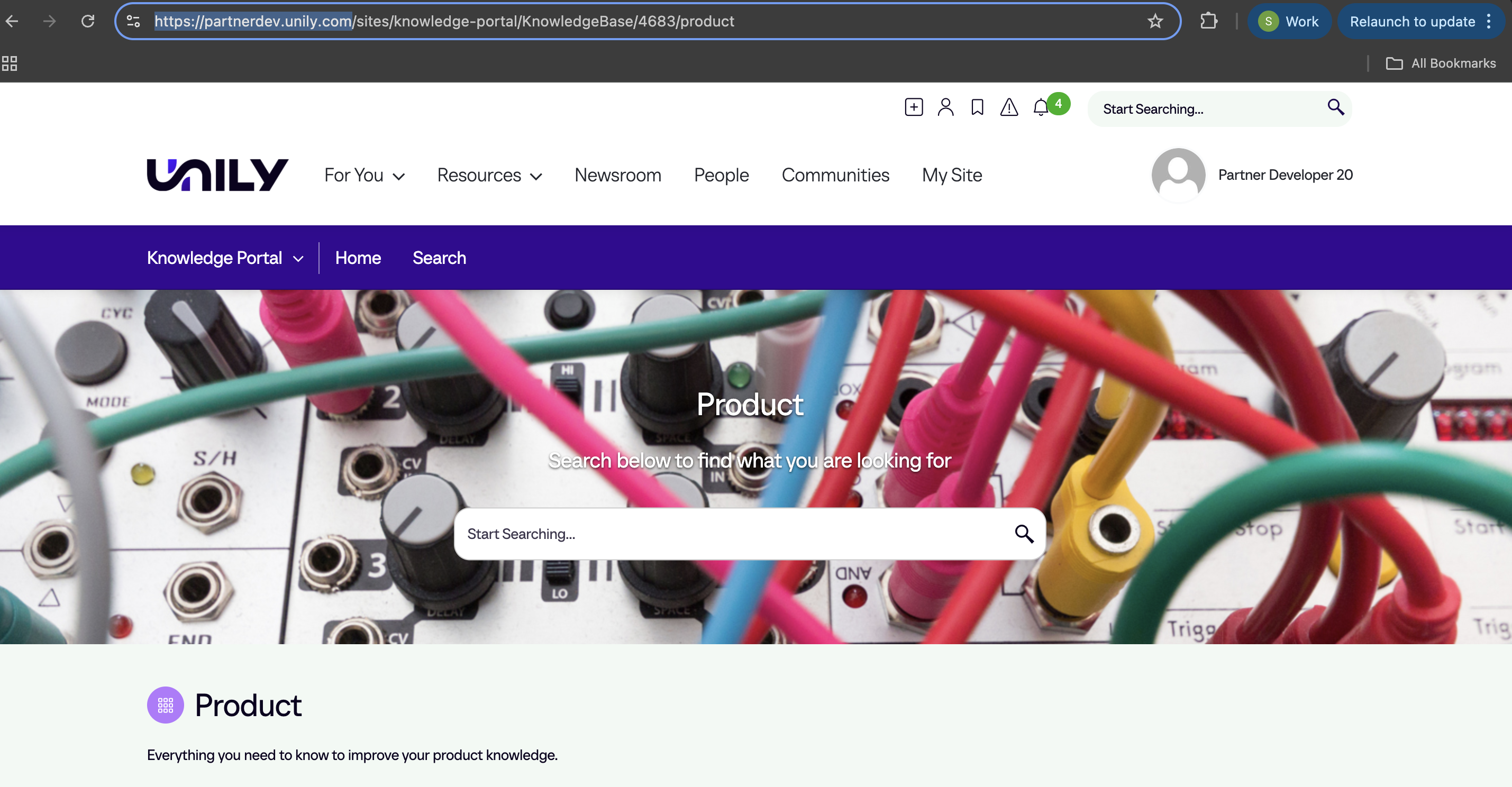
2. Content URL
The Content URL is the specific web address of your Unily front-end portal (e.g., https://companyname.unily.com).
Purpose: This URL is used by Leena AI to generate the direct source links for your employees. When a user asks a question, the AI will provide a link back to the original article using this base URL.
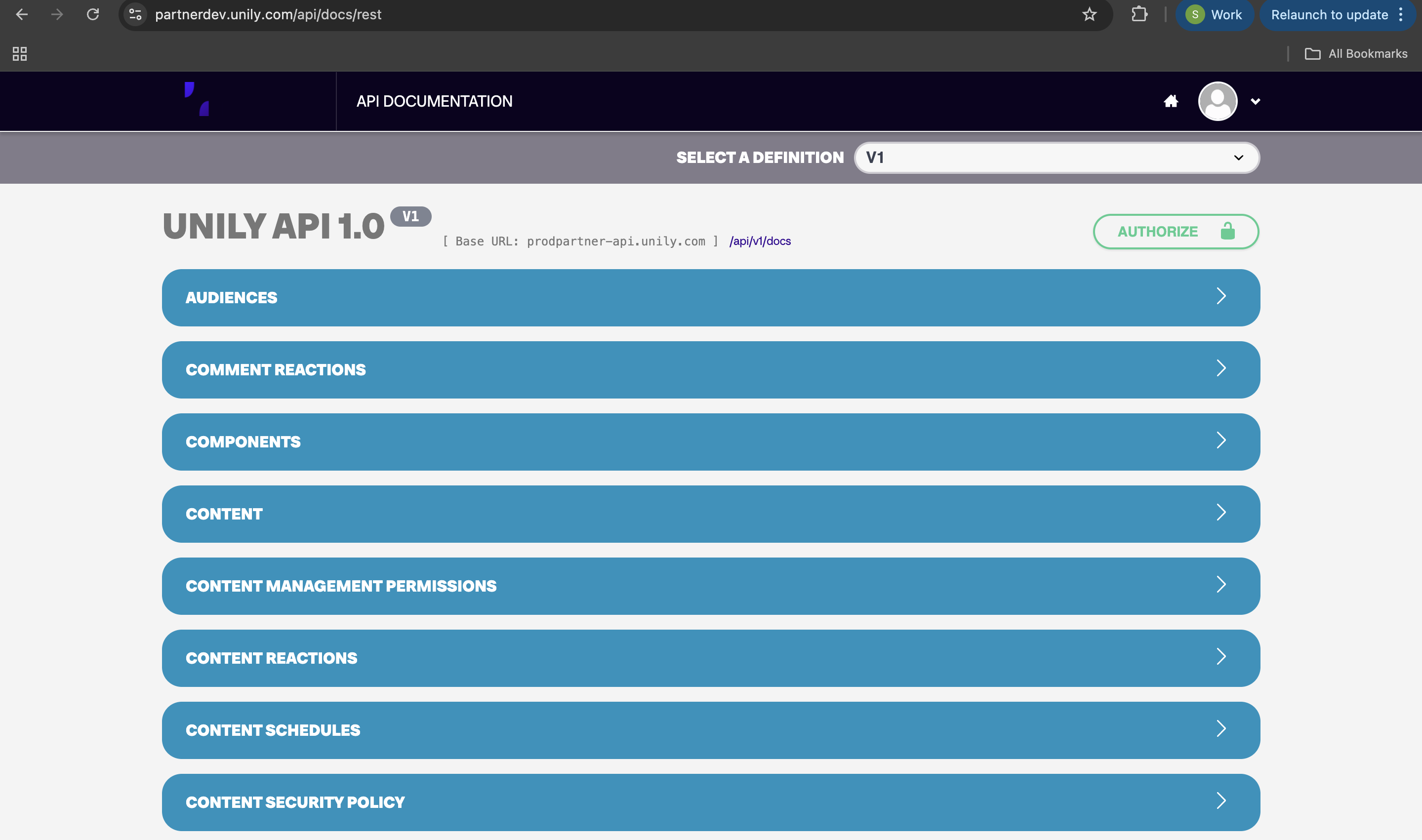
3. Base URL (API Endpoint)
The Base URL refers to the Unily REST API root address.
Purpose: This is the technical endpoint Leena AI calls to "pull" the raw data.
Where to find it: This is located within your Unily REST API Documentation. It typically follows a format similar to https://api.unily.com or a region-specific variation provided by Unily.
4. Choose File Type
Select the specific content categories you wish to synchronize. You can choose one or multiple types depending on your knowledge strategy:
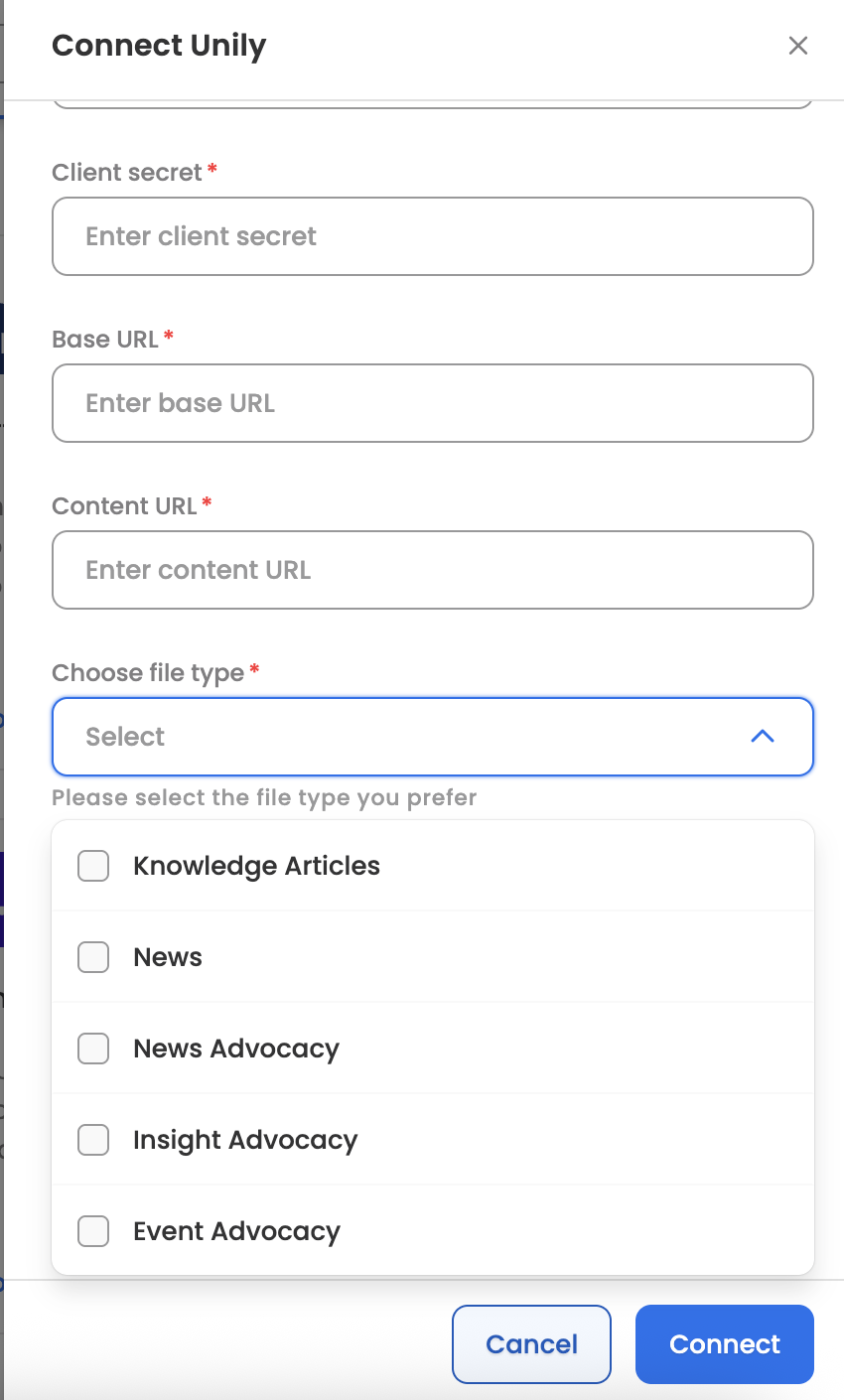
Knowledge Articles: Official documentation, policies, and "How-to" guides.
News: Internal corporate announcements and updates.
News Advocacy: Content designed for employee social sharing.
Insight Advocacy: Deep-dive thought leadership or analytical content.
Event Advocacy: Information regarding corporate events and town halls.
5. Move Article To
This setting determines the status of the content once it enters the Leena AI Knowledge Base:
Draft: Articles are imported but hidden from employees. Use this if you wish to review or edit the AI's training data before going live.
Publish: Articles are immediately available for the AI Colleague to use in conversations with employees.
Advanced Configuration Features
Pull from UAT (Environment Mirroring)
If you have already configured and tested your Unily connection in a UAT (User Acceptance Testing) environment, you do not need to re-enter all credentials manually on Production.
While adding the Unily instance on Prod, simply select the "Pull from UAT" option to automatically migrate your verified settings.
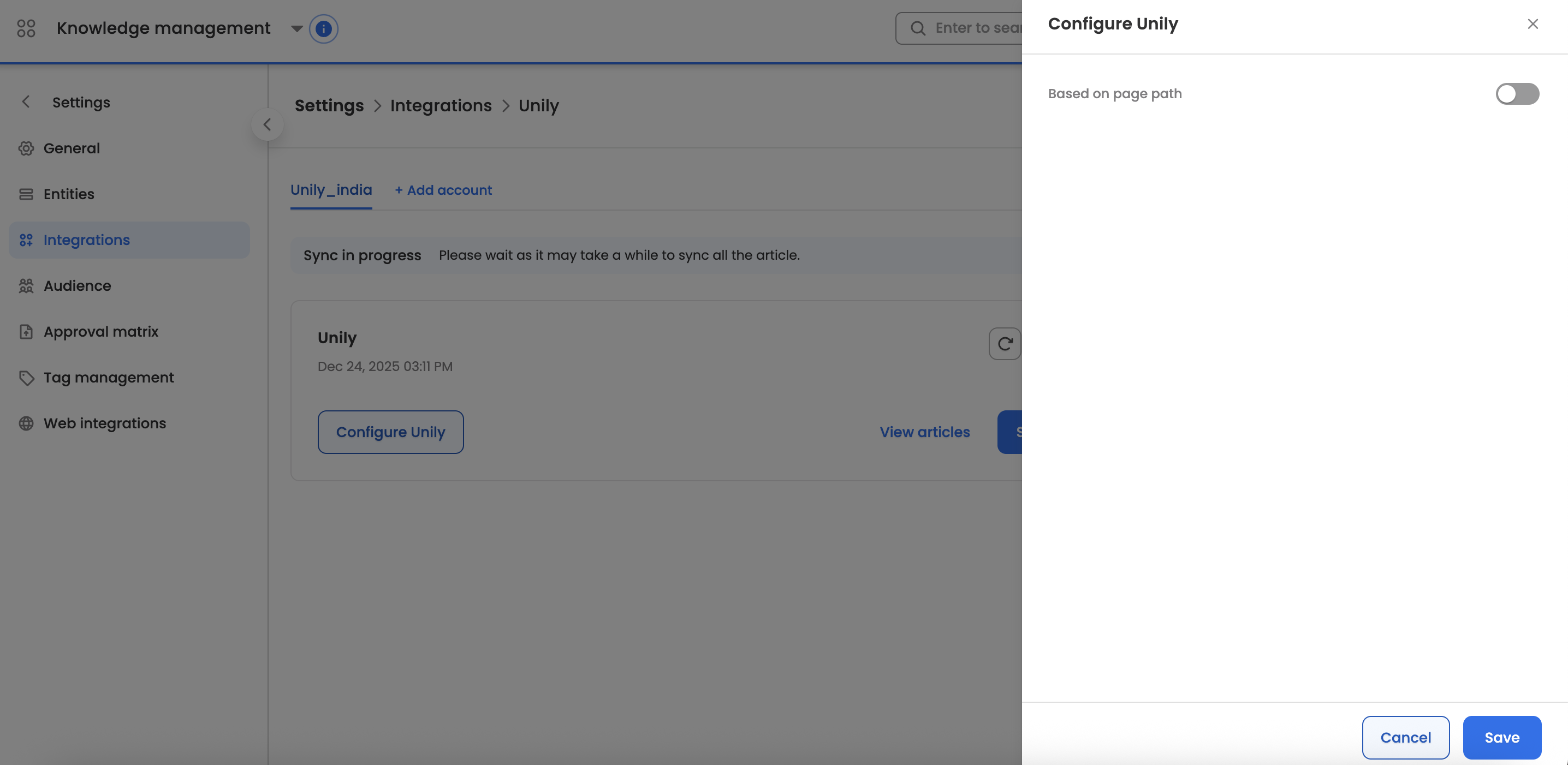
Path-Based Filtering (Metadata)
To ensure only relevant information is synced, you can control the ingestion scope using File Path Metadata. This is managed through:
Include Filters: Only sync content from specific folders (e.g., /Human-Resources/).
Exclude Filters: Prevent specific folders from being indexed (e.g., /Finance/Confidential/).
Synchronization Logic
Once the instance is configured, you have two ways to keep your data fresh:
Manual Sync: Use the "Sync Now" button for immediate updates (useful after a major policy change).
Auto Sync: Configure a recurring schedule to automatically fetch new and modified articles from Unily at set intervals.
Updated 9 months ago