
Dashboard
Everything you send from the Notifications module is listed in one place, the Notification list. From there you can find any notification, see where it stands, act on it, and open it to see its details and report.
The notification list
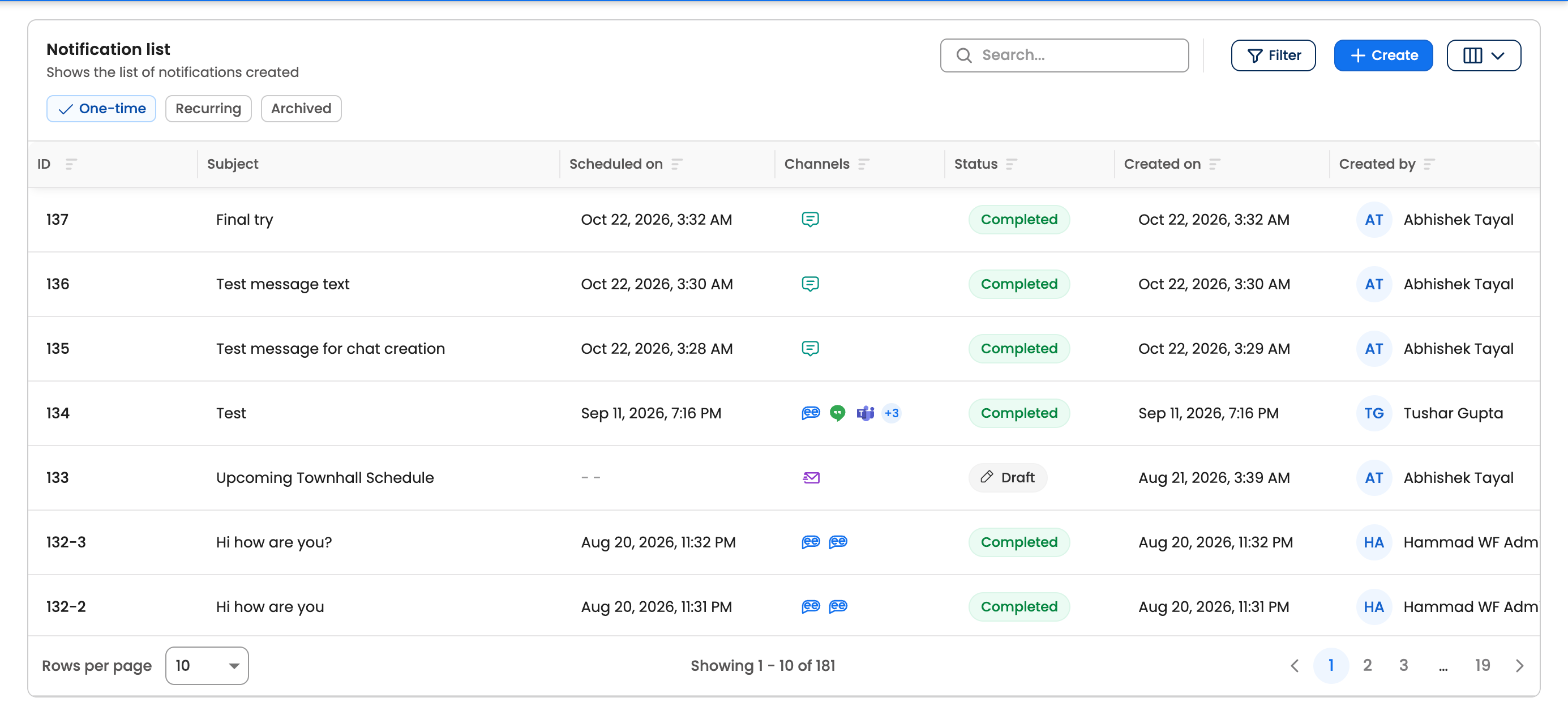
The notification list
Tabs
| Tab | Shows |
|---|---|
| One-time | Notifications sent once, whatever their status, including drafts |
| Recurring | Recurring series. Click a series to see its individual runs. |
| Archived | Notifications you've archived to keep the other tabs tidy |
You only see the tabs you have access to.
Columns
| Column | What it shows |
|---|---|
| ID | A number that identifies the notification, also shown on its page (for example #134) |
| Subject | The title of a bot or SMS notification, or the subject of an email |
| Scheduled on | When it's due to go out, or went out. Shows - - if no time is set yet. |
| End date | When a recurring series stops (Recurring tab only) |
| Channels | An icon for each channel it was sent on. Hover to see the name. |
| Status | Where it stands. See Statuses. |
| Created on | When it was created |
| Created by | The dashboard user who created it |
| Type | Standard, Poll, Email, SMS or WhatsApp |
| Audience | The custom audience it was sent to, if any |
| Email Sender | The sender of an email notification |
Scroll right to see all the columns. Use the column button next to Create to show or hide them, and the sort icon next to a column heading to sort by it.
Search and filters
Type in Search to find a notification. Select Filter to narrow the list:
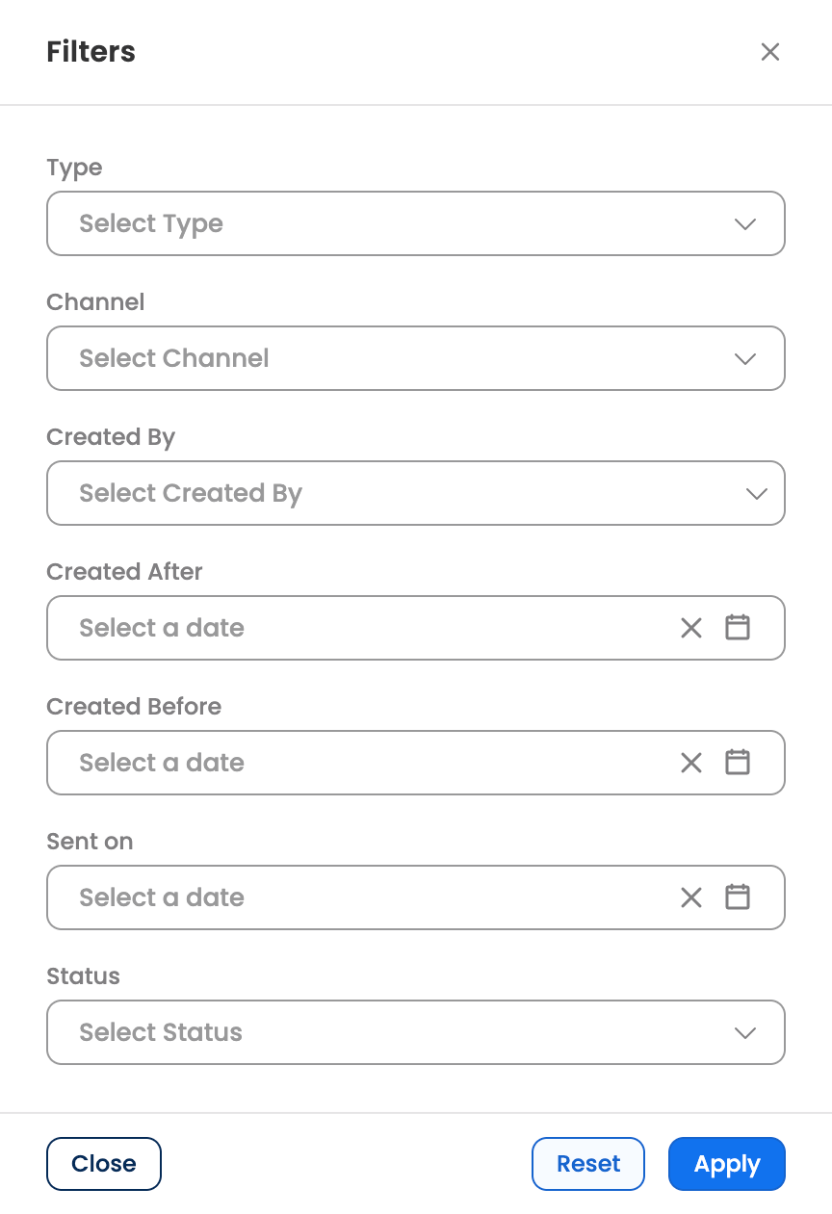
The Filters panel
| Filter | Options |
|---|---|
| Type | Standard, Poll |
| Channel | The channels set up for your assistant, such as Leena App, MS Teams, Slack, WhatsApp, Google Chat, Workvivo, SMS and Email |
| Created By | One or more dashboard users |
| Created After, Created Before | A date range for when notifications were created |
| Sent on | The date notifications went out |
| Status | Running, Cancelled, Completed, Pending, Aborted, Scheduled, Draft |
Select Apply. The Filter button shows how many filters are on. Reset clears them. Search, filters and the page you're on are kept in the page address, so you can bookmark or share a filtered view.
Request a report
If reports are enabled for your account, a Request report button appears next to Filter. It emails you a report covering many notifications at once, within 24 to 48 hours:
- Dashboard report: choose the notification status (all, completed, scheduled or cancelled), whether to filter by scheduled or created date, and a date range of the last 7, 15, 30 or 90 days, or a custom range.
- API based report: a summary or detailed report for notifications with the tags you pick, over a date range.
For a single notification, use Download Report on its page instead. See Reporting and Analytics.
Statuses
| Status | Meaning |
|---|---|
| Draft | Saved but not scheduled. See Save as Draft. |
| Scheduled | Waiting for its send time |
| Pending | Being prepared, not yet scheduled |
| Running | Being delivered now |
| Completed | Delivery has finished |
| Cancelled | Cancelled before it started going out. Nobody received it. |
| Aborted | Stopped while it was going out. Employees who already received it keep it. |
Actions on a notification
Open the ⋮ menu in the Actions column at the end of a row. The actions you see depend on the notification's status and your permissions.
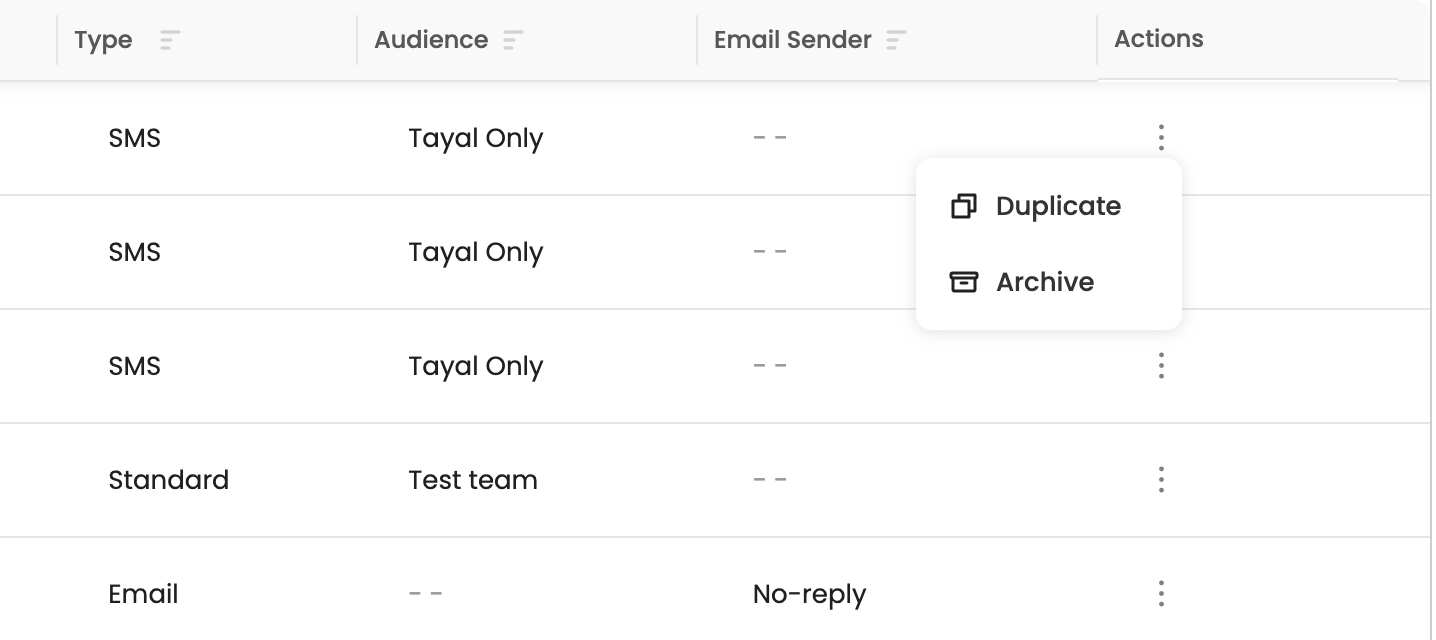
The actions available for a completed notification
| Status | Actions |
|---|---|
| Draft | Discard, Archive |
| Scheduled | Edit, Duplicate, Cancel |
| Pending, Running | Cancel, Duplicate |
| Completed, Cancelled | Duplicate, Archive |
| Aborted | Cancel, Duplicate, Archive |
- Edit reopens a scheduled notification so you can change it before it goes out. For SMS, editing closes 30 minutes before the send time. Don't edit a time zone-aware notification after scheduling, because its recipient list doesn't change; cancel it and create a new one instead. See Standard vs Time Zone-Aware Delivery.
- Duplicate opens the builder with everything filled in except the dates. Saving creates a new notification.
- Cancel stops the notification. If it hasn't started going out, nobody receives it and its status becomes Cancelled. If it's already running, it stops for the employees who haven't received it yet and its status becomes Aborted. You're asked to confirm, because this can't be undone.
- Discard deletes a draft.
- Archive moves the notification to the Archived tab. Nothing about the notification changes, and you can bring it back at any time with Unarchive, which returns it to its original tab with its original status. Archived notifications that were completed or cancelled can also be duplicated.
On the Recurring tab, a series can be cancelled while it's scheduled or running, discarded while it's a draft, and archived once it's a draft, cancelled or completed.
Why can't I see an action?With access control on, only people with owner permissions for that kind of notification can edit, duplicate, cancel or archive it. People with reader permissions can only view it. See Dashboard Roles.
Recurring series
Click a series on the Recurring tab to open the Recurring notification panel. It lists every run in the series, with chips to show All, Scheduled, Cancelled or Completed runs and the count of each, and a sort order of latest or oldest first. Click a run to open its page.
A notification's page
Click a row to open the notification. (A draft opens in the builder instead, and a recurring series opens its list of runs.) The header shows its ID and status, and two tabs:
- Detail: the notification exactly as it was set up, including the type, audience and the number of employees it covers, message, attachment, buttons, schedule and delivery options. A preview on the right shows what employees see. Below the preview are who created it, when, and when it's scheduled for.
- Report: how it performed. See Reporting and Analytics.
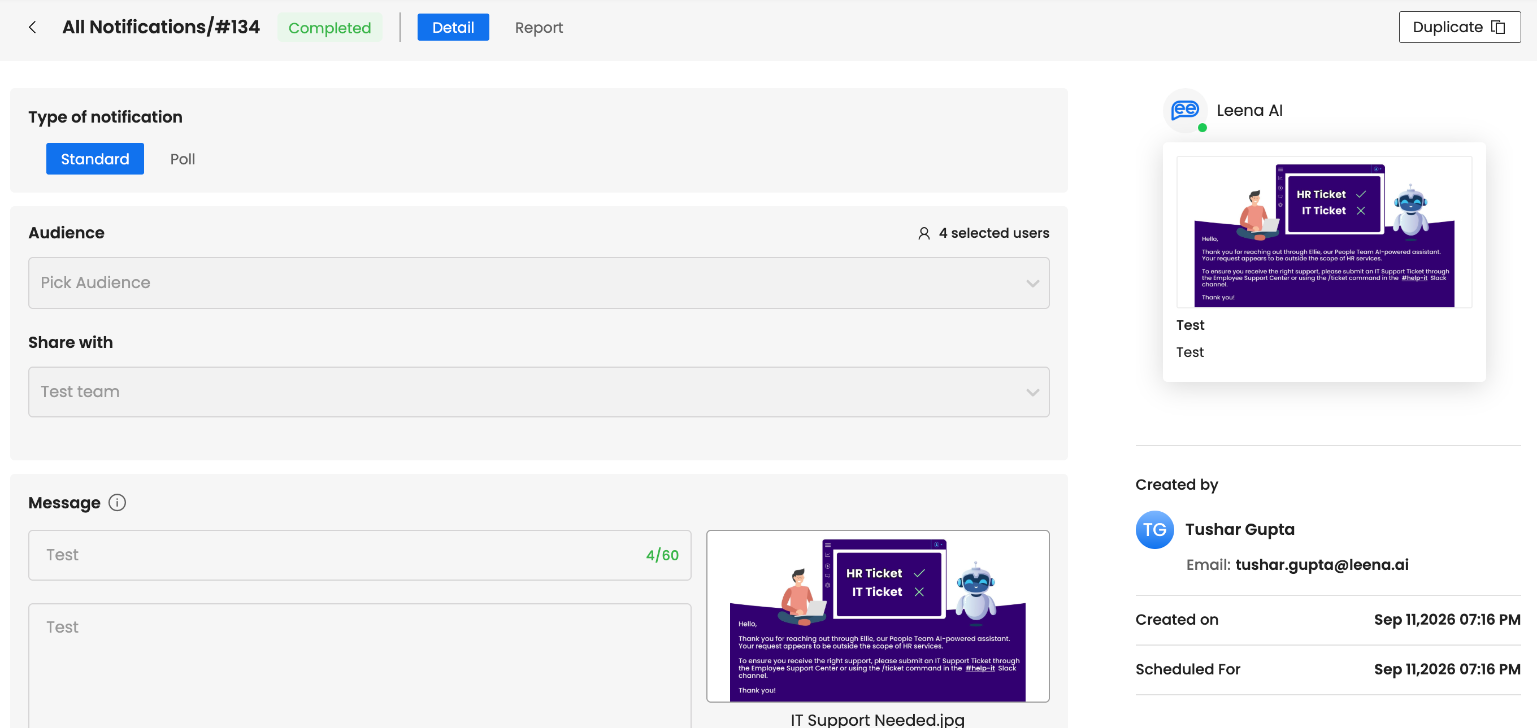
The Detail tab of a completed notification
The buttons at the top right depend on the notification and your permissions:
- Duplicate, to reuse the notification.
- Edit, for a one-time notification that is still scheduled.
- Download Report and a % / ABS switch, on the Report tab.
- For an SMS notification that is still going out, the Estimated completion time.
Click All Notifications or the back arrow to return to the list.
Updated 19 days ago