
Login Screen
When an employee opens the Web App without an active session, they land on the login screen. What they're asked for depends on the sign-in method set for your assistant: a one-time code, your company's single sign-on, a Microsoft or Google account, or nothing at all when your own portal signs them in.
This page shows what employees see at each step. For the rules behind it (how the method is chosen, which access checks apply and how long a session lasts) see How sign-in works.
Sign in with a one-time code
This is the flow when your assistant uses OTP, and for anyone signing in with a personal email address or a mobile number.
-
Enter an email or phone number. The sign-in card shows your assistant's avatar and reads Log in — Use your work email or phone number to continue. When mobile number login is allowed, the field accepts either. As soon as the employee types digits, it switches to phone entry with a country code picker, which starts on your organisation's default dial code or the country the employee is in.
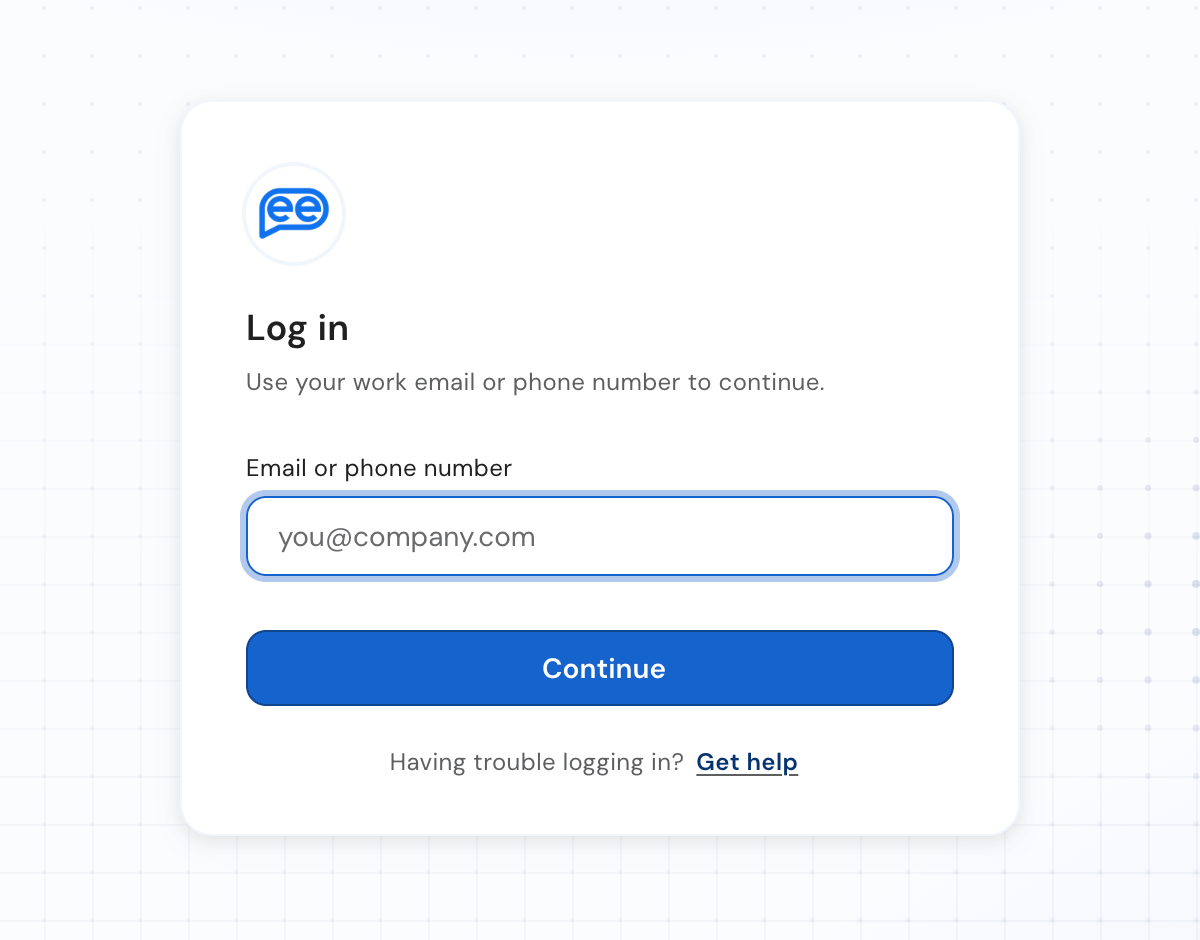
Email or phone number
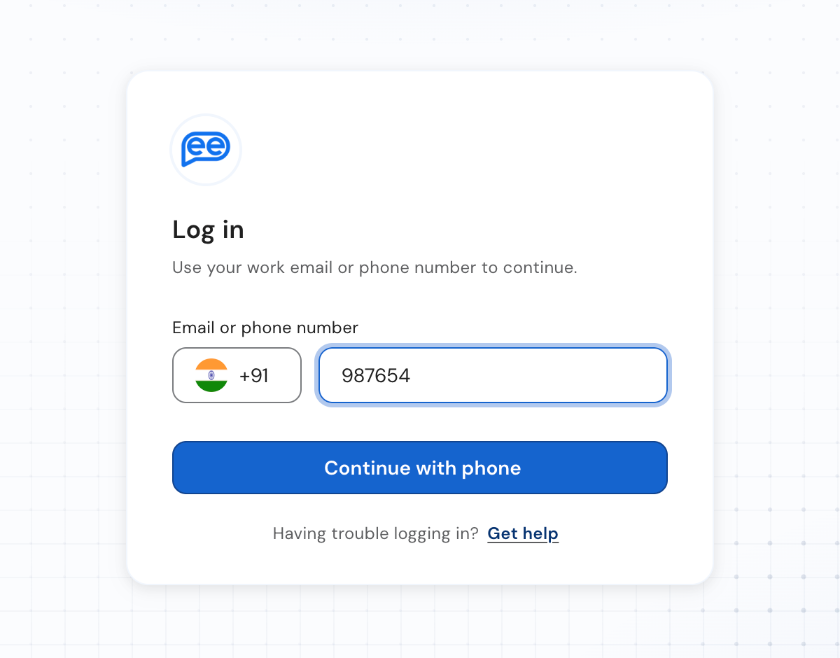
Typing digits switches to phone entry
-
Enter the code. The next screen says Check your mail or Check your messages and Enter the code sent to the address or number. A note confirms where it went: Code sent to your email., Code sent to your phone. or Code sent on SMS and WhatsApp.
- The code has six digits. Pasting it fills all six boxes at once.
- Edit goes back to correct the email or phone number.
- Resend code becomes available after a short countdown.
- Get it on WhatsApp sends the code on WhatsApp instead, where WhatsApp delivery is turned on.
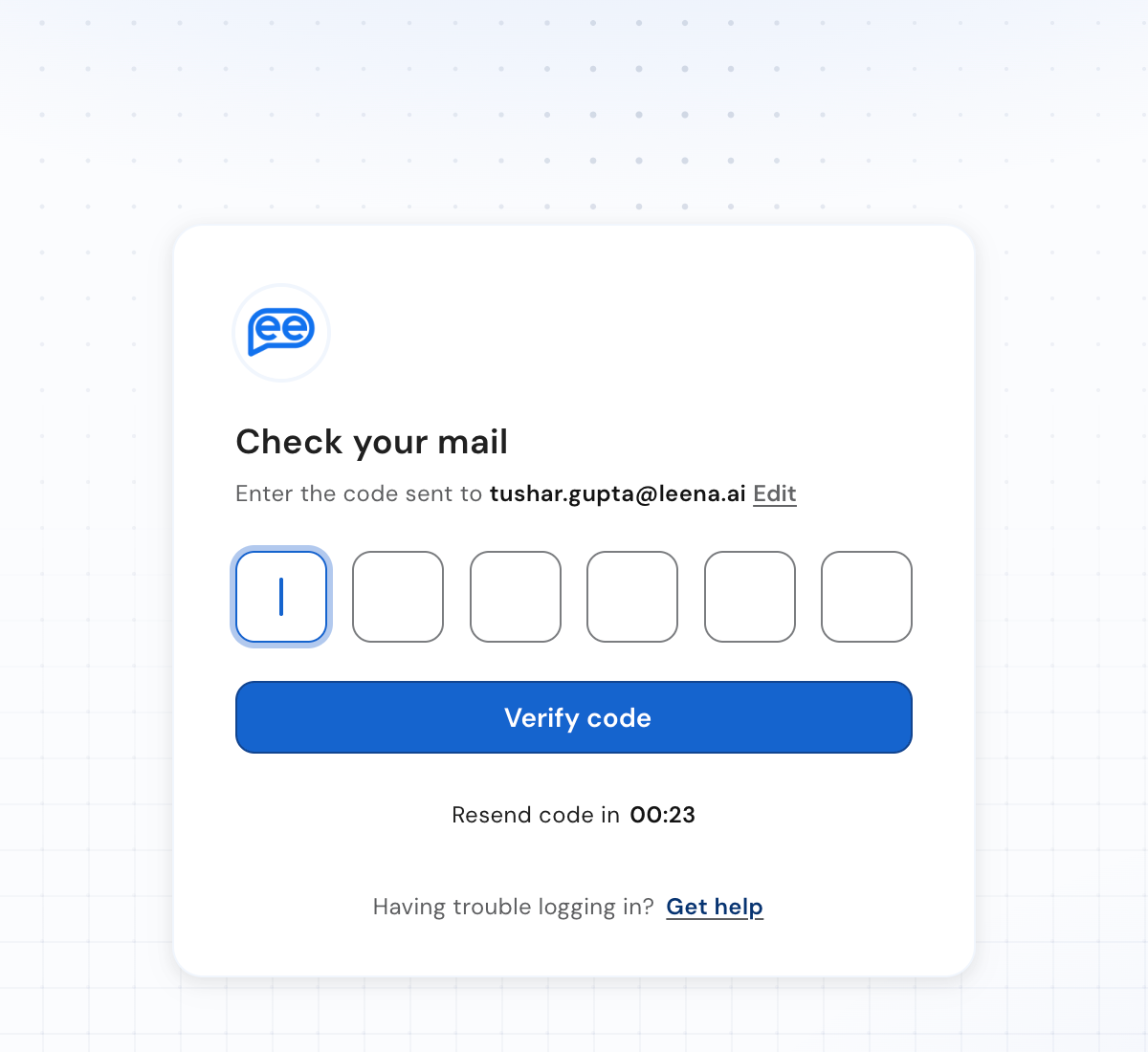
Entering the verification code
-
Verify. Verify code checks it and the assistant opens. If the employee followed a link, for example from an approval email, they land on that task.
A code is valid for about three minutes, and there are limits on how many codes can be requested and how many wrong attempts are allowed. See OTP for the details and the exact messages.
Sign in with SSO
When your assistant uses SSO, employees sign in with their company account through your identity provider, such as Microsoft Entra ID, Okta or Google.
- If asked, the employee enters their work email on the same Log in screen.
- They see Hang tight! We're taking you to your organization's sign-in page... and your identity provider's sign-in page opens, with any multi-factor steps you require. If they're already signed in to your identity provider in that browser, this step passes without them doing anything.
- Back in the Web App, Please wait while we verify your access and log you in... is shown while Leena AI checks they're allowed in, and then the assistant opens.
After logging out, and inside the website widget or the desktop app, employees aren't sent to your identity provider automatically. They see Please click the sign-in button below to authenticate yourself and a Sign in button instead, so nobody is signed straight back in by accident. In the widget and the desktop app, the button opens your identity provider in a separate window and hands the session back when they finish. If nothing opens, the browser is blocking pop-ups: If you're unable to redirect to the sign-in page, please enable pop-ups from the browser's web address bar.
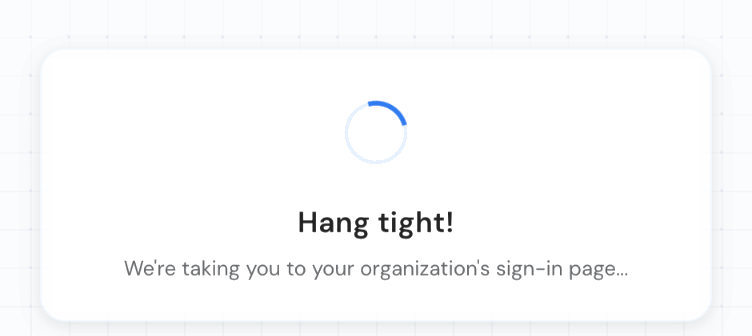
On the way to your identity provider
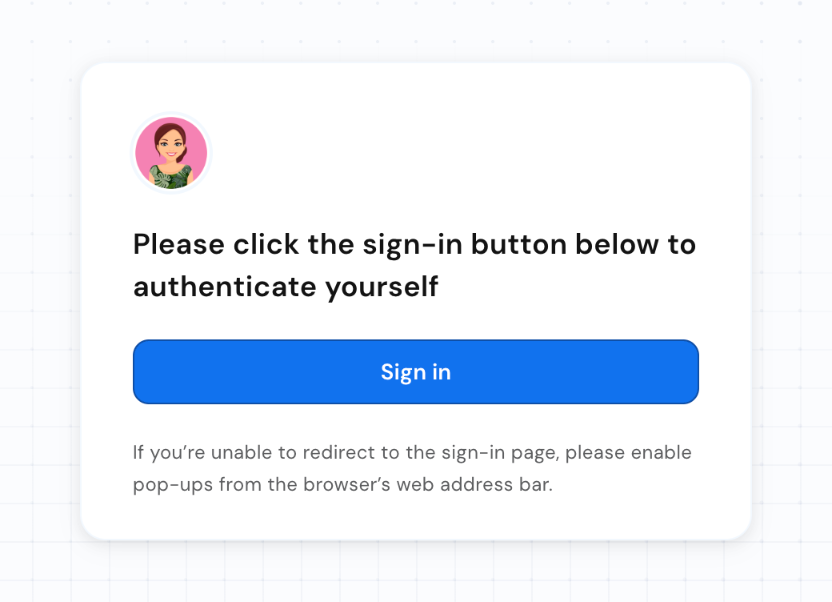
The Sign in button, shown after logging out and in the widget or desktop app
Personal email addresses always get a codeOn the Web App, anyone who enters a personal address such as Gmail or Yahoo gets the one-time code flow, even when your assistant uses SSO. Ask employees to use their work email to sign in with SSO.
Sign in with a Microsoft or Google account
When your assistant uses OAuth, employees click Sign in with Microsoft or Google and choose their work account. For Microsoft, the email they entered is passed along so they go straight to the right account.
Signed in by your own portal
When your assistant uses Custom sign-in, for example when the Web App is embedded in your intranet, your portal signs employees in and they don't see the login screen at all. If they open the Web App outside your portal, they get the fallback method you set up, such as OTP.
Find my organization
In the mobile app, employees can start from Find my organization and enter their organisation's name instead of an email. They then continue with the method your organisation uses.
When an employee can't sign in
- Having trouble logging in? Get help, under the sign-in form, opens answers to common questions: what the Organisation ID is, who the Leena AI administrator is in their organisation, and how to retrieve a forgotten username.
- After a failed attempt, Your credentials did not match links to the same answers.
- Where sign-in help is set up for your assistant, employees can also report the problem. They identify themselves with their organisation and employee ID, work email or phone number, confirm their details, and Raise a ticket. They're told when it's resolved.
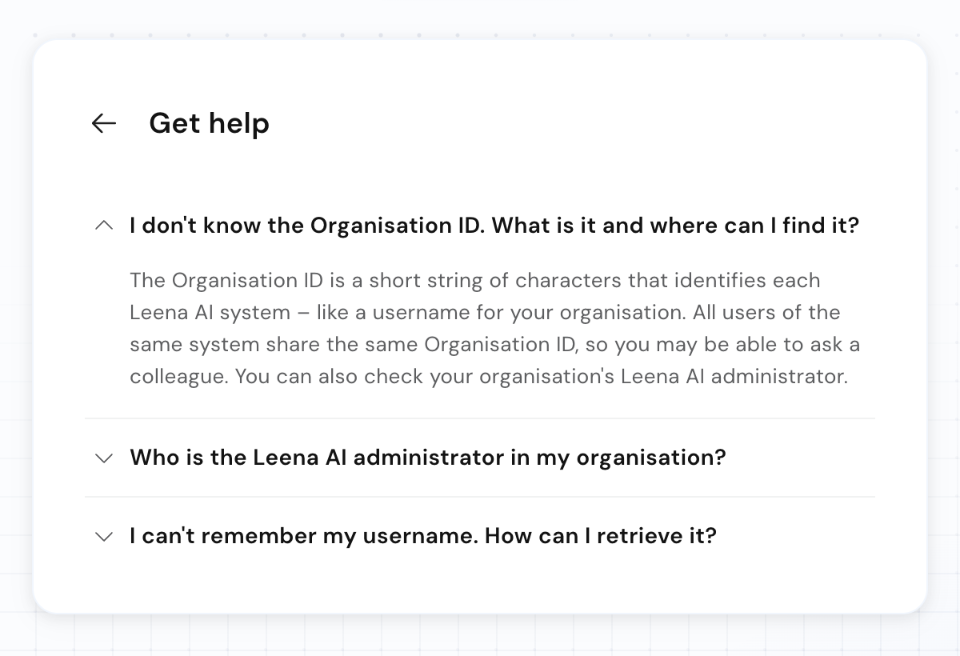
Get help
- An employee who has opted out under your privacy terms sees Login error! and is asked to contact HR.
The most common messages, and what to do about each, are listed in Troubleshooting. Every refused sign-in is recorded in Web login errors.
Where it's configured
| What you want to change | Admin Console page |
|---|---|
| The sign-in method, allowed domains and mobile number login for the Web App | Leena channels → Web authentication |
| The same for the mobile and desktop apps | Leena channels → Apps authentication |
| Who is allowed in | Leena channels → Other auth settings |
| Your identity provider connections | Leena channels → SAML apps |
| The wording on the login screens, per language | Leena channels → Language, group Sign In Journey |
| How long employees stay signed in | Session & inactivity timeouts |
Common questions
Why is an SSO employee being asked for a code?
They entered a personal email address. Ask them to use their work email.
Why didn't the code arrive?
Use Send test OTP on Web authentication to check delivery, then look in Email logs and the Blacklist. An email address that bounced before won't receive codes.
Do employees have to sign in again every time?
No. The session is renewed in the background until it reaches the limit you set. See Staying signed in.
Updated 20 days ago