
Workflows
Workflows let employees get things done from the assistant: request software, apply for leave, ask for access, raise a purchase request and more. Your admin builds the workflows and decides where they appear. Employees can start one from the side panel or simply ask for it in the chat, and they can approve and track requests in the same place.
Starting a workflow
From the side panel
Workflows appear in the side panel menus your admin sets up, for example IT → Software Installation or HR → Apply Leave. Selecting one opens its form next to the chat, often with some details already filled in for the employee, such as their device.
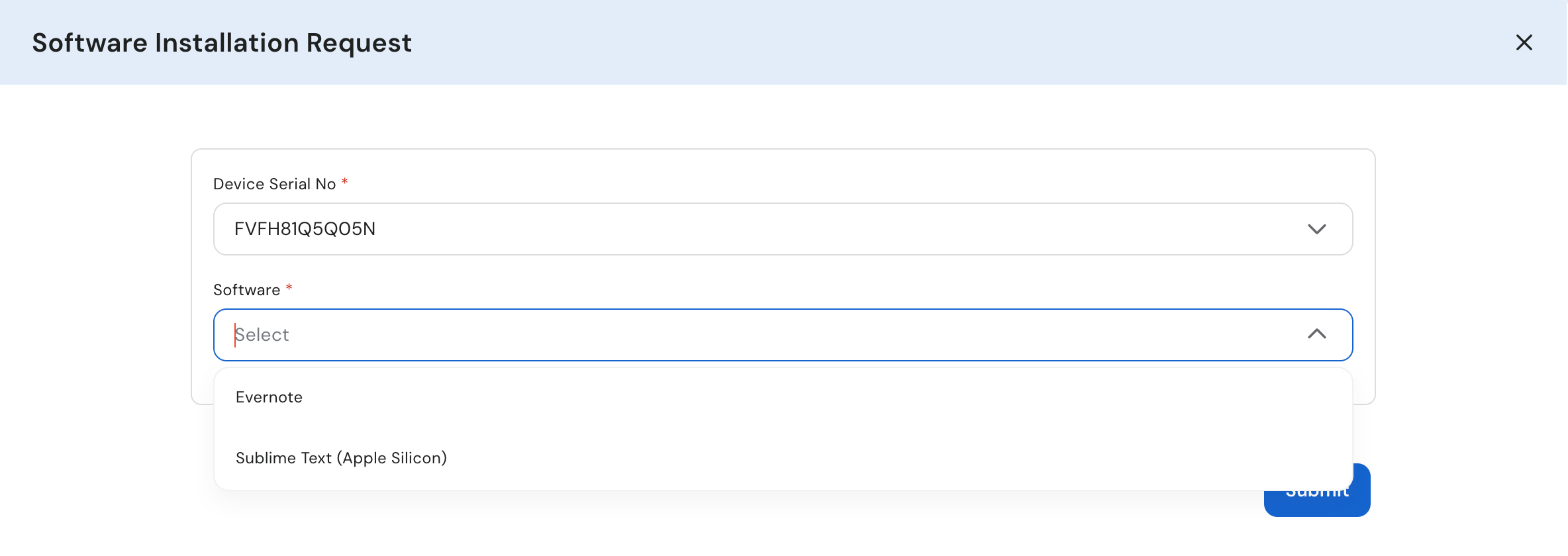
A workflow form opened from the side panel
Fill in the form and select Submit. A confirmation appears once it's submitted, and any next steps, such as approvals or the request being carried out, happen automatically.
From the chat
Employees can just say what they need, for example I want to install a software. The assistant recognizes the workflow and asks for anything it needs to know, one question at a time, or shares the form to fill in.
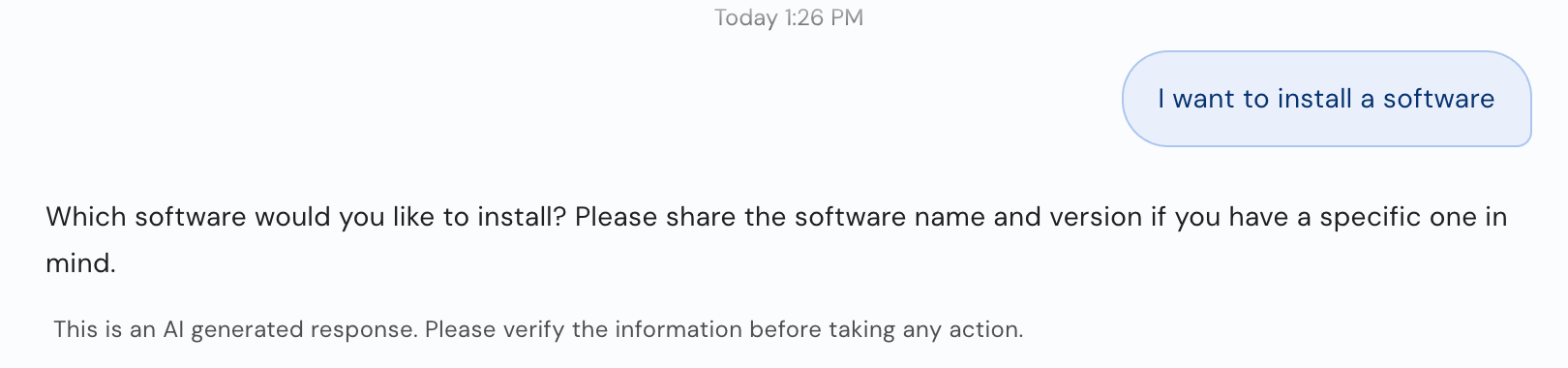
Starting a workflow by asking for it
Before anything is submitted, the assistant shows the details it collected and waits for the employee to confirm. Employees can change any of them by saying so, for example Make it Sublime Text instead. If they switch to a different topic halfway through, the request is set aside, and when they come back to it the assistant offers to resume where they left off.
The Workflows hub
If your admin has added it to the side panel, Workflows (under More in this example) opens a hub for everything workflow-related:
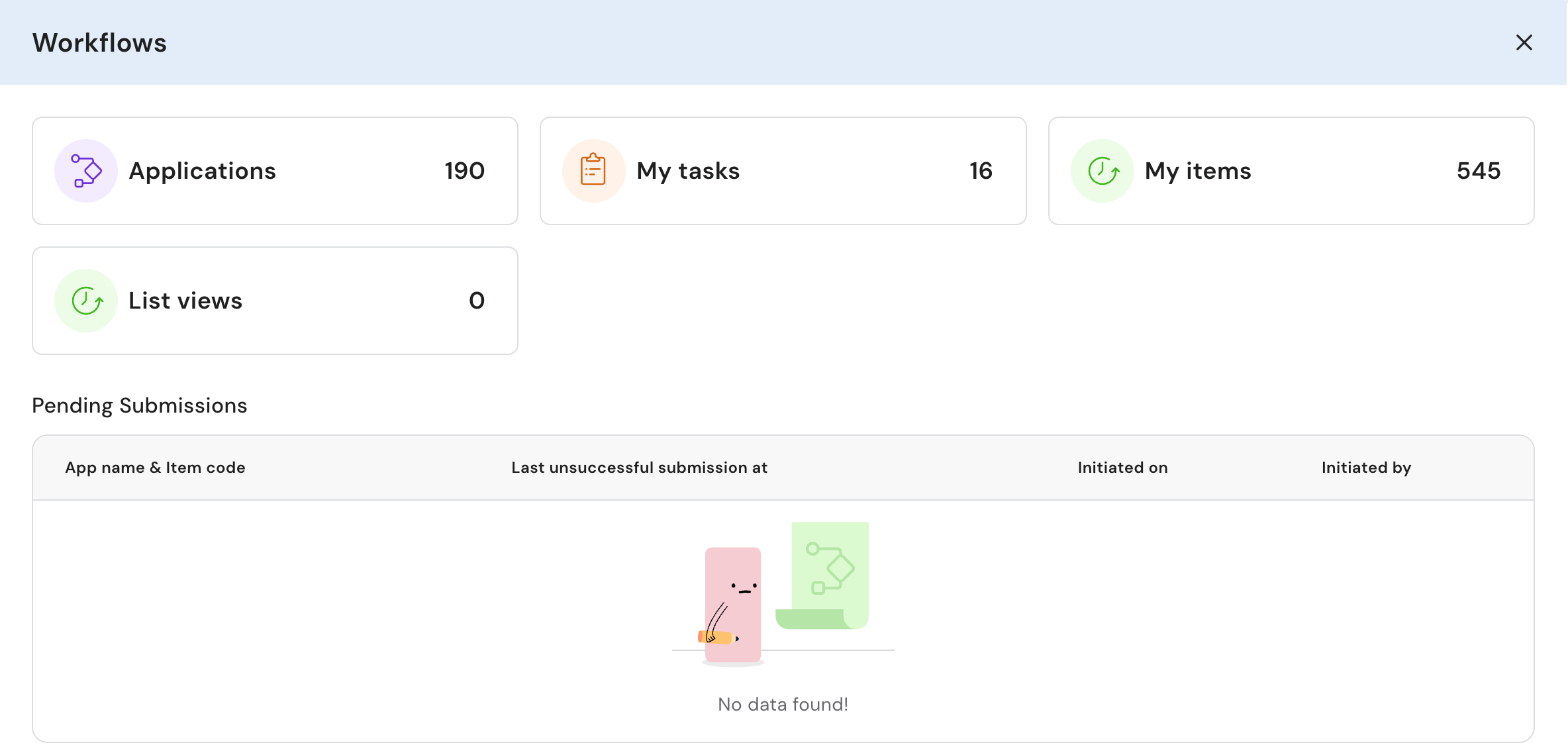
The Workflows hub
| Tile | What's in it |
|---|---|
| Applications | Every workflow the employee can start. Open one and choose New request. |
| My tasks | Steps waiting for the employee, such as approvals or information they need to provide |
| My items | Requests the employee has started, with where each one is |
| List views | Lists of records your admin has shared with the employee |
| Pending Submissions | Requests the employee started but didn't submit. Choose Resume to carry on, or start fresh. |
Acting on tasks
My tasks lists each task with the workflow and request number, when it was assigned, the current step and who started the request. Search by workflow name, or filter by tag, workflow or task type.
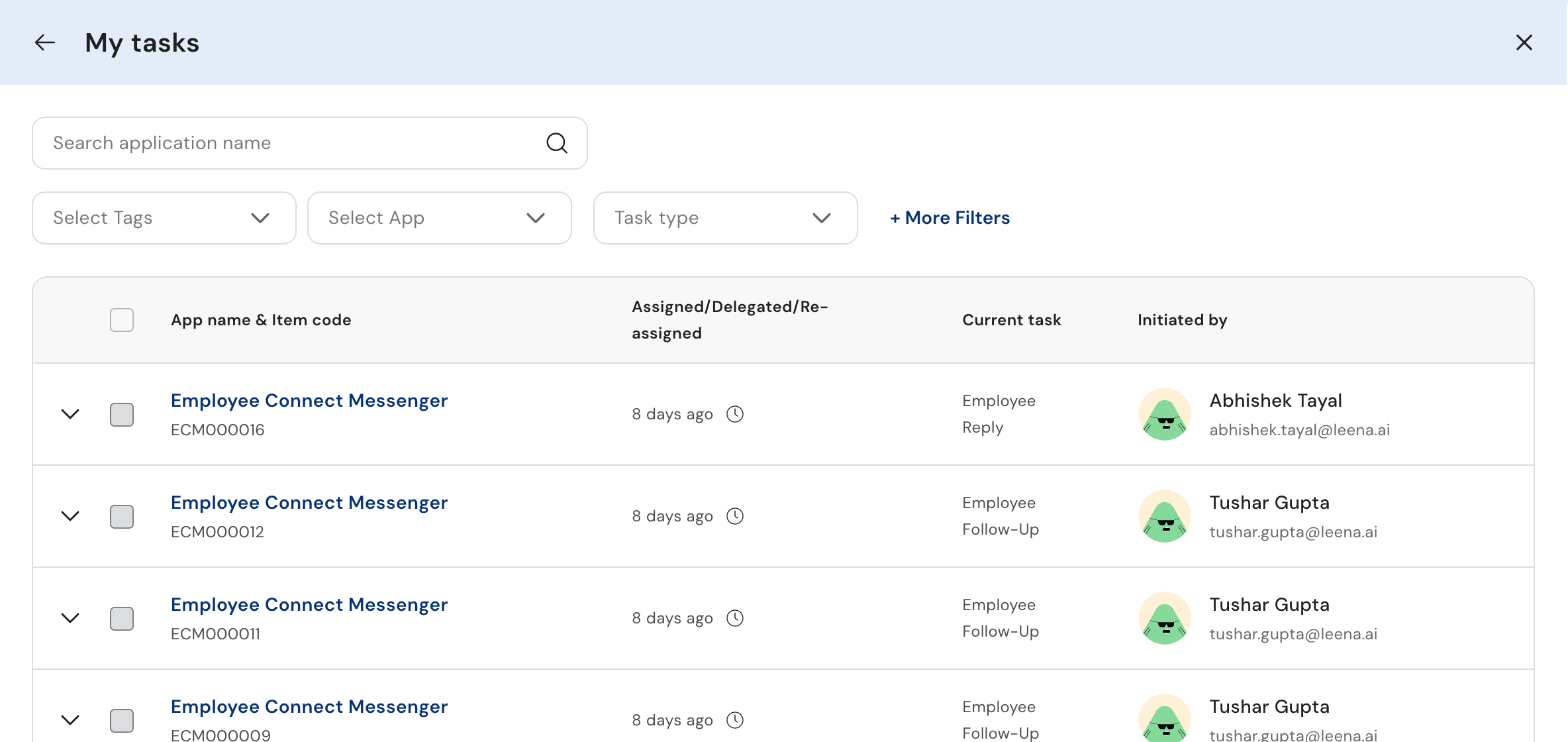
Tasks waiting for the employee
Open a task to see the request, its Progress path, Participants and Comments, then act on it:
- Approve or Reject, with a comment if one is required.
- Request revision to send it back to an earlier step.
- Delegate task to someone else, with a note.
To approve several tasks at once, select them in the list and approve them together. Tasks that can't be approved in bulk are reported so they can be handled one by one.
Tracking requests
My items shows the requests the employee started. Open one to see its progress and comments, and:
- Nudge the person it's waiting on.
- Withdraw request if it's no longer needed.
Employees also get a notification in the assistant when a request needs their attention or changes status. See Notification Panel.
Common questions
Why can't an employee find a workflow?
Workflows are published by your admin, and each one can be limited to certain employees. If it's not in the side panel or Applications, it isn't available to them.
Can a workflow be finished in the chat without opening a form?
Yes, if your admin has set it up for conversation. The assistant collects each detail in the chat and submits the request when the employee confirms.
What happens after submitting?
That depends on the workflow. It might go for approval, update another system, run an automation on the employee's device, or create a ticket. The assistant keeps the employee updated in the chat.
Updated 19 days ago