
Form Components & Supported fields
Components
A form structure is divided into 2 segments:
- Form components: These components generally are used to enhance the visual appeal of the entire form & share additional information.
- Field components: These components capture inputs/information from the user in the defined format such as Date, Input text etc.
Custom HTML support (Header / HTML block)
A header or HTML block that renders custom HTML displays your markup inside the form after sanitization:
- Allowed: the standard formatting tags (headings, paragraphs, lists, tables, links, bold/italic, and so on) plus
<style>and<img>. On any tag, the attributesstyle,class,href,target,rel,src, andaltare kept — inline styles are preserved exactly as written. - Images can use an external URL or an embedded base64 image (
data:URIs are permitted on<img>only). - Stripped:
<script>,<iframe>and any other non-allowed tag, all event-handler attributes (onclickand the like), anddata:URLs anywhere other than images — so active content can't be injected. - Plain URLs in the text are automatically converted into clickable links, and trailing empty paragraphs are trimmed.
This is display-only markup supplied by the builder — it's separate from the HTML field, which is a rich-text editor the end user types into.
Field & Form components
-
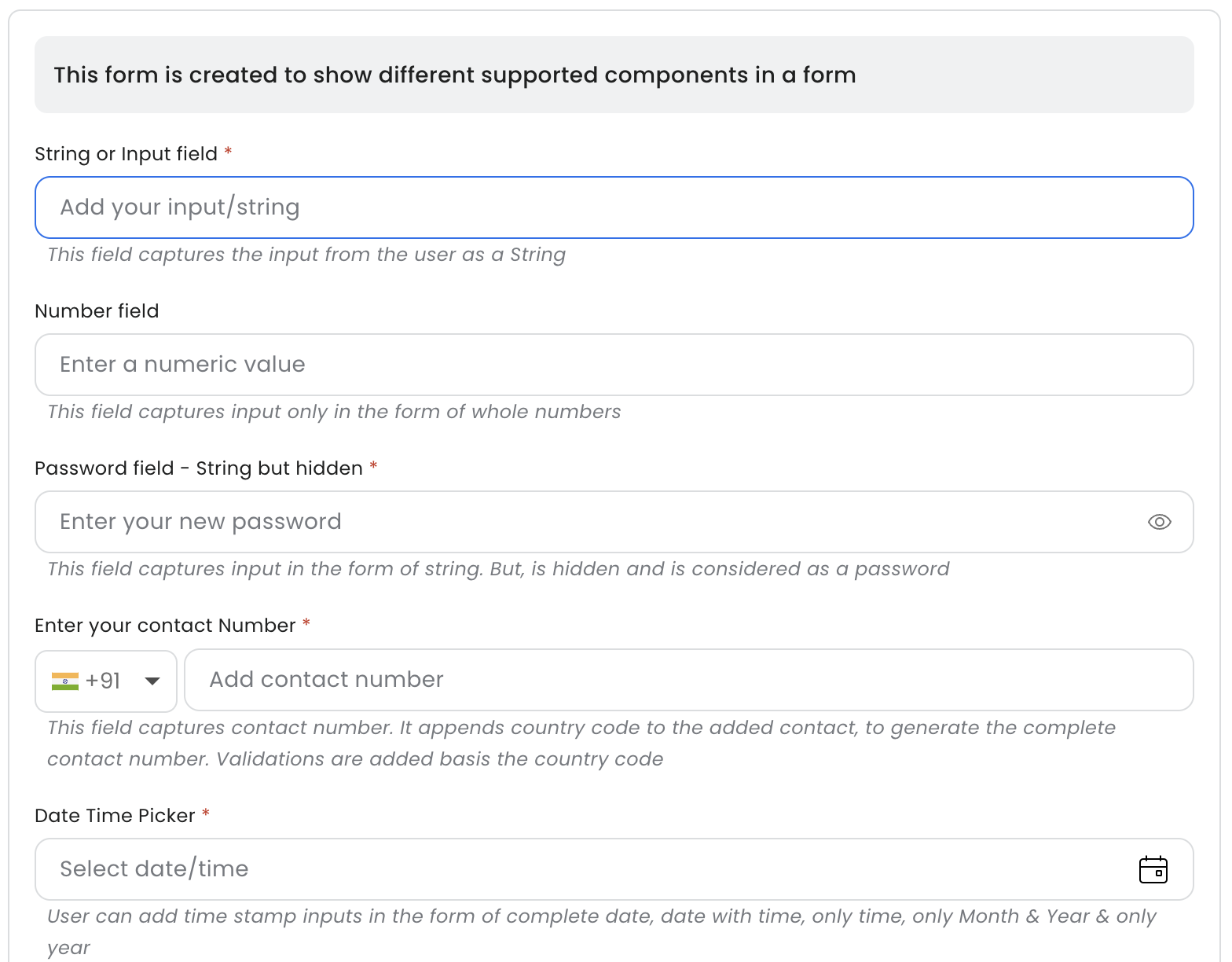
Header: It allows user to add information on the form.
-
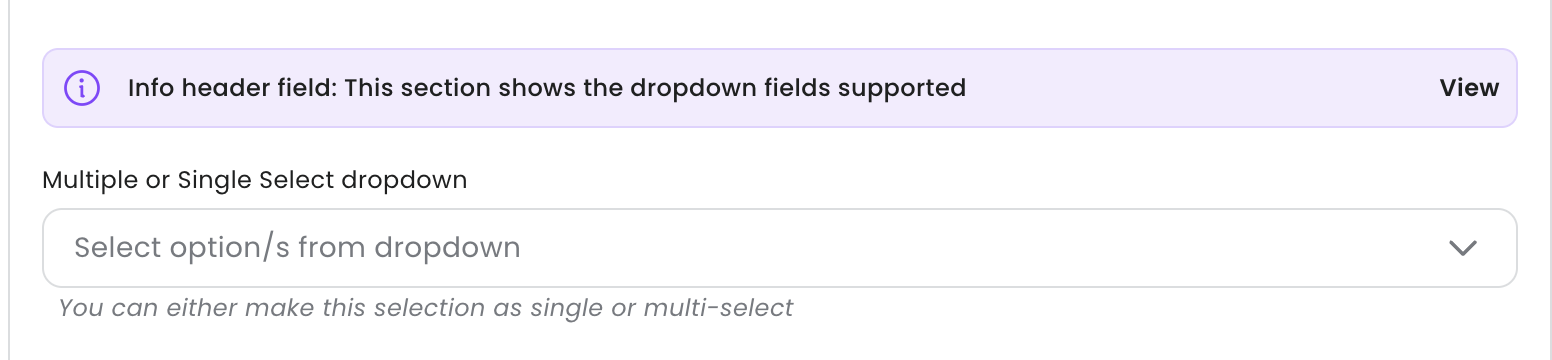
Info-header: The user can add information on the form for the end-user. It allows users to add info-header title, a URL & help-text.
-
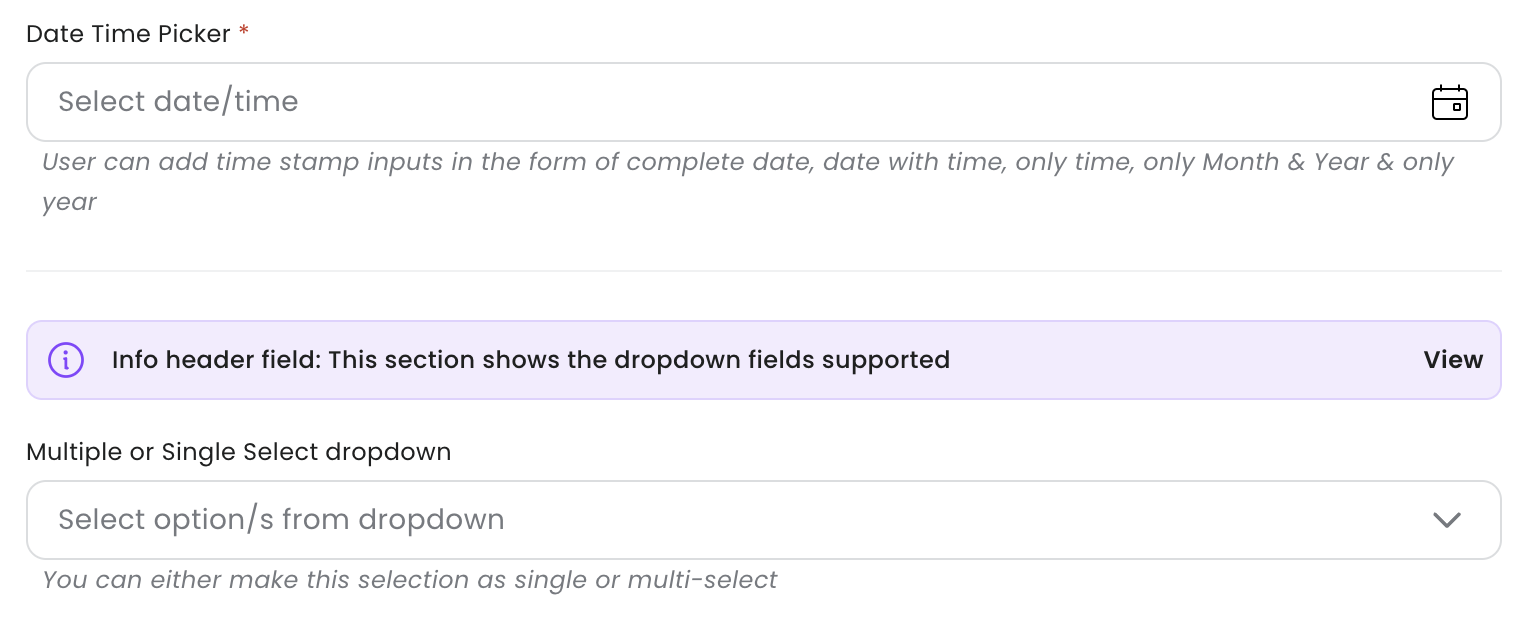
Divider: The user can add a divider/horizontal line on the form. This allows user to slit form into sections.
-
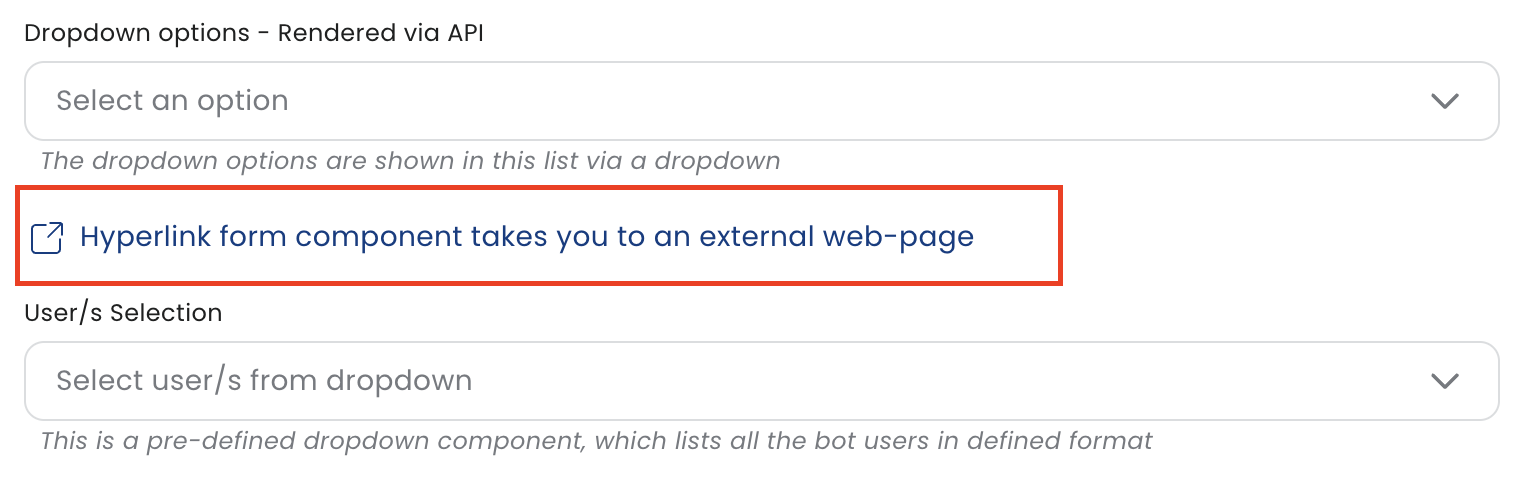
Hyper-link: The user can add a information component within the form.
-
Text: This is an input component, which allows user to add details/input as a string.

-
Numeric: This is an input component, which allows user to add details/input as Numeric.

-
Password: This is an input component, which allows user to add details/input that is hidden and it considered as a password.

-
Phone Number: This is an input component, which allows user to add input as phone number.

-
Date: This is an input component, which allows user to add input as Date. The supported formats are: Only date, Date & time, Only date, Only Month & Year, Only Year.

-
Date comparison: This component gets auto-populated. It adds a calculation (subtraction/addition) of 2 dates. This field reflects once the input for 2 dates are added by the user.

-
Dropdown: This component renders options in the dropdown. The user can define value & label for each option. This selection can be single or multiple, and is controlled via a configuration.

-
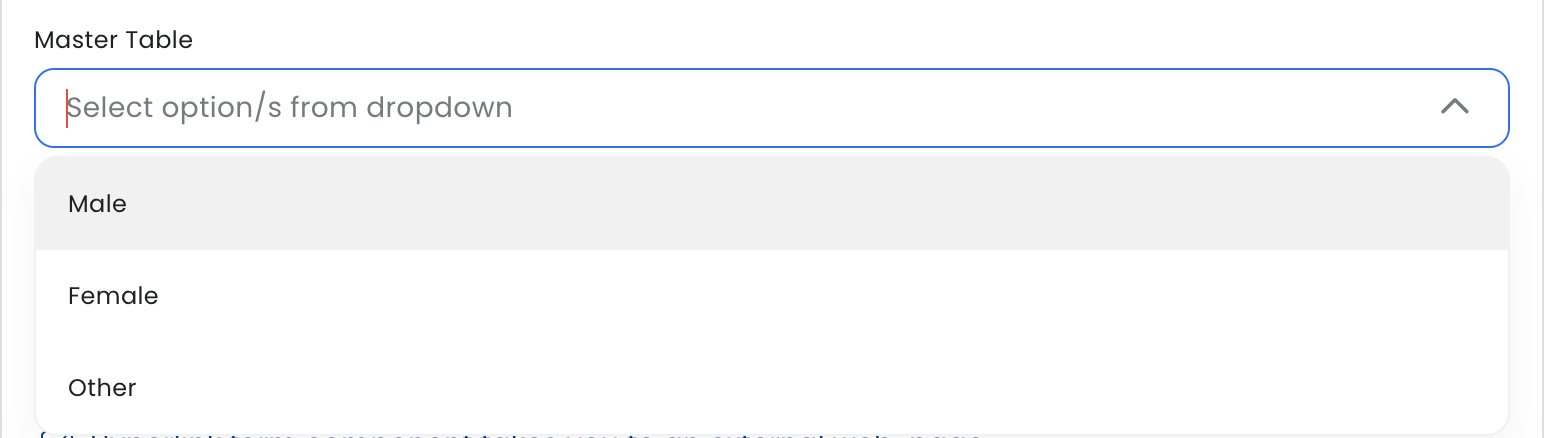
Master Table: This component renders options from a table/list which can be created separately. This separately maintained table/list is called the 'Master Table'. The selection in this dropdown can be configured as single or multiple select.
-
Dynamic Dropdown: API end-point can be configured to render dropdown options dynamically by calling this API.
-
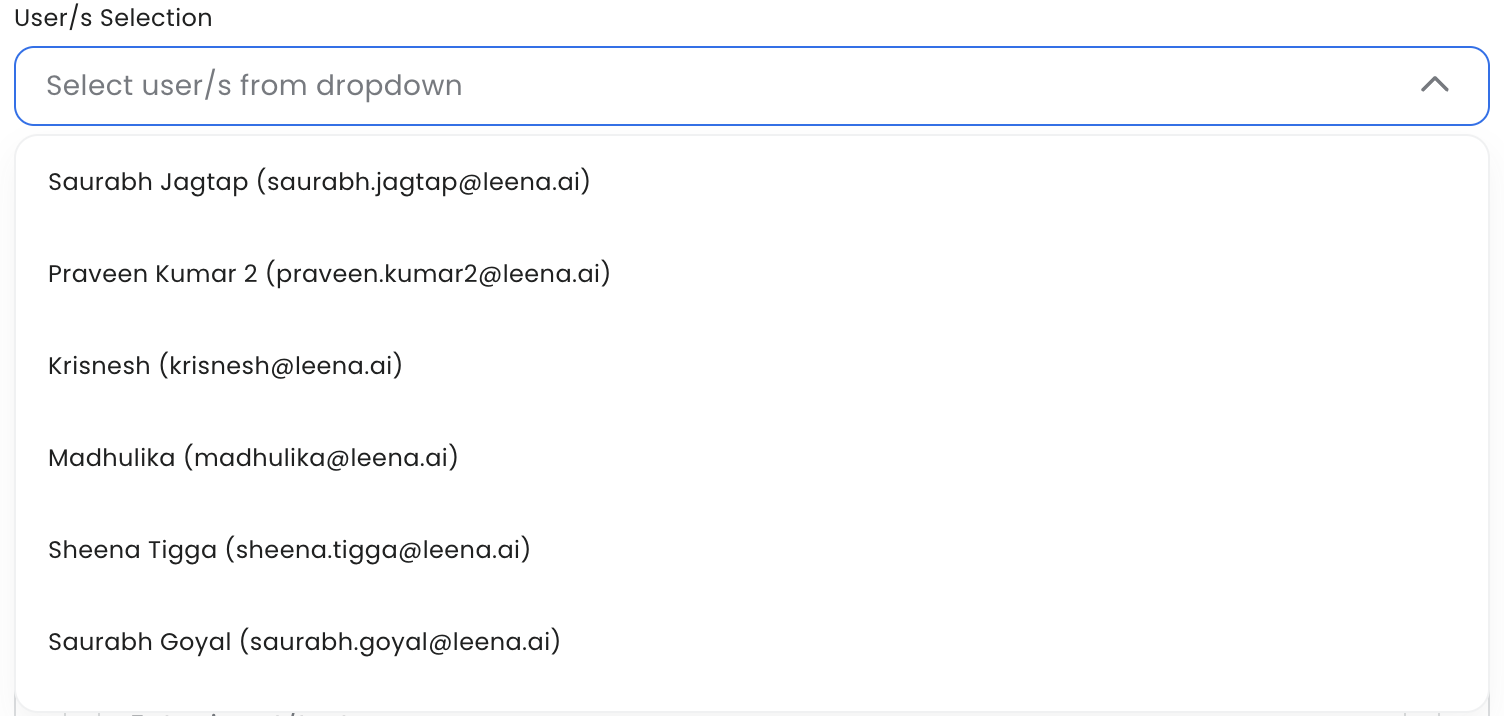
User component: This is a pre-defined dropdown, which renders the option/s as bot users. The render options can be rendered as either Full Name, Full Name (Email) or Full Name (E-code).
-
Radio: The options render as radio selection. The end-user can only select a single option. The options can be configured as Label & Value. Only Labels are shown to the end-user.

-
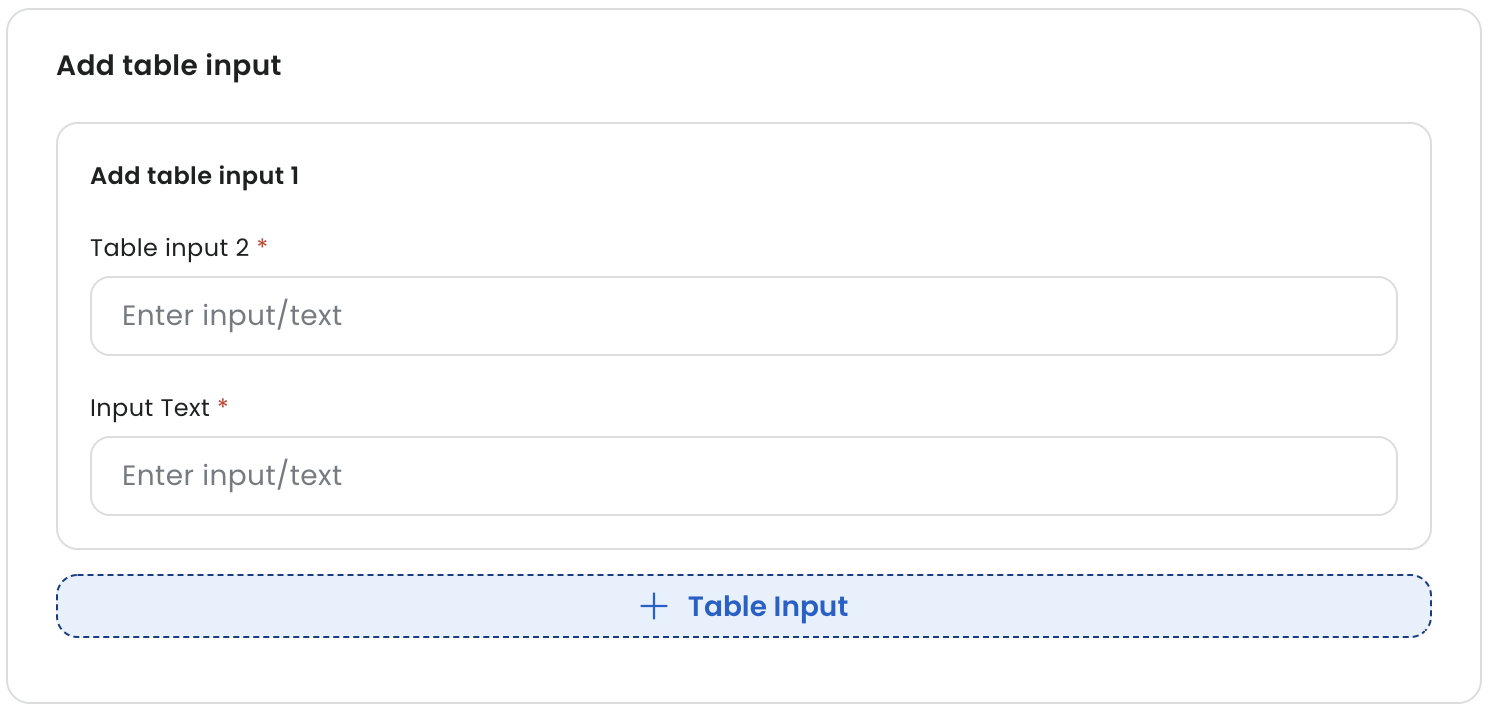
Field Array: This is a table component, which holds multiple fields. For example, Education Details. The table component/Field Array renders on the form for the end-user with option to add more list/array items.
-
Declaration: Admin can add a declaration component, which can capture Yes/No or True/False input from the end-user.

-
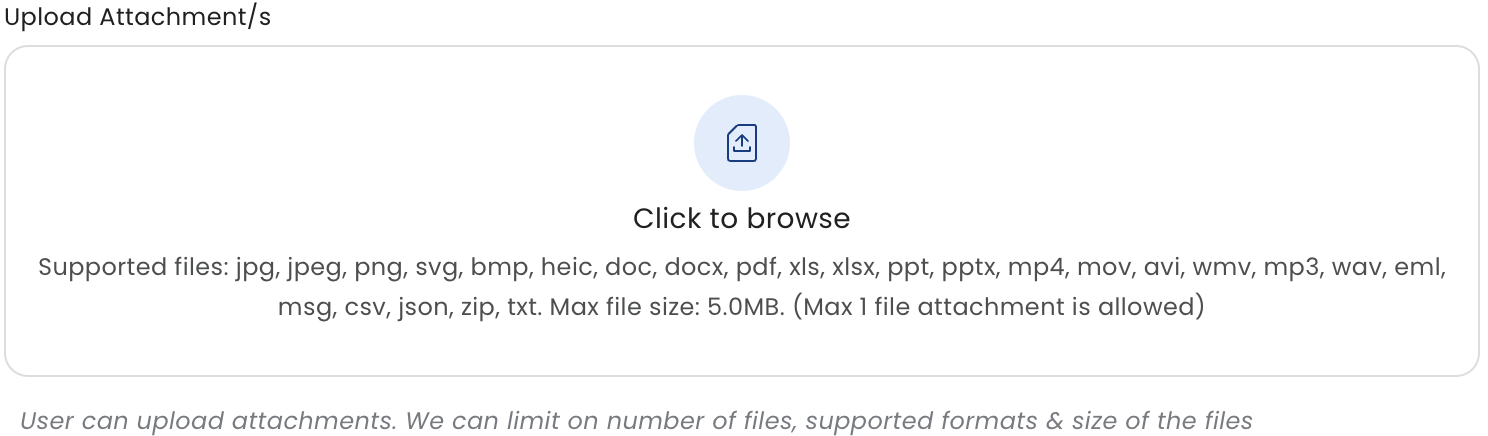
Attachment: This component allows end-user to upload attachments on the form. The admin can control what can be the maximum number of files, size of files and type of files which can be permitted.
Updated 6 days ago