
Capability discovery
Capability discovery is how employees find out what your AI Colleagues can actually do. Rather than facing an empty chat box, they land on a personalised welcome and a set of clickable prompts that launch real capabilities.
It exists to close the gap between what the assistant can do and what employees know to ask for — reducing time to first interaction and driving adoption of the tools and AOPs you've built.
Where to find it
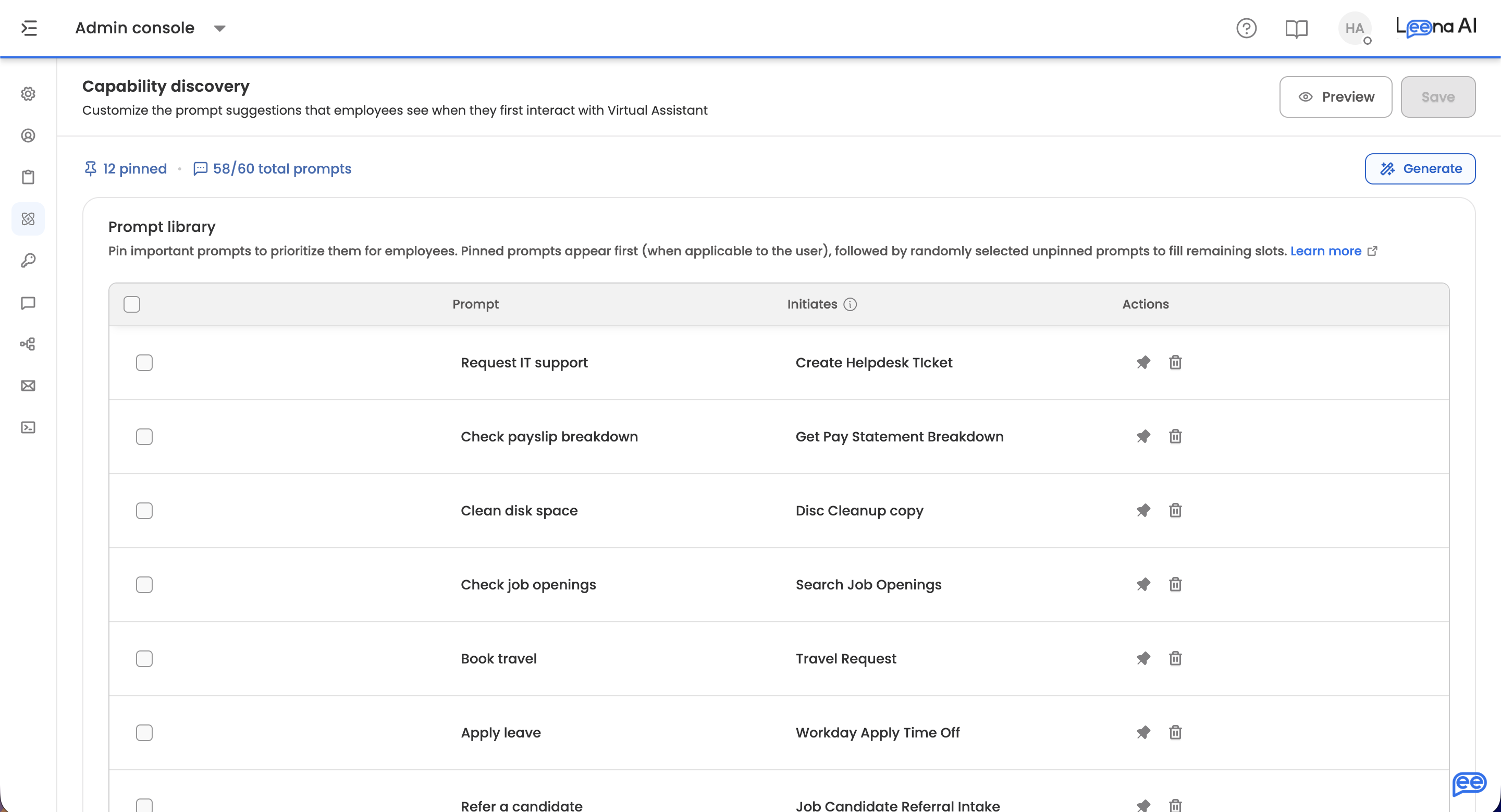
Open the Admin Console, then go to Orchestrator → Capability discovery.
Where it appearsCapability discovery requires a virtual assistant that supports multiple chats. It is available on the native Leena AI surfaces — web app, desktop app, and mobile app — plus the MS Teams tab app and the Slack assistant view.
What employees see
When an employee starts a new chat or lands on Home, they get a personalised greeting using their name, followed by seven clickable prompts. Each prompt triggers a specific tool or AOP — "Apply for leave", "Check leave balance", "Submit expense report".
Employees can also just ask — "What can you do?", "Can you help with license renewals?" — and the assistant answers with the relevant capabilities and how to use them.
Which prompts a given employee sees depends on the tools and AOPs available to them, based on their audience. Nobody is shown a prompt they cannot actually use.
Generating prompts
Click Generate. The system analyses your available tools and active AOPs and writes prompts for them, each mapped to the capability it triggers.
The Generate prompts dialog takes optional instructions if you want to steer the output — "Generate prompts for knowledge queries like 'How to check leave'", or "Create prompts for IT support requests". Leave it blank for general suggestions.
The dialog tells you how many prompts it will create: up to the remaining capacity, which is 60 minus however many you already have. Generating against an empty library produces far more than generating against a nearly full one.
Generate stops at 60The library holds a maximum of 60 prompts. Once you hit that, the Generate button is disabled and prompts you to delete existing entries before adding new ones.
Managing the prompt library
The library lists every prompt with three columns:
| Column | What it shows |
|---|---|
| Prompt | The text employees see on the button |
| Initiates | The tool or AOP the prompt triggers when clicked |
| Actions | Pin, unpin, and delete controls |
Search narrows the list. You can also select several prompts at once — the header shows how many are selected — and there is a Delete all action for clearing the library entirely.
| Action | What it does |
|---|---|
| Pin | Always show this prompt to employees |
| Unpin | Return a pinned prompt to the random pool |
| Delete | Remove the prompt from the library |
Prompts can't be editedYou cannot change a prompt's text or reassign which tool or AOP it triggers. To change one, delete it and generate a replacement.
Changes are not live until you click Save. Leaving with unsaved edits prompts you first, offering to save or exit anyway.
How the seven slots are filled
Employees always see exactly seven prompts, chosen fresh on each load:
- Pinned prompts appear first, in order, up to seven.
- Randomly selected unpinned prompts fill whatever slots remain.
So five pinned plus fifteen unpinned gives an employee five pinned and two random. Seven pinned gives all seven pinned and nothing random — pinning seven effectively fixes the set.
Slack shows fewerIn the Slack assistant, channel limitations cap suggested prompts at four visible at once.
Inactive tools and AOPs
When a tool or AOP is deactivated, the prompts pointing at it don't silently break. They stay in the library with a warning badge reading Associated with inactive Tool/AOP. Will not be shown.
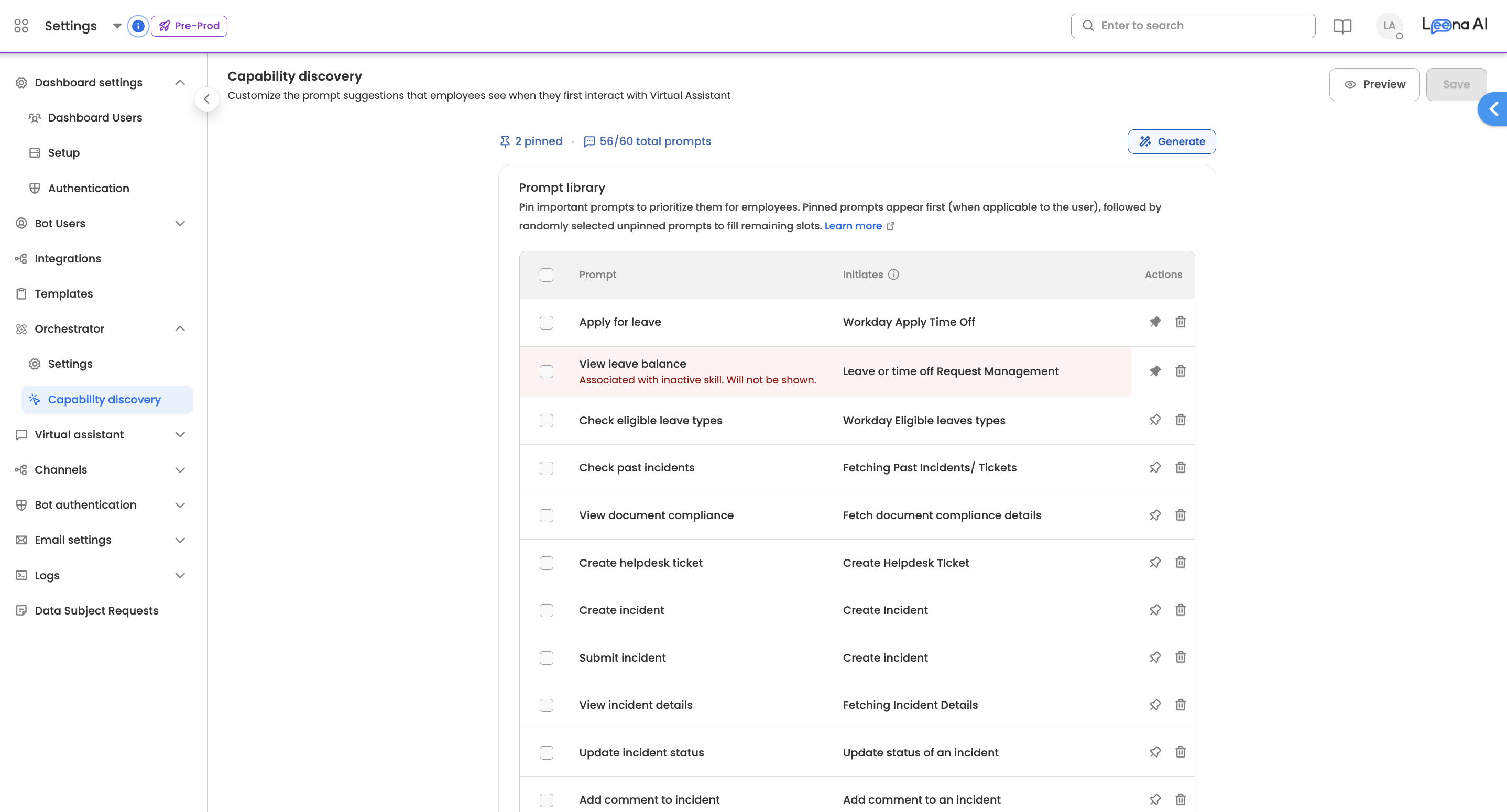
Those prompts are hidden from employees, and cannot be pinned while flagged. Reactivate the underlying tool or AOP and they become available again on their own — so a temporary deactivation doesn't cost you the prompt. Delete them only if the capability is gone for good.
Preview
Preview shows the employee experience before you commit: the welcome message, and a randomised set of seven prompts as they would appear.
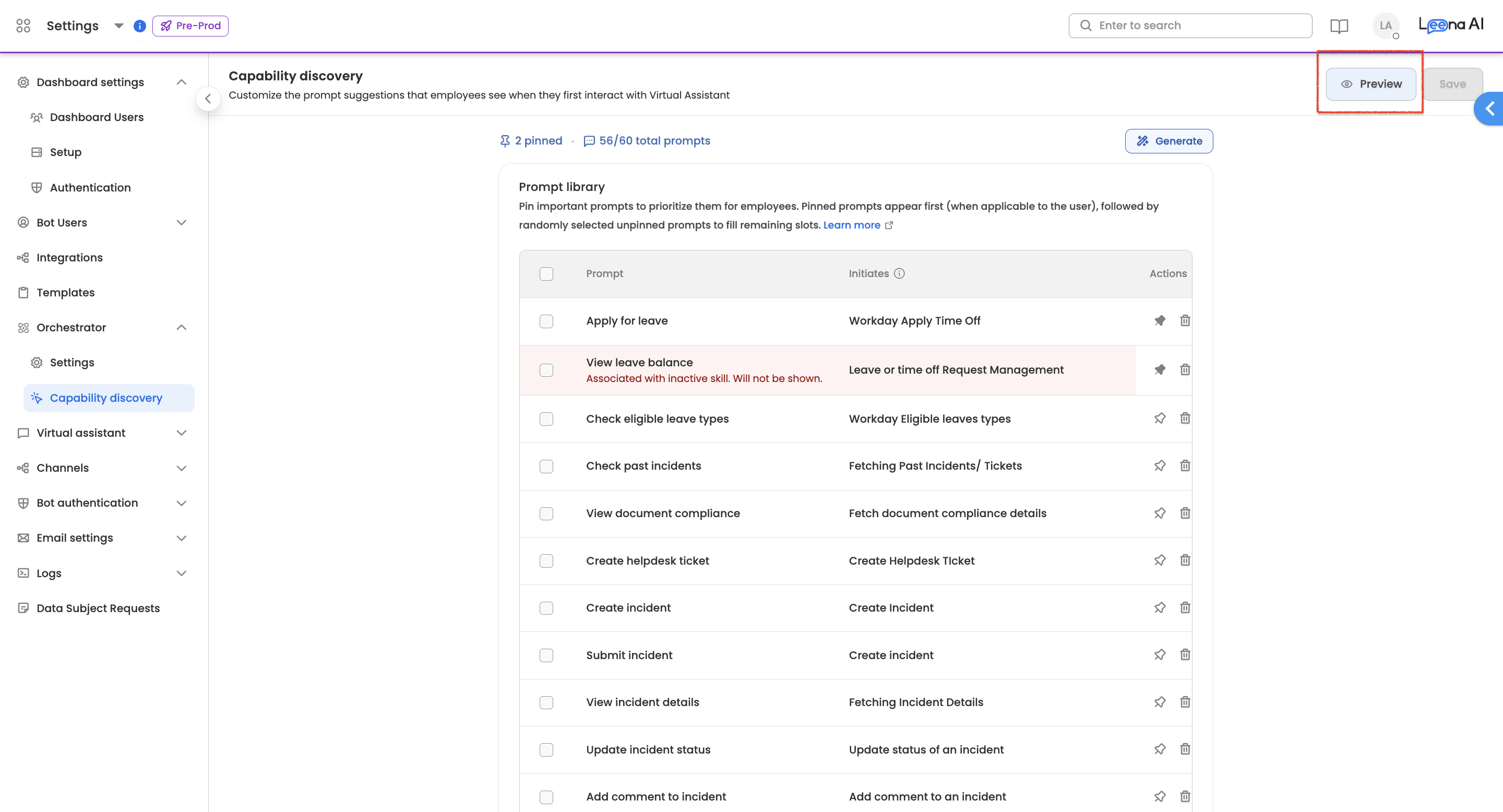
Use the regenerate icon to cycle through different combinations and check that the random selections hold up, not just your pinned favourites.
The preview renders on the default background. Custom background images only appear in the Virtual Assistant itself.
Languages
Prompts are translated at runtime using each employee's language attribute, which comes from your HCM synchronisation. Configure prompts in English only — translation is handled automatically.
Good practice
Pin your five to seven most-used prompts so the capabilities that matter always surface.
Prefer action-oriented wording. "Apply for leave" reads as something to do; "Leave application" reads as a noun.
Check inactive warnings periodically so the library reflects what the assistant can currently do.
Use custom instructions for capabilities employees ask about often but the general pass didn't cover well.
Preview before saving, and regenerate a few times so you're judging the real range rather than one lucky draw.
Updated 2 months ago