
Notification Panel
The notification panel collects everything the assistant sends an employee without being asked: announcements, ticket updates, approval requests, reminders and more. Employees open it from Notifications in the side panel.
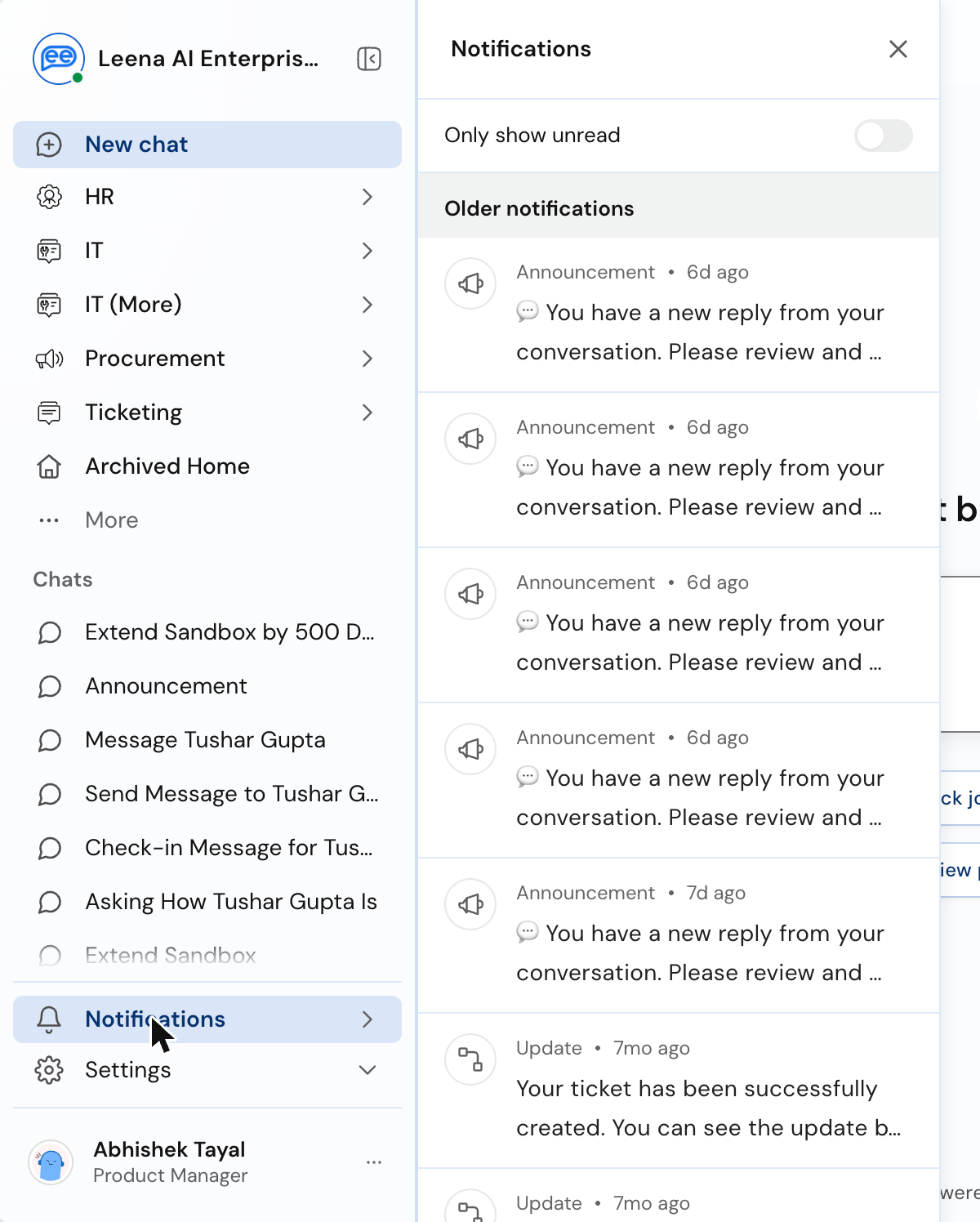
The notification panel slides out beside the side panel.
What employees see
- An unread count on Notifications in the side panel. On a phone, the count shows on the bell at the bottom of the drawer.
- Only show unread, a switch at the top of the panel that hides notifications already read.
- Latest notifications: anything from the last 24 hours, with Mark all as read to clear the unread count in one click.
- Older notifications: everything before that.
- Each notification shows an icon for its type, the type and how long ago it arrived (for example Announcement · 6d ago), and the first lines of the message. Unread notifications are in bold with a dot.
When there's nothing new, the panel says You're all caught up.
Notification types
| Type | Typical use |
|---|---|
| Announcement | Company news and updates sent to an audience |
| Update | Status changes, such as a ticket being created or resolved |
| Workflow | Steps in a workflow, such as a task to complete |
| Request | Something that needs the employee's action, such as an approval |
| Reminder | Nudges about pending items |
| Birthday | Birthday wishes |
| Work Anniversary | Work anniversary wishes |
Opening a notification
Clicking a notification takes the employee to the full message, inside the chat it was delivered to, even if they were in another chat at the time. The notification is then marked as read. From there they can use any buttons on the message, such as Complete Task or View Ticket.
Notifications are always delivered to a chat, and the ones meant for the panel appear there too. With Multiple Chats on, notifications go to tagged chats such as Announcement or Helpdesk Notifications, which are created automatically the first time a notification with that tag arrives. Notifications without a tag go to a chat called Announcements. See Chats.
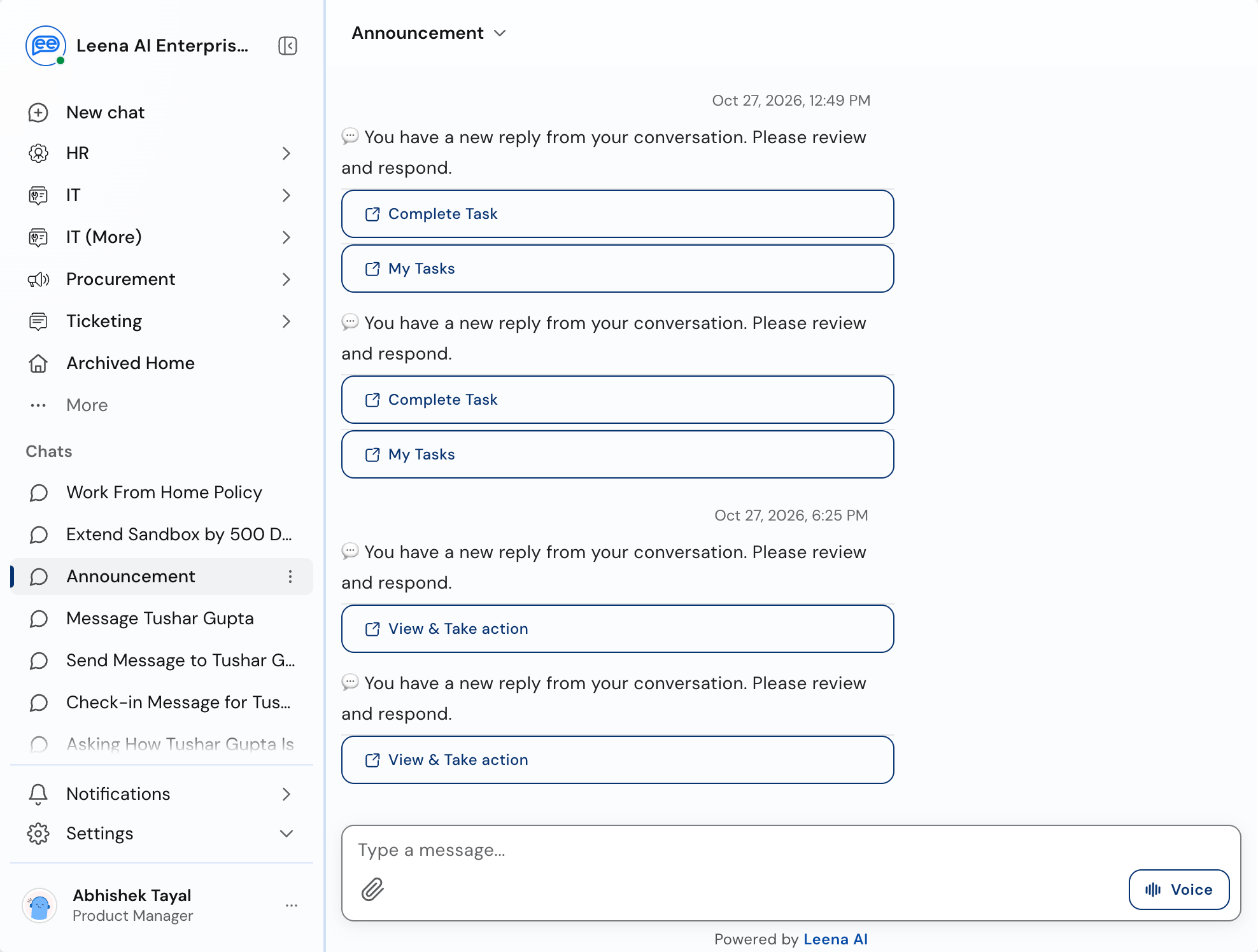
Notifications in their chat, with the buttons employees use to act on them
If the message behind a notification has been deleted, the employee sees That message is no longer available.
Where notifications come from
| Source | Examples |
|---|---|
| Notifications dashboard | Announcements, surveys and campaigns your team sends to an audience |
| Workflows | Approval requests, task assignments, request status updates |
| Helpdesk | Ticket created, updated or resolved |
| AI colleagues | Messages an AOP sends to an employee, such as a reminder or a message from a colleague |
To learn how to create and target notifications, see the Notifications user guide and Types of Notifications.
On the classic designNotifications open from the bell icon at the top of the screen, as a dropdown. Employees can also delete individual notifications or clear them all. On bots without Multiple Chats, clicking a notification takes the employee to the message in the Home conversation.
Common questions
Can employees turn notifications off?
Not from the Web App. Who receives a notification is decided by its audience when it's sent.
Why did a new chat called Announcements appear?
A notification arrived without a tag, so it went to the default Announcements chat. If an employee deletes it, it's created again with the next untagged notification.
Do notifications reach Teams, Slack or WhatsApp too?
That depends on the channels your notification is sent to. This page covers the Web App only. See External Channels Experience.
Updated 19 days ago