
Custom reports
Watch the tutorial
Custom Reports - Create Your Own Workflow Reports
Custom Reports lets you create your own reports using data from your workflows. You can choose what information to include, set up automatic delivery, and share reports with the right people.
Key Features:
- Build Your Own Reports: Pick the data you want and create reports that answer your specific questions
- Schedule Automatic Delivery: Set reports to be generated and emailed daily, weekly, or monthly
- Download Anytime: Generate reports instantly when you need them
- Control Who Sees What: Decide who can view each report to keep sensitive data secure
Key points:
- Your existing permissions apply to Custom Reports
- Email settings use your current email system
- Your current workflows and reports keep working as before
- All your old workflow data is available for new reports
- Your user permissions stay the same
How to Configure & Use
Creating Your First Report:
Step 1: Start a New Report
- Go to Reports → Manage Custom Reports
- Click "Create New Report"
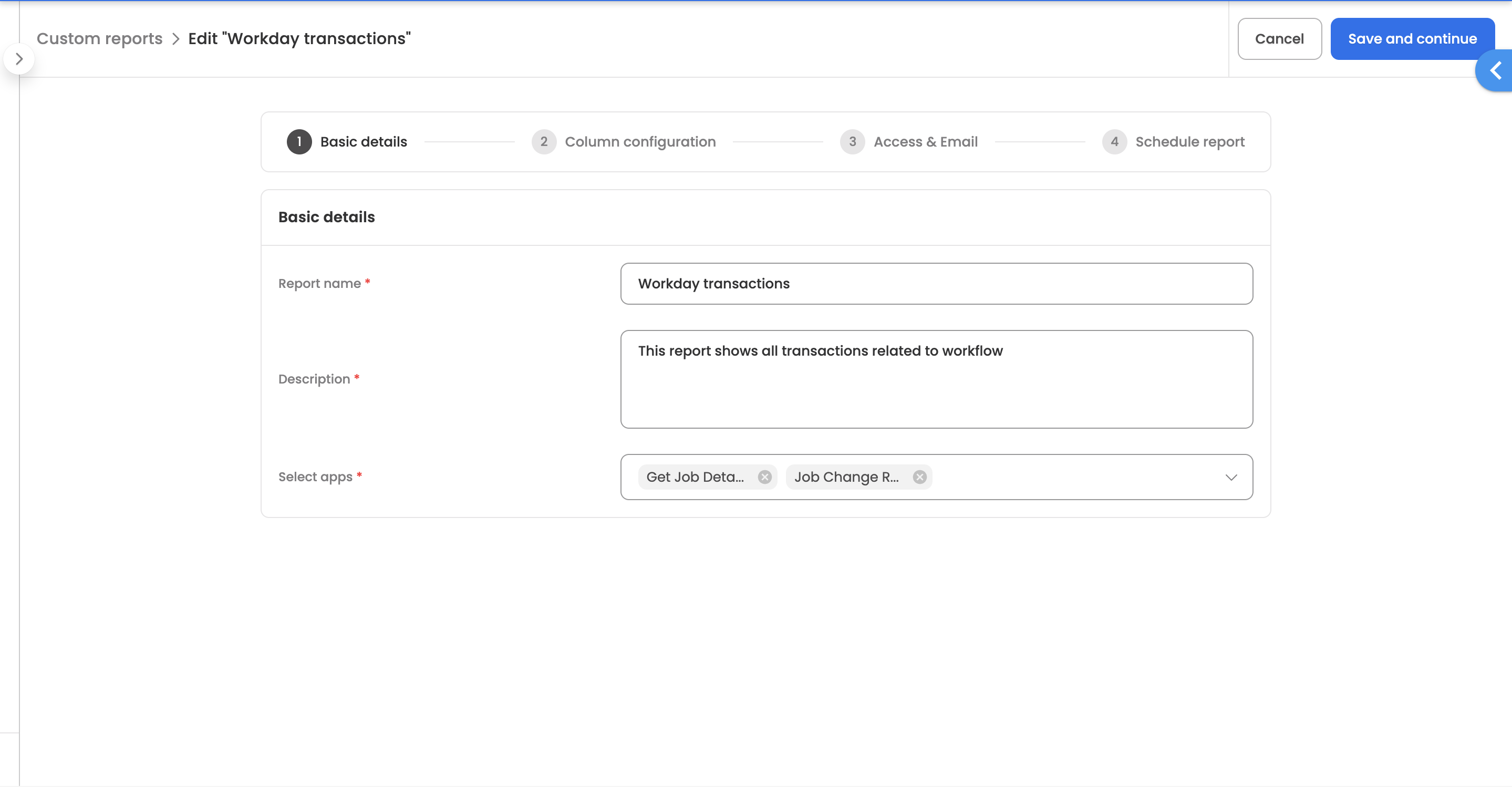
- Give your report a name and description
Step 2: Choose Your Data
-
Pick which workflow apps you want data from
-
Make sure you have access to those apps
-
Check that data connections are working
Step 3: Pick Your Columns
-
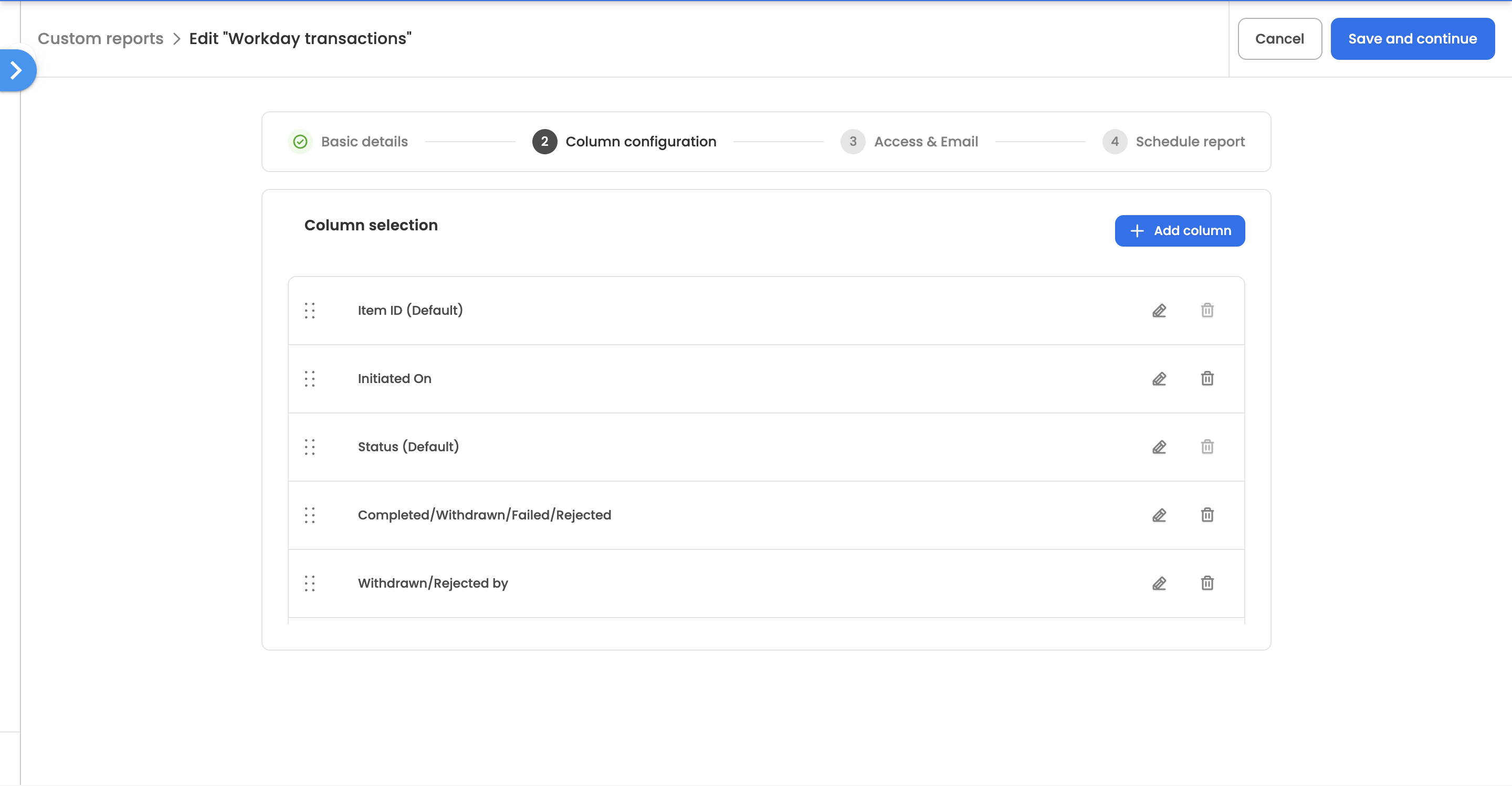
Choose from ready-made options like:
-
Item ID, Status, Creation Date, Time Taken
-
Add your own custom columns
-
Give each column a clear name
-
Mark important columns as required
Step 4: Set Who Can Access
-
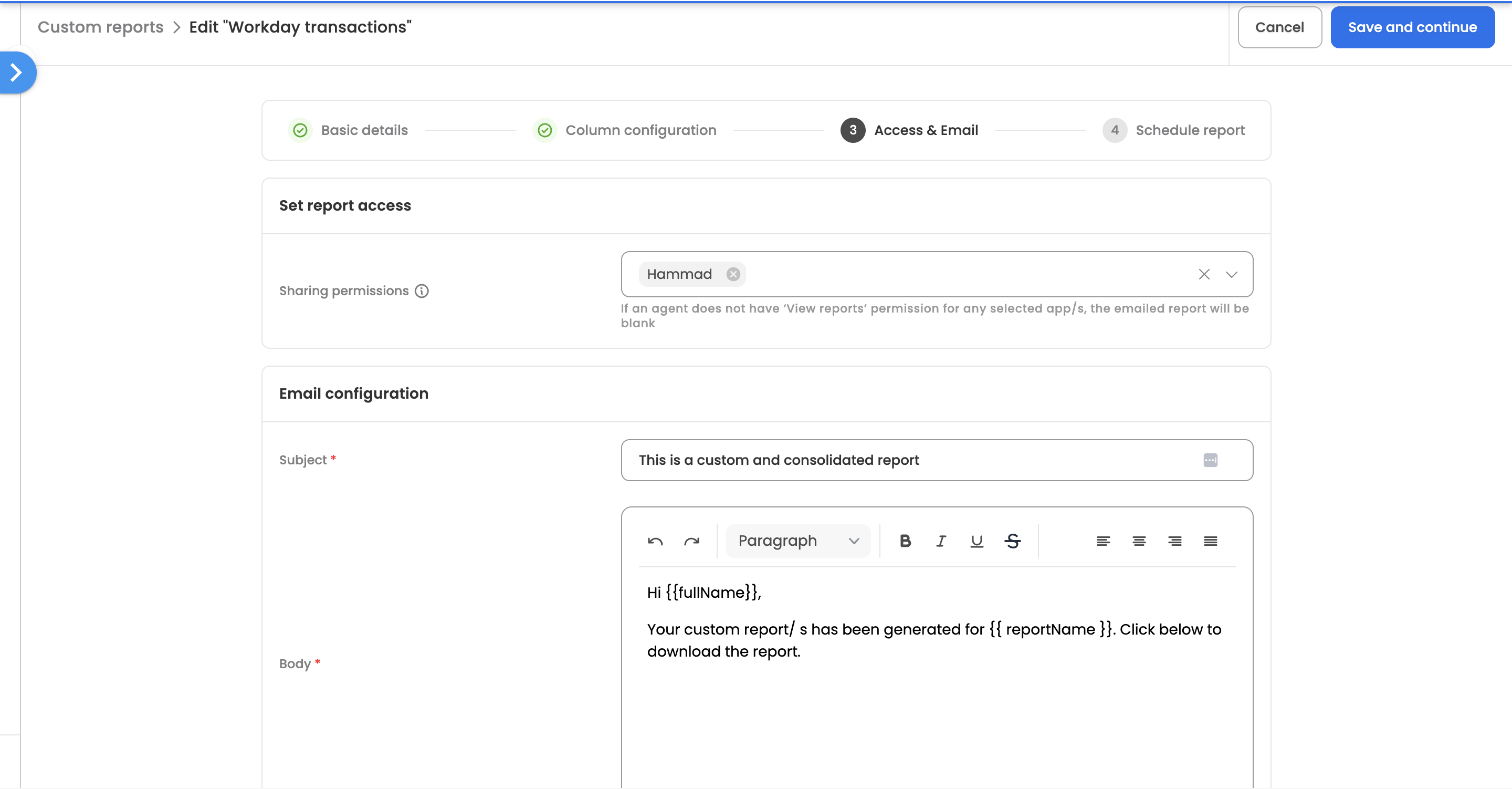
Add people who should be able to view the report
-
Write email templates for when reports are sent
-
Check that people can only see data they're allowed to
Step 5: Set Up Automatic Delivery (Optional)
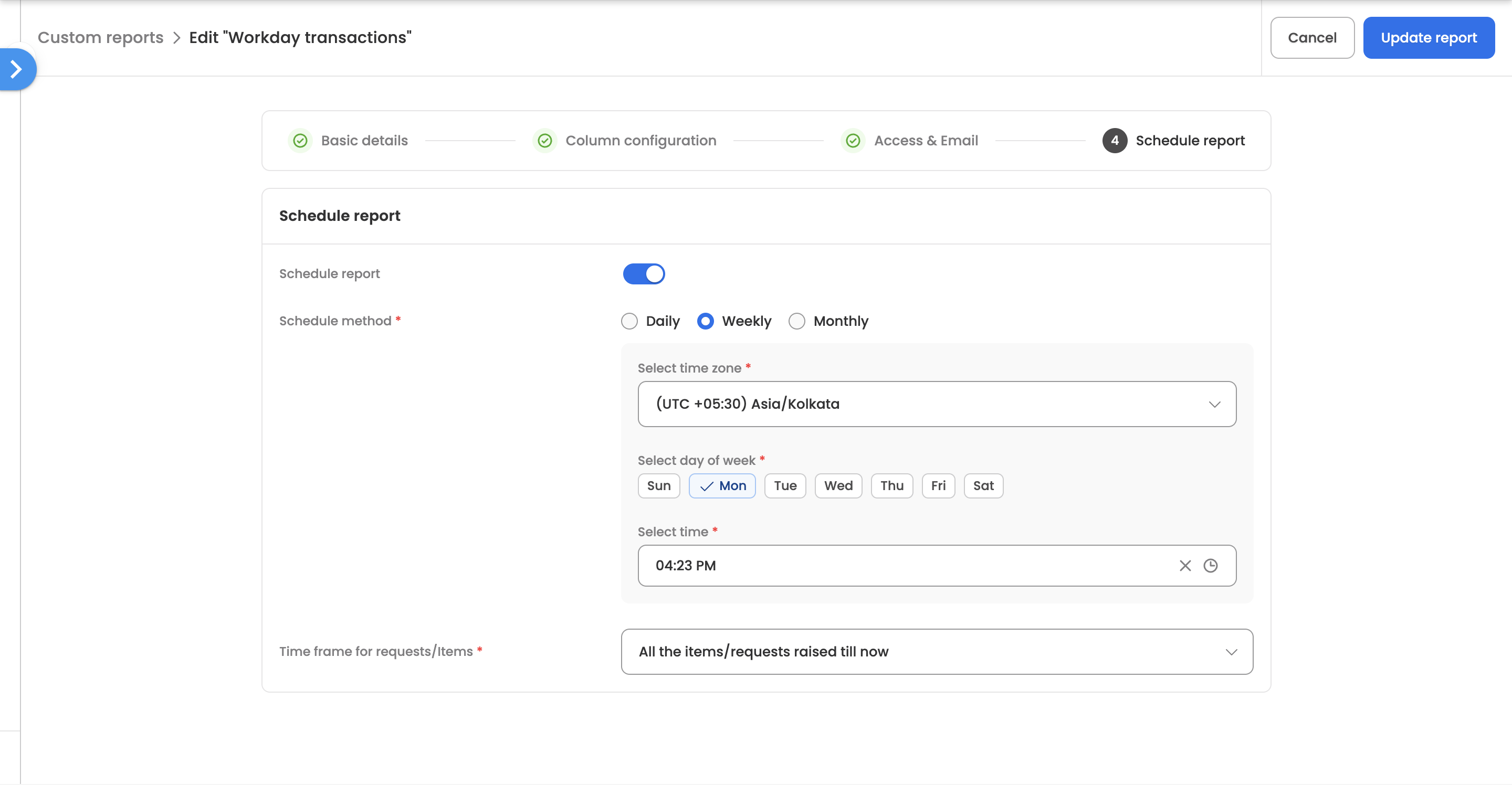
- Turn on automatic scheduling
- Choose how often: Daily, Weekly, or Monthly
- Pick the time and time zone for delivery
- Choose what data to include:
-
All Data: Everything from the beginning
-
Recent Data: Last 30 days (or however many you choose)
-
Since Last Report: Only new data since the last report
-
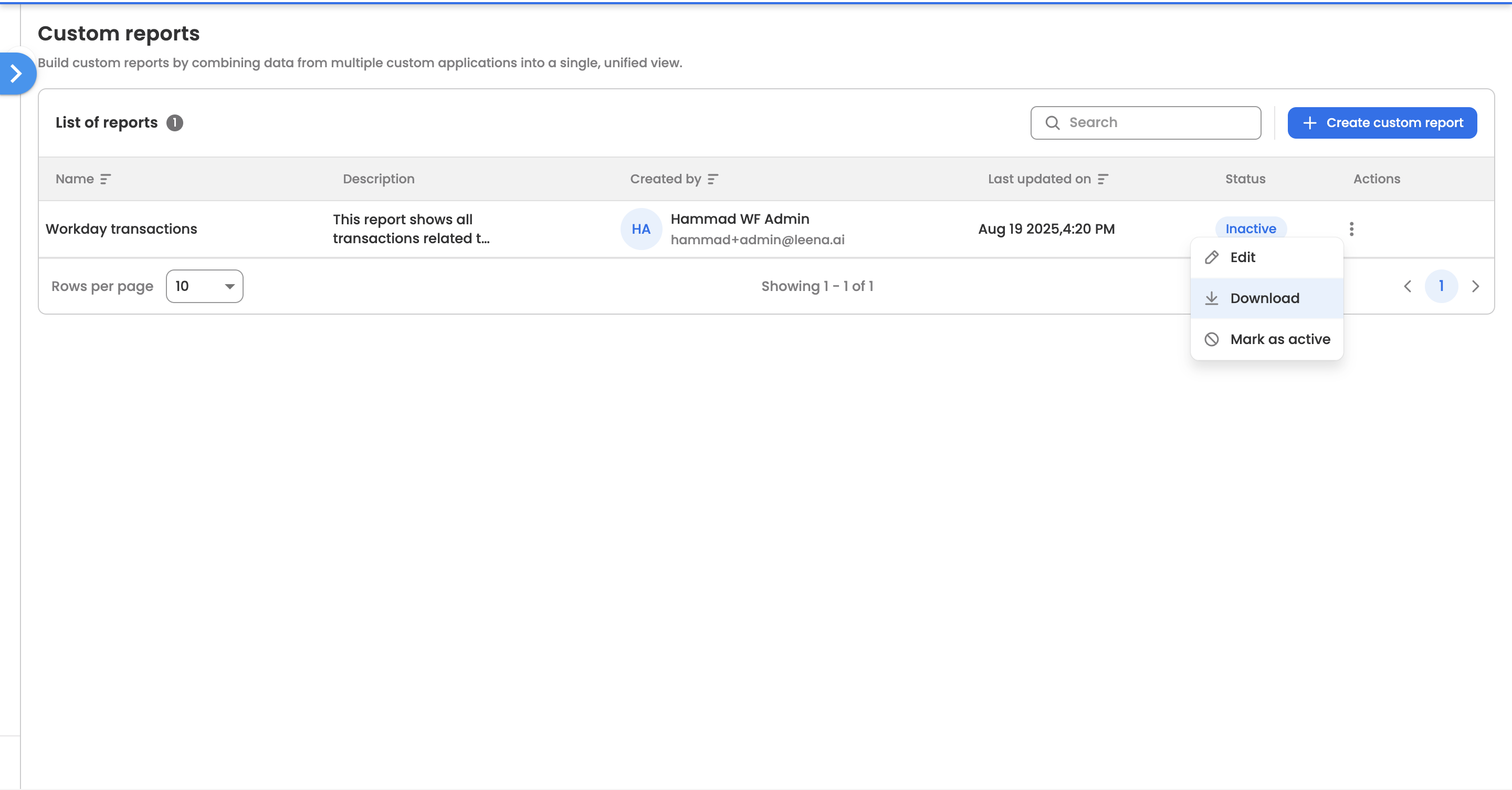
Step 6: Download custom report
-
The newly created report will reflect under the 'Custom reports' listing view.
-
Find the option to download the custom report under three vertical dots next to a custom report.
Additional-column value syntax
Every column — default or custom — gets its value from a template string that is evaluated once per request when the report is generated. A template mixes plain text with Data Center references wrapped in {{ }}; a column can hold one reference, several, or text around them.
| Reference | What it returns | Example |
|---|---|---|
{{forms.<formIdentifier>.<fieldName>}} | A form field's submitted value. | {{forms.travel_request.amount}} |
{{nodes.<nodeId>.executionData.data...}} | A node's response data (whatever the Action/Function node returned). | {{nodes.action_1.executionData.data.ticketId}} |
{{nodes.<nodeId>.executionDetails.<field>}} | A node's execution metadata — status, timing. Dates are formatted in the report's timezone; skipped nodes show no completion time. | {{nodes.approval_1.executionDetails.status}} |
{{globalConstants.<name>}} | A global constant's value, including runtime overrides made during the request. | {{globalConstants.hrEmail}} |
{{globalProperties.<property>}} | Request-level properties. | {{globalProperties.status}} |
Available globalProperties: botId, itemId, applicationId, applicationName, plus report-specific values — status, initiatedAt, initiatedBy, completedAt (completion/withdrawal/failure/rejection time), stepActor (who withdrew/rejected), stepName (the step where it ended), and totalTimeTaken. The default columns (Item ID, Workflow Name, Initiated By, and so on) are themselves just templates on these properties — e.g. Item ID is {{globalProperties.itemId}}.
Per-workflow mappingWhen a report covers multiple workflows, a custom column holds a separate value per workflow, because each workflow has its own form identifiers and node IDs. Configure the column's Data Center reference for each selected workflow; a workflow with no mapping leaves that cell empty.
Performance tipIf a column only needs a node's status or timing, reference
executionDetailsrather thanexecutionData— reports whose templates avoid node response data skip loading it entirely and generate faster on large workflows.
Working of reports as per permissions
Admin/s
All Workflows Studio admins can download and edit custom reports, irrespective of the creator of a particular custom report.
Agent/s
- Workflow agent/s mentioned under 'Access' configuration of the report would have access to download report.
- Workflow agent/s with access for specific workflows/applications ('View Reports' or 'Take action via Reports') would be able see data specific to those workflows/applications only, under the downloaded or emailed report.
Updated 6 days ago