
Navigation & Menu
The side panel on the left is how employees get around the Web App. Everything that isn't the conversation lives here: the assistant switcher, New chat, the shortcuts your admin pins, the employee's chats, notifications, settings and their profile.
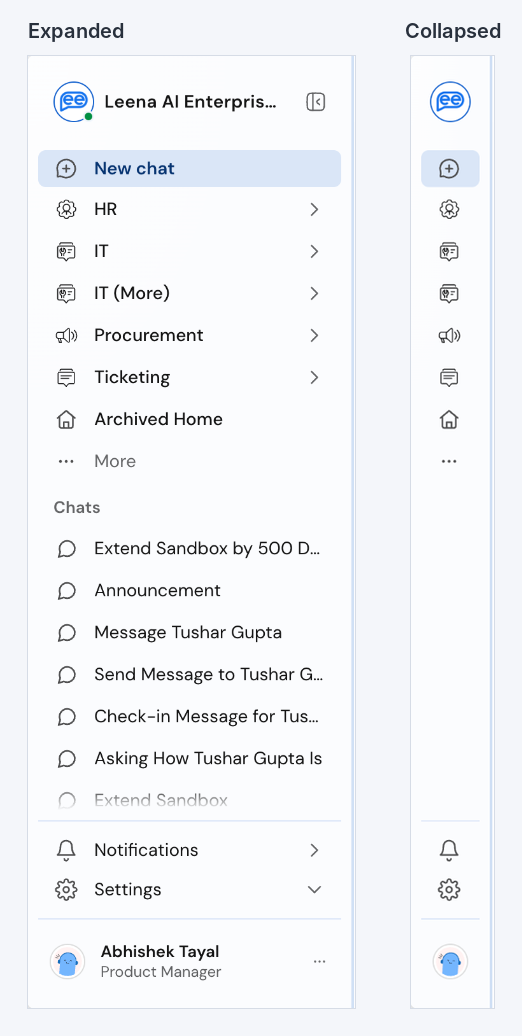
The side panel, expanded and collapsed
What's in the side panel
From top to bottom:
| Part | What it does |
|---|---|
| Assistant header | Your assistant's name and avatar, with a button to fold the panel. If the employee uses more than one assistant (for example, an IT and an HR assistant), clicking the name lists them; picking one reloads the Web App with that assistant. |
| New chat | Opens a fresh conversation. See Chats. |
| Sidebar actions | The folders, webviews, quick replies and external links your admin pins. See below. |
| Archived Home | A read-only copy of the employee's Home conversation from before Multiple Chats was turned on. Only shown to employees who have Home history. |
| More | Holds the sidebar actions that don't fit at the top level. |
| Chats | The employee's conversations, most recent first. More load as they scroll. |
| Notifications | Opens the Notification Panel. A badge shows how many notifications are unread. |
| Settings | Opens the settings menu: font size and, in Archived Home, clearing chat history. |
| Profile | The employee's photo, name and job title. The ⋯ menu changes the display picture or logs out. |
Sidebar actions
Your admin decides which shortcuts appear in the side panel. There are four kinds:
| Item | What happens when an employee clicks it | Default icon |
|---|---|---|
| Folder | Opens a pop-out menu listing up to five items, so a long list stays short. | Chosen by your admin |
| Webview | Opens a page inside the Web App, such as a form, the Policy hub, the employee directory or a ticket list. | Page |
| Quick reply | Sends a preset message, such as "Password Reset", as the first message of a new chat. See Quick Reply Options. | Speech bubble |
| External link | Opens a website, such as your intranet or HR portal, in a new browser tab. All external links sit together in one External links folder. | Globe |
Items show the icon your admin picks. If none is set, they show the default icon for their type.
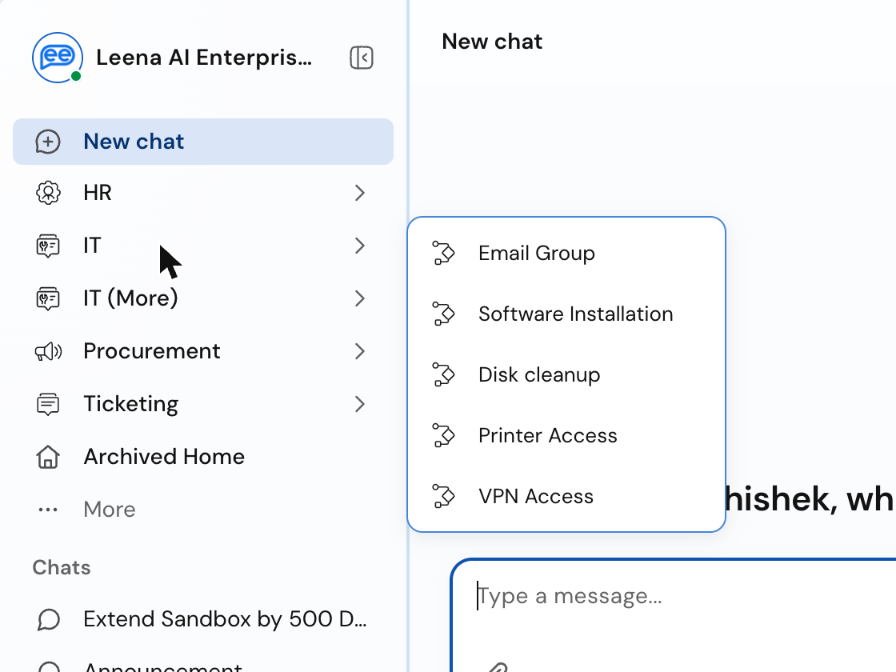
Pointing at a folder opens its menu. On a touch screen, tap the folder.
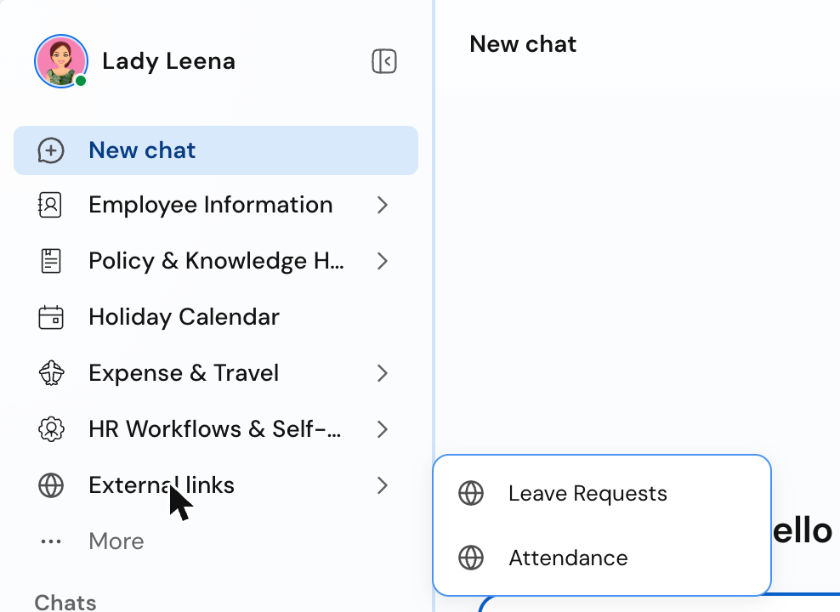
All external links sit together in one folder.
How items are arranged
- Up to five rows sit at the top level, in the order your admin set. Anything beyond that moves into More. Quick replies move first, so folders and webviews keep their place.
- External links and Archived Home come after those five rows, in that order, just above More. Neither counts towards the five.
- Each employee only sees the items meant for them. An item limited to an audience is hidden from everyone outside it, so two employees can see different lists.
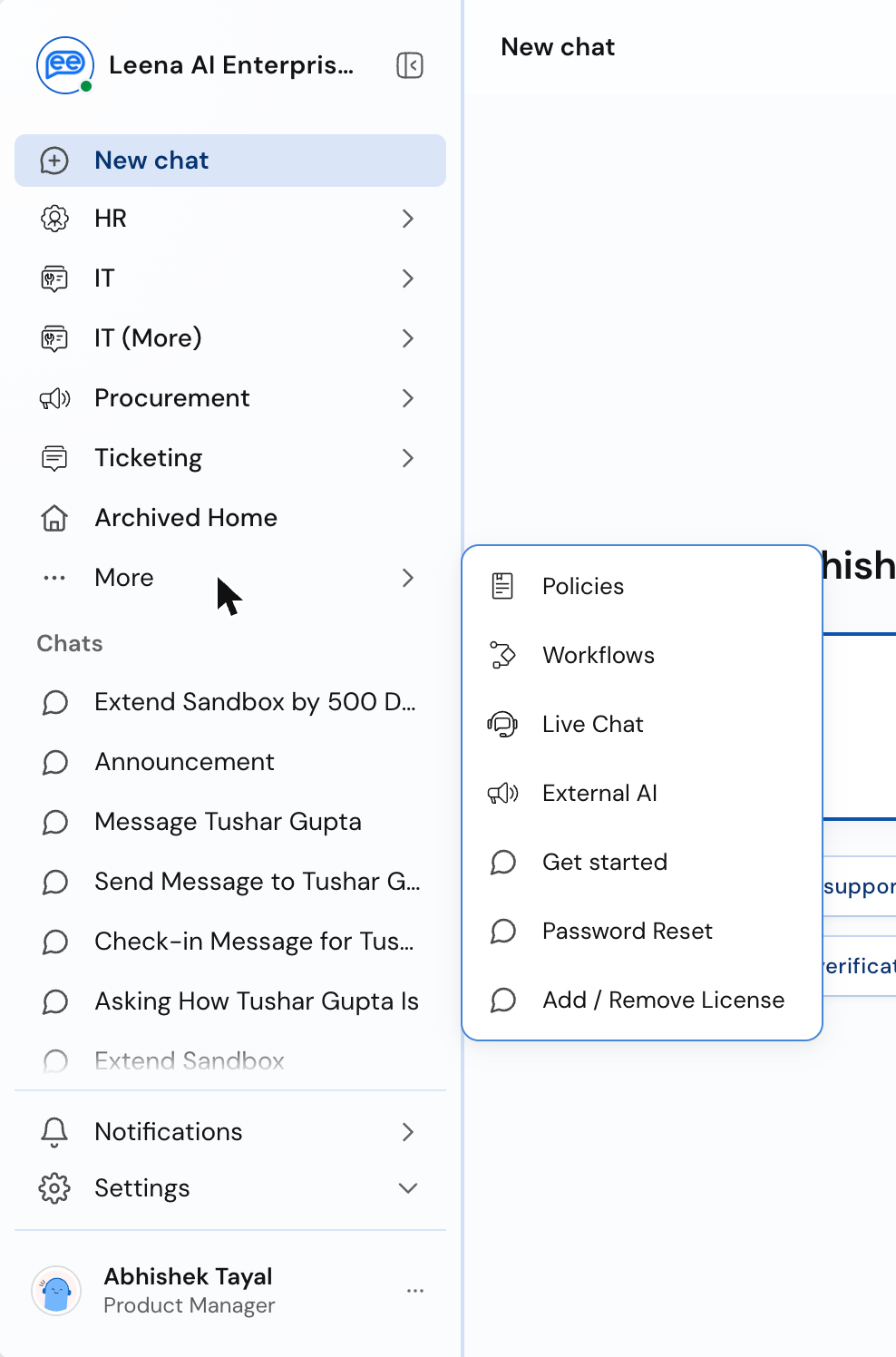
Items beyond the first five move into More.
Fold and resize the side panel
- Fold it: click the button beside the assistant's name, or press Ctrl + B (⌘ + B on a Mac). The panel narrows to a strip of icons and the chats list is hidden. Point at an icon to see its name or open its folder. Click the assistant's avatar to unfold the panel.
- Resize it: drag the panel's right edge. It can be between 240 and 384 pixels wide. Drag it far enough to the left and it folds into icons.
- The panel opens unfolded, at its standard width, each time the Web App loads.
- During a voice call, the panel folds and stays locked until the call ends.
Keyboard shortcuts
| Action | Windows | Mac |
|---|---|---|
| Start a new chat | Ctrl + O | ⌘ + O |
| Fold or unfold the side panel | Ctrl + B | ⌘ + B |
| Open settings | Ctrl + , | ⌘ + , |
| Close a menu, panel or the drawer | Esc | Esc |
- Ctrl/⌘ + O does nothing while there's an unsent message or attachment in the composer, so a draft is never thrown away by accident.
- Ctrl/⌘ + B doesn't fire while the cursor is in a text field.
- Shortcuts are paused during a voice call.
- Pointing at New chat, the fold button or Settings shows its shortcut.
- Every control can also be reached with Tab and the arrow keys.
On phones and in the widget
On narrow screens, including the mobile app and the website widget, the side panel becomes a drawer:
- Tap ☰ at the top left to open it. A dot on ☰ means there are unread messages.
- Folders expand in place, rather than popping out.
- Notifications, settings and the profile menu sit in a bar at the bottom of the drawer.
- Tap outside the drawer, or choose an item, to close it.
Set up the side panel
Sidebar actions are configured per assistant.
- In the Admin Console, go to Leena channels → Settings.
- Expand 2. Sidebar actions.
- Under Webviews and quick replies, click Add and choose what to add:
- Folder: a Folder name, shown as the group name in the side panel, and an optional Folder icon. Use Add inside the folder to fill it with up to five webviews or quick replies.
- Webview: the Webview category (for example Custom webview, Policy hub or Employee directory), a Webview title, the URL, an optional Audience and an Icon.
- Quick reply: a Quick reply title, the Module ID and an optional Audience.
- Under External Links, click Add external link for each website you want to pin.
- Drag items by their ⋮⋮ handle to change the order, then click Save.
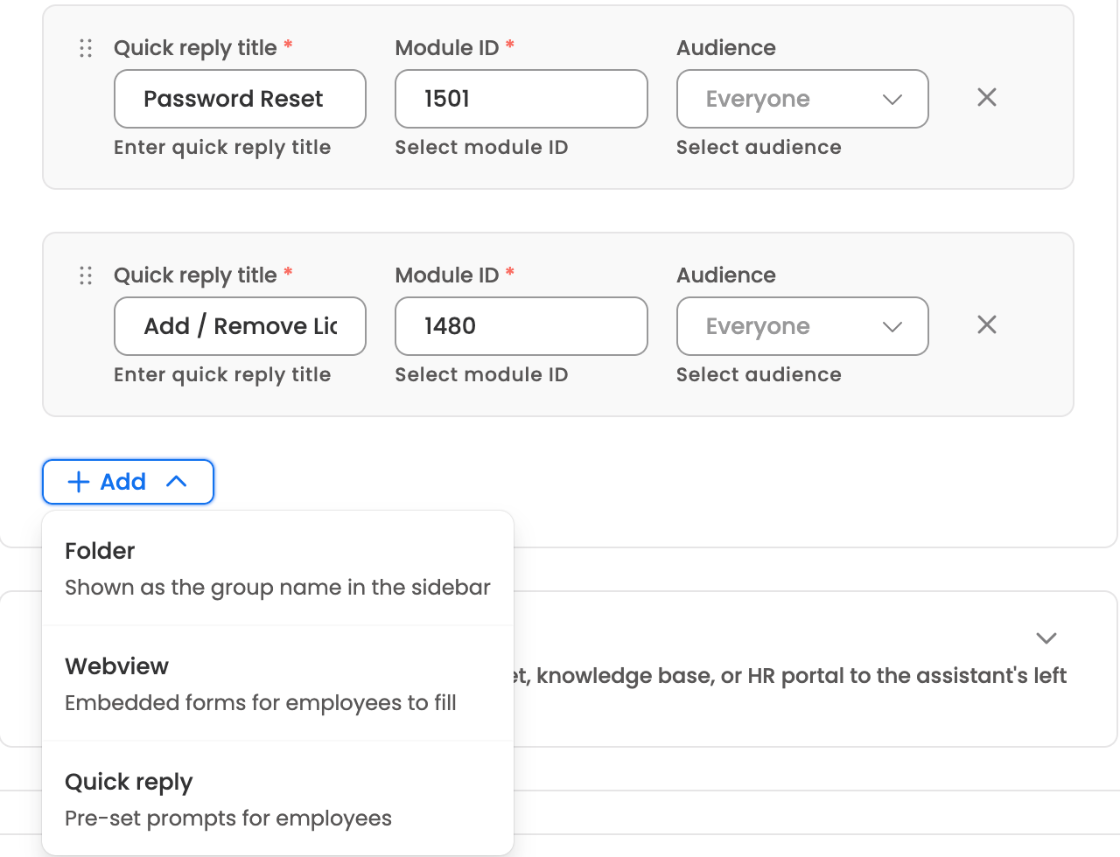
Admin Console → Leena channels → Settings → 2. Sidebar actions
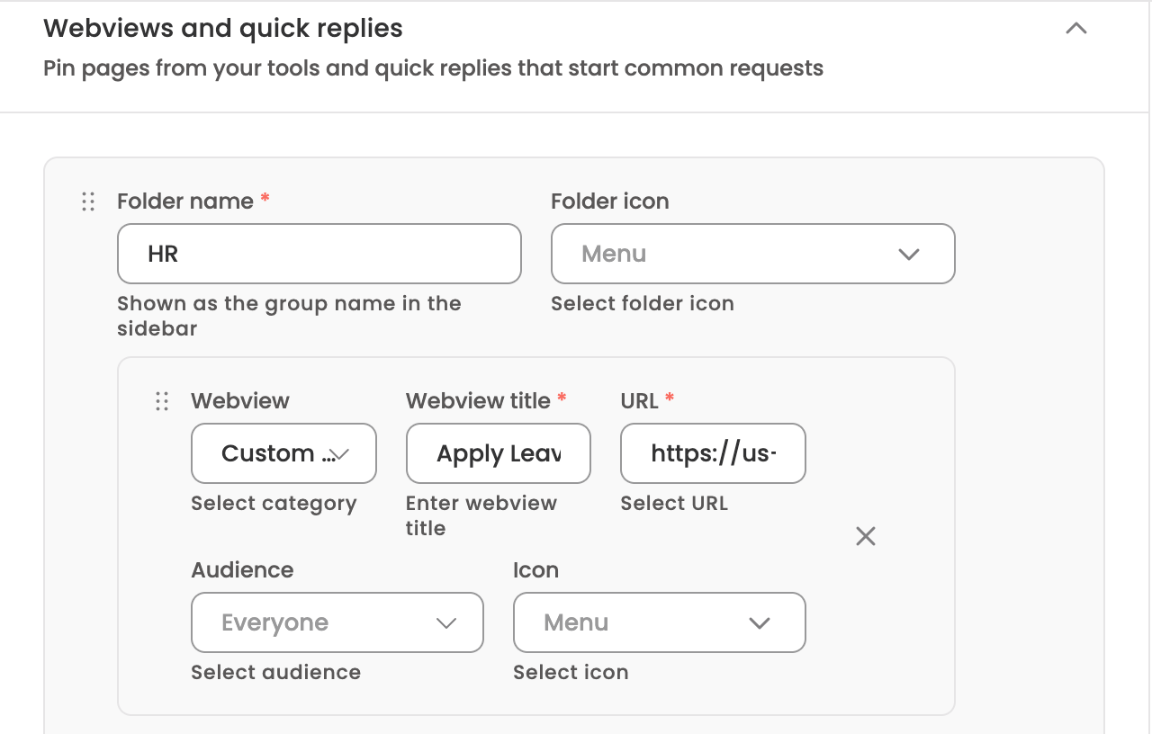
A folder with a webview inside it
Tips for a tidy side panel
- Group related items into folders, such as HR, IT and Ticketing, so the top level stays within five rows.
- Use audiences to show each group of employees only what applies to them.
- Keep titles short. Long titles are cut short in the panel and only scroll into view when an employee points at them.
- Serving several languages? Titles aren't translated automatically. See Multi-lingual Support.
On the classic designThe same items appear as one list in the left menu, and can be grouped. An employee with more than one assistant switches between them using a column of icons on the far left. Notifications, settings and the profile sit in a bar across the top, and Home is pinned at the top of the menu.
Common questions
Why does an employee see fewer items than I set up?
Items limited to an audience are hidden from employees outside it, so each employee sees their own subset of the list.
Why did some items move into More?
Only five rows fit at the top level. Group items into folders to keep more of them visible. Quick replies are the first to move.
Can employees pin or reorder items themselves?
No. The order is the one set in the Admin Console, and it's the same for everyone who can see the items.
Can a folder hold more than five items?
No. Split the items across two folders.
Why doesn't the side panel stay folded after a reload?
The panel's width and folded state reset each time the Web App loads, so every visit starts with the full panel.
Updated 20 days ago