
Ticket History
Employees can see every ticket they've raised, and every ticket they've been added to as a watcher, in one place. They can check the status, follow the conversation with the support team, add comments, and rate or reopen a ticket once it's closed.
Viewing tickets
If your admin has added it, My Tickets opens View Tickets next to the chat (in this example under Ticketing).
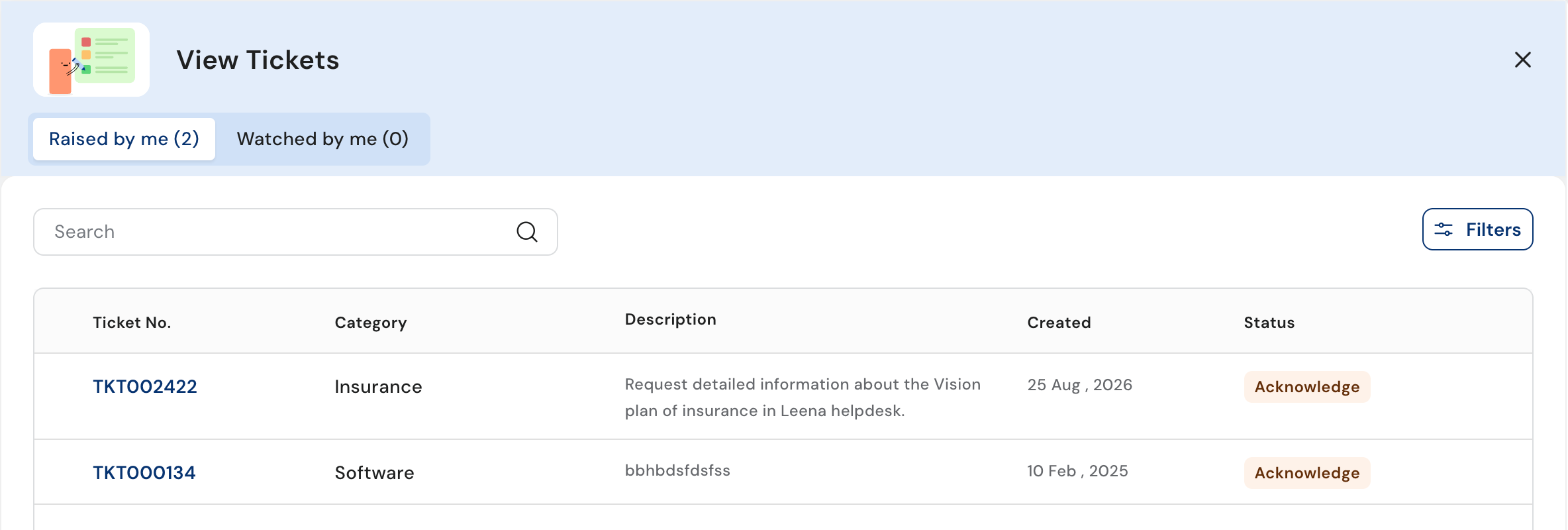
View Tickets
- Raised by me and Watched by me separate tickets the employee raised from ones they're following. Each tab shows how many tickets it holds.
- Search finds a ticket.
- Filters narrows the list by Category and Status.
- Each row shows the Ticket No., Category, Description, the date it was Created and its Status.
Select a ticket number to open it.
Asking in the chat
Employees can also ask, for example What is the status of my tickets?. The assistant lists their current tickets with their status, priority, category, creation date and who they're assigned to, with a link to View All Tickets.
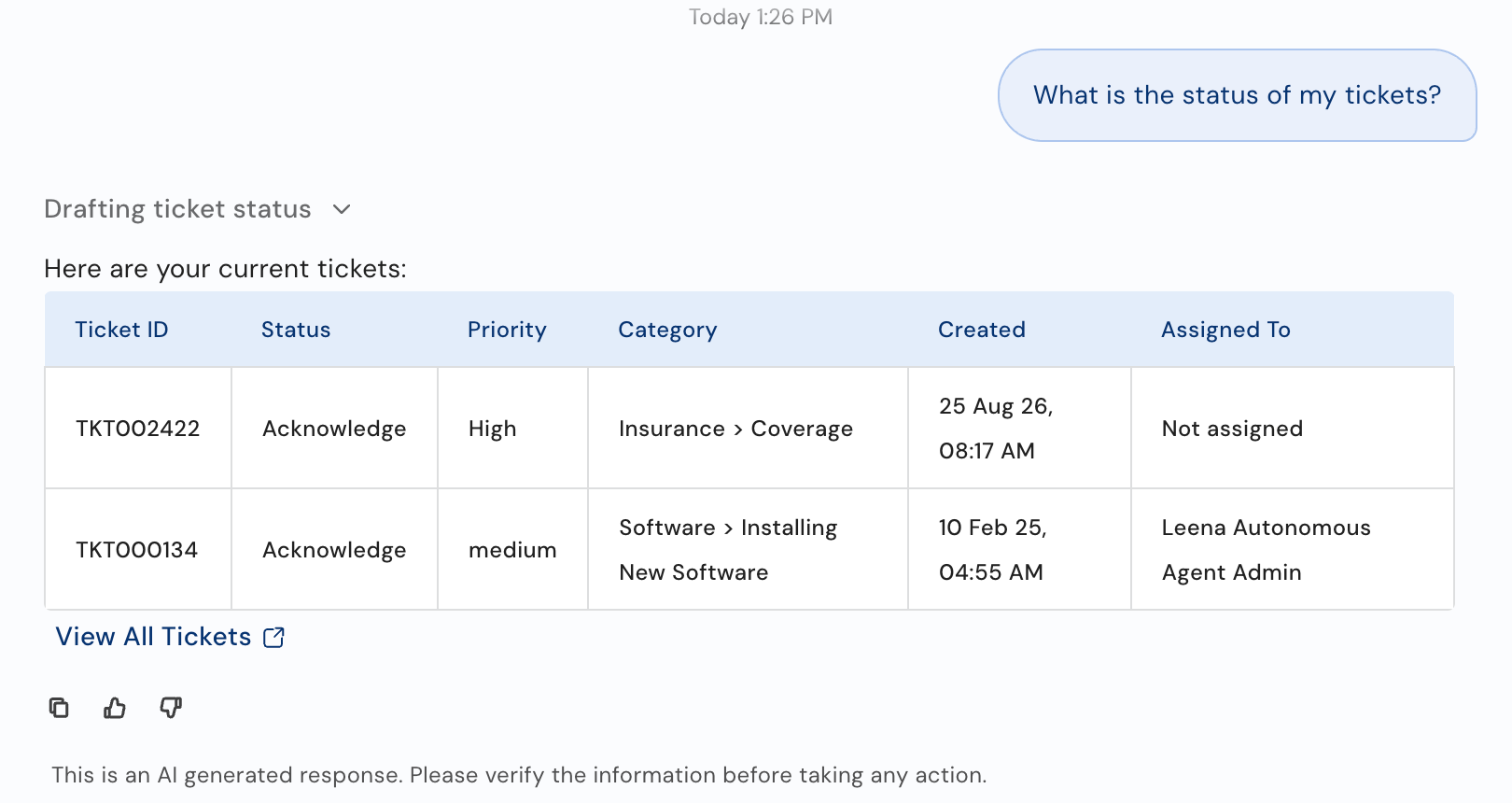
Checking ticket status in the chat
A ticket's page
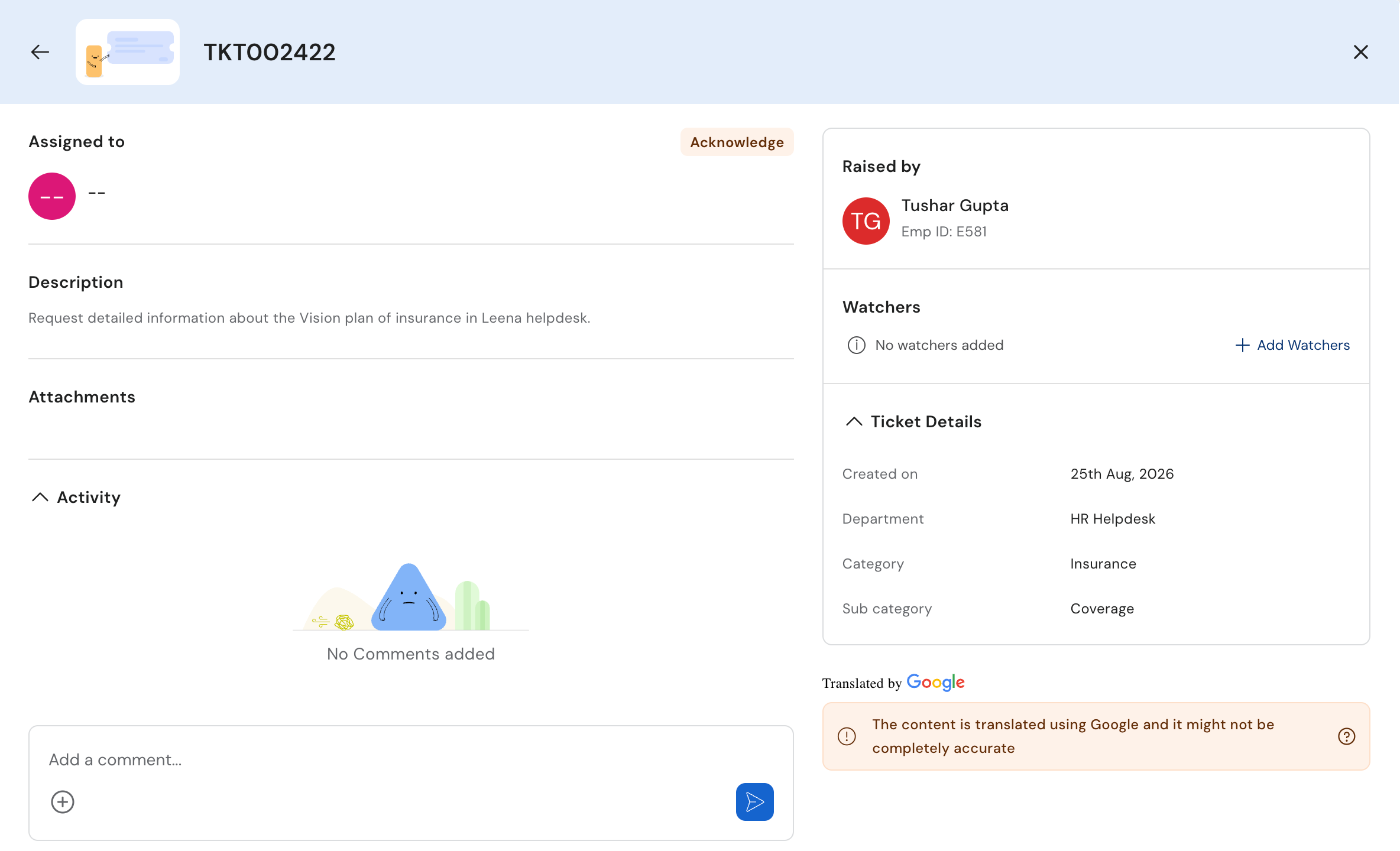
A ticket's page
| Section | What it shows |
|---|---|
| Assigned to | The support agent working on the ticket, and its status |
| Description | What the employee wrote when raising it |
| Attachments | Files added to the ticket |
| Activity | Replies from the support team and the employee's comments |
| Raised by | The employee who raised it |
| Watchers | Colleagues following the ticket. Select Add Watchers to add someone. |
| Ticket Details | When it was created, the department, category and sub category, and when it was closed |
To reply, type in Add a comment..., optionally attach a file with +, and send. The comment is added to the ticket's activity for the support team to see.
If the ticket was written in a different language, its content can be shown translated, with a note that the translation is automatic and might not be completely accurate.
Closed tickets
Rate the support. When a ticket is closed, the employee who raised it can rate it from its page. Depending on your setup, they may be asked a few follow-up questions and can leave a comment. Your admin can also stop ratings from being changed once given.
Reopen it. If the problem comes back, the employee can choose Reopen Ticket and give a reason, as long as your admin allows reopening and the reopen period hasn't passed. Watchers can reopen a ticket only if your admin allows it.
Common questions
Why can't an employee see a ticket a colleague raised for the same issue?
Employees only see tickets they raised or were added to as a watcher. The colleague can add them as a watcher.
Why isn't Reopen Ticket shown?
The ticket isn't closed, reopening isn't allowed for the ticket, or the reopen period has passed.
Will employees be told when a ticket changes?
Yes. Ticket updates, such as a new reply or the ticket being resolved, arrive as notifications in the assistant. See Notification Panel.
Updated 19 days ago