
Bot table (Legacy)
User table is the record of everyone who can use the assistant — the employees synced from your HR system, plus anyone added directly.
It answers two questions an admin needs regularly: is a particular person provisioned, and did the last sync bring across who it should have.
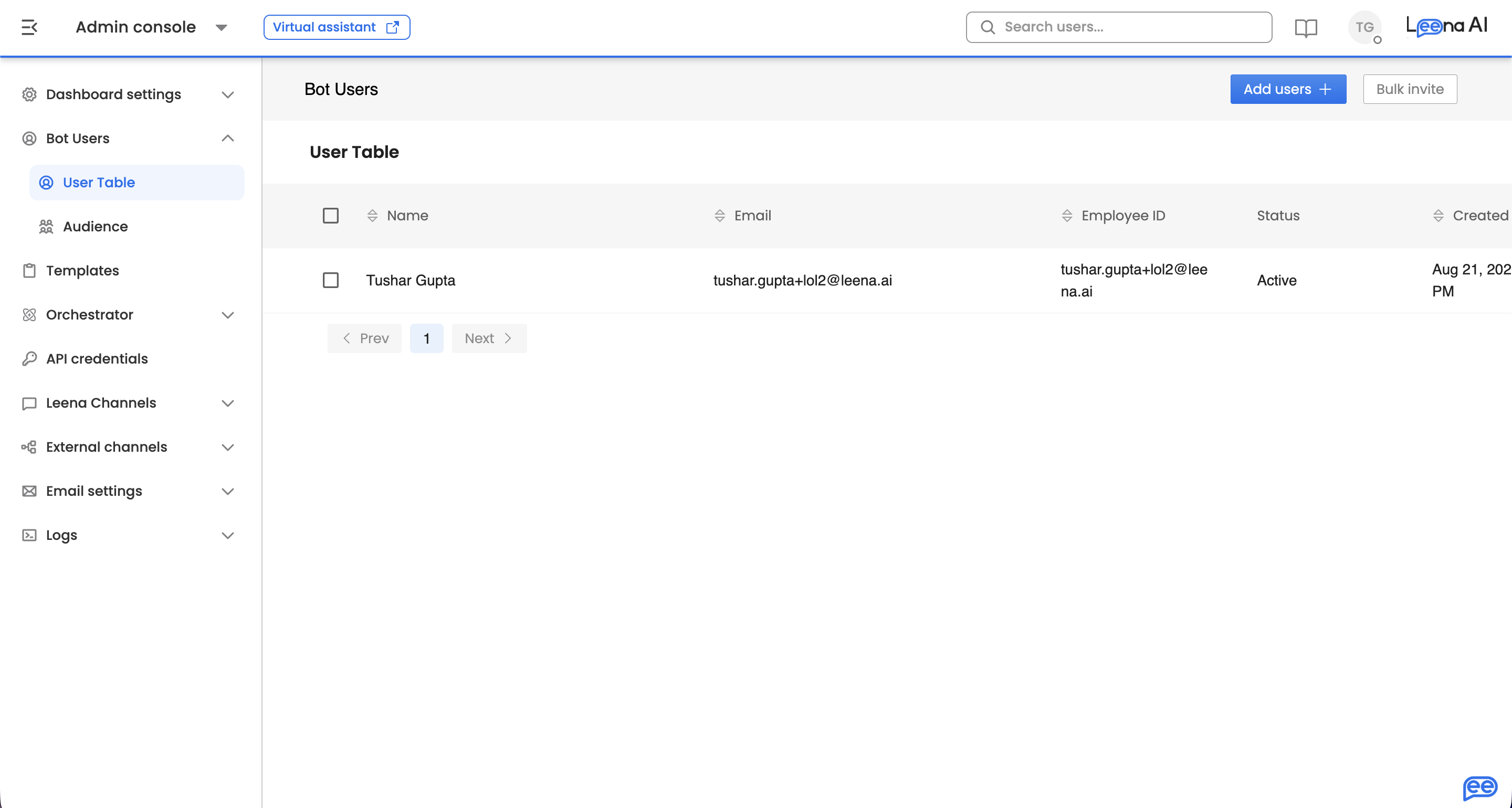
Where to find it
Open the Admin Console, then go to Bot users → User table.
Bot users, not dashboard usersThese are the employees who talk to the assistant. The people who administer Leena AI are managed separately under Dashboard settings → Dashboard users, with their own roles and permissions.
The two populations barely overlap — most bot users never see the dashboard.
The sync summary
When employee sync is configured, a summary sits above the table showing the state of the last run:
| Figure | What it shows |
|---|---|
| Total employees synced | How many records the last sync brought across |
| Active | How many of those are currently active |
| Terminated | How many are marked terminated |
| Last synced on | When the last sync ran |
Sync now triggers a fresh sync. While one is running the control shows Sync in progress instead, so you can't start a second run on top of the first.
The Active and Terminated split is the quickest health check on the page. A jump in terminated records usually means an HR-side change rather than a Leena AI problem — and it's worth investigating before it flows through to notifications and workflow assignments.
Sync itself is configured under Bot users → User sync, not here.
The summary isn't always shownIt appears only where sync applies to your setup. On a workspace where employees are added directly rather than synced, the table stands alone.
The table
The table lists every bot user, with the columns your workspace is configured to show. Because the column set is supplied per workspace rather than fixed, what you see reflects the employee fields your organisation syncs — so two customers won't necessarily see the same layout.
Use the filters to narrow the list when you're checking a specific population rather than browsing.
Adding users
Two actions sit at the top of the page, and both appear only when your workspace permits adding employees directly. Where employees come exclusively from HR sync, neither is offered — which is deliberate, since adding people by hand alongside an authoritative sync creates records the next run won't recognise.
| Action | What it does |
|---|---|
| Add users details | Add a single user, entering their details on a form |
| Bulk invite | Add several users at once |
Row actions
Each row carries a menu with two options:
| Action | What it does |
|---|---|
| Edit User | Open the user's details to change them |
| Deactivate | Remove the user's access to the assistant |
Deactivated users can be reactivated later — deactivation suspends access rather than deleting the record, so history and past requests survive.
Manual changes can be overwritten by the next syncWhere employees are synced from an HR system, that system is the source of truth. Editing or deactivating someone here changes Leena AI only — the next sync may restore what the HR record says.
For a permanent change, make it in the HR system and let it flow through. Use the actions here for immediate, temporary intervention.
Updated about 2 months ago