
User Roles in KM
Watch the tutorial
Overview
Access to the Knowledge Management (KM) dashboard is controlled at two levels:
- Platform roles decide which parts of KM a person can open. An admin assigns them to dashboard users. There are three: Knowledge Management Admin, Knowledge Management Agent and Knowledge Management Tester.
- Content roles decide what an Agent can do with a specific folder or article: Owner, Collaborator and Reviewer.
Admins don't need content roles, because they can manage all content. Testers don't use content roles, because they don't work with content directly; they only test how the virtual assistant answers.
Platform roles
Knowledge Management Admin
Full access to KM. An Admin:
- Sees and manages every folder and article, regardless of who owns it
- Configures KM Settings, including General settings (bot, dashboard and article-visibility settings), Integrations, Web Integrations, Approval Matrix, Audiences, Entities and Tag Management
- Sets up connectors and monitors syncs
- Uses the Health Dashboard, Conflict Analysis, Smart Testing, Debug Console and Sync Logs
- Can approve articles in review and assign owners, collaborators and reviewers anywhere in KM
Knowledge Management Agent
Content access based on ownership. An Agent:
- Sees only the folders and articles where they're an owner, collaborator or reviewer, plus anything listed under Shared with me
- Creates, edits, archives and shares content according to their content role (see Content roles)
- Can use the Debug Console and Sync Logs
- Can open Entities, Audiences and Tag Management under Settings
- Can't open General settings, Integrations, Web Integrations or Approval Matrix, and can't use the Health Dashboard, Conflict Analysis or Smart Testing
Agents only see the folders they can reachIf an Agent has access to a sub-folder but not to its parent folder, the sub-folder still appears in their tree, so they can always get to content they've been given.
Knowledge Management Tester
A restricted role for people who need to check how the virtual assistant answers questions, without access to the knowledge base itself. Typical testers include UAT participants, subject-matter experts or HR business partners validating answers, and QA team members.
A Tester:
- Lands directly on the Debug Console when they open KM. It's the only item in their side menu, and Settings, search and notifications aren't shown.
- Selects a bot user to test as (or the dummy user), asks questions, and sees the same response and debug details an Admin would: detected intent, search type used, sections passed to the LLM, final response, sources and personalisation details. See Debug Console in KM for what each field means.
- Sees sources in view-only mode. Source links and audience names aren't clickable, and View article isn't available, so a Tester can't open the underlying article in KM.
A Tester can't:
- Browse folders or articles, or use Home, Articles, global search or Shared with me
- Create, edit, publish, archive, comment on or share content
- Open Settings, connectors, Sync Logs, Smart Testing, the Health Dashboard or Conflict Analysis
Opening a direct link to any other KM page doesn't give a Tester access to it.
Testers can see answers for any user they test asThe Debug Console lets a Tester run questions as any bot user, or as the dummy user, which ignores audience restrictions. Answers and source sections can therefore include content from across your audiences. Give this role only to people who are allowed to see that content.
Roles at a glance
| Capability | Admin | Agent | Tester |
|---|---|---|---|
| Lands on | Home | Home | Debug Console |
| Folders and articles they can see | All | Only those they own, collaborate on or review, plus Shared with me | None |
| Create, edit, archive and share content | All content | Based on content role | No |
| Approve articles in review | Yes | When assigned as a reviewer | No |
| Debug Console | Yes | Yes | Yes, with view-only sources |
| Sync Logs | Yes | Yes | No |
| Health Dashboard, Conflict Analysis, Smart Testing | Yes | No | No |
| Settings: General, Integrations, Web Integrations, Approval Matrix | Yes | No | No |
| Settings: Entities, Audiences, Tag Management | Yes | Yes | No |
Segment-specific pagesIf your bot uses segments, the Health Dashboard, Conflict Analysis, Smart Testing, Sync Logs and Debug Console aren't shown while the Master segment is selected. Switch to a specific segment to use them.
Assigning a platform role
Platform roles are assigned to dashboard users from the Admin Console.
- Open the Admin Console and go to Dashboard settings → Dashboard users.
- To add someone new, click Add user. To change an existing user, open the row menu and select Edit roles.
- Select Knowledge Management Admin, Knowledge Management Agent or Knowledge Management Tester.
- Save.
You can also grant a KM role to a user group so every member inherits it. See Dashboard users for details on adding users and groups.
Assign the Tester role on its ownAnyone who holds Knowledge Management Tester without Knowledge Management Admin gets the Tester experience (Debug Console only), even if they also hold Knowledge Management Agent directly or through a user group. Agents already have the Debug Console, so if someone needs to work with content and debug queries, give them the Agent role only. Admins keep full access whether or not they also hold the Tester role.
The KM module must be enabledA KM role has no effect until Knowledge Management is enabled for the workspace.
Content roles
Content roles apply to Agents and are set per folder or per article.
| Content role | Set on | What they can do |
|---|---|---|
| Folder owner | Folder | Create articles in the folder; view and comment on any article in it; edit or archive published articles; rename and move the folder; manage who has access to it |
| Folder collaborator | Folder | Create articles in the folder; view and comment on any article in it |
| Article owner | Article | Edit, comment on, archive and send the article for review; reply to feedback; manage who has access to it |
| Article collaborator | Article | View and comment on the article (read-only) |
| Reviewer | Approval Matrix | Approve or reject article versions sent for review. A rejected version goes back to draft so the owner can address the comments. See Approval Matrix in Knowledge Management |
New articles inherit folder accessWhen an article is created in a folder, it inherits that folder's owners and collaborators.
Manage folder and article access
Admins and owners can add Agents as owners or collaborators to a folder, and as owners or collaborators to an article. Content shared with someone appears in their Shared with me view.
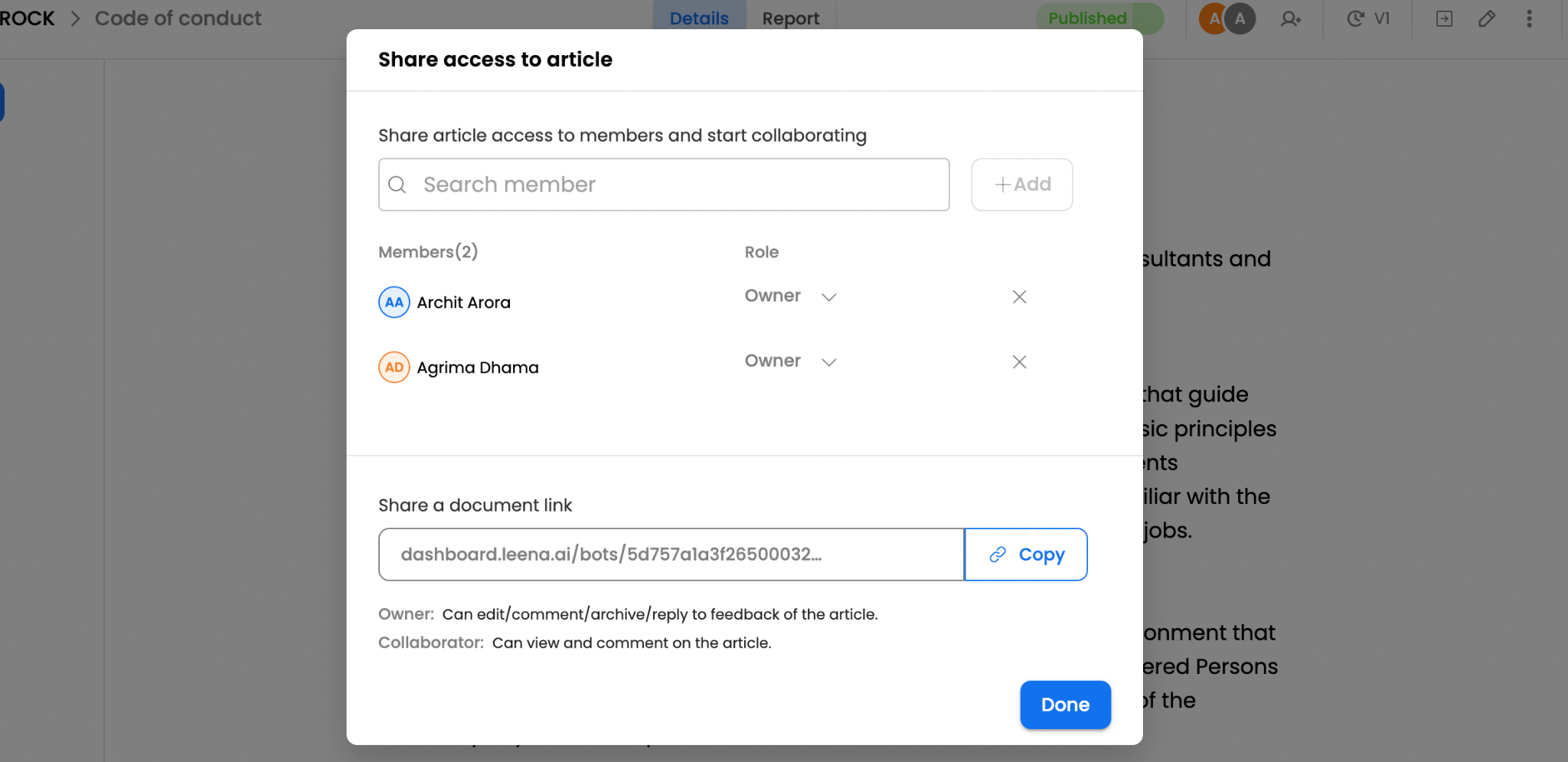
A few rules apply when changing access:
- Multiple owners are supported. A folder or article can have more than one owner.
- Keep at least one owner. Before removing the only owner, or changing their role, add another owner.
- Collaborators can't change other people's access. A collaborator can only remove themselves. To change anyone else's access, ask an owner or an Admin.
- Synced content is managed at the source. You can't add owners or collaborators to folders or articles synced from an integration (for example SharePoint or ServiceNow). Change access in the source system instead.
Article collaboration
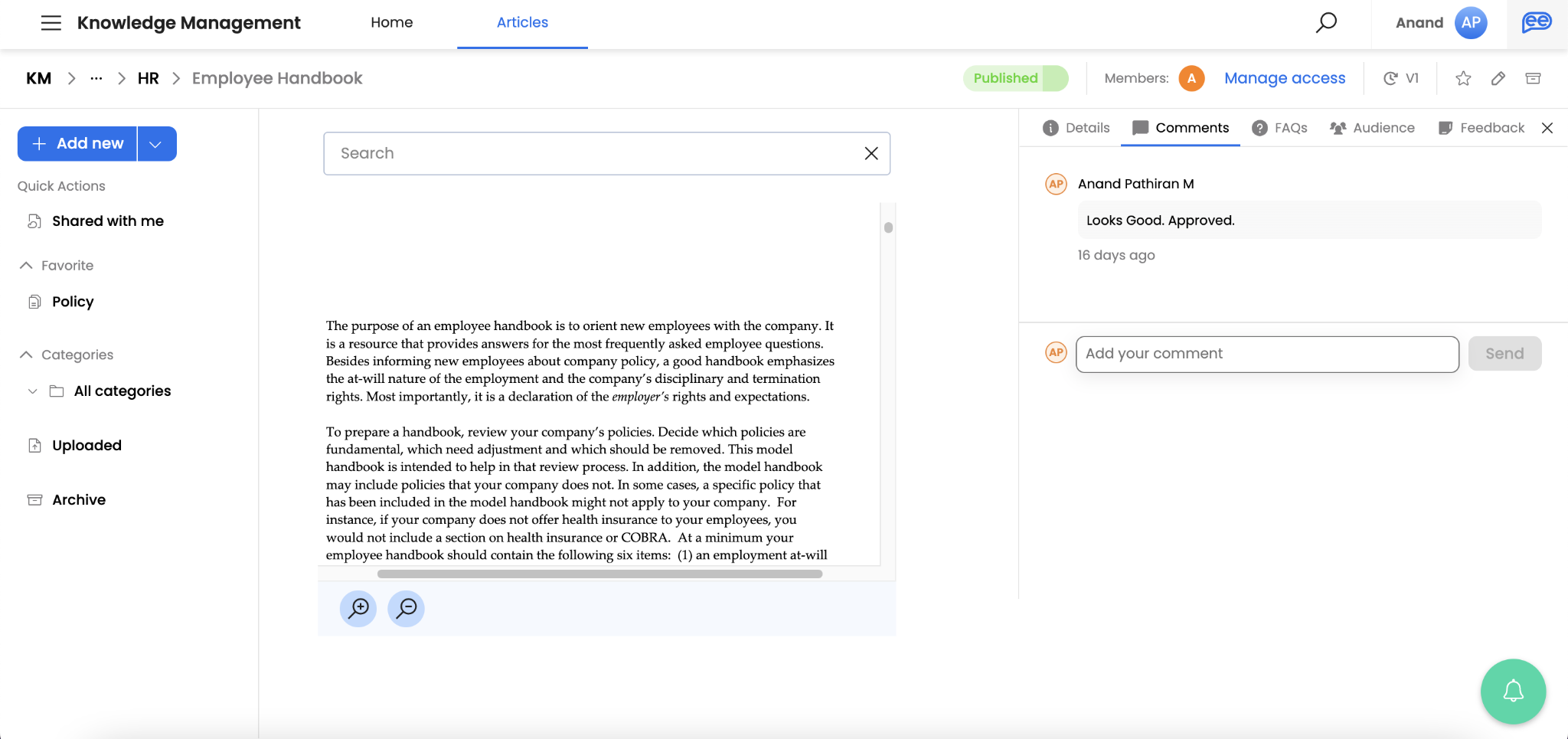
Collaborators can view an article and comment on it from the Comments tab in the right pane.
Comments can suggest adding information, improving accuracy, pointing out a missing section or proposing structural changes.
When a comment is added, the article owner is notified so they can update the article or reply to the collaborator with questions or objections.
Troubleshooting
A user only sees the Debug Console.
They hold the Knowledge Management Tester role without the Admin role. If they should work with content, remove the Tester role (including from any user group that grants it) and assign Knowledge Management Agent.
An Agent can't see a folder or article.
Agents only see content where they're an owner, collaborator or reviewer. Ask a folder owner or an Admin to share it with them.
The option to add owners or collaborators is missing on a folder.
The folder is probably synced from an integration. Access for synced content is managed in the source system.
An Agent can't find the Health Dashboard, Smart Testing or Conflict Analysis.
These pages are available to Admins only.
Related articles
Updated 23 days ago