
Editing and Deleting Comments/Notes
1. Introduction
This document outlines the Comment Management feature within the Case Management System. This functionality allows agents and admins to edit or delete comments/notes to ensure data accuracy, remove sensitive information, and maintain professional communication within the ticketing system.
2. Purpose and Scope
The feature provides authorized users the ability to modify or remove their own contributions to a ticket.
- Purpose: Rectify errors, update information, and remove inadvertently shared sensitive data.
- Scope: Covers UI elements, functional requirements, audit logs, SLA implications, and administrative configuration.
3. Feature Description
Agents can perform two primary actions on comments:
- Edit Comment: Modify the text of an existing comment.
- Delete Comment: Permanently remove a comment from a ticket.
3.1. User Interface Elements
-
Action Icons: Visible on the ticket details page next to the agent's comments (only for open tickets assigned to that agent).
-
Confirmation Pop-ups:
-
Delete: Displays: "Comment deletion cannot be reversed. Do you want to proceed?"
-
Status Selection: A dropdown appears during deletion to select the new ticket status (Default: "No update in status").
-
Approval Restrictions: A notification appears if a comment is pending approval, stating: "This comment cannot be edited/deleted."
4. Functional Details
4.1. Comment Editing
- Access: Only agents with edit access to an open ticket can edit their own comments. Admins can edit any comment.
- Edit Window: Defined by an absolute time window from the original creation date. Subsequent edits do not reset this timer.
- Real-time Enforcement: If the window expires while an agent is typing, the system will block the save action.
- Canned Responses: Comments generated via canned responses are eligible for editing.
4.2. Comment Deletion
- Scope: Any comment on an open ticket (not just the most recent) can be deleted.
- Status Update: Agents must explicitly choose a ticket status via a dropdown upon deletion.
4.3. Restrictions
- Closed/Deleted Tickets: Comments are locked and cannot be modified.
- Approved/Rejected: Comments that have passed through an approval workflow are immutable.
- View-Only Access: Agents without edit permissions (including previous assignees) cannot modify comments.
5. System Behavior and Audit Trail
5.1. Audit Trail Logging
All changes are recorded in the ticket timeline for transparency:
| Action | Logged Data |
|---|---|
| Deleted | Agent name, timestamp, original commenter, original text, and deletion reason. |
| Edited | Agent name, timestamp, original text, and the new updated text. |
5.2. SLA and Sorting
- SLA: Editing or deleting a comment does not restart the SLA.
- Sorting: Any edit or delete action updates the
Ticket updated attimestamp, moving the ticket to the top of "recently updated" views.
6. Configuration Settings
The feature is managed at the Ticket Schema level:
- Enable Comment Deletion: (Boolean) Default:
false. - Enable Comment Editing: (Boolean) Default:
false. - Window of Correction (Minutes/Hours): Defines the time limit for modifications. If left blank, the window is infinite.
- Note: Changes to these settings are not retroactive; they apply only to comments created after the change.
7. Administrative Setup (Step-by-Step)
To enable this feature in the UI, follow these steps:
-
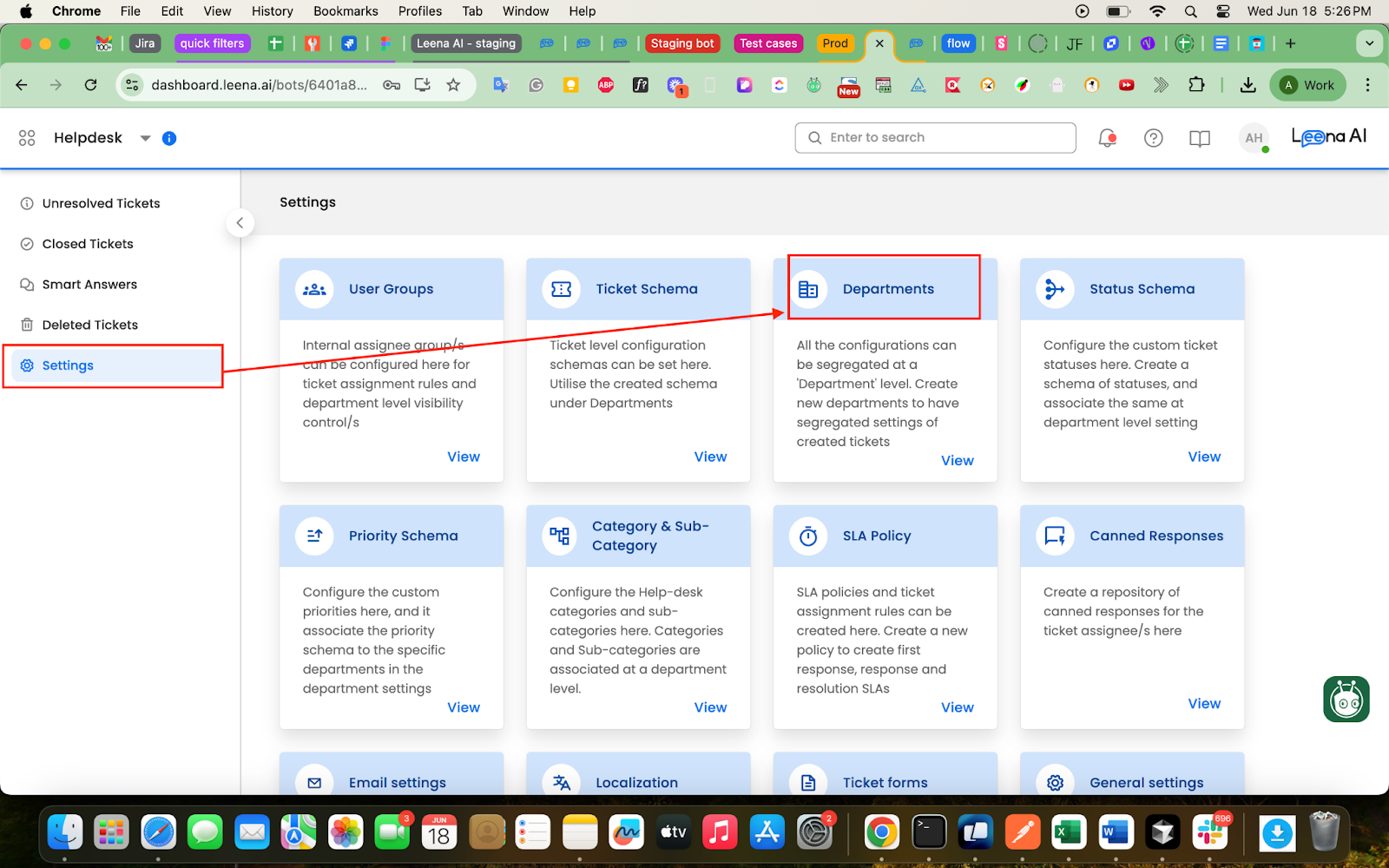
Navigate to Settings: Open the Settings tab in the admin dashboard.
-
Select Department: Choose the specific department for the configuration.
-
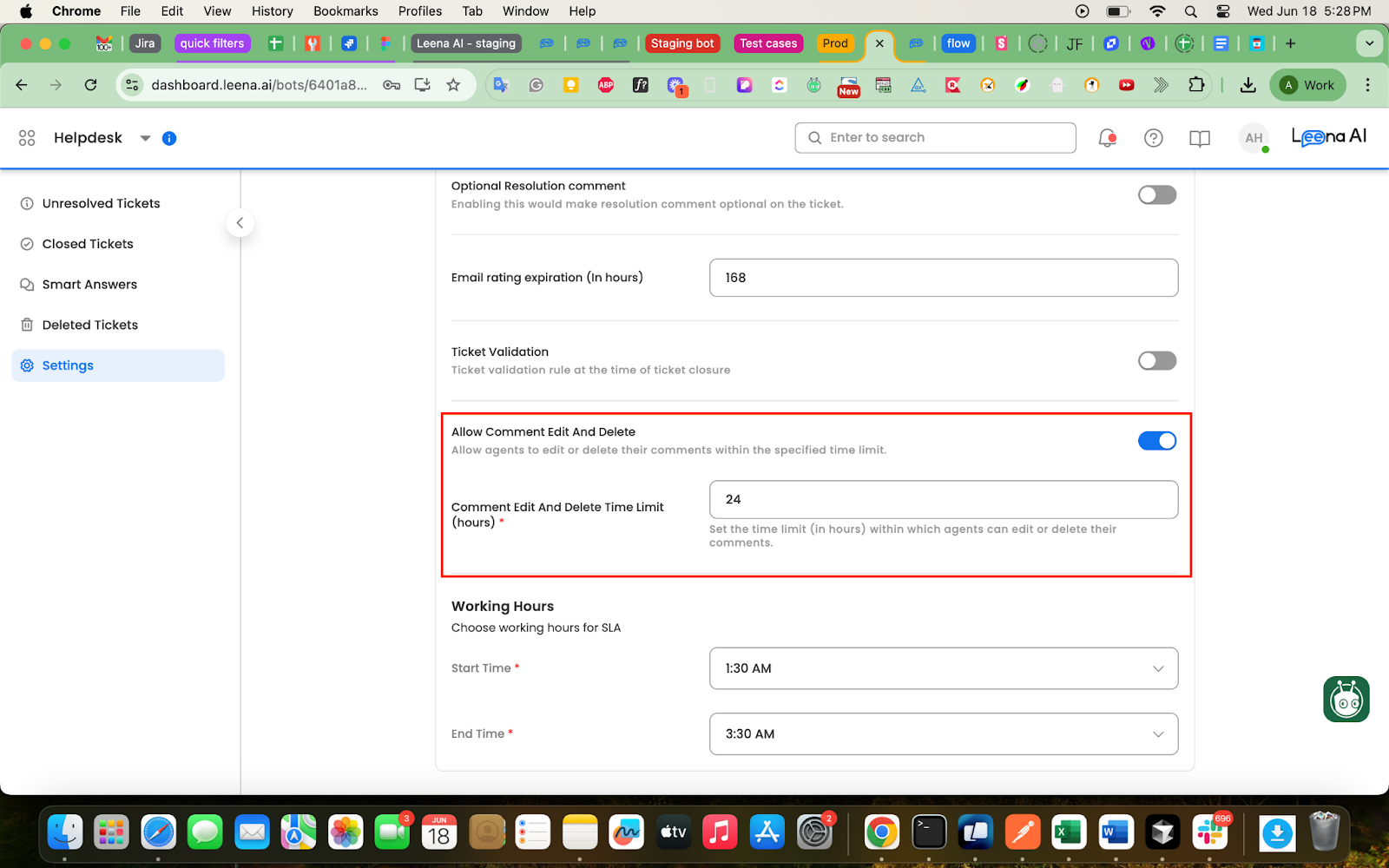
Access Other Settings: Scroll down to the Other Settings tab.
-
Enable Toggle: Turn ON the toggle labeled "Allow Comment Edit and Delete."
-
Set Time Limit: Enter the value in the "Comment Edit and Delete Time Limit (hours)" field.
-
Save: Click Save and Exit at the top-left of the page.
Updated 9 months ago