
Product Tour
The first time an employee opens the Leena AI virtual assistant, it can introduce itself with a short product tour: a set of onboarding slides, each pairing an image or video with a one-line caption. You build the slides in the Admin Console, and employees see them once, before they start their first conversation.
Once the tour closes, the new-chat screen picks up the introduction with a personalised greeting and clickable prompts from Capability discovery.
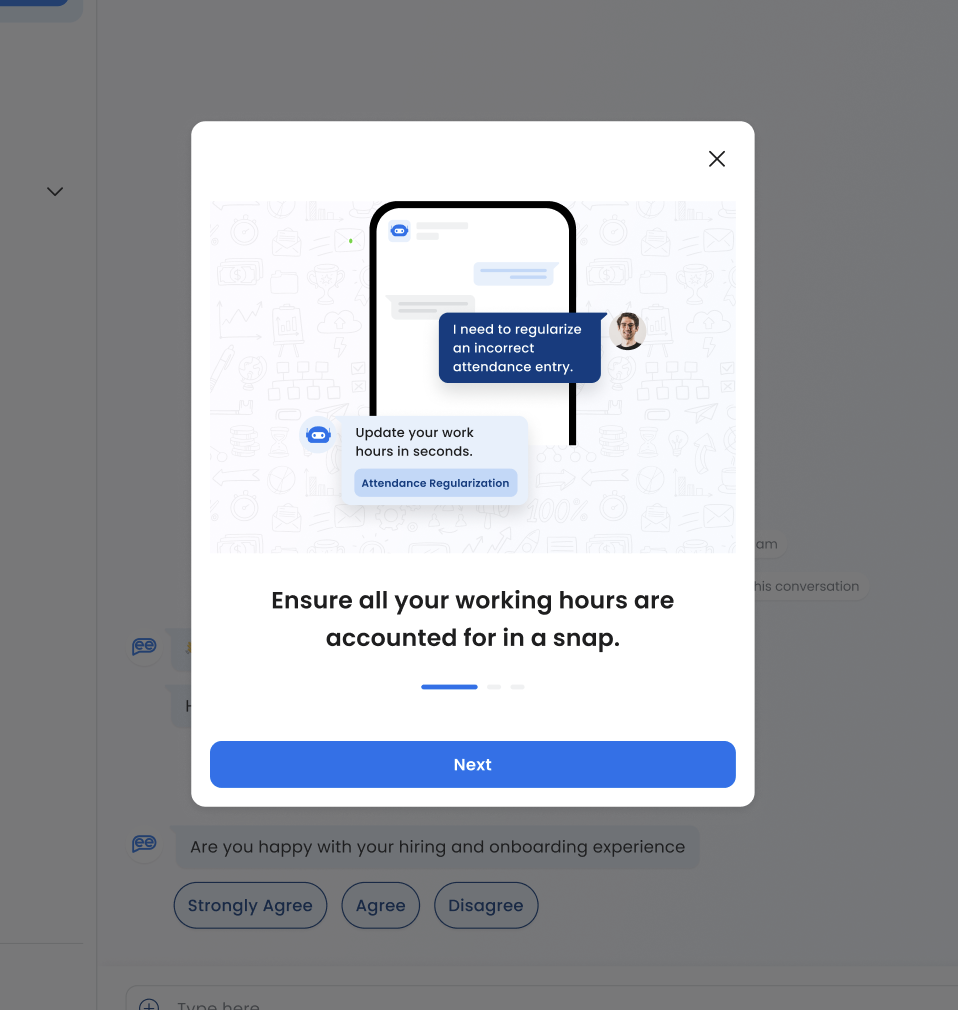
What employees see
The tour opens over the chat window the first time an employee visits after signing in. On a desktop or tablet it appears as a centred pop-up; on a phone it fills the screen.
- Each slide shows one image or video, with its title underneath. Videos play in place and show a replay button when they finish.
- Employees move through the slides with Next, by swiping, or by clicking the dots below the slide.
- On the last slide the button changes to Start conversation, which closes the tour and drops them into chat.
- They can leave early at any point: the close (✕) icon on desktop, or Skip on mobile.
However the tour is closed — finished, skipped or dismissed — Leena AI records that the employee has seen it, and it does not appear for them again.
Set up the tour
- Open the Admin Console and go to Leena channels → Settings.
- Expand 3. Display and interactions.
- Turn on Enable onboarding sliders.
- Fill in the first slide:
- Enter a Slider title.
- Choose a Media type: Image or Video.
- Upload the file.
- Click Add more for each extra slide. Drag slides to change their order.
- Click Save.
| Field | Details |
|---|---|
| Slider title | Required. Up to 60 characters. Long titles wrap to two lines; employees can hover to read the full title. |
| Media type | Required. Image or Video. |
| Image | PNG, JPG or JPEG, up to 3 MB. |
| Video | MP4 or MOV, up to 3 MB. |
Things to know
- The tour is off by default for every bot. If Enable onboarding sliders does not appear for your bot, contact your Leena AI team.
- The tour is shown once per employee. Employees who have already seen it will not see it again, even if you add or change slides later.
- There is one tour per bot. Every employee who uses that bot sees the same slides.
- Slide titles appear exactly as you enter them and are not translated. The Next, Skip and Start conversation buttons follow the employee's language.
- The tour runs wherever the Leena AI Web App loads: the browser, the website widget, the desktop and mobile apps, and the Microsoft Teams Tab App. Chat-based channels such as Teams chat, Slack and WhatsApp do not show it.
Tips for a good tour
- Keep it short. Three to five slides is usually enough to explain what the assistant does without delaying the first conversation.
- Lead with what employees can do, such as checking leave balances, raising IT tickets or finding policies, rather than with features.
- Keep videos brief. The 3 MB limit suits short clips; for longer walkthroughs, link to the full video from a knowledge article instead.
- Write titles as a single idea. One clear line per slide reads better than a crowded caption.
After the tour: greeting and suggested prompts
The tour introduces the assistant once. For an introduction that is there every time an employee starts a new chat, use Capability discovery. It greets the employee by name and shows clickable prompts, such as "Apply for leave" or "Check leave balance", that launch the tools and AOPs available to them.
Coming soon: coachmarks
Planned before the end of 2026This feature is not available yet. Details may change before release.
Coachmarks are short tips that point to specific parts of the Web App, so employees discover features they might otherwise miss. The first set will highlight:
- Search chats, for finding earlier conversations
- Dark mode, in Settings
- Send feedback
Coachmarks are built and maintained by Leena AI rather than written in the Admin Console. Each employee sees them once, and a tip only appears if that feature is turned on for your organisation.
Common questions
Can we make employees complete the whole tour?
No. Employees can close or skip the tour on any slide, and closing it counts as seen. If employees must accept something before they can use the assistant, such as a privacy notice, use the privacy consent screen under Admin Console → Logs → Data subject requests. When it is turned on, employees cannot reach the chat until they accept.
Can we show the tour again to everyone after we change it?
No. Each employee sees the tour once, and editing the slides does not show it again to employees who have already seen it.
Can different audiences see different tours?
No. Each bot has a single tour that every employee on that bot sees.
Can we see who has completed the tour?
The tour is not available as a report. To keep a record of who acknowledged something, use the privacy consent screen: Data subject requests lists every employee who accepted, with their name, employee ID, email and the time they accepted.
Can the tour highlight parts of the screen, like a guided walkthrough?
Not today. The tour is a centred set of slides and does not point to buttons or menus. Coachmarks, planned before the end of 2026, will add tips anchored to Web App features such as chat search, dark mode and feedback. They are set by Leena AI, not configured by admins.
Can slides include buttons or links, for example to connect Workday or ServiceNow?
No. A slide holds one image or video and a title. Where a workflow uses end-user OAuth, employees are asked to connect their account when they use that workflow.
Is the tour translated automatically?
Only the buttons are. Next, Skip and Start conversation follow the employee's language; slide titles and any text inside your images or videos are shown exactly as uploaded.
Looking for the scripted intro conversations?Earlier versions of this page described tours built as chat flows: a series of introduction messages with quick replies, or a step-by-step tour that waited for the employee to confirm before continuing. Those flows were built in the legacy bot builder, which has been retired. Use onboarding slides for the first-visit tour and Capability discovery for in-chat suggestions.
Updated 19 days ago