
User component overview
Use case
At times, it is required that while filling out the form, user selection is required. This can be done to handle 2 kinds of use cases:
- Simple field input: Simply capture a user-selection. For example, a manager is filling out a form for rewards and recognition, and wants to select a direct reportee for recognition.
- Use selected user further in the flow:
- Assign a step/task to the selected user.
- Fetch information of the selected user or execute action on behalf of the user. For example, create a ticket on behalf of a selected user.
How to create a user field
Similar to creation of any other field, a workflow designer can create a user component on the form.
Fill out mandatory field configurations.
Save the form changes to the draft version of the application by clicking on 'Save as drafts'.
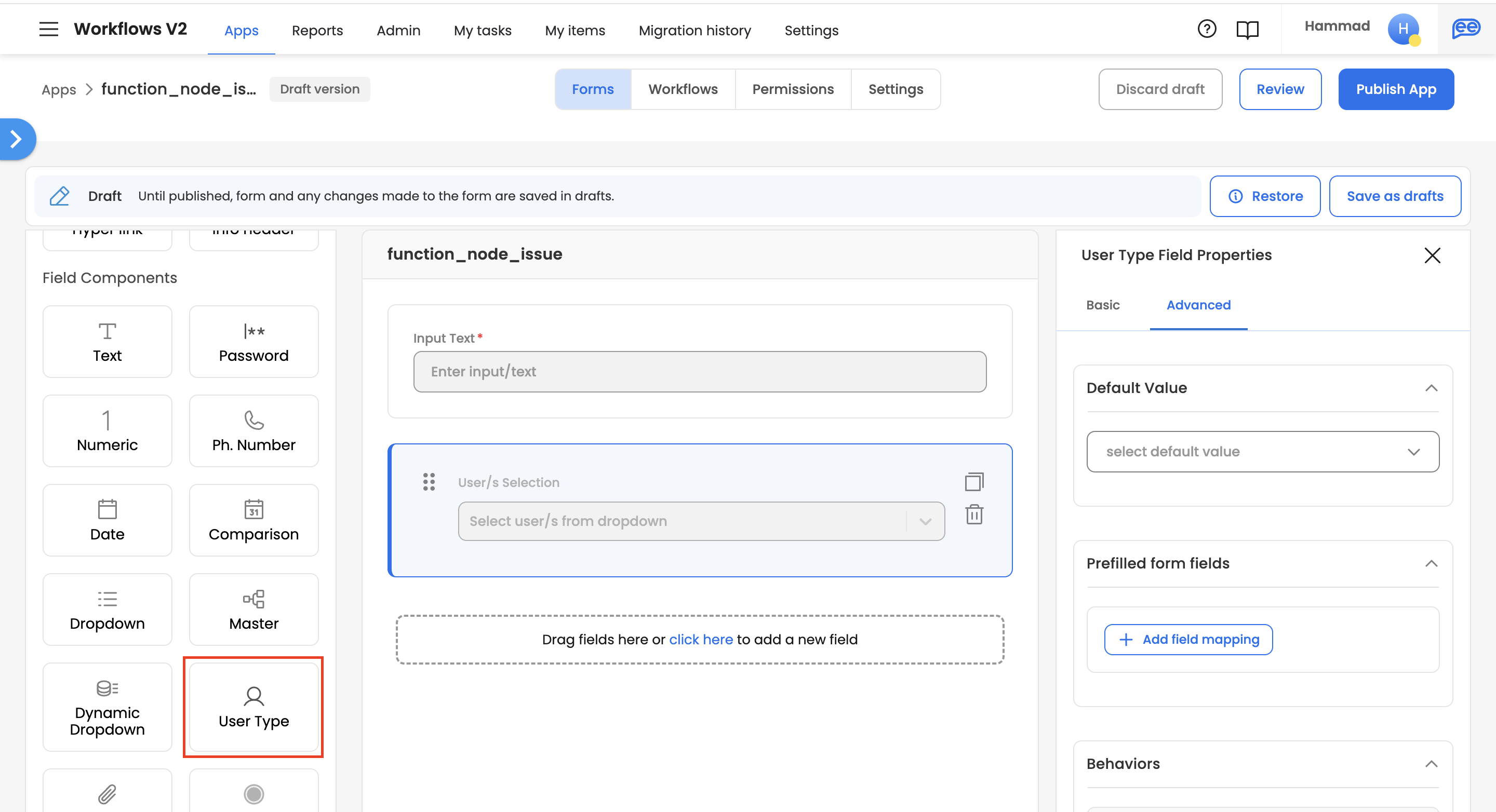
User component configurations
| Field | Description | Other details/Examples |
|---|---|---|
| Field ID | A field in a database is recognized uniquely by field ID. | Multiple fields can have the same field ID. In such a case, the same values & rules would be governed in database. For a Field ID, only special characters allowed are hyphen, underscore A Field ID cannot have preceding or succeeding space. |
| Type |
| |
| Field Label | The label for the added user component | The label of the component should be added which is user interpretable. A component on the form reflects as the added label Default label: User/s Selection |
| Placeholder | Placeholder for the component gives more context on the type of selection an end-user can make from the dropdown. | Default placeholder: Select user/s from dropdown |
| Help-text | Additional information which reflects as a text below a component. | Always add help-text to give more context on the field. An end-user can make a better understanding of what should be the input of the field, if a help-text is provided |
| Render options |
| While searching for a user, you can search based on Full Name, Email or Emp code. In order to list users under this component, user/s must be added under employee sync. The render option that you choose would show the user options under the dropdown in the same format. |
| Associated Audience |
| Everyone: Render all the employees/ users which are active and part of employee sync database. Audience: Render the employees/users which are active and part of a specific audience. An audience can be dynamic or have static users. You can also apply filters which users to list from the specific audience. Learn more about the feature here. |
| Default value | You can select a default user from the employee/user list, which should reflect on the form as a default value. | |
| Pre-fill form fields | You can auto-fill the other form fields with the selected user's/employee's user attributes. | Learn about using this configuration here. |
Updated 12 months ago