
Response Personalization
Leena AI can tailor answers to the individual asking the question, so two employees who ask the same thing can receive responses suited to their own context. Personalization works through two complementary mechanisms:
- User Context — the user's recent activity and conversation memory.
- User Profile — the user's employee attributes, such as department or location.
This page explains both, and walks through how to enable and configure profile-based personalization from the Knowledge Management settings.
User Context
Leena AI tailors responses based on the contextual data or recent activity associated with the user. This involves:
- Contextual awareness: Before generating a response, Leena AI considers not just the current query but also the user's recent interaction history ("user memory") — past conversations or actions within the system.
- Applied personalization: For example, if a salesperson recently added a new lead from the manufacturing sector via Leena AI, later interactions are shaped by that context.
Example
When that salesperson asks for case-study materials to share with the prospect, Leena AI surfaces only the case studies relevant to manufacturing — keeping the information directly applicable to the task at hand.
User Profile (Response Personalization setting)
Leena AI can also tailor an answer using attributes from the user's employee profile — for example gender, job grade, department, or location — fetched from your integrated employee master / data sync. When a query's answer depends on one of these attributes, Leena AI uses a Large Language Model (LLM) to adjust the response to that specific user.
This behavior is controlled by the Allow personalization setting.
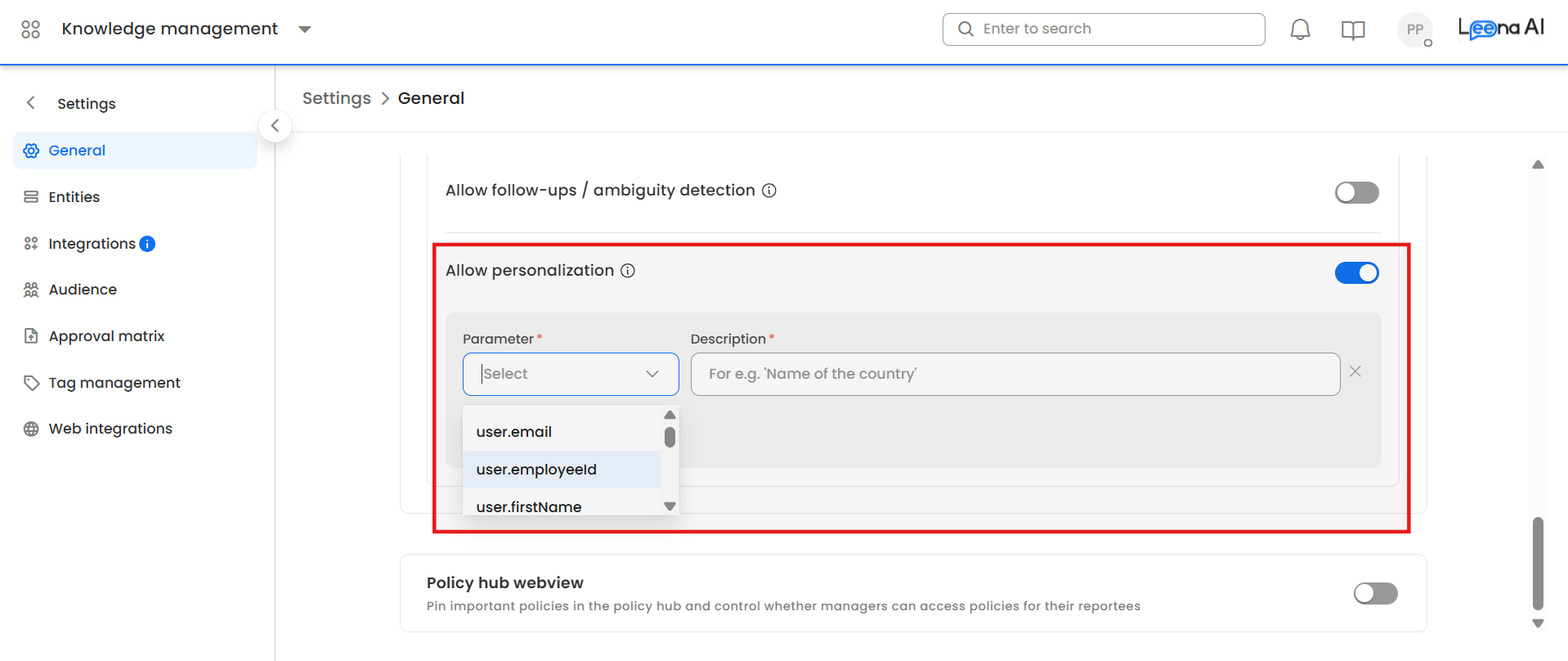
Where to find it
Knowledge Management dashboard → Settings → General → the search-pipeline preferences section → Allow personalization. The toggle is off by default. Its tooltip reads: "Tailor responses using employee data such as department or location."
How to enable and configure it
- Turn on Allow personalization.
- Add one or more personalization parameters. For each, specify:
- the employee attribute the response should be tailored on (for example Location, Department, or Grade), and
- a short description of what the attribute represents and when it should influence answers.
- Save your changes.
You can add multiple attributes. Keep the list focused on attributes that genuinely change the correct answer — see Best practices below.
Prerequisites
The employee attributes you want to personalize on must be available in the user's profile via your employee data sync. If an attribute isn't synced for a user, the assistant has no value to personalize with, and the response falls back to the general answer. See Setup Employee Sync.
How it works
When Allow personalization is on:
- The assistant first composes an answer from the most relevant knowledge for the query.
- If that answer relates to an attribute you've configured, the assistant then refines it using the specific user's value for that attribute — so the final response reflects only what applies to them.
Because this is a refinement step over the most relevant content, the source article should actually contain the attribute-specific information for personalization to have something to narrow down to.
Example — one article, many audiences
A single "Holiday Calendar" article contains the holiday lists for both India and the US. A user based in India asks, "What are my holidays this year?"
- Without personalization, the assistant may return both the India and US calendars, since both are relevant to the query and both are part of the visible article.
- With personalization enabled and configured on Location, the assistant refines the answer using the user's location ("India") and returns only the India calendar.
The same pattern applies to policies that vary by department, grade, or gender (for example a parental-leave policy that differs by segment) — you don't need to split the content into separate articles for the assistant to give each user the portion that applies to them.
Personalization vs. Audience & access control
Personalization is often confused with audience-based access control. They solve different problems and are configured separately — most deployments use both.
| Response Personalization | Audience / Access Control | |
|---|---|---|
| Purpose | Tailor the answer to the user's attributes (relevance) | Control who can see or retrieve content (security) |
| Effect on content | Content stays visible; the answer is shaped to the user | Content is hidden from users outside the audience |
| Granularity | Refines within the retrieved answer | Applies at article / folder level (and connector metadata) |
| Guarantee | Best-effort, LLM-driven tailoring | Deterministic visibility rule |
| Use when | You want each user to get the portion of a shared article that applies to them | A group must not be able to access another group's content |
Important
Personalization shapes the answer — it does not restrict access. The underlying article remains visible and retrievable. If a user explicitly asks for another segment's content (for example, "show me the US holiday calendar"), they can still receive it. To enforce who is allowed to see content, use audience-based access control, not personalization.
For access control, see Content visibility and Permission Management, Folder Level Audience Management, Dynamic Audience from Connector Metadata, and Path-Based Access Control.
Best practices & limitations
- It's off by default and does nothing until configured. Enabling the toggle without adding personalization parameters has no effect.
- Personalization is a relevance nudge, not a security boundary. For any requirement where a group must be prevented from accessing content, use audience-based access control.
- Ensure the attribute is synced. Personalization can only use attributes present in the user's profile. Confirm your employee sync includes the attributes you're personalizing on.
- Make sure the content supports it. The source article should contain the attribute-specific detail (for example, both India and US sections) for the assistant to narrow to the right one.
- Keep the attribute list focused. Configure only the attributes that genuinely change the correct answer; unnecessary attributes add noise. The test for including a param: do answers actually vary by it? Band, grade, location, designation — the things policies are genuinely segregated on. Skip pure-identity fields like email or employee ID or anything whose value is near-unique per employee.
- Validate before rollout. Test representative queries for each segment using Smart Testing in KM and the Debug Console in KM to confirm the tailored answers are correct.
Summary
By combining User Context (recent activity and memory) with User Profile personalization (employee attributes such as department or location), Leena AI makes each interaction feel tailored to the individual — surfacing the portion of an answer that applies to them without requiring separate articles per audience. Used alongside audience-based access control, personalization improves relevance while your visibility and security rules remain enforced independently.
See also: Configure Bot Response and Search Pipeline and Lifecycle of a user query in Leena KM.
Updated 2 months ago