
Manage triggers
Once a trigger is set up, you manage it from the Workbench for the rest of its life — editing it, pausing or resuming it, reviewing what it did, and eventually deactivating or deleting it. This applies to all three trigger types: Schedules and Inbound Webhooks triggers.
The trigger list
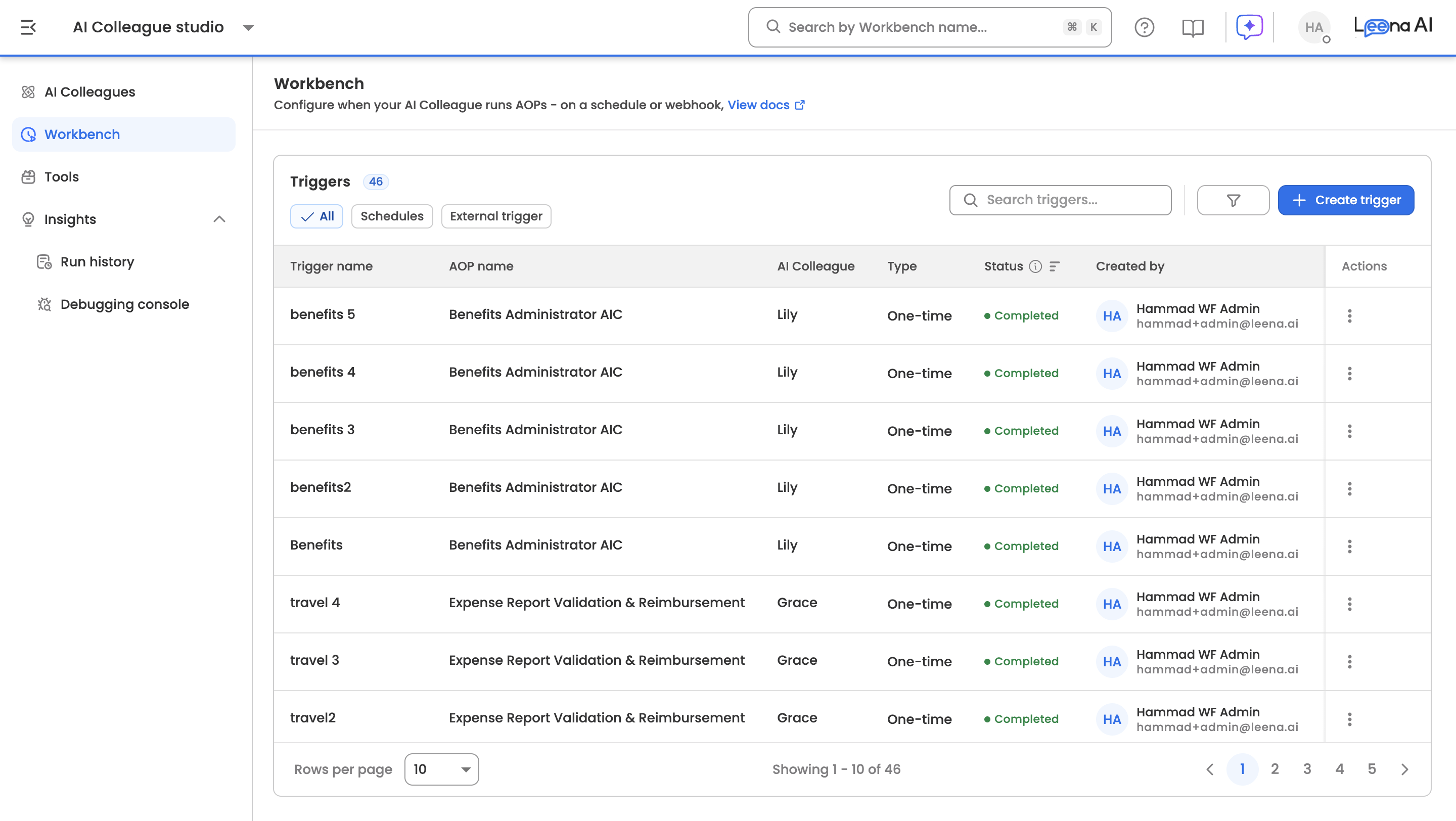
The Workbench shows all triggers for your AI Colleagues in one list. For each entry you can see:
- Name
- Trigger type — Scheduled or Webhook
- AI Colleague / AOP it runs
- Status — Active or Inactive (and, for app events, a connection-health state)
- Created at and Last triggered on
Each row has an Actions menu. The available actions depend on the trigger type — common actions (Edit, Duplicate, Activate/Deactivate, Delete) apply to all types, while some actions are specific to schedules, webhooks, or app events.
Actions for all trigger types
Edit
- Purpose: Modify a trigger's configuration.
- Access: Click Edit from the Actions menu.
- Note: For recurring schedules, editing regenerates upcoming runs to match the new configuration. For webhooks, see the auth-config note below.
Duplicate
- Purpose: Create a copy of an existing trigger with a similar configuration.
- Use case: Setting up similar processes for different departments, time zones, or channels.
- Access: Click Duplicate from the Actions menu.
Activate / Deactivate
- Purpose: Turn a trigger off without deleting it (and turn it back on later).
- Use case: Temporarily pausing a process during maintenance or a business change.
- Access: Click Deactivate from the Actions menu. The status changes to Inactive; reactivating restores it to Active.
- Behavior by type:
- Schedule — no further runs are scheduled while inactive.
- Webhook — the endpoint stops dispatching; requests to the Production URL are rejected while inactive.
Delete
- Purpose: Permanently remove a trigger.
- Use case: The trigger is no longer needed.
- Note: Deleting a webhook trigger retires its Production and Listen URLs — any source system still calling them will start receiving errors. Past runs remain visible in Run History.
Schedule-specific management
View scheduled runs
- Purpose: See the upcoming execution times for a schedule.
- Use case: Planning resource allocation and understanding the execution timeline.
- Access: Click View scheduled runs from the Actions menu.
- Cancel a pending run: The list shows the next set of upcoming runs, each with an option to cancel that individual occurrence (a reason is required). Cancelling one occurrence does not affect the rest of the schedule.
Edit timing
Adjust the frequency, interval, execution time, time zone, or end condition. See Setting up schedules for the full set of options. Changes take effect on the next generated runs.
Webhook-specific management
Webhook triggers are managed from the AOP's trigger setup. From there you can:
- Copy the URLs and method — copy the Production URL (for the live source system) or the Listen URL (for testing). Both are read-only and stable for the life of the trigger.
- Test with Listen + Copy as cURL — click Listen to capture a test request against the Listen URL, and Copy as cURL to get a ready-to-run request. Testing never affects live Production traffic.
- Change the auth config — switch which platform auth config secures the webhook. Because this changes the credential the source system must send, you'll see a confirmation prompt warning that the source system will need to be reconfigured. (Rotating a credential itself is done centrally in the platform auth setup, and applies to every trigger that references it.)
- Update the sample request body — used for documentation and for Copy as cURL; must be valid JSON.
See Setting up webhook triggers for details.
Monitoring trigger activity
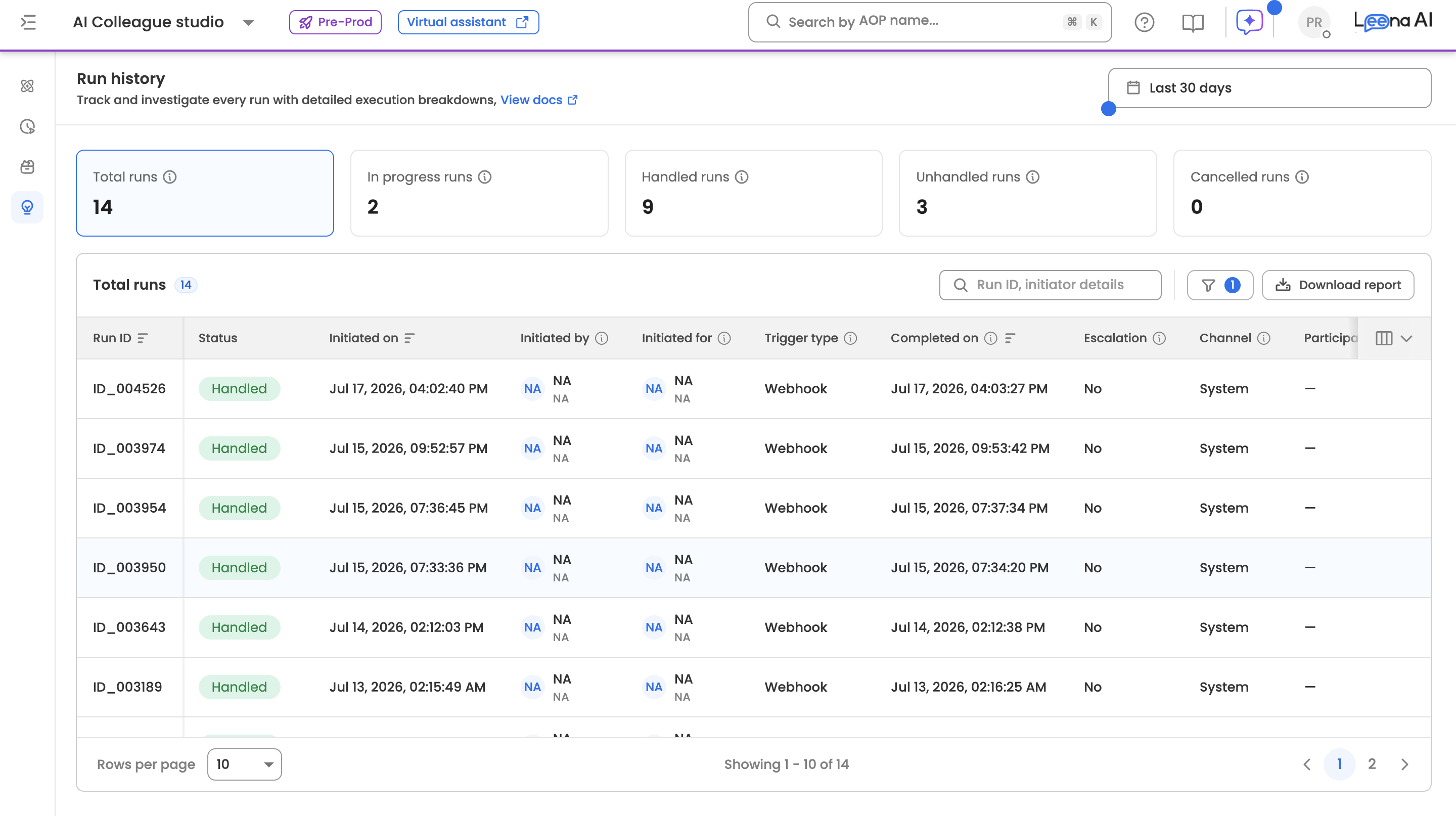
All trigger runs — from every trigger type — are recorded in Run History.
- Open Run History and use the filters to narrow by Trigger Type (Scheduled and Webhook) to review a specific type's activity. Filtered views are captured in the URL, so you can bookmark or share them.
- Each triggered run includes a Trigger Context step at the top of its run trail, showing how it started (trigger type, source app, timestamp, and how many events matched). For failed trigger evaluations, the Trigger Context step also shows the failure reason.
See Run history for more on reviewing executions.
Updated 2 months ago