
Quick Reply Options
Quick replies let employees start or continue a conversation with one click instead of typing. The Web App shows them in three places, each set up in a different way.
| Where | What employees see | Who decides what's there |
|---|---|---|
| Under the composer, on a new chat | Suggested prompts picked for that employee | Capability discovery, based on the AOPs and tools the employee can use |
| In the side panel | Quick replies your admin pins, alone or inside folders | Your admin, under Admin Console → Leena channels → Settings → 2. Sidebar actions |
| Under a response | Options the assistant offers as part of its reply | The AI colleague, AOP or workflow that's replying |
Suggested prompts on a new chat
Each new chat opens with a greeting and a set of suggested prompts below the composer, such as "Check payslip breakdown" or "Request IT support". Clicking one sends it straight away as the employee's first message. The chat then takes its title from that message.
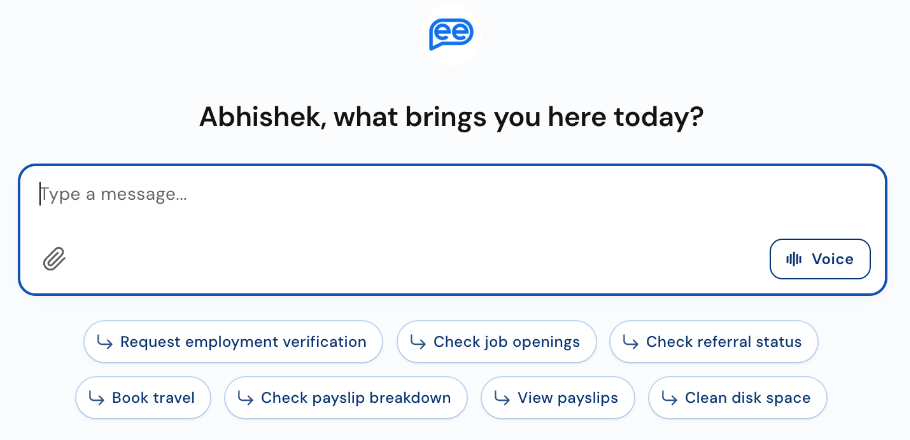
Suggested prompts on a new chat
- The prompts come from Capability discovery, so each employee only sees things they can actually do.
- The selection can change between visits, and so can the wording of the greeting.
- Prompts are paused while a voice call is running.
Quick replies in the side panel
A quick reply pinned in the side panel is a shortcut to a common request. Clicking it starts a new chat and sends the quick reply's title as the employee's first message, exactly as if they had typed it. The assistant replies in that chat, which then appears under Chats.
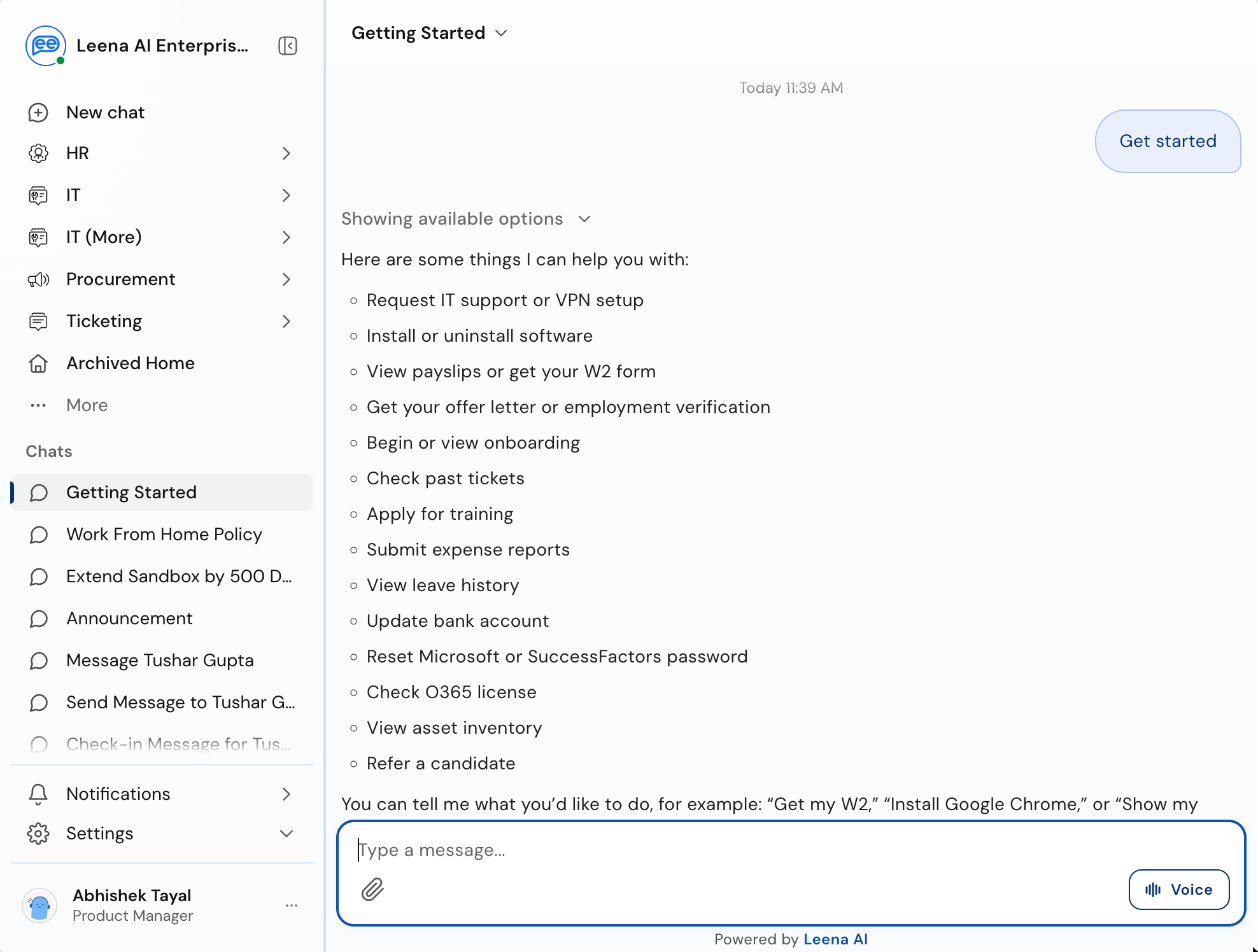
Clicking the Get started quick reply opened a new chat and sent the message for the employee.
- Quick replies show a speech-bubble icon unless your admin picks another.
- They can sit at the top level or inside a folder. When the top level is full, quick replies are the first items to move into More. See Navigation & Menu.
- An audience on a quick reply hides it from everyone outside that audience.
Add a quick reply
- In the Admin Console, go to Leena channels → Settings and expand 2. Sidebar actions.
- Under Webviews and quick replies, click Add → Quick reply. To put it in a folder, use the Add button inside that folder instead.
- Enter the Quick reply title. This is the label employees see and the exact message that's sent, so write it the way an employee would ask, for example "Password Reset" or "Check leave balance".
- Enter the Module ID and, if only some employees should see it, choose an Audience.
- Click Save.
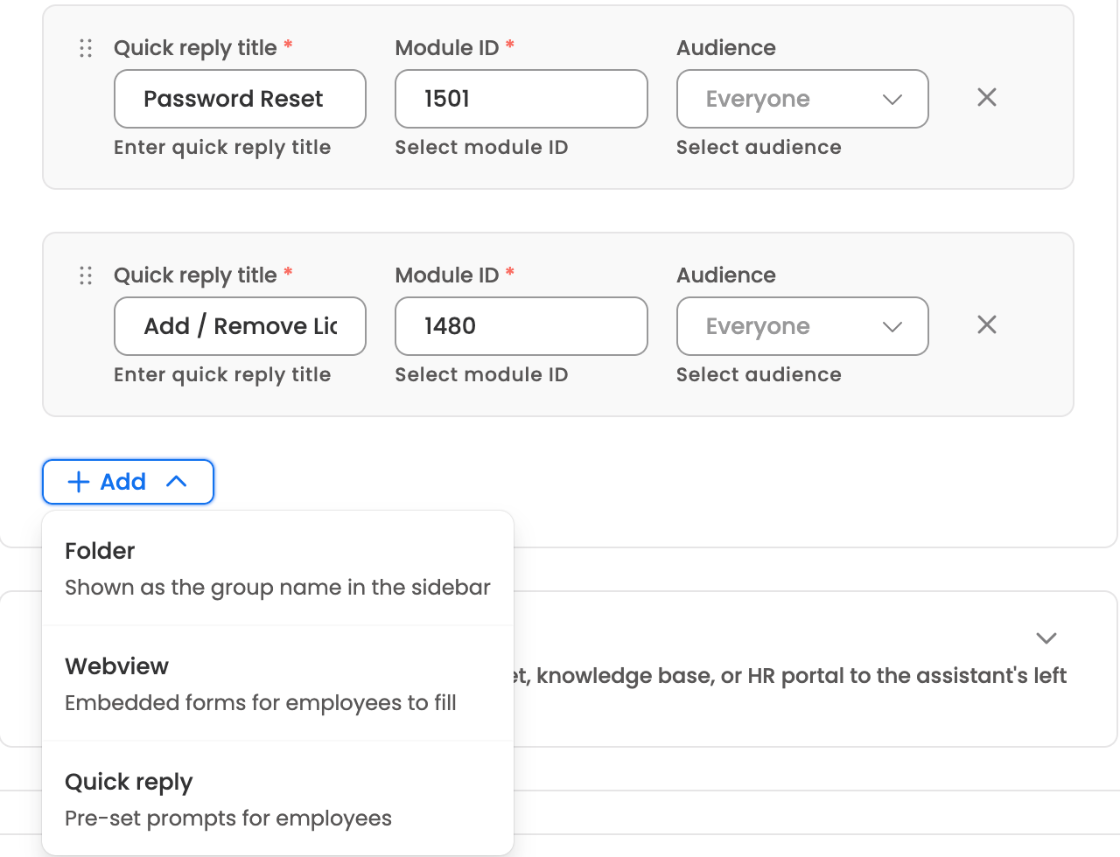
Admin Console → Leena channels → Settings → 2. Sidebar actions → Add
Quick reply or suggested prompt?Use a quick reply for a handful of requests you always want one click away, for everyone or for a chosen audience. Use suggested prompts for a rotating, personal set that follows what each employee can do. Suggested prompts are managed in Capability discovery, not in the side panel.
Options inside a response
When the assistant needs the employee to choose, it can show options under its reply, for example the leave types an employee can apply for, or Yes and No to confirm a step. Clicking an option sends it as the employee's reply.
- Options appear as a row of buttons, or as full-width buttons stacked one under another when the reply calls for it.
- While a reply is still streaming, its options stay hidden and appear once the reply is complete.
- Under the latest reply, employees also get Copy, Good response and Bad response. See Chats.
On the classic designQuick replies pinned in the left menu work the same way on bots with Multiple Chats. On single-chat bots, they post back to the Home conversation instead of opening a new chat, which is where the Module ID is used. Single-chat bots can also show Menu, Back and More buttons to move through scripted menus.
Common questions
Can a quick reply open a form or page instead of sending a message?
Use a Webview item for that. Quick replies always send their title as a message.
Can I control which suggested prompts appear?
Yes, through Capability discovery. The side panel settings don't affect them.
Are quick reply titles translated?
No. Titles appear exactly as you enter them. To serve several languages, create one quick reply per language and give each an audience built on the employee's language. See Multi-lingual Support.
Why didn't a suggested prompt do anything?
Prompts don't respond while a voice call is active. End the call, or say the request out loud instead.
Updated 22 days ago