
Add a candidate
Watch the tutorial
A candidate can be added (created) in two ways:
- Data synced from backend via API integration with the ATS platform of the client or,
- Data manually added by the admin on the dashboard
One-by-One (Single new employee/candidate addition)
-
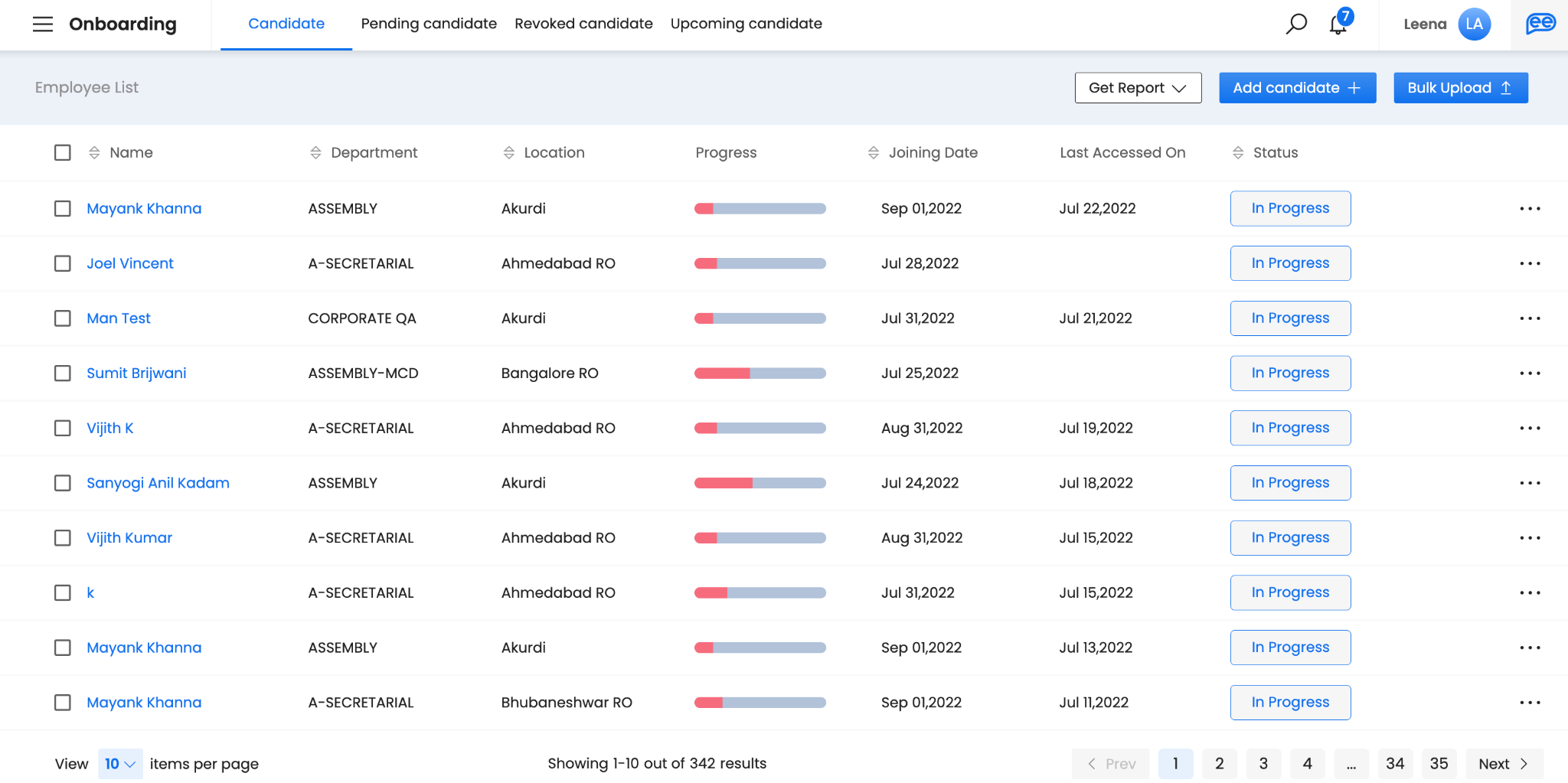
Navigate to the Onboarding module/section on the unified dashboard, from the hamburger menu.
-
Click on “Add Candidate” to add a new candidate.
-
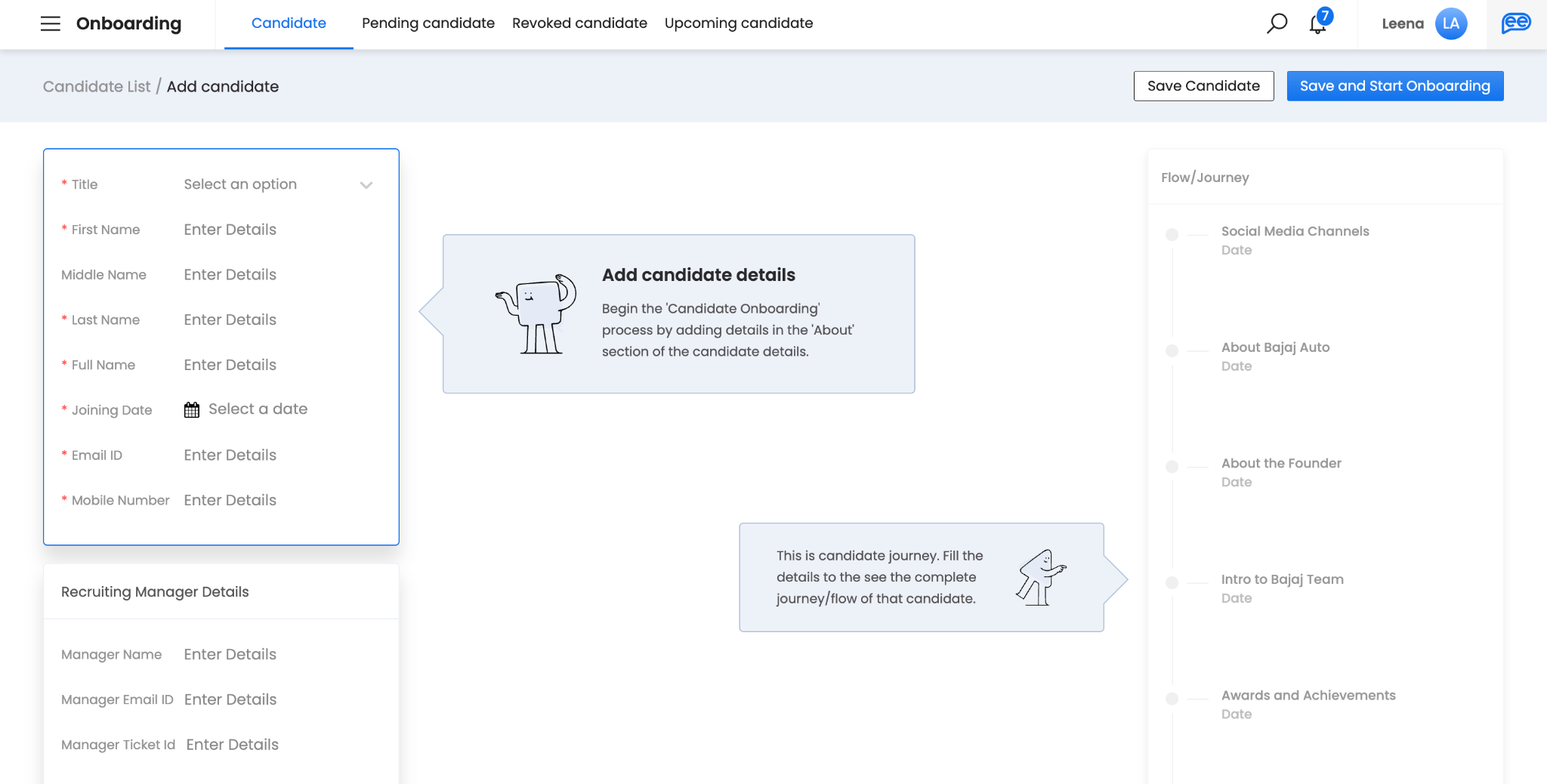
Add candidate details on the screen that appears next.
-
The section details on the left, are details related to the attribute of the candidate/new employee.
-
On the right, view the Flow/Journey configured for the candidate.
-
The section details to add the attributes of the candidate/new employee, can be configured at the backend with the help of the Leena AI team. These fields can be of three types:
-
Drop-down (linked to a master list)
-
Date & Time, and
-
Input (short and long text)
-
Once you add the candidate details, click on “Save and Start Onboarding” to initiate the onboarding for the new employee/candidate.
Bulk Import (Adding new employee/candidate details in bulk)
You can upload new employees/candidates in bulk using the ‘Bulk Upload’ action.
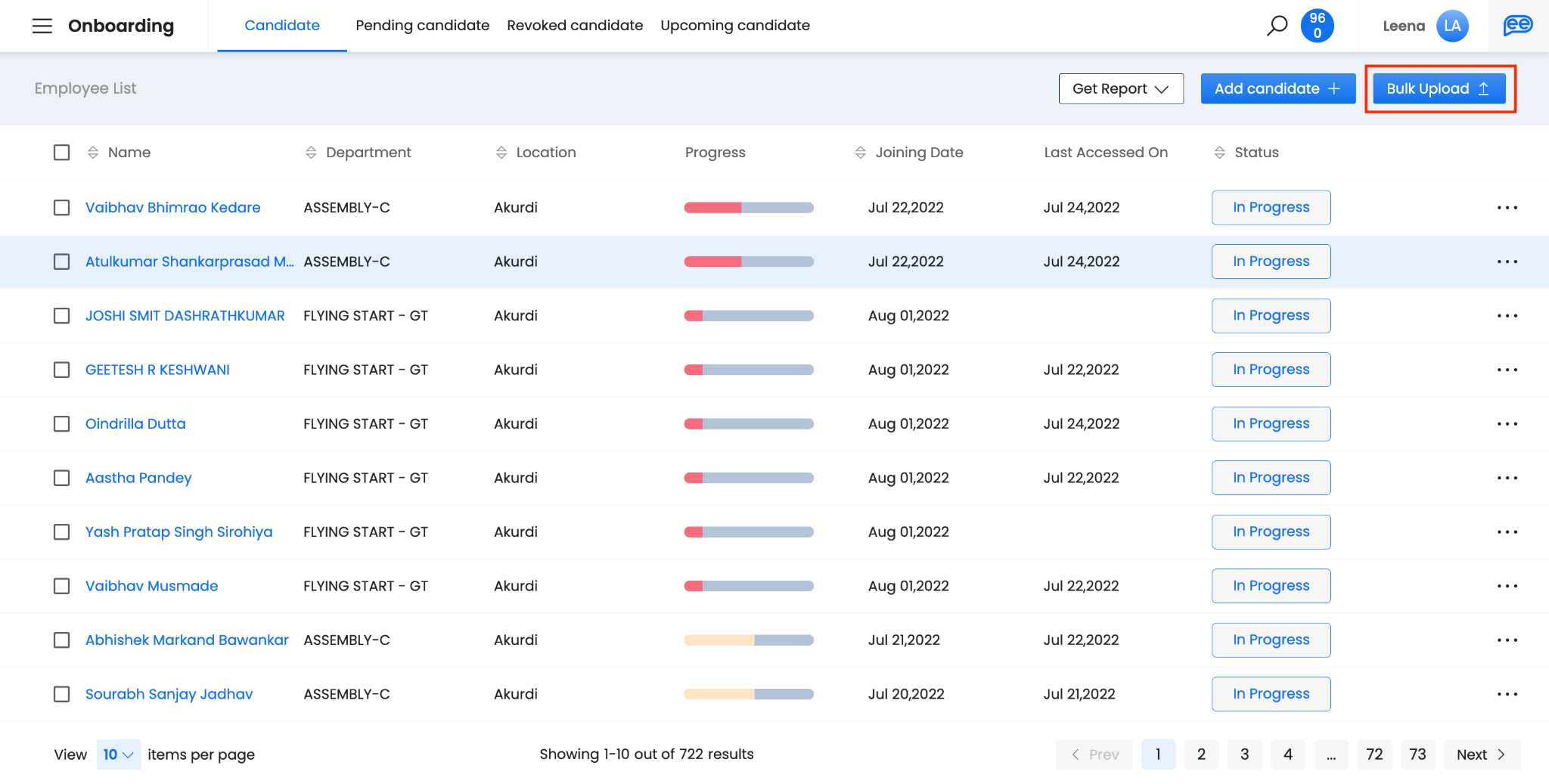
While using the ‘Bulk Upload’ option, you get an option to download a blank template (with fields like name, email, contact number, joining date, designation, function, department, location, reporting manager, etc.) and upload the filled template to add the candidate details in bulk.
Updated 7 months ago