
Run Execution Details
Execution Details
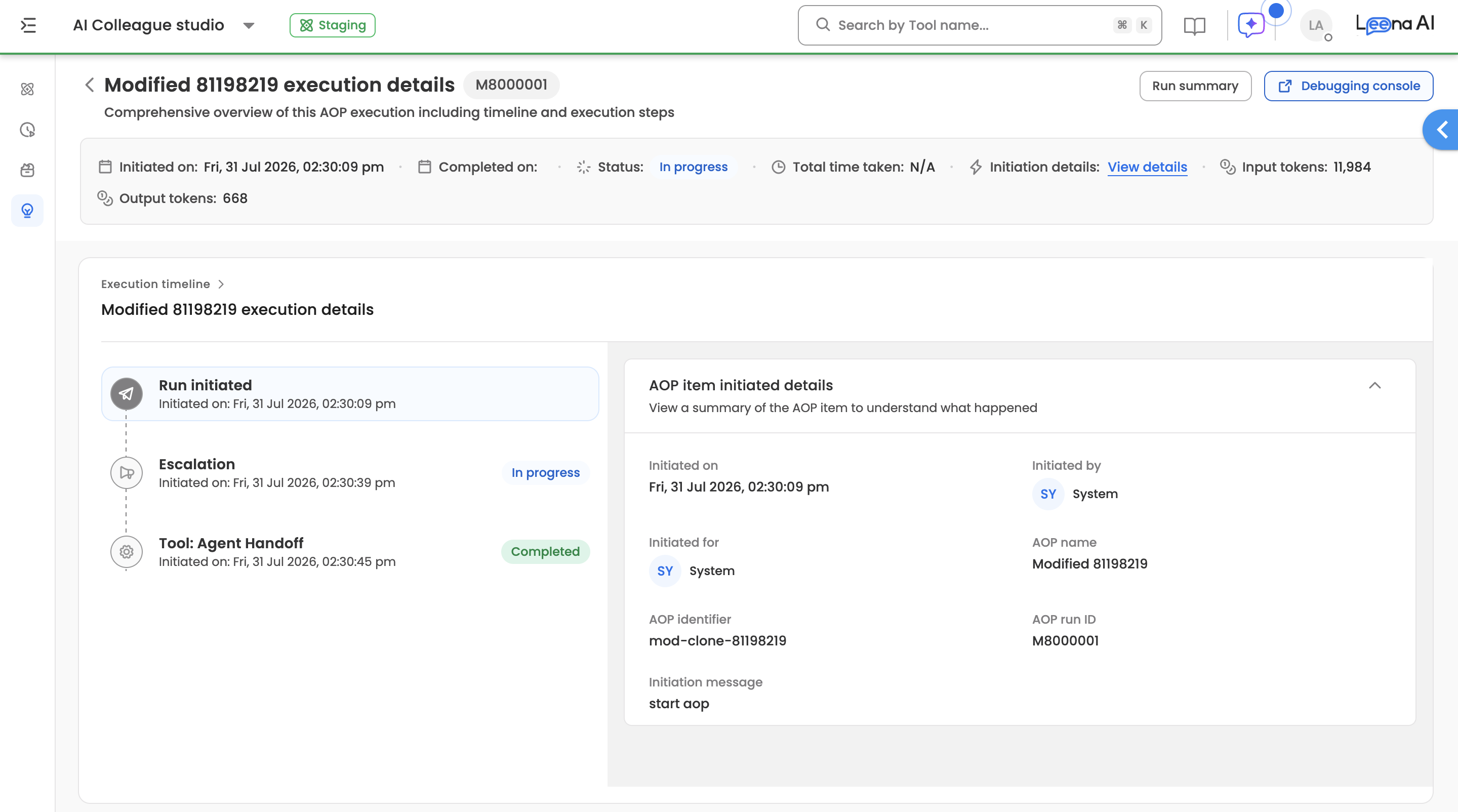
The Execution Details page provides a complete step-by-step breakdown of how an AI Colleague processed a specific request—from initiation to completion. Access this view by clicking any row in the Executions Table.
Key Components:
- Header: Run metadata including run ID, status, timestamps, and token usage
- Run Execution Timeline: Vertical stepper showing each step in chronological order
- Section Details: Detailed information for the selected timeline step
- Side Panel: Expanded details for specific section types
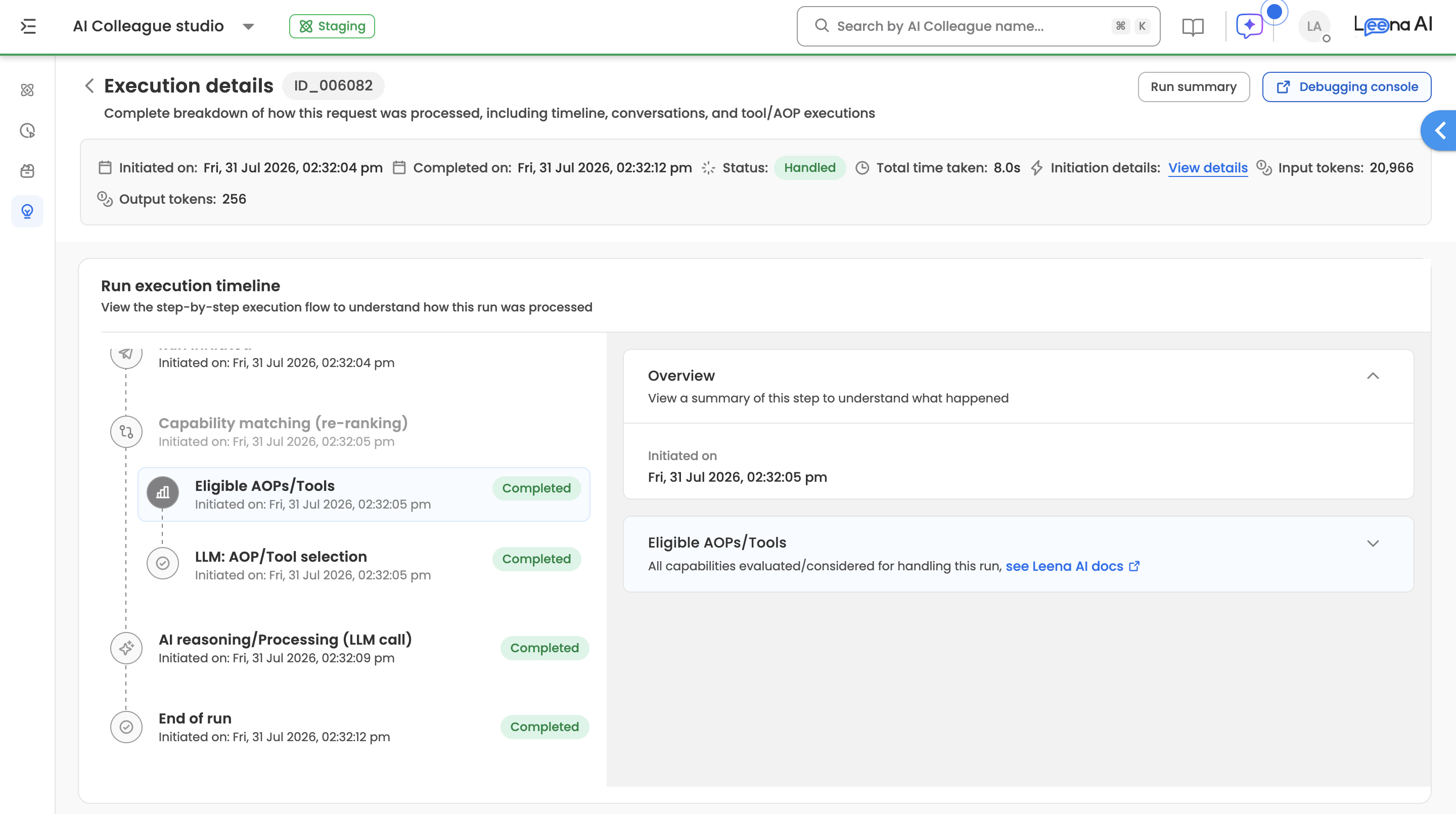
Header
The header bar displays key information about the run at a glance.
| Element | Description |
|---|---|
| Initiated On | Date and time when the run started |
| Completed On | Date and time when the run finished |
| Status | Outcome: Handled (green), Unhandled (red), In Progress (blue), Cancelled (orange) |
| Total Time Taken | Duration from start to finish |
| Input Tokens | LLM tokens consumed as input |
| Output Tokens | LLM tokens generated as output |
| AOPs/Tools Utilized | Click "View List" to see all AOPs and Tools used during execution |
| Initiation Details | Click "View Details" to see who initiated, trigger type, and channelInitiation Details |
Run Execution Timeline
A vertical stepper showing each step the AI Colleague took to process the request.
Step Components

| Component | Description |
|---|---|
| Icon | Visual indicator of step type |
| Tittle | Name of the action (e.g., "Run initiated", "Eligible AOPs/Tools") |
| Initiated On | Timestamp when this step started |
| Status Chip | Green = Success, Blue = Pending, Red = Failed |
| Nested Steps | Some steps expand to show sub-steps (e.g., AOP with multiple actions) |
Step Types
| Step Type | Description |
|---|---|
| Run Initiated | User's initial message was received |
| AI Reasoning | LLM analysed request and decided what action to take |
| Knowledge Search | Searched knowledge base for relevant information |
| Tool Execution | Called an API or ran a workflow tool |
| AOP Execution | Started an Agent Operating Procedure (multi-step workflow) |
| Form Collection | Collected information from user via conversation |
| Loop Execution | Processed multiple items in a loop |
| Approval Request | Sent request for human approval |
| Escalation | Escalated to human agent |
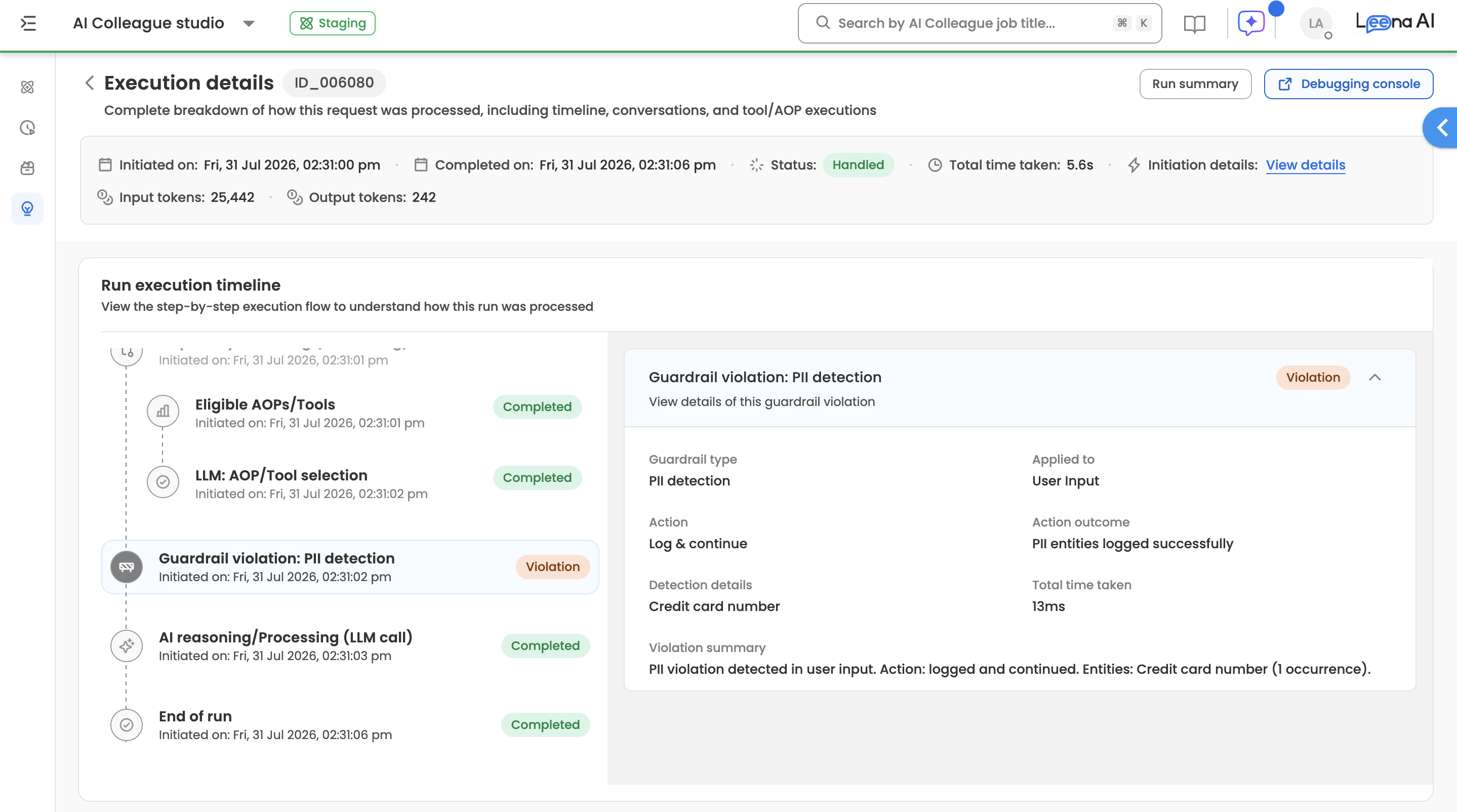
| Guardrail Violation | A guardrail policy (PII Detection, Moderation, or Jailbreak) was violated during input or output evaluation |
Guardrail Violation Step
When a guardrail triggers during a run, a dedicated Guardrail Violation step appears in the execution timeline. Clicking it shows the following details:
| Field | Description |
|---|---|
| Guardrail Type | Which guardrail fired: PII Detection, Moderation, or Jailbreak |
| Action Taken | The configured response: Block, Mask & Continue, or Log & Continue |
| Applied To | Whether the violation was on User Input or LLM Output |
| Detection Details | Specific entities or categories detected (e.g., "Email address", "Sexual/minor") |
| Violation Summary | A human-readable description of what was detected and what happened |
| Evaluation Latency | Time taken to evaluate the guardrail (ms) |
NoteA Block action ends the run at the guardrail step — no further steps execute. A Mask & Continue or Log & Continue action allows the run to proceed; the guardrail step appears mid-timeline with a warning status rather than ending the execution.
Section Details
When you click a timeline step, the right panel shows detailed information about that step. The content varies based on the step type.
Section Types
| Section | Description of Data |
|---|---|
| Table Section | Data in rows/columns format |
| Chat Threads | Conversation between user and bot |
| Form Details | Collected form field values |
| Request/Response | Raw JSON sent to/received from API |
| AI Decision Summary | LLM reasoning for action selection |
| Loop Execution | Table of loop iterations |
| Approval Details | Approvers, status, timestamps |
| View Action Details | Link to drill into nested workflow |
Side Panel
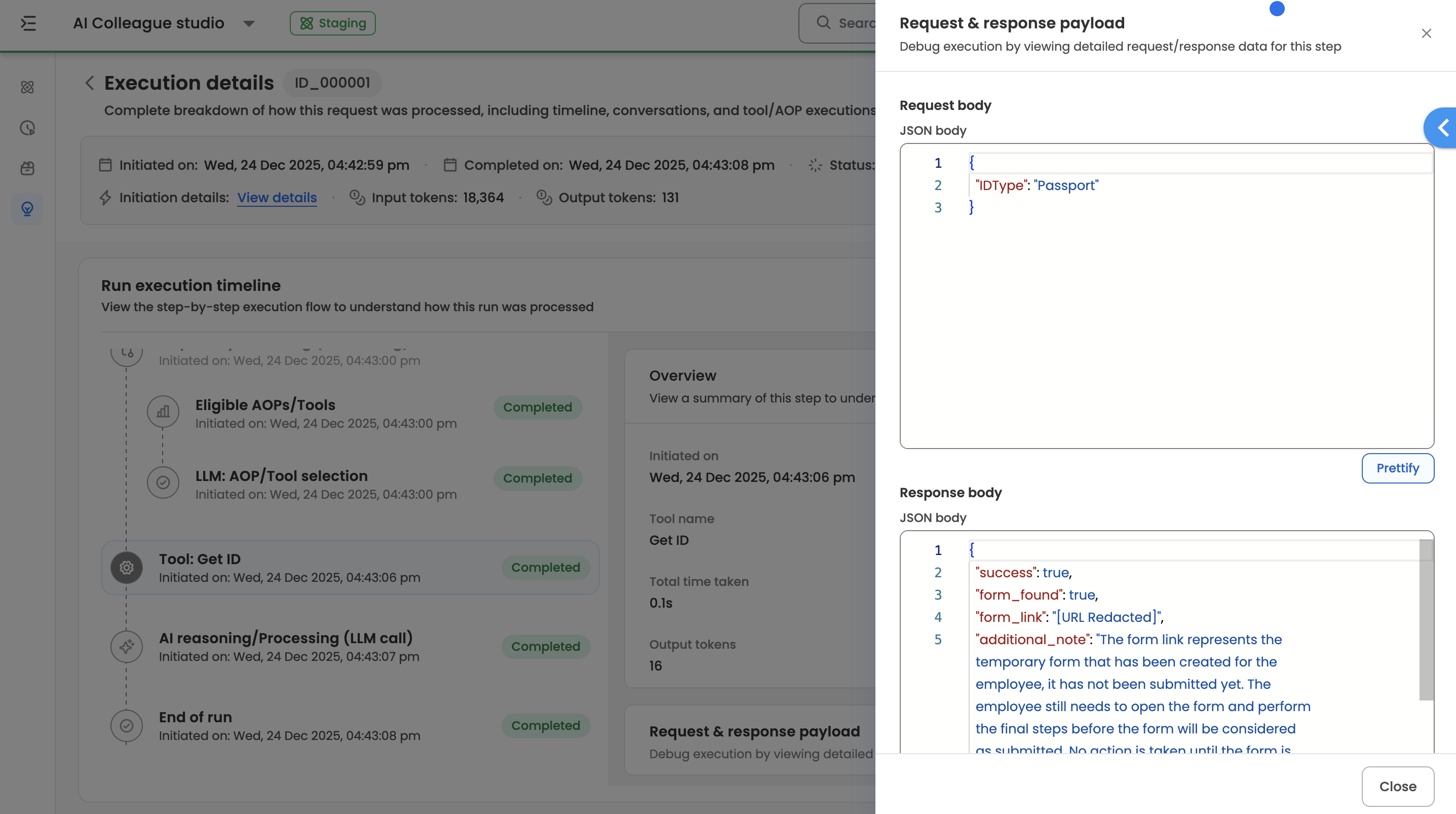
Clicking certain section cards opens a side panel with expanded details.
| Panel Type | Content |
|---|---|
| Chat Threads | Full conversation with user messages and bot responses, timestamps, and option to view raw request/response for any message |
| Form Details | All form fields with labels, collected values, and validation status |
| Request/Response | Two JSON code editors: one for request payload, one for response. Includes prettify option |
| Knowledge Search | List of retrieved articles with name, type, source, and relevant excerpts used |
Troubleshooting Guide
| Issue | Solution |
|---|---|
| Find why a run failed | Look for red status chip in timeline, click that step, check Request/Response for errors |
| See what user said | Click "Chat Threads" section to see full conversation |
| Debug an API call | Click tool execution step → Request/Response Payload → view JSON |
| Check token usage | Look at Input/Output Tokens in header |
| See what AOPs ran | Click "View List" next to AOPs/Tools Utilised in header |
| View AOP internal steps | Click "View Details" on AOP step → use breadcrumbs to drill in |
AOP Execution Details
View the step-by-step execution of Agent Operating Procedures
Accessing AOP Execution Details
To view AOP execution details:
- Open any run from the Run History page
- Find an AOP Execution step in the timeline
- Click the step to see its details in the right panel
- Click the "View Details" button to open the AOP execution timeline
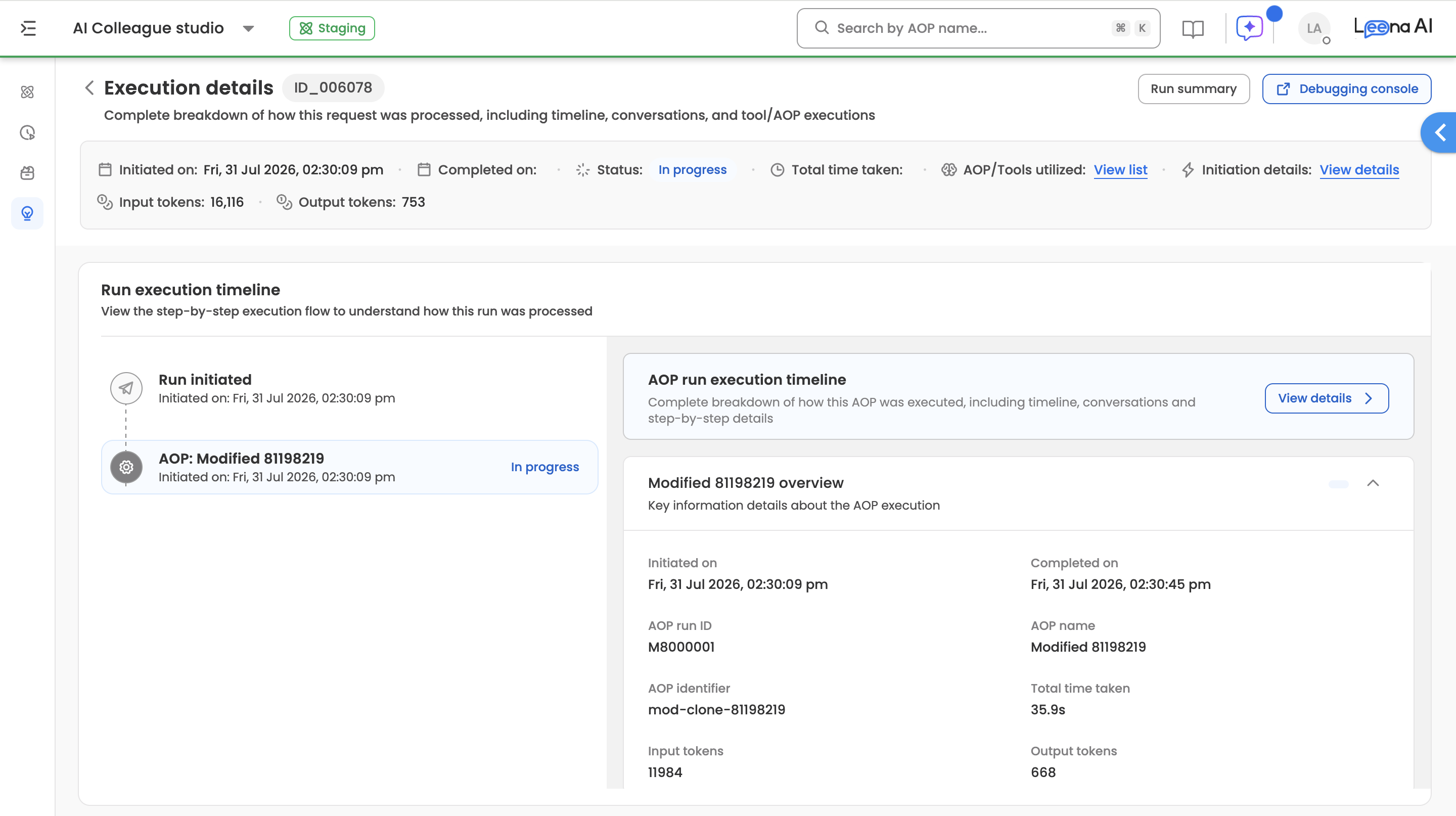
The AOP Execution Details page has the same layout as the main run details page, with content specific to the AOP workflow.
Navigating Nested AOPs
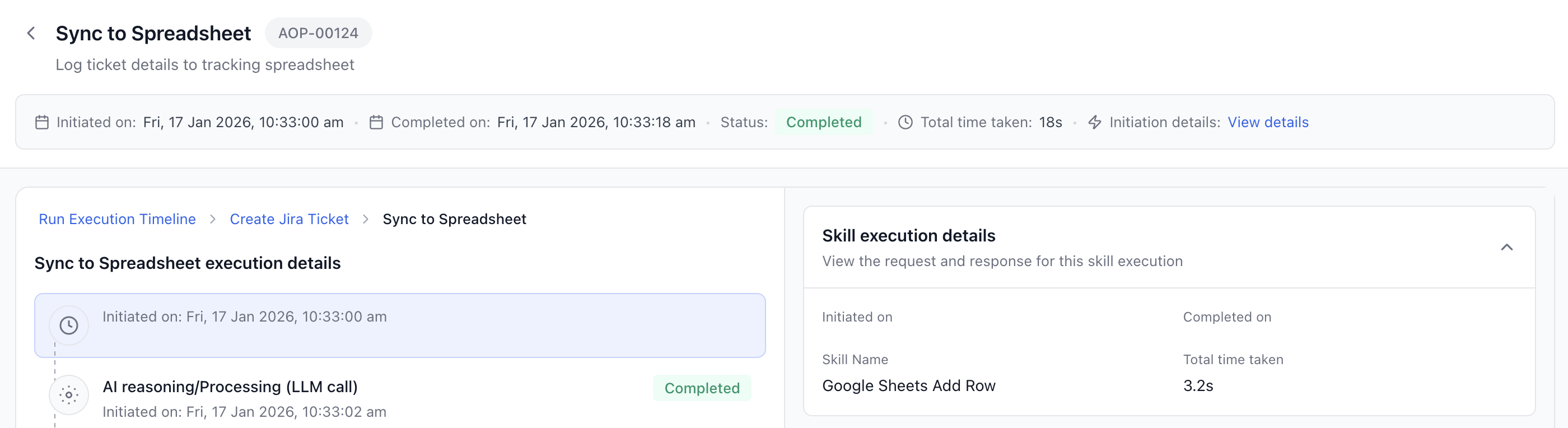
When a main AOP calls a helper AOP, you can drill into the helper to see its execution details. This creates a navigation hierarchy that you can traverse using breadcrumbs.
Example:
A "Create Jira Ticket" AOP calls a "Sync to Spreadsheet" helper AOP. The breadcrumb trail would show:
Run Execution Timeline > Create Jira Ticket > Sync to Spreadsheet
Click "Create Jira Ticket" in the breadcrumb to go back to the main AOP view, or click "Run Execution Timeline" to return to the original run details.
Capability Matching
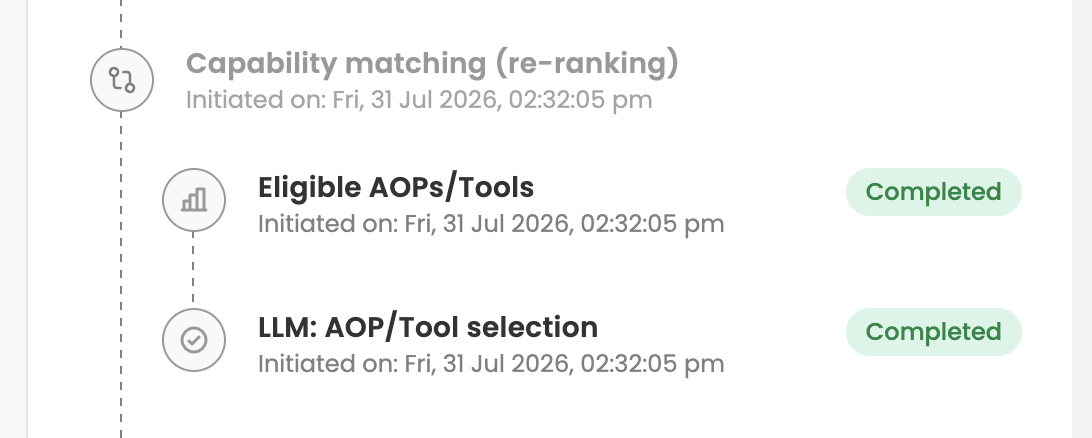
When viewing the execution details for any run, the Capability Matching section provides transparency into how the AI Colleague identified and selected the appropriate tools and AOPs to handle a user's request.
What is Capability Matching?
Capability Matching (also called Re-ranking) is the process by which an AI Colleague evaluates all available tools and AOPs against an incoming user request to determine which capabilities are most suitable for execution. This involves three stages:
- Eligibility Assessment-Identifying all potential capabilities that could handle the request
- Relevance Scoring-Ranking capabilities based on how closely they match the request
- Final Selection-Choosing the optimal set of tools to present to the LLM for execution
Eligible AOPs/Tools
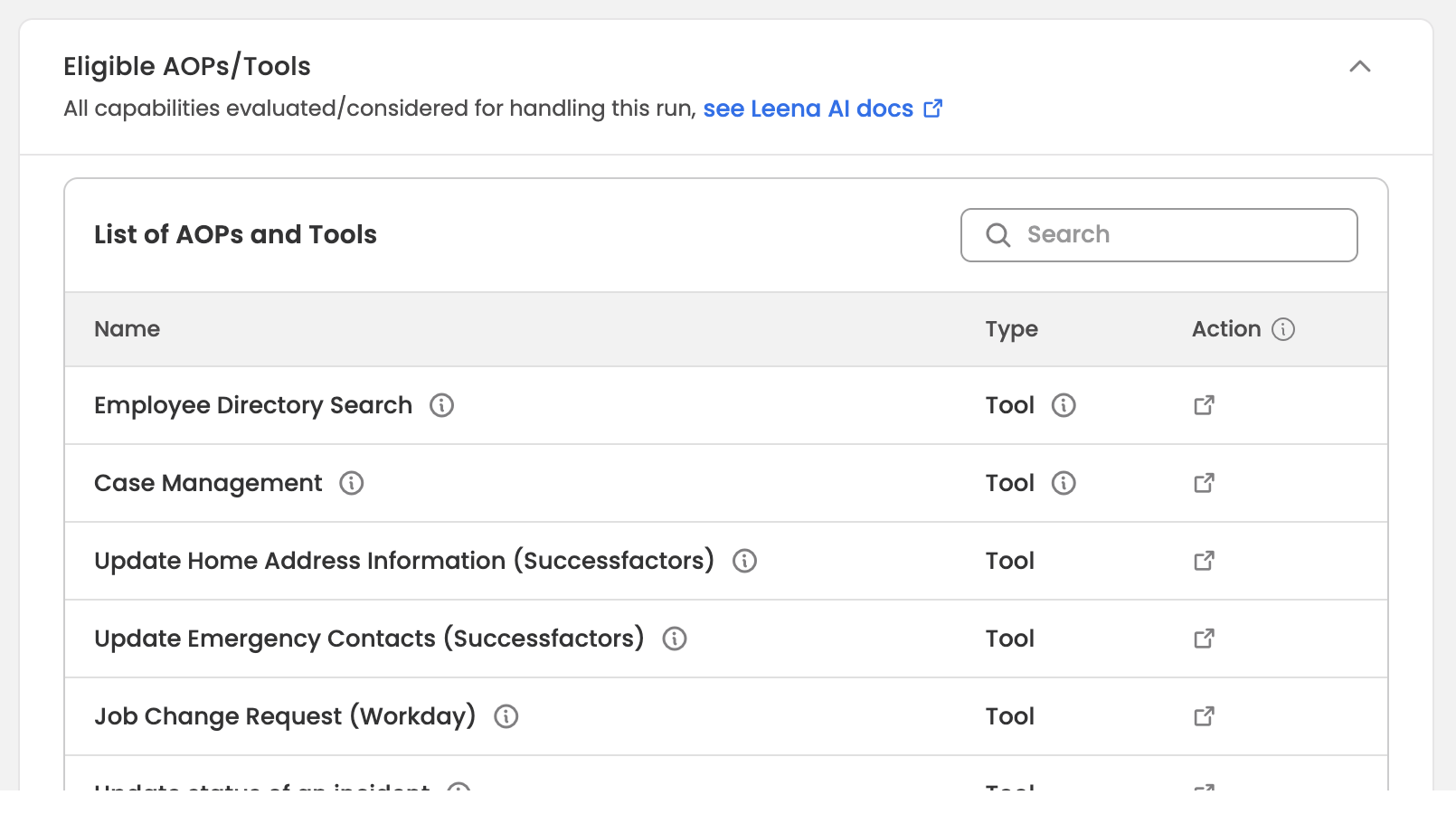
This table shows all capabilities initially considered for the request
| Column | Description |
|---|---|
| Name | Display name of the tool or AOP |
| Type | Classification: Tool (Built-in/Custom) or AOP (with AI Colleague identifier) |
| Action | Click to view the tool or AOP configuration |
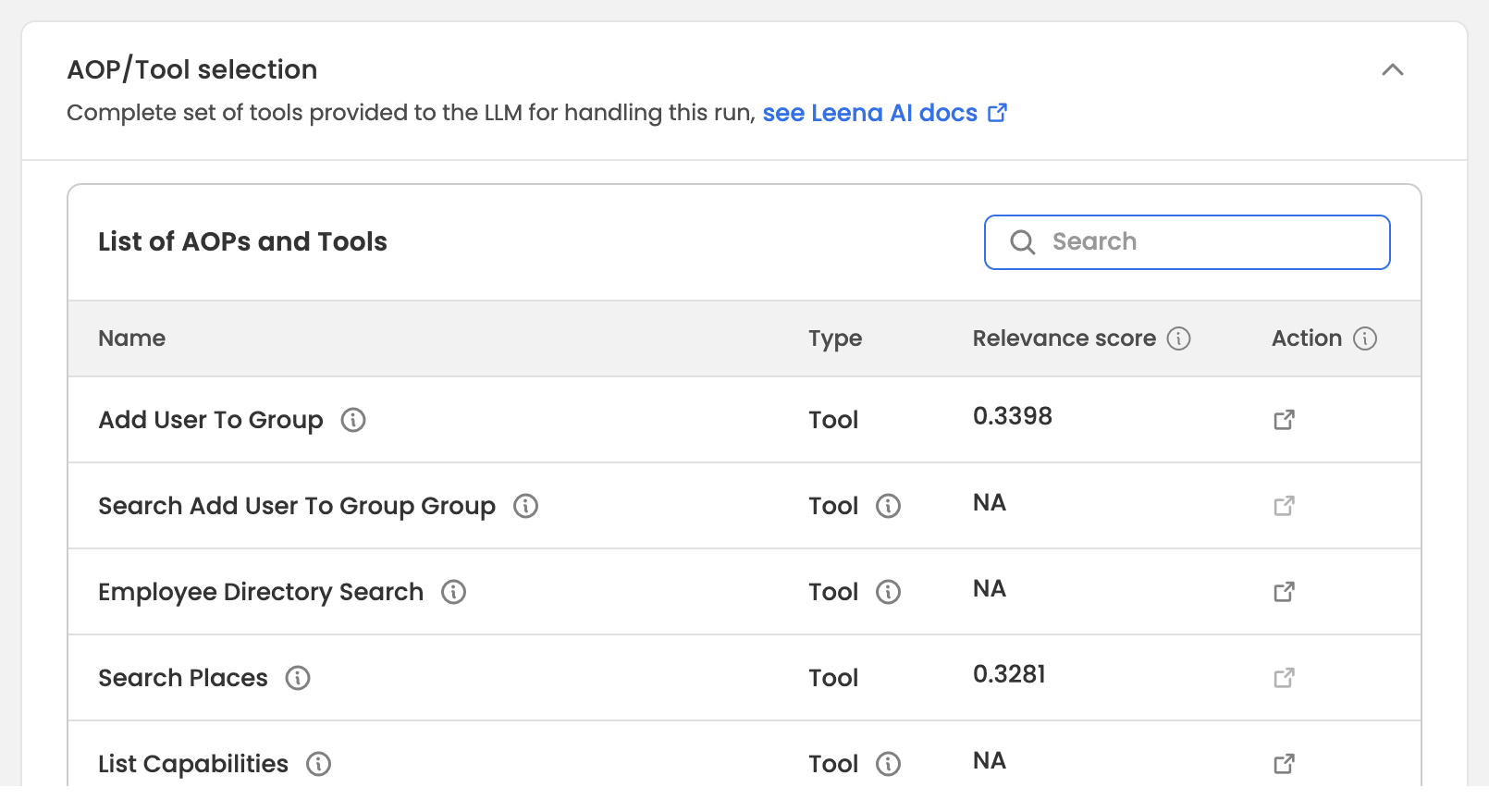
LLM: AOP/Tool Selection
This table shows the final set of capabilities sent to the LLM and is similar to Eligible AOPs/Tools Table.
Updated about 2 months ago