
Google Chat
Google Chat setup connects Leena AI to Google Chat, so employees can reach the assistant from within Google Workspace.
Setup spans two systems. In Google Cloud you create a project, enable APIs, and generate a service account key. In Leena AI you upload that key and collect an endpoint URL, which you then paste back into the Google Chat API configuration.
Watch the tutorial
Where to find it
Open the Admin Console, then go to External channels → Google Chat.
1. Create the Google Cloud project
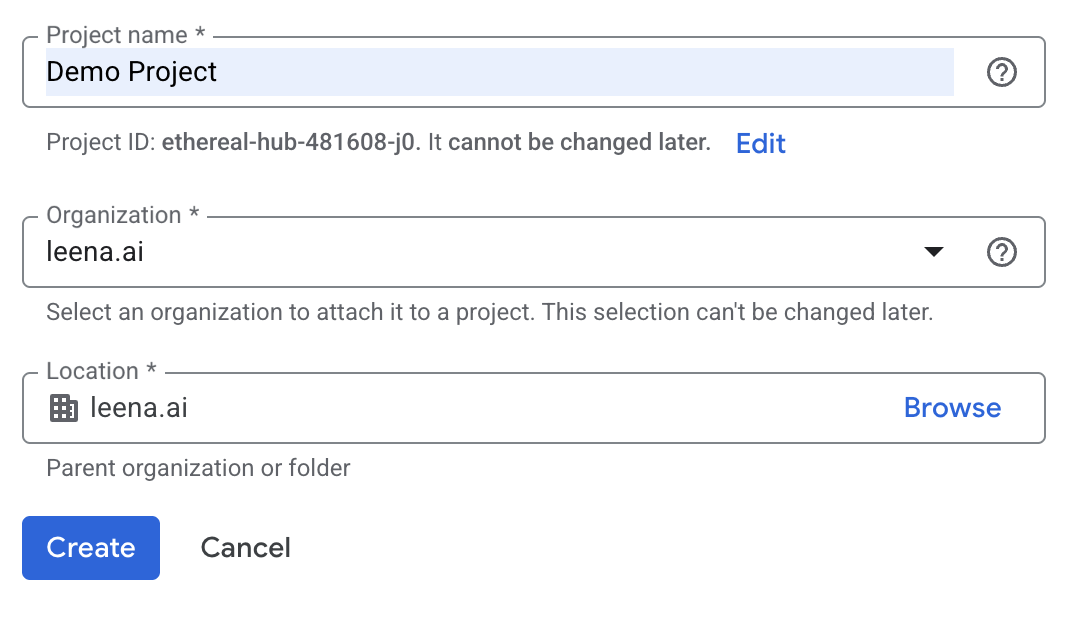
Go to the Google Cloud resource manager and click New Project.

Name it something identifiable, such as Leena-AI-Bot.
Select your corporate domain as the organizationIn the Organization or Location field you must select your corporate domain, for example
yourcompany.com. Do not select "No Organization".A project created outside the organization can't be published privately to your Workspace later, and the only fix is starting again.
2. Enable the APIs
Open the project you just created, then navigate to APIs & Services → Library and enable both:
- Google Chat API
- Google Workspace Marketplace SDK
3. Create the service account and key
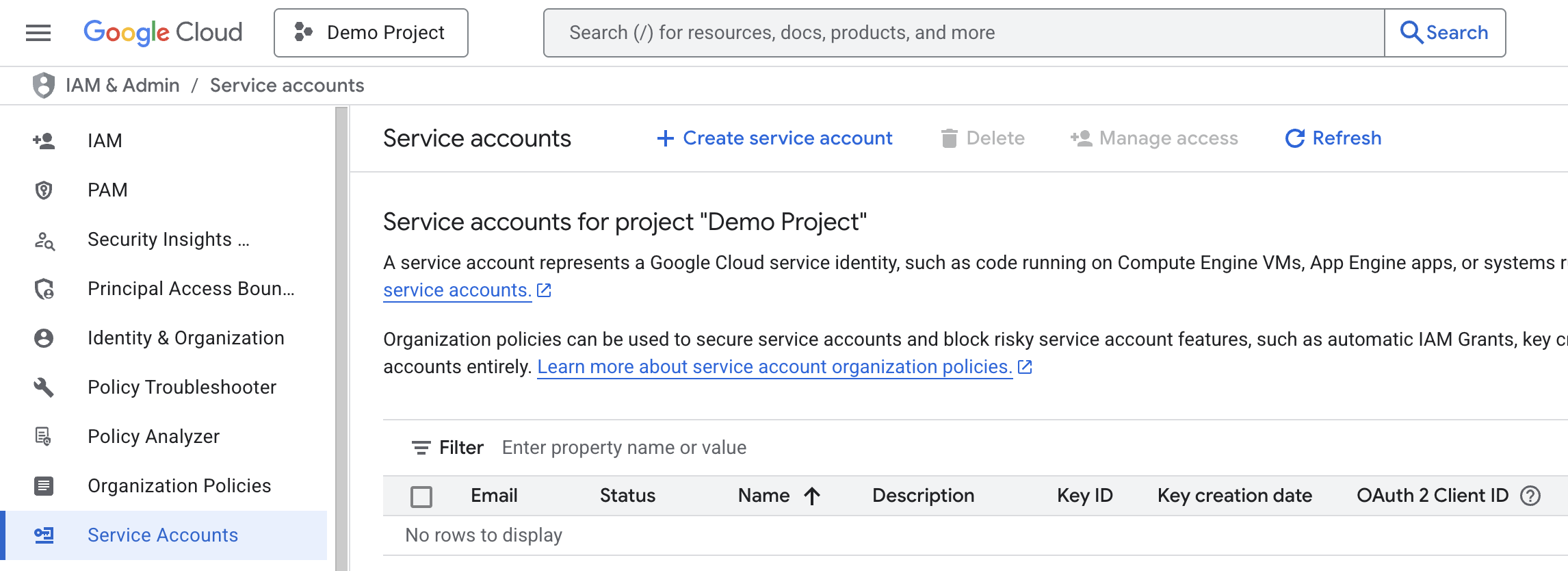
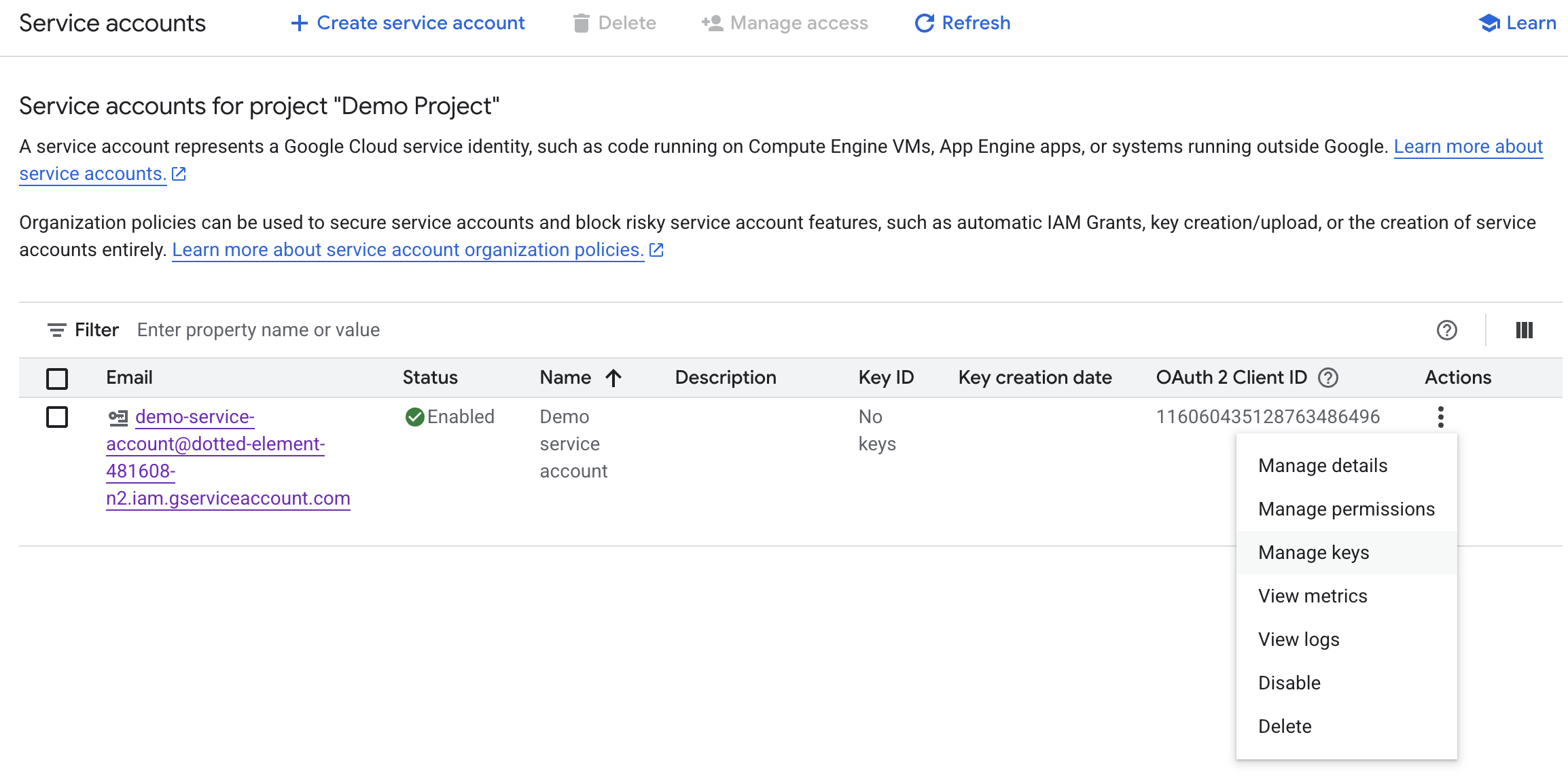
Go to IAM & Admin → Service Accounts and click Create Service Account.
Give it a name, such as chat-bot-sa.
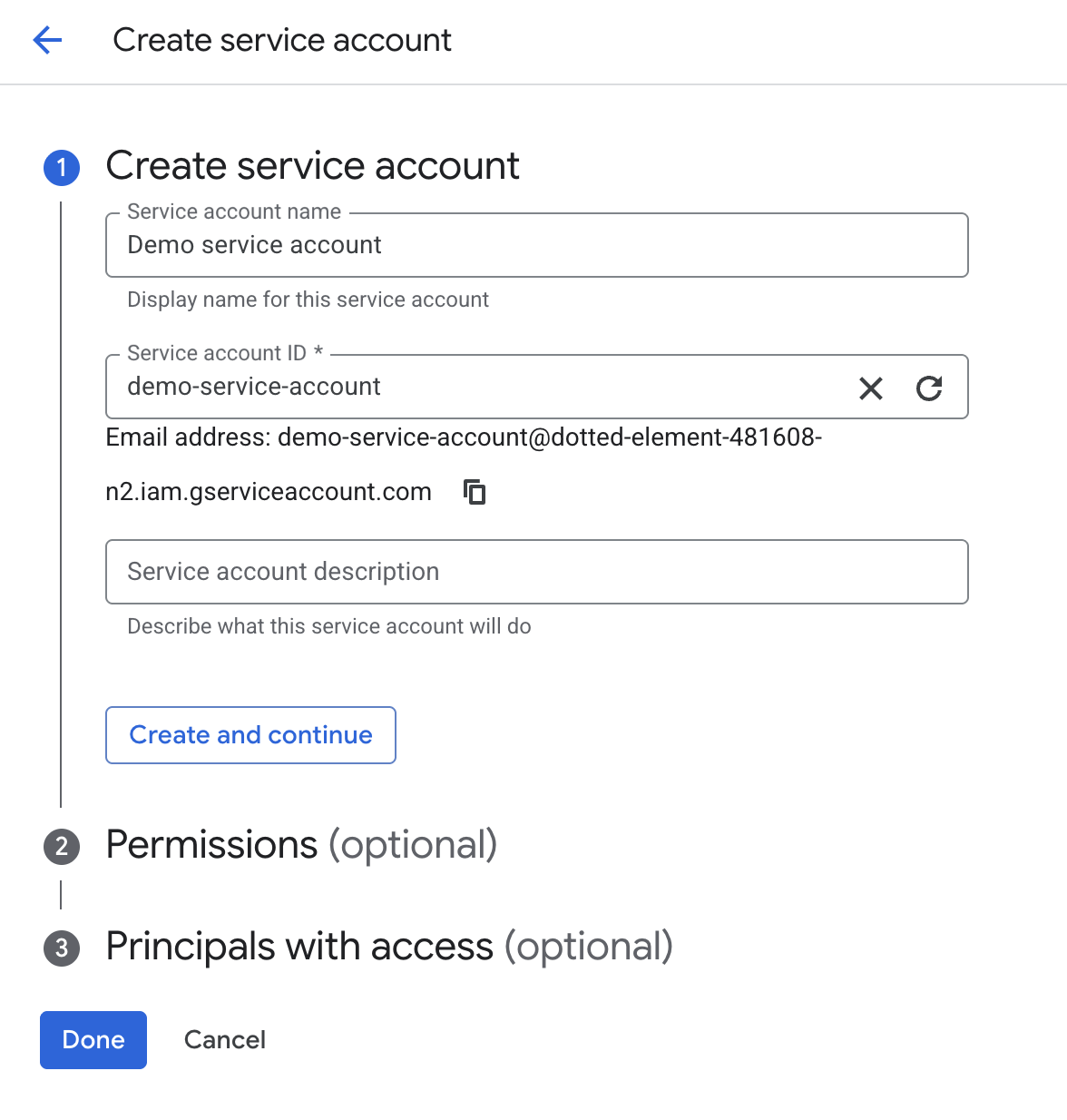
Click Done — you can skip the roles step.
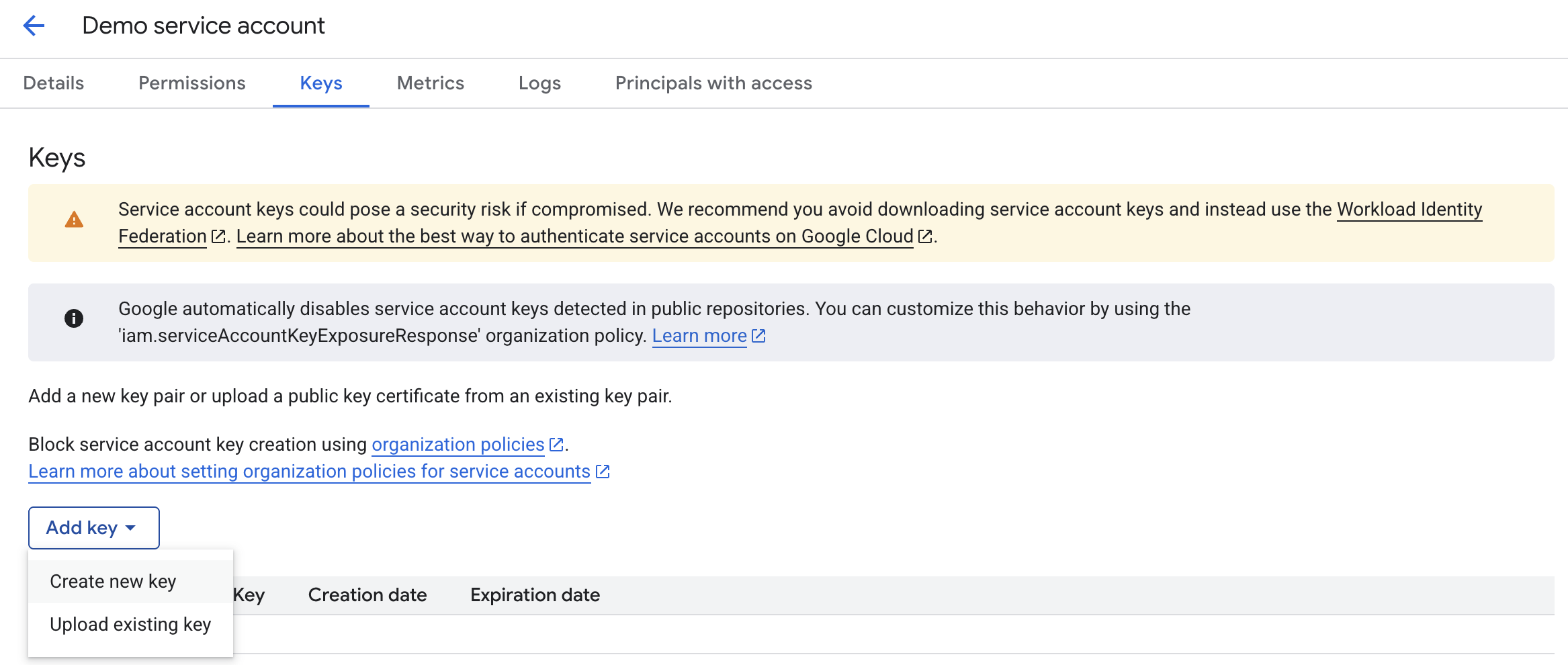
Then open the new service account and go to Actions → Manage Keys → Add Key → Create new key. Select JSON and click Create. The key downloads to your machine.
Keep this file safe. It authenticates the app, so treat it like a password.
4. Configure the channel in Leena AI
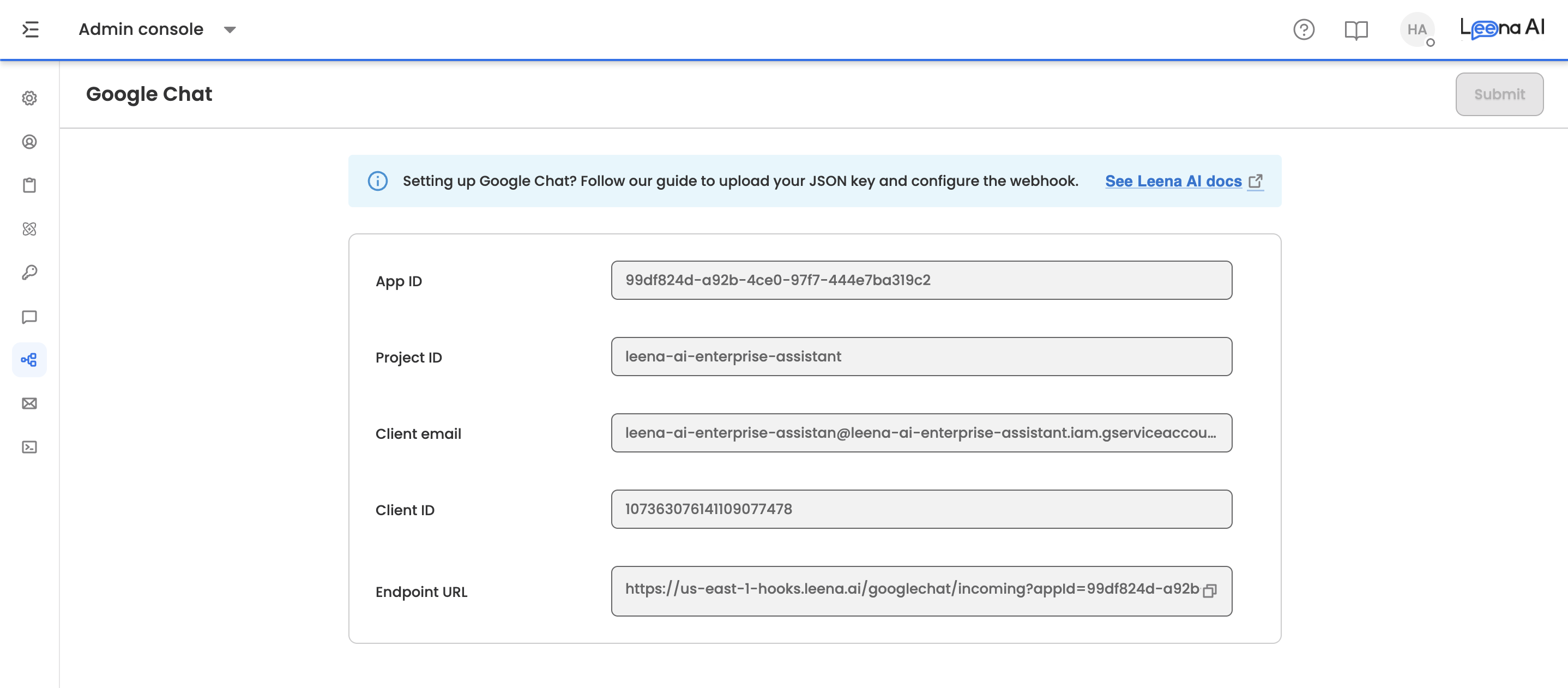
On the Google Chat setup page, the dashboard generates an App ID for this connection. Use the reload control to generate a different one if needed, then click Freeze app ID to lock it in.
Freezing produces the region-based Endpoint URL you'll need in the next step. Copy it with the copy control.
Next, upload the service account key on Upload app config JSON. Only .json is accepted, up to 13 MB.
Once parsed, the page displays the values it read from the key, so you can confirm you uploaded the right one:
- Project ID
- Client email
- Client ID
Check the Project ID against the Google Cloud project you created. Uploading a key from the wrong project is the most common mistake here, and it fails silently until an employee tries to message the assistant.
Click Submit to save.
5. Configure the Google Chat API
Back in Google Cloud, go to APIs & Services → Enabled APIs & Services → Google Chat API → Configuration.
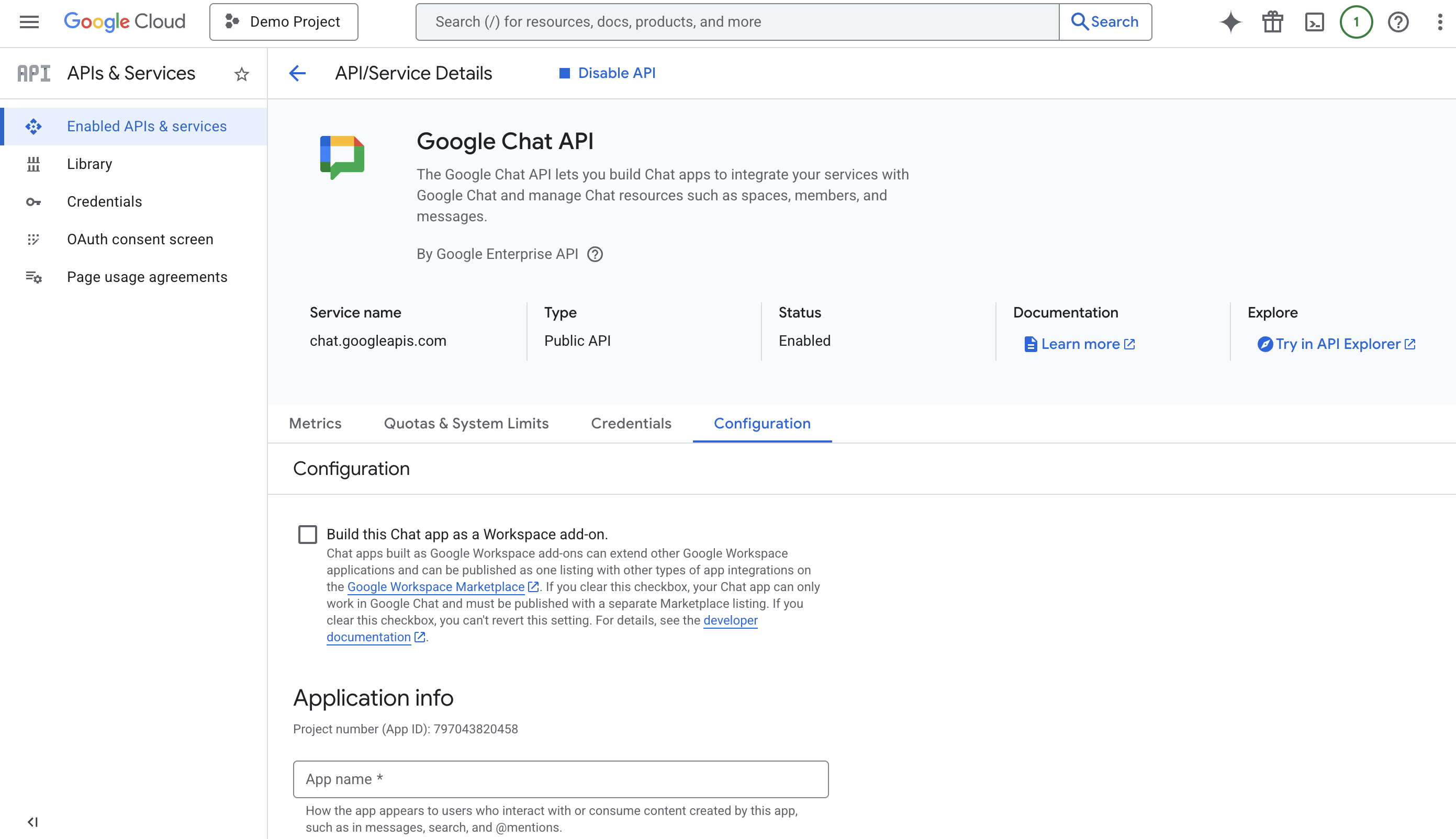
Work through the settings:
- Uncheck "Build this Chat app as a Workspace add-on"
- Provide the required Application info
- Toggle Interactive Features on
- Under Functionality, uncheck "Join spaces and group conversations"
- Under Connection Settings, select HTTP Endpoint URL and paste the Endpoint URL from step 4
- Under Authentication Audience, select HTTP endpoint URL
- Under Visibility, uncheck "Make this Chat app available to specific people and groups in…"
Click Save.
This endpoint is what lets Google Chat deliver employee messages to Leena AI. Without it, the app installs and appears in Chat but never responds.
6. Configure the OAuth consent screen
Go to APIs & Services → OAuth Consent Screen and click Get started.
| Setting | Value |
|---|---|
| Support email | [email protected] |
| Audience | Internal |
| Contact information | Your admin email |
Agree to the data policy and click Create.
7. Publish via the Marketplace SDK
Go to APIs & Services → Google Workspace Marketplace SDK.
App Configuration tab
| Setting | Value |
|---|---|
| Visibility | Private (My Organization) |
| Installation | Individual + Admin Install |
| App Integration | Chat app |
Under Developer Information:
- Developer Name: Leena AI
- Developer Website URL: https://leena.ai/
- Developer Email:
[email protected]
Click Save.
Store Listing tab
Provide the app details and select HR & Legal as the category.
Upload your graphic assets at these sizes:
| Asset | Size |
|---|---|
| App Icon | 32×32 and 128×128 |
| Card Banner | 220×140 |
| Screenshot | 1280×800 |
Under Support links:
- Terms of service: https://leena.ai/terms-and-conditions
- Privacy policy: https://leena.ai/privacy-policy
- Support URL: https://leena-ai.atlassian.net/servicedesk/customer/portals
Click Publish.
8. Install for everyone (optional)
By default employees install the app themselves. To push it out instead:
- Go to admin.google.com
- Navigate to Apps → Google Workspace Marketplace apps → Apps list
- Click Install app, search for your bot, and click the card
- Select Admin Install, not Individual
- Set the Scope to Everyone, or to specific departments such as an HR team
The assistant then appears in every selected employee's Chat list automatically, which removes the adoption step of asking people to install it themselves.
Updated 29 days ago