
Employee Directory
The Employee Directory helps employees find anyone in the organization, see how to reach them and where they sit in the org chart. The directory comes from your HR system, such as Workday, SAP SuccessFactors or UKG, so it stays in step with your employee records.
Opening the directory
If your admin has added it, Employee Directory opens next to the chat from the side panel (in this example under HR).
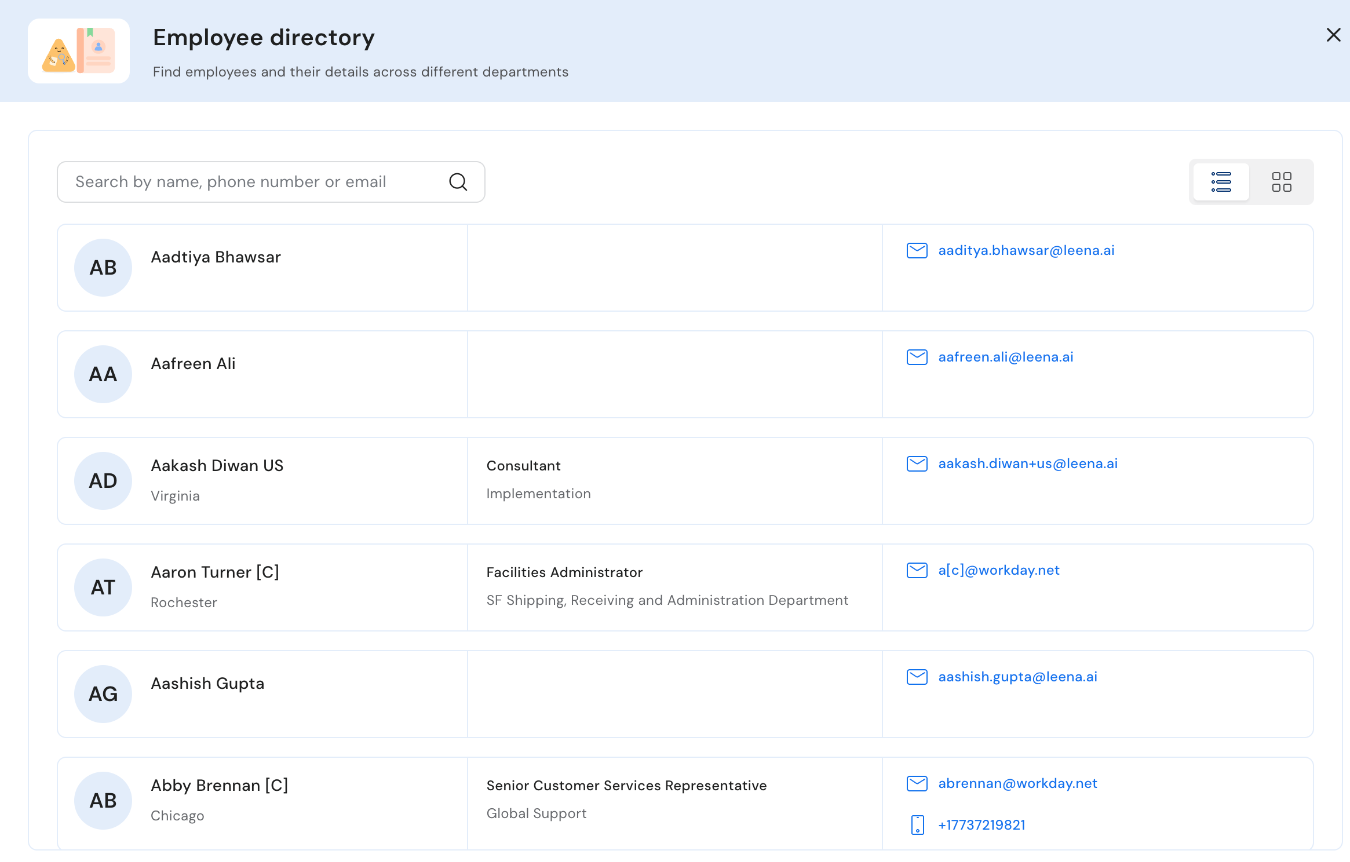
The Employee Directory
- Search by name, phone number or email. Results update as the employee types.
- Filters, if your admin has set them up, narrow the list by attributes such as department or location.
- List or grid view. Switch with the buttons at the top right.
Each entry shows the person's name, location, job title, department, email address and phone number, where your HR system provides them. Select an entry to open their details.
Asking in the chat
Employees can also ask the assistant, for example Who is Logan McNeil and how can I reach them? or Who's the VP of HR?.
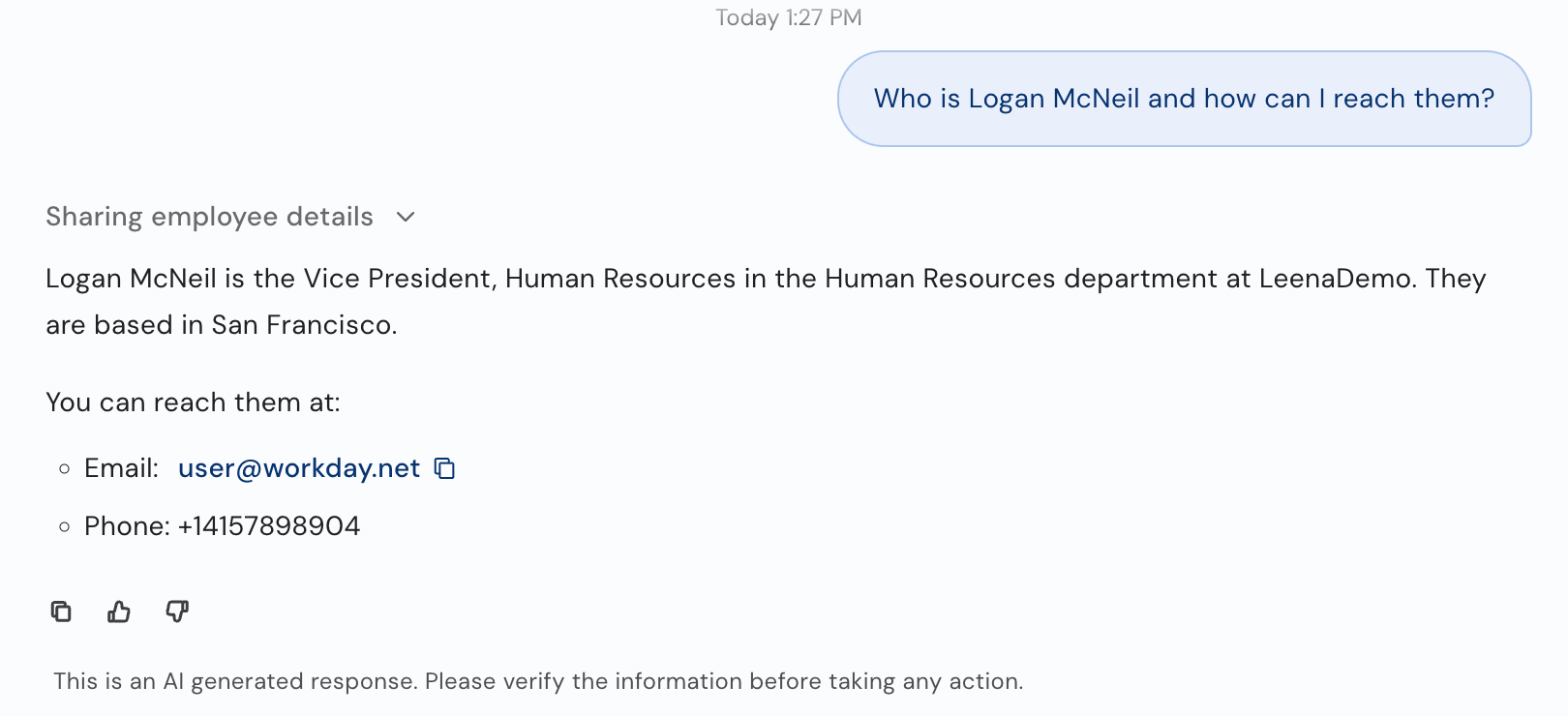
Looking someone up in the chat
Employee details
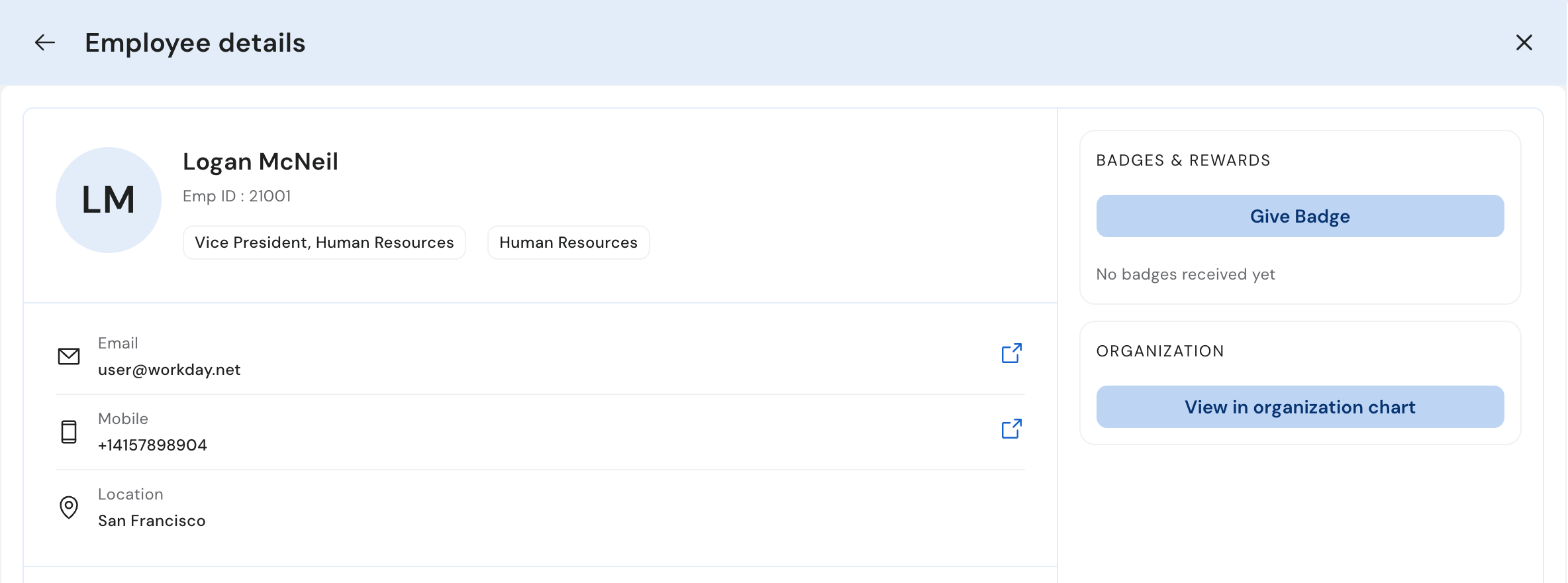
An employee's details
| Section | What it shows |
|---|---|
| Header | Name, photo or initials, employee ID, job title and department |
| Contact details | Email and mobile, each with a button to start an email or call, and location. Your admin can show more fields. |
| Manager and HR Partner | Who the person reports to and their HR contact, when your HR data includes them |
| Reportees | People who report to them |
| Colleagues | People who share their manager |
| Badges & Rewards | Badges the person has received, and Give Badge to recognize them |
| Organization | View in organization chart |
Select any manager, reportee or colleague to open their details.
Giving a badge
If badges are turned on, employees can recognize a colleague from their details page:
- Select Give Badge.
- Choose a badge. Each badge can come with a short description of what it's for.
- Add a Reason for giving badge.
- Submit.
The badge then appears on the colleague's details page for everyone to see. Your admin sets up which badges are available.
The organization chart
View in organization chart shows the person in their reporting line. Select Go up one level to see their manager's team, and use the ⋮ menu on any card to View profile or View org chart for that person. The chart is best viewed on a desktop.
Common questions
Where does the directory data come from?
From your HR system, synced into Leena AI. To correct someone's details, update them in the HR system.
Why is someone's manager or phone number missing?
That information isn't in the data synced from your HR system, or your admin has chosen not to show it.
Can employees see everyone?
They see the employees your admin makes available in the directory. Some fields may be hidden.
Updated 21 days ago