
Workday-Beta
Workday Connector for Leena AI
The Workday connector for Leena AI allows you to index and search knowledge articles from your Workday tenant. By integrating Workday with Leena AI, organizations can make published help and knowledge content easily discoverable across the company, improving access to policies, procedures, and internal guidance.
The connector focuses on ingesting knowledge articles and provides configuration options to control which articles are indexed, ensuring that only the appropriate and relevant content is made searchable within Leena AI.
Prerequisites
Before proceeding, ensure you have the following details and configurations ready in your Workday tenant:
1. Integration System User (ISU) Credentials
- Username
- Password
2. API Client for Integrations Credentials
- Client ID
- Client Secret
- Refresh Token
3. OAuth Configuration
- OAuth 2.0 Clients Enabled: Must be enabled in Workday.
- Edit Tenant Setup Access: Required to verify and configure OAuth settings.
4. Required URLs
- Token Endpoint
- Workday REST API Endpoint
Set Up the Connector
During the setup process in Leena AI, you will provide a name and icon for the data source along with the following:
- Domain (host name)
- Tenant name
- Client ID
- Client Secret
- Refresh Token
Finding your Domain and Tenant Name
Refer to your Workday service endpoint URL.
Example URL:
https://wd2-impl-services1.workday.com/ccx/service/tenant_name/Human_Resources/v44.0
- Domain:
wd2-impl-services1.workday.com - Tenant Name:
tenant_name(the value immediately following/service/)
Grant ISU Domain Security Permissions
To enable secure access, you must create an Integration System User (ISU) and an Integration System Security Group (ISSG).
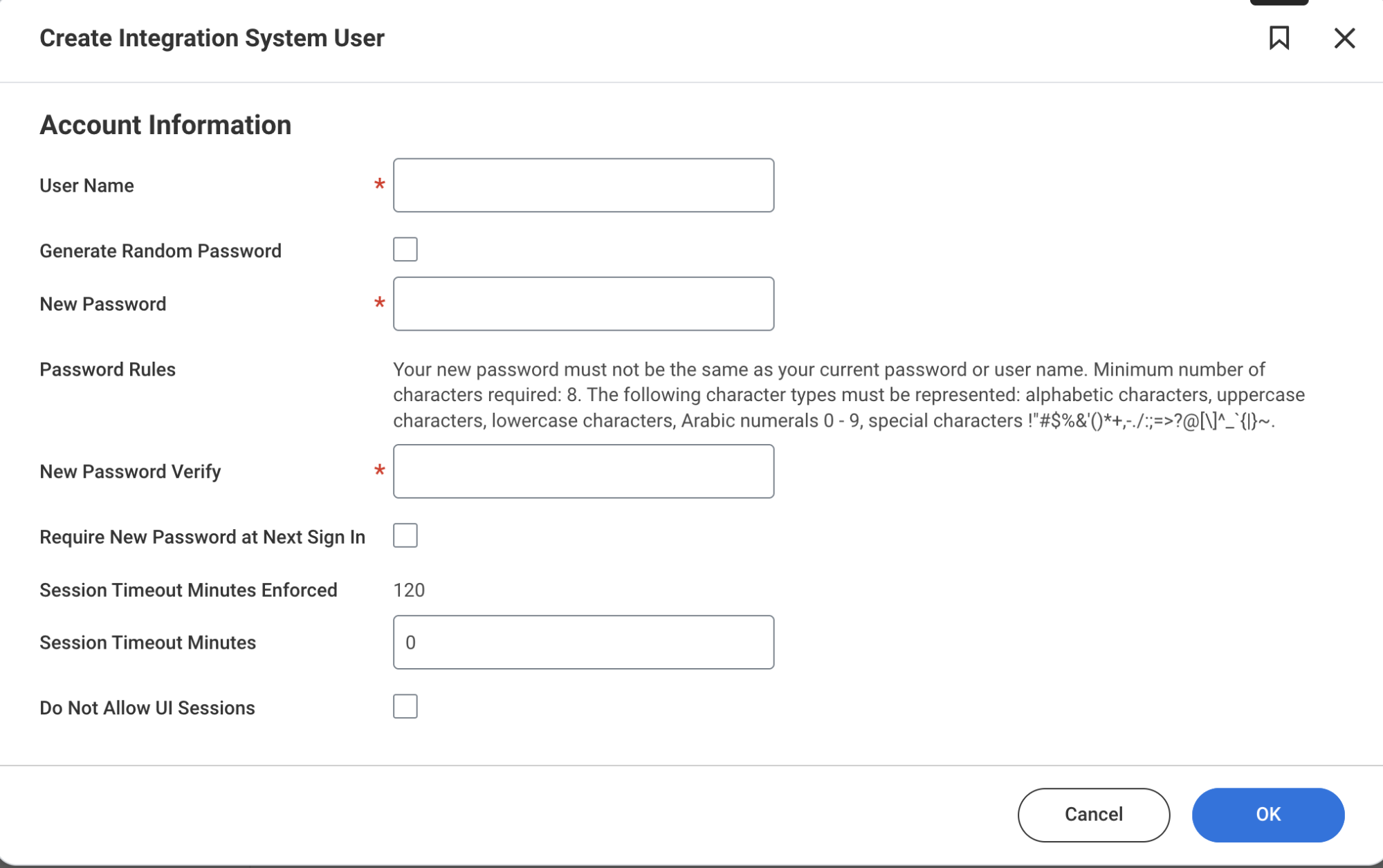
1. Create the Integration System User (ISU)
-
Use Universal Search to locate the Create Integration System User task.

-
Configure the user details and securely record the username and password.
-
Confirm the ISU has default permissions assigned.
2. Create an Integration System Security Group (ISSG)
-
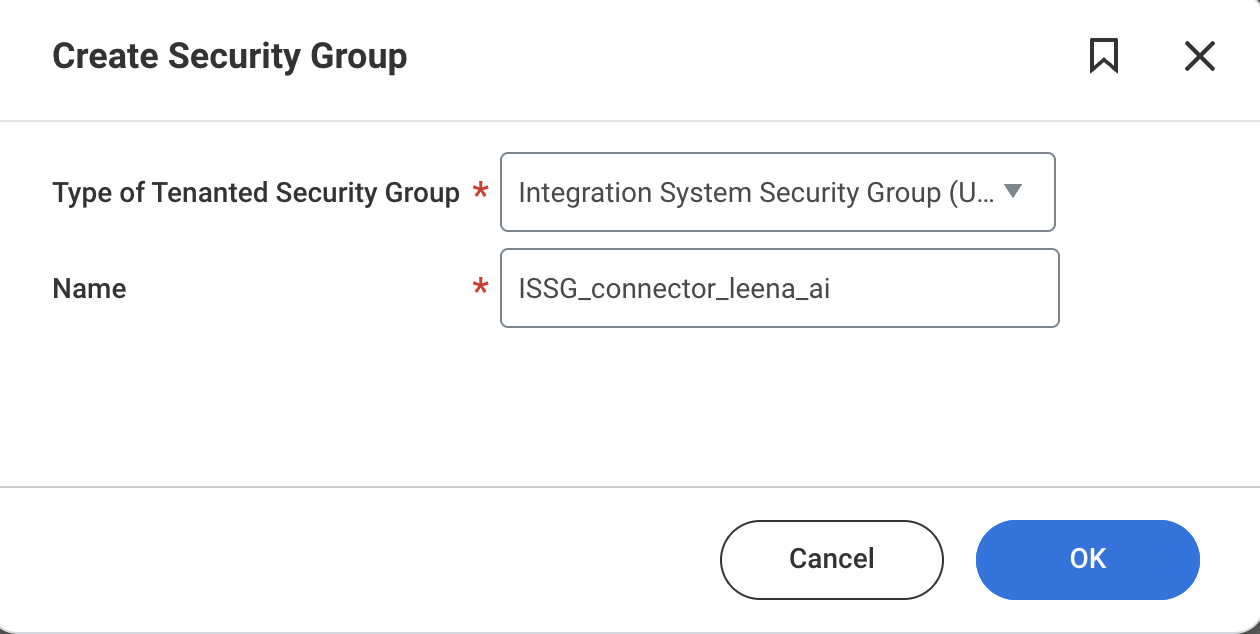
Search for the Create Security Group task.

-
Select Integration System Security Group (Unconstrained) as the type.
-
Name the group (e.g.,
ISSG_connector_leena_ai).
3. Add the ISU to the ISSG
-
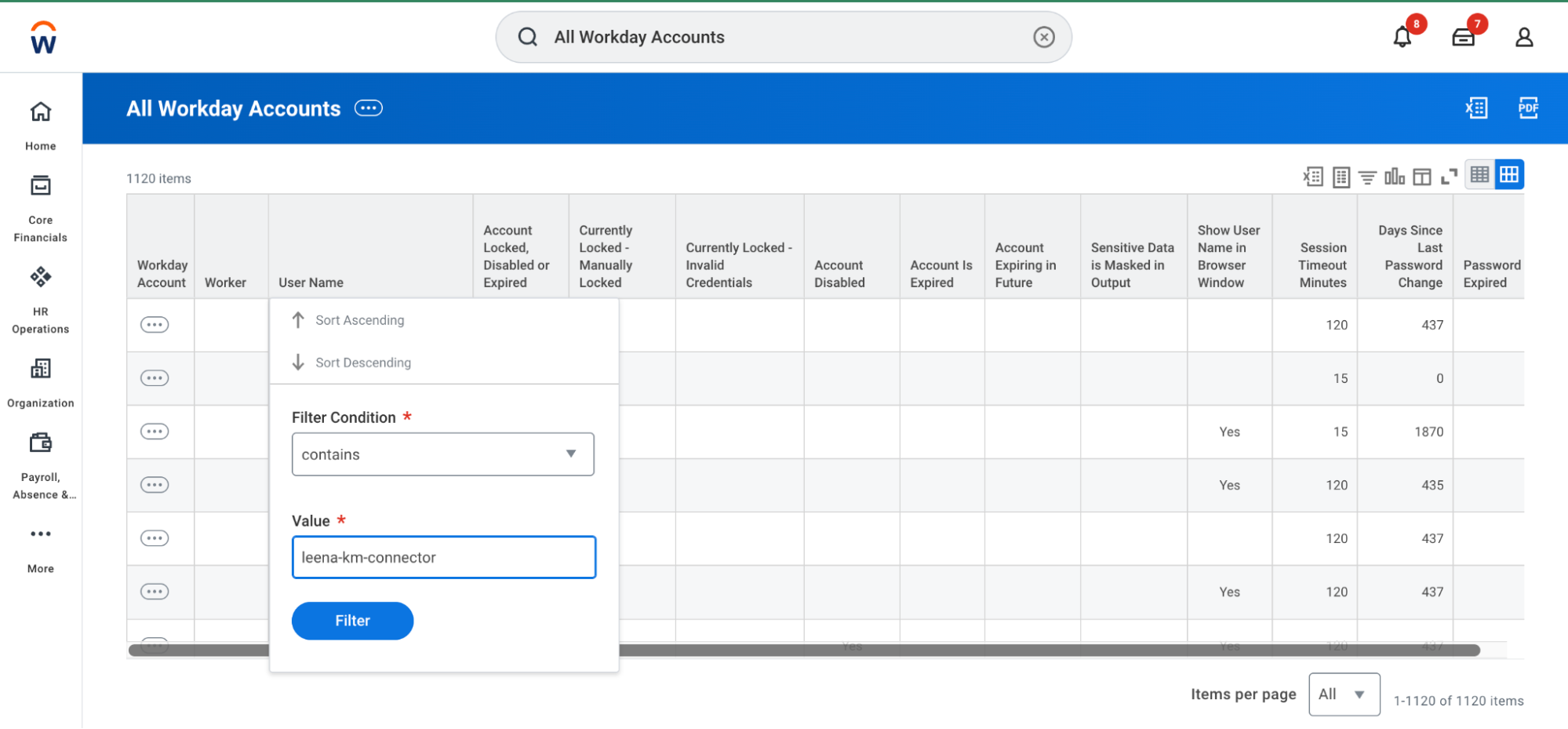
Run the All Workday Accounts report to find your ISU.
-
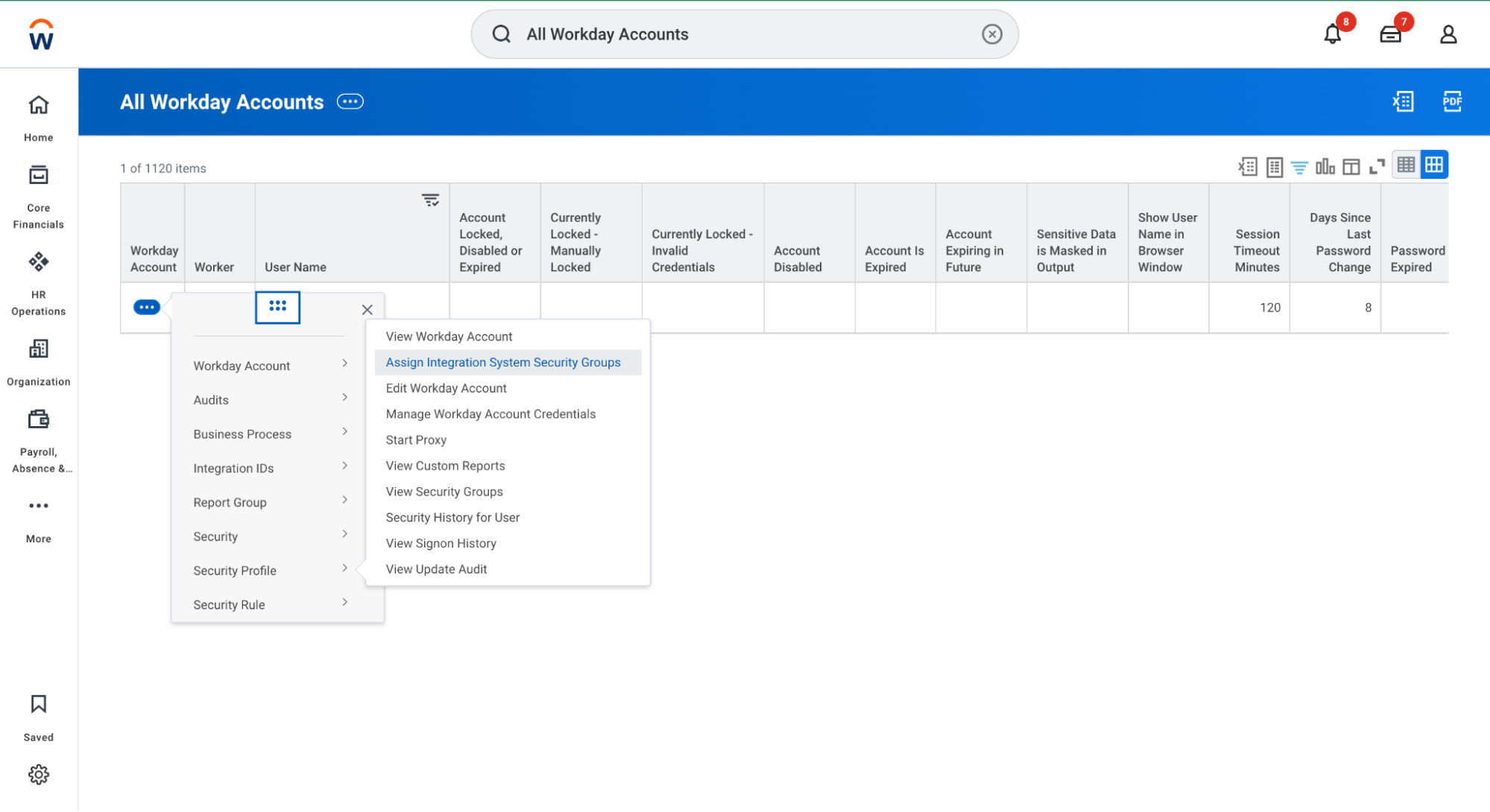
From the action menu, select Assign Integration System Security Groups.
-
Add the ISU to the group created in the previous step.
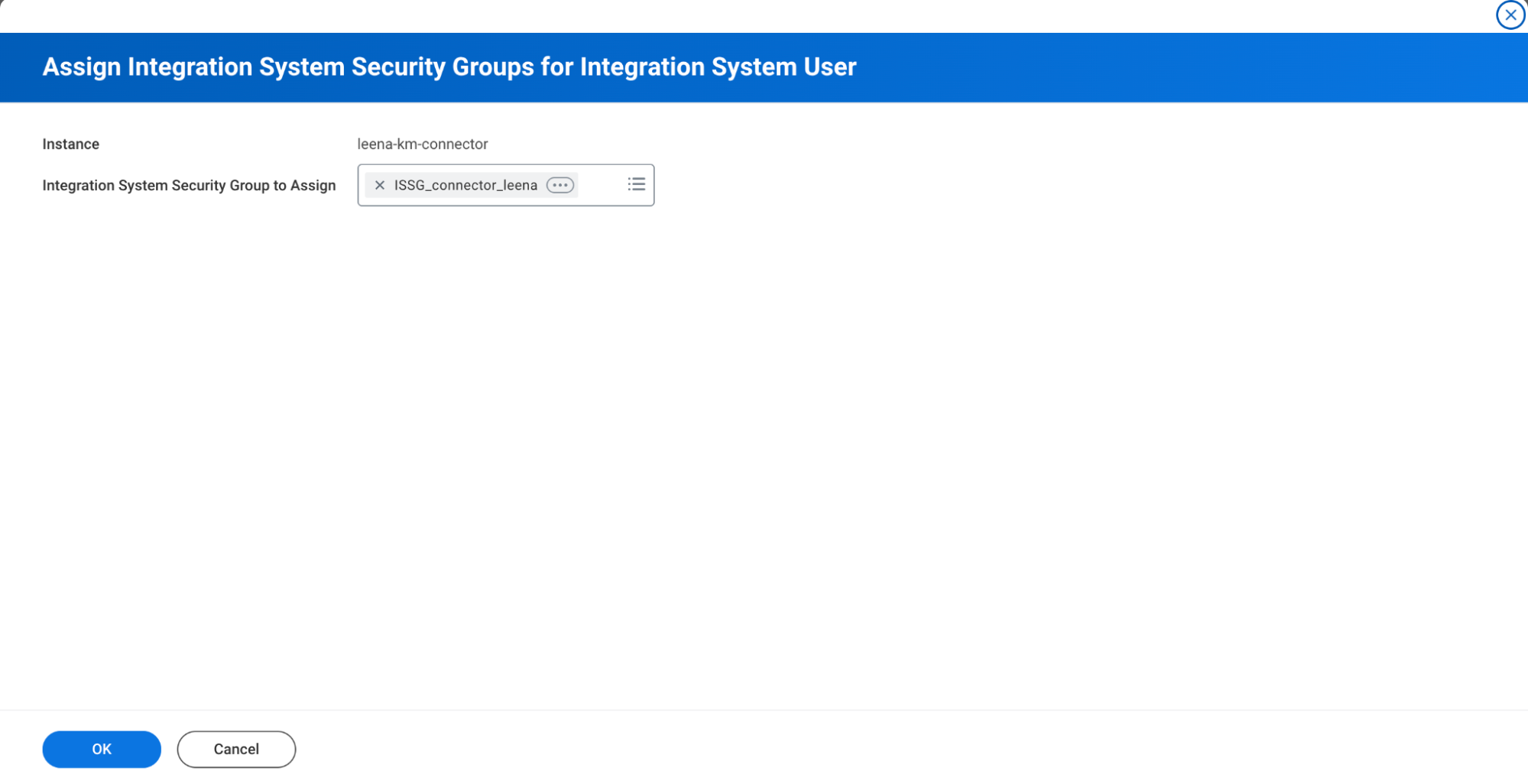
4. Add Domain Security Policies
-
Open the ISSG using the View Security Group report.
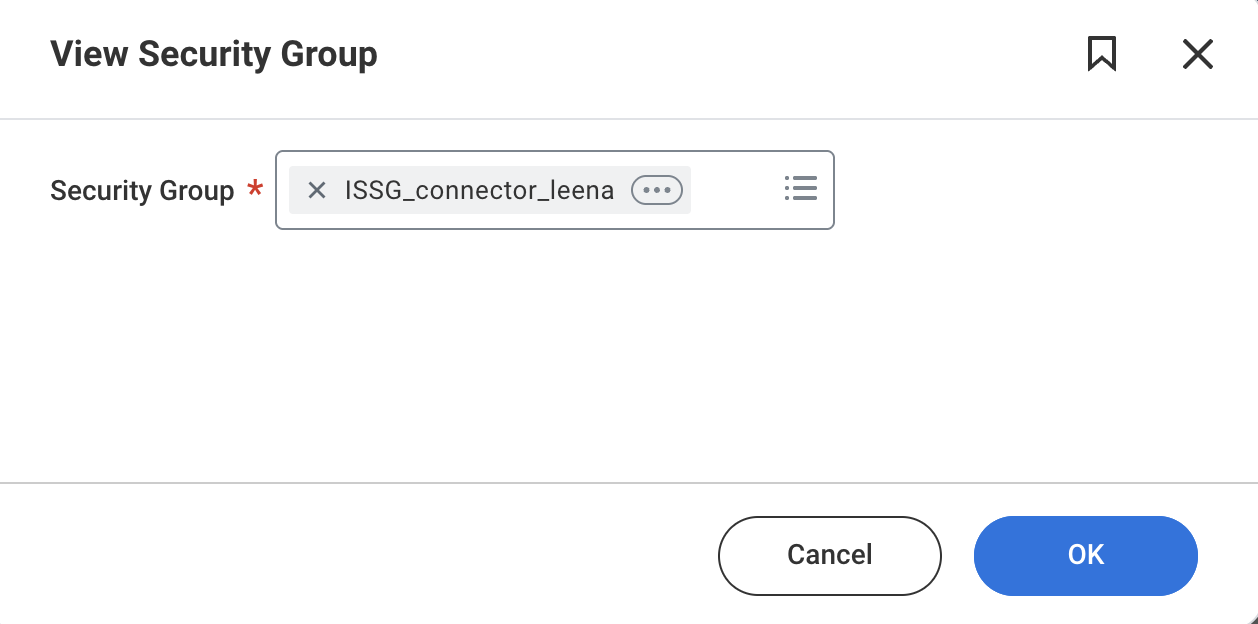
-
Select Maintain Domain Permissions for Security Group from the related actions menu.
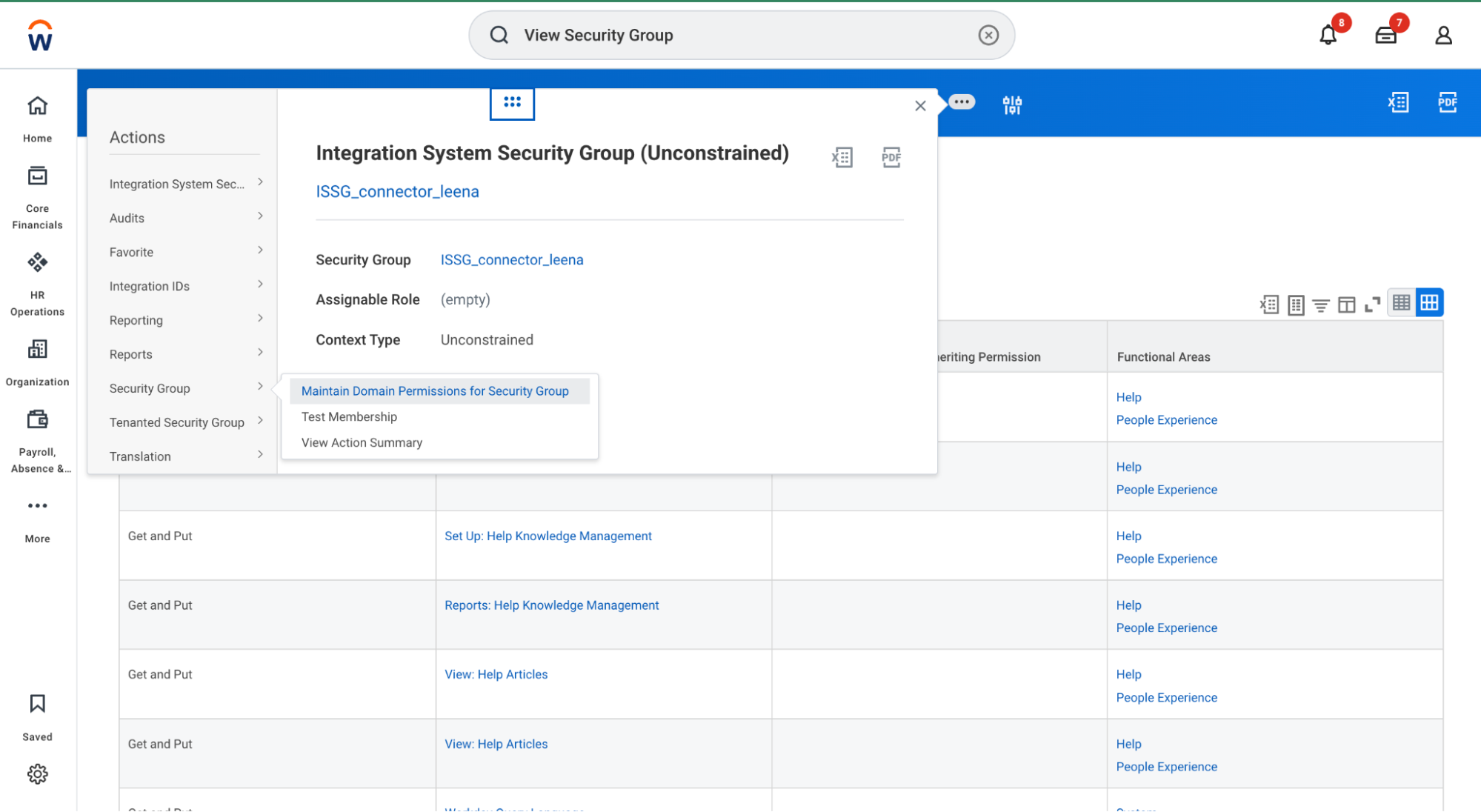
-
Add the following permissions:
| Permission Type | Permission | Business Justification |
|---|---|---|
| View Only | Help Article REST API | To read Article content present in Workday |
| Get Only | Help Article REST API | To fetch Article data from Workday REST API |
-
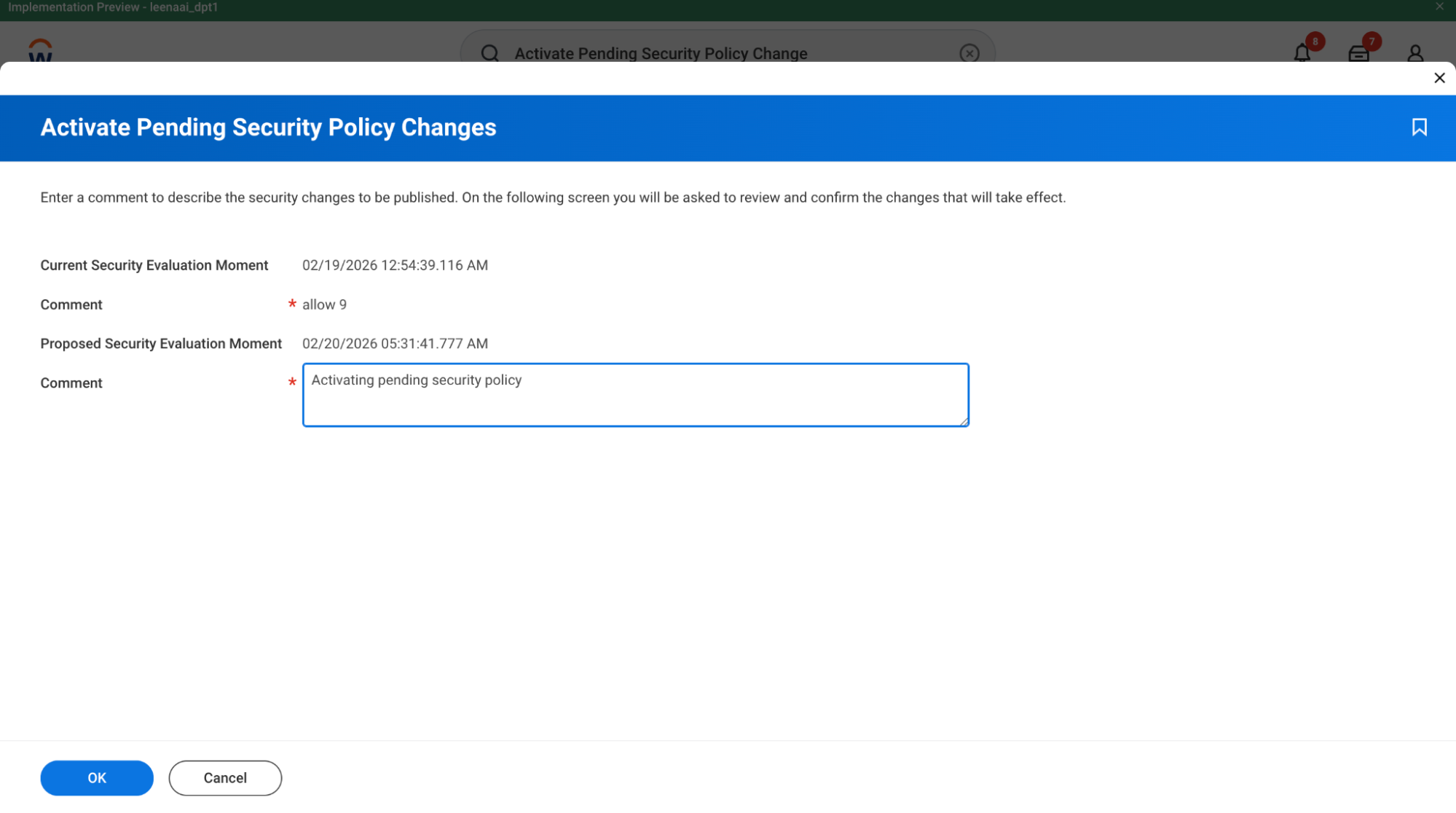
Run the Activate Pending Security Policy Changes task to apply updates.
Create API Client for Integrations
1. Register the API Client
-
Search for Register API Client for Integrations.
-
Name the client (e.g.,
connector_leena_ai).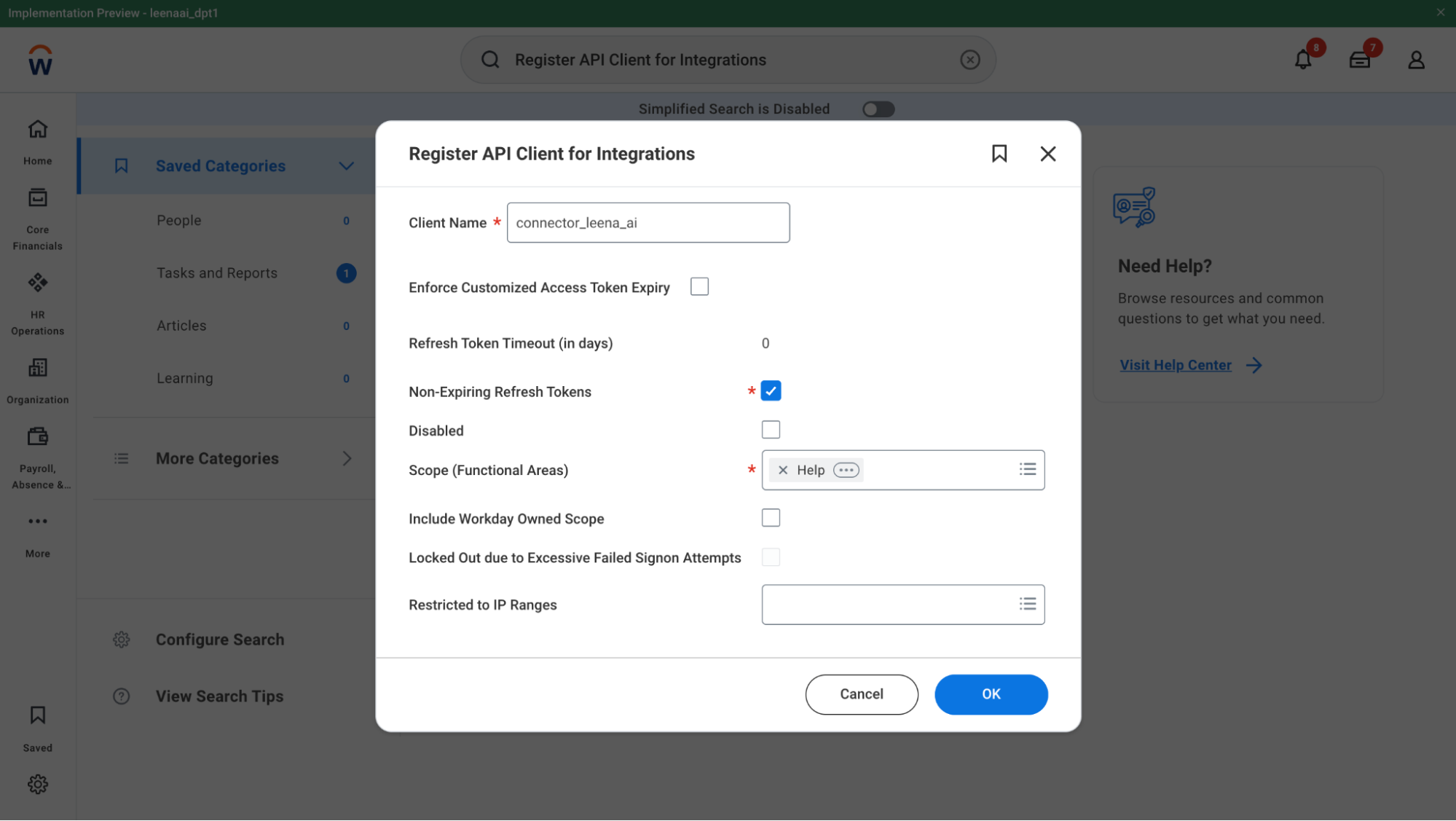
-
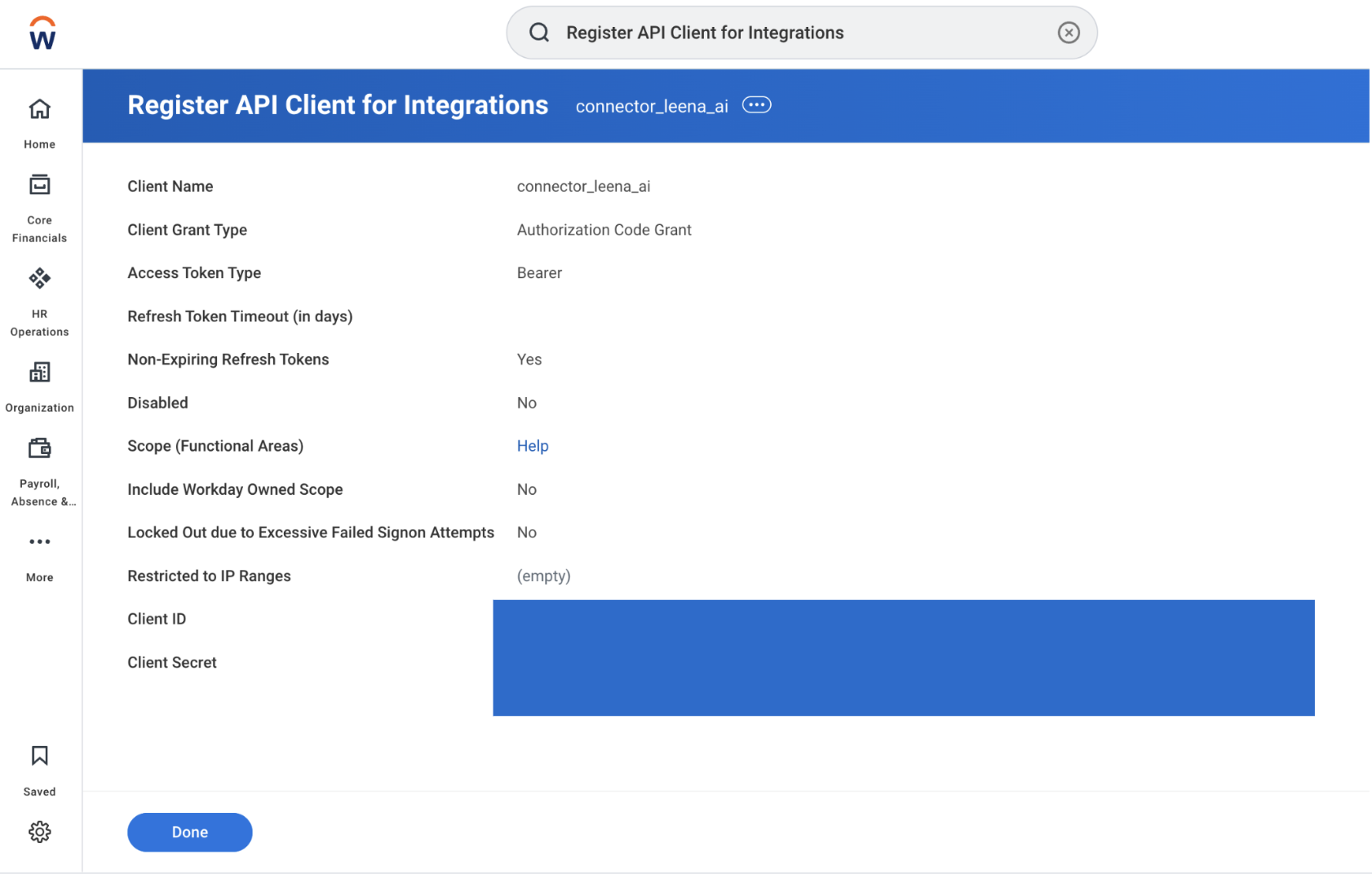
Add the required functional areas (Help scopes).
-
Record the Client ID and Client Secret.
2. Retrieve Endpoint Details
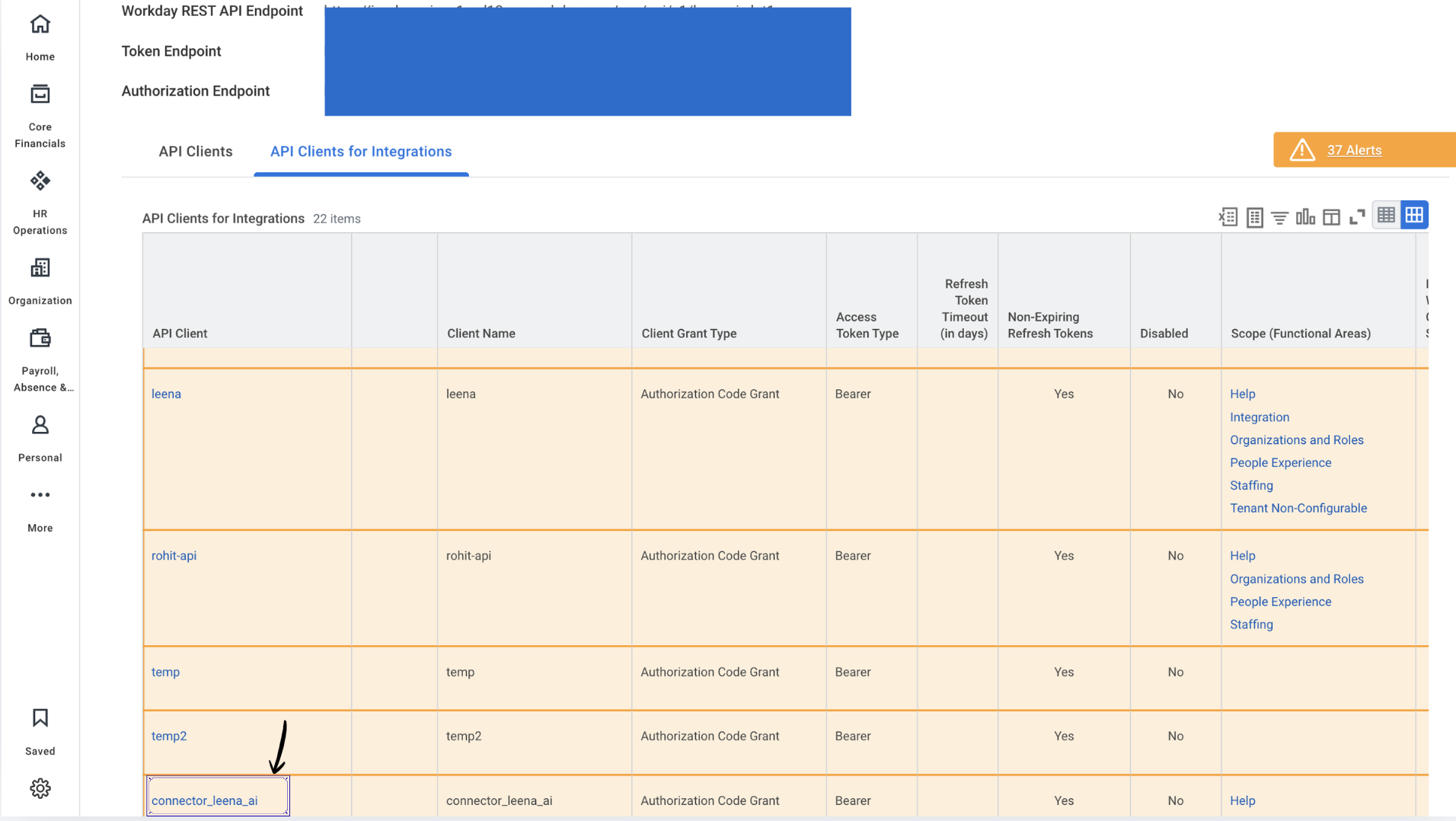
- Search for View API Clients.
- Locate your client and record the:
-
Token Endpoint
-
Workday REST API Endpoint
3. Generate a Refresh Token
-
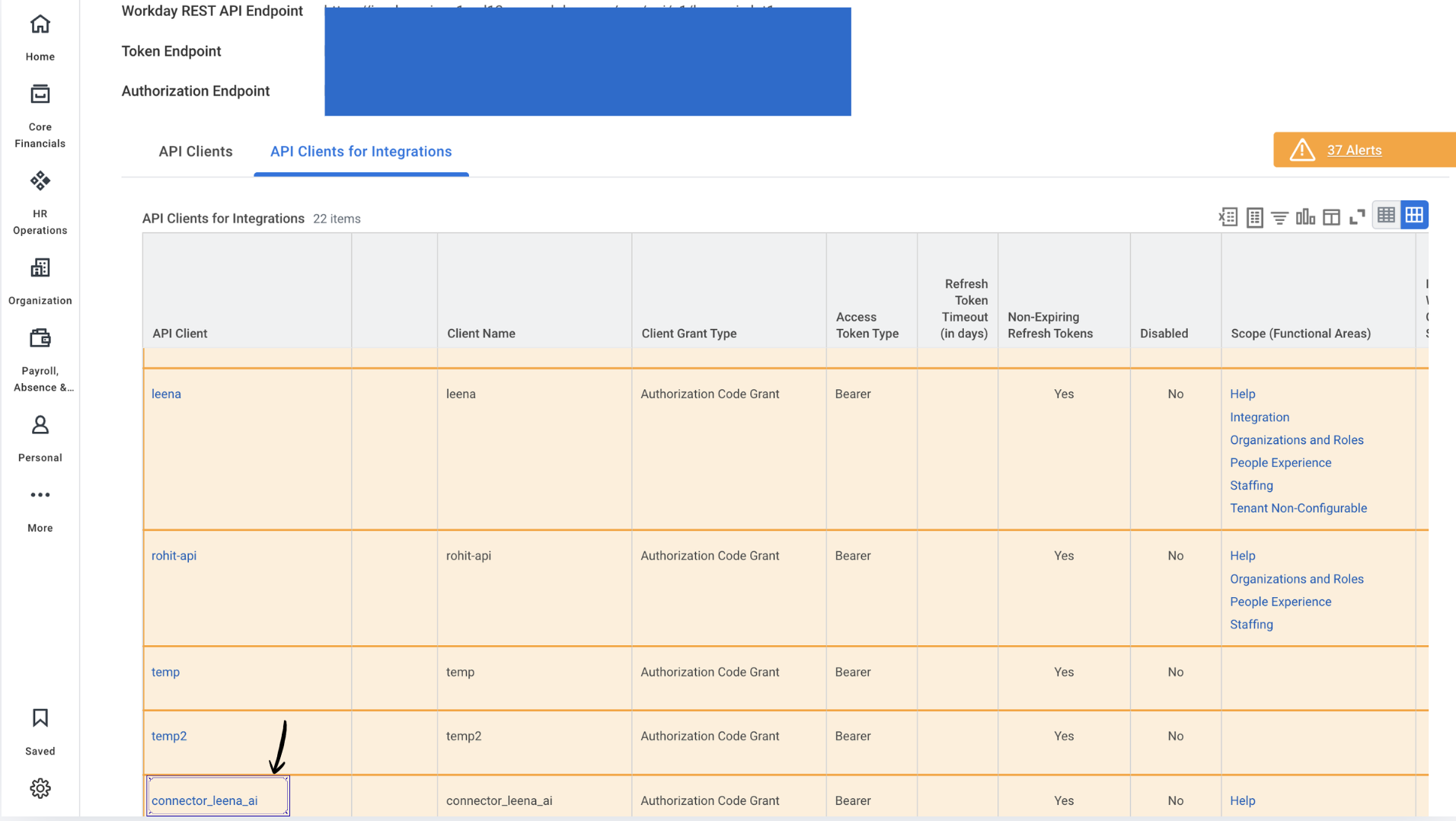
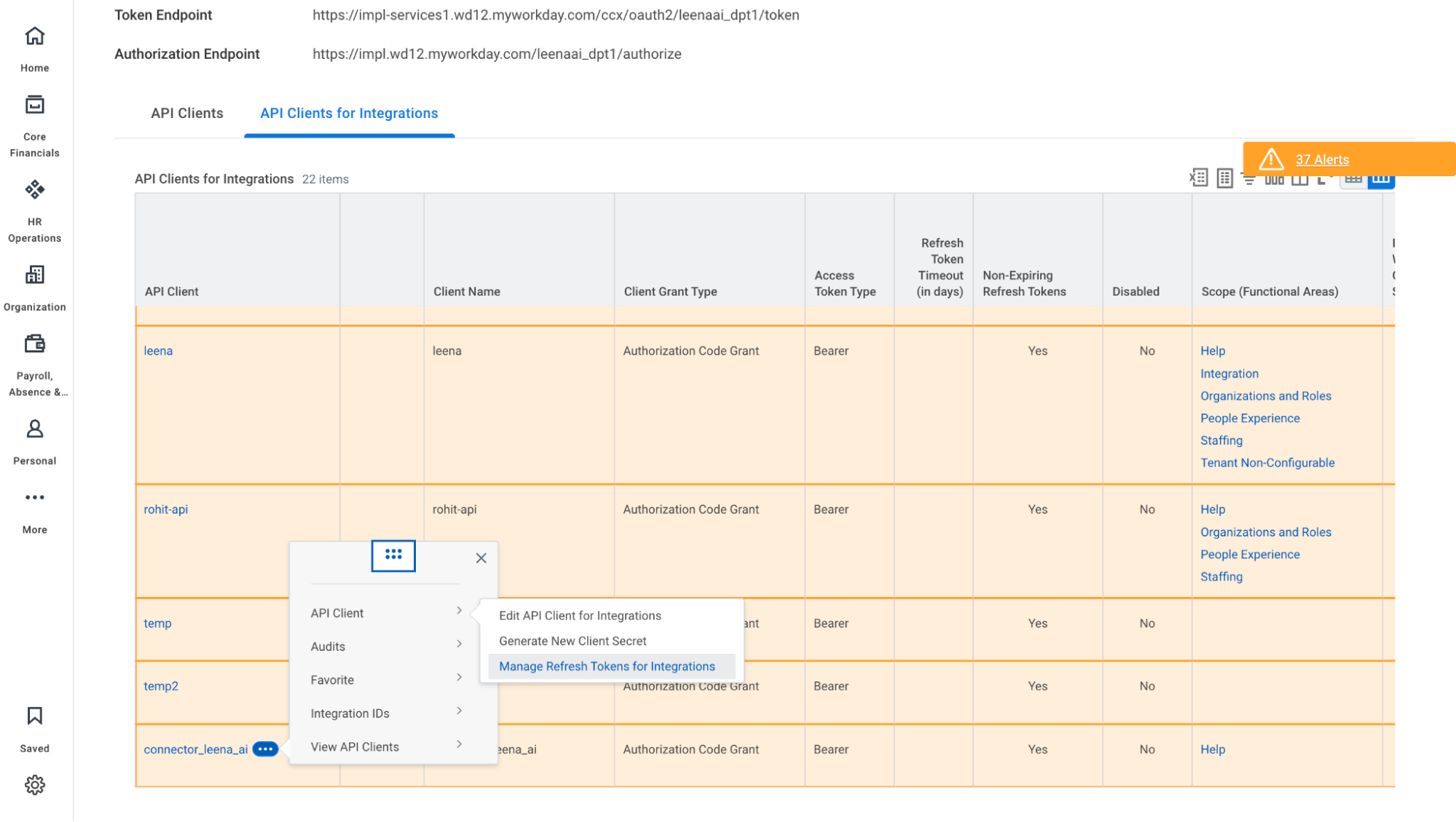
In View API Clients, go to the API Clients for Integrations tab.
-
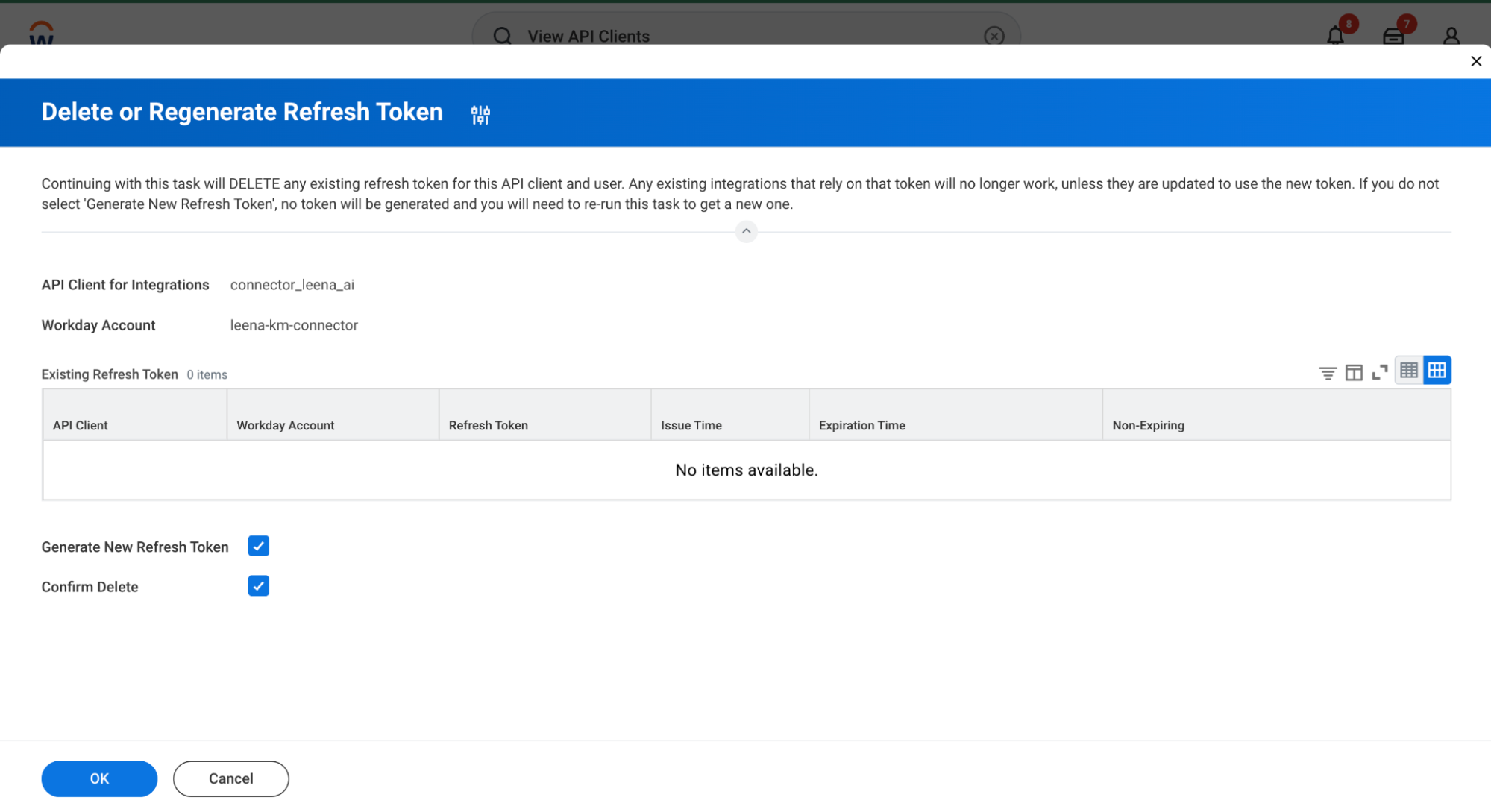
Select your client and choose Manage Refresh Tokens for Integrations.
-
-
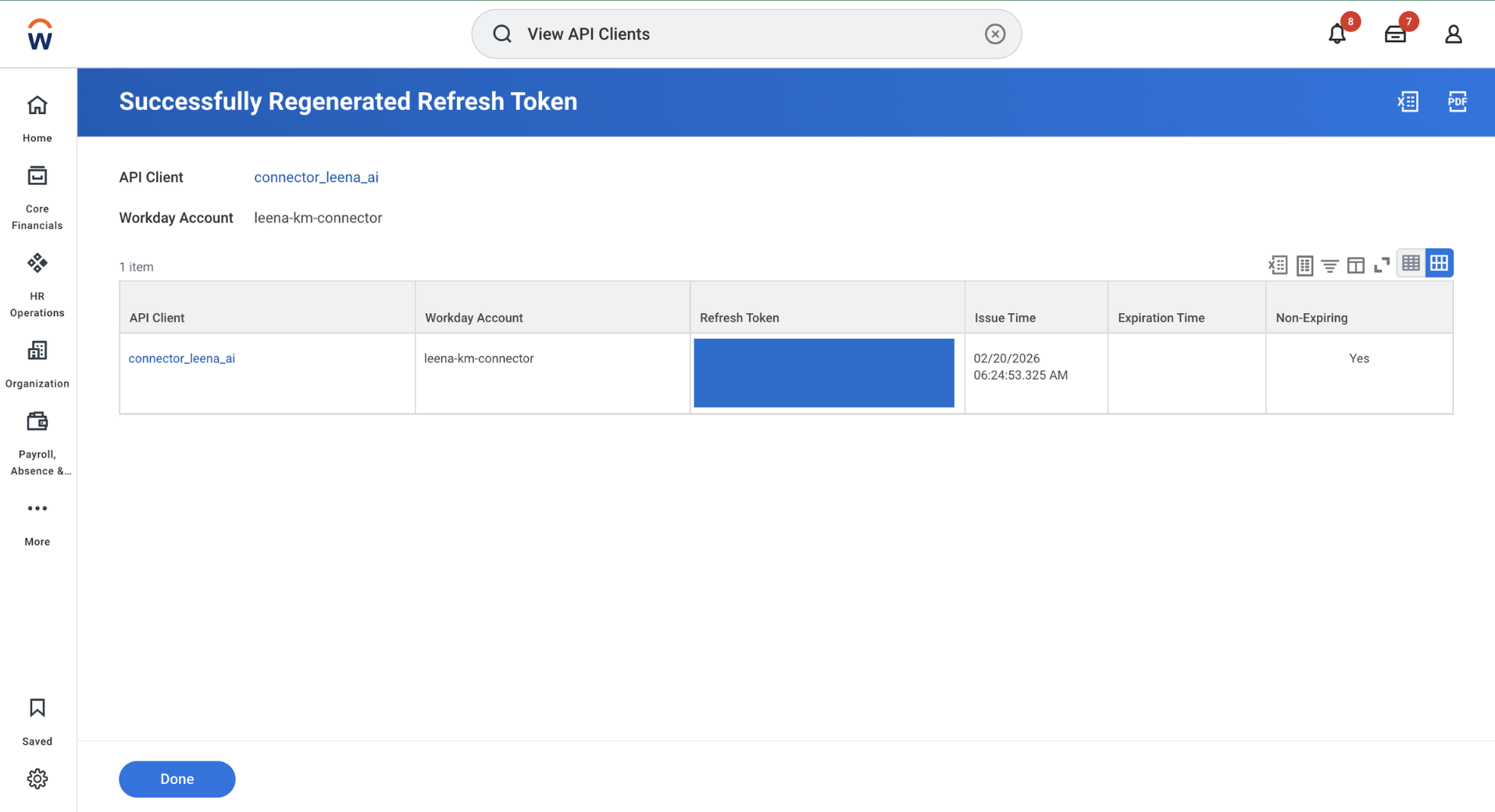
Add your ISU account and click Generate Refresh Token.
-
Securely record the generated Refresh Token.
Checklist for Leena AI KM Integration
Ensure you have these 6 items ready for the Knowledge Management Dashboard:
- ISU Username
- ISU Password
- Client ID & Client Secret
- Token Endpoint
- REST API Endpoint
- Refresh Token
- Domain and Tenant name
Finalizing Setup in Leena AI
- Log in to the Knowledge Management Dashboard.
- Navigate to Settings —> Integrations.
- Find the Workday Connector and click Connect.
- Complete the setup wizard by entering the credentials fetched above.
- Click Connect and choose between Manual Sync or Auto Sync.
Updated 3 months ago