
Salesforce
Overview
The Salesforce Connector allows the KM platform to ingest and index articles, cases, and documentation from your Salesforce instance. This is achieved by creating an External Client App in Salesforce to act as a secure bridge.
Prerequisites
-
Salesforce Admin Access: Required to create External Client Apps and manage OAuth settings.
-
Leena AI KM Admin Access: Required to input credentials and manage the integration.
-
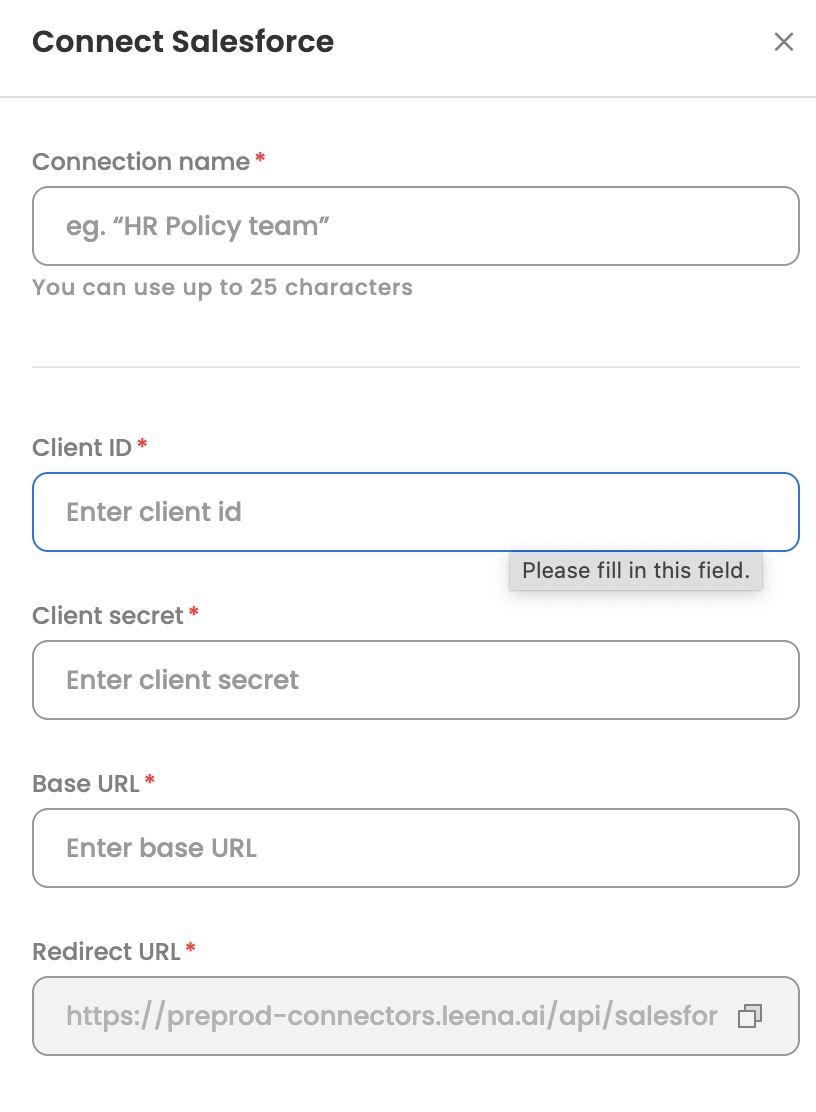
Redirect URL: Located in your Leena AI KM Dashboard under Settings > Integrations > Salesforce.
Installation Steps
1. Configure the Salesforce External App
-
Log in to Salesforce and navigate to Setup.
-
Use the Quick Find box to locate External Client App Manager and select New External Client App.

-
Basic Information: Add the details about the app as you may deem suitable.
-
External Client App Name:
Leena_KM_Connector(or preferred name).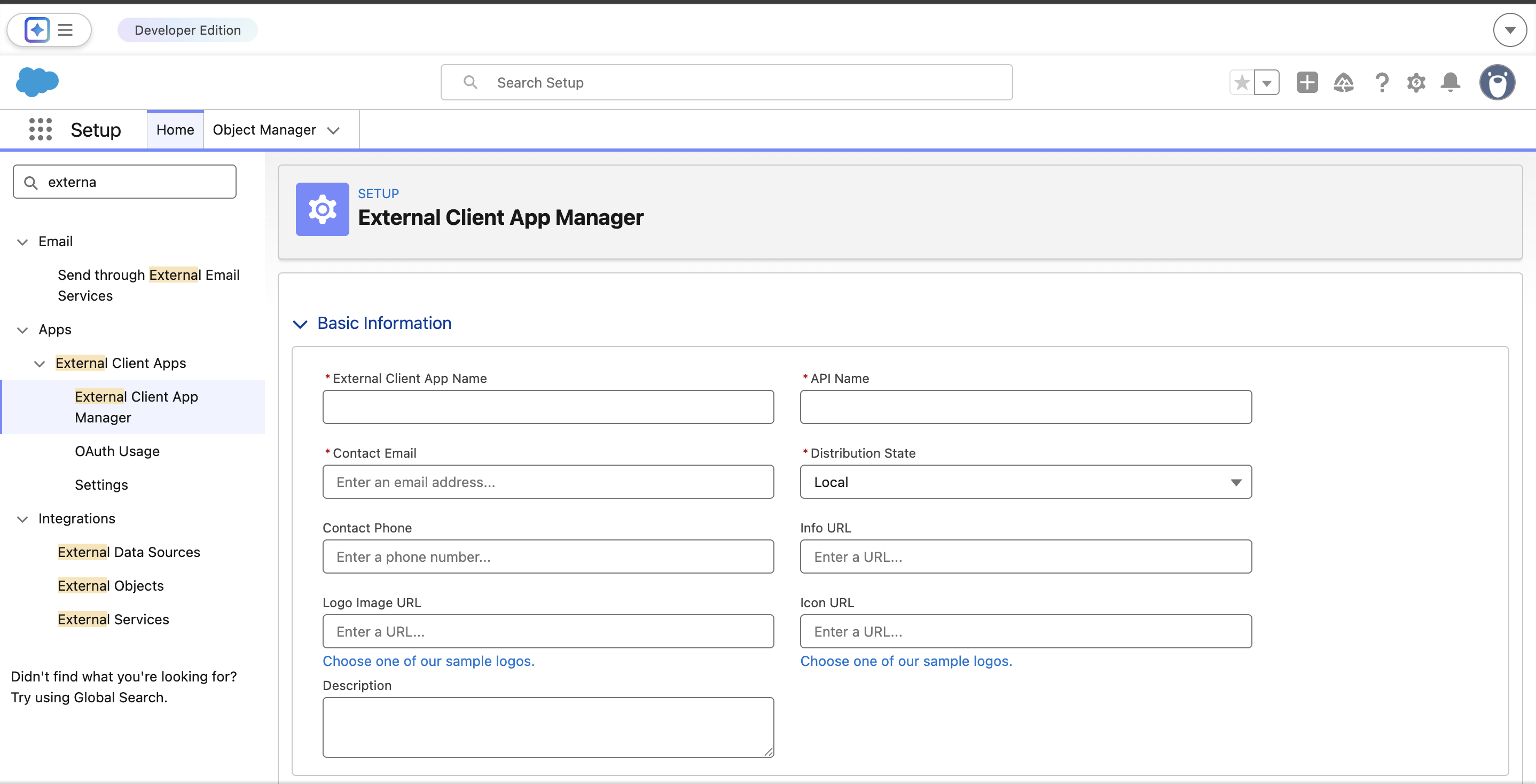
-
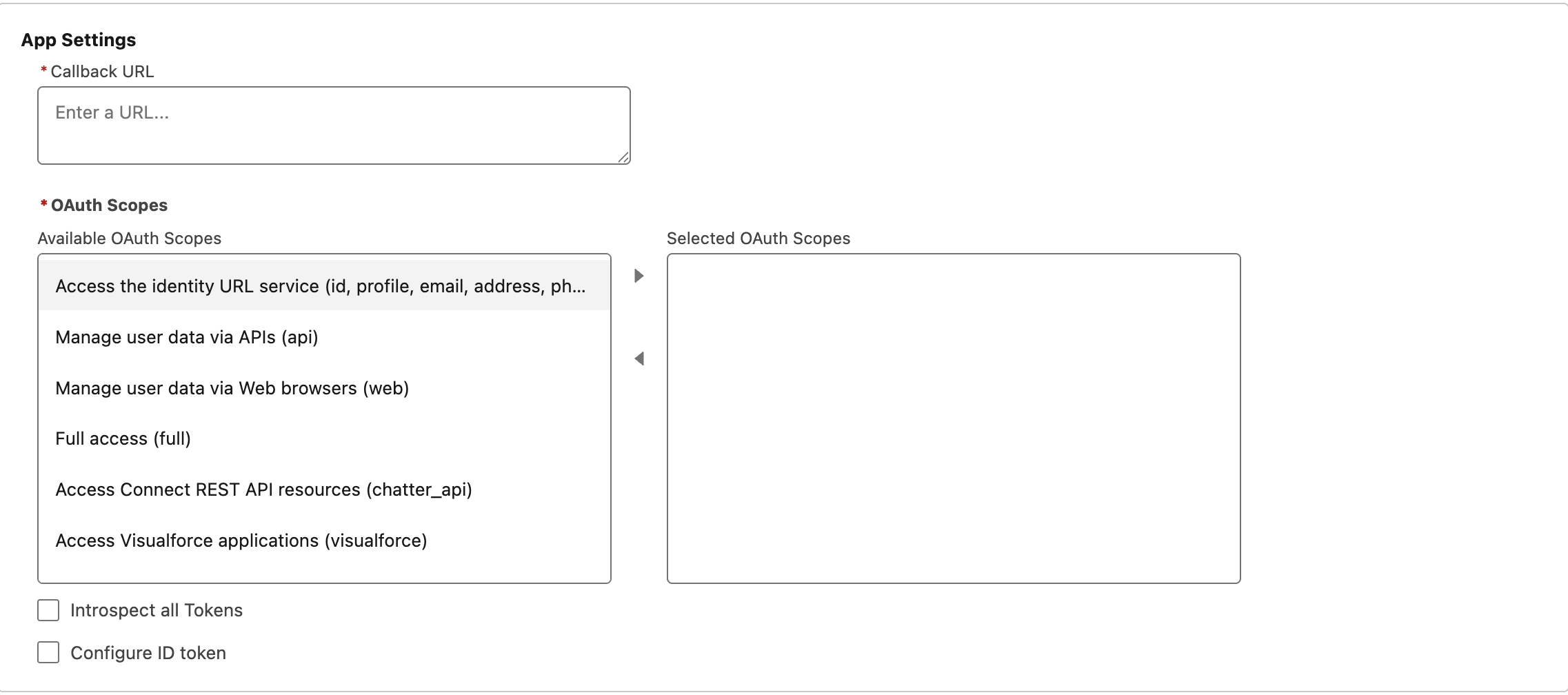
Go to OAuth Settings and select Enable OAuth.
-
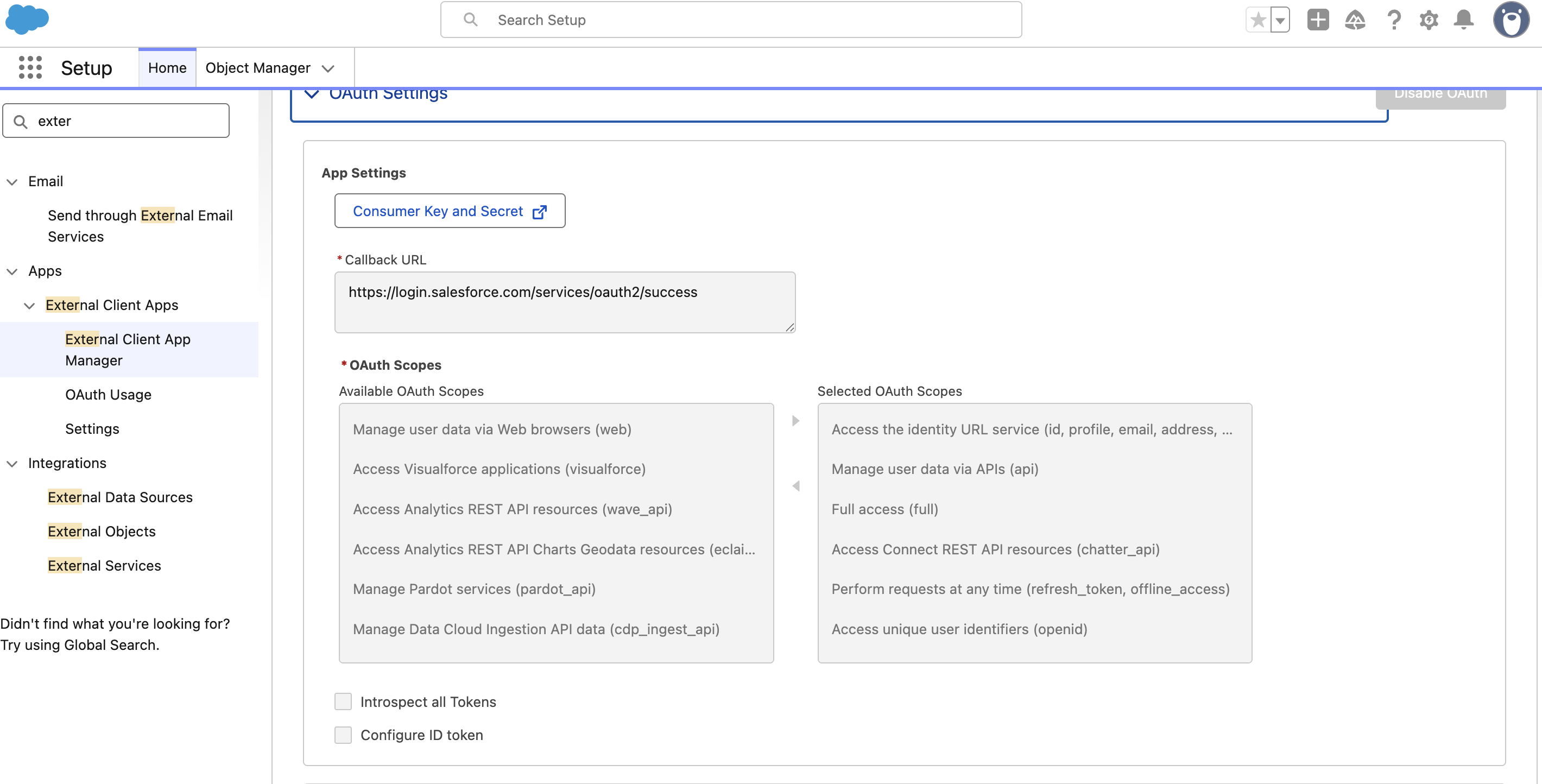
OAuth Settings---->App Settings---->Callback URL Add Callback Url fetched from Leena KM dashboard.
-
OAuth Settings---->App Settings---->OAuth Scopes Select all Available OAuth Scopes.
-
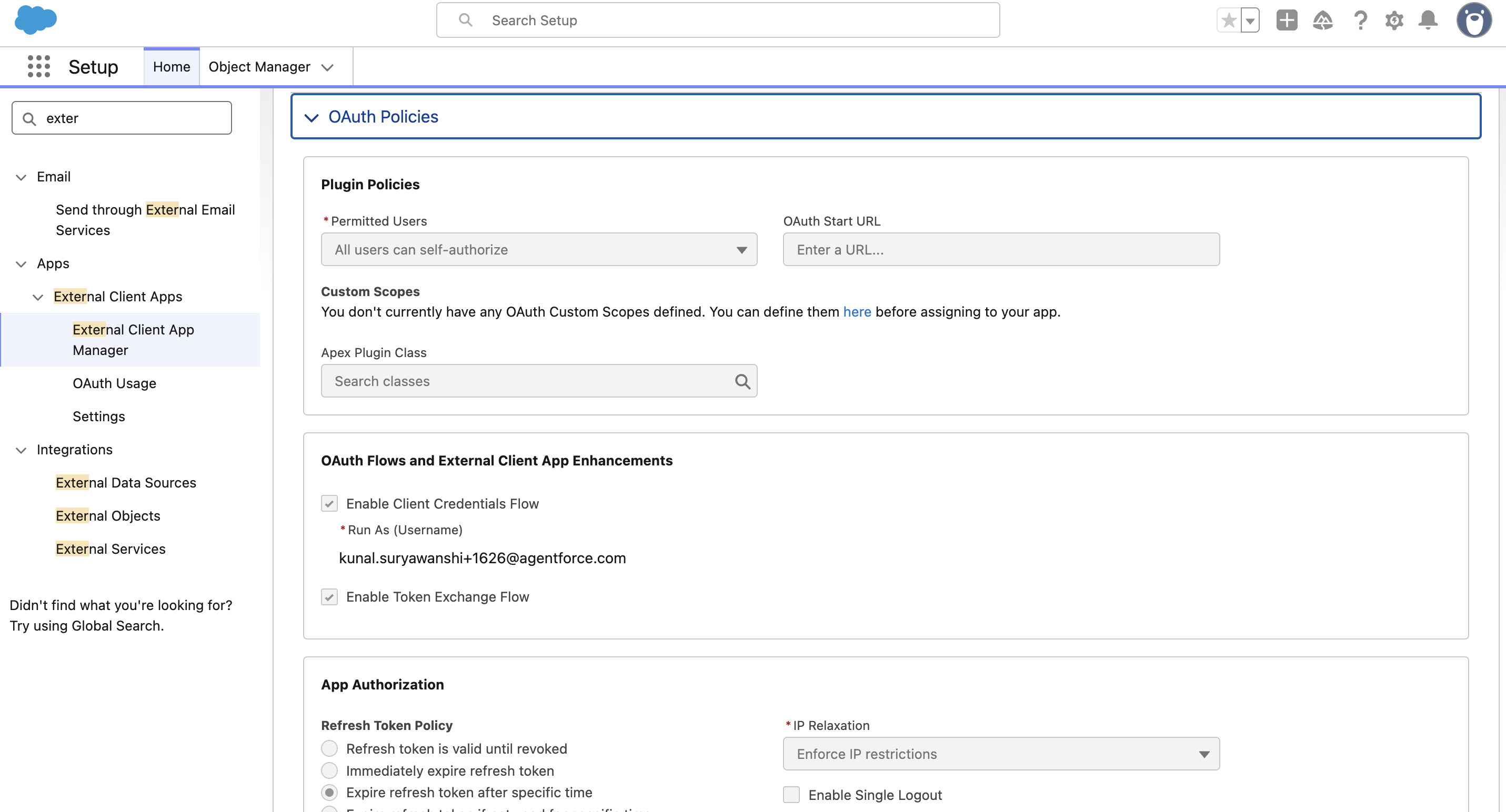
OAuth Settings---> Plugin Policies
-
Select Permitted Users as 'All users can self-authorize' . Leave other fields as blank within plugin policies.
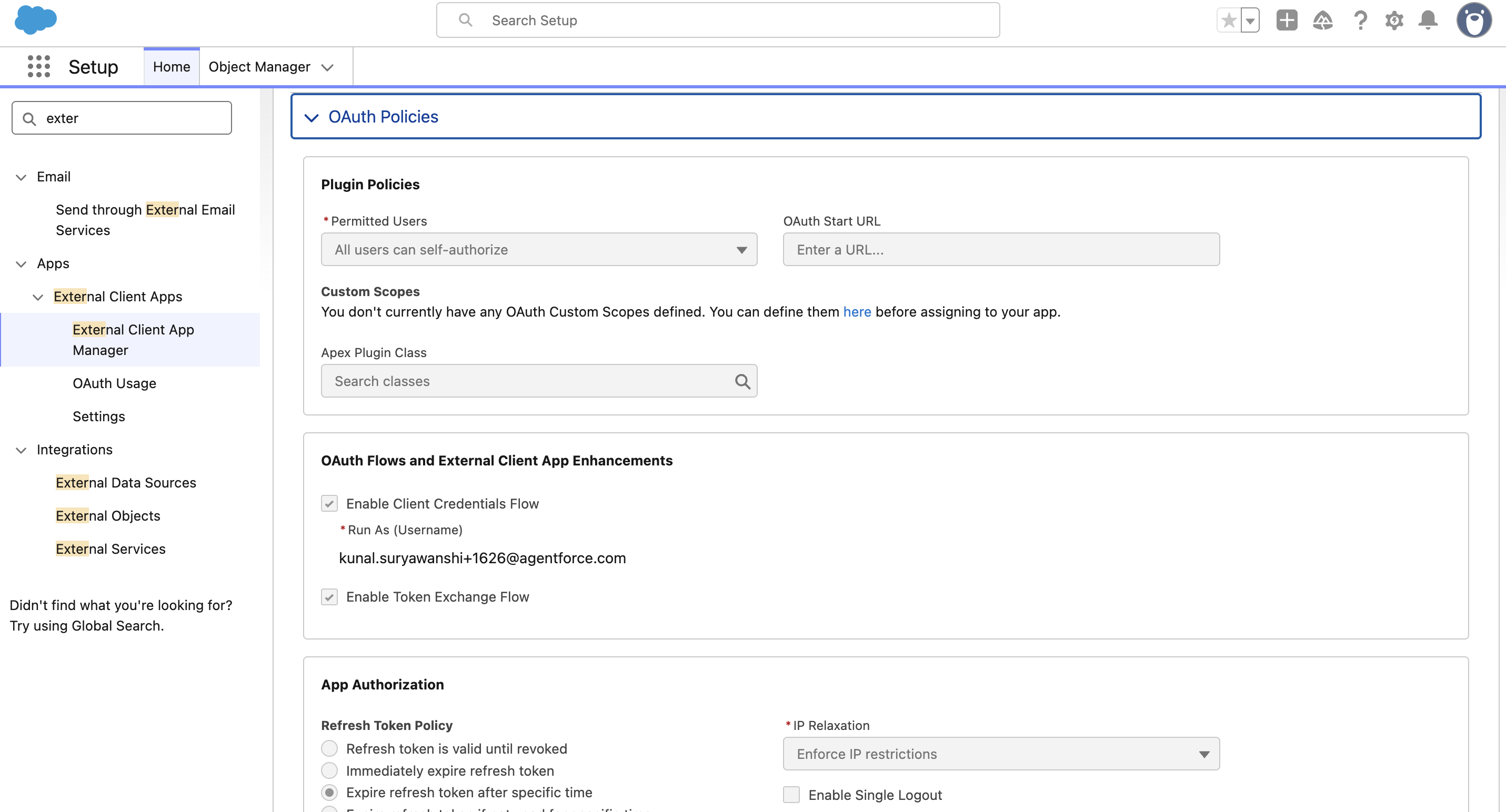
- OAuth Settings---->OAuth Flows and External Client App Enhancements:
-
Flow Enablement: We recommend you to select 'Enable Client Credentials Flow' and 'Enable Token Exchange Flow'.
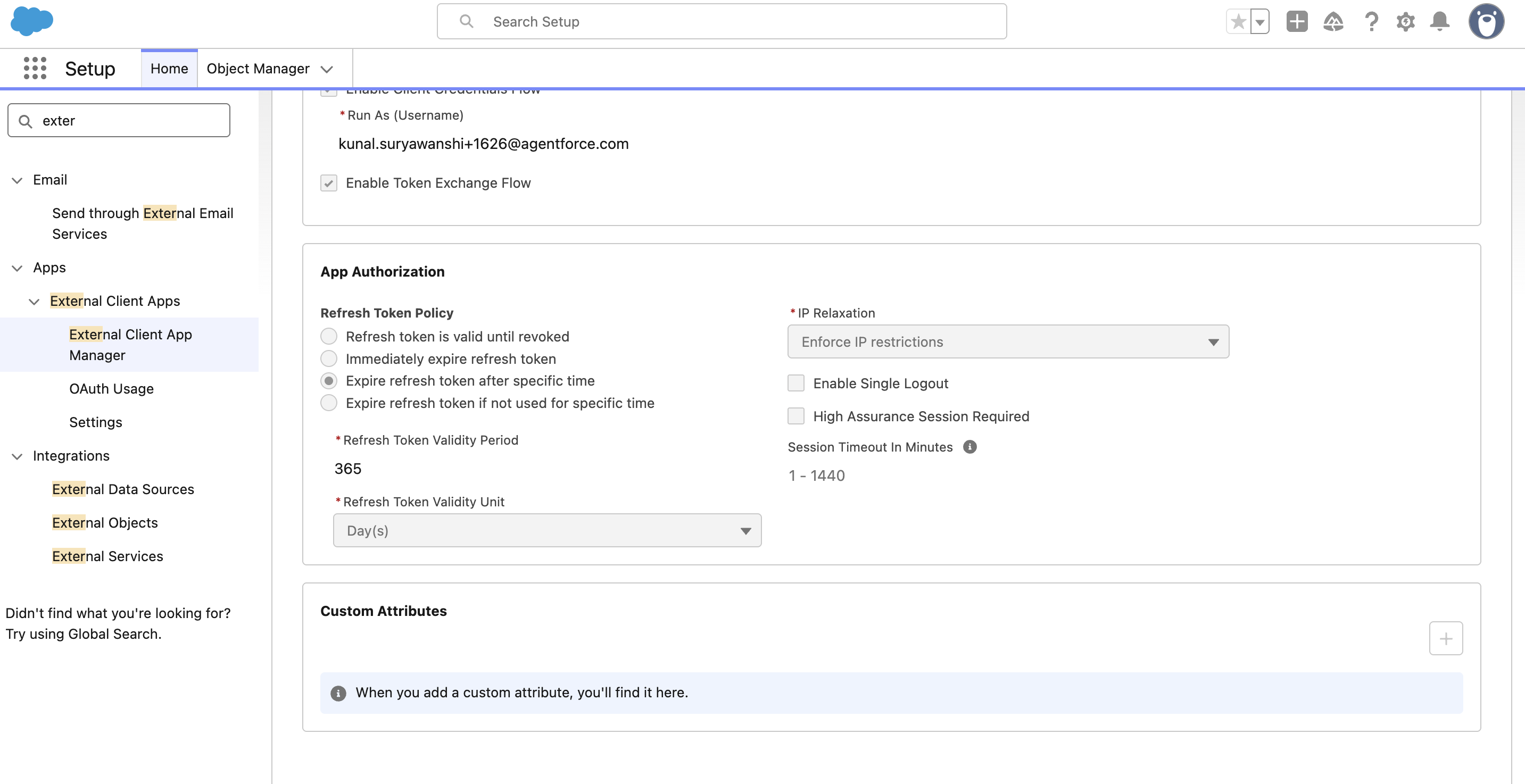
- OAuth Settings--->App Authorization
- Within Refresh Token Policy to select 'Expire refresh token after specific time'.
- Within IP relaxation select 'Enforce IP restrictions'.
-
OAuth Settings--->Security
Within Security section select the following configuration.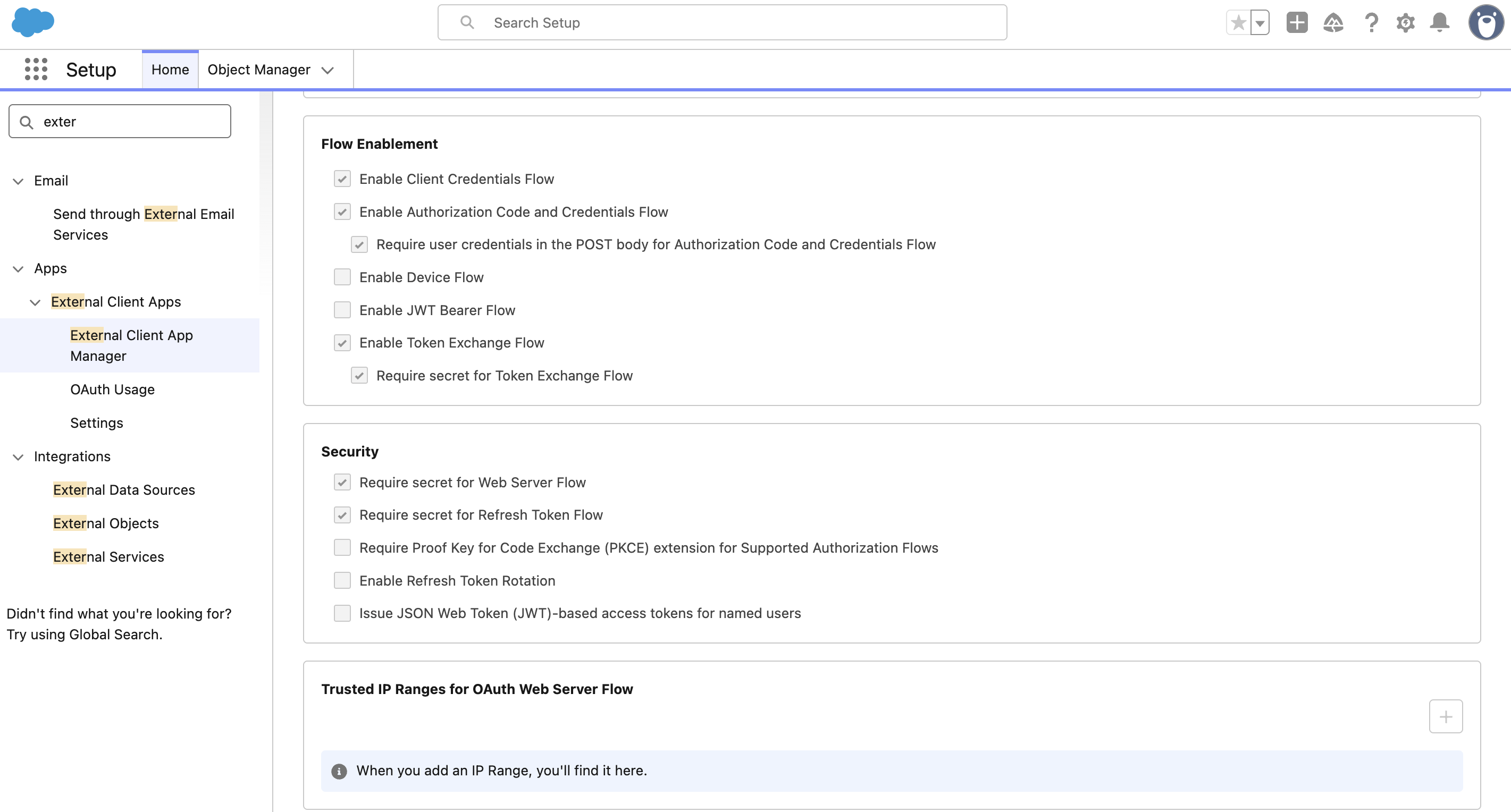
-
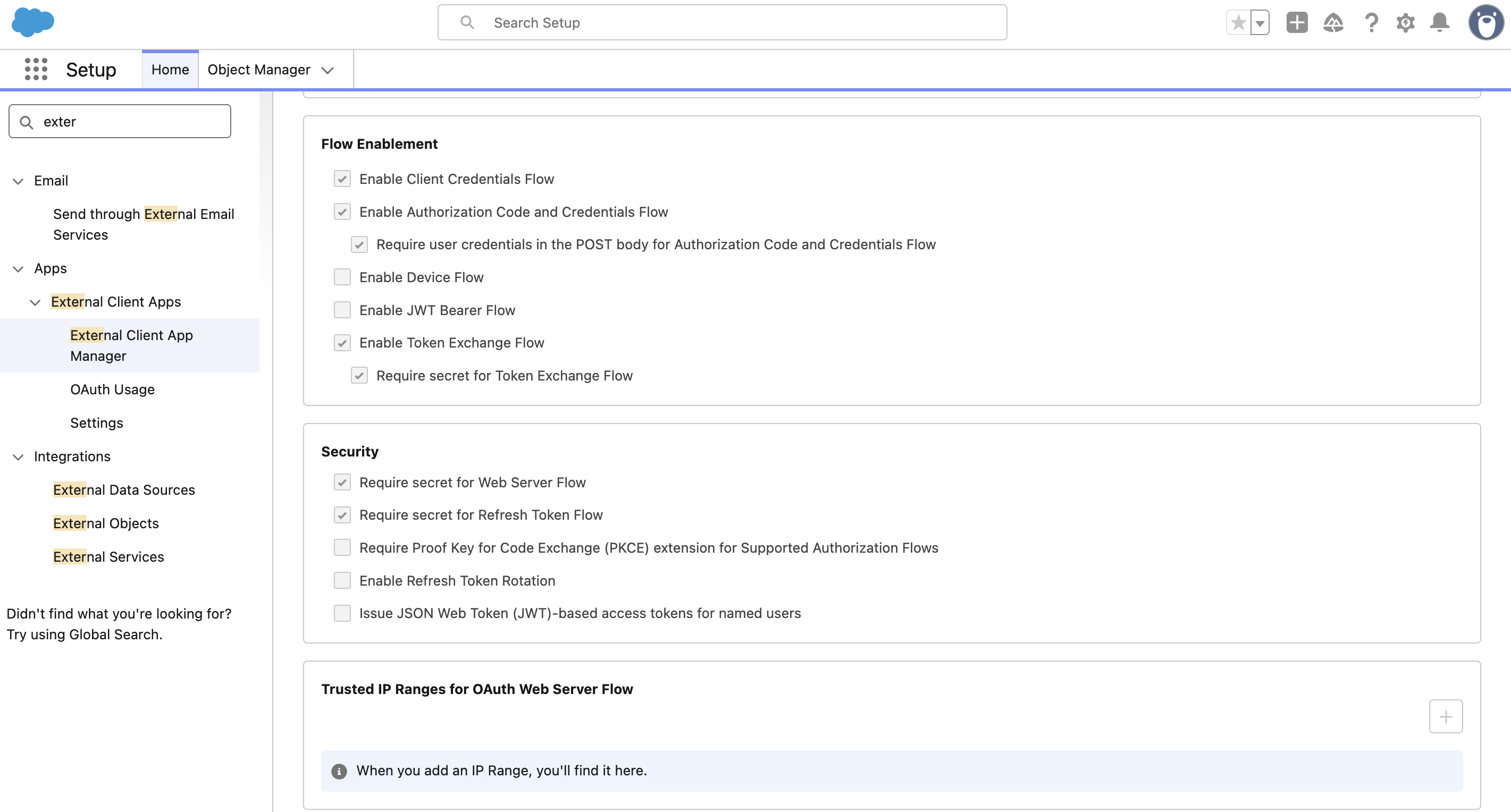
OAuth Policies--->Flow Enablement
Within Flow Enablement Section select the following configurations.
- Click Create to create the APP.
2. Retrieve Client Credentials
- Open the app you just created in the External Client App Manager.
- Go to the OAuth Settings tab.
- Copy consumer Key and Secret for later use:
-
Consumer Key (used as Client ID)
-
Consumer Secret (used as Client Secret)
3. Setup Leena AI KM Dashboard
- Navigate to Settings > Integrations > Salesforce > Connect.
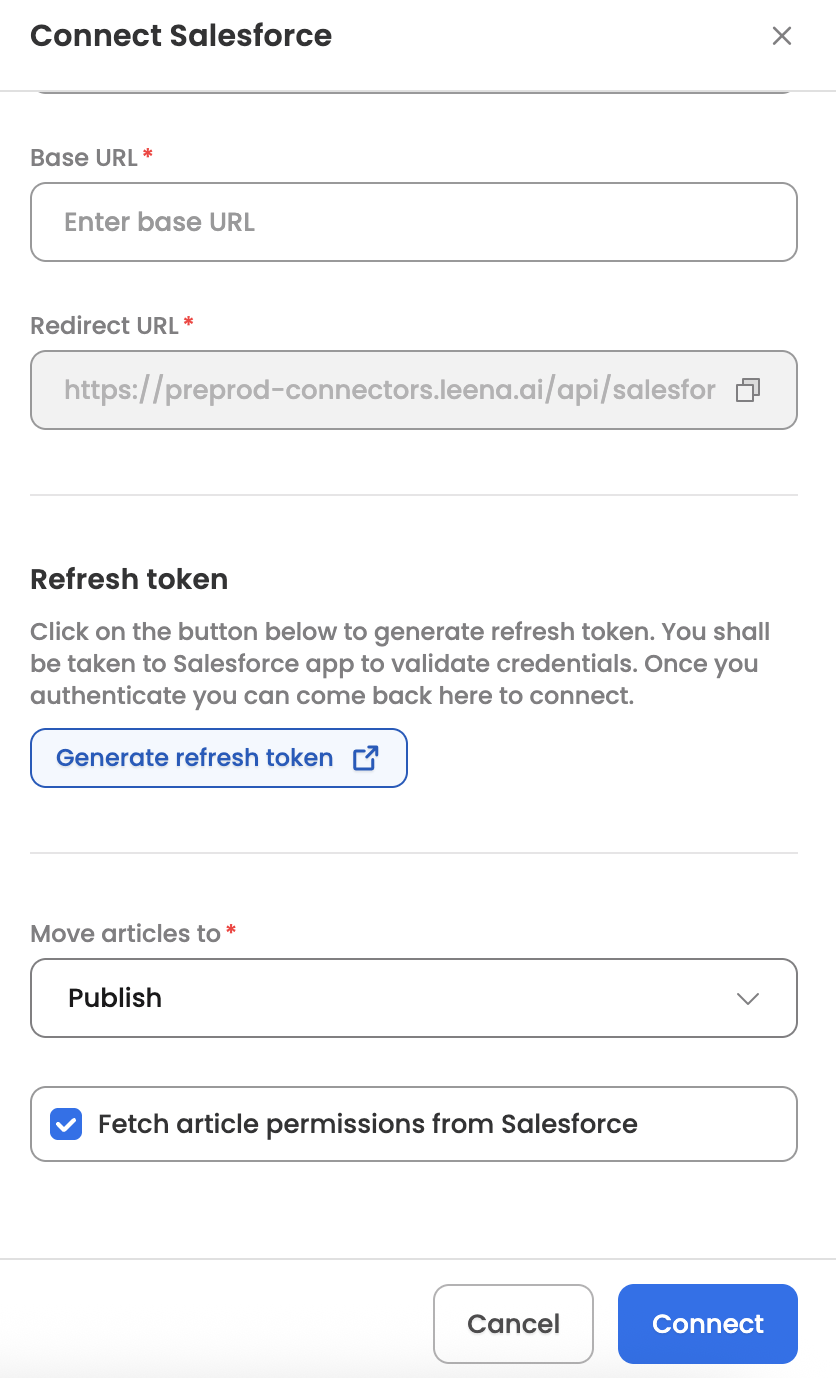
- Fill in the fields using the credentials gathered in Step 2:
- Client ID: Enter the Consumer Key.
- Client Secret: Enter the Consumer Secret.
- Base URL:
-
Go to Salesforce Company Settings > My Domain Details.
-
Copy the Current My Domain URL.
-
Note: Ensure it starts with
https://.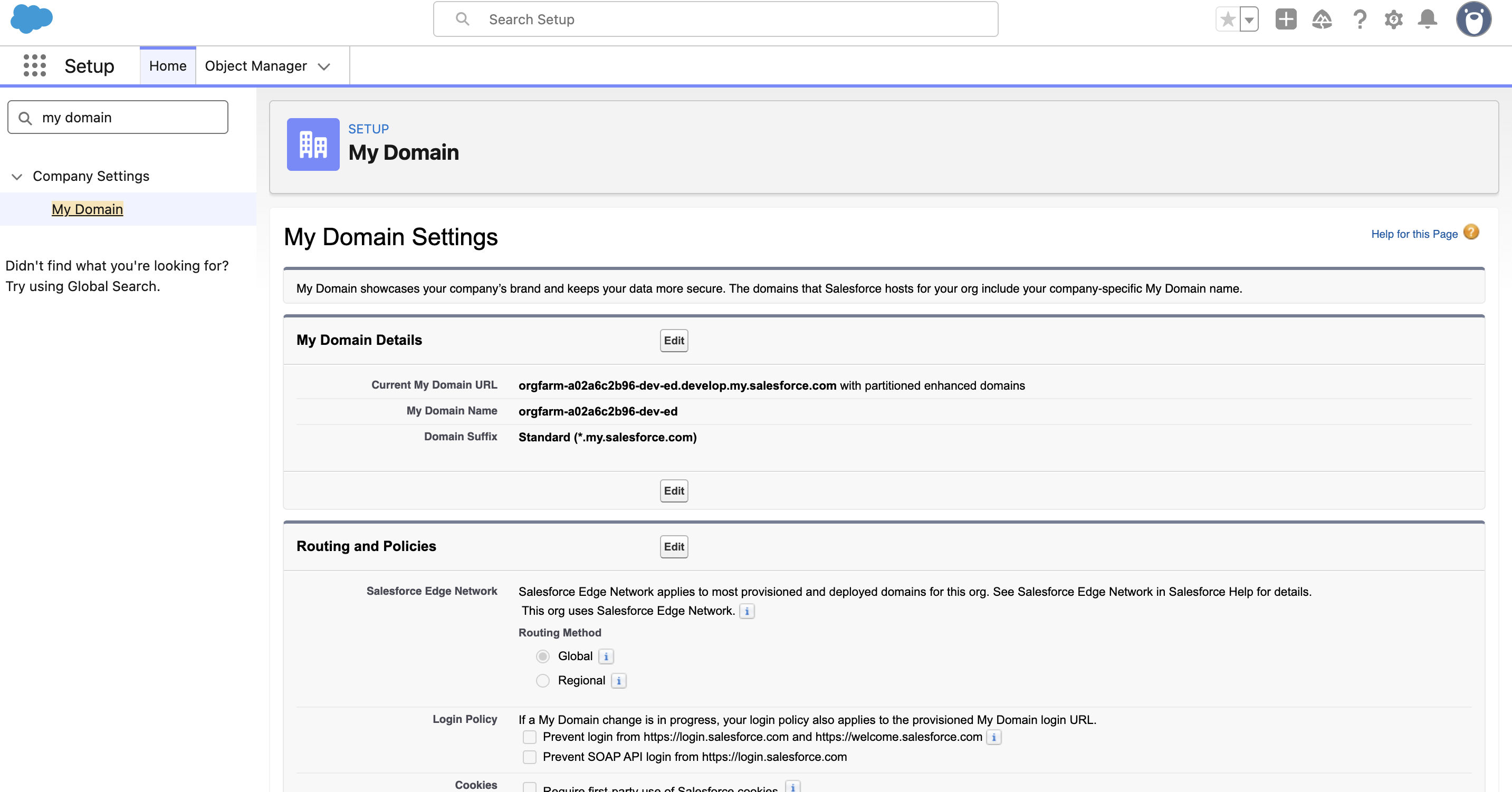
4. Authentication & Metadata
-
Once you have filled Connection name, Client ID, Client Secret and Base URL Click Generate Refresh Token.
-
You will be redirected to the Salesforce Authentication page. Log in and authorize the connection.
-
Once redirected back to Leena AI, click Connect.
-
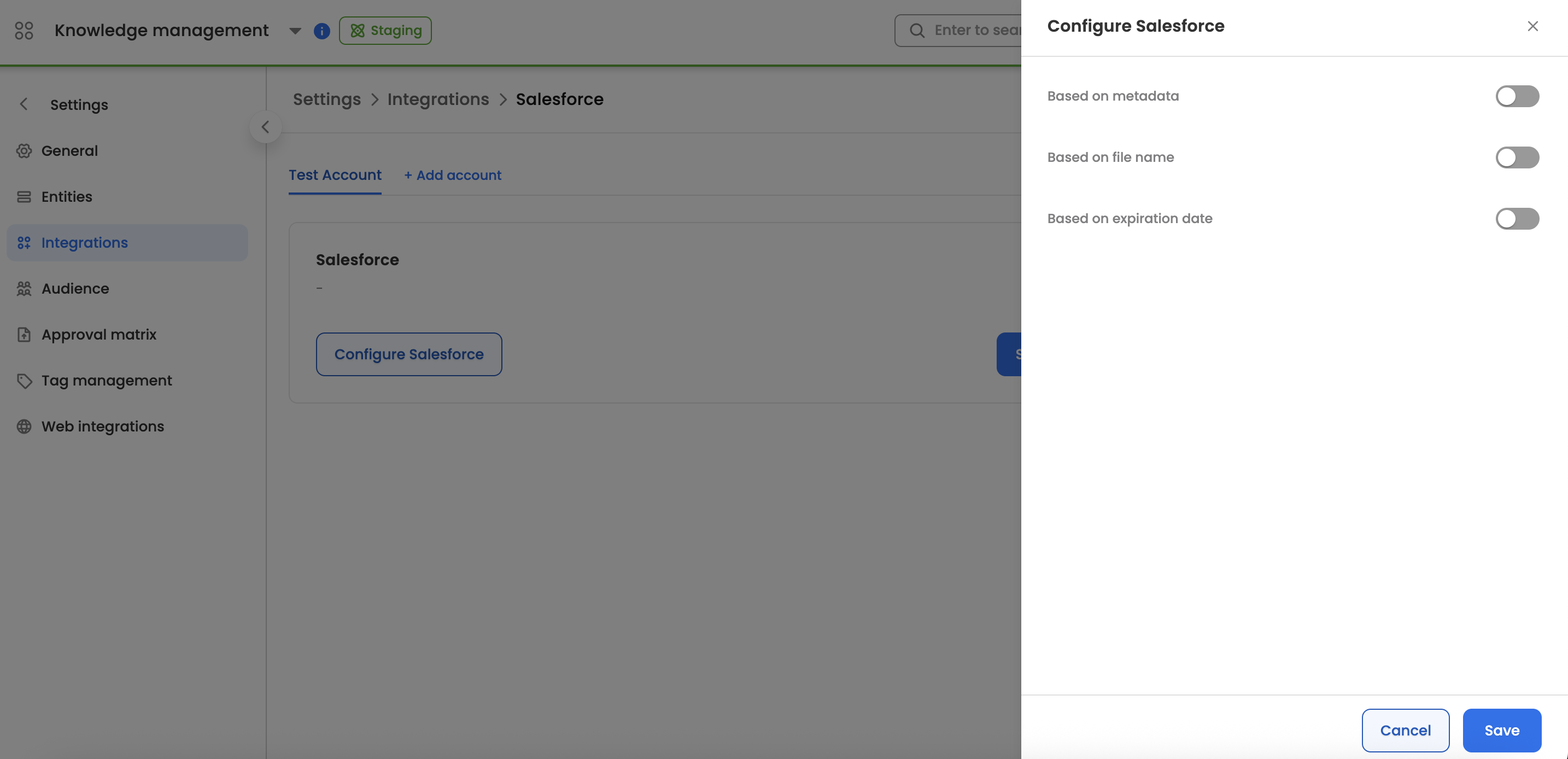
Metadata Filtering: Once Connected, click on configure Salesforce to sync Salesforce content based on metadata filters, file name and expiration date.
⚠️ Important Notes
[!IMPORTANT]
Always ensure the Consumer Secret is kept secure. If the secret is rotated in Salesforce, you must update the integration settings in Leena AI immediately to avoid sync failures.
Configuration Summary
| Field | Source |
|---|---|
| Client ID | Salesforce Consumer Key |
| Client Secret | Salesforce Consumer Secret |
| Base URL | Salesforce My Domain URL (with https://) |
| Callback URL | Leena AI KM Dashboard |
Updated 4 months ago