
Setup Employee Sync
1. Overview
Employee Sync keeps your employee list in Leena AI aligned with your source system (HRMS or another employee database). An accurate employee directory in Leena AI supports:
- Access control: Terminated users shouldn’t remain active.
- Attributes: Accurate org/employee attributes used across experiences (audiences, personalization, workflows).
- Reliability: A dependable employee directory for downstream use cases.
There are two ways to sync employee data:
| Method | How it works | Best for |
|---|---|---|
| Manual sync | Upload an Excel/CSV file mapped to your configured field mappings. | One-time loads, small orgs, or ad-hoc corrections. |
| Automated sync | A scheduled sync via a Workflows utility app that fetches data from your HRIS automatically. | Ongoing, hands-off synchronization with your source system. |
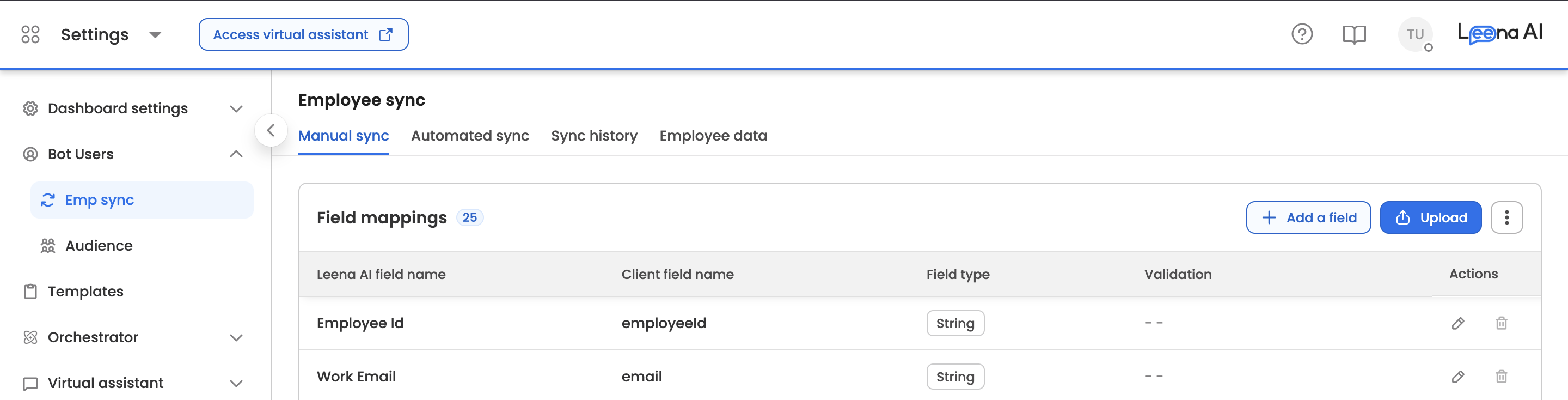
You configure and monitor everything from the Unified Dashboard → Settings → Bot Users → Emp Sync (Employee Sync / User Sync).
2. Navigation
- Log in to the Unified Dashboard.
- Navigate to your bot and open: Settings → Bot Users → Emp Sync
- You will see four main tabs:
- Manual sync — Field mappings and Excel/CSV upload (default landing tab).
- Automated sync — Scheduled sync via Workflows utility apps.
- Sync history — Audit log of every sync run (manual and automated).
- Employee data — The final state of your employee directory (Active vs. Terminated).
3. Manual Sync
The Manual sync tab is where you define field mappings (the schema of your employee data) and upload employee data via Excel/CSV.
Note: Field mappings apply only to Excel-based manual sync. For automated sync via Workflows, attribute mapping is handled within the utility app itself.
3.1 Field Mappings
The Field mappings table lists every configured field. Mandatory Leena AI fields that are not yet mapped appear as placeholder rows — these must be configured before you can upload data.
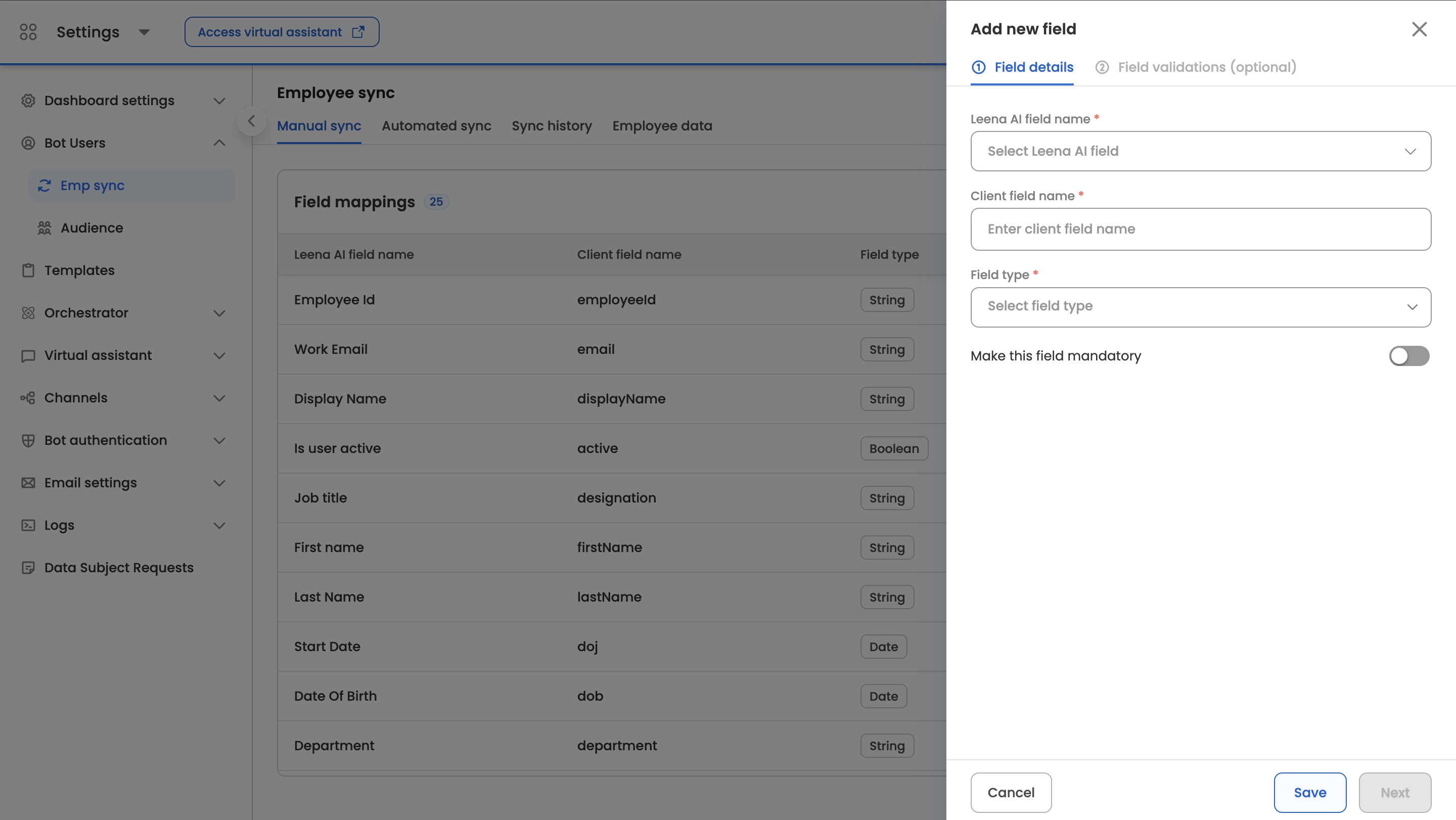
To add or edit a mapping, click Add field or click an existing row. The panel has two tabs — Field details and Field validations (optional):
| Configuration | Description |
|---|---|
| Field name – Leena | Select from existing Leena fields or create a new custom field. |
| Field name – Client | The source system field name (must not contain . or $). |
| Field type | String, Date, Boolean, or Phone number. (Numeric-only input is enforced via a String validation.) |
| Validations | Set regex, allowed values, email domains, number-only, uniqueness, or date format based on type. |
| Mandatory Toggle | Mark whether a value must exist for every employee. |
Notes:
- System-mandatory fields cannot be deleted, and their field type may be locked.
- Available validations depend on the field type — for example, Boolean fields have no validations, and Date fields require a date format.
- The regex validation includes an inline Test regex option to verify your pattern before saving.
3.2 Version History
Field mappings are versioned. Use View version history to:
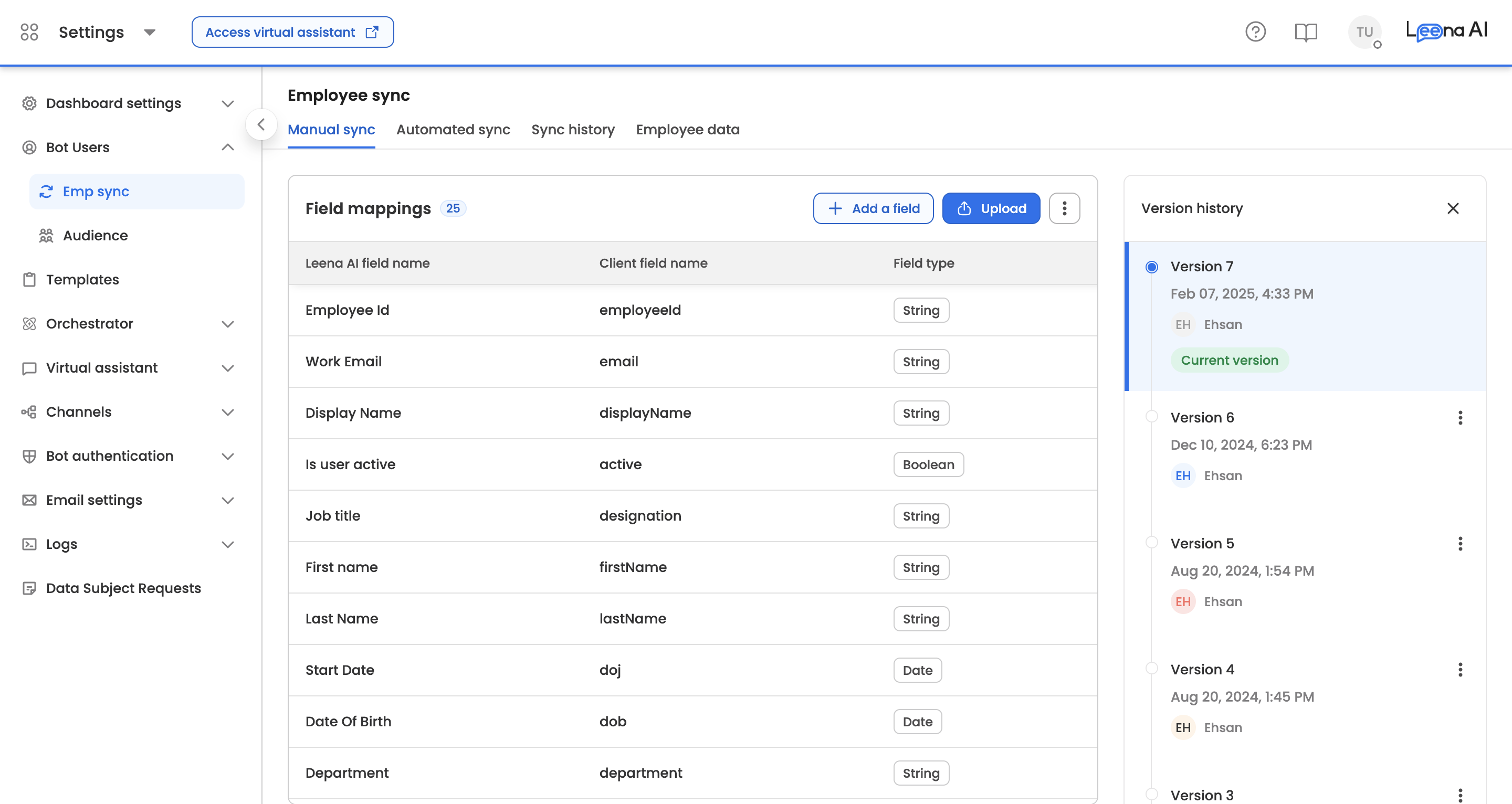
- Preview any older version of the mapping (read-only).
- Restore a previous version if a recent change needs to be rolled back.
3.3 Uploading Employee Data via Excel
-
Ensure all mandatory fields are mapped — the Upload XLS button is disabled until no mandatory placeholders remain.
-
Click Upload XLS and select your file:
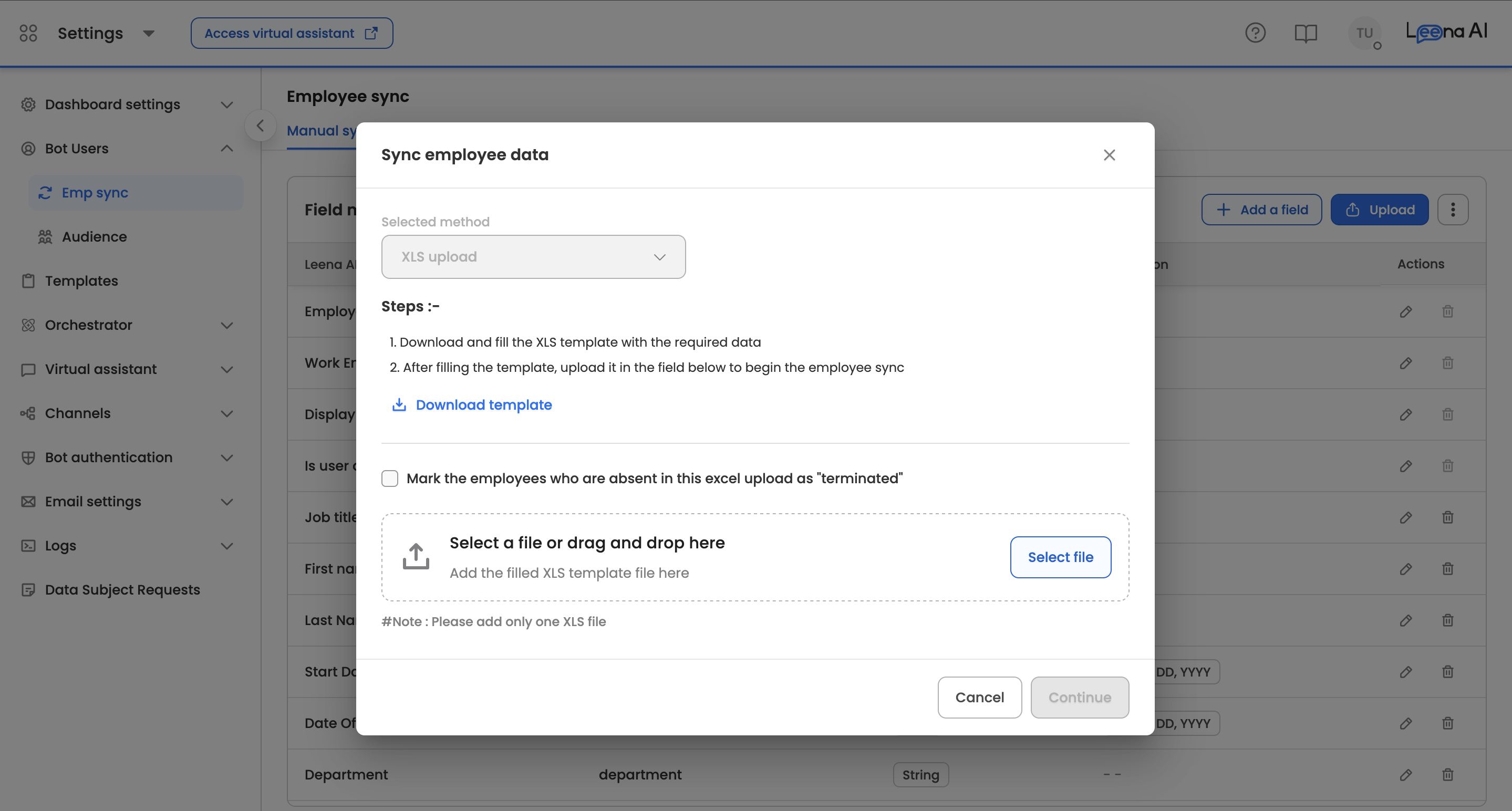
- Allowed formats:
.xls,.xlsx,.csv - Maximum size: 10 MB
- Single, non-empty file only
- Choose whether to Terminate absent employees — when enabled, employees present in Leena AI but missing from the file are marked Terminated.
- The system validates the file against your field mappings:
- All columns mapped, no errors: Data is staged and you are taken to Sync history with the run in Uploaded status.
- Unmapped columns: You are taken to the Review mapping screen, where each unmapped Excel column must be matched to a unique field. You can also choose to continue with errors, in which case unmapped/absent fields are excluded from the sync and the run appears in Sync history as Uploaded with errors.
Important — uploading does not sync. At this point the data is only staged and validated; no employee records have been created or updated yet. The sync is initiated in the next step.
3.4 Initiating the Sync (Review & Save)
Once the file is uploaded, complete the sync from Sync history:
- Open the Sync history tab and click the run with status Uploaded (or Uploaded with errors) to open its record-level details page.
- Review the employee records. Each row shows the parsed values, with warning indicators and tooltips for any field-level validation errors. Use the All / No Errors / Errors toggle to focus on problem records.
- Click Save to initiate the sync.
- For an Uploaded with errors run, a confirmation dialog appears first — confirming Save proceeds with the valid records while records with errors are excluded from the sync. To include them instead, fix the source file and re-upload.
- The run status changes to Sync in progress, and then to Successful (or Synced with errors) once the sync completes. Added / Updated / Terminated counts are populated on the run, and the results are reflected in the Employee data tab.
Until you click Save, the run remains in Uploaded status indefinitely and no changes are applied to the employee directory. If you re-upload a corrected file, initiate the sync from the newest run.
4. Automated Sync (via Workflows)
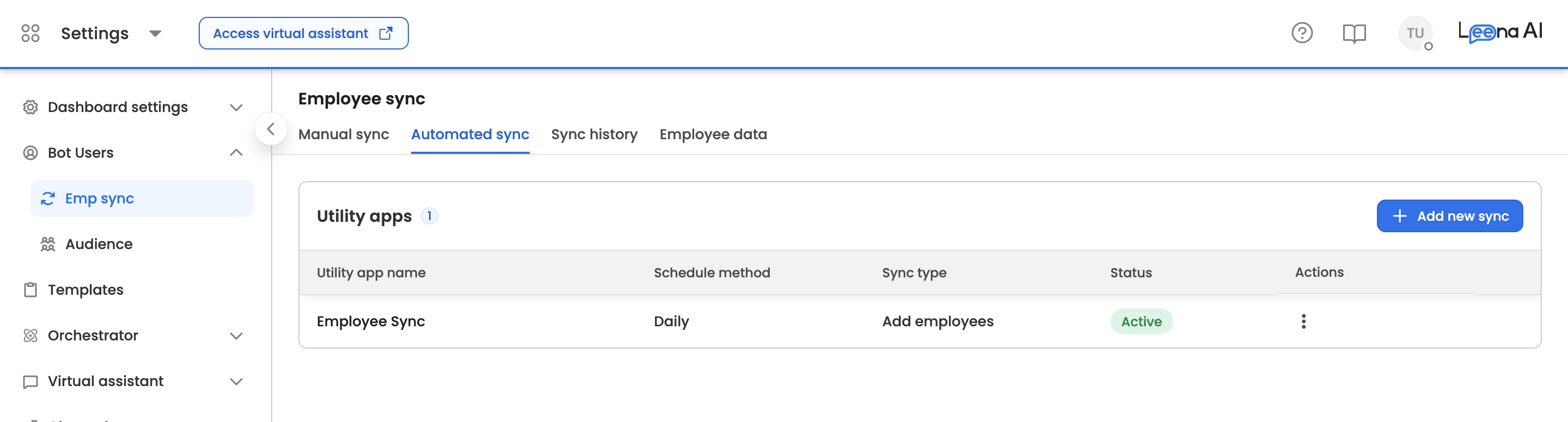
Automated sync fetches employee data from your source system on a schedule using an Employee Sync utility app — a workflow application built in Workflows Studio. Each utility app gets its own independent sync configuration.
4.1 Prerequisites
-
Correct Dashboard Access: You need system admin/config manager access for the bot.
-
Utility App Availability: The utility app must be available in the Utility app dropdown when adding an automated sync. If no option appears, an Employee Sync utility app needs to be created and published for your bot. In short:
- Go to Workflows Studio → App Listing → Create App and set the Utility Type to
Employee Sync Utility. - Configure the pagination settings based on how your HRIS API returns data — page-number or skip-token based.
- In the workflow canvas, add an Action node to call your HRIS API and fetch employee records.
- Configure the Mapper node to transform the source fields (e.g.,
Worker_ID,Legal_Name) into Leena AI's employee schema (e.g.,employeeId,displayName). - Configure the Response Template on the Trigger node with the data array and pagination fields.
- Publish the app — it will then appear in the Utility app dropdown.
For detailed instructions, refer to User Sync Utility Apps.
- Go to Workflows Studio → App Listing → Create App and set the Utility Type to
4.2 Add an Automated Sync
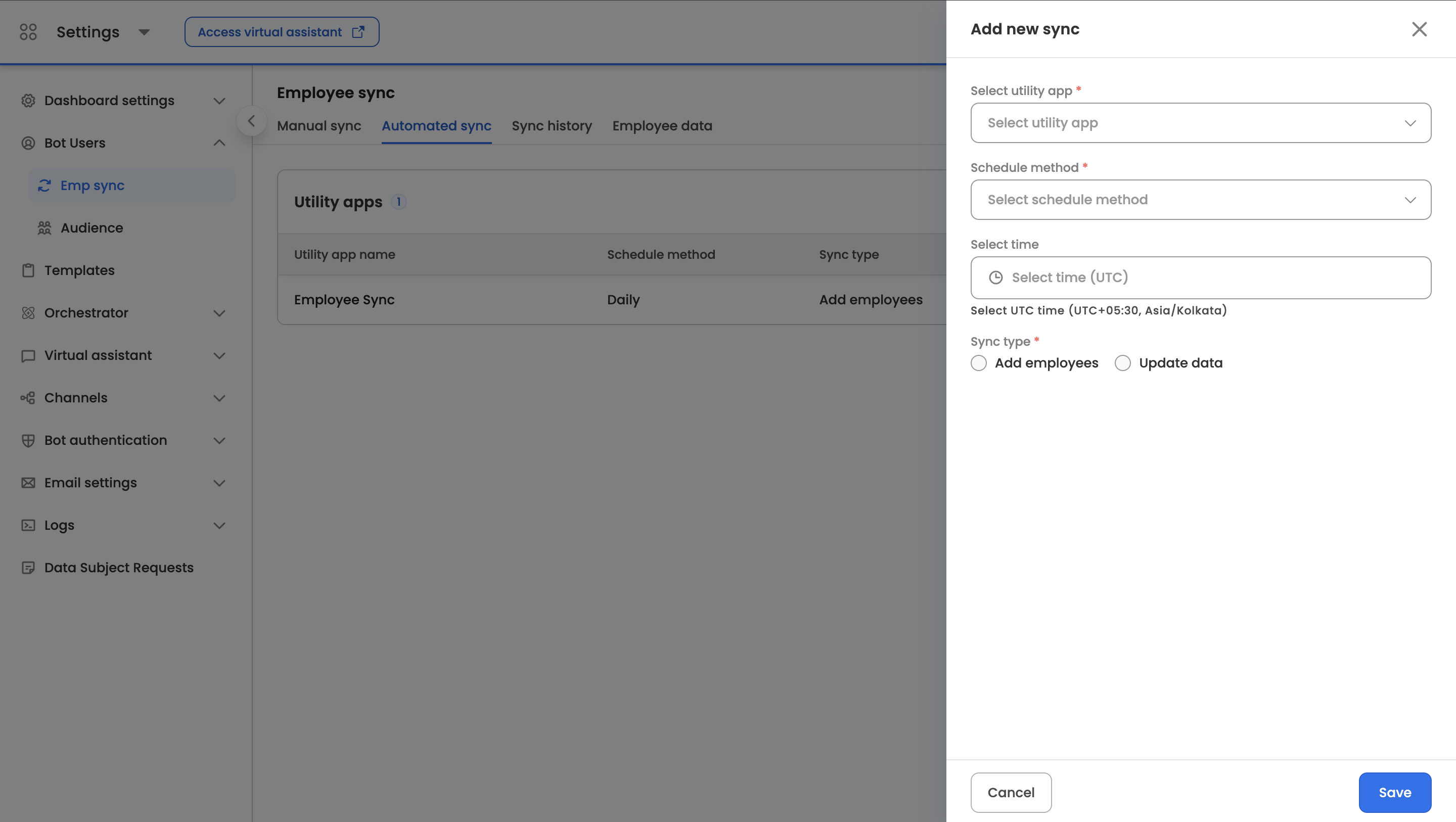
- Go to the Automated sync tab and click Add automated sync.
- In the configuration panel, set up your sync. Each utility app can have one sync configuration, and each configuration is independent:
- Utility app: Select the Employee Sync utility app from the dropdown. (Apps already configured in another sync are not shown. The app cannot be changed later in edit mode.)
- Schedule Method: Choose Daily, Weekly (select day), or Custom (every N days, weeks, or months).
- Time: Select the sync hour in UTC. The UI provides a local time conversion hint. The scheduler evaluates schedules hourly.
- Sync type:
- Add employees — adds new employees and updates existing ones (upsert).
- Update data — updates existing employees only (matched by Employee ID); no new employees are created.
- Terminate absent employees: (available only with Add employees) When enabled, this sync becomes the authoritative source — employees present in Leena AI but absent from the sync response are marked Terminated. Only one sync per bot can have this enabled; the panel will warn you and block conflicting configurations.
- Click Save.
Important: Upon saving (create or edit), the system attempts an immediate manual sync for that configuration. A 1-hour cooldown applies per sync configuration — if the sync was manually triggered within the last hour, the save succeeds but the immediate sync is skipped, and the remaining cooldown minutes are shown.
4.3 Manage Automated Syncs
All configured syncs are listed in the Automated sync table with their utility app, schedule, sync type, and status (Active/Inactive). From each row’s contextual menu you can:
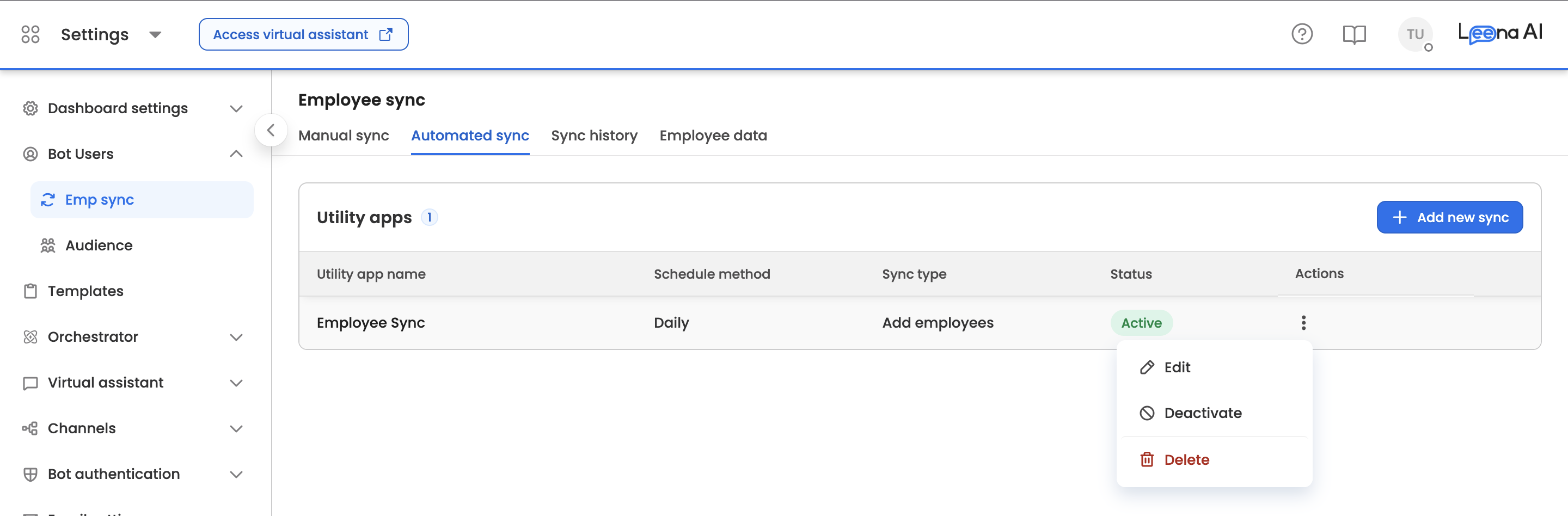
- Edit the configuration.
- Deactivate or Activate the sync. Deactivated syncs are skipped by the scheduler. (Note: re-saving a deactivated sync via Edit reactivates it.)
- Delete the configuration entirely.
5. Sync History
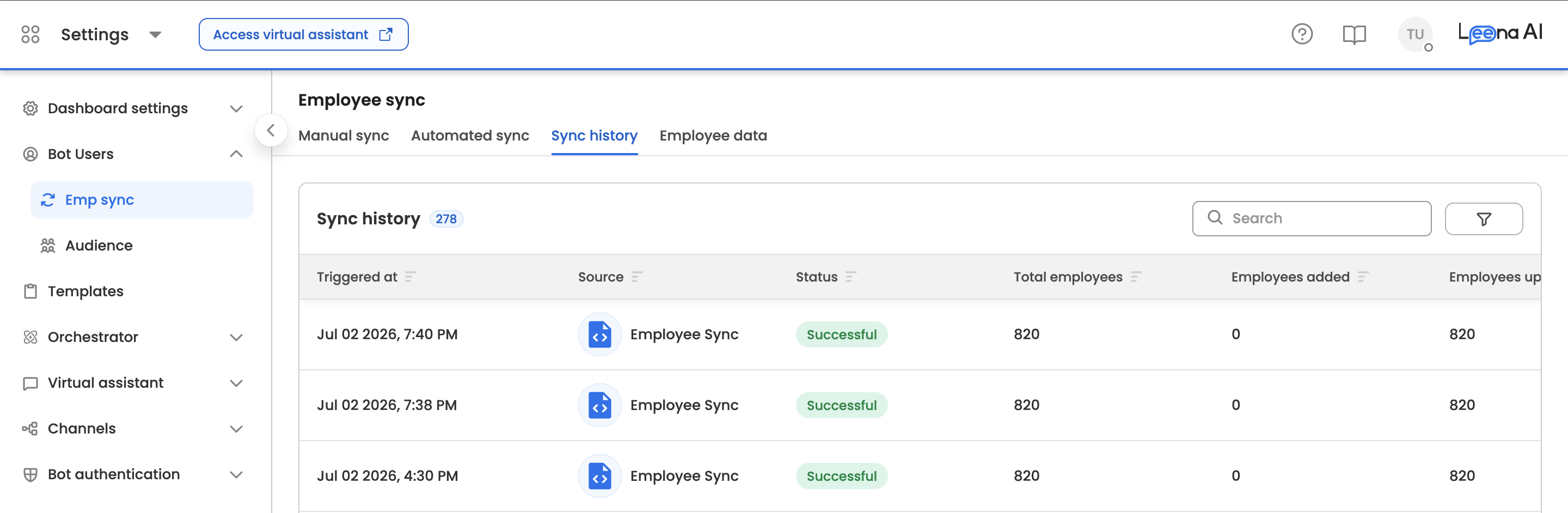
The Sync history tab is the audit log for every sync run — Excel and automated alike. For Excel runs, it is also where you initiate the sync after an upload (see Section 3.4).
5.1 Columns
| Column | Description |
|---|---|
| Triggered at | When the run occurred. |
| Source | Excel or API. API runs display the utility app name. |
| Status | See the status reference below. Hover a failed run to see the failure reason. |
| Total employees | Total records processed in the run. |
| Added / Updated / Terminated | Counts of employees added, updated, and terminated in the run. |
Status reference (Excel runs):
| Status | Meaning |
|---|---|
| In progress | The uploaded file is still being processed/validated. |
| Uploaded | File validated and data staged — sync not yet initiated. Open the run and click Save to sync. |
| Uploaded with errors | Data staged, but some records have validation errors. Open the run to review; Save syncs the valid records only. |
| Sync in progress | Sync initiated and currently running. |
| Successful | Sync completed; all records applied. |
| Synced with errors | Sync completed, but some records failed — open the run to inspect them. |
5.2 Filters & Search
Use the filter panel to narrow the list by:
- Sync status (multi-select)
- Sync type — Excel or API
- Utility app (multi-select; shown when Sync type is API)
Search, sorting, and filters are preserved in the page URL, so filtered views can be shared as links.
5.3 Run Details & Downloads
- Excel runs: Click a run to open the record-level details page. Each employee row shows its values, with warning indicators and tooltips for field-level validation errors. Use the All / No Errors / Errors toggle to focus on problem records. For runs in Uploaded / Uploaded with errors status, this page is where you click Save to initiate the sync (Section 3.4). The uploaded file can be downloaded from the row or the details page. (Fully Successful runs don't open a details page — the sync is already complete; use the row's Download option if needed.)
- API runs: Details pages and downloads are not applicable — refer to the stats columns and failure reason tooltip.
6. Employee Data
The Employee data tab shows the final state of your directory.
- Active / Terminated: Switch between the two lists; each shows a live count.
- Search & sort: Spot-check specific records across any column.
- Manage columns: Show/hide columns; your preferences are remembered.
- Employee details: Click a row to open the full employee record, including fields hidden from the table.
- Download employee data: Exports all employees (Active and Terminated) as XLSX, regardless of current filters.
If no employee data exists yet, the tab offers two starting points: Upload manually (Excel) or Add automated sync.
7. Monitoring & Troubleshooting
7.1 Regular Checks
Monitor Sync history to confirm:
- Runs occurred at the expected UTC time.
- The Cause matches the intended trigger (Manual syncs are generated on configuration create/edit or Excel upload; Scheduled syncs run on the configured cadence).
- The Status is "Successful" and the Total/Added/Updated/Terminated counts align with your HRMS data.
- No Excel runs are sitting in Uploaded / Uploaded with errors status — these are staged uploads waiting for someone to open the run and click Save.
7.2 Common Failure Reasons (Automated Sync)
- Missing identifier: Records without an Employee ID, User ID, or Email are skipped — they cannot be matched or created. Ensure your utility app returns at least one identifier per record.
- Pagination error: The run was stopped because the source data did not advance across pages (a safeguard against runaway loops). Check the utility app’s pagination configuration.
- Termination limit: As a safety guard, if a sync with Terminate absent employees enabled would terminate more than 50% of the previously synced population, terminations are blocked and the run is marked with errors. Verify the source system returned the full employee list before re-running.
7.3 Common Issues (Manual Sync)
- Upload button disabled: One or more mandatory fields are unmapped — configure the placeholder rows on the Manual sync tab first.
- File rejected: Check the format (
.xls/.xlsx/.csv), size (max 10 MB), and that the file is not empty or corrupt. - Uploaded the file, but Employee data hasn't changed: The run is likely still in Uploaded status — uploading only stages the data. Open the run in Sync history and click Save to initiate the sync (Section 3.4).
- Validation errors: Open the run in Sync history to see record-level errors, fix the source file (or field validations), and re-upload. If you proceed with Save on an "Uploaded with errors" run, the error records are excluded from the sync.
Updated 23 days ago