
WhatsApp setup connects Leena AI to your WhatsApp Business account so employees can reach the assistant on WhatsApp.
Two providers deliver that connection. New WhatsApp channels are set up on Twilio. Channels already running on Infobip stay on Infobip. The page shows which provider applies and asks only for that provider's credentials — everything after the credentials is the same either way.
Where to find it
Open the Admin Console, then go to External channels → Whatsapp.
Service provider
The first section shows Provider: Twilio or Provider: Infobip. It is read-only.
There is no provider picker. A new channel is provisioned on Twilio; a channel that already has an Infobip setup keeps it. That value decides which credentials section the form renders below.
The webhook
The page shows a Webhook URL at the top, with a Copy action. This is what delivers inbound WhatsApp messages to Leena AI. Without it, the assistant can send but never receives — a failure that looks like the assistant ignoring employees.
Where it goes depends on the provider:
| Provider | Where to paste it |
|---|---|
| Twilio | Your Twilio WhatsApp sender's inbound webhook. If Leena already set it for you, the page says so and no action is needed |
| Infobip | Infobip, under Subscriptions → Event notifications |
Twilio setup for WhatsApp
Shown when the provider is Twilio.
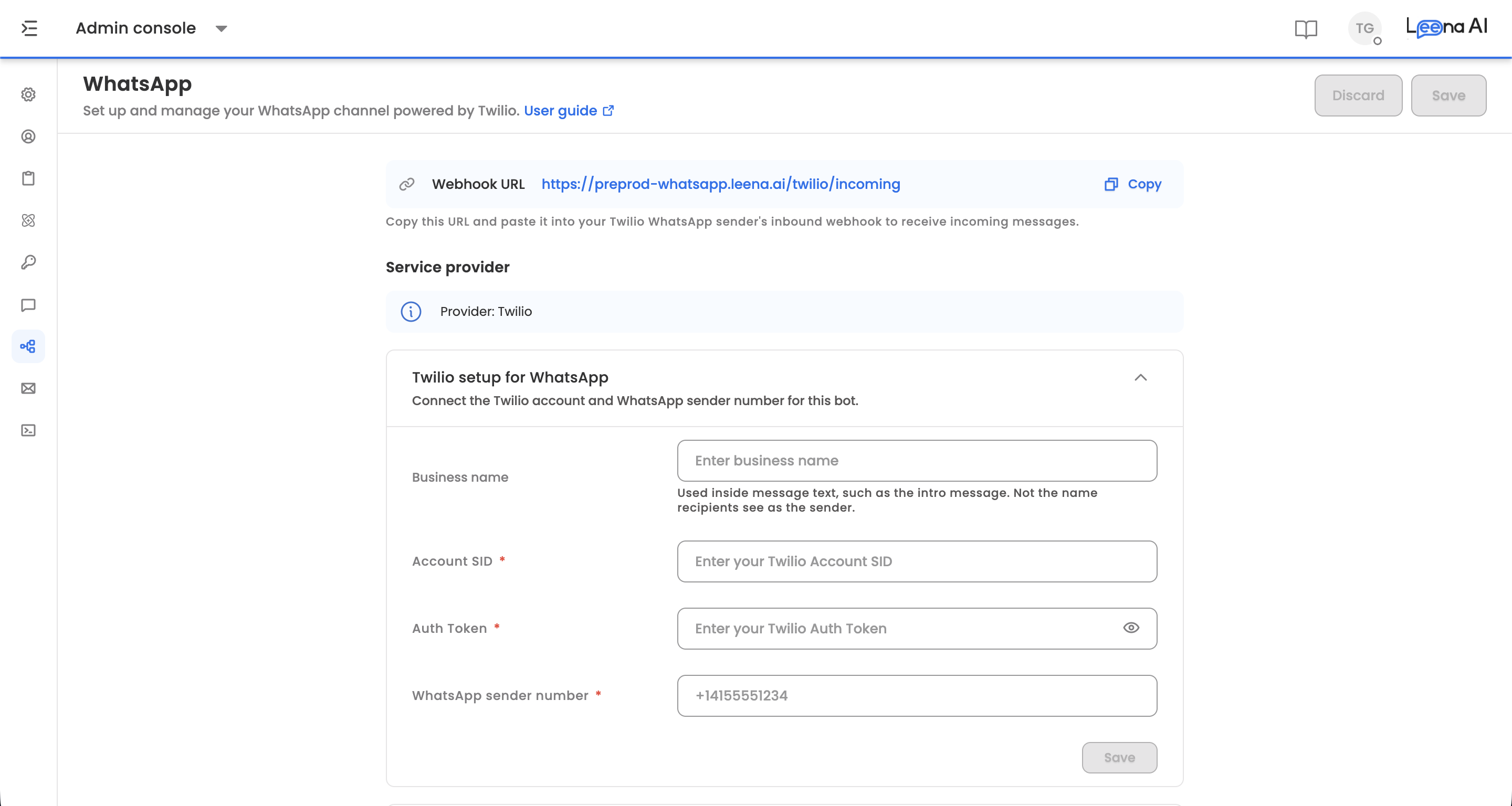
You connect your own Twilio account: your Twilio account owns the number, the WhatsApp Business Account and the templates.
| Field | Notes |
|---|---|
| Business name | Used inside message text, such as the intro message. Not the name recipients see as the sender |
| Account SID | From your Twilio console |
| Auth Token | Stored encrypted and never returned. A saved token shows as dots — it is an indicator, not the value |
| WhatsApp sender number | E.164 format, for example +14155551234. It must already be a WhatsApp sender on that Twilio account |
Saving credentials
Save inside this section is not the page's Save. It stores the credentials and binds the sender straight away, and Leena validates that the number is a real WhatsApp sender on the account you supplied.
Once saved, the three fields lock. Change credentials reopens them for a token rotation or an account switch, and clears the token so a fresh one has to be entered.
Connecting Twilio on a live Infobip channel switches it immediatelyIf the channel currently runs on Infobip, connecting a Twilio account changes the provider as soon as you confirm — before you press Save, and Infobip delivery stops at that moment.
The page asks you to confirm first. Treat it as a cutover, not a draft.
Connection details
Once an account is connected, the section reports the state of the setup.
| Row | What it shows |
|---|---|
| Twilio account | Connected |
| WhatsApp Business Account | Active or Activation pending, with the WABA ID. Nothing sends until it is active; activation is a one-time step completed by Leena |
| Sender | Registering…, Active or Offline. Sending works once the sender is Active |
| Meta display name | The name recipients see instead of your number, its review state (pending, Approved, rejected), and Twilio's messaging tier where Twilio reports one |
| Inbound webhook | Configured, or a reminder to paste the webhook URL into your Twilio sender |
The display name is set on your Twilio sender and reviewed by Meta, so it cannot be changed here.
Check status re-reads all of it from Twilio and stamps a Last checked time next to the heading. Between checks the page shows a cached snapshot that refreshes on a schedule, so a status that changed minutes ago may need a manual check.
App credentials
Shown when the provider is Infobip.
Your Infobip API credentials connect the channel.
| Field | What it is |
|---|---|
| App URL | Your Infobip API URL |
| App key | Your Infobip API key |
Infobip setup for WhatsApp
Shown when the provider is Infobip.
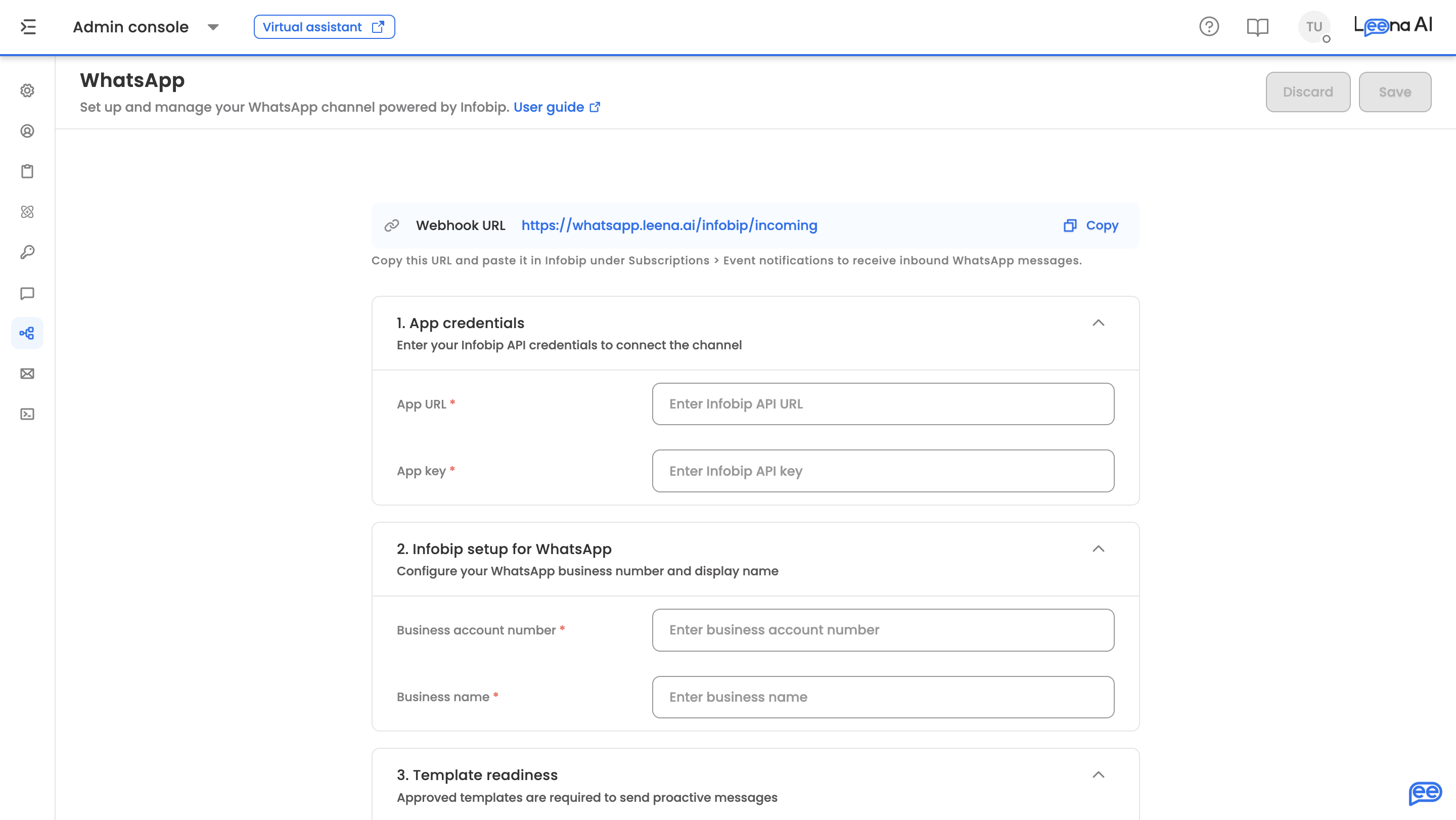
Your WhatsApp business number and display name.
| Field | Notes |
|---|---|
| Business account number | Digits only — the field rejects anything else |
| Business name | The display name employees see |
Template readiness
WhatsApp requires a Meta-approved template for any message sent outside an active 24-hour session, so proactive messaging depends entirely on having approved templates. This applies on both providers.
The section shows Total templates and Approved templates. If nothing is approved, the page warns that you cannot send proactive messages until at least one template clears Meta review.
Sync templates pulls the current approval status from whichever provider the channel uses. Go to templates opens the WhatsApp tab in Templates, where templates are created and submitted.
Employee provisioning and readiness
Employees must be provisioned for WhatsApp before they can be messaged.
Create access for employees on sync provisions them automatically during the next HR sync, which is the practical way to do it at scale. With it off, and no employees provisioned, no messages can be sent.
Consent and opt-in settings
Controls how employees are opted in to receive WhatsApp messages.
| Setting | What it does |
|---|---|
| Auto opt-in | Opts employees in without an in-channel prompt |
| Opt-in initiation template | The template used to request opt-in |
| URL button template | The template used for URL button interactions |
Auto opt-in shifts the compliance burden to youEnabling it confirms that your organisation has obtained the necessary consent from employees outside this platform. Your organisation is legally responsible for that consent.
Confirm with your legal or works council contact before enabling it, particularly where employees are using personal phone numbers.
Authentication configuration
How employees verify their identity when using WhatsApp.
| Field | What it is |
|---|---|
| Authentication type | The verification method |
| SAML Entity ID | The SAML entity for SSO-based verification |
| App ID | The app identifier |
| Custom domains | Allowed email domains for OAuth login, such as company.com. Type a domain and press enter |
| Custom field | An additional field where your setup needs one |
| Re-authentication | Whether employees must periodically re-verify |
| Re-authentication threshold | How many hours before re-verification. Digits only |
Because WhatsApp is often used on personal devices, the re-authentication threshold matters more here than on managed channels.
Saving
Save applies the configuration and Discard reverts it, after confirming. Leaving with unsaved changes prompts you first.
On Twilio, the page will not save until a sender number is connected — the account and number are saved from inside the Twilio section, not by this button.
Updated 20 days ago