
Voice
Voice orchestrator settings control how the assistant handles spoken conversations — how it listens, how it speaks, and how it behaves during a call.
What the page shows depends on the voice version the assistant runs on:
- Voice 2.0 runs calls on a native speech-to-speech model (GPT Realtime), which listens and speaks in one step. It speaks the caller's language and can switch language partway through a call. The page has three sections: Instructions, Speech detection, and Select voice.
- Voice 1.0 runs calls on the legacy Retell pipeline, which converts speech to text and synthesizes the reply. It understands and speaks English only. The page has two sections: Transcription settings and Select voice.
Voice 1.0 is being retiredVoice 1.0, the Retell-based pipeline, is deprecated and will be retired by January 2027. Voice 2.0 will then be turned on by default for every assistant still on voice 1.0.
If your assistant is on voice 1.0, switch your UAT assistant to voice 2.0 now and test it against your real use cases. The switch can't be undone, so start with UAT.
Where to find it
Open the Admin Console, then go to Orchestrator → Voice.
Access and prerequisitesVoice sits inside the Orchestrator group, so it is available to roles granted Orchestrator settings.
The virtual assistant must also be on the latest architecture (AIC). If it isn't, contact your Leena AI implementation contact before enabling voice.
Which version is the assistant on?
| What you see | Voice 2.0 | Voice 1.0 |
|---|---|---|
| Sections on the page | Instructions, Speech detection, Select voice | Transcription settings, Select voice |
| More menu (⋮) in header | Disable voice orchestrator | Switch to voice 2.0, Disable voice orchestrator |
| Call button tooltip in the web app | Start voice chat | Start voice chat (English only) |
| Languages | The caller's language, switching mid-call — see Languages | English only |
| Call history in AI Colleagues Studio | Yes — see Call history | No |
Enabling voice
Until voice is switched on, the page shows a disabled state — Voice is disabled, with a prompt explaining that enabling it lets employees speak and receive spoken responses. Click Enable voice to turn it on. Voice is always enabled on voice 2.0; there is no version to choose.
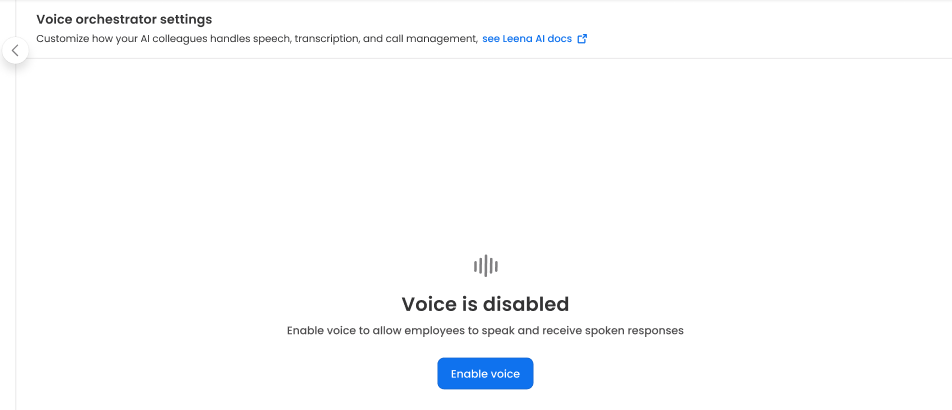
To turn it off again, open the more menu (⋮) and choose Disable voice orchestrator. A confirmation appears first, because disabling removes voice calling for the whole organization and it has to be switched back on manually — there is no automatic recovery.
Re-enabling starts on voice 2.0Turning voice off and on again brings the assistant back on voice 2.0, even if it was on voice 1.0 before. Treat disabling a voice 1.0 assistant the same way as switching it.
Switching to voice 2.0
An assistant on voice 1.0 moves to voice 2.0 from this page:
- Open the more menu (⋮) in the page header and choose Switch to voice 2.0. It isn't available while you're editing — save or cancel your changes first.
- Read the confirmation and click Switch now.
The page reloads with the voice 2.0 settings, and the next call runs on voice 2.0.
The switch is one-wayOnce an assistant is on voice 2.0, it can't be moved back to voice 1.0. Switch your UAT assistant first, test it, then switch production.
What happens to existing settings
| Voice 1.0 setting | On voice 2.0 |
|---|---|
| Additional instructions | Carried over as Voice model instructions. They now guide the speech-to-speech model, so review them after switching |
| Selected voice | Not carried over. Voice 1.0 voices don't exist on voice 2.0, so the assistant uses Marin until you choose another |
| Denoising mode | No setting. Voice 2.0 reduces noise automatically, tuned separately for phone and web calls |
| Vocabulary specialization, Boosted keywords | No equivalent |
| Small talk frequency | No setting. Voice 2.0 handles silence on its own — see Handled automatically |
| Phone number | Moves to voice 2.0 with the assistant, so phone calls switch at the same moment as web calls |
| Language (English only) | The assistant now speaks the caller's language, on web and phone. There is no language list to configure — see Languages |
If the assistant takes phone calls
Phone calls on voice 2.0 need a Leena AI numberPhone calls on voice 2.0 currently run only on numbers from the Leena AI Twilio account. If the assistant's number is on your own Twilio account, the switch is refused and the assistant stays on voice 1.0.
Keep phone assistants on your own Twilio account on voice 1.0 for now. We'll update this page when your own Twilio account is supported on voice 2.0. See Voice & SMS → Phone call.
Test in UAT before the default changes
Switch your UAT assistant, then run the calls your employees actually make — on web, and on phone if you use it:
- Your highest-volume requests, end to end — leave balance, tickets, policy questions, approvals.
- Requests that carry IDs, codes, email addresses and names. Voice 2.0 has no boosted keywords list, so check that the terms your employees say most are understood.
- Every language your employees speak — on web and phone, starting a call in each one, switching partway through a call, and mixed speech such as Hindi with English words. Check the spoken answers and the chat cards that come with them.
- Call control — interrupting the assistant, cancelling a running request, putting the call on hold and resuming.
- Sign-in prompts during a call, if any of your workflows ask the employee to authenticate.
- Your corporate network and VPN. On voice 2.0, web call audio travels over WebRTC directly between the browser and OpenAI, so test from the networks your employees use.
- Noisy places, with the speech detection threshold at its default first.
Review each test call in Call history — status, disconnection reason and the runs it started — then tune the voice model instructions and the speech detection threshold, and test again. Report anything that doesn't behave as expected to your Leena AI implementation contact.
Editing settings
The page opens read-only. Click Edit to make changes, then Save to apply them or Cancel to discard them. Every section is an accordion and is expanded by default.
Voice 2.0 settings
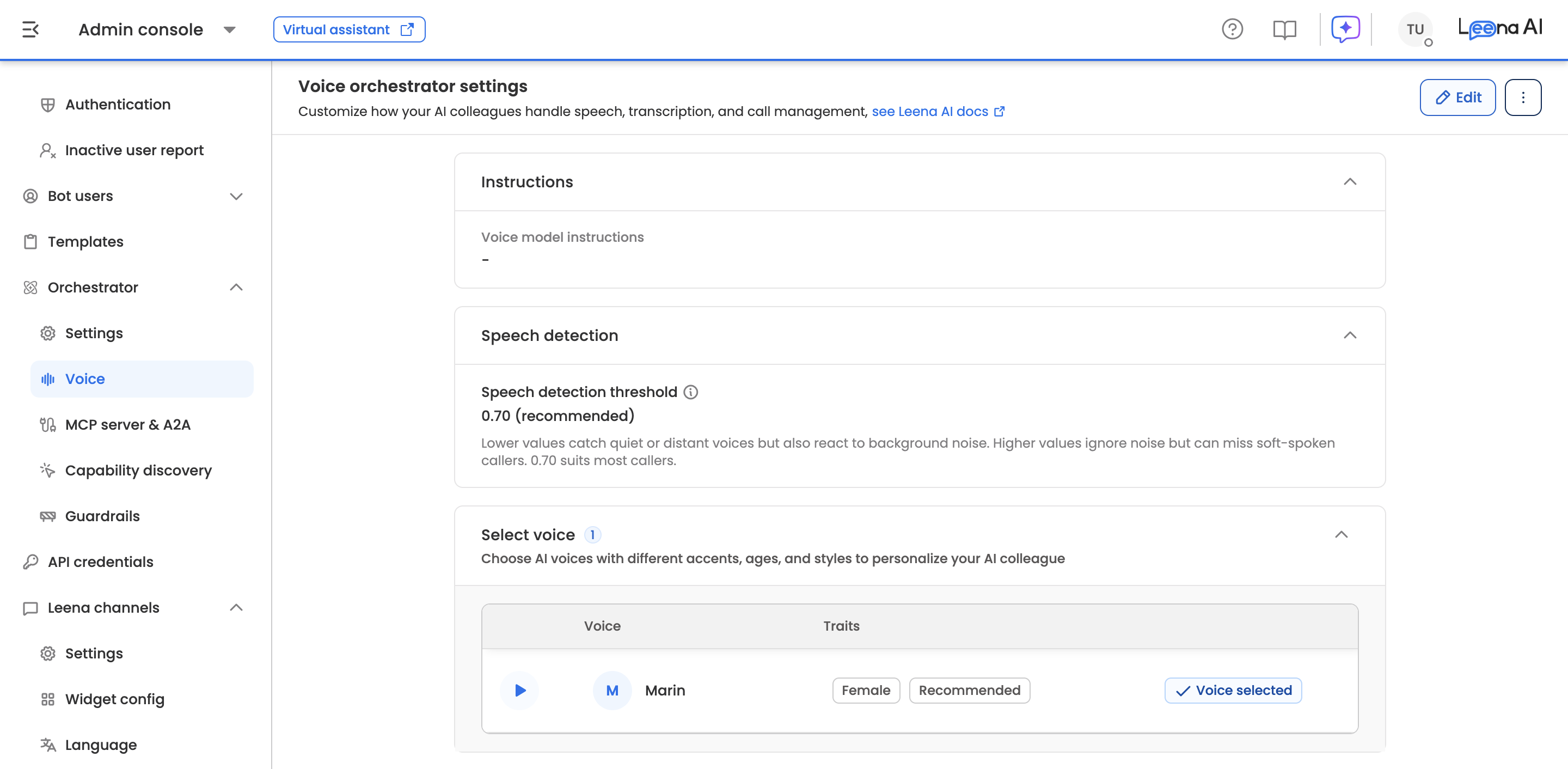
Instructions
Voice model instructions is free-text guidance for the speech-to-speech model — tone, speaking speed, response style, and how to read out inputs such as alphanumeric codes (for example, digit by digit).
It accepts up to 1,000 words. The field shows a running word count and stops accepting text at the limit.
Instructions here shape how the assistant speaks, not what it does. Requests are still answered by the same orchestrator, tools and knowledge as in chat.
Speech detection
Speech detection threshold sets how clearly a sound must be speech before the assistant treats it as the caller talking. It is a slider from 0.30 to 0.95, in steps of 0.05. The default, 0.70, is marked Recommended and suits most callers.
| Direction | Effect |
|---|---|
| Lower (more sensitive) | Catches quiet or distant voices, but also reacts to background noise — the assistant may stop speaking or respond to sounds that weren't the caller |
| Higher (less sensitive) | Ignores more noise, but can miss soft-spoken callers |
Change it in small stepsStart at the default. If the assistant keeps getting cut off by background noise, raise it a step or two; if it misses quiet callers, lower it. Test a few calls after each change.
Select voice
Voice 2.0 uses the speech-to-speech model's own voices. Marin and Cedar are marked Recommended, and Marin is the default.
The table shows a preview button to play a sample, the voice name and its gender. Narrow the list with the gender filter or search by name. Voice 2.0 voices aren't tied to an accent or age — every voice speaks whichever language the call is in — so there is no accent filter.
Use Select voice on a row to make it active. The current voice is marked Voice selected. In read-only mode the table shows just the active voice.
Preview before you commitTone shapes how natural the assistant feels, and the effect is much stronger in speech than in text. Play a few samples in the languages your employees speak before selecting.
Languages
Voice 2.0 is multilingual by default. There is no language list or setting on this page — the assistant follows the caller.
| What | How it works |
|---|---|
| Greeting on web calls | In the language the employee uses the web app in, or the assistant's default language |
| Greeting on phone calls | In the employee's language once the caller is identified. Before that — including OTP and KBA prompts — the assistant speaks its default language |
| Switching | When the caller says a full sentence in another language, the call switches to it — speech, transcription, progress updates and the goodbye all follow |
| What doesn't switch | Single words, names, numbers, IDs, product names, a greeting, thanks or a goodbye in another language |
| Mixed speech | A sentence that mixes languages counts as the language it is mainly in — Hindi with English words, or Hindi typed in Latin letters, is Hindi |
| Answers | Each request carries the call's language to the orchestrator, so answers come back in that language, as in chat |
| Which languages | Any language Leena AI supports. If the assistant picks the wrong one, the caller can correct it by saying which language they're speaking |
| Memory | Nothing is remembered per employee. Every call starts from the greeting language |
Language handling has no separate setting. Any extra guidance belongs in the Voice model instructions, and should be tested in each language your employees use.
Handled automatically on voice 2.0
These behaviours have no setting:
| Behaviour | What happens |
|---|---|
| Noise reduction | Tuned for phone handsets on phone calls and for laptop microphones on web calls |
| Language | Follows the caller — see Languages |
| Silence | After about 12 seconds of silence the assistant checks in, and ends the call if there's still no reply 20 seconds later |
| Call length | Calls end at 15 minutes. The assistant always says why before the line drops |
Voice 1.0 settings (deprecated)
These settings apply only to assistants still on voice 1.0, and don't exist on voice 2.0.
Voice 1.0 is English onlySpeech recognition on voice 1.0 is set to US English, on web and phone calls, and there is no setting to change it. Employees who speak another language should use chat, or the assistant should be switched to voice 2.0. The web app's call button says Start voice chat (English only) for these assistants.
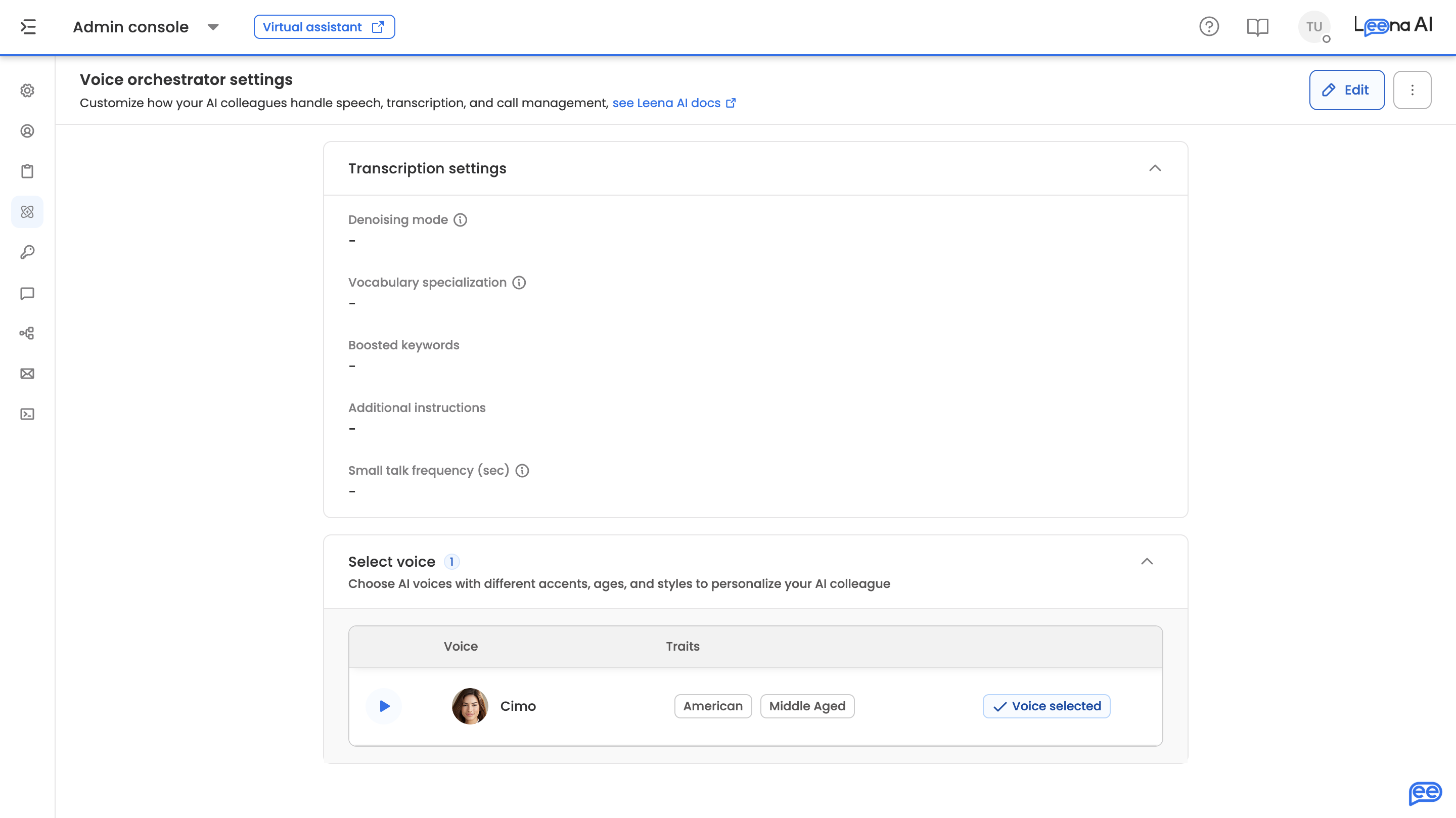
Transcription settings
These tune the quality and behaviour of speech-to-text during a call.
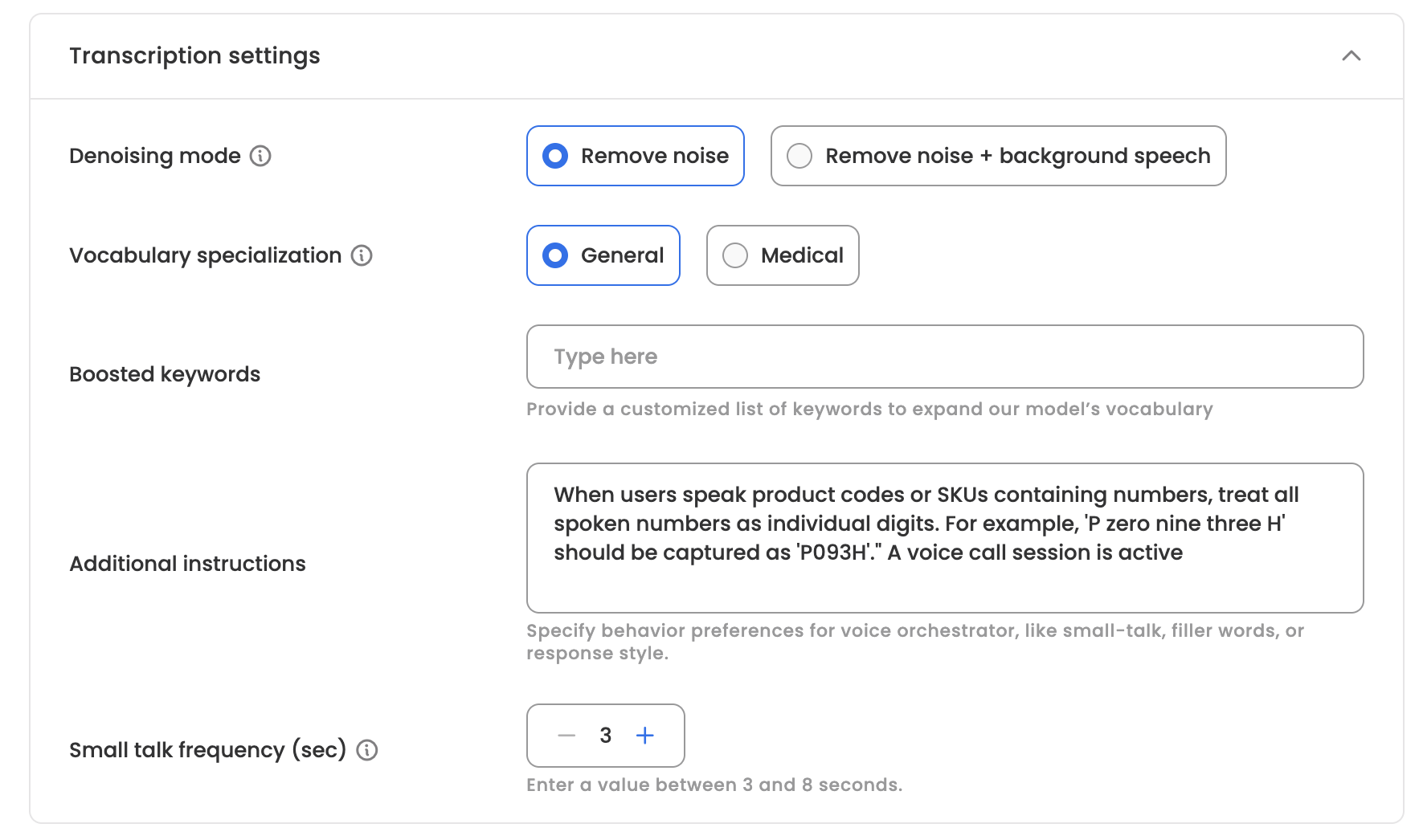
| Setting | What it does |
|---|---|
| Denoising mode | Filters unwanted sound out of the input. Remove noise strips ambient environmental noise. Remove noise + background speech additionally suppresses other people audible nearby — the right choice for open-plan offices and shared spaces |
| Vocabulary specialization | The vocabulary set used for transcription. General suits most enterprise deployments; Medical is tuned for medical terminology |
| Boosted keywords | A custom list of words added to the model's vocabulary, so it recognises terms it would otherwise mishear |
| Additional instructions | Free-text guidance on how the voice orchestrator should behave — handling of small talk, filler words, response style, or input formats such as reading alphanumeric codes digit by digit |
| Small talk frequency (sec) | How readily the assistant fills idle moments with small talk |
Boosted keywords
Use this for anything the default model is unlikely to know: product codes, internal acronyms, team or system names, employee ID formats. It is the single most effective fix when the assistant consistently mishears a specific term.
You can add up to 100 keywords. Beyond that, the field asks you to remove existing entries before adding more.
Additional instructions
Free text, up to 1,000 words. The field shows a running word count and stops accepting text at the limit.
Small talk frequency
Set in seconds, from 3 to 8, adjusted with the stepper controls rather than typed. The default is 3.
Lower means more small talkThe value is a threshold on idle time, not a rate — so a lower number produces small talk more often, and a higher number less often. Setting 8 makes the assistant noticeably quieter during pauses than the default of 3.
Select voice
Choose the voice the assistant speaks in. Voices span a range of accents, genders, and age styles, so you can match the assistant to your users.
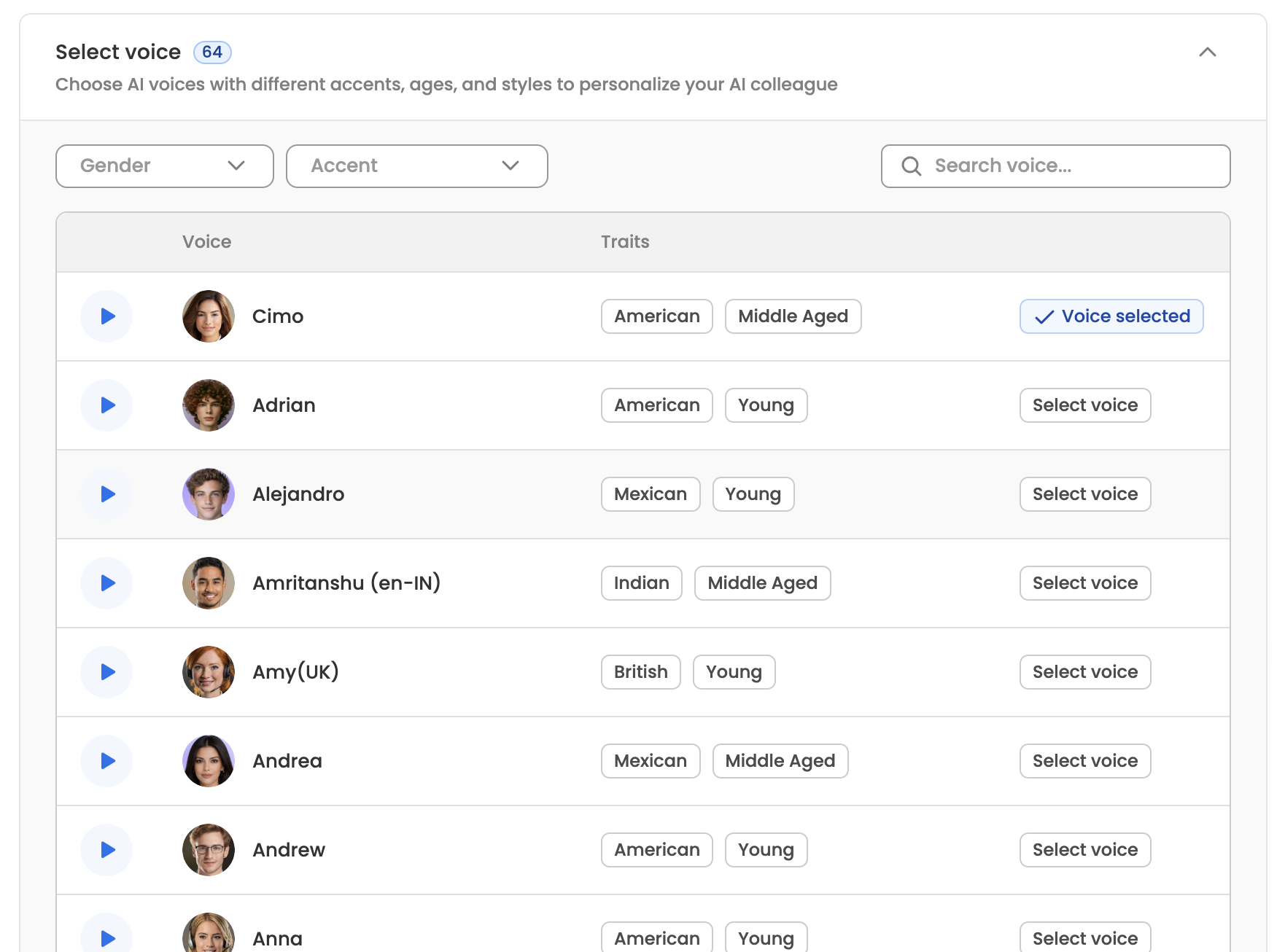
The section header shows how many voices are available. Narrow the list using the gender and accent filters, or search — search matches on accent and age as well as name.
| Column | What it shows |
|---|---|
| Sample | Preview button. Plays a clip of the voice |
| Avatar | Visual avatar for the voice |
| Voice | The voice name |
| Accent | For example American, British, Indian, Mexican |
| Gender | The voice's gender |
| Age | Age style, such as Young or Middle Aged |
Use Select voice on a row to make it active. The current voice is marked Voice selected. In read-only mode the table shows just the active voice rather than the full list.
Updated 2 days ago