Mailgun Domain Authentication

This guide walks you through authenticating a subdomain with Mailgun, adding the required DNS records, and creating sender and receiver identities so your bot can send (and optionally receive) email through Mailgun.

This guide walks you through authenticating a subdomain with Mailgun, adding the required DNS records, and creating sender and receiver identities so your bot can send (and optionally receive) email through Mailgun.

Access required

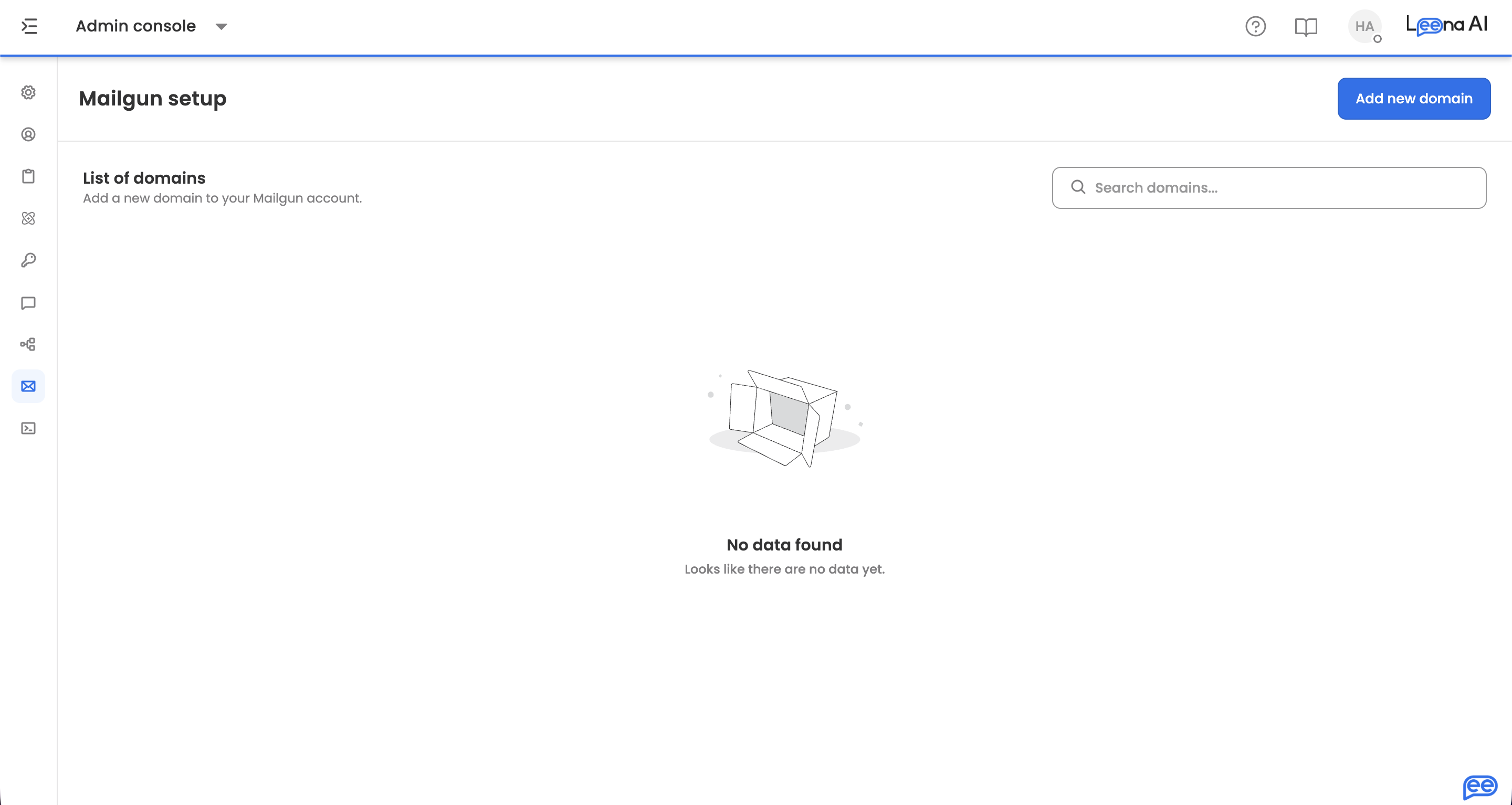
All steps are performed from Unified Dashboard → Settings → Email Settings → Mailgun Setup.

You'll need Config Manager access to see and use this section. If you can't see Email Settings, contact your Leena AI SPOC.

Before you start: confirm RBAC Company is set up

Before you add a subdomain, check with your Leena AI SPOC that the Company cluster has already been created for your bot. This is an internal Leena AI configuration step — it is not something you can do from the dashboard yourself.

Why this matters: if the subdomain is added before the Company cluster exists, the setup becomes bot-specific and will not automatically be available to the other bots in the same cluster (for example, UAT and Prod). Once the cluster is in place, the same subdomain can be reused across all bots in that cluster.

If you're unsure, reach out to your SPOC before proceeding.

End-to-end process

  1. Add the subdomain in Mailgun Setup (with region, DKIM, and retention options).
  2. Share the generated DNS records (Sender + optionally Receiver) with your DNS administrator.
  3. Your DNS administrator adds the records at your DNS provider.
  4. Verify Sender records (and optionally Receiver records) from the dashboard.
  5. Create Sender Identities (username + password).
  6. (Optional) Create Receiver Routes for inbound email handling.

Step 1: Add a new subdomain

Navigate to Unified Dashboard → Settings → Email Settings → Mailgun Setup and click Add New Domain.

Important: Mailgun uses subdomains, not root domains. Always add a subdomain like mail.company.com or help.company.com — not company.com. This avoids conflicts with existing DNS/MX records on the root domain.

During subdomain creation, configure the following:

OptionValuesDefaultNotes
Domain RegionUS / EUUSRegion from which emails will be sent. Switch to EU only if EU data residency is required.
IP AssignmentShared IPShared IPNon-editable.
DKIM Key Length1024 / 204810242048 is more secure; use it if there are no constraints on your side.
Message Retention Period0 / 1 / 3 / 7 days3 daysHow long Mailgun stores messages for retrieval.

A maximum of 5 subdomains per bot is allowed.

Step 2: Share DNS records with your DNS administrator

After the subdomain is added, the dashboard generates two separate DNS tables.

Sender DNS Records (required for sending email)

TypeNameValue
TXTmx._domainkey.mail.company.comDKIM public key (auto-generated)
TXTmail.company.comv=spf1 include:mailgun.org ~all

Receiver DNS Records (required only for inbound email routing)

TypeNameValue
MXmail.company.commxa.mailgun.org
MXmail.company.commxb.mailgun.org

Note: You can verify Sender Records without verifying Receiver Records. The reverse is not possible — Receiver Records require Sender Records to be verified first.

Share the relevant records with your DNS administrator and have them added at your DNS provider (GoDaddy, Cloudflare, AWS Route 53, etc.).

DNS propagation can take 15 minutes to 48 hours depending on TTL and provider.

Step 3: Verify DNS records

DNS verification can take 1–5 days. During this period, the status chip shows Verification in Progress and a new verification request cannot be raised.

Status values: Unverified → Verification in Progress → Verified / Verification Failed

  1. Once your DNS administrator confirms the records are in place, open the subdomain in Mailgun Setup.
  2. Click Verify Records on the Sender DNS table.
  3. If verification succeeds, the Sender status becomes Verified and you can proceed to create Sender Identities.
  4. (Optional) Click Verify Records on the Receiver DNS table if inbound email routing is needed.

Step 4: Create Sender Identities

Once Sender Records are Verified:

  1. Click View Senders (or go to the Sender Identity section for that subdomain).
  2. Click Add Sender.
  3. Fill in the following fields (both mandatory):
FieldDescriptionExample
UsernameFull email address under the subdomain[email protected]
PasswordPassword for the mailbox (5–32 characters)SecurePass123
  • Up to 10 sender identities per subdomain are allowed.
  • Sender identities can be edited or deleted after creation.

Step 5: Create Receiver Routes (optional)

Receiver Routes are only needed if you want to receive and route inbound emails through Mailgun. Requires Receiver DNS Records to be verified first.

  1. Go to the Receiver Identity section for the subdomain.
  2. Click Add Route.
  3. Fill in the following fields:
FieldMandatoryDescriptionExample
RecipientYesSelect from existing Sender Identities for this subdomain[email protected]
ActionYesMailgun route action to perform on matchforward("http://myhost.com/messages/")
DescriptionNoHuman-readable label for this routeForward support emails to helpdesk

Refer to the Mailgun Routes API documentation for valid action syntax.

Up to 10 receiver routes per subdomain are allowed.

Troubleshooting

1. Domain verification is failing

Likely causes:

  • DNS records added incorrectly (wrong hostname/value).
  • Full domain pasted into the "host" field when the provider expected only the hostname prefix — or vice versa (many providers auto-append the domain).
  • DNS propagation not yet complete.

What to do:

  • Ask your DNS administrator for a screenshot/export of the entries from the DNS provider.
  • Compare host + value exactly against what the dashboard generated.
  • Wait and retry — especially if records were added very recently.

2. "View Senders" is not visible

Most common reason: Sender Records are still Unverified.

What to do: complete Sender DNS verification first.

3. Subdomain works for one bot but not another (UAT/Prod)

Most common reason: the RBAC Company was not created before subdomain setup, making it bot-specific.

What to do:

  • Check with your Leena AI SPOC that the RBAC Company is set up and bots are correctly grouped.
  • Then add the same subdomain on the other bot — the system will reuse the existing Mailgun configuration for that subdomain.

4. You only need outbound email (no inbound)

Supported. Skip the Receiver DNS Records and Receiver Routes entirely — complete only Steps 1–4.

5. You need multiple sender emails

Supported. Authenticate the subdomain once, then add multiple Sender Identities under the same verified subdomain (e.g. support@, hr@, it@).

6. Mailgun region mismatch

Mailgun has two sending regions: US (default) and EU. The region is selected during subdomain creation and cannot be changed afterwards.

  • Most customers use US — switch to EU only if EU data residency is explicitly required.
  • If emails are failing to send after verification, confirm the selected region matches your Mailgun account region.
  • If there is a mismatch, a new subdomain must be created with the correct region. Reach out to your Leena AI SPOC so engineering can update the API endpoint configuration if needed.