
SharePoint
Migration for existing users
⚠️ Migration Guide for Existing Customers (REST to Graph API)
If you previously connected Leena AI to SharePoint using the legacy REST API and Client Secrets, you must migrate to our new Graph API and Certificate-Based Authentication.
You do not need to create a new App Registration. Simply update your existing connection by following these steps:
Step I: Generate & Download Your Certificate
-
Go to the Leena AI Dashboard > Settings > Knowledge Management > Integrations > SharePoint.
-
Click the three dots on your active connection and select View Connection.
-
Click Generate Certificate, then click Download Certificate and save it to your computer.
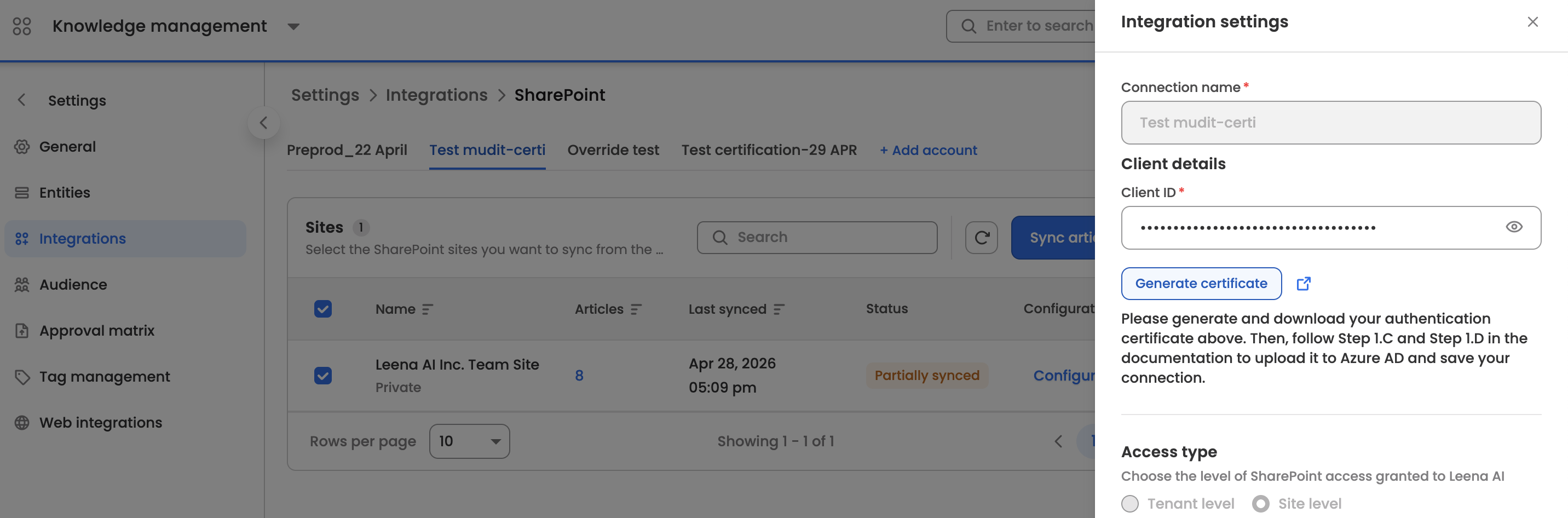
Important: Every time you generate a new certificate here, you must upload the latest version to Entra ID.
Step II: Upload Certificate & Grant Permissions in Entra ID
- Log into Microsoft Entra ID and navigate to your existing Leena AI App Registration.
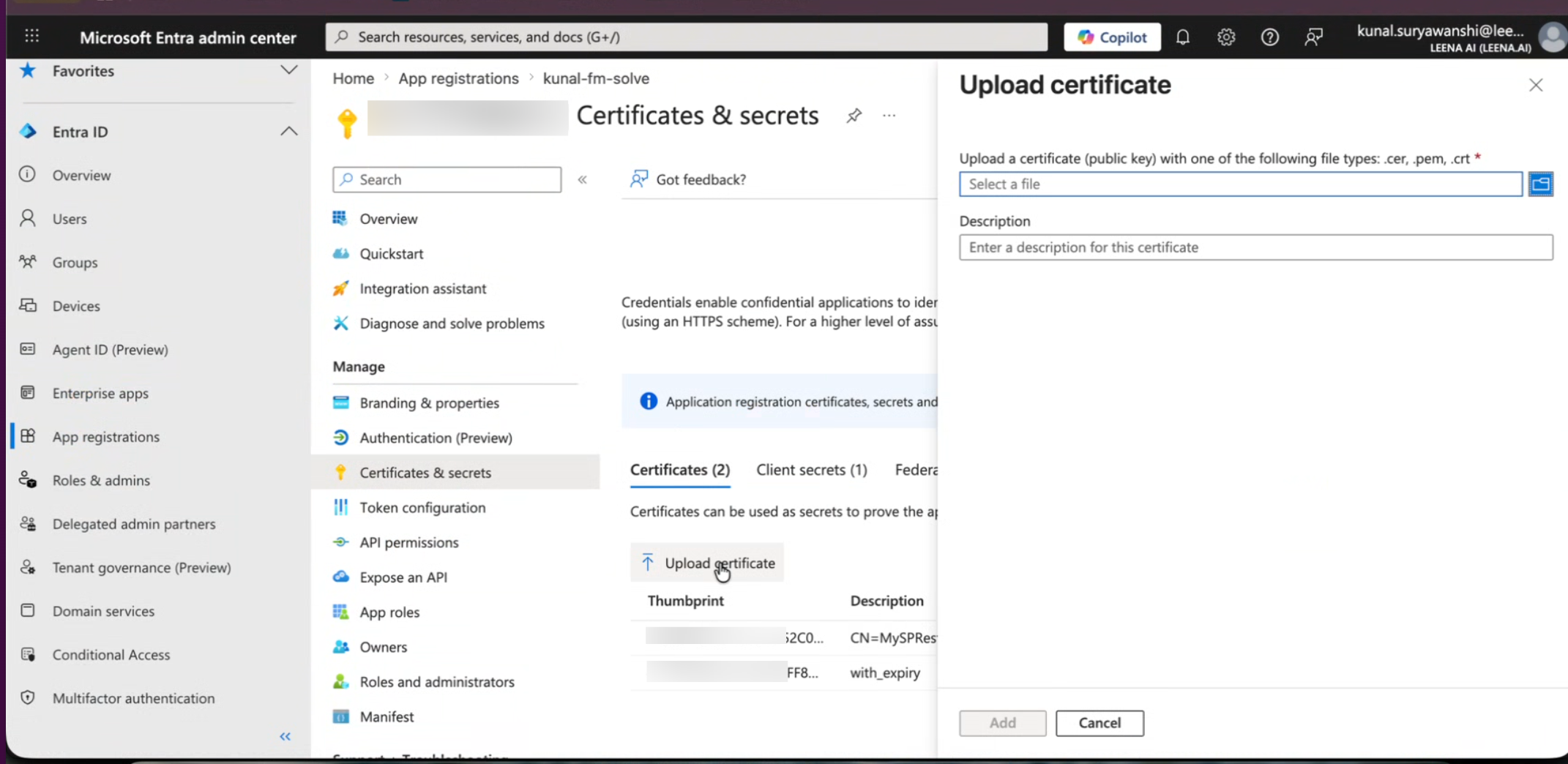
- Go to Certificates & secrets > Certificates and click Upload certificate. Upload the file you downloaded in Step 1.
- Go to API permissions, select SharePoint (Application permissions), and add the new required permissions: Sites.FullControl.All (or Sites.Selected for restricted access) AND User.Read.All. Refer to steps 1.C & 1.D in the document for details on this.
- Make sure to click Grant admin consent to finalize the changes.
Step III: Save and Complete Migration
- Return to the Leena AI Dashboard (where you initiated the certificate download).
- Click on Save to update the connection.
Success: Once these steps are completed, your integration is fully migrated to the modern standard.
Adding a new SharePoint Connector: Overview
Leena AI integrates with Microsoft SharePoint using the modern Microsoft Graph API, providing a single, secure, and unified connection method. This allows you to sync documents from your entire SharePoint tenant or just specific sites directly into your Leena AI Knowledge Management (KM) system.
This guide will walk you through the two main steps:
- Creating an Application in Microsoft Entra ID to grant Leena AI the necessary permissions.
- Configuring the connection in the Leena AI dashboard using the credentials from Entra.
Step 1: Configure Permissions in Microsoft Entra ID
Follow these steps to register an application using the Azure Active Directory admin center:
A. Create a New App Registration
-
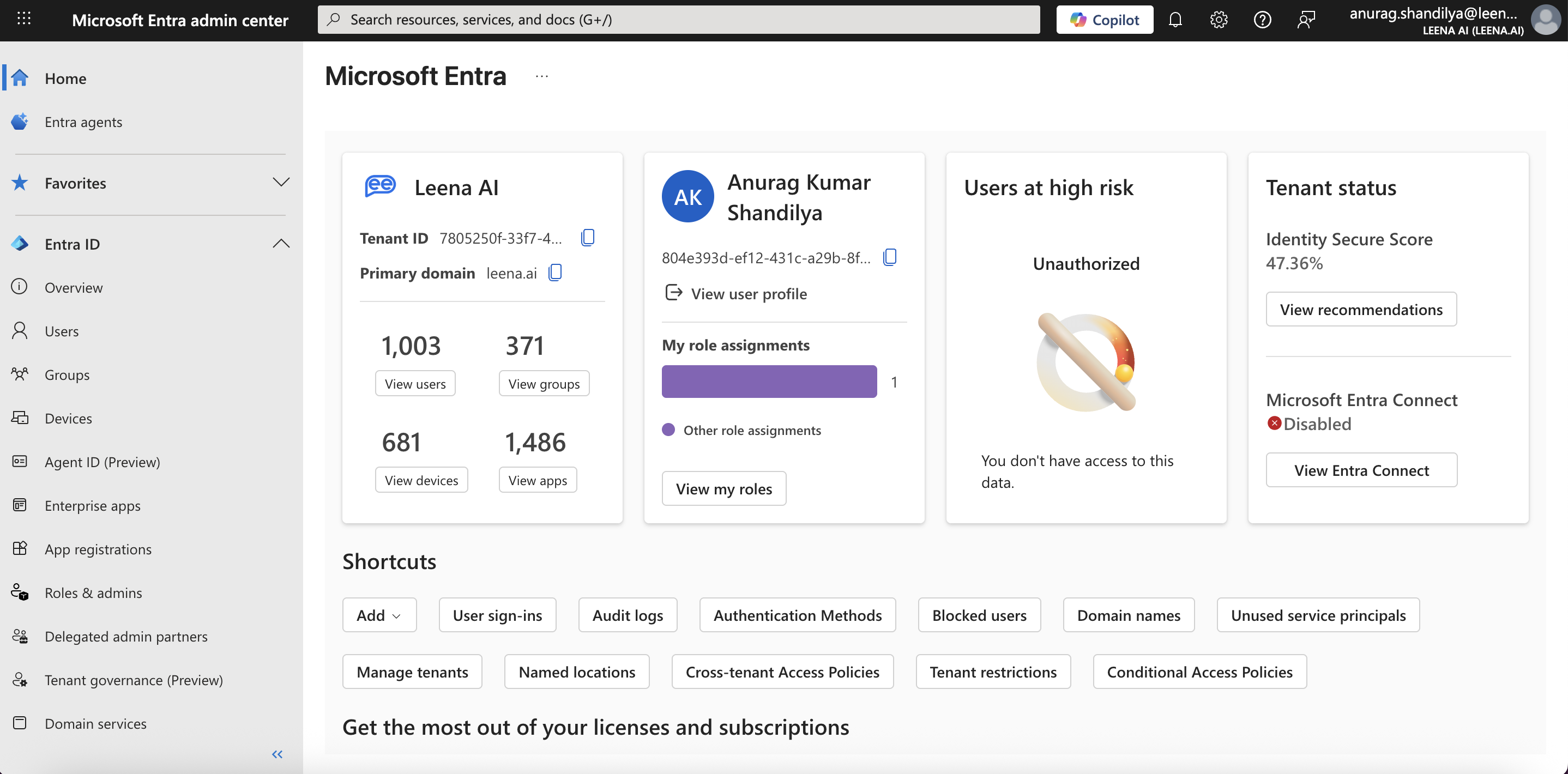
Go to the Microsoft Entra admin center and login using a Global administrator account.
-
Navigate to App registrations.
-
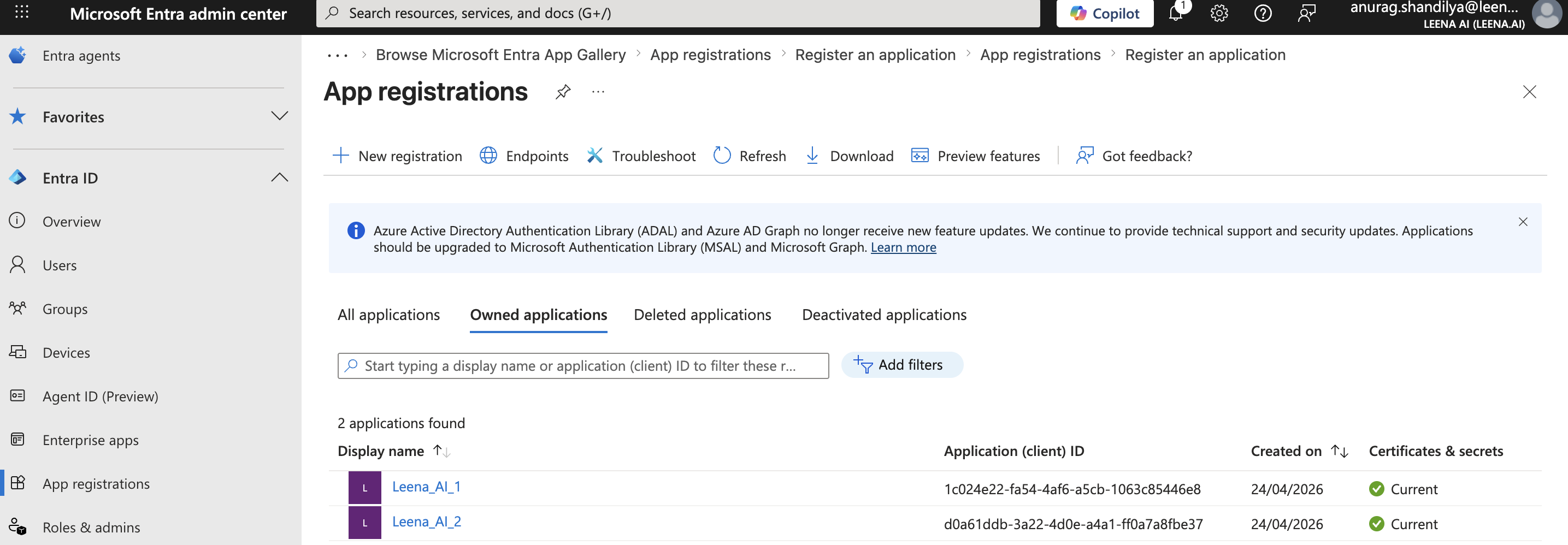
Click + New registration.
-
Name: Give your application a clear name (e.g., "Leena AI SharePoint Connector").
-
Supported account types: Select "Single tenant only".
-
Redirect URI: Leave this blank.
-
Click Register.
-
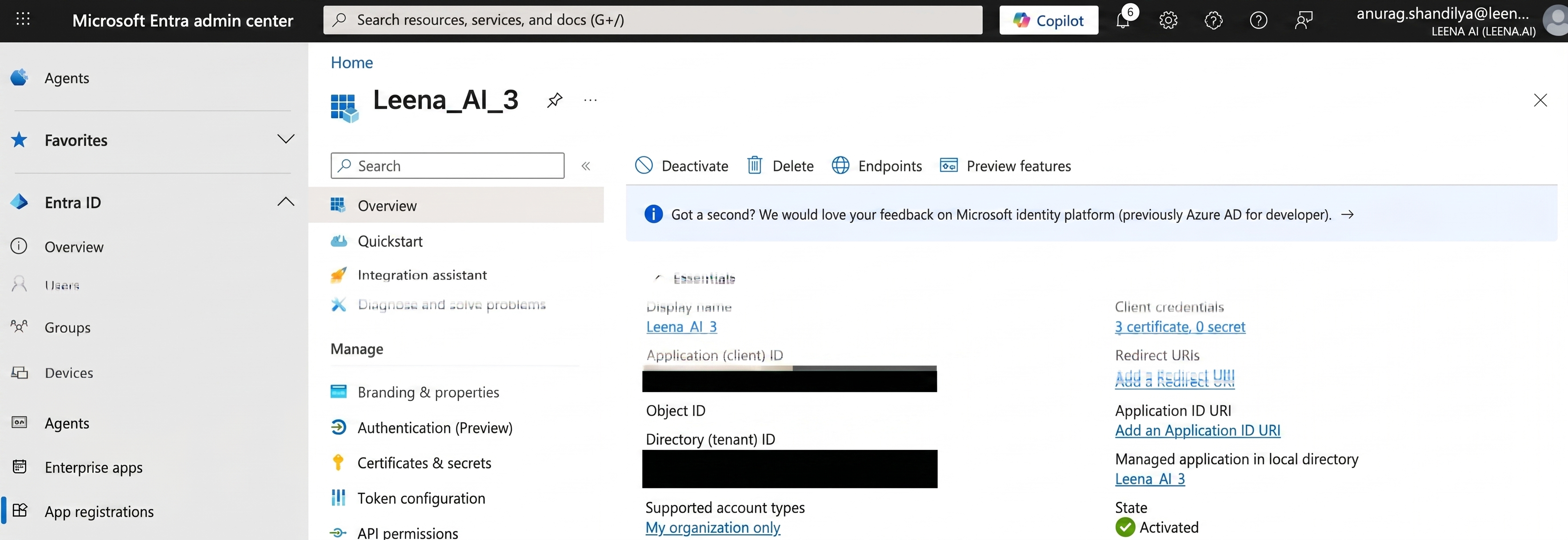
On the application's Overview page, copy the value of the Application (client) ID and Directory (tenant) ID and save them; you will need these values in the next step.
B. Configure API Permissions
-
In your new app registration, select API permissions from the left menu.
-
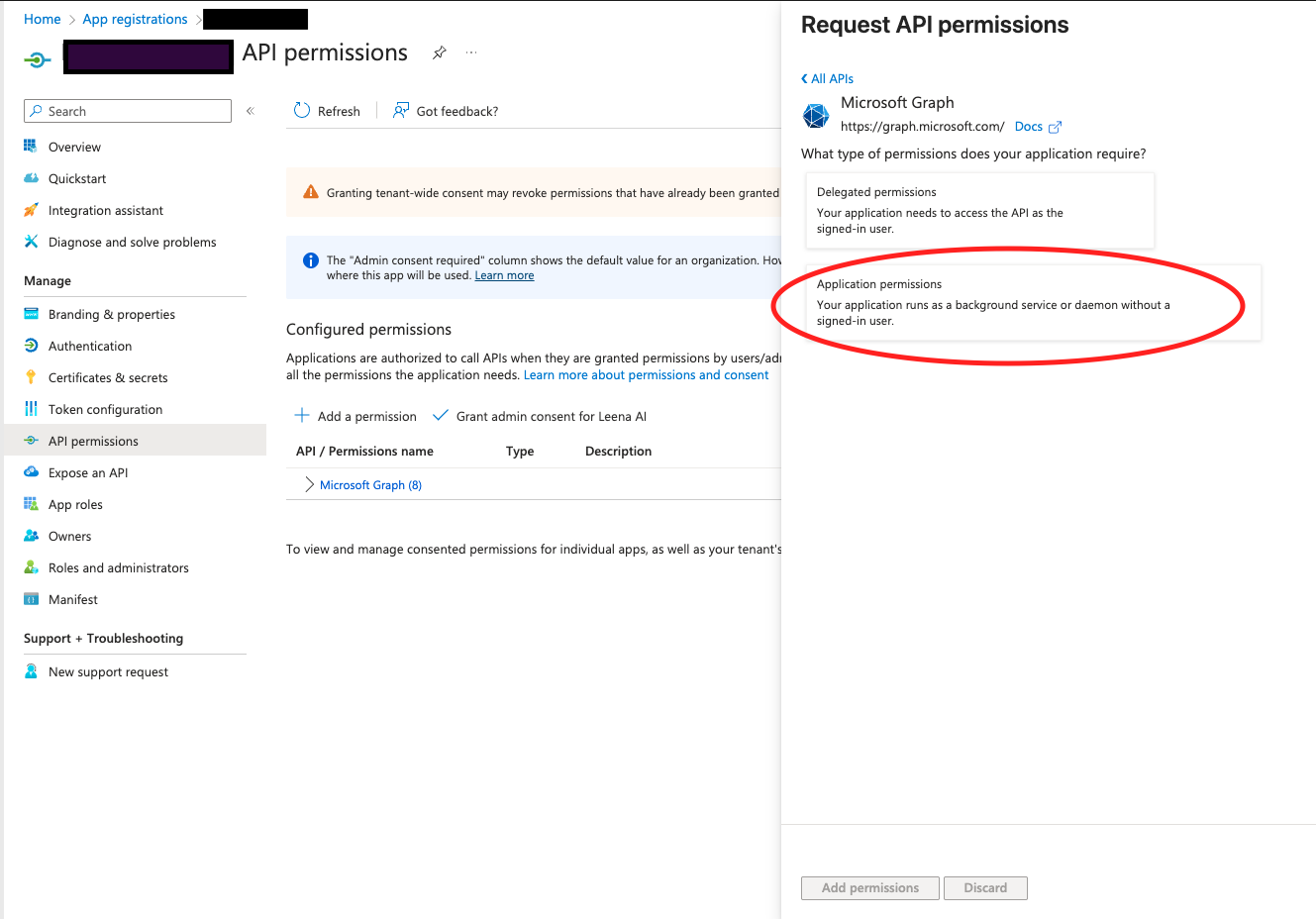
Click + Add a permission, then select Microsoft Graph.
-
Select Application permissions .
-
Now, choose the permission level based on your needs. This is the most important step:
- For Tenant-Level Access (Sync all sites): Search for and select
Sites.Read.All. This allows Leena AI to read all site collections in your SharePoint tenant. - For Site-Level Access (Sync only specific sites): Search for and select
Sites.Selected. This permission allows you to grant Leena AI read access to an explicit list of sites, adhering to the principle of least privilege. Note that if you go with site-level access, you will need to follow extra steps detailed at the bottom of this section.
- For Tenant-Level Access (Sync all sites): Search for and select
-
(Required for Permission Syncing) In addition to the choice above, you must also add the following permissions to ensure document access rights are synced correctly:
-
Group.Read.All -
User.Read.All
Note:
User.Read.Allis recommended overUser.ReadBasic.Allfor better user mapping. -
-
After adding the permissions, click the Add permissions button at the bottom.
-
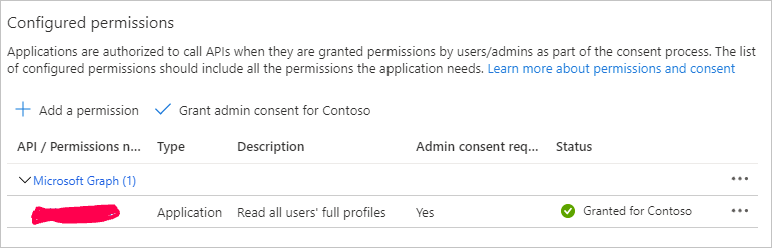
Finally, you must grant consent for these permissions. Click the Grant admin consent for [Your Tenant Name] button and accept the prompt. The status for all permissions should update to show a green checkmark.
Important Note on
Sites.Selected: Microsoft's configuration forSites.Selectedpermission requires additional steps using API calls or PowerShell to grant the application access to each specific site. This is a Microsoft requirement for this high-security permission type. For detailed instructions, please refer to the official Microsoft documentation: Develop applications that use Sites.Selected permissions.
Reference APIs (for Sites.Selected configuration)
Sites.Selected configuration)a. API to fetch the auth token This token will be used to grant read permissions to the "Leena AI" application. This token has to be generated using another application which has Sites.FullControl.All permission.
curl --location --request GET 'https://login.microsoftonline.com/{{tenant id}}/oauth2/v2.0/token' \
--header 'Content-Type: application/x-www-form-urlencoded' \
--data-urlencode 'client_id={{clientid}}' \
--data-urlencode 'client_secret={{clientsecret}}' \
--data-urlencode 'scope=https://graph.microsoft.com/.default' \
--data-urlencode 'grant_type=client_credentials'
b. API to fetch site ids
curl --location 'https://graph.microsoft.com/v1.0/sites/' \
--header 'authorization: Bearer {{token}}'
c. API to grant the site-level permissions to "Leena AI" application
curl --location 'https://graph.microsoft.com/v1.0/sites/{{site id}}/permissions' \
--header 'Authorization: Bearer {{token}}' \
--header 'Content-Type: application/json' \
--data '{
	"roles": [
		"read"
	],
	"grantedToIdentities": [{
		"application": {
			"id": "{{leena ai application id}}",
			"displayName": "Leena AI"
		}
	}]
}'
C. Granting Access to SharePoint Permissions
Note: Microsoft has deprecated the REST API method (appinv.aspx). You must now fetch permissions directly through the SharePoint API in Azure AD.
-
In your Azure app registration, select API permissions from the left navigation menu.
-
Go to Request API permission.
-
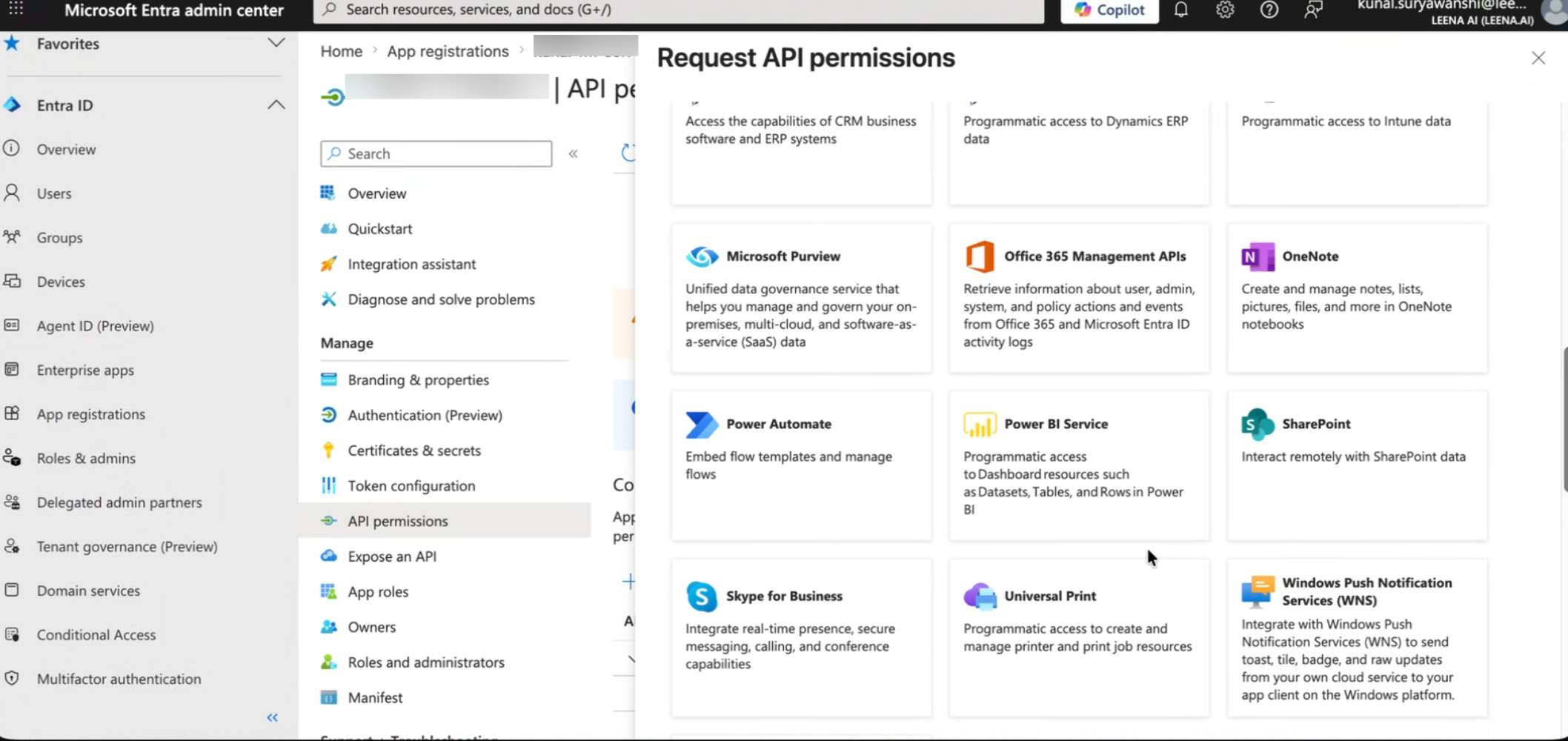
Select SharePoint from the list of available APIs.
-
Choose Application permissions (not Delegated).
-
Select the specific permissions based on your required access level:
Option 1: For Full Tenant Access (Read All Sites)
- Search for and check the box for
Sites.FullControl.All. - Search for and check the box for
User.Read.All.
Option 2: For Restricted Access (Read Selected Sites Only)
- Search for and check the box for
Sites.Selected. - Search for and check the box for
User.Read.All.
Finalizing Consent
- Click the Add permissions button at the bottom.
- Once the permissions are added, click the Grant admin consent for [Your Tenant Name] button.
- Accept the prompt to ensure the status for all new permissions updates to show a green checkmark.
D. Configure Certificate-based Authentication
Note: For enhanced security, Leena AI now utilizes certificate-based authentication instead of client secrets.
-
Open a new tab and log in to your Leena AI Dashboard.
-
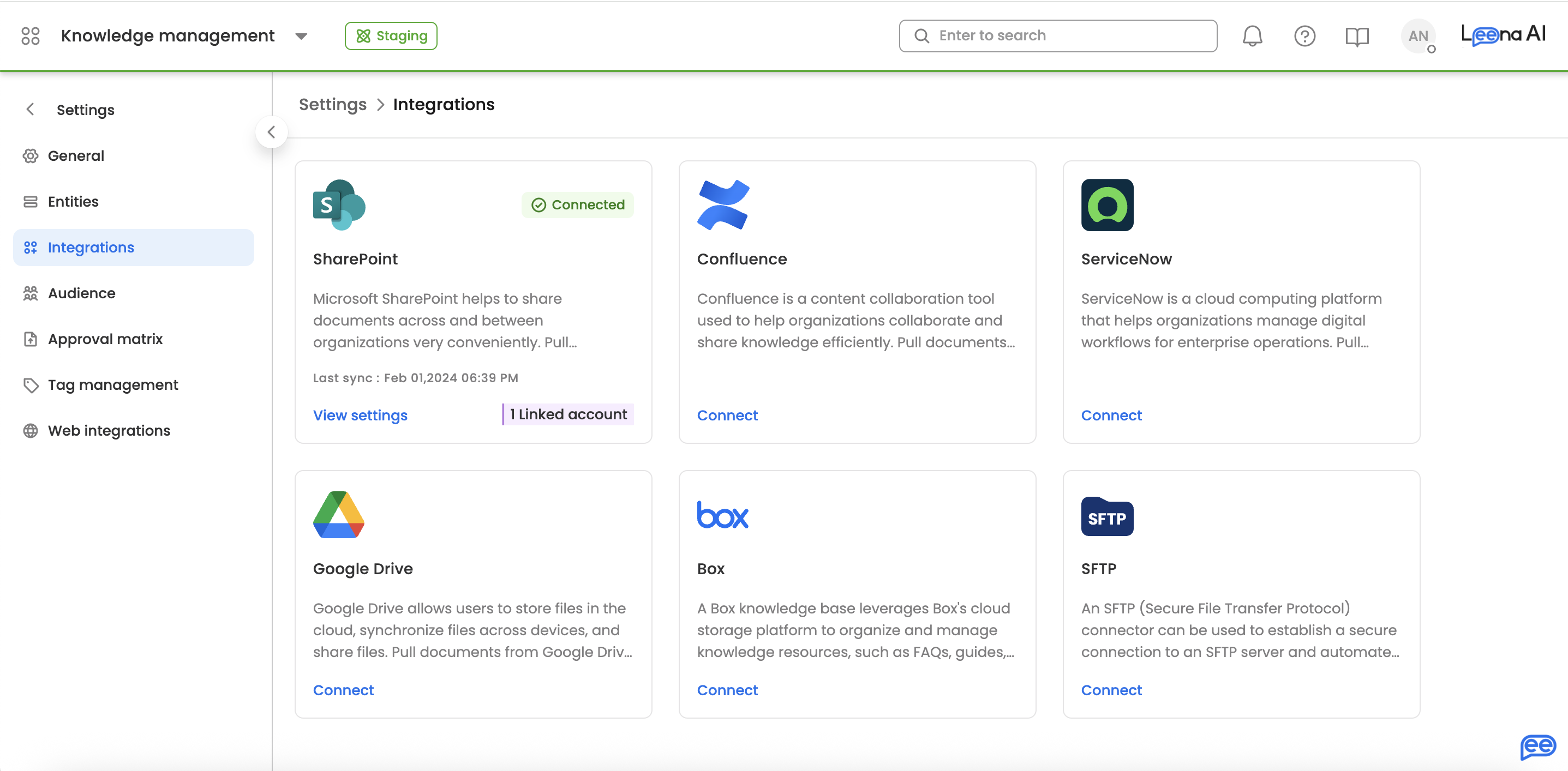
Navigate to the Knowledge Management (KM) Integration settings. You can find this within Settings-->Integrations--->SharePoint.
-
Locate the SharePoint connector and click on 'Connect'. A side-sheet will open. Then click Generate Certificate and subsequently click on Download Certificate. Save this file locally to your computer.
-
Return to your Azure Active Directory app registration portal.
-
Select Certificates & secrets from the left navigation menu.
-
Click the Certificates tab.
-
Click Upload certificate.
-
Select the certificate file you just downloaded from the Leena AI dashboard.
-
Enter a brief description (e.g., "Leena AI Auth Certificate") and click Add.
Step 2: Integrating with Leena AI’s KM Dashboard
The “Integration” option under KM settings will enable you to integrate KM with third-party apps so that we can pull documents from there and display them in Leena AI's KM.
For SharePoint Integration via Graph APIs, users need to provide the following details:
- Navigate to the KM Settings > Integrations page in your Leena AI dashboard.
- Select the SharePoint connector.
- You will see a single, unified configuration screen. Enter the credentials you saved from Azure AD:
- Tenant ID: The Directory (tenant) ID you copied.
- Client ID: The Application (client) ID you copied.
- Certificate: Ensure you have downloaded the certificate from this dashboard and uploaded it to Azure as outlined in Step 1D.
- (For Site-Level Access Only) If you used the
Sites.Selectedpermission, you must provide the list of SharePoint Site URLs you wish to sync. Note, you will have to follow extra steps for ensuring site-level access as mentioned above in Step 1. - Click the Connect button. The system will verify if your credentials and permissions are correct.
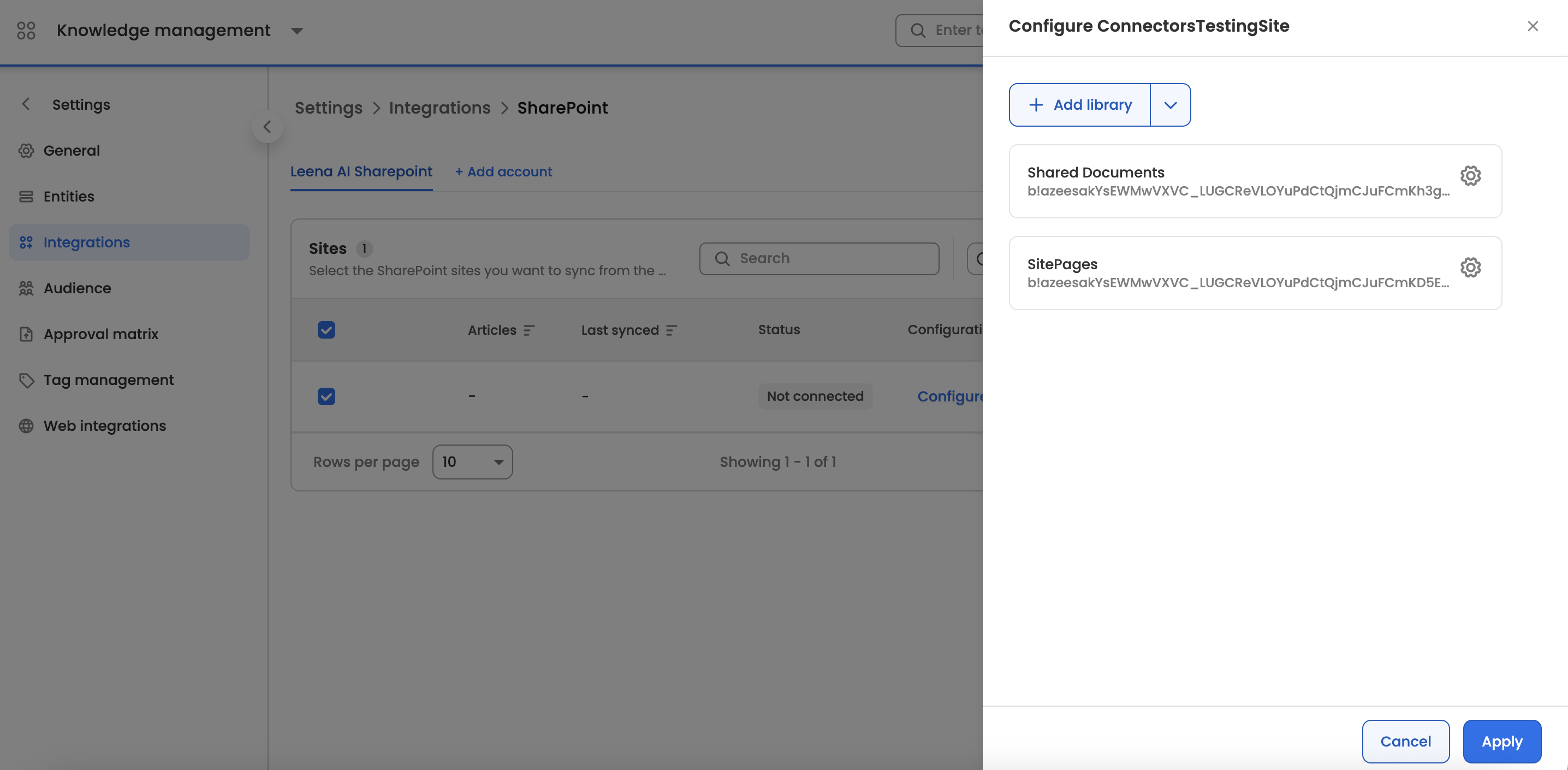
- Once the connection is established, you can proceed to select the sites you wish to sync by choosing the sites and syncing them. You can also choose which libraries to sync within each site by clicking on the Configure Site button for each site and then choosing the libraries to sync. By default, Leena AI will sync the "Shared Documents" library from each site unless otherwise configured.
Metadata filtering of content: After connecting to the SharePoint sites, you could select 'Configure site' and then provide metadata based on which you would want to filter content within SharePoint sites. For configuring sites, you will have to first select libraries and then configure the libraries based on the available metadata filters.
SharePoint Graph API Integration: FAQs
Configuration & Permissions
Q: What credentials do I need from Azure AD to set up the connection? A: You will need the following values from your Azure App Registration:
- Directory (tenant) ID
- Application (client) ID
Q: What's the difference between the Sites.Read.All and Sites.Selected permissions? A:
Sites.Read.Allgrants Leena AI permission to read all site collections across your entire tenant.Sites.Selectedis a more restrictive permission that allows Leena AI to read only the specific sites you explicitly grant it access to.
Q: Why do I need to add Group.Read.All and User.Read.All permissions? A: These permissions are required to ensure that document access rights are synced correctly from SharePoint to Leena AI. This allows for accurate user mapping and maintains your existing document security.
Q: I used the Sites.Selected permission, but my sites aren't syncing. What did I miss? A: The Sites.Selected permission requires an additional step. Due to Microsoft's security rules, you must use API calls (as referenced in the documentation) or PowerShell to manually grant your new application read access to each specific site you want to sync.
SharePoint Sync Guidelines & Capacity Limits
This document outlines the capacity limits for synchronization and provides the standard operating procedure (SOP) for batching large amounts of data to prevent sync failures.
System Limits
If either of the following conditions is not met, the sync may fail.
- Maximum articles per library: 1,500
- Maximum new articles per sync: 5,000
Site-Level Batch Sync Procedure
If you have more files than the limits listed above, you must process them in batches at the site level. Please follow these steps:
- Organize Content: Divide your files into libraries within your sites, ensuring no single library exceeds the 1,500 article limit.
- First Batch Sync: Select your first batch of sites to sync. Ensure the total number of new articles being processed in this batch does not exceed 5,000.
- Subsequent Batches: Once the first batch has successfully synced, prepare to sync the next batch of sites.
- ⚠️ CRITICAL RULE: You must always 'Select All' sites in every sync operation. This means you must include the sites from your previous syncs alongside your new batch. Just ensure the batch of newly added articles in the current sync operation remains under the 5,000 limit.
Repeat steps 3 and 4 until all sites and articles are fully synced.