Microsoft Teams (Tab App) Setup

Setting Up Your Leena AI Bot on Microsoft Teams

Introduction

This guide walks you through configuring the Microsoft Teams channel for your Leena AI bot from the Unified Dashboard. The setup is a collaborative process — Leena AI handles the underlying bot infrastructure, while you provide the branding details and install the final app package into your Teams tenant.

There are no technical steps required on your end beyond uploading a .zip file into the Microsoft Teams Admin Center.


Prerequisites

Before you begin, ensure you have:

  • Access to the Unified Dashboard with the Config Manager role assigned to your profile.
  • Administrative access to your organization's Microsoft Teams Admin Center.
  • Your app icons ready (details in Part 2 below).

Part 1: Waiting for Leena AI to Configure the Bot

When you first navigate to Settings → Channels → Teams, you will see a status card indicating that Leena AI is setting up the core bot infrastructure on our end. You will have to contact your Leena AI implementation contact or email [email protected] with your account details to initiate the process.

Status: 🟡 Waiting for Leena AI

No action is required from you at this stage. The Leena AI team will notify you once the bot is configured and you are ready to proceed with branding.


Part 2: Submit Your Branding Details

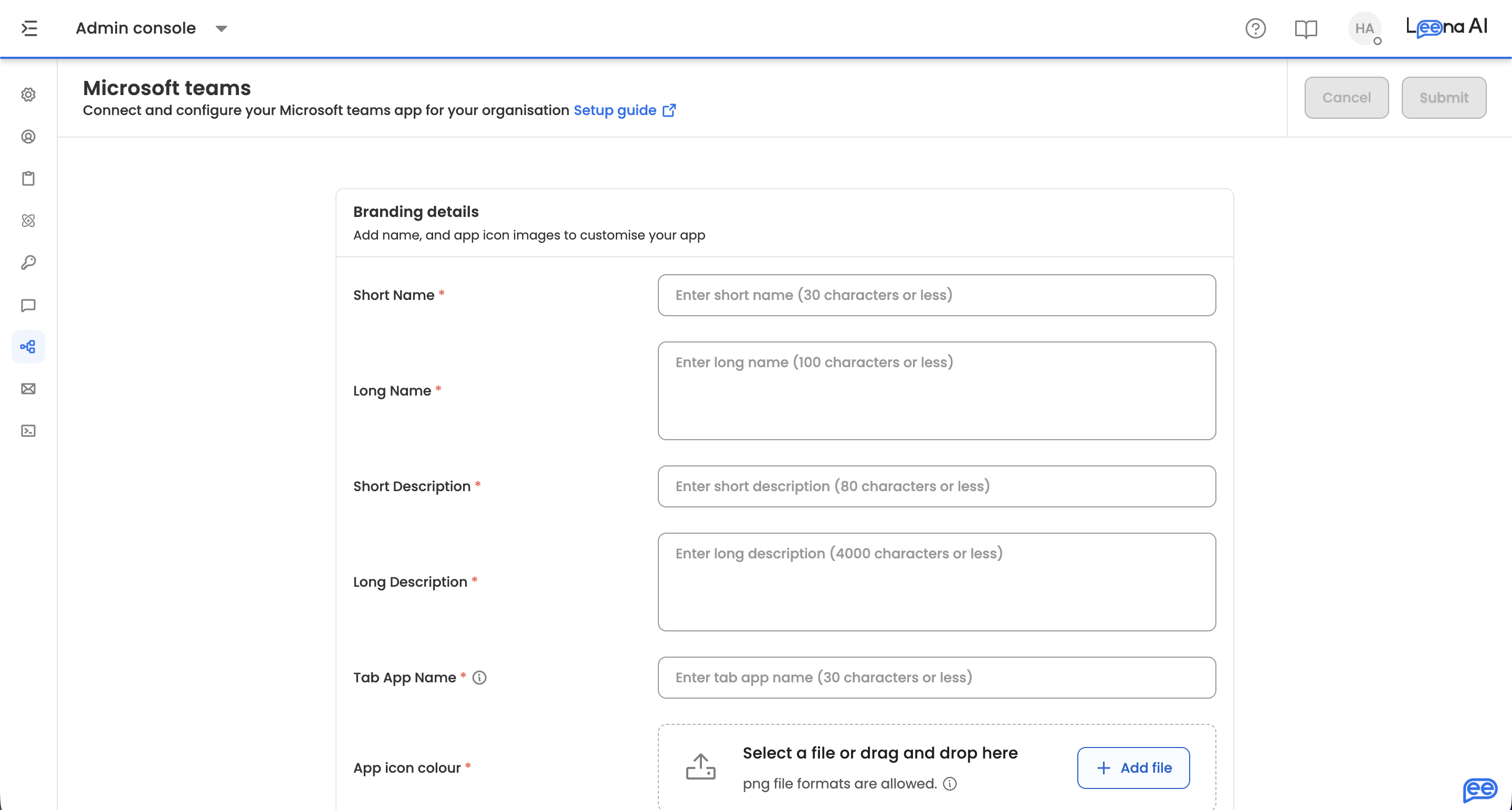
Once the Leena AI team has completed the bot setup, you will see a branding configuration form on the Teams channel page.

Fill in the following fields:

FieldDescriptionConstraints
App Short NameThe primary name displayed in the Teams left sidebar and mobile app listRequired. Max 30 characters
App Long NameUsed in the "About" section and the Teams App Store listingRequired. Max 100 characters
Tab NameThe name of the tab users click to open your bot's home interface (e.g., "Home", "Help")Required. Max 128 characters
App Icon (Color)Displayed in the Teams store and "About" sectionRequired. PNG or JPEG. Exact 192×192 px. Max 1024 KB
App Icon (Outline)Displayed in the left sidebar and activity feedRequired. PNG only. Exact 32×32 px. Transparent background. White/wireframe style recommended

Tip on icons: Teams will reject your app package if icon dimensions are incorrect. Ensure your color icon is exactly 192×192 px and your outline icon is exactly 32×32 px before uploading.

Once all fields are complete, click Submit Configuration.

Status: 🔵 Processing

"Configuration Submitted. The Leena AI team is preparing your application package."

The Leena AI team will use your branding assets to generate your app package. You will be notified once it is ready.


Part 3: Download and Install the App

When your app package is ready, the page will update to show a download button.

Status: 🟢 Ready to Install

"Your Teams App is Ready."

Step 1: Download the App Package

Click Download App Package to download your LeenaApp_[YourOrg].zip file.

Step 2: Note Your App ID

You will also see an App ID field on this page. Copy this value — you may need it for future reference or updates.

Step 3: Upload to Microsoft Teams Admin Center

  1. Log in to the Microsoft Teams Admin Center.

  2. In the left navigation, go to Teams apps → Manage apps.

  3. Click Upload new app and select the .zip file you downloaded.

  4. Follow the prompts to complete the upload.

  5. Once uploaded, the app will be available for deployment to your employees.

For a detailed walkthrough on deploying the app to users, refer to the in-app guide: How to install Teams app? available on the Teams channel settings page.


Part 4: Updating Your App Branding

If you need to update your app's name, description, or icons after the initial setup, you can do so from the same Teams channel settings page.

  1. Navigate to Settings → Channels → Teams.
  2. The form will be pre-filled with your existing branding details.
  3. Modify the fields you wish to update and click Update App.

"Update Request Submitted."

Once the Leena AI team processes the update, a Download Updated Package button will appear. Download the new .zip and re-upload it to the Microsoft Teams Admin Center:

  1. Log in to the Microsoft Teams Admin Center.

  2. Go to Teams apps → Manage apps.

  3. Search for your app, click into it, and select Upload file (Update).

  4. Select the new .zip file and confirm.


Frequently Asked Questions

How long does the initial bot configuration take?

The Leena AI implementation team typically completes bot configuration within the agreed implementation timeline. You will receive a notification once your account is ready for branding submission.

What happens if I upload icons with the wrong dimensions?

The dashboard validates icon dimensions before submission. If your color icon is not exactly 192×192 px or your outline icon is not exactly 32×32 px, you will see a validation error and will need to re-upload corrected files. This check prevents Teams from rejecting your app package.

Can I change the bot's display name after it has been installed?

Yes. Update the App Short Name and/or App Long Name fields in the branding form, submit the update, and install the newly generated app package into your Teams Admin Center. The new name will appear for users after the update is deployed.

Do my employees need to do anything to start using the bot?

Once you upload the app to the Teams Admin Center and deploy it to your users, employees can find and open the Leena AI bot directly within Microsoft Teams — no individual installation steps required on their end, depending on your Teams deployment policy.

Who do I contact if the "Download App Package" button doesn't appear after submitting branding?

Reach out to your Leena AI contact or email [email protected] with your account details. The team will check the package generation status and follow up.