
Notification Dashboard Roles
Watch the tutorial
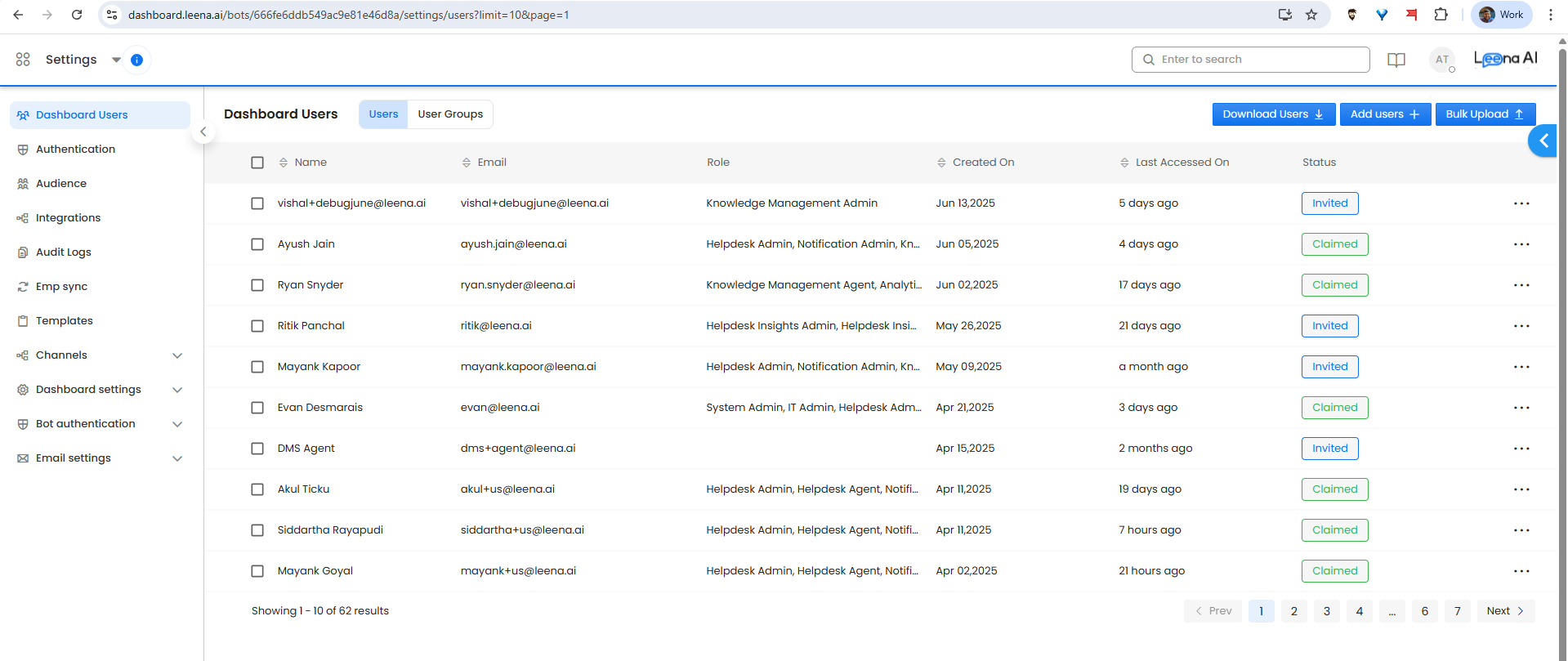
A Leena AI dashboard user can be assigned the role of Notification Agent or Notification Admin from Settings → Dashboard Users by anyone holding the System Admin role. Once assigned, the user gains access to the Notifications module.
What are these roles?
- Notification Admin — Has full access to create and manage notifications and announcements via the Notifications Module, including access to Notification Settings.
- Notification Agent — Can create and manage notifications and announcements but does not have access to Notification Settings by default. With Advanced RBAC enabled, admins can create custom roles with granular, user-level permissions.
Advanced RBAC for Notification Agents
This is a backend capability that can be turned on by requesting your CSM. Once enabled, Notification Admins will see an Access Control section under Notifications → Settings.
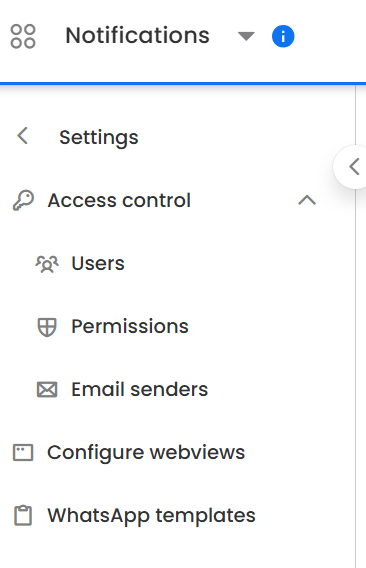
Access Control has three sub-sections: Users, Permissions, and Email Senders.
1. Users
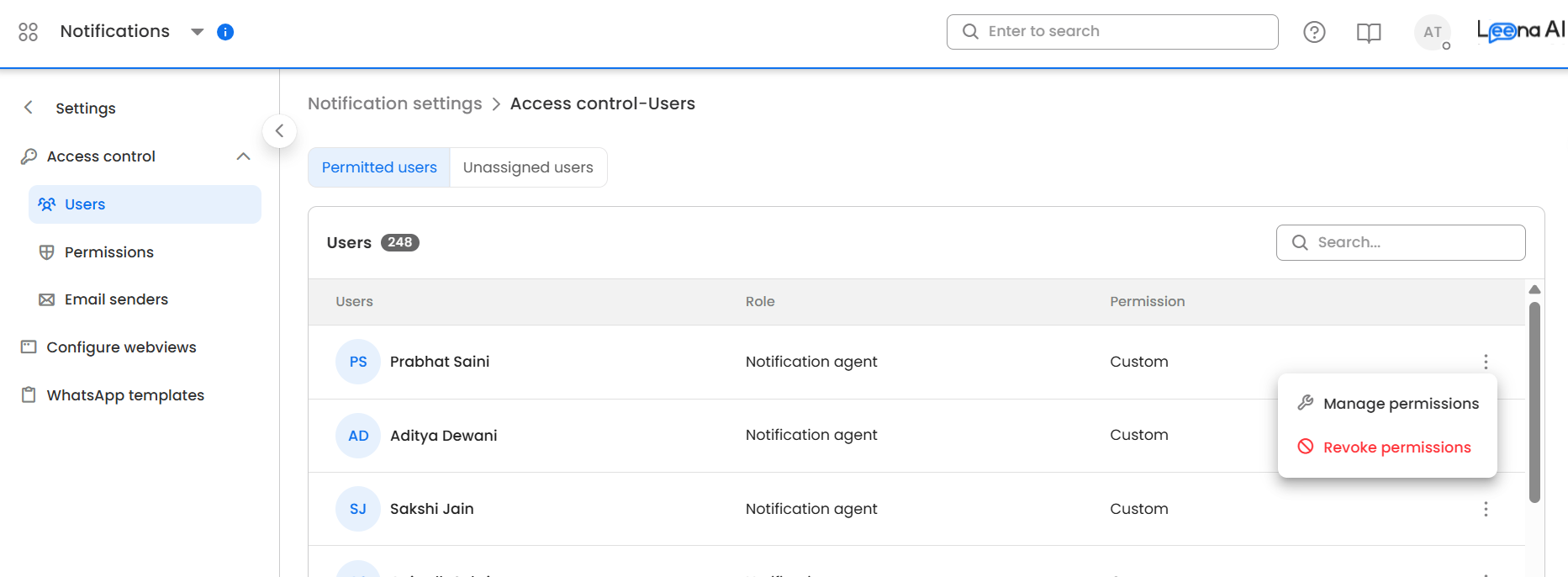
View the role assigned to each dashboard user with access to the Notifications module.
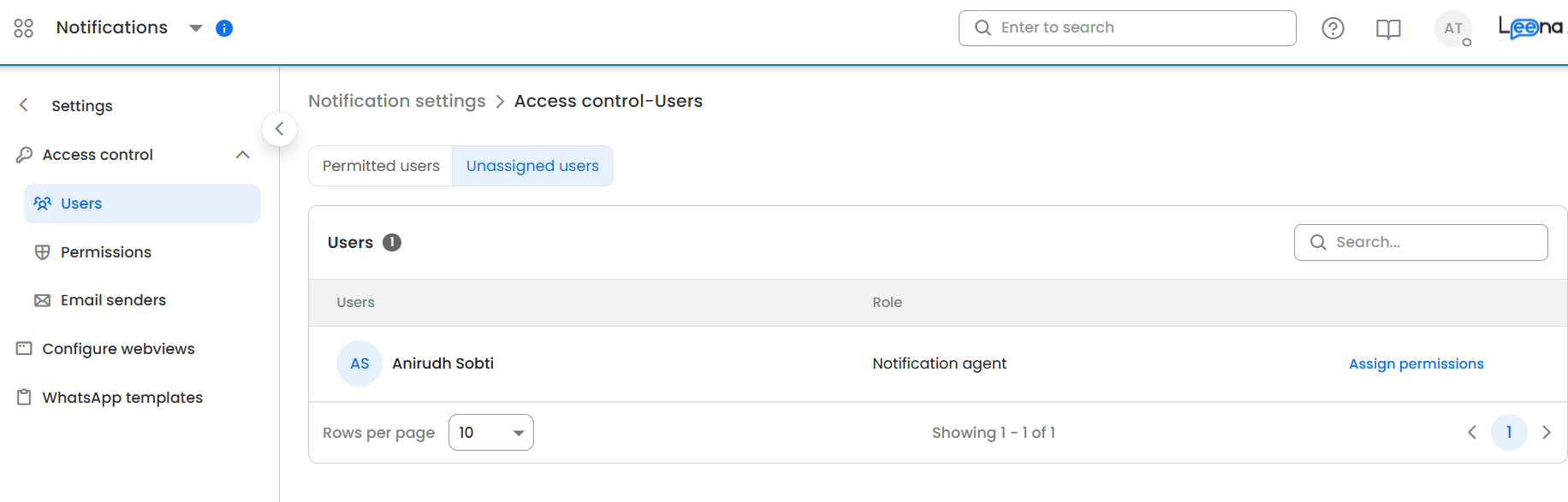
The Permitted Users tab lists all users with a role assigned. For users with the Notification Agent role, use the context menu to manage or revoke permissions.
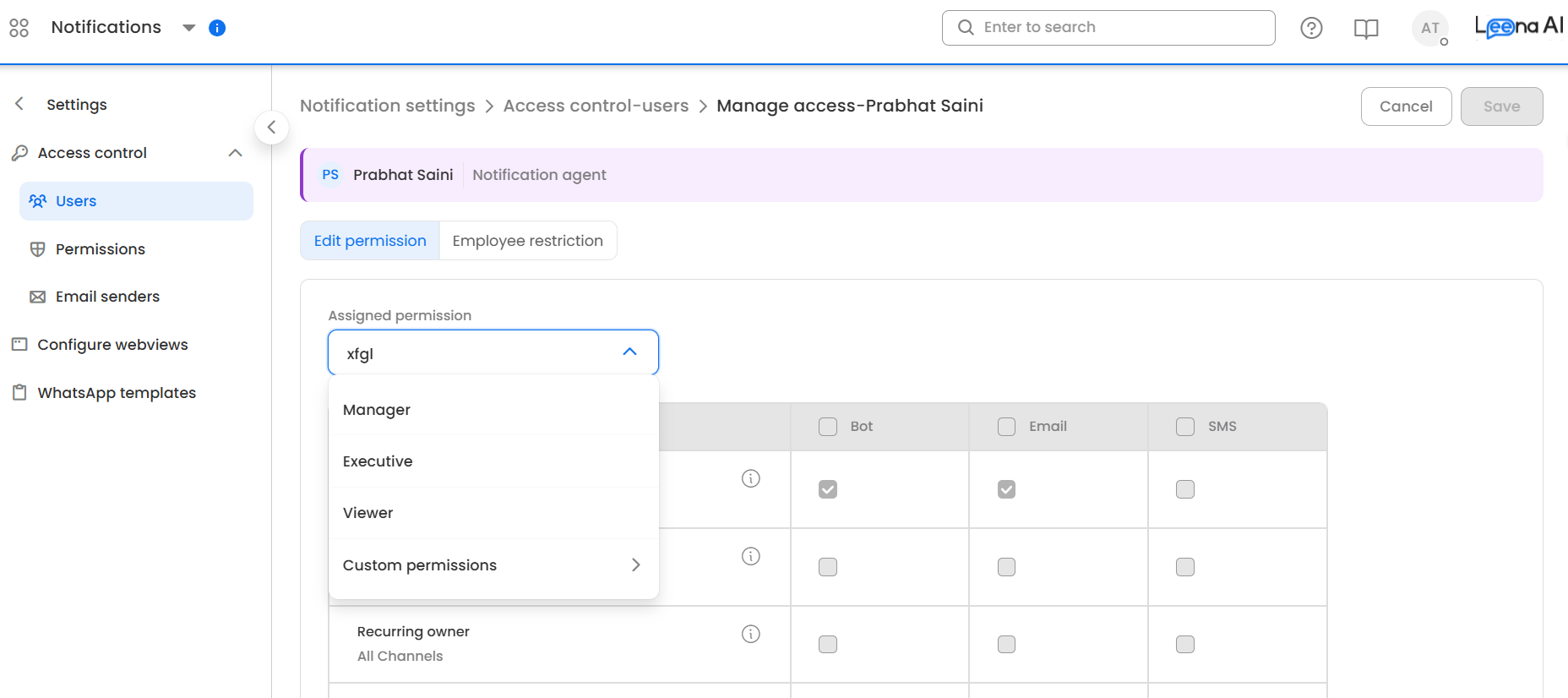
In the Manage Permissions screen, you can view the current permissions for a user, assign a pre-defined or custom permission set, and manage the employees (virtual assistant users) the dashboard user can target as audience when sending notifications.
The Unassigned Users tab shows dashboard users with the Notification Agent role who don't have any permissions assigned yet.
2. Permissions
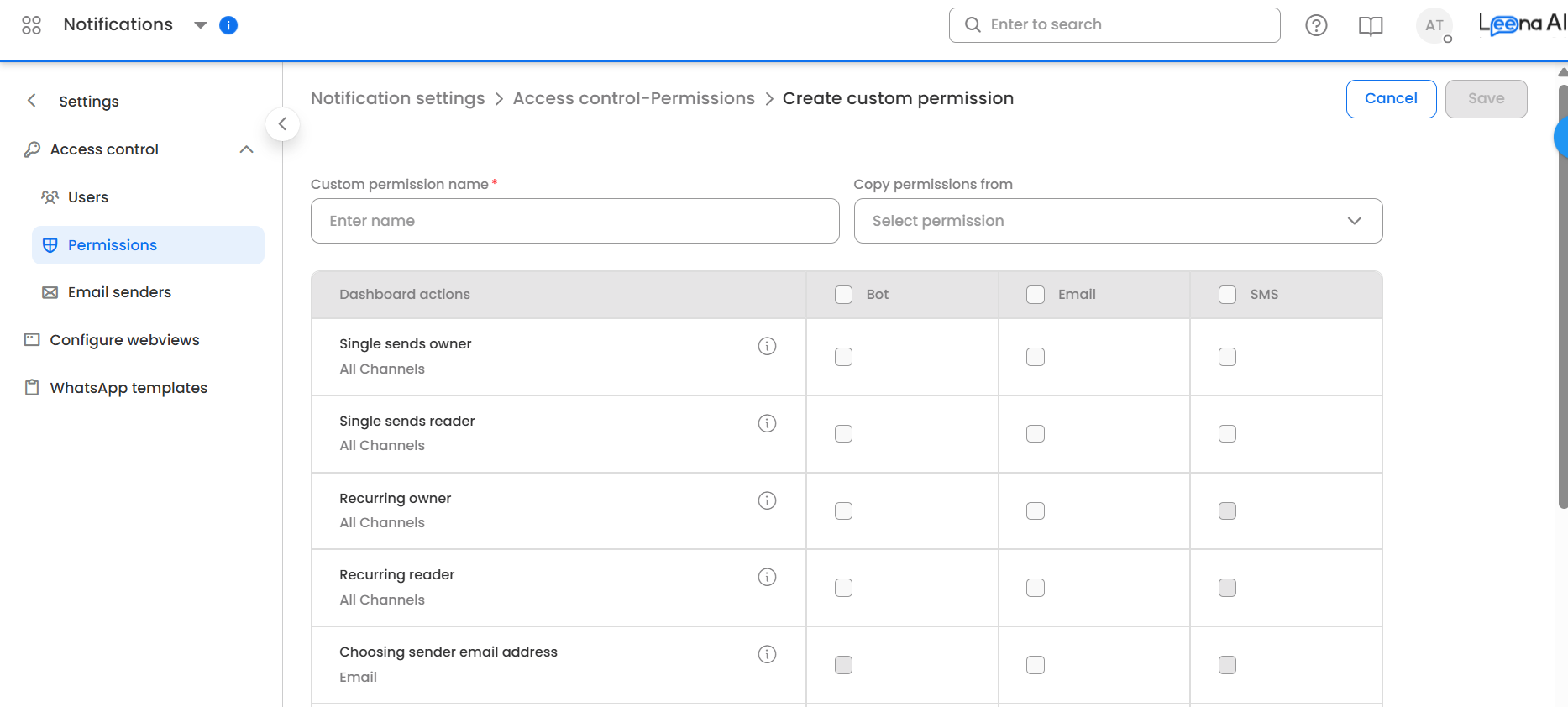
View pre-defined permission sets or create and edit custom permission sets. Use the grid matrix to define what actions a user with a given permission set can perform.
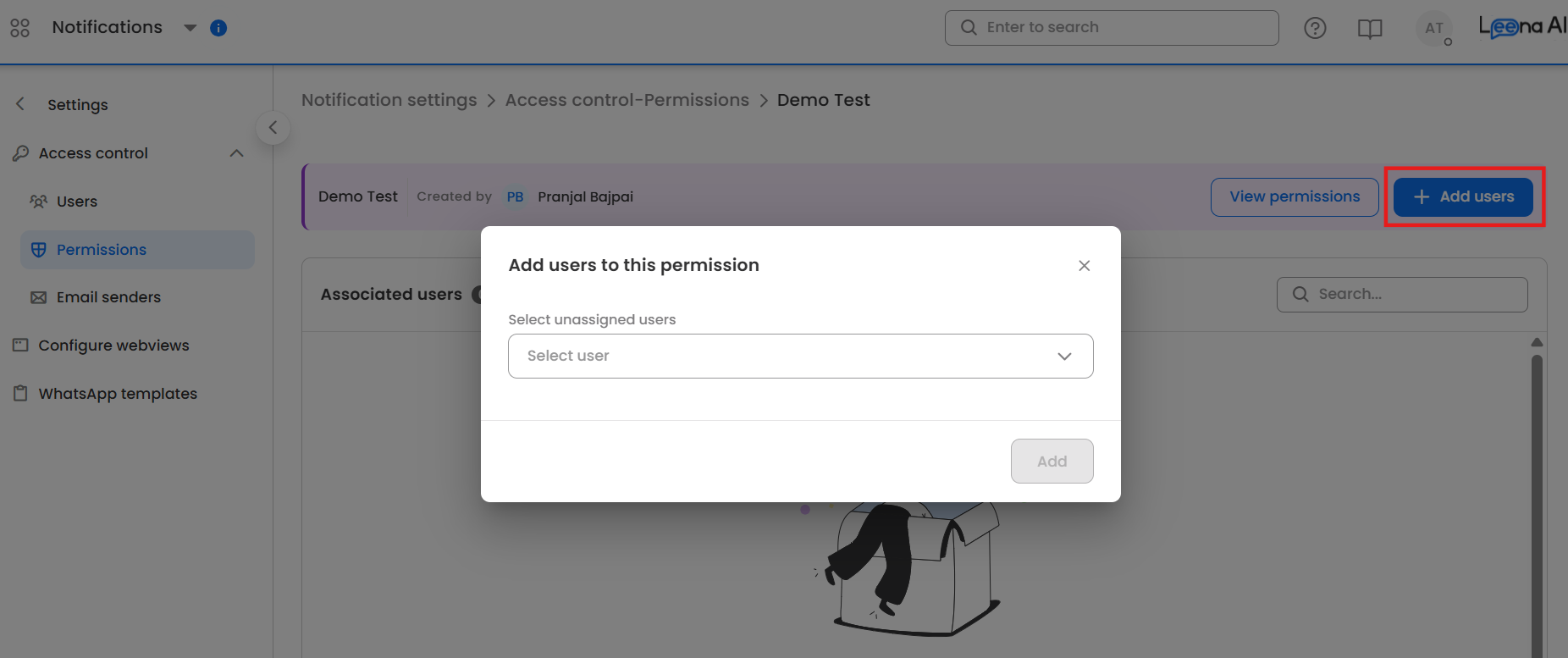
You can also assign any permission set to an unassigned user directly from the permission set detail page.
Pre-defined Permission Sets
The system includes three built-in permission sets:
| Permission Set | Access Level | Mail Sender Capabilities |
|---|---|---|
| Manager | Full administrative access | Can configure mail sender permissions (assign/revoke users to senders). Sees all configured senders regardless of individual assignment. |
| Executive | Operational access | Can create and send notifications, and can update the sender email and primary sender email when composing. Cannot manage sender access for other users. |
| Viewer | Read-only access | Can only view existing notifications. No mail sender permissions. |
Custom permission sets can be created to mix and match individual actions beyond what the pre-defined sets offer.
3. Email Senders
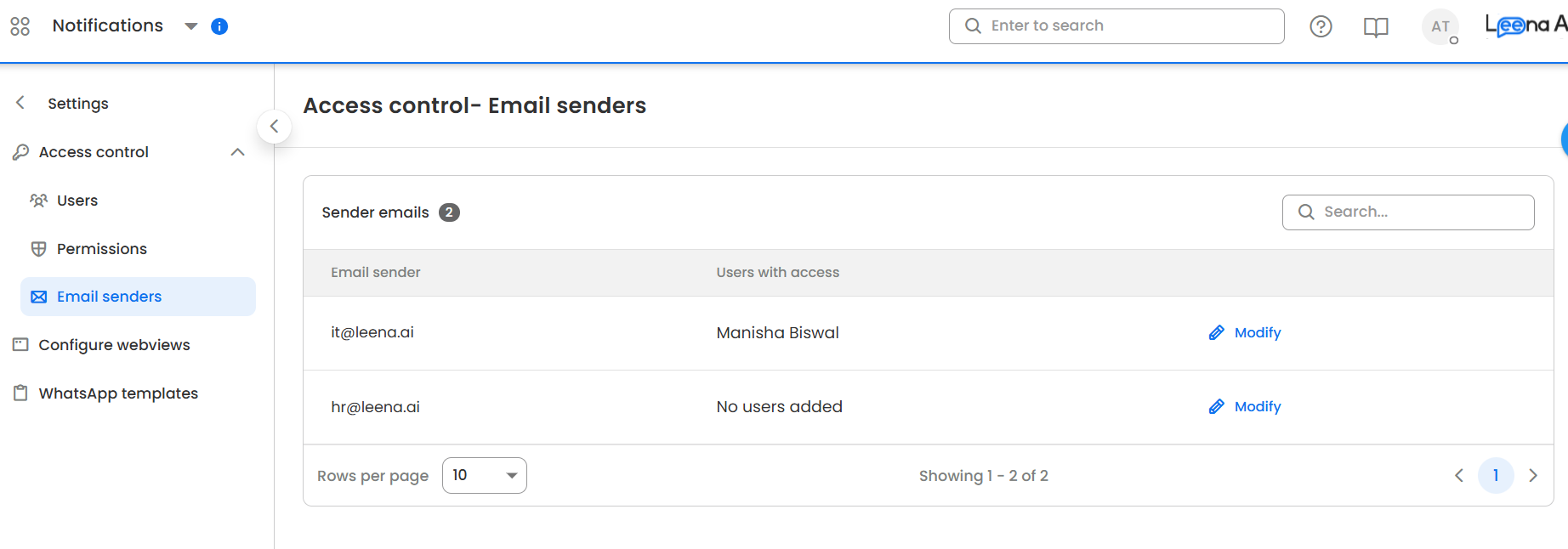
This section controls which Notification Admins and Agents can send email notifications from which verified sender email addresses. Against each active email sender configured for your instance, you can assign the specific users who should see that sender as an option when creating an email notification.
How sender email access works
When a Notification Agent creates an email notification, the system determines which sender addresses appear in the "From" dropdown based on the following logic:
- RBAC is not enabled — All configured sender emails from the instance's notification settings are shown to every user.
- RBAC is enabled, but no users have been explicitly assigned to any email sender yet — All configured sender emails remain visible to everyone. This is the default fallback behavior so that existing workflows are not disrupted when RBAC is first turned on.
- RBAC is enabled, and at least one user has been assigned to any sender — The system enforces strict filtering. Each agent only sees the sender addresses they have been explicitly granted access to.
Note: Users with the Manager permission set (or any custom permission set that includes the "Configure mail sender permissions" action) can see all configured senders regardless of individual assignment.
Assigning users to a sender
- In the Email Senders table, click the Modify (pencil) icon next to the sender you want to configure.
- In the modal that opens, search and select users from the dropdown. This list shows all dashboard users with access to the Notifications module.
- Click Continue, review the confirmation prompt, then click Update.
Once updated, only the assigned users will see that sender address when composing email notifications.
Enforcement at send time
When a user attempts to send or schedule an email notification, the system validates their access to the selected sender address at the API layer. If the user is not authorized for that sender, the action is blocked with a permission error. This enforcement cannot be bypassed from the dashboard.
What happens when RBAC is disabled
If RBAC is toggled off in Notification Settings, all existing mail sender permission assignments and RBAC user records are soft-deleted in the background. Re-enabling RBAC starts with a clean slate — no prior assignments are restored.
Updated 6 months ago