
Settings
The Orchestrator Settings page is where administrators configure the core behaviour of the AI Colleagues and the Master Orchestrator — the model that powers it, its instructions and tone, what users see around each response, and how long conversations stay alive.
Changes take effect immediately. The system invalidates its configuration cache on every update, so the next user request runs on the new settings.
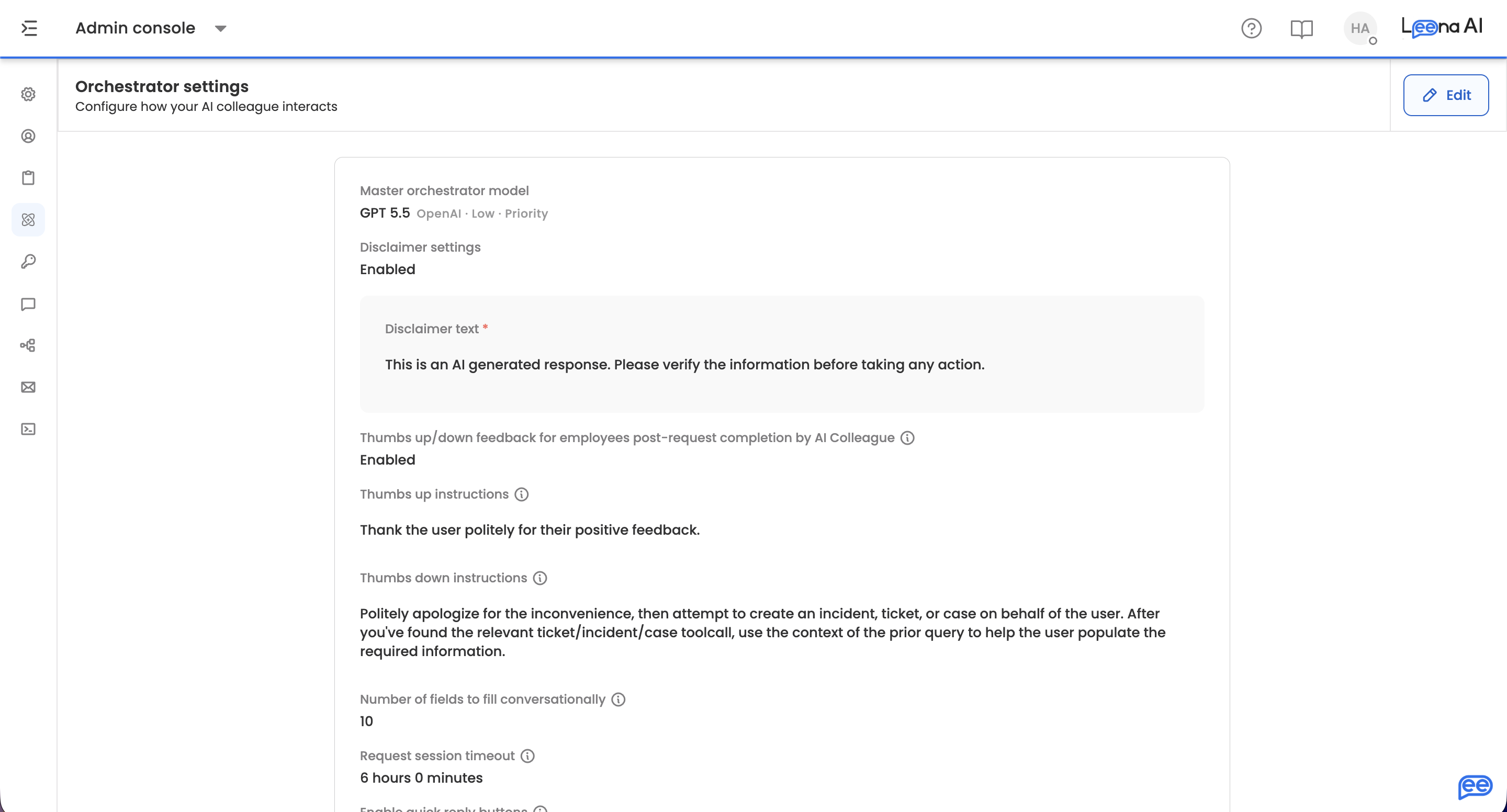
Where to find it
Open the Admin Console, then go to Orchestrator → Settings.
Editing settings
The page opens read-only. Click Edit to make changes, then Save to apply them or Cancel to abandon them.
Save stays disabled until a Master orchestrator model is selected and something on the form has actually changed. If Save looks inactive after you've edited a field, check that a model is set.
Cancelling with unsaved edits asks you to confirm before discarding, as does navigating away from the page.
Master orchestrator model
The LLM that powers the Master Orchestrator — the model that decides which AOP to invoke, interprets user queries, and generates responses. Every AOP on the bot inherits this model unless it has been given its own.
The picker is organised provider-first: choose a provider, then a model. Use Compare models in the picker header to view benchmarking data before deciding.
Two further controls sit alongside the model, and both appear only where the chosen model supports them:
- Effort — how thoroughly the model thinks before responding (Low / Medium / High). Higher effort improves reasoning on complex requests at the cost of response time. Hidden entirely for models that don't support reasoning.
- Priority processing — routes requests through a priority lane for faster, more consistent response times.
AOPs inherit this liveChanging the model here immediately changes the model every inheriting AOP runs on. AOPs with their own model override are unaffected. Run History and the Debugging Console record the resolved provider and model for every run, so you can always trace which model handled a request.
Show disclaimer
A configurable note that sets user expectations — typically that responses are AI-generated and should be verified.
Turning the toggle on reveals Disclaimer text, which is mandatory: the form won't save with the disclaimer enabled and the text left empty. The message is shown in the user's own language where a translation applies.
The disclaimer attaches to the assistant's output, never to what the user types. When a response arrives in several parts, it is added only to the final message of the sequence, so intermediate messages stay clean.
| Situation | Disclaimer |
|---|---|
| Final message of a completed response | Shown |
| Intermediate messages in the same response | Not shown |
| User messages | Not shown |
Delivery differs by channelOn Leena AI native channels — the MS Teams tab app, web application, and mobile or desktop apps — the disclaimer is passed to the client as a separate field for the interface to render.
On other channels such as Slack, Workvivo, and SMS, it is appended to the end of the final message text instead. Expect it to look different across channels.
Thumbs up/down feedback
Lets users rate responses with 👍 and 👎 icons after the AI Colleague completes a request, giving you a read on satisfaction at the moments that matter. This is on by default.
Enabling it reveals two instruction fields, both mandatory:
| Field | What it controls |
|---|---|
| Thumbs up instructions | How the assistant replies to a thumbs up — for example, acknowledge and offer further help |
| Thumbs down instructions | How the assistant replies to a thumbs down — for example, apologise, ask what went wrong, and offer escalation to a human agent |
Icons appear where feedback is meaningful: on answers drawn from your knowledge sources, and when the assistant has finished doing something on the user's behalf. They deliberately do not appear on greetings, clarifying questions, or progress updates, which would only cause survey fatigue.
| Situation | Icons |
|---|---|
| Policy, FAQ, or knowledge responses | Shown |
| AOP run completion | Shown |
| Tool execution completion | Shown |
| Simple Q&A with no tool or AOP execution | Not shown |
| Clarification questions | Not shown |
| Intermediate messages mid-process | Not shown |
Only on the final responseIcons appear once a task is genuinely finished, not during it. If a user is filling out a form conversationally, feedback appears after the final submission succeeds. If an AOP run needs approval, it appears once the approval comes through and the process completes.
If you need a tool to run in response to feedback rather than a message, contact Leena support — that isn't configurable here.
Number of fields to fill conversationally
How many form fields the assistant collects through conversation before handing the user a link to complete the rest of the form themselves. This prevents a long back-and-forth on complex forms.
Accepts a positive whole number up to 50. The default is 5.
Request session timeout
How long a conversation stays active after the user's last message, set in hours and minutes. Every message inside that window is used as context for processing the next query. Once it expires, the user's next message starts a fresh conversation thread.
The total must fall between 4 and 12 hours. Minutes accept 0–59, except at 12 hours, where minutes must be 0.
Enable quick reply buttons
Quick replies are clickable buttons attached to a response, letting users act with a single tap instead of typing. This reduces friction in approvals, confirmations, and menu-style interactions.
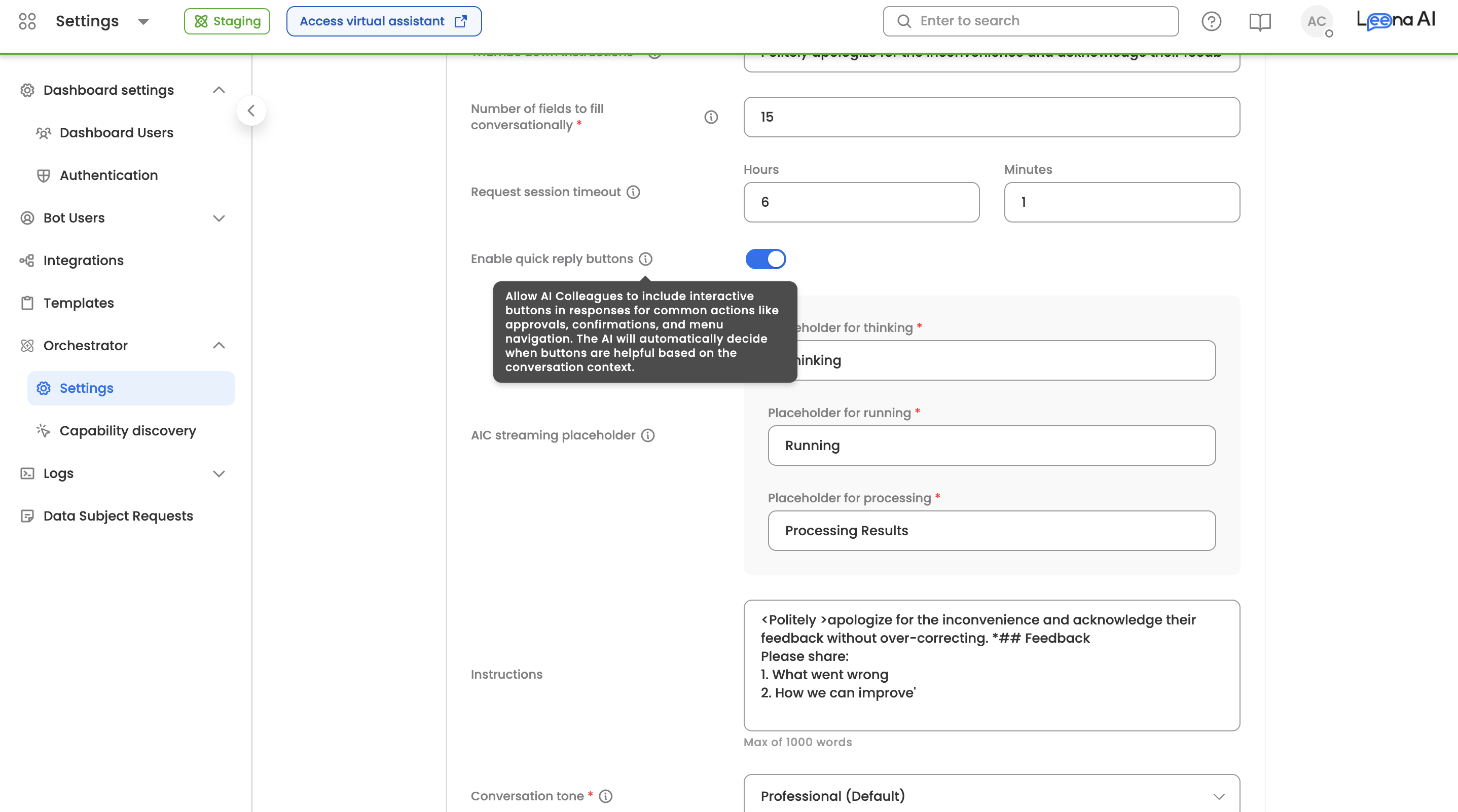
There is nothing to configure per response. The LLM decides when buttons help, based on whether the response calls for a choice, whether the user asked for options or a menu, and whether the conversation is at an approval, confirmation, or decision point.
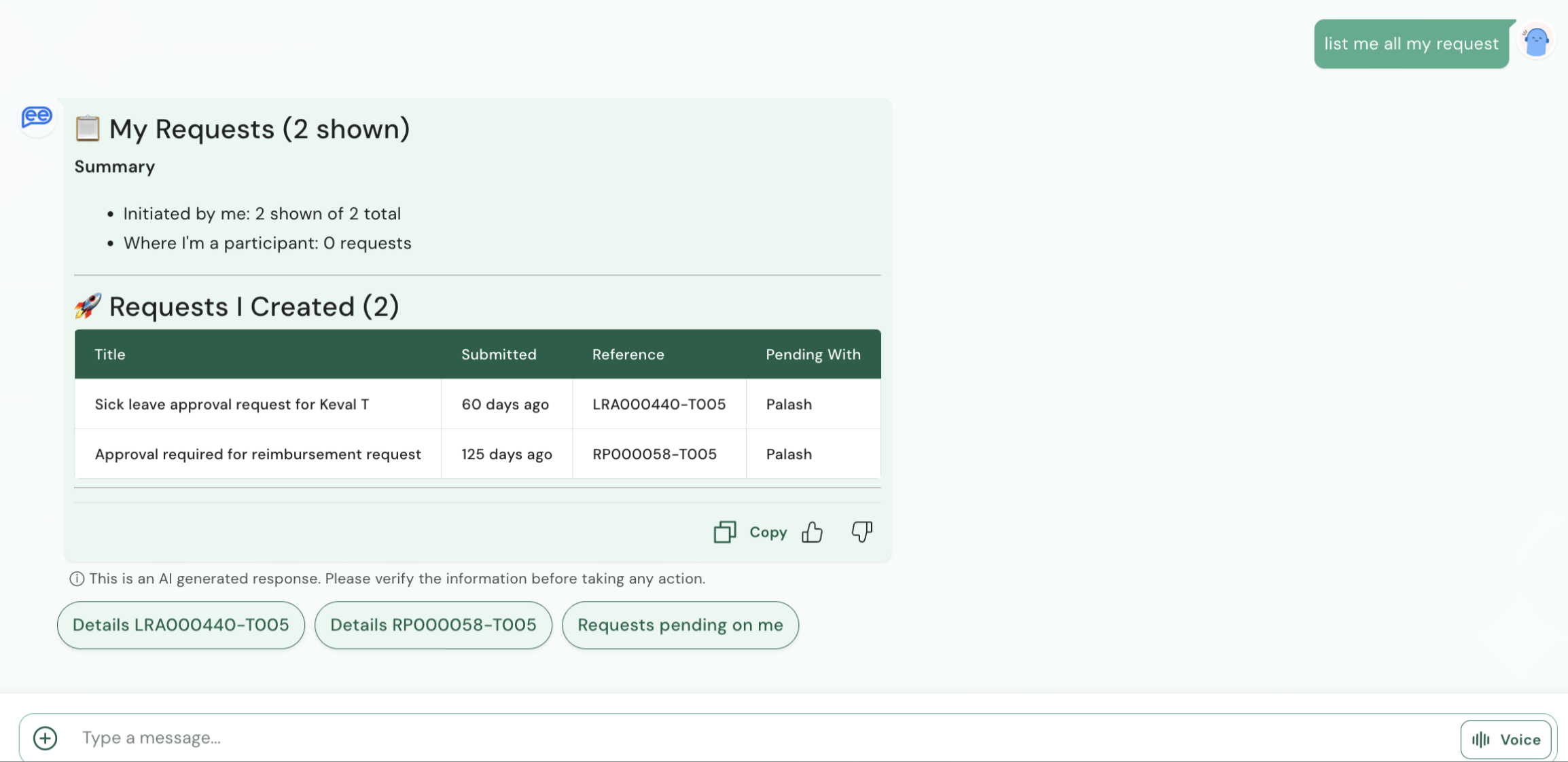
| Situation | Buttons |
|---|---|
| Approval or rejection steps | Typically shown — Approve / Reject |
| Help, menu, or capability queries | Typically shown — relevant capabilities as options |
| Confirmation prompts | Typically shown — Yes / No or Confirm / Cancel |
| Navigation points | Typically shown — Go Back, Main Menu, Related Topics |
| Clarification questions with set options | Typically shown |
| Simple knowledge base responses | Typically not shown |
| Intermediate messages mid-process | Typically not shown |
This behaviour is a tendency, not a ruleBecause the decision is made by the LLM in context, the table above describes typical behaviour rather than guaranteed behaviour. The assistant may adapt to the conversation.
Enable live chat
Allows conversations to be handed over to a human agent from within the assistant. Turn this on where you want employees to be able to reach a person when the assistant can't resolve their request.
AIC streaming placeholder
The temporary status messages shown to employees while the AI Colleague is working on their query. All three are mandatory and localizable, translating to the user's preferred language.
| Field | Shown when |
|---|---|
| Placeholder for thinking | The LLM is processing the user's query |
| Placeholder for running | The assistant is executing a tool call |
| Placeholder for processing | The assistant is assembling its final response |
Instructions
An optional supplementary instruction field appended to the main system prompt. Use it to layer on extra behavioural guidance without modifying the core description. Maximum 1000 words.
Typical uses:
- Organisational policies — rules the assistant should always follow, such as directing salary questions to HR or withholding headcount data.
- Seasonal or temporary guidance — time-bound instructions, such as proactively mentioning that open enrollment runs 1–15 March, without touching the stable base prompt.
- Tone and formatting — refinements to how the assistant communicates, such as keeping FAQ answers under three sentences.
- Guardrails and compliance — boundaries such as never giving legal or medical advice, or not discussing competitor products.
At runtime the system combines the main description, these instructions, and dynamically generated context — the current timestamp, user profile details, link formatting rules — into the final instruction set for each conversation.
Keep instructions concrete; the model follows specific directives more reliably than vague guidance. Use this field for things that change over time, so the main description stays stable, and avoid contradicting it — conflicting instructions produce unpredictable behaviour.
Conversation tone
Sets the language style the assistant uses in its responses. Selecting a tone is mandatory.
Once a tone is chosen, an Example message preview appears below it, showing how a reply reads in that tone so you can compare options before saving.
Updated about 2 months ago