SendGrid Domain Authentication

This guide walks you through authenticating a domain with SendGrid and adding sender ("From") email addresses so your bot can send email through that domain.

This guide walks you through authenticating a domain with SendGrid and adding sender ("From") email addresses so your bot can send email through that domain.

Access required

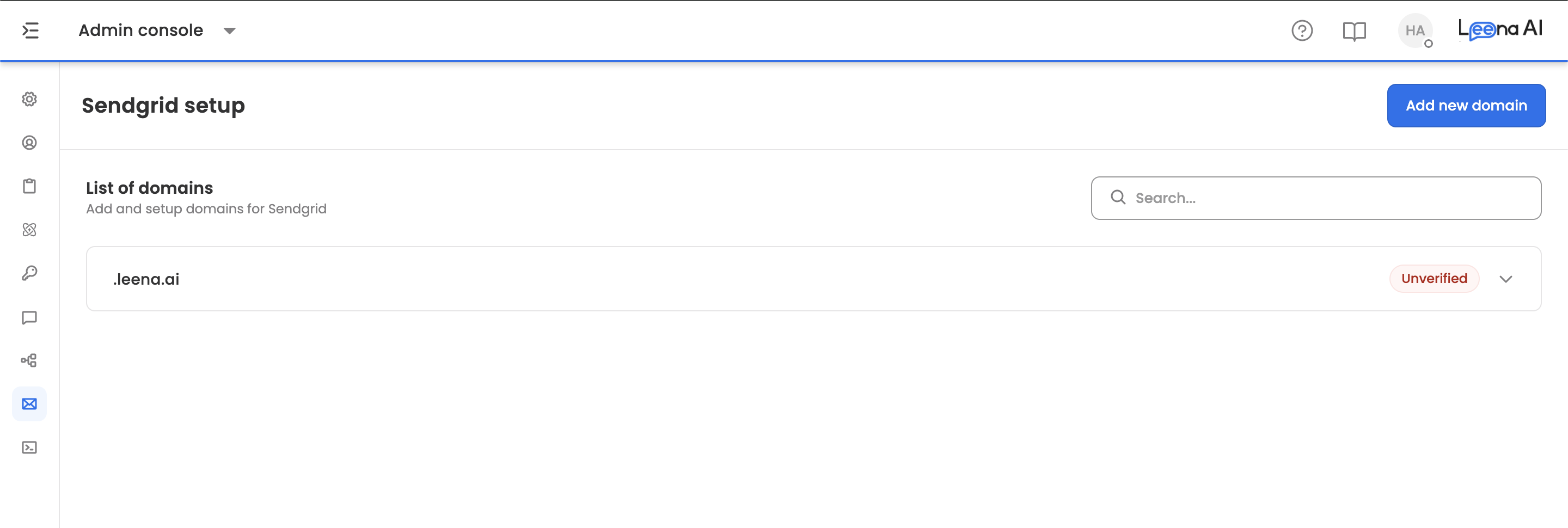
All steps are performed from Unified Dashboard → Settings → Email Settings → SendGrid Setup.

You'll need Config Manager access to see and use this section. If you can't see Email Settings, contact your Leena AI SPOC.

Before you start: confirm RBAC Company is set up

Before you add or authenticate a domain, check with your Leena AI SPOC that the RBAC Company cluster has already been created for your bot. This is an internal Leena AI configuration step — it is not something you can do from the dashboard yourself.

Why this matters: if the domain is authenticated before the Company cluster exists, the setup becomes effectively bot-specific and will not automatically show up for the other bots in the same cluster (for example, UAT and Prod). Once the cluster is in place, the same domain can be reused across all bots in the cluster.

If you're unsure, reach out to your Leena AI SPOC before proceeding.

End-to-end process

  1. Add the domain in SendGrid Setup.
  2. Share the generated DNS records with your DNS administrator.
  3. Your DNS administrator adds the records at your DNS provider (GoDaddy, Cloudflare, AWS Route 53, etc.).
  4. Verify records from the dashboard.
  5. Once verified, add sender emails ("From" addresses) under that domain.

Step 1: Add a new domain

Navigate to Unified Dashboard → Settings → Email Settings → SendGrid Setup and click Add New Domain.

You'll see two configuration methods. This guide covers Add by Domain ID, which is used when reusing an existing domain from SendGrid.

Add by Domain ID (reuse an existing domain)

Use this method when:

  • The domain is already authenticated in SendGrid.
  • You want to reuse or share the same domain across multiple bots.
  • Both bots are connected to the same SendGrid account.

Fetch the existing SendGrid Domain ID

From a bot where the domain is already configured:

  1. Open the SendGrid Setup page.
  2. Open browser Developer Tools → Network tab.
  3. Reload the page (or search the domain to trigger the API call).
  4. Locate the request named domains.
  5. Open the Response payload.
  6. Copy the domainId for the required domain.

Add the domain to the target bot

  1. Open the Unified Dashboard.
  2. Navigate to the bot where the domain needs to be added.
  3. Go to Settings → Email Settings → SendGrid Setup.
  4. Click Add New Domain.
  5. Enable the Use Domain ID option.
  6. Paste the copied Domain ID.
  7. Click Add.

After saving, the dashboard will automatically fetch and display the DNS records associated with that domain.

Step 2: Share DNS records with your DNS administrator

Copy the DNS records shown in the domain details and share them with your DNS administrator. Ask them to add the records at your DNS provider.

DNS propagation can take time — often minutes, sometimes hours depending on TTL and provider.

Step 3: Verify DNS records

  1. Once your DNS administrator confirms the records are in place, open the domain in SendGrid Setup.
  2. Click Verify Records.
  3. If verification succeeds:
    • Domain status becomes Verified.
    • The View Senders option becomes available for that domain.

If verification fails, follow the troubleshooting section below.

Step 4: Add sender emails ("From" addresses)

Once the domain is Verified:

  1. Click View Senders.
  2. Click Add Sender.
  3. Add the sender email(s) — for example [email protected], [email protected], [email protected].

Notes:

  • Sender emails can only be added after the domain is verified.
  • Use addresses that you actually want to send from (brand or department appropriate).

DKIM selector guidance (SendGrid-specific)

There is an optional DKIM selector input during domain setup. Use this checklist:

1. Check whether DKIM records already exist on the common default selectors (typically s1 and s2).

2. If no DKIM records exist for those selectors:

  • Make sure your DNS administrator enters only the hostname part — not the full domain. Many DNS providers auto-append the domain name.
  • Hostname-style examples (host only):
    • em1291
    • s1._domainkey
    • s2._domainkey

3. If DKIM records already exist for s1 and s2:

  • Use a new selector that does not conflict.
  • Pick a selector that works with your DNS policy/tooling (for example s23).
  • The selector value must follow whatever format the dashboard enforces — some setups require a short alphanumeric selector.

Troubleshooting

1. Domain verification is failing

Likely causes:

  • DNS records added incorrectly (wrong host/value).
  • Full domain pasted into the "host" field when the provider expected only the hostname — or vice versa (many providers auto-append the domain).
  • DNS propagation not yet complete.

What to do:

  • Ask your DNS administrator for a screenshot/export of the entries from the DNS provider.
  • Compare host + value exactly against what the dashboard generated.
  • Wait and retry verification, especially if records were added very recently.

2. "View Senders" button is not visible

Most common reason: the domain is still Unverified.

What to do: verify the records first. If verification keeps failing, use the troubleshooting steps above.

3. Domain needs to work across multiple bots (UAT/Prod) but only shows in one

Most common reason: the RBAC Company/Cluster was not created before domain setup, so the setup is effectively tied to one bot.

What to do:

  • Check with your Leena AI SPOC that the RBAC Company is created and bots are correctly grouped.
  • Then use the Use Domain ID option to link the existing domain setup where needed, so other bots can use it consistently.

4. You already have SendGrid domain authentication set up

What to do:

5. You need multiple sender emails

Supported. Authenticate the domain once, then add multiple senders under the same verified domain (e.g. support@, hr@, it@).