
Understanding Environments
Overview
Leena AI uses a multi-environment setup to give your team a safe, structured path from building an AI Colleague to deploying it for your employees. Instead of configuring everything directly in the bot your employees interact with, you work through a series of logically separated environments — each serving a distinct purpose in the deployment lifecycle.
This guide explains what each environment is, how they relate to one another, what you can and cannot do in each, and how data flows between them.
Important clarification: All environments — Staging, UAT, and Production — run on the same Leena AI production infrastructure. An environment is not a separate server or deployment. Each environment is simply a separate bot instance (with its own unique Bot ID) that carries an environment label. The "Staging" environment for your deployment has no relation to Leena AI's internal staging environment used for testing platform features before release.
Bot Clusters
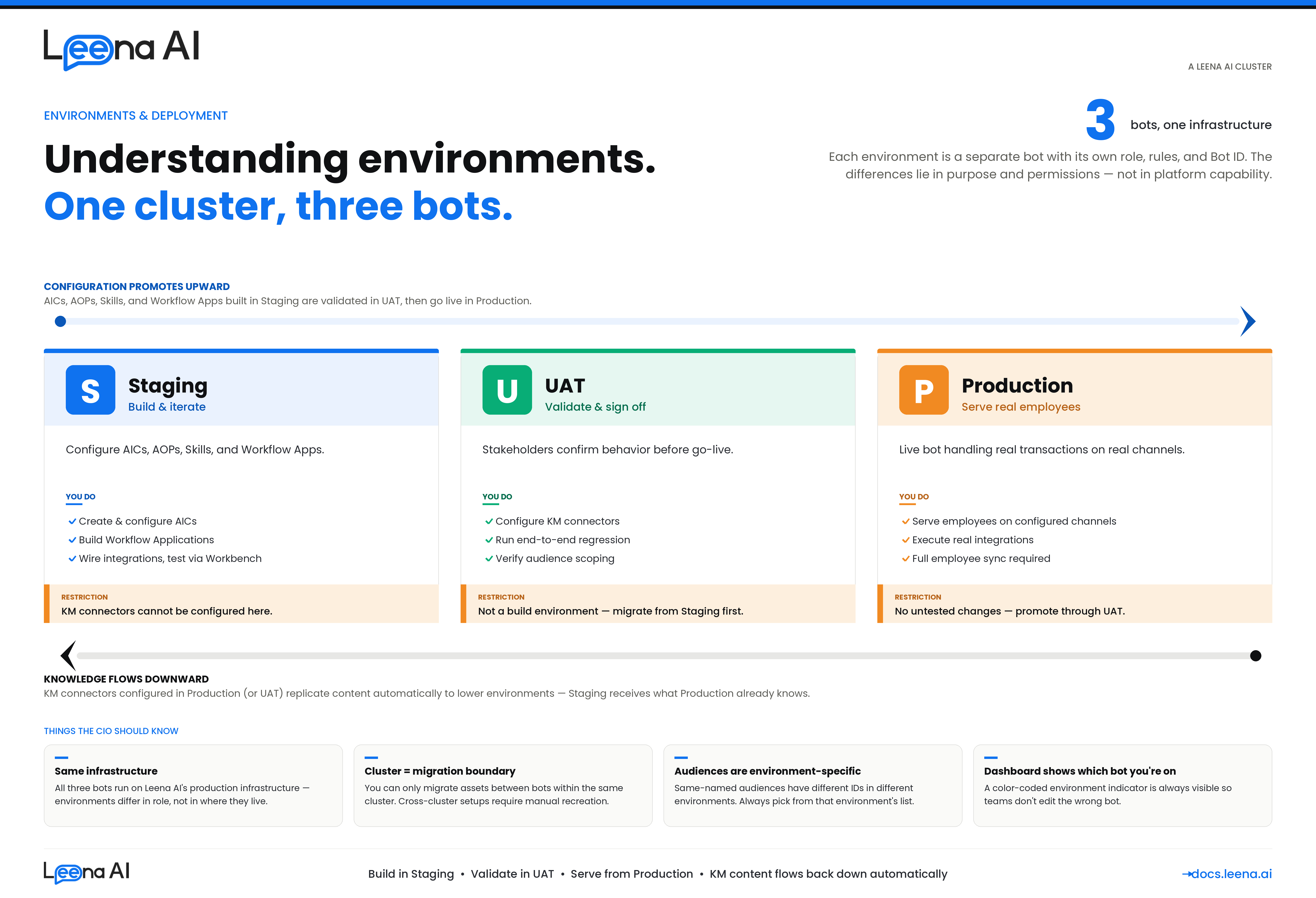
Your Leena AI deployment is organized into a Cluster. A cluster is a group of up to three bot instances, each tagged with an environment label:
| Environment | Purpose |
|---|---|
| Staging | Build, configure, and iterate |
| UAT | Validate with stakeholders |
| Production | Live — serving real employees |
Every environment within a cluster has its own unique Bot ID. All three bots run on the same infrastructure; the environment label simply determines how each bot is used in your deployment lifecycle and what restrictions apply to it.
Environment setup is handled by the Leena AI team. The creation of your cluster, provisioning of environment bots (Staging, UAT, Production), and the initial configuration of Bot IDs are done by the Leena AI team during your onboarding. You do not need to set up environments yourself. Once your environments are provisioned, you can start building in your Staging bot and follow the promotion workflow described in this guide.
Key concept: A cluster is the boundary within which data can be migrated. You can only migrate assets (like Workflow Apps) between bots within the same cluster.
What Is an Environment?
An environment in Leena AI is a bot instance with a role. It is identified by a unique Bot ID and tagged with one of three environment labels: staging, uat, or production.
All environment bots share the same platform capabilities — the same AI engine, the same integration framework, the same dashboard. What differs is:
- The purpose each bot serves in your workflow (building vs. testing vs. live)
- What editing actions are allowed (content editing is restricted in higher environments)
- How Knowledge Management data flows (KM content replicates downward from Production to Staging automatically)
Because all bots run on the same infrastructure, a Tool or Workflow tested in your Staging bot will behave identically in your Production bot — provided the same integrations, credentials, and configurations are in place.
Environment Definitions
Staging
Purpose: This is where your team builds and configures the AI Colleague setup — creating AOPs, setting up Tools, building Workflow Applications, and connecting integrations.
What you do here:
- Create and configure AI Colleagues and AOPs
- Build and test Workflow Applications
- Set up integration connections (Workday, ServiceNow, Jira, etc.)
- Author and test Tools (API, Workflow, MCP)
- Test everything using the Workbench before promoting
Restrictions:
- Not connected to employee-facing channels — content here is not visible to employees
- Knowledge Management connectors cannot be configured directly in Staging. KM connectors (SharePoint, Confluence, ServiceNow KB, etc.) must be configured in UAT or Production. Knowledge articles and connector data flow down from higher environments to Staging automatically
- This environment is intended for iterative development — expect frequent changes
- Full employee sync is not required in Staging. Add a limited set of test employees to verify flows and configurations — save full employee directory sync for Production
UAT (User Acceptance Testing)
Purpose: Where business stakeholders validate the AI Colleague's behavior before it goes live.
What you do here:
- Configure and test Knowledge Management connectors (SharePoint, Confluence, ServiceNow KB, etc.) — since KM connectors cannot be configured directly in Staging, UAT is the environment where you set them up to configure and testing. Although if you want data to be there on staging as well for testing and you are starting fresh you can add them in Production as well since nothing is live on production as well. You can read here to know more about it.
- Test end-to-end workflows with realistic scenarios
- Validate Knowledge Management article responses
- Confirm that integration connections work with target environment credentials
- Run regression testing on AOP behavior and tool execution
- Verify audience-scoped configurations reach the right user groups
- Sign off on readiness for production
Restrictions:
- UAT is a validation environment, not a build environment — AI Colleagues, AOPs, and Tools should be built in Staging first and then recreated or migrated here
- Full employee sync is optional in UAT. Add a representative subset of employees to validate end-to-end flows across departments and roles — full directory sync can wait until Production
Production
Purpose: The live bot serving your actual employees. This is the bot they interact with through Slack, Microsoft Teams, the web widget, or any other configured channel.
What happens here:
- Employees query the AI Colleague for help
- Workflows are initiated and processed
- Knowledge articles are served
- Tickets are created and routed
- Integrations execute real AOPs/Tools (leave requests, IT tickets, payroll queries, etc.)
- Full employee sync is required in Production. Ensure the complete employee directory is synced and validated before go-live to guarantee all employees have access from day one
Restrictions:
- This is your live environment — changes should only be made here after thorough testing in lower environments
How Data Flows Between Environments
Different types of data move between environments in different ways. Understanding this helps you know what to expect when working across Staging, UAT, and Production.
Knowledge Management: Flows Down from Higher Environments
Knowledge Management content flows from production environments to lower ones. When you set up KM connectors and sync knowledge articles in Production, that content automatically replicates downward:
Production → UAT → Staging
This includes:
- KM connector configurations and synced articles — Articles ingested via SharePoint, Confluence, ServiceNow KB, and other connectors flow down automatically
- Knowledge search indices — When production policies are indexed, the system copies documents and re-indexes for Staging and UAT
- Bot settings related to KM — LLM configurations, search pipeline settings, and related parameters replicate to lower environments when updated from production
This is why KM connectors don't need to be (and cannot be) set up in Staging directly — the Staging bot receives its knowledge content from higher environments.
For detailed documentation on KM environments, refer to this guide.
AI Colleague Configuration: Must Be Set Up Per Environment
Most of the AI Colleague stack — AICs, AOPs, tools, Workflow Applications, and Integration connections — does not automatically flow between environments. These must be explicitly migrated or recreated in each environment:
- Workflow Applications — Migrated using the built-in App Migration feature
- Knowledge articles — Can be promoted from UAT to Production individually via the "Pull from UAT" feature in the dashboard
- KM Connector configurations — Can be cloned from UAT to Production via the dashboard
- AI Colleagues and AOPs — Must be created manually in each environment (guided migration coming soon)
- Tools — Vary by type; see the AIC Migration Guide for details
- Integration connections — Must be set up independently per environment with environment-specific credentials
Some promotions — such as NLU model and intent data overrides — are handled by the Leena AI team as part of your go-live process.
Key Things to Know
Audiences are environment-specific. Even if two audiences share the same name across your Staging and Production bots, they have different internal IDs. When setting up AOPs or tools with audience restrictions in a new environment, always select audiences from that environment's list — don't assume they carry over.
The dashboard shows which environment you're in. A color-coded environment indicator is always visible in the dashboard so you can confirm which bot you're working on before making changes.
Frequently Asked Questions
Are the environments on different servers?
No. All environment bots — Staging, UAT, and Production — run on the same Leena AI production infrastructure. An "environment" is simply a separate bot instance with a different Bot ID and an environment label. There is no separate server or deployment for each environment.
Is my "Staging bot" related to Leena AI's staging environment?
No. Your Staging bot is part of your live deployment — it's a bot you use for building and configuring before promoting to your Production bot. Leena AI's own staging environment is a completely separate system used for testing platform updates before they are released. The two are unrelated.
How many environments do I need?
At minimum, you need Staging and Production. UAT is strongly recommended for any enterprise deployment. Discuss your requirements with the Leena AI team during onboarding — they will provision the right set of environments for your deployment.
Can I have multiple clusters?
Yes. Large organizations often have separate clusters for different regions, divisions, or use cases. Each cluster has its own independent set of environment bots. Talk to the Leena AI team if you need additional clusters provisioned.
Can I migrate assets between clusters?
No. Migration (for Workflow Apps, overrides, etc.) is restricted to bots within the same cluster. For cross-cluster setups, assets must be manually recreated.
What happens if I skip UAT?
You can technically promote directly from Staging to Production, but this is strongly discouraged. Beyond missing stakeholder validation, KM connectors do not work in the Staging bot — so without UAT, you would have no way to test Knowledge Management configurations before they go live.
Why don't KM connectors work in Staging?
Knowledge Management connectors (SharePoint, Confluence, ServiceNow KB, etc.) are designed to flow from higher environments to lower ones. You configure and test them in UAT or Production, and the content automatically replicates down to Staging. This ensures the Staging bot always has up-to-date knowledge content without requiring a separate connector setup.
Can I use my production integration credentials in Staging?
Technically yes, but it's not recommended. Using production credentials in the Staging bot means test actions (like creating tickets or submitting leave requests) would execute against your live systems. Always use sandbox or test credentials for lower environment bots where possible.
Since all bots run on the same infrastructure, will my Staging bot's testing affect Production performance?
No. Each bot instance is fully isolated at the data level — they have separate conversations, separate configurations, and separate user sessions. Activity on your Staging bot does not affect your Production bot's performance or data in any way.
Updated 5 days ago