
Templates
Templates is the shared library of reusable content behind everything Leena AI sends or generates — the emails that go out from workflows, the rich messages the assistant posts in chat, the letters produced during onboarding, and the WhatsApp messages used for notifications.
Content lives here rather than inside each product, so a message is written and approved once and reused wherever it is needed.
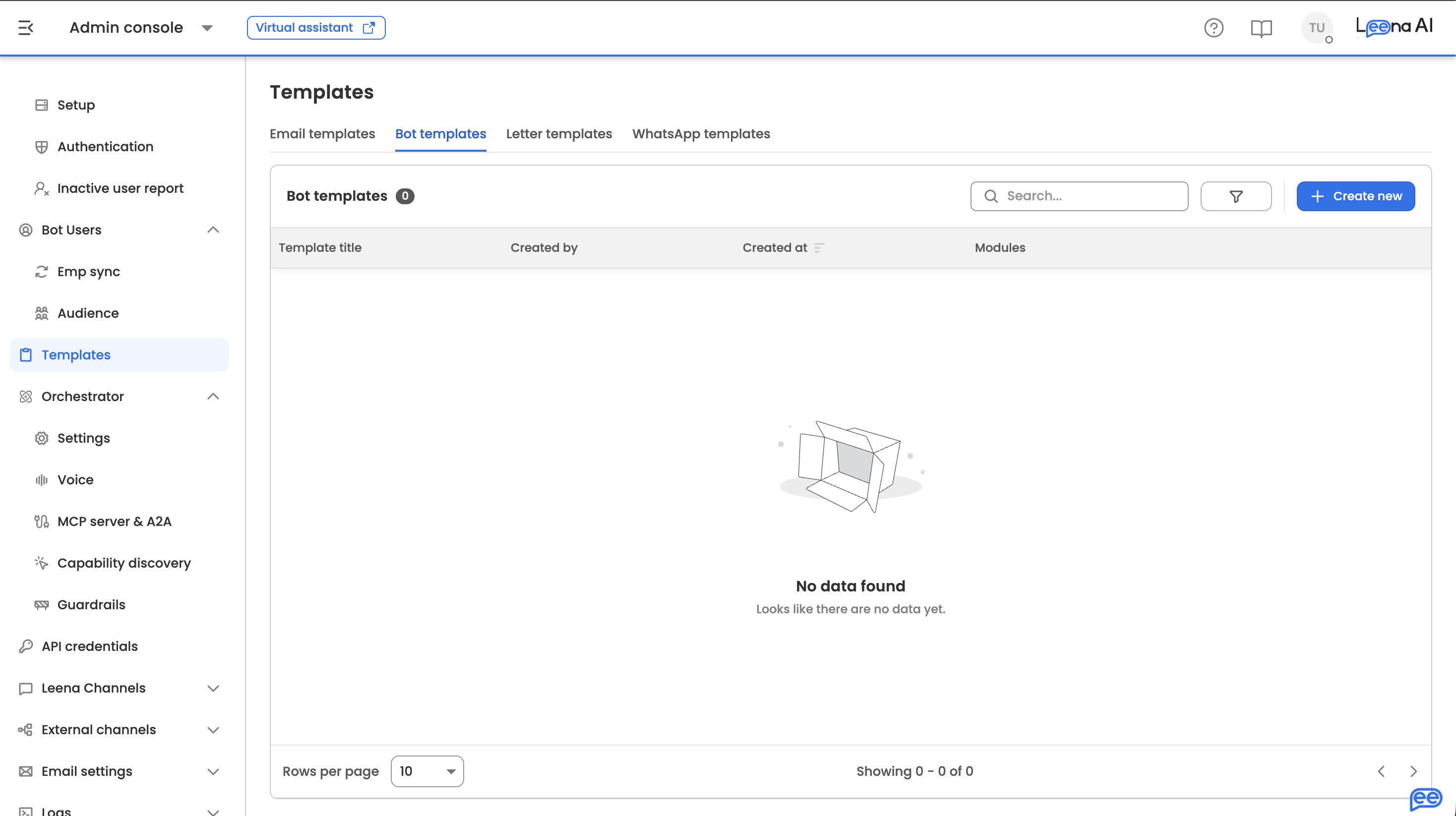
Where to find it
Open the Admin Console and select Templates. The library is split into four tabs, one per template type.
| Tab | What it produces | Where it's used | External approval |
|---|---|---|---|
| Email templates | HTML email content | Workflows, Notifications, lifecycle journeys | No |
| Bot templates | Rich chat messages with attachments, buttons, and polls | The assistant, in chat | No |
| Letter templates | Word documents | Onboarding, Offboarding, and other document flows | No |
| WhatsApp templates | WhatsApp messages | Notifications, Workflows | Yes — reviewed by Meta |
You may not see all four tabsEach template type is granted separately, and the tab strip shows only the types your role holds. A Template manager sees the full library; a Notifications admin holding only WhatsApp templates opens the page directly on that tab and sees no others.
If you follow a link to a tab you don't have access to, the page opens on the first tab you can see rather than showing an error.
How the library works
Three things behave the same way on every tab.
Modules
Every template is tagged with the product areas it belongs to — Notifications, Workflows, Onboarding, and so on. You set these when creating the template, and they appear as chips in the list.
Modules do two jobs: they let a template be found from the product that needs it, and they determine which merge tags are available to it. Pick modules before writing content, and pick them deliberately — an untagged template shows NA and is harder to locate later.
Merge tags
Merge tags are placeholders that resolve to real values when the message is sent or the document is generated — an employee's name, ID, or request number. They're inserted from a picker rather than typed by hand, and the tags on offer come from the modules you selected.
Finding and editing
Each tab lists its templates with the title, who created it, when it was created, and its modules. Search matches partial keywords, and the filter icon narrows by Created by and Modules.
Create New opens a blank editor. Edit on any row opens an existing template.
Email templates
Email templates hold the HTML content that workflows, notifications, and lifecycle journeys send.
Creating an email template
| Field | Description |
|---|---|
| Template name | The name of the template |
| Select modules | The modules this template can be used in, which also determines the available merge tags |
| Email subject | The subject line. Individual product modules can override this when they send |
Writing the email
The editor is fully customizable. Build the email from scratch, or paste in existing HTML and adjust it from there.
The text input offers a Merge Tags picker — a two-level dropdown of the variables available for your selected modules, written in plain language. Choosing one inserts a variable that personalizes the email per recipient.
Save creates the template. On an existing template the action becomes Save changes, with a confirmation step before the update applies.
What to watch for
Subjects are capped at 60 characters, enforced on save — trim before writing the body rather than after.
A merge tag dropped into the body but left unassigned also blocks saving, with a prompt to select a value for every placeholder. If a save is refused and the form looks complete, scan the body for an unset placeholder.
Bot templates
Bot templates are the rich messages the assistant posts into chat. Unlike an email, they carry attachments, buttons, links, and polls.
The tab has two views: Configure for the templates themselves, and Sync History.
Creating a bot template
The builder works through four numbered sections, with a live Preview alongside showing how the message will appear in chat.
| Section | What it holds |
|---|---|
| 1. Template details | The template name and the modules it belongs to |
| 2. Template content | The title, tags, and body of the message |
| 3. Attachments | Files to send with the message. Audio can be recorded in the builder rather than uploaded |
| 4. Actions | What the employee can do with the message — see below |
Building the message
An action determines how employees interact with the message. Choose one type:
| Action type | What it adds |
|---|---|
| CTA | Interactive elements: webviews, quick replies, an external link, or a long description |
| Poll | A question with answer options for employees to choose from |
What to watch for
A template can carry a poll or CTAs, not both. Adding a poll removes the option to add CTAs, and a poll supports up to 6 options.
Switching action type after building one warns you first, because the content of the current action is discarded. Leaving the builder with unsaved work also prompts before discarding it.
Letter templates
Letter templates produce Word documents for employees — offer letters, confirmations, and similar formal correspondence — with custom placeholders and formatting.
Creating a letter template
| Field | Description |
|---|---|
| Template title | The name of the letter template |
| Module | The product module this template can be used in, which also determines the available merge tags |
| Attachment | The source document containing the letter |
Editing the document
Once uploaded, the document opens in a full editor with the usual formatting options. You can refine the uploaded file or build the letter from scratch.
As with email, the text input offers a Merge Tags picker holding the variables for the selected module. Inserting one personalizes the letter per employee at generation time.
What to watch for
Only .doc and .docx files are accepted as the source document. Other formats, including PDF, are rejected at upload.
WhatsApp templates
WhatsApp templates are the only type reviewed outside Leena AI. The WhatsApp Business API requires an approved template for any message sent outside an active 24-hour session, so Meta reviews each one before it can be used.
WhatsApp must be enabled firstThis tab is gated by a check that the WhatsApp Business API provider is configured for your bot. If WhatsApp isn't enabled, you'll see a fallback screen instead. Contact your Leena AI implementation contact to enable the channel.
Creating a WhatsApp template
| Field | Description |
|---|---|
| Template title | The internal name, also submitted to Meta. Must be lowercase, use underscores instead of spaces, and be unique within your WhatsApp Business Account |
| Category | Marketing, Utility, or Authentication — see below |
| Language | The locale of the content, such as en_US or hi. Each locale is a separate template with its own approval |
| Module | The modules this template can be used in, which also determines the available merge tags |
Alongside the form, a live mobile preview renders the template as it will appear on a recipient's device, updating as you type.
Writing the message
Content is structured into four blocks, matching WhatsApp's own template structure.
| Block | Required | Limits |
|---|---|---|
| Header | Optional | Either text up to 60 characters with a single merge tag, or a media attachment — image, video, or document |
| Body | Required | Up to 1024 characters. Supports bold, italic, strikethrough, monospace, and merge tags |
| Footer | Optional | Up to 60 characters. Merge tags are not supported here |
| Buttons | Optional | Up to 10. Either Quick Reply, which sends the button text back to the bot, or URL, which opens an external link and allows one merge tag at the end |
Merge tags follow the {{tag.name}} format and are inserted from the Insert Variable picker.
Choosing a category
WhatsApp enforces category-based policies, and Meta rejects templates whose content doesn't match the category they were declared under.
| Category | Use case and constraints |
|---|---|
| Marketing | Promotional content — launches, discounts, offers. Subject to opt-in and frequency caps; recipients must have explicitly opted in |
| Utility | Transactional updates — confirmations, reminders, ticket status, account alerts. The most common category for HR, IT and Finance workflows |
| Authentication | OTP and verification codes only. The body is fixed to the standard verification format with a single token variable, and Header and Footer are disabled |
Getting it approved
Saving a new template submits it for review. It enters Pending, and Meta returns Approved or Rejected — usually within minutes to a few hours, occasionally up to 24. The result arrives by webhook and updates in the list on its own, with no need to refresh. Once approved, the template is available to Notifications, Workflows, and other modules.
Rejections come back with a reason. The usual causes are missing example values, content that doesn't match the declared category, or policy violations such as misleading content. Fix and resubmit.
What to watch for
Every merge tag needs an example value at submission — something like "John" for a name tag. Meta reviews templates in context, and ones submitted without example values are rejected.
Category is locked once approved. To change it, create a new template under the desired category and submit that separately.
Editing an approved template restarts approval. Body, header, footer, and buttons can all be changed, but the status returns to Pending until Meta re-approves.
Updated about 1 month ago