
Built-in Tools
Built-in tools are pre-built capabilities that come out-of-the-box with the AI Colleagues platform. These tools are ready to use immediately and cover common business automation needs.
Watch the tutorial
Available Built-in Tools
Data Analysis
- Purpose: Analyse data across various file formats
- Supported Formats:
.csv,.xlsx,.xls - Capabilities:
- Statistical analysis and calculations
- Data validation and cleansing
- Pattern recognition and insights
- Report generation from datasets
- Use Cases:
- Employee attendance analysis
- Financial data processing
- Performance metrics calculation
- Compliance reporting
- How to Use:
- Upload a supported data file to the conversation or as attachments within AOP
- Specify what analysis to perform (e.g., "Calculate average attendance for each department")
- The tool processes the file, performs calculations and returns insights
Use the output to further define steps and logics in AOP
Document Parsing
- Purpose: Extract information from various document types
- Supported Formats:
.doc,.docx,.pdf,.jpg,.jpeg,.png - Capabilities:
- Text extraction and OCR
- Structured data identification
- Form field recognition
- Content categorisation
- Use Cases:
- Resume parsing for recruitment
- Invoice data extraction
- Contract review and analysis
- Compliance document processing
- How to Use:
- Upload a document to the conversation or as attachments within AOP
- Specify what information to extract through the step's description where the tool is being used (e.g., "Extract candidate details from this resume")
- The tool parses the document, analyses the data and returns output
Use the output to further define steps and logics in AOP
Web Search
- Purpose: Search for information across the web and retrieve relevant details
- Capabilities:
- Real-time web search queries
- Information retrieval and summarisation
- Current data and trend analysis
- Fact verification and research
- Use Cases:
- Market research and competitive analysis
- Current policy and regulation lookup
- Vendor information verification
- How to Use:
- Provide a search query or topic through the step's description where the tool is used (e.g., "Find latest compliance regulations for data privacy in EU")
- The tool searches the web, retrieves relevant results and summarises findings
Use the output to further define steps and logics in AOP
Search for information in knowledge base
- Purpose: Search and retrieve information from your organisation's knowledge base and policy documents
- Capabilities:
- Natural language query processing
- Policy and procedure retrieval
- Contextual answer generation
- Multi-lingual knowledge search
- Use Cases:
- Retrieving guidelines and procedures
- Configure decision logics basis company policies
- How to Use:
- Enable the tool under Tools section
- Add search query as a part of step's description from where the tool is used (For example, "Search for most relevant leave policies and check for guidelines")
- The tool searches the knowledge base and returns relevant policy information
Live Chat
Purpose: Hand off the conversation from the AI Colleague to your organisation's live chat platform when the query cannot be resolved, when the employee explicitly asks to be transferred, or when the request falls outside the AI Colleague's available tools.
Capabilities:
- Seamless handoff to any live chat platform via a configurable URL
- Automatic capture of conversation context — a concise summary plus the most recent messages — shared securely with the destination platform
- Confirmation-first behaviour: the AI Colleague asks the employee before transferring, unless they explicitly requested it
- Replaces dead-end responses ("I'm sorry, I can't help with that") with a productive escalation path
- Customisable trigger conditions via additional instructions
Use Cases:
- Escalating queries the AI Colleague cannot resolve to a support team
- Honouring explicit employee requests to "talk to someone" or reach an agent
- Routing out-of-scope requests to the right support channel instead of ending the conversation
How to Use:
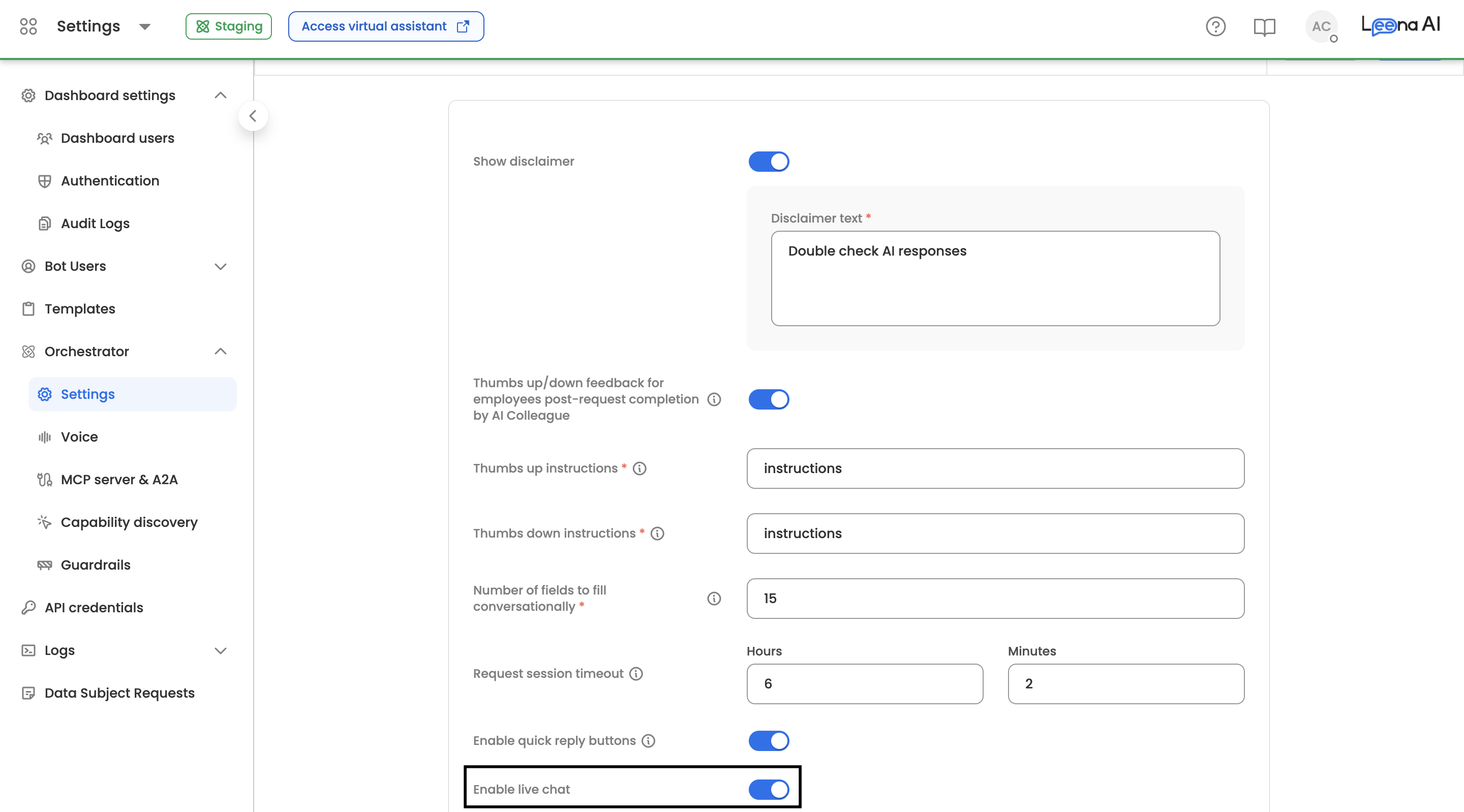
- First, turn on Enable live chat under Admin Dashboard → Orchestrator settings. This is a bot-level master switch — until it's on, the Live Chat tool does not appear in the Tools list
- Open the Live Chat tool under the Tools section
- Enter your Live chat URL — this must be a valid HTTPS URL pointing to your live chat platform. The tool cannot be enabled without one; once a valid URL is saved, the tool is enabled automatically
- Optionally refine the Additional instructions to control when the handoff is triggered. A sensible default trigger policy is pre-filled out of the box
- Optionally scope the tool to a specific Audience
- When triggered in conversation, the AI Colleague confirms with the employee, then responds with a transfer link that opens your configured live chat destination
Handoff Experience
On transfer, the employee receives a message with a link to continue in live chat. The link carries a secure context reference that lets your live chat platform retrieve a summary of the conversation and the recent message history — so the employee doesn't have to repeat themselves. This context is retained for 24 hours and then automatically deleted.
Note: Live Chat is off by default and must be switched on per bot from Orchestrator settings before it can be configured. Turning the Orchestrator settings toggle off hides the tool from the Tools list and immediately deactivates it for the AI Colleague. Turning it back on restores the tool but does not re-enable it — enable it again from the tool's configuration. The tool name, identifier, type, and availability are system-managed and cannot be edited; once enabled, the tool is globally available.
Employee Directory Search
- Purpose: Find employee information using natural language queries across your organisation's directory
- Capabilities:
- Semantic search for roles and departments
- Regex matching for names and identifiers
- Organisational hierarchy navigation
- Manager and reportee lookups
- Use Cases:
- Looking up initiator's manager contact details
- Finding team members of the initiator
- How to Use:
- Enable Employee directory tool
- Configure searchable fields (name, email, department, designation) in the settings
- Query using natural language as a part of step's description where the tool is used (e.g., "Find all software engineers in the Mumbai office")
- The tool searches the directory, matches criteria and returns employee details
Use the output to further define steps and logics in AOP
Document Management
- Purpose: Search and retrieve documents from your organisation's document management system (DMS)
- Capabilities:
- Document search by name or content
- Folder structure navigation
- Document URL retrieval
- Integration with enterprise DMS platforms
- Use Cases:
- Finding employee documents (offer letters, contracts)
- Retrieving supporting documents for queries
- Locating compliance and audit documents
- How to Use:
- Connect your DMS integration (SharePoint, Google Drive, etc.)
- Enable the tool in AI Colleague settings
- Request documents using natural language (e.g., "Find my latest offer letter")
- The tool searches the DMS, locates matching documents and returns download URLs
Use the output to further define steps and logics in AOP
Case Management
Purpose: Create, view, and manage support cases or tickets — entirely within the AI Colleague conversation, without switching to the Help & Support portal.
Capabilities:
- Conversational and webview-based ticket creation
- Raise ticket on behalf of a colleague
- Auto-fill form fields from employee profile and conversation context
- Attachment support during ticket creation and when adding comments
- View all tickets — self-raised, raised for you, or raised for someone else
- Full ticket details — comments, approval status, custom fields, due date, watchers
- Add comments to existing tickets directly in chat
- Case status tracking
Use Cases:
- Raising IT support tickets within Leena AI Case Management
- Submitting HR service requests within Leena AI Case Management
- Managers raising tickets on behalf of their reportees
- Tracking and managing existing tickets without visiting the support portal
How to Use:
- Configure departments and case forms in the Case Management module settings
- Enable the form for AI Colleagues using the Enable for AI Colleagues toggle in the form's settings (Case Management → Settings → Ticket Forms → Upload/Edit form). When enabled, add a Context describing when the form should be used — the AI Colleague relies on this to select the right form. You can use Write with AI to generate this context automatically.
- Select the ticket creation mode (Conversational or Webview) in the CM tool settings within the AI Colleague
- Enable Raise ticket on behalf in the CM tool settings if managers should be able to raise tickets for reportees
- Provide instructions in the step's description where the tool is used — for example: "Initiate ticket creation for IT issues (e.g., 'I need to report a laptop issue')"
- The tool collects required information conversationally or via prefilled webview form, and submits the ticket — returning the ticket ID, assignee, category, and a direct link on success
Note: Forms created before this setting was introduced are enabled for AI Colleagues by default. Newly created forms must be enabled explicitly.
Ticket Creation Modes
The Case Management tool supports two modes for creating tickets, configured per AI Colleague:
| Mode | How it works |
|---|---|
| Conversational | The AI Colleague collects required form fields through a guided multi-turn conversation and submits the ticket once all fields are complete. On successful creation, it returns the ticket ID, description, assignee, category, sub-category, and a direct link. |
| Webview (Prefilled) | The AI Colleague extracts relevant details from the conversation, pre-fills the form, and opens a webview for the employee to review and submit. This is the only mode supported on the Voice channel. |
Raise on Behalf
When enabled, managers can raise tickets for their reportees directly in conversation. The AI Colleague guides the manager through selecting the reportee, choosing the ticket form, and filling in the required fields.
Ticket Visibility
When an employee asks to see their tickets, the AI Colleague returns all tickets across three scopes — tickets they raised for themselves, tickets raised for them by someone else, and tickets they raised on behalf of a colleague. Each result includes a direct link to the ticket.
Ticket Details
When viewing a single ticket, the AI Colleague surfaces the full context — public comments, approval status, whether the ticket is pending action from the employee, priority, category, assignee, due date, closure date, watchers, and any custom form fields configured for the department.
Add Comment
Employees can add comments to existing tickets directly in chat. File attachments are supported alongside comments.
Note: Currently "Raise ticket on behalf of a colleague" only works while filling the form conversationally. Soon to be added in webview creation mode also.
For-Each Loop
- Purpose: Process multiple data items in batch without user interaction
- Capabilities:
- Iterative processing of arrays
- Autonomous batch operations
- Real-time progress tracking
- Support for intelligent and non-intelligent loops (to reduce latency by determining whether a batch processing requires LLM calls or not)
- Use Cases:
- Sending bulk notifications to a list of employees
- Processing multiple expenses in parallel and performing checks as per company's policy
- Applying the same operation across multiple records
- How to Use:
-
Provide an array of items to process. This can be fetched as a part of step before this tool is called.
-
Specify the operation to perform on each item (e.g., "Send onboarding email to each new hire").
-
In case of multiple operations: create sub-steps. For example,
"Step "Initiate onboarding process": Use @For-each Loop to iterate through candidates and perform actions:
- Send onboarding email to candidate using @Send Notification
- Add user to relevant email group @Add user to AD
-
The tool iterates through each item, executes the operation and reports progress & completion status
-
Request Approval
- Purpose: Request human approval or input when AOP execution need human intervention
- Capabilities:
- Multi-assignee approval requests
- Custom notification messages to assignee/s using context of the AOP execution
- Integration with employee directory
- Use Cases:
- Pausing workflows pending manager approval
- Collecting input from specific stakeholders such as Manager, HR or specific users.
- Implementing multi-level approval chains. For example: approving an expense request which is beyond permissible threshold limit as per company policies.
- How to Use:
- Specify specific assignees by Email ID or Employee ID
- Reference initiator's/target user's pre-defined relations: HR or Manager for task assignment
- Provide the action as a part of step's description where the tool is called. For example: "Fetch approval status on each item of the reimbursement request.
- The tool sends approval/input request and captures the response
Use the output to further define steps and logics in AOP
Send Notification
- Purpose: Send notifications to users via bot, email, or both channels
- Capabilities:
- Multi-channel delivery (bot, email, or both)
- Recipient targeting (initiator, manager, HR, specific employees)
- Markdown and HTML support
- Use Cases:
- Alerting employees about pending tasks
- Sending status updates on request progress
- Delivering reminders for deadlines
- How to Use:
- Specify recipients and select channel (bot, email, or both)
- Compose the notification message by providing guidelines within the step's description where the tool is used (e.g., "Notify the employee that their leave request has been approved")
- The tool formats the message and delivers it via selected channels
JavaScript Code Executor
- Purpose: Generate and execute JavaScript code for custom data processing and transformations at run time
- Capabilities:
- Dynamic code generation
- Custom calculations and logic
- Data format transformations
- Runtime code execution
- Use Cases:
- Performing complex calculations not covered by standard tools
- Transforming data formats between systems. For example, "create a search query to fetching incidents from Servicenow system, where query params such as User name are URI encoded in the format 'NameLinkEvan%20D' "
- Executing custom business logic within AOP execution.
- How to Use:
- Describe the operation needed in natural language (e.g., "Calculate the number of working days between two dates") as a part of step's description where the tool is used.
- The tool generates appropriate JavaScript code, executes it and returns the result.
Use the output to further define steps and logics in AOP
Updated 24 days ago